
Messages
Open in NocthinkModule: Home · URL: /messages · Responsible role: Staff (every member; own conversations) · Also used by: all roles, same rights. The creator or an admin of a group/channel can also delete it for everyone.
Screenshot: Andrew Price (Senior Researcher), Nocthink Demo Institute demo data.
Why I use this page
I use Messages for quick internal conversations that don't need a task or an email: asking my director to review something, coordinating with a colleague, or posting to a team group or channel. The red badge on Messages in the sidebar footer tells me how many unread messages I have, so I check it several times a day. Opening the page collapses the sidebar to icons so the list and the thread get the full width.
What's on the screen
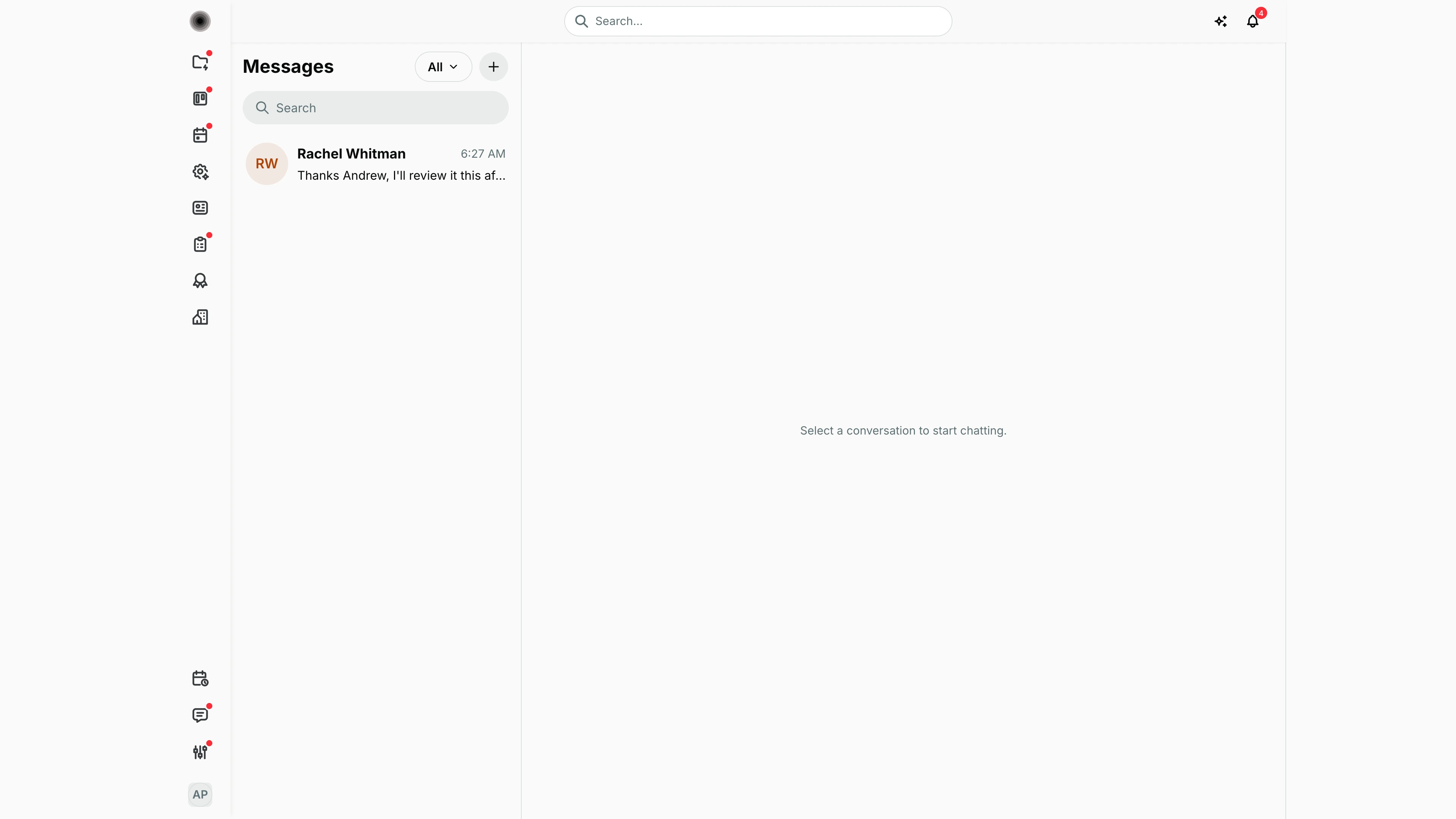
- Conversation list (left column):
- A title that follows the current view: Messages for direct chats, Groups or Channels when opened with that filter.
- A view dropdown, All or Archived.
- A + button (New conversation).
- A Search box.
- One row per conversation with an avatar, the title (the other person's name for a direct chat), the time of the last message and a preview ("Sent an attachment" or "No messages yet" when there is no text). A bell-off icon marks a muted chat; a dot marks unread messages.
- Thread pane (right) — "Select a conversation to start chatting." until I pick one. With a chat open it shows:
- the header with the avatar, title and a ⋯ (Conversation actions) menu;
- the messages grouped by day, with sender names and avatars in groups and channels;
- the composer: + (Attach files), a Message box and Send.
- Profile panel — for a direct chat it shows the person's Phone, Email, Position and Department, with Send email, View profile and Call buttons. For a group it lists the participants and marks admins.
How I …
Start a direct conversation
- Click + next to the view dropdown. The New conversation dialog opens on the Direct tab (see New conversation below).
- Type in Search by name or email and click the person.
- The chat opens (an existing direct chat with that person is reused). Type in Message and press Enter or click Send. Shift+Enter adds a new line.
Create a group or channel
- Click +, then the Group or Channel tab.
- Enter the name (Group name, or channel-name for a channel).
- Tick the members.
- Click Create group (n) / Create channel (n). The button stays disabled until I give a name and pick at least one member. I become the creator, and so can delete it later.
Reply, react, attach and delete
- Hover over a message and click Reply. A quote bar appears above the composer; Cancel reply (or Esc) removes it.
- Use the reaction picker to add one of the quick reactions (👍 ❤️ 😂 😮 😢 🙏).
- Click + (Attach files) to add files. Each file shows as a chip, which I can remove with Remove attachment before sending.
- To remove a message I sent, hover over it and click Delete message. I can delete only my own messages.
Tidy my inbox
- Open the conversation and click ⋯.
- Choose Mute / Unmute, Mark unread, Archive / Unarchive, or Clear chat.
- Archived chats move to the Archived view in the dropdown above the list.
- Clear chat asks "Clear all messages in "…"? Only your view is cleared — others keep theirs."
Delete a group or channel
- As its creator or an admin, open it and click ⋯ → Delete.
- Confirm "Delete "…" and all its messages for everyone?". This cannot be undone.
Detail page, forms & dialogs
New conversation
Screenshot: Andrew Price (Senior Researcher), Nocthink Demo Institute demo data.
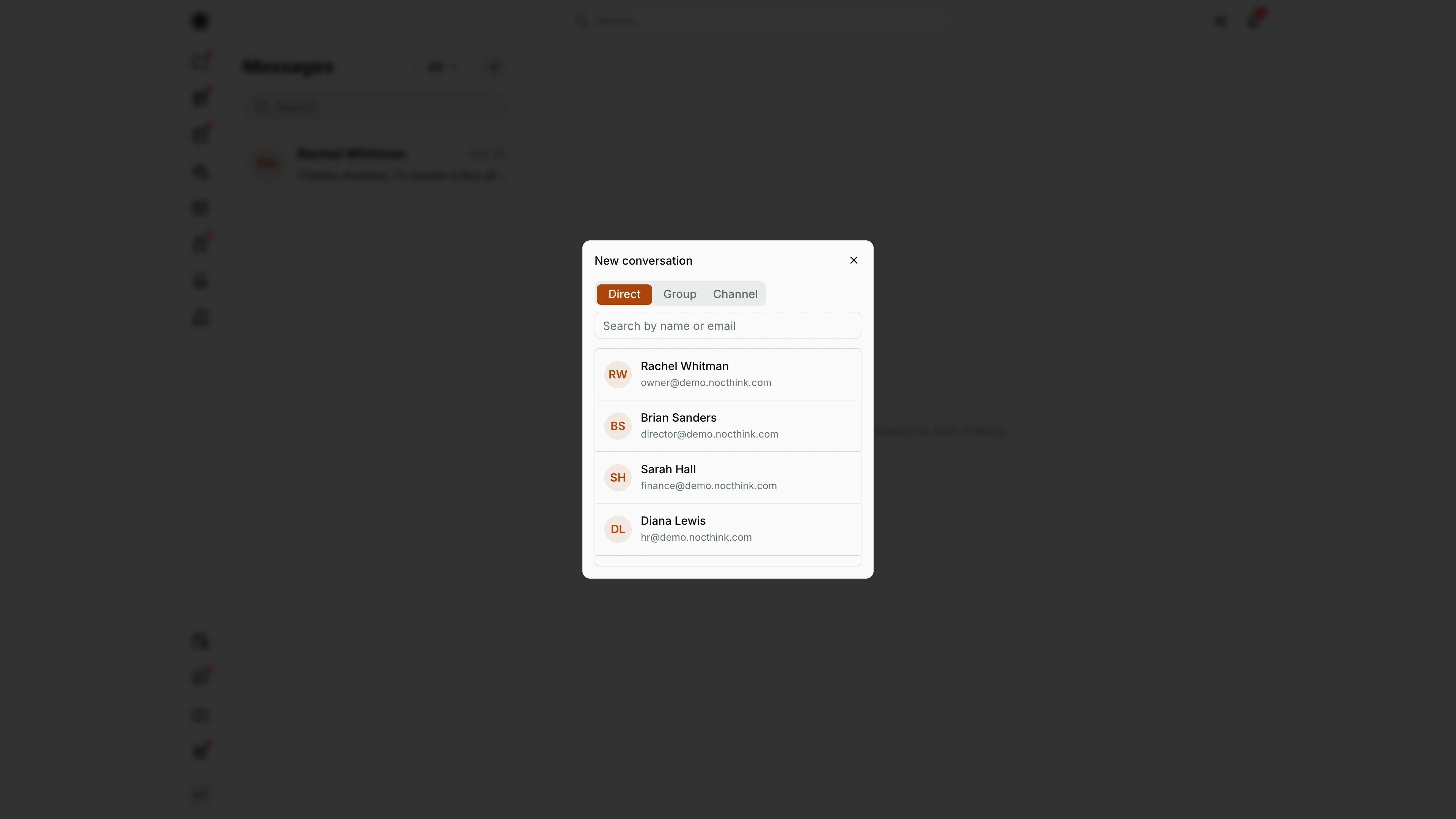
The + next to the view dropdown opens New conversation. It has three tabs: Direct (one person), Group (a named private group) and Channel (a named channel). On Direct, Search by name or email narrows the list of current members of the organization (people who have left are not offered); each row shows the name and email, and clicking a person opens the chat with them (an existing direct chat is reused). On Group and Channel I enter the name, tick the members and click Create group (n) or Create channel (n), which stays disabled until there is a name and at least one member. See Start a direct conversation and Create a group or channel above.
Access & permissions
Messages has no domain gate; every member of the organization can use it from the sidebar footer. I see only the conversations I take part in. Anyone can mute, archive, clear or mark unread their own copy. Delete for the whole conversation is shown only to its creator or a participant flagged as admin. Only the sender can delete a message.
Caveats
- Delete removes the conversation and all its messages for every participant; there is no restore.
- Clear chat is per user. Other participants keep the full history.
- Opening a conversation marks it read automatically. Use Mark unread if I want to come back to it.
- Message times and date separators (Today, Yesterday, …) follow my browser's time zone.
- If sending fails, the error appears in red under the composer and my draft is kept.
Limitations
- No message editing; I can only delete and resend.
- No way to add or remove group members from this page after creation (not in the code).
- Search filters the conversation list only. It does not search inside message text.
- No export of a conversation.