
Dashboard
Open in NocthinkModule: Home · URL: /dashboard · Responsible role: Staff (every member, own data) · Also used by: all roles. Owner/Director, Project Manager and approvers see extra approval rows; finance and HR roles see the same page scoped to their own work.
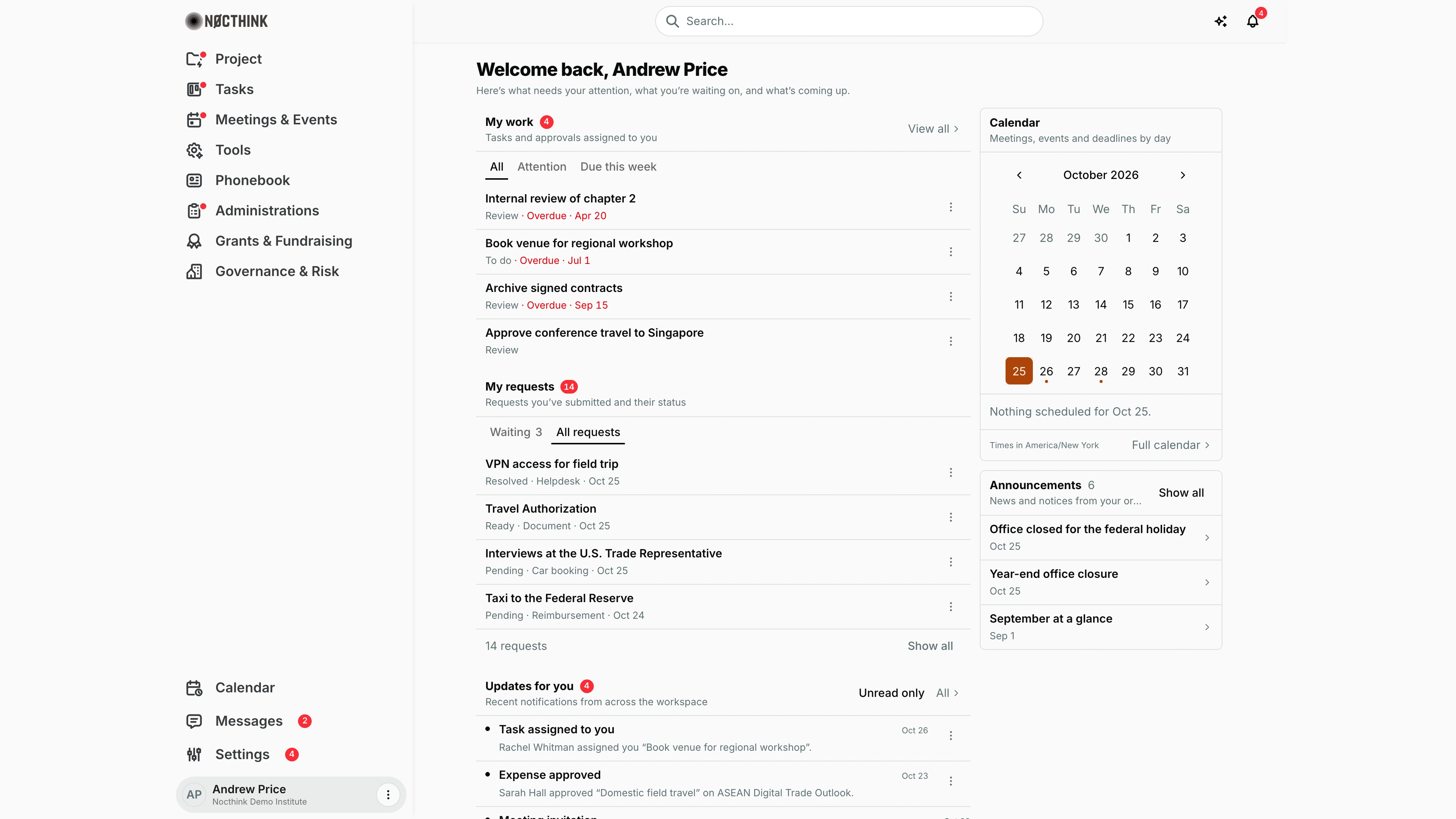
Screenshot: Andrew Price (Senior Researcher), Nocthink Demo Institute demo data.
Why I use this page
I use this page as my starting point every morning. It pulls together the tasks and approvals assigned to me, the requests I have submitted elsewhere (car bookings, reimbursements, payment requests, document requests, requisitions, helpdesk tickets, approvals), my unread notifications, my agenda and the organization's announcements. I rarely act here directly; I use it to see what is overdue or waiting and then jump to the page that owns the record. Clicking the NØCTHINK logo in the sidebar always brings me back here.
What's on the screen
- Header — "Welcome back, <my name>" and the line "Here's what needs your attention, what you're waiting on, and what's coming up."
- My work (left, top) — a red counter with the number of open items, the subtitle "Tasks and approvals assigned to you" and a View all link to the Task List. Three tabs: All, Attention and Due this week. Each row shows the title and a line such as "Review · Overdue · Apr 20" or "In progress · Due Oct 29". Overdue dates are red. Only the first 6 items are listed. The ⋮ menu on a row offers Open task (or Review approval) and All tasks (or All approvals).
- My requests — subtitle "Requests you've submitted and their status", with the tabs Waiting (with a count) and All requests. Each row shows the title and "<status> · <type> · <date>", for example "Pending · Reimbursement · Oct 24" or "Ready · Document · Oct 25". Four rows show by default. The footer shows the total ("14 requests") and a Show all / Show less toggle. The row ⋮ menu has Open request and All <type> requests.
- Updates for you — my last 20 notifications ("Recent notifications from across the workspace"), with a red unread counter, an Unread only / Show all toggle and an All link to
/notifications. Each row shows a title, the date and a one-line description, for example "Task assigned to you — Rachel Whitman assigned you “Book venue for regional workshop”." With none, the card reads "Updates to your work will appear here." The row menu offers Open, Mark as read and All updates. - Calendar (right) — a month picker with ‹ › arrows. Days that have something scheduled carry a dot. Below it is the agenda for the selected day (four items at most), or "Nothing scheduled for <date>." The footer names the time zone in use (my browser's, for example Times in America/New York) and has a Full calendar link to
/calendar. The card subtitle reads "Meetings, events and deadlines by day". - Announcements — HR communications and administration announcements that are currently valid, pinned ones first, with a count, the subtitle "News and notices from your organization" and a Show all / Show less toggle. Three show by default. Each item links to Read announcement when I have access to it.
How I …
Triage my work at the start of the day
- Open Dashboard (click the logo, or go to
/dashboard). - In My work, click the Attention tab. It lists items that are urgent priority, due today or overdue, plus every pending approval waiting on me.
- Click a row to open the task (
/tasks/<id>) or the approval (/tasks/approvals/<id>) and act on it there. - Click Due this week to see what is due in the next 7 days, today included.
- Use View all to switch to the full Task List.
Check on requests I have submitted
- In My requests, click Waiting. This shows requests whose status is pending, submitted, under review, in review, in progress, open or partially approved.
- Click a row to open it on its own page (for example Reimburse or Requisitions).
- To see more than four, click Show all at the bottom of the card.
- To see every request of one type, open the row's ⋮ menu and choose All <type> requests.
Clear notifications
- In Updates for you, click Unread only to hide what I have already read.
- Click an update to open the linked record, or open ⋮ → Mark as read.
- Click All to open the full notifications page.
Look ahead at a specific day
- In the Calendar card, use ‹ / › to change month, then click a day with a dot.
- The agenda below lists the meetings, events, office-calendar entries and task deadlines for that day. Click an item to open it.
- Click Today (it appears next to the card title once I pick another day) to return to today. Click Full calendar for the month view.
Access & permissions
Everyone in the organization can open /dashboard; there is no domain gate. Each card is fed only from the modules I can open (the same rules as lib/domain-routes.ts). Tasks need tasks.view, approvals rows need tasks.approve, and meetings and events need meetings.view / events.view. HR communications appear only if I can open /hr/communication. Self-service requests (car bookings, reimburse, payment request, documents request, helpdesk, requisitions) are personal access, so every staff member sees their own.
Caveats
- Dates, times and "today" follow my browser's time zone, the same as the full Calendar. The organization has no time-zone setting.
- My work includes only tasks where I am the assignee and the status is not done, cancelled or archived. Tasks I created for someone else do not appear here; see Delegate.
- An approval appears in My work only while it is pending and I am the approver. Once I decide it, it disappears.
- If a module fails to load, the card shows an error with a retry button. The other cards still work.
- The day clock refreshes every minute, so "Overdue" labels change at midnight without a reload.
Limitations
- No actions on the data itself here (no approve, complete or edit). Every row links to the owning page.
- My work caps at 6 rows, and the day agenda at 4. Use View all / Full calendar for the rest.
- The layout cannot be customized and there are no widget settings.
Related menus
- Calendar — full month/week view behind Full calendar.
- Messages — direct and group chat (the badge in the sidebar footer).
- Task List — the target of View all in My work.
- Approvals — where pending approvals are decided.
- Project Dashboard — project-level overview.