
Task List
Open in NocthinkModule: Tasks · URL: /tasks · Responsible role: Staff (every member, own tasks) · Also used by: all roles with the same personal scope (Owner/Director full rights on any task they open)
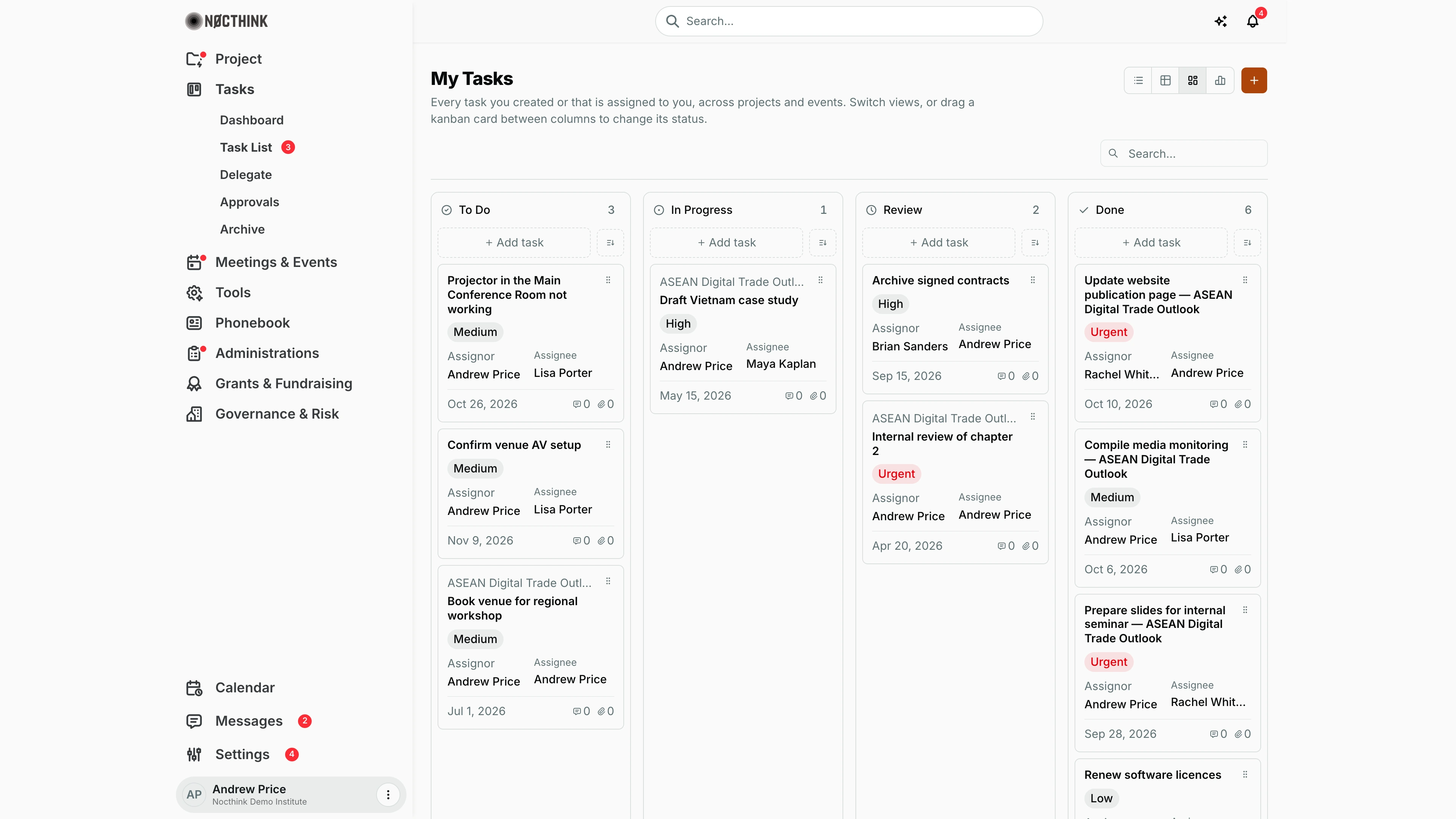
Screenshot: Andrew Price (Senior Researcher), Nocthink Demo Institute demo data.
Why I use this page
This is my working to-do list: every task I created or that is assigned to me, whether it belongs to a project, an event, or stands alone. I keep it open during the day, add tasks as they come up, drag cards forward as I work, and approve work I asked others to do. The red badge on Task List in the sidebar counts tasks assigned to me.
What's on the screen
- Header — My Tasks, with "Every task you created or that is assigned to you, across projects and events. Switch views, or drag a kanban card between columns to change its status." On the right:
- the view switcher, with List view, Table view, Kanban view (the default) and Gantt view, kept in the URL as
?view=; - + (Create task).
- the view switcher, with List view, Table view, Kanban view (the default) and Gantt view, kept in the URL as
- Search… — filters by title (Table and Gantt have their own search box).
- Kanban columns — To Do, In Progress, Review and Done, each with a count, + Add task and a sort button (Due date / Title). Each card shows:
- the project name, if any (event-linked tasks show no event name on the card);
- the title and a priority pill;
- Assignor and Assignee;
- the due date;
- message and attachment counts.
- Other views:
- List — grouped by status;
- Table — sortable title, Source (Project / Event / Personal) and Assignee;
- Gantt — tasks on a timeline by due date.
How I …
Add a task
- Click + (or + Add task at the top of a column to pre-set that status).
- In Create task (see Create task below), enter Title (required) and optionally a Description.
- Choose Status (To do, In progress, Review, Done, Cancelled), Priority (Low, Medium, High, Urgent) and Due date.
- Set the Assignee (or leave Unassigned), and link a Project or Event if relevant (None makes it a standalone task).
- Click Create task. The assignee is notified ("New task assigned"), unless it is me.
Work a task through to done
- Drag the card from To Do to In Progress, then to Review when it is ready for the person who assigned it.
- Or open the task and change Status via ⋯ → Edit.
- On the task page (see Task detail, Task messages, Task attachments and Task activity below) I can add subtasks (Subtask title…), post in Messages (Write a message…, with files), upload files under Attachments (Upload attachment: file, Title, Description) and read the Activity history.
Approve work I assigned
- Open a task I created that the assignee has finished.
- Click Approve. The task is set to Done, stamped as approved, and the assignee gets "Task approved".
- Approved tasks are archived automatically after 10 days.
Reassign or archive a task
- Open the task and click ⋯ (More actions).
- Reassign opens Reassign task (see below). Pick the New assignee (it cannot be the current one), add an optional Note (posted as a task message), and confirm. The new assignee is notified.
- Archive moves the task to Archive. Restore appears instead on an archived task.
Delete a task
- Open the task and click ⋯ (More actions) → Delete.
- Confirm. The task, its messages, attachments and activity are deleted for good and I am taken back to the Task List. Prefer Archive when the record may still be needed.
Detail page, forms & dialogs
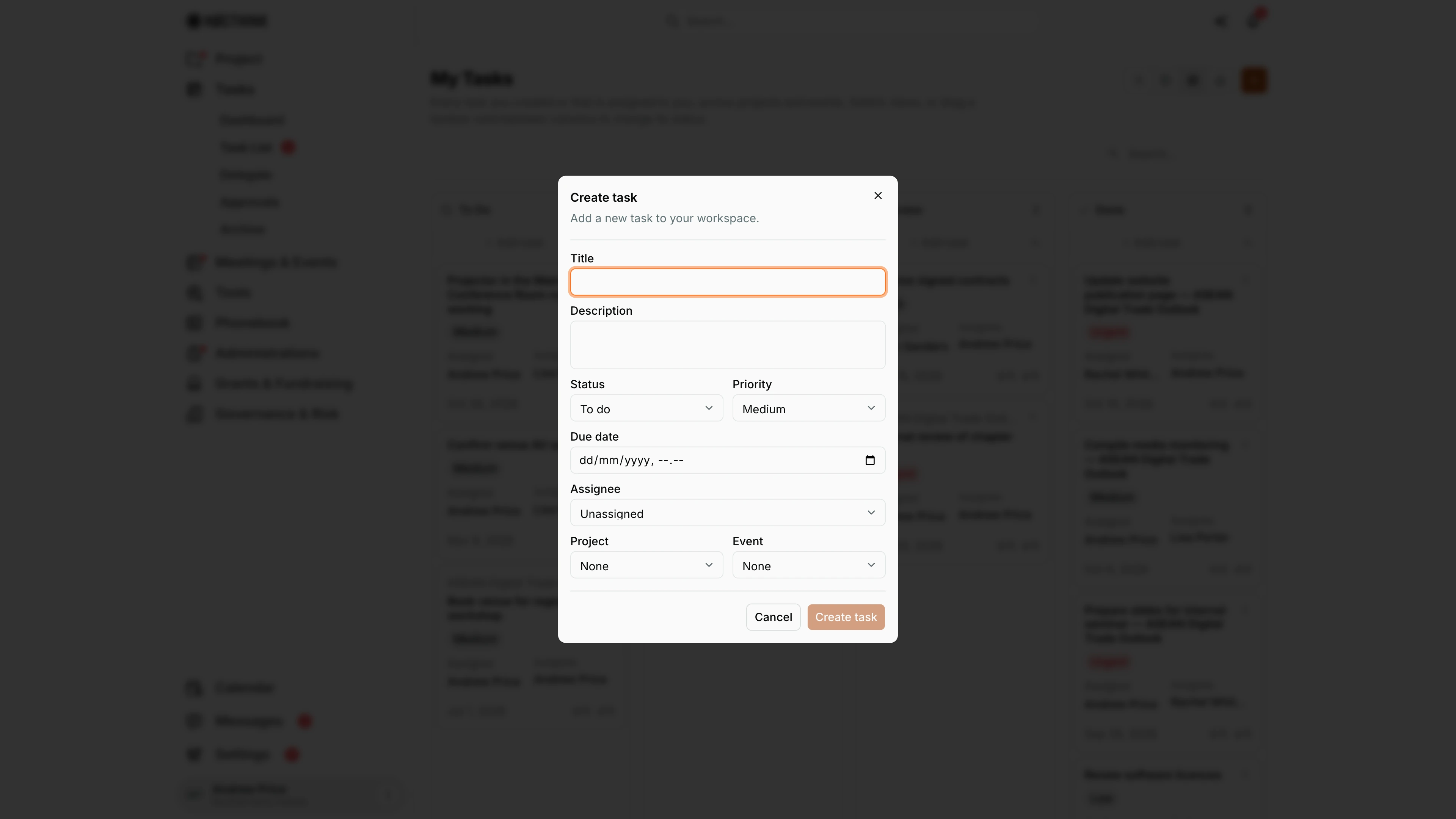
Create task
Screenshot: Andrew Price (Senior Researcher), Nocthink Demo Institute demo data.
The orange + in the header opens Create task: "Add a new task to your workspace." Title is required; the rest is optional: Description, Status (To do, In progress, Review, Done, Cancelled), Priority (Low, Medium, High, Urgent; Medium unless my preferences set another default), Due date (date and time), Assignee (Unassigned by default), and a Project or Event to file it under (None makes it a standalone task). Create task stays disabled until the title is filled in. See Add a task above.
Task detail
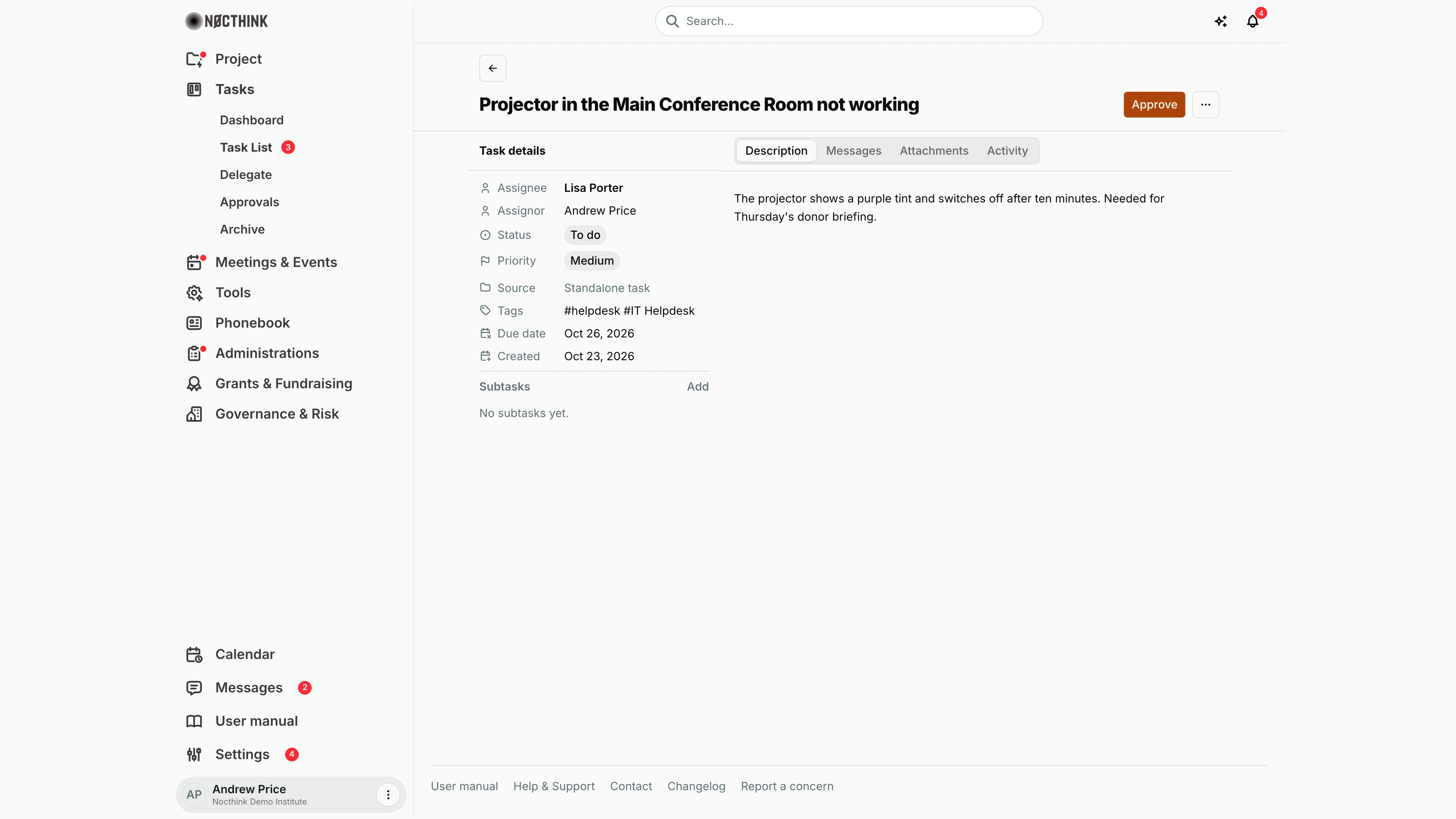
Screenshot: Andrew Price (Senior Researcher, the task's assignor), Nocthink Demo Institute demo data.
Clicking a task opens its page: the title, Approve (shown only to the person who created the task, until it is approved) and ⋯ with Edit, Reassign, Archive (or Restore) and Delete. The rail, Task details, shows Assignee, Assignor (who created it), Status, Priority, the Project or Event it belongs to (or Source: Standalone task), Tags, Due date and Created. Below are Subtasks with a done count and Add. The tabs are Description, Messages, Attachments and Activity; Description shows the rich-text description or "No description yet. Use Edit to add one." Approve sets the task to Done, stamps the approval and notifies the assignee.
Task messages
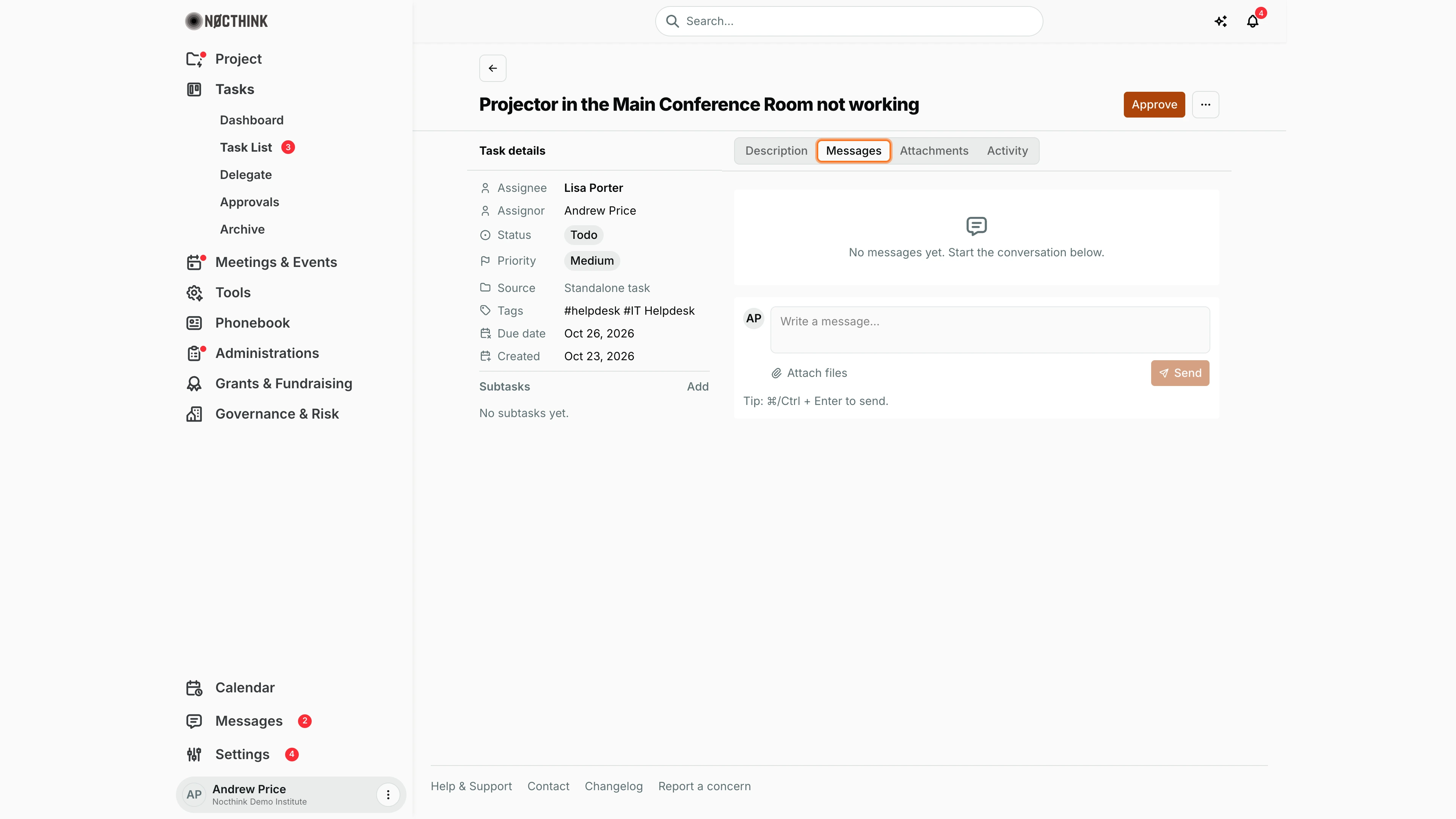
Screenshot: Andrew Price (Senior Researcher), Nocthink Demo Institute demo data.
Messages is the task's discussion thread between the assignor, the assignee and anyone the task is forwarded to. "No messages yet. Start the conversation below." I type in Write a message…, add files with Attach files, and click Send (or press ⌘/Ctrl + Enter). A note added when reassigning the task also lands here.
Task attachments
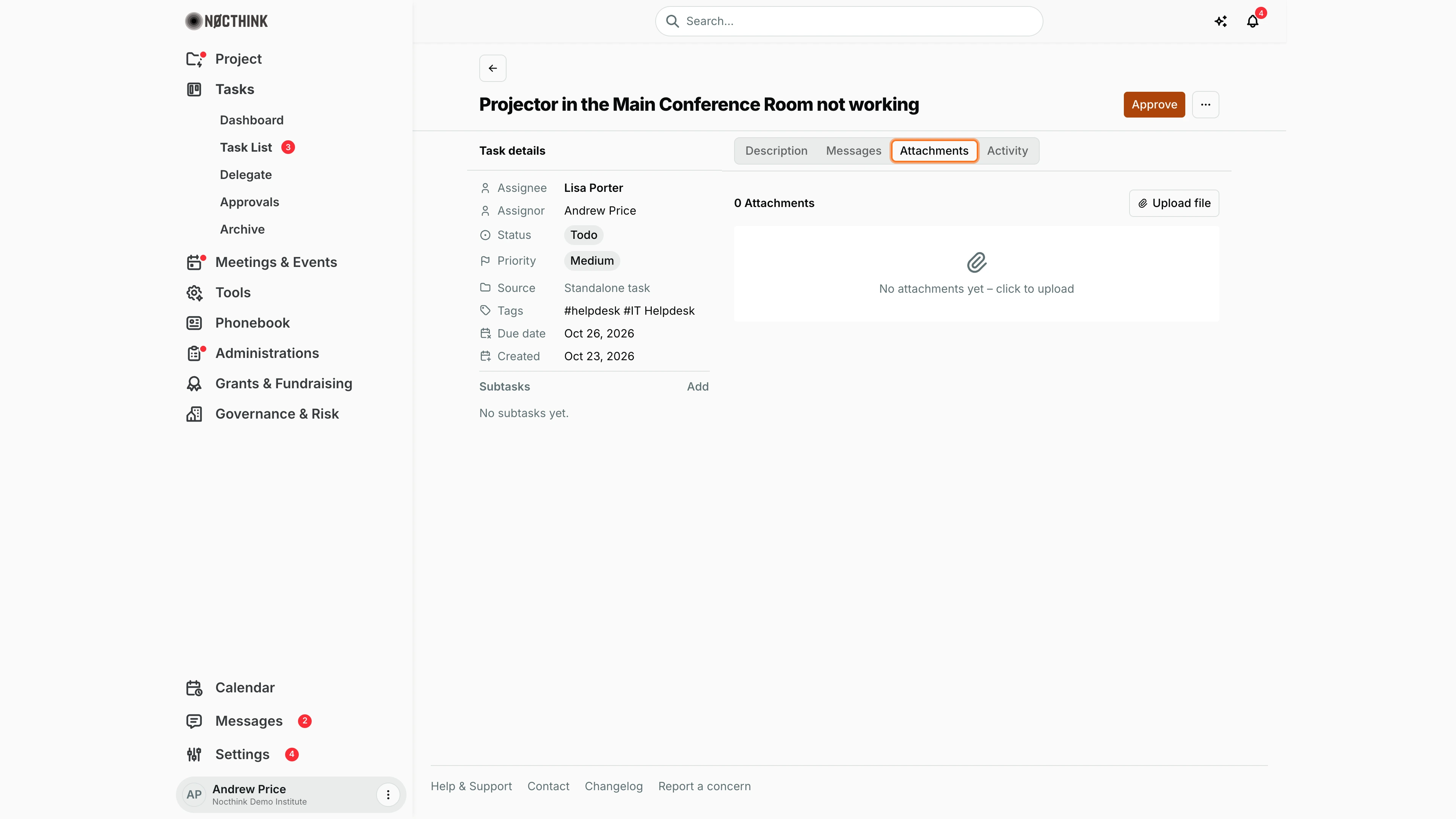
Screenshot: Andrew Price (Senior Researcher), Nocthink Demo Institute demo data.
Attachments lists the task's files with a count. Upload file (or clicking the empty area, "No attachments yet – click to upload") opens a dialog to pick the file and give it a Title and Description ("Add a title and short description to help others find this file."). Each uploaded file can be opened from its row or removed with Delete.
Task activity
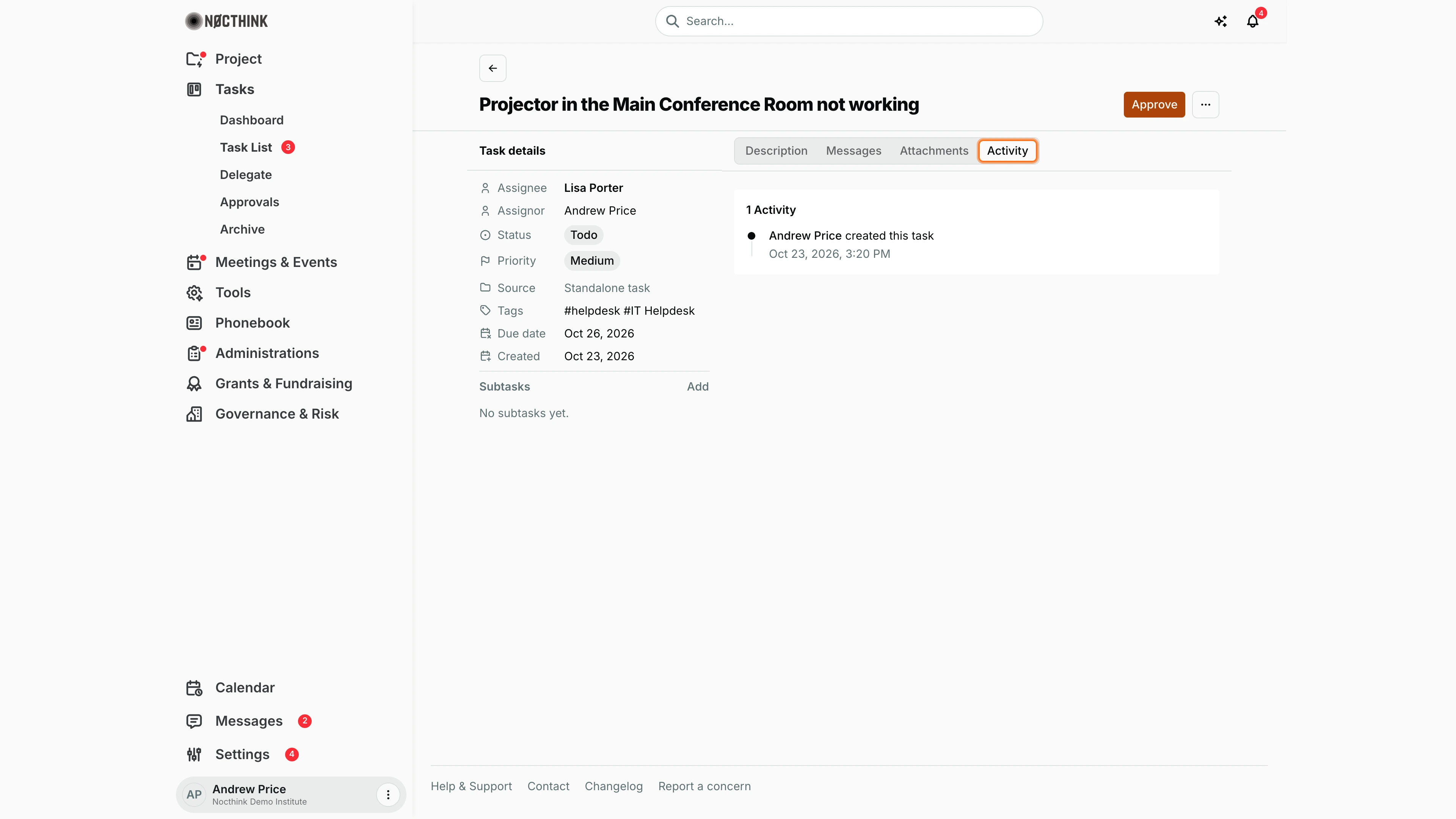
Screenshot: Andrew Price (Senior Researcher), Nocthink Demo Institute demo data.
Activity is the task's history, with a count: each entry names the person and the change, such as "Andrew Price created this task", with the date and time. It is read-only and is the place to check who moved a task and when.
Edit task
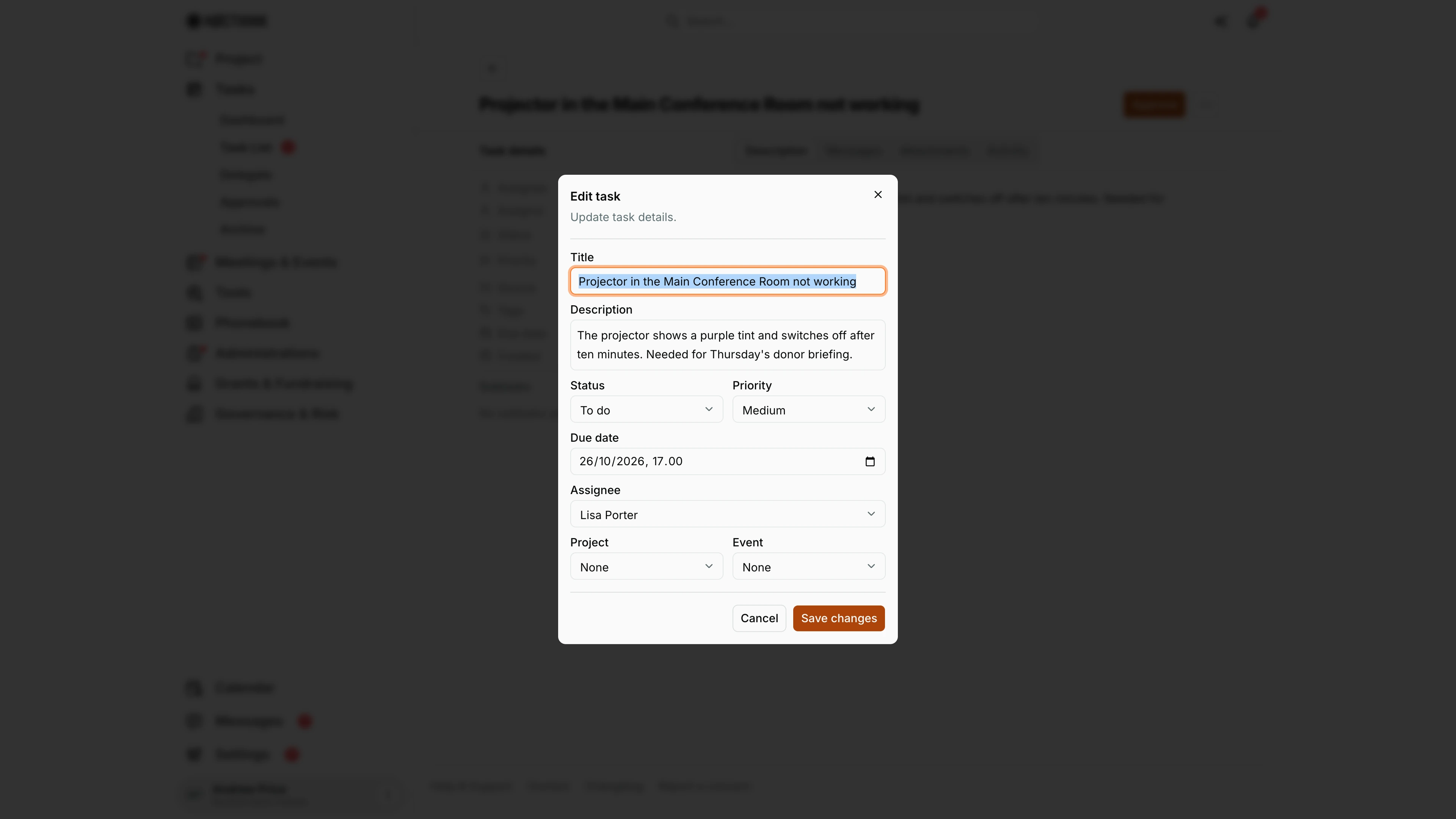
Screenshot: Andrew Price (Senior Researcher), Nocthink Demo Institute demo data.
⋯ → Edit opens Edit task ("Update task details."), the Create task form filled in with the current values. I change the title, description, Status, Priority, Due date, Assignee, Project or Event, then click Save changes. Changing the status here is how a task is set to Cancelled, which has no kanban column.
Reassign task
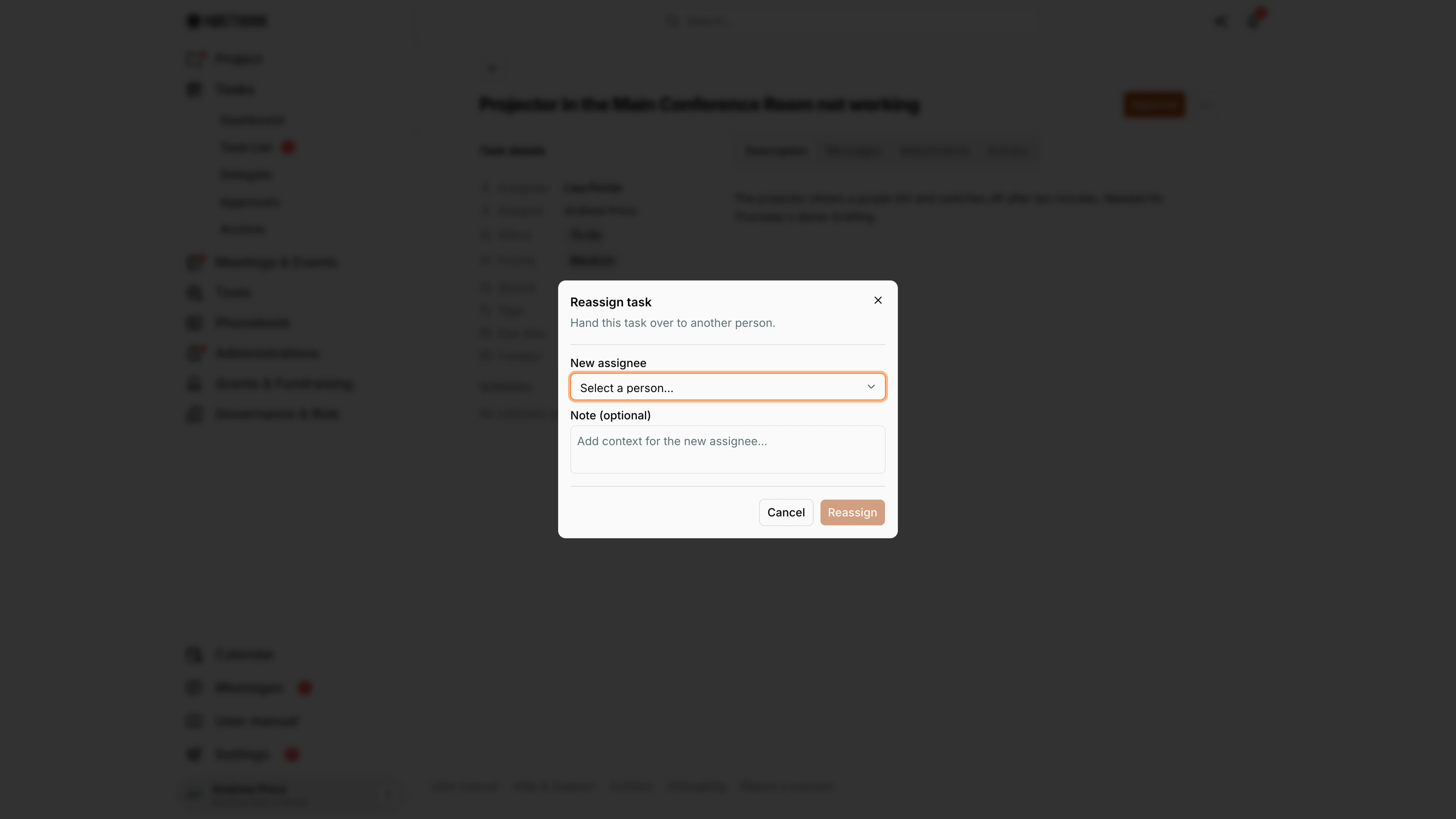
Screenshot: Andrew Price (Senior Researcher), Nocthink Demo Institute demo data.
⋯ → Reassign opens Reassign task: "Hand this task over to another person." I pick the New assignee from Select a person… (not the current assignee) and can add a Note (optional) ("Add context for the new assignee…"), which is posted to Messages. Reassign stays disabled until a person is chosen; the new assignee is notified. See Reassign or archive a task above.
Access & permissions
The section needs tasks.view, which is part of every member's baseline (role.md §3). This page loads only tasks I created or am assigned to (mine=true), even for Directors. Creating, editing and deleting need tasks.create / tasks.update / tasks.delete. Archive and restore need me to be the creator, the assignee, or a member of the task's project team (or to have full Tasks scope). Approve is shown only to the task's creator; the organization owner can also approve through the API.
Caveats
- Tasks in a project that is On Hold, Completed or Archived cannot be changed, moved, approved or archived until the project is reopened.
- Cancelled tasks are hidden from the Kanban board but still appear in the List and Table views.
- Moving a card into Done stamps the completion time; moving it out clears it. Approving also sets Done.
- Changing the assignee notifies the new assignee. The previous assignee is not notified.
- Only the newest 100 matching tasks load. Archive old work to keep the list complete.
Limitations
- One assignee per task, and no recurring tasks.
- No bulk edit, and no export.
Related menus
- Dashboard — counts and charts over this same list.
- Delegate — only the tasks others assigned to me.
- Approvals — formal approval requests (separate from task Approve).
- Archive — archived and auto-archived tasks.
- Project Tasks — team board per project.