
Calendar
Open in NocthinkModule: Home · URL: /calendar · Responsible role: Staff (every member; personal calendar) · Also used by: all roles (read). Event Officers and Owner/Director manage the underlying meetings and events in Meetings & Events.
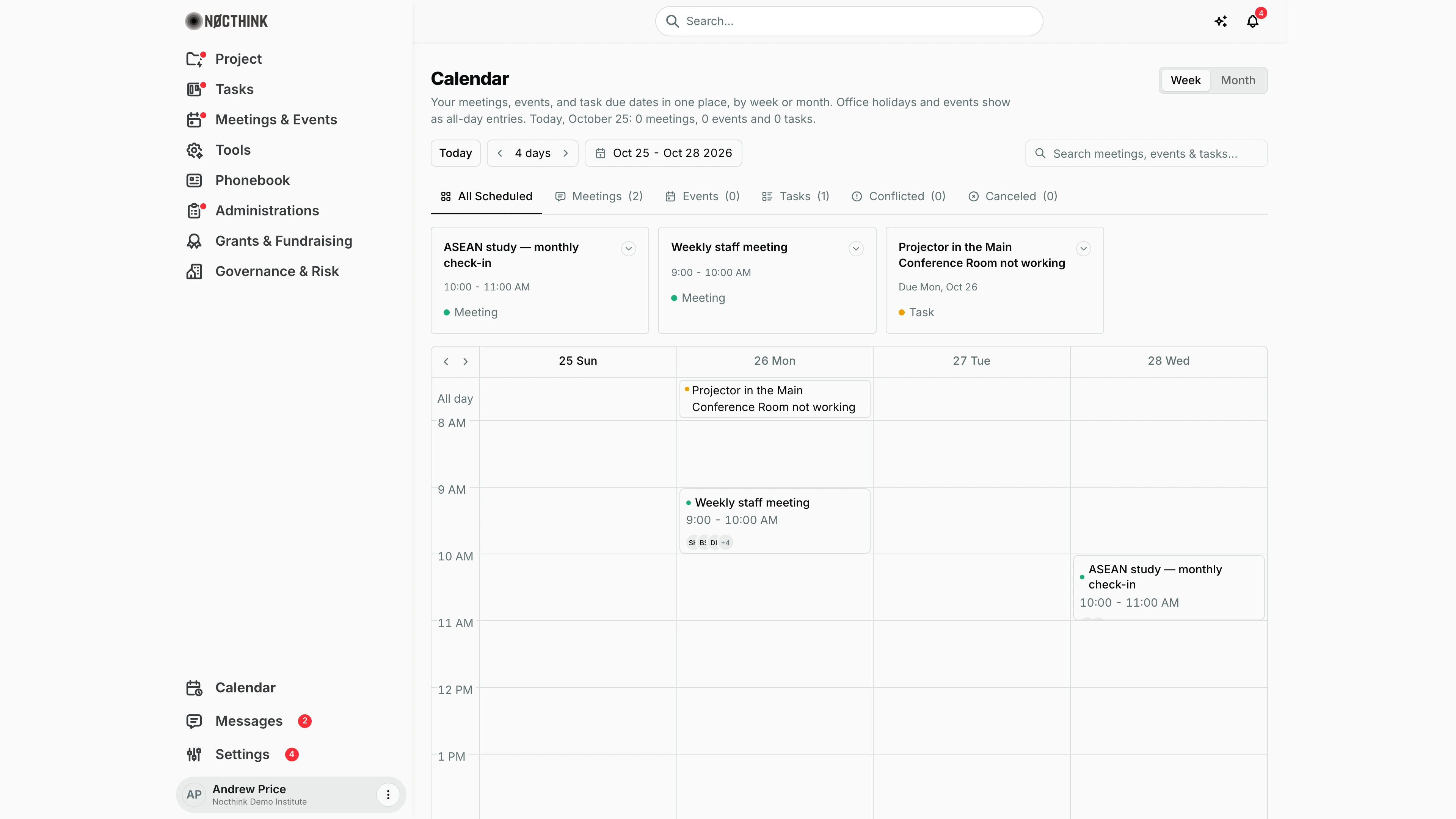
Screenshot: Andrew Price (Senior Researcher), Nocthink Demo Institute demo data.
Why I use this page
I use this page to see my meetings, events and task due dates in one timeline, so I can plan my week and spot clashes. It is the full version of the small calendar on my Dashboard. It is read-only: I open it on Monday morning and before I accept a new meeting. Clicking any entry takes me to the meeting, event or task itself.
What's on the screen
- Header — Calendar, with the line "Your meetings, events, and task due dates in one place, by week or month. Office holidays and events show as all-day entries." It ends with today's count: "Today, October 25: 0 meetings, 0 events and 0 tasks."
- Week / Month switch (top right). The starting view is the organization's default calendar view (from Settings); if none is set, it is Week.
- Toolbar — Today, a ‹ 4 days › (or ‹ Month Year ›) stepper, the visible date range (for example "Oct 25 - Oct 28 2026") and a search box, Search meetings, events & tasks….
- Filter tabs — All Scheduled, Meetings (n), Events (n), Tasks (n), Conflicted (n) and Canceled (n). The counts cover the visible window only.
- Summary cards — up to 8 cards for the filtered items in the window. Each card shows the title, the time range (or "Due Mon, Oct 26" for tasks) and a pill: Meeting, Event, Task, Today, n Conflicted or Cancelled. A conflicted card also shows See Conflict, and a meeting happening today shows Join Meeting.
- Grid — in Week view, 4 day columns from 8 AM to 8 PM, with an All day strip for office-calendar holidays/events and task due dates. The small ‹ › at the top-left of the grid moves one day. In Month view, a Monday-first month grid.
How I …
Plan my next few days
- Open Calendar from the sidebar footer.
- Make sure Week is selected. Click Today to put today in the first column.
- Use › in the toolbar (or the grid's own arrows) to move forward one day at a time; the window always shows 4 days.
- Read the All day strip for holidays and task deadlines, and the hourly blocks for meetings and events.
- Click a block to open the record (
/meetings/<id>,/events/<id>or/tasks/<id>).
Review a whole month
- Click Month (see Month view below).
- Use ‹ / › to move between months. The stepper shows "October 2026" and so on.
- Click an entry in a day cell to open it.
Find clashes
- Click the Conflicted tab.
- Each card shows "n Conflicted": the meeting overlaps another non-cancelled meeting booked in the same room.
- Open the meeting and change the time or room there (in Meetings & Events), or ask the organizer to.
Find one item quickly
- Type part of the title in Search meetings, events & tasks….
- Cards and grid narrow to matching titles in the current window. Move the window if the item is in another week or month.
Detail page, forms & dialogs
Month view
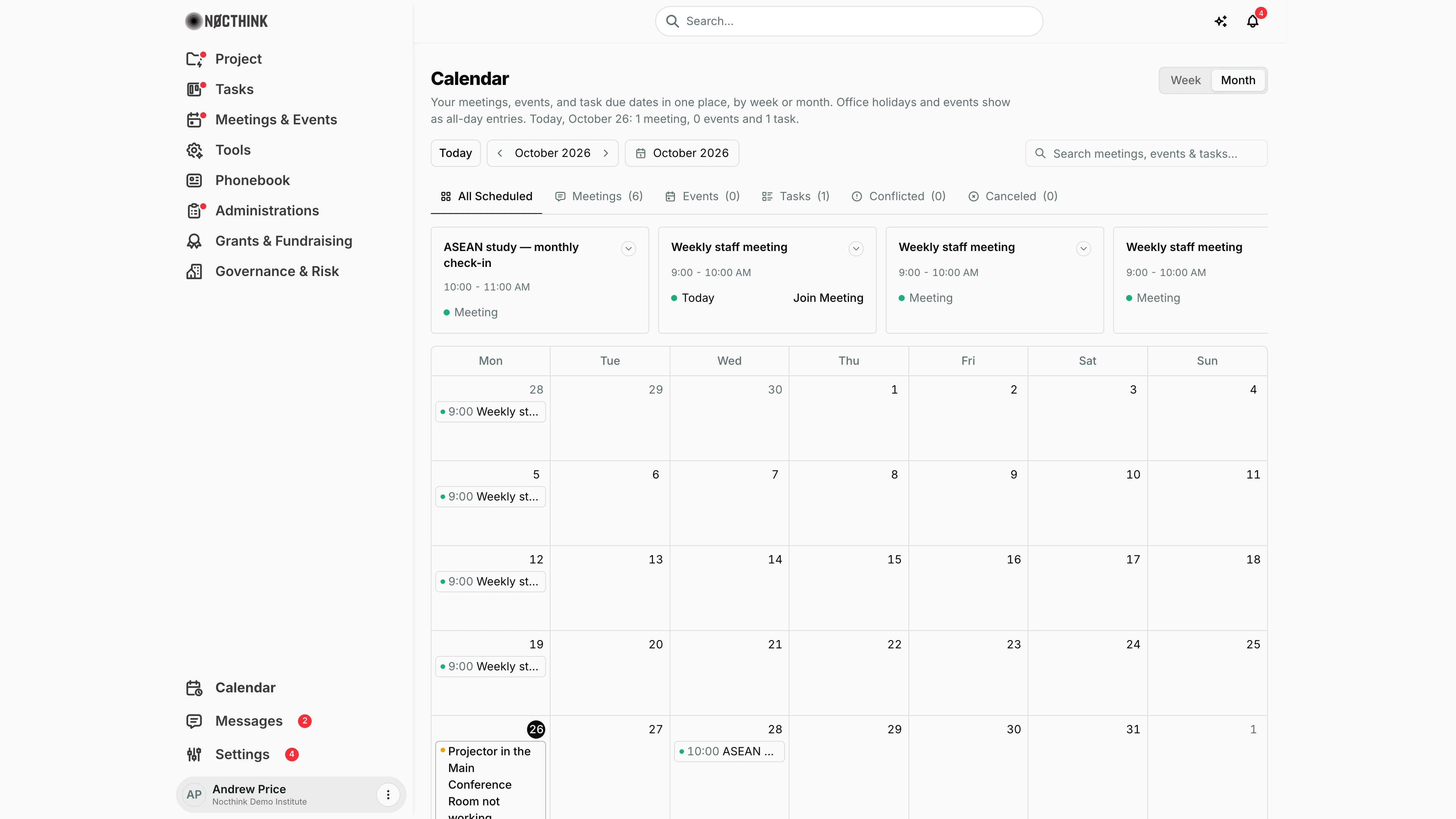
Screenshot: Andrew Price (Senior Researcher), Nocthink Demo Institute demo data.
Month in the top-right switch turns the four-day window into a full month grid, Monday to Sunday. The toolbar keeps Today, the ‹ October 2026 › stepper and the date picker, plus Search meetings, events & tasks…. The filter tabs (All Scheduled, Meetings, Events, Tasks, Conflicted, Canceled) count what falls in the visible month, and the cards above the grid list those items in date order; a meeting happening today is marked Today with Join Meeting, and a clash shows See Conflict. Each day cell shows its entries with a coloured dot and start time, such as "9:00 Weekly st…"; today is circled. Clicking an entry opens the meeting, event or task. See Review a whole month above.
Access & permissions
/calendar has no domain gate; every member can open it from the sidebar footer. What appears depends on the APIs behind it. Meetings and events need meetings.view / events.view, and tasks come from the task list I am allowed to see. Office holidays come from the organization's office calendar. Nothing here can be edited, so there is no write permission to manage.
Caveats
- Times are shown in my browser's local time, the same as the Dashboard calendar card.
- Tasks appear only if they have a due date and are not done, cancelled or archived. They always show as all-day entries.
- Conflict detection covers meetings in the same room only. Overlapping events, or meetings without a room, are never flagged.
- Meeting blocks after 8 PM or before 8 AM are clipped to the visible 8 AM–8 PM band in Week view.
- The tab counts cover only the visible window, not the whole calendar.
Limitations
- No creating, dragging or rescheduling here. Meetings and events are created in Meetings & Events, tasks in Tasks.
- No day view, agenda/list view, or custom week length. Week view is fixed at 4 days.
- No iCal/Google Calendar export or subscription link on this page.
- Join Meeting is a label, not a separate video link; it opens the meeting record.
Related menus
- Dashboard — the compact month card that links here via Full calendar.
- Project Calendar — the same idea, scoped to project milestones and tasks.
- Task List — set or change due dates that feed the all-day strip.
- Messages — follow up with attendees.