
Organizations
Open in NocthinkModule: Phonebook · URL: /phonebook/organizations · Responsible role: General Affairs / Admin · Also used by: Owner/Director (full); Project Manager, Event Officer, Procurement (write); all other staff (read)
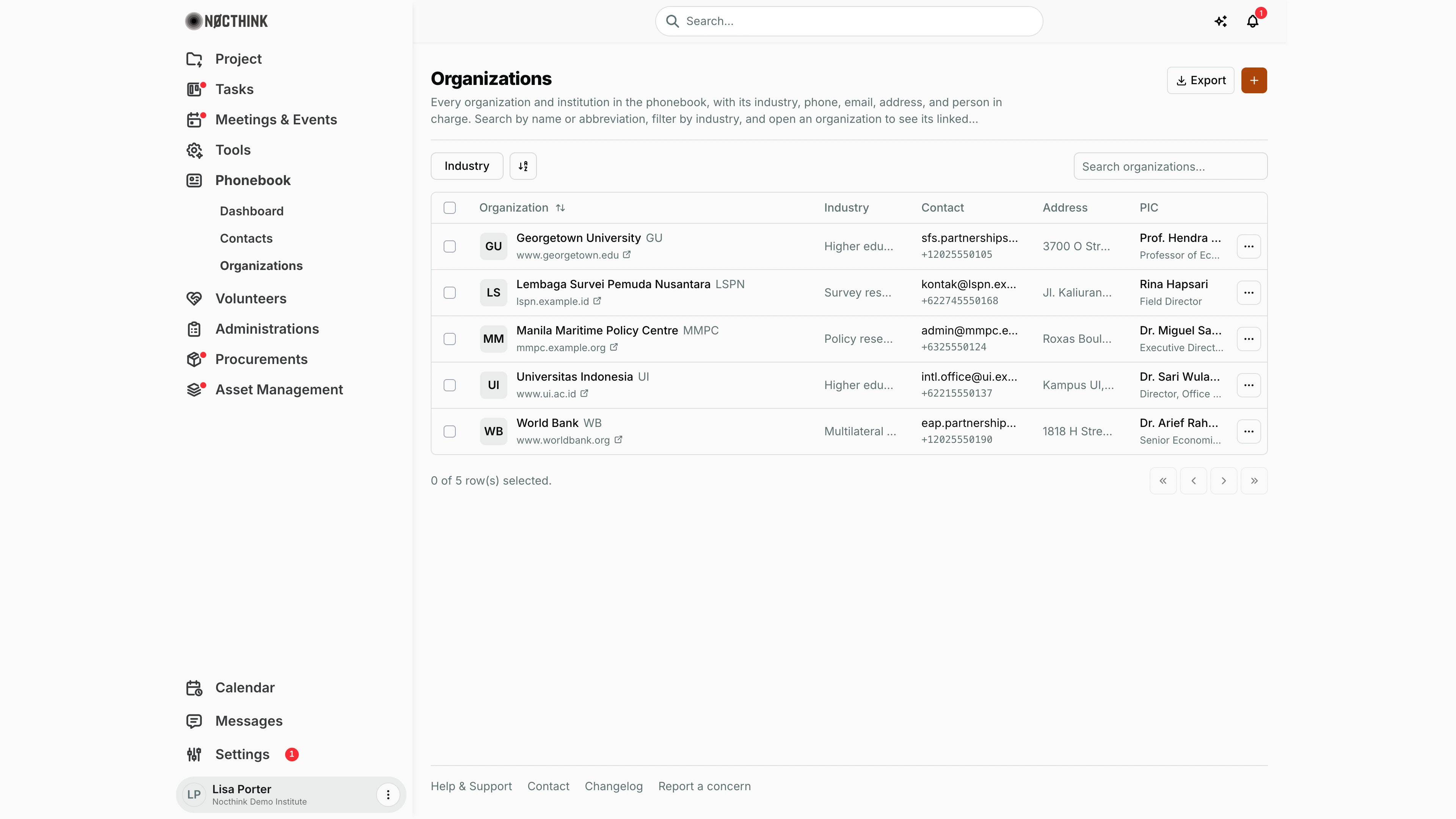
Screenshot: Lisa Porter (Operations Officer), Nocthink Demo Institute demo data.
Why I use this page
I keep the register of partner institutions here — universities, think tanks, survey firms, multilateral banks — with their official name, abbreviation, address, general phone and email, and our person in charge there. Colleagues look up an institution before writing a letter or an MoU, and I open an organization to see which of our contacts work there and what activity we have logged with it. Funders are kept separately under Donors.
What's on the screen
- Header — title Organizations, description, an Export menu (PDF, Excel, CSV, JSON), and the orange + (Add organization).
- Toolbar — Industry filter (Finance, Technology, Energy, Logistics, Legal, Policy & Research, Agriculture, Development Finance), a column/sort control and Search organizations….
- Table columns — select checkbox, Organization (logo or initials, name with its abbreviation beside it, and website link underneath; sortable), Industry, Contact (email, with the phone number underneath; click either to mail or call), Address, PIC (person in charge, with title underneath), and a … menu with Send Email, Call, Visit Website (when those exist), View Details, Edit and Delete.
- Footer — row selection count and pagination.
How I …
How I add an organization
- Click the orange +. The dialog (Add Company, "Add a new organization to your company directory.") opens.
- Identity: Company Name (required), Abbreviation (e.g. WHO, UNICEF), Industry (free text, e.g. "Policy & Research") and Address.
- Contact Info: Phone, Email and Website (each validated if filled; website must be a full URL such as
https://…). - Person in Charge: Contact Name and Position.
- Click Save Company. It is saved as an organization (not a donor).
How I view an organization's people and activity
- Click the organization name, or … → View Details. A side drawer opens (see Organization detail drawer below).
- Contacts lists the people linked to the organization (Name, Role, Email), with a search box.
- Activities shows calls, emails, meetings and tasks logged against the organization.
- The drawer also shows Contact Details and Person in Charge.
How I update details or the logo
- Click … → Edit. The Edit Organization dialog opens (see Edit organization below).
- Under Logo, click Upload (or Replace) and choose an image (PNG, JPG or SVG, max 2 MB); Remove clears it.
- Edit Name, Abbreviation, Industry, Address, Phone, Email, Website, PIC Name, PIC Position.
- Click Save.
How I delete an organization
- Click … → Delete (or Delete at the bottom left of the Edit dialog).
- Confirm "Delete <name>?" in the browser prompt.
Detail page, forms & dialogs
Organization detail drawer
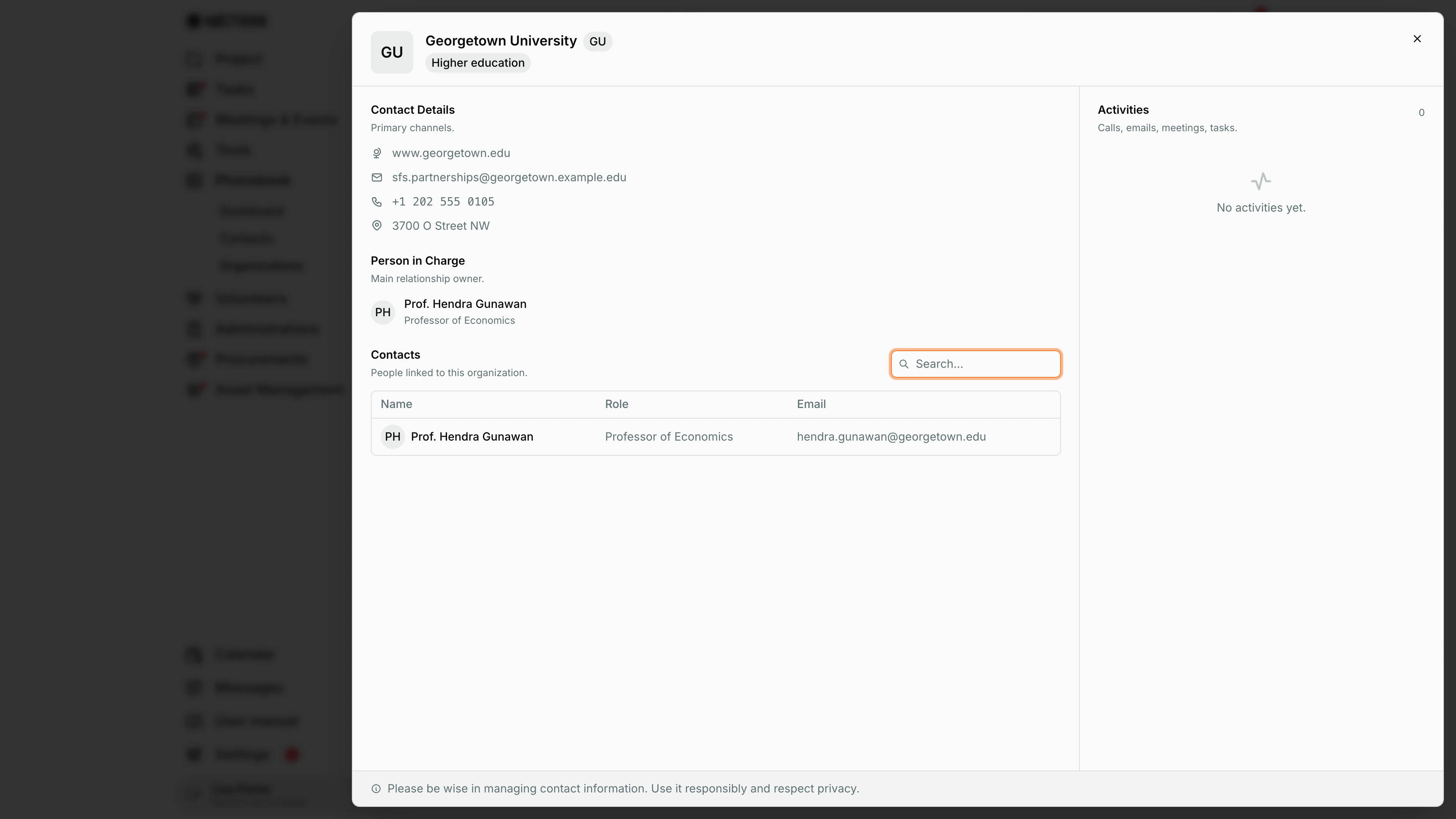
Screenshot: Lisa Porter (Operations Officer), Nocthink Demo Institute demo data.
Clicking an organization (or ⋯ → View Details) opens a wide drawer. The header shows the logo or initials, the name, the abbreviation and the industry. Contact Details ("Primary channels.") lists the website, email, phone and address. Person in Charge ("Main relationship owner.") shows the PIC name and position. Contacts ("People linked to this organization.") lists the contacts whose Organization is set to this one, with Name, Role and Email and a Search... box. Activities on the right counts and lists the calls, emails, meetings and tasks logged against the organization.
The drawer is read-only; use ⋯ → Edit to change the record. To link a person, set their Organization in Contacts. Organizations have no active/inactive status: the record has no such field, so the drawer shows none.
Add organization
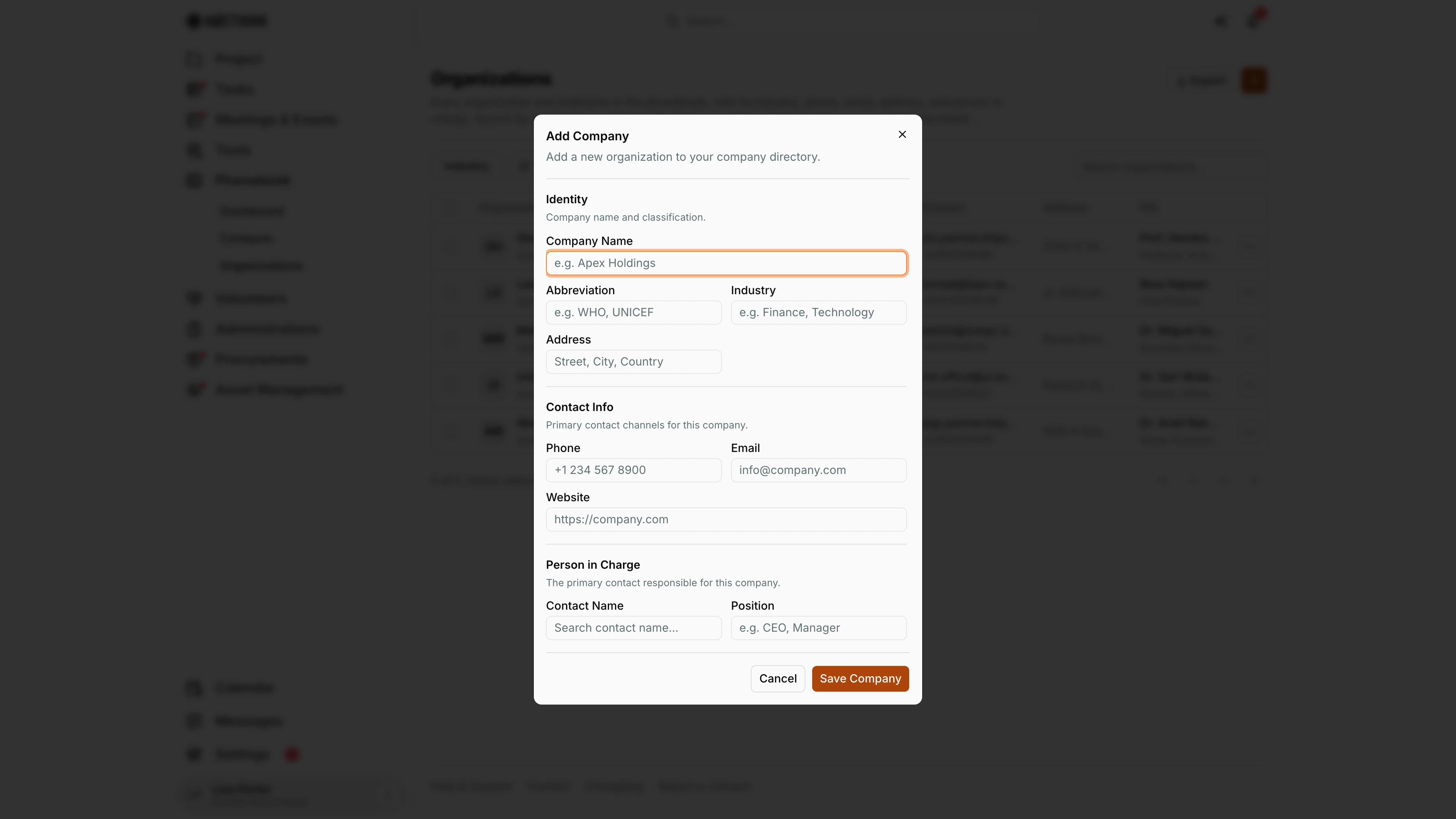
Screenshot: Lisa Porter (Operations Officer), Nocthink Demo Institute demo data.
The orange + opens Add Company ("Add a new organization to your company directory."). Identity has Company Name (required), Abbreviation, Industry (free text) and Address. Contact Info has Phone, Email and Website (a full URL starting with https://). Person in Charge has the Contact Name and Position of our main contact there. Save Company creates it as an organization; donors are added from Donors instead. The new organization appears in the list at once and in the Organization picker of the contact form, so add the organization first and then its people. A logo can only be added afterwards, from Edit Organization. Cancel discards the form.
Edit organization
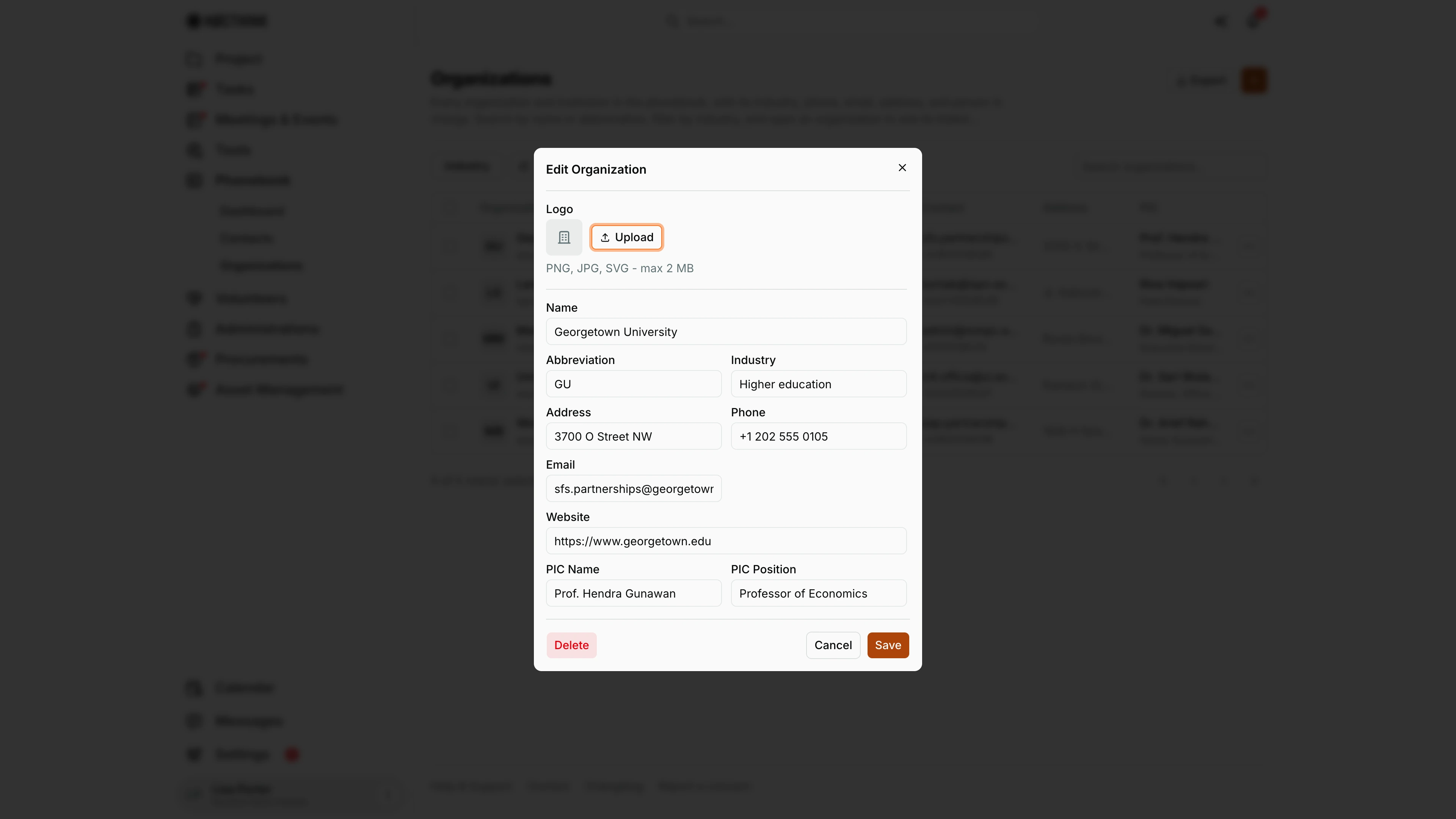
Screenshot: Lisa Porter (Operations Officer), Nocthink Demo Institute demo data.
⋯ → Edit opens Edit Organization. Logo has Upload (PNG, JPG or SVG, max 2 MB), which becomes Replace and Remove once a logo is set. Below are Name, Abbreviation, Industry, Address, Phone, Email, Website, PIC Name and PIC Position. Save applies the edit; Delete at the bottom left removes the organization after a confirmation. The PIC fields are free text and are not linked to a contact record; to list the person under Contacts in the drawer, also add them in Contacts with this organization. The logo then replaces the initials in the list and the drawer header. Cancel closes without saving.
Access & permissions
- Needs
phonebook.view(all staff via the Staff baseline). docs/role.md §4.2: R for Staff; W for Project Manager, Event Officer, General Affairs and Procurement; F for Owner/Director. - Create, edit, logo upload and delete need
phonebook.create,phonebook.updateorphonebook.delete; the + button and the row menu's Edit / Delete only appear for people who hold them.
Caveats
- Delete is permanent after a single browser confirm; there is no archive or undo.
- Industry is free text in the form, but the Industry filter only offers eight fixed values. An organization typed as "Higher education" (as Georgetown University and Universitas Indonesia are in the demo), or left blank, cannot be isolated with the filter — use search.
- The drawer's Contacts list matches people by organization link or by an identical company name; a contact with a slightly different company spelling will not show.
- The PIC is plain text, not a link to a contact record — keep it in sync manually when people move.
Limitations
- Export covers every organization loaded on the page; there is no import.
- No bulk actions for selected rows.
- I cannot link contacts to an organization from this page or the drawer; set Organization on the contact instead (Contacts → Add or Edit).
- No organization type other than organization/donor; to turn an organization into a donor there is no UI — add it again under Donors.
- The Funds Provided section of the drawer only appears for donors.