
Contacts
Open in NocthinkModule: Phonebook · URL: /phonebook/contacts · Responsible role: General Affairs / Admin · Also used by: Owner/Director (full); Project Manager, Event Officer, Procurement (write); all other staff (read)
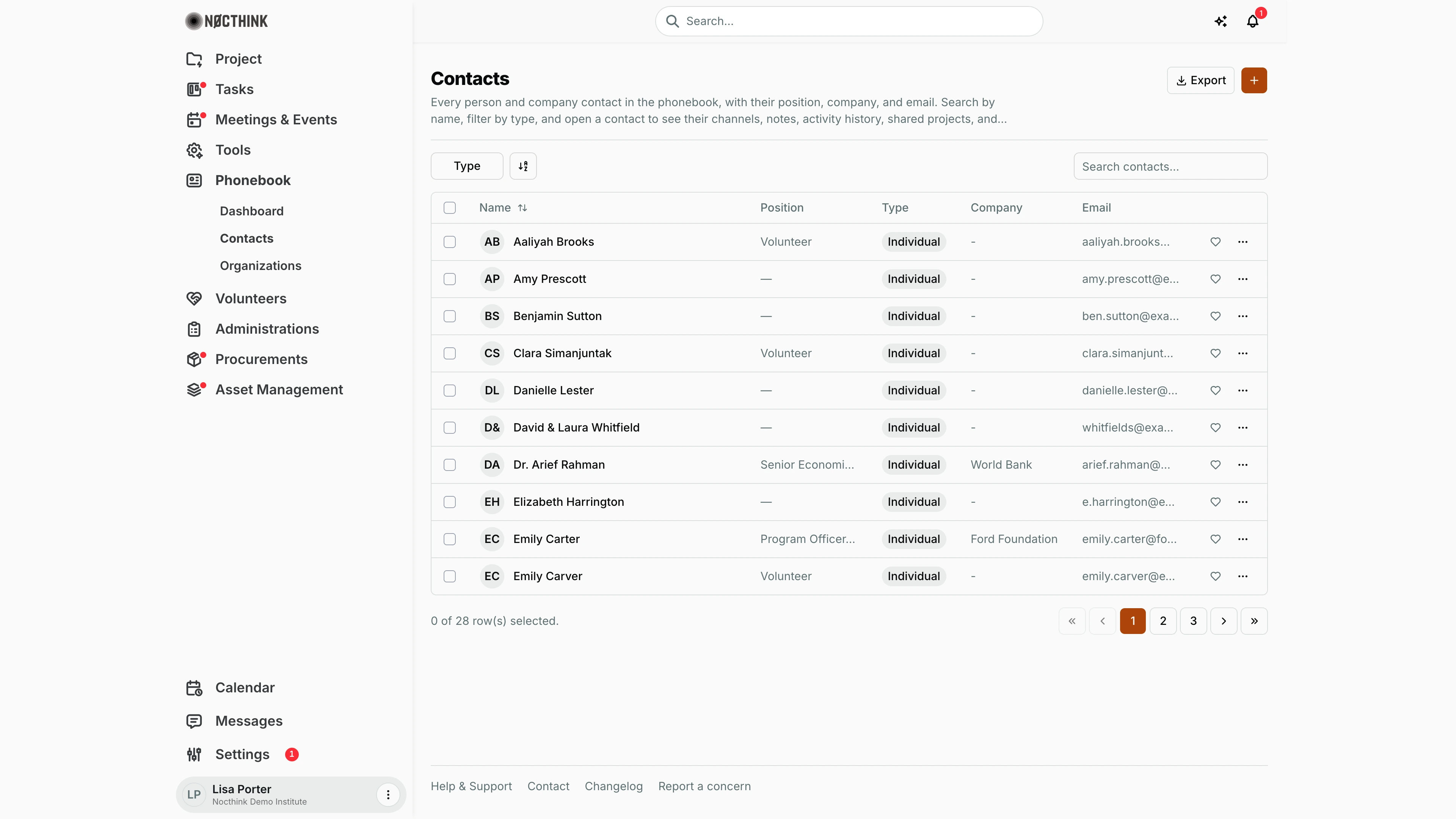
Screenshot: Lisa Porter (Operations Officer), Nocthink Demo Institute demo data.
Why I use this page
This is the shared address book for everyone the institute works with: donor program officers, partner researchers, volunteers, journalists, speakers. I add people as soon as a colleague passes on a business card or email, keep their details current, log notes and follow-up reminders on their record, and invite groups of contacts to our events.
What's on the screen
- Header — title Contacts, description, an Export menu (PDF, Excel, CSV, JSON) and the orange + (Add contact).
- Toolbar — Type filter (Individual, Organization), a column/sort control and Search contacts… (searches on the server by name).
- Table columns — select checkbox, Name (avatar/initials; a lock badge marks a private contact; sortable), Position, Type pill, Company ("-" if not linked), Email, a heart (favorite) toggle and a … menu with Send Email, Call (when an email/phone exists), Edit and Delete.
- Footer — "N of M row(s) selected." and page numbers. When rows are selected, bulk buttons Invite to Events and Delete (N) appear.
How I …
How I add a contact
- Click the orange +. The Add Contact dialog opens (see Add contact below).
- Identity: enter Full Name (required), choose Type (Individual or Organization) and the Organization the contact belongs to (any organization or donor in the phonebook, or None), then Position / Job Title and Address.
- Contact Info: enter Phone and Email (both validated if filled).
- Tags: type comma-separated tags, e.g.
donor, ekon, media. - Visibility: choose Public (everyone in the organization) or Private ("Private contacts only visible to you"). The default visibility and any pre-filled tags come from Settings → Phonebook.
- Click Save Contact.
How I open a contact's record and log a note or reminder
- Click the contact's name. A drawer opens with Channels, Notes, Activity History, Shared Projects and Reminders (see Contact detail drawer below).
- Under Notes, type a Note title… and optional Details (optional)…, then click Add Note.
- Under Reminders, type a Reminder note…, pick the date and time, and click Add. It shows on the Phonebook dashboard until done.
How I edit or delete a contact
- Click … → Edit. The Edit Contact dialog has Full Name, Type, Organization, Position, Phone, Email, Address, Tags and Visibility.
- Click Save, or Delete at the bottom left to remove the contact.
- Alternatively … → Delete and confirm "Delete <name>?".
How I invite contacts to an event
- Tick the contacts in the table.
- Click Invite to Events. The Invite to Event dialog lists the Selected contacts and the upcoming events (not completed or cancelled, starting from yesterday on).
- Pick the event and click Invite to Event. Each contact with an email is added to that event's Invitations. If some selected contacts have no email, the dialog says how many up front and, after sending, reports how many were invited and how many were skipped.
How I mark favorites
- Click the heart on a row. Favorites are listed at
/phonebook/favoritesand counted on the dashboard.
Detail page, forms & dialogs
Contact detail drawer
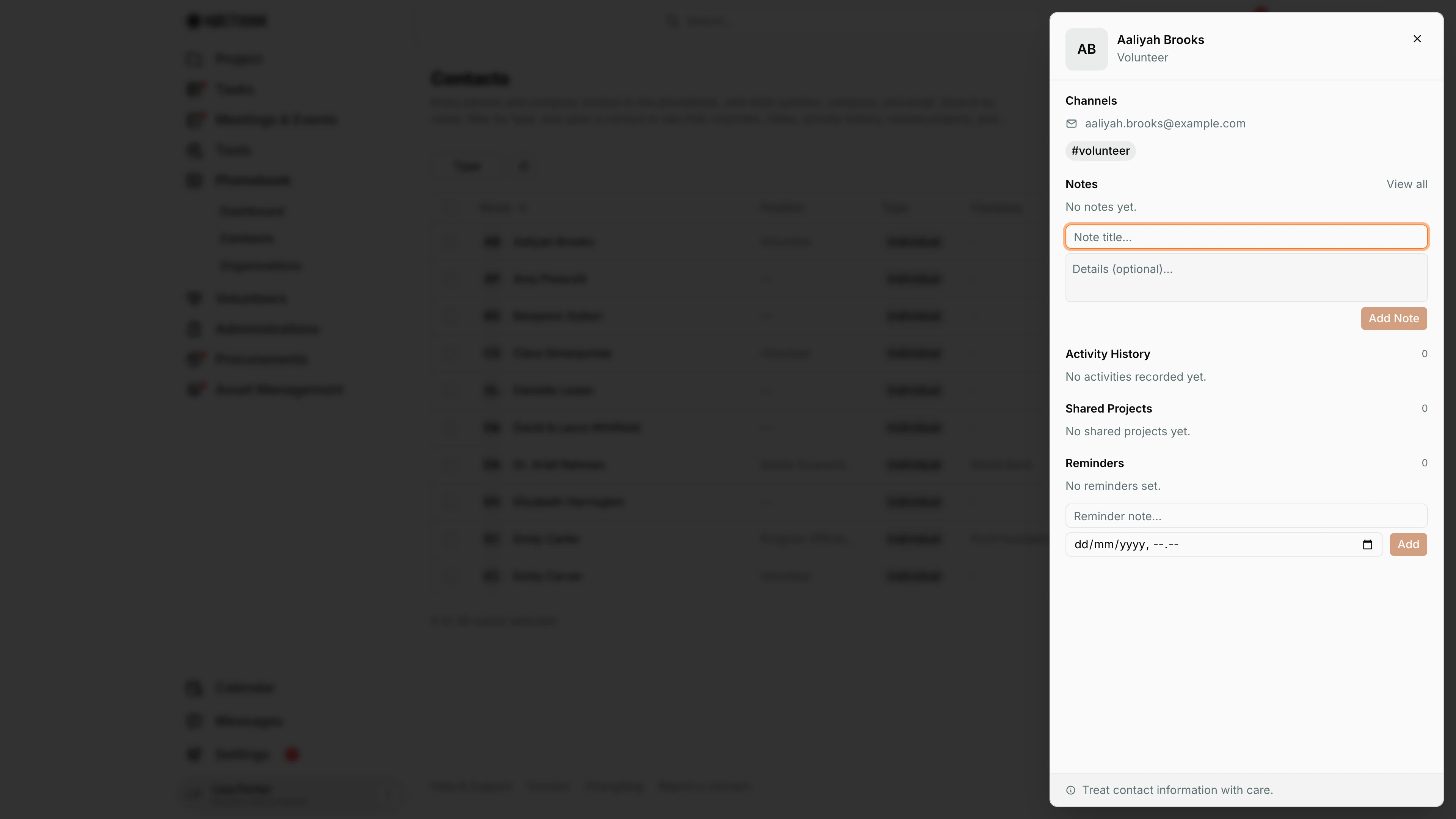
Screenshot: Lisa Porter (Operations Officer), Nocthink Demo Institute demo data.
Clicking a name opens the contact's drawer. The header shows the initials or photo, the name and the position. Channels lists the email and phone (each one a mailto or tel link) and the contact's tags, e.g. #volunteer. Notes shows the latest notes with View all, and a small form underneath: Note title…, Details (optional)… and Add Note. Activity History counts and lists the calls, emails, meetings and tasks logged against the contact. Shared Projects lists projects the contact is linked to. Reminders shows open reminders and has its own form: a Reminder note…, a date and time, and Add; the reminder then appears on the Phonebook dashboard.
Adding a note or reminder saves at once. The footer reminds me to "Treat contact information with care." Close the drawer with ×; to change the contact's details use Edit Contact instead.
Add contact
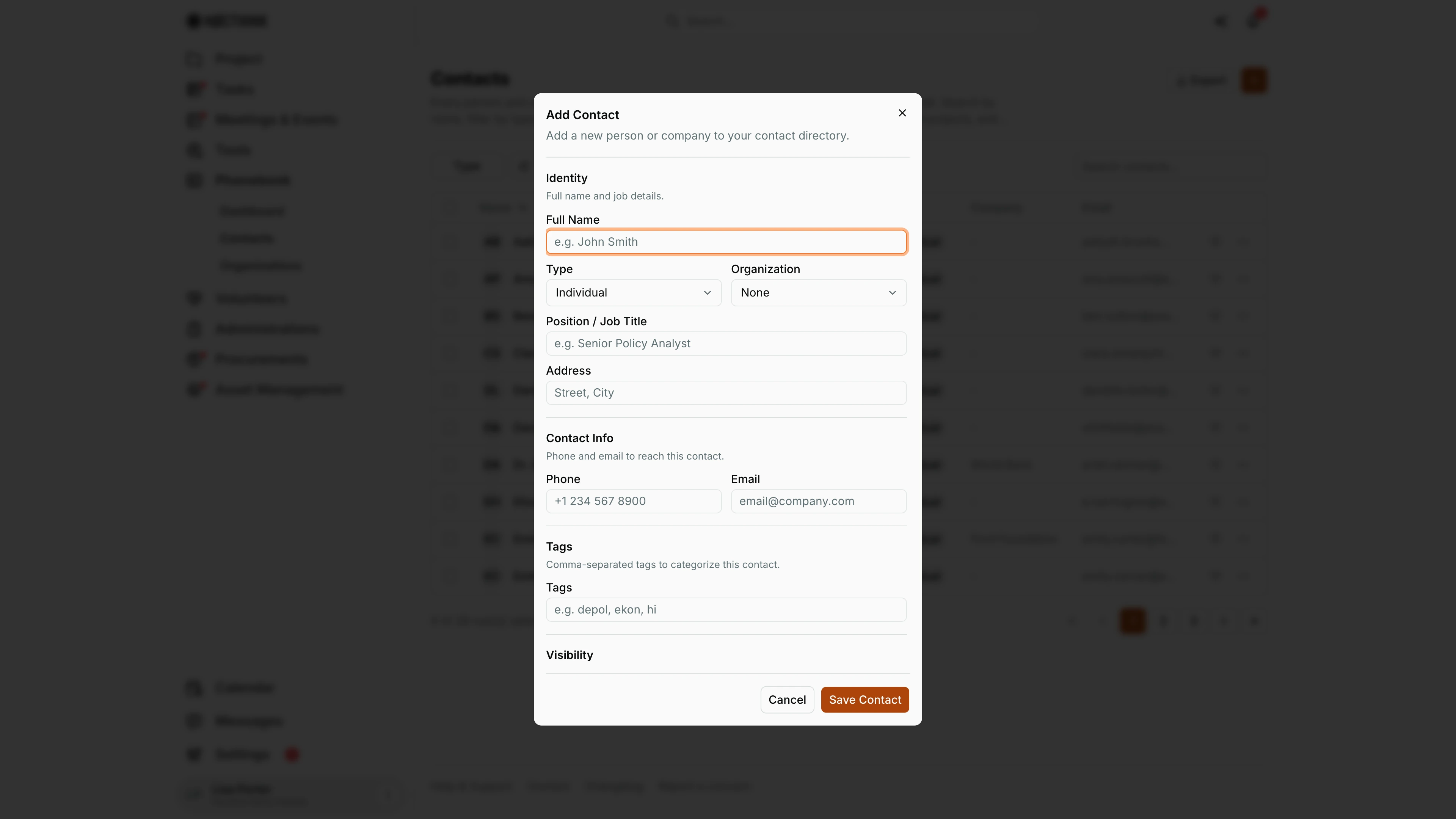
Screenshot: Lisa Porter (Operations Officer), Nocthink Demo Institute demo data.
The orange + opens Add Contact ("Add a new person or company to your contact directory."). Identity holds Full Name (required), Type (Individual or Organization), Organization (every organization and donor in the phonebook, donors marked "(donor)", or None), Position / Job Title and Address. Contact Info holds Phone and Email, each validated when filled. Tags takes comma-separated tags. Visibility is Public (everyone in the organization) or Private ("Private contacts only visible to you"); the default comes from Settings → Phonebook. Save Contact adds the contact to the list; Cancel discards it.
Edit contact
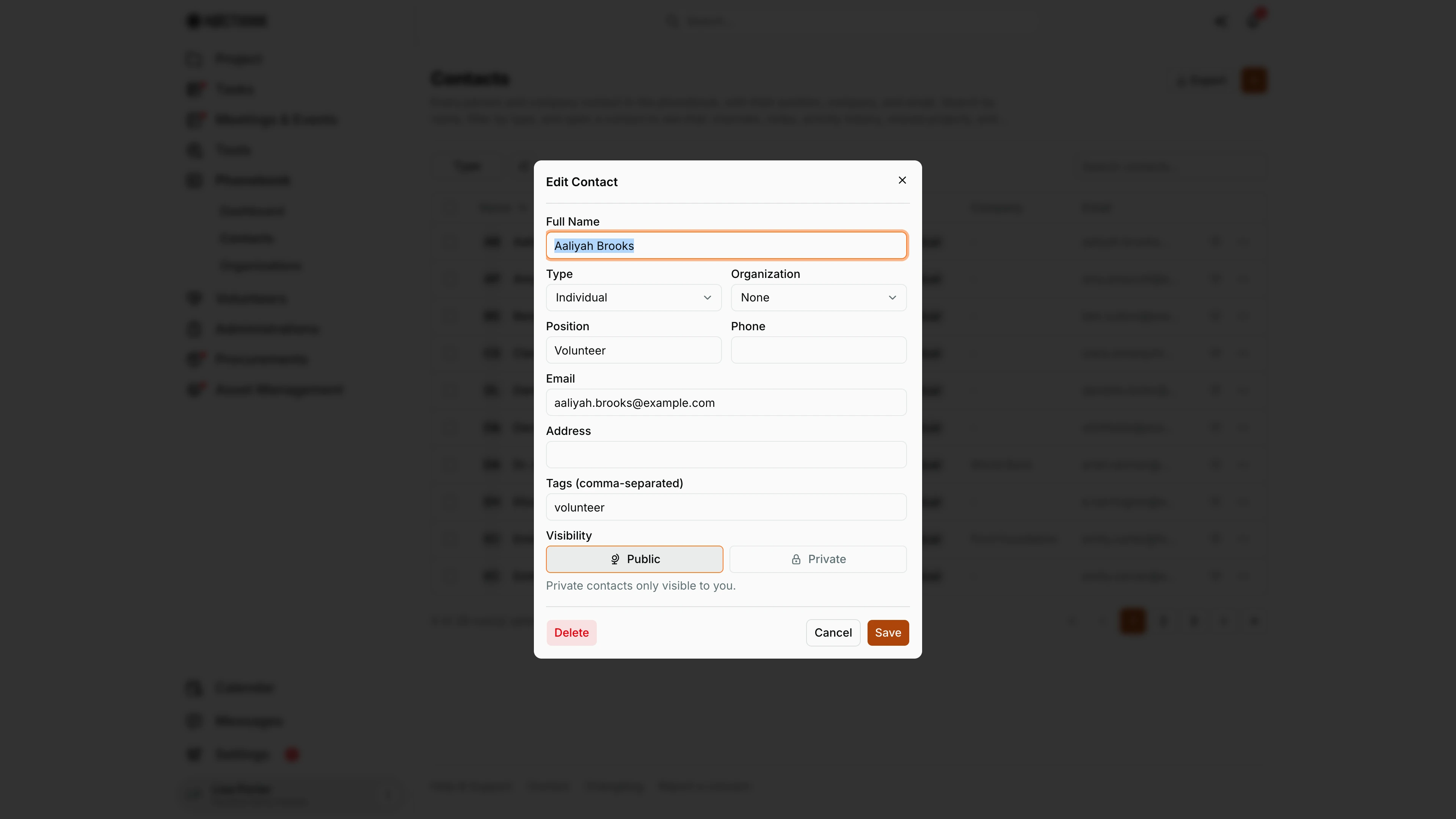
Screenshot: Lisa Porter (Operations Officer), Nocthink Demo Institute demo data.
⋯ → Edit on a row opens Edit Contact with the same fields as Add in a single column: Full Name, Type, Organization, Position, Phone, Email, Address, Tags (comma-separated) and Visibility. Save applies the changes. Delete at the bottom left removes the contact after a confirmation. Changing Organization moves the contact to that organization's Contacts list in its drawer, and switching Visibility to Private hides the contact from everyone but me. Tags are rewritten from the comma-separated text, so remove a tag by deleting it from the box. Cancel closes the dialog without saving; the list refreshes as soon as Save succeeds.
Access & permissions
- Needs
phonebook.view(all staff via the Staff baseline). docs/role.md §4.2: R for Staff and most roles; W for Project Manager, Event Officer, General Affairs and Procurement; F for Owner/Director. - Create/edit/delete need
phonebook.create/update/delete; without them the buttons still show but saving fails. - Private contacts are returned only to the person who created them.
Caveats
- Delete (N) asks for confirmation; deleting a contact also removes its reminders, favorites and event invitations.
- Contacts without an email are skipped by Invite to Events (the dialog gives the count, not the names).
- Clicking the name of a private contact does nothing (the drawer is disabled for private rows); use … → Edit.
- Tags are split on commas and trimmed; there is no tag picker, so check spelling to avoid near-duplicate tags.
- Favorites are personal to my login.
Limitations
- Export covers the contacts loaded on the page (the current search applies). There is no import; add contacts one by one.
- No duplicate detection or merge.
- Activity History is read here; logging calls/emails/meetings is done on the activities page (
/phonebook/activities).
Related menus
- Dashboard — recent contacts, reminders and favorites count.
- Organizations — the companies shown in the Company column.
- Donors — funder organizations; donor PICs link back to contacts.
- All Events — invited contacts appear in the event's Invitations tab.