
Calendar
Open in NocthinkModule: Project · URL: /project/calendar · Responsible role: Project Manager · Also used by: Owner/Director (full), every staff member and operational role (self/read)
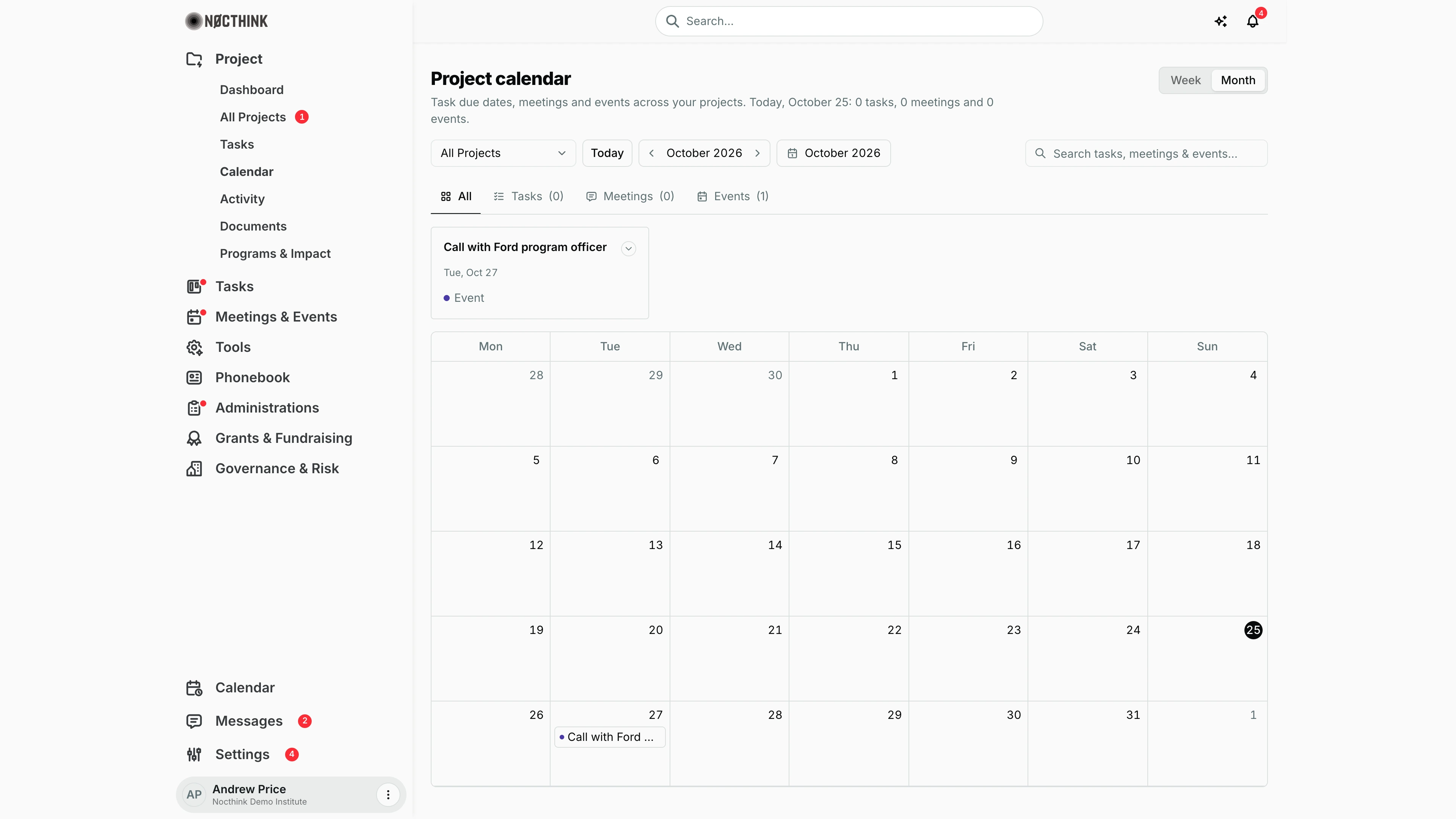
Screenshot: Andrew Price (Senior Researcher), Nocthink Demo Institute demo data.
Why I use this page
As Project Manager I use the project calendar to see deadlines and project activities on one grid, either for one project or for the whole portfolio. I check it when planning sprints, before a donor call, and at month start to see which task deadlines bunch up. It is a read-only view: I click through to the task or project to make changes.
What's on the screen
- Header — Project calendar, with "Task due dates, meetings and events across your projects. Today, <date>: n tasks, n meetings and n events." A Week / Month switch sits on the right (Month is the default here).
- Toolbar:
- a project picker (All Projects or a single project);
- Today;
- the ‹ October 2026 › stepper (in Week view it moves one day at a time);
- the visible range;
- Search tasks, meetings & events….
- Filter tabs — All, Tasks (n), Meetings (n), Events (n). The counts cover the visible window.
- Summary cards — one card per visible item, with the title, the date (for example "Tue, Oct 27") and a type pill (Task, Meeting, Event). Items due today also show Today.
- Grid — a Monday-first month grid with compact entries in each day (sorted by title), or a week view with the day arrows ‹ › in the corner. Today is circled.
How I …
Check one project's deadlines for the month
- Open Project → Calendar.
- In the project picker, choose the project instead of All Projects.
- Make sure Month is selected, then use ‹ / › to move between months.
- Click the Tasks tab to hide meetings and events.
- Click an entry to open the task (
/tasks/<id>).
See everything coming up this week
- Click Week, then Today.
- Use the grid's ‹ › arrows to step day by day.
- Click an item. Tasks open the task page; meetings and events open the project they belong to.
Find a specific item
- Type in Search tasks, meetings & events…. Cards and grid narrow to titles that match.
- If nothing shows, move to the right month. Search covers only the visible window.
Add something to the calendar
- Tasks: create or edit a task with a Due date and a Project in Tasks. It appears here automatically.
- Meetings and other events: log an activity with a date against the project (the Log Activity form, where Type = meeting shows as a Meeting; any other type shows as an Event).
Access & permissions
The page needs project.view. The feed is organization-wide: with All Projects selected it lists all project-linked tasks and activities that have a date, whether or not I am on the team. Opening a linked task still follows the task visibility rules (tasks I created, am assigned to, or that belong to my projects; everything for Owner/Director). Nothing can be edited on this page.
Caveats
- Every item is an all-day entry: tasks use their due date, activities their due date. No times are shown, even in Week view.
- Done and cancelled tasks are not filtered out here, so finished work still shows on its due date. The personal Calendar, by contrast, hides done, cancelled and archived tasks.
- Task due dates are stored in UTC and shown by local day, so a deadline near midnight can appear on the neighbouring day.
- Project start and end dates are not drawn on this grid. They appear on the Project Dashboard calendar.
- Meetings and events from the Meetings & Events module appear here only if they were logged as project activities.
Limitations
- No creating, dragging or rescheduling on the calendar.
- No colour coding per project when viewing All Projects.
- No export or iCal feed.
- Clicking a meeting or event opens the project page, not the meeting itself.
Related menus
- Dashboard — mini calendar with project start/end dots.
- Tasks — where due dates are set.
- Activity — what changed in my projects.
- Calendar (Home) — my personal meetings, events and tasks.
- Meetings & Events Calendar — the organization's event calendar.