
All Events
Open in NocthinkModule: Meetings & Events · URL: /events · Responsible role: Event Officer · Also used by: Owner/Director (full), all other staff (read; writes need events.create/update/delete)
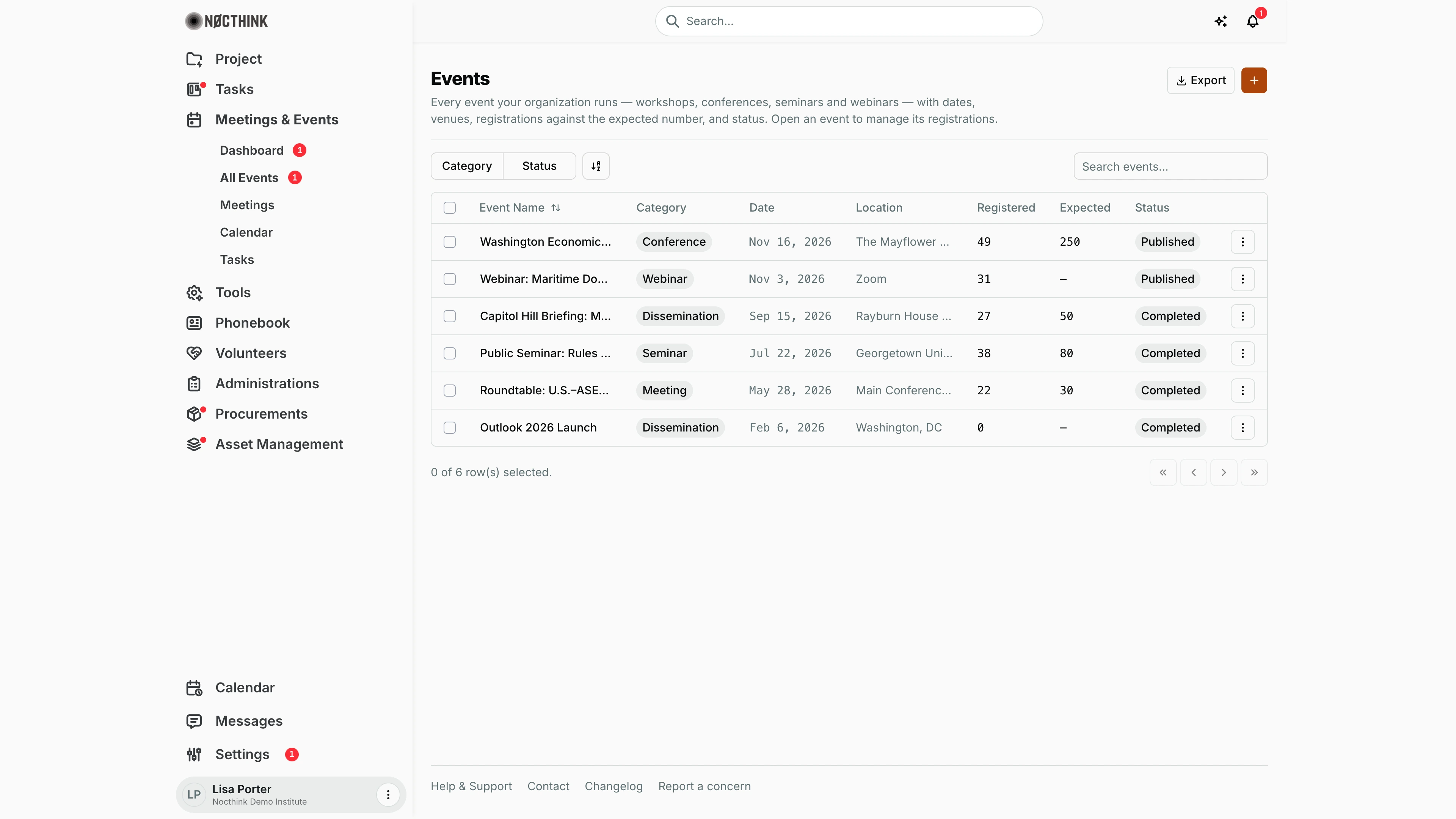
Screenshot: Lisa Porter (Operations Officer, read-only on events), Nocthink Demo Institute demo data.
Why I use this page
This is the master list of every event we run — conferences, webinars, workshops, launches. I create each new event here as soon as a date is pencilled in (as Draft), move it to Published when we announce it, and to Completed or Cancelled afterwards. From a row I open the event workspace, where I manage tasks, speakers, the run-of-show, invitations, registrations and check-in.
What's on the screen
- Header — title Events, description, an Export menu (PDF, Excel, CSV, JSON) and the orange + (New event) button.
- Toolbar — Category and Status checkbox filters, a column/sort control, and Search events... (matches the event name).
- Table columns — select checkbox, Event Name (sortable), Category pill, Date (start date), Location, Registered (registrations on the event's Registrations tab), Expected (the expected attendee figure, "—" when empty), Status pill (Draft, Published, Completed, Cancelled), and a ⋮ row menu.
- Footer — "N of M row(s) selected." and pagination arrows.
How I …
How I create an event
- Click the orange + button. The Create Event dialog opens (see Create Event below).
- Fill in Event Name (required).
- Pick a Category (required; the list comes from Settings → Events) and a Status (required; defaults to Draft).
- Set Start (required, date and time) and optionally End. End must be on or after Start; if I leave End blank, it is saved the same as Start.
- Optionally fill Location, Expected Attendees (a number) and Description.
- Click Create Event. The event appears in the table.
How I open the event workspace
- Click the row's ⋮ menu → View Details (goes to
/events/<id>). - The workspace (see Event detail: Tasks and the tab screenshots below) has tabs: Tasks, Persons (Teams, Speakers), Schedule (sessions, list or gantt), Meetings, Registrations (Registrations, Invitations), Files (Media, Documents) and Logs. The right rail shows Event Details, cover image, status and social links.
- The top bar has a settings (gear) link to
/events/<id>/settingsand a menu with Registration Desk, MC View and Teleprompter, each opening in a new tab.
How I check people in on the day
- Open the event → Registrations tab → Registrations.
- Tick the registrants who have arrived and click Approve (marks them Checked In) or Reject. A single row can also be checked in from its own button; checked-in rows show Checked In with the time.
- For a front-desk view, use the top-bar menu → Registration Desk.
How I change an event's status or details
- Open the event via View Details.
- Or, from the list, click the row's ⋮ → Edit. The Edit Event dialog (see Edit Event below) changes name, category, status, dates, location or expected attendees; click Save Changes.
How I delete an event
- Click the row's ⋮ → Delete.
- Confirm the browser prompt "Are you sure you want to delete this event?". There is no undo.
Detail page, forms & dialogs
Create Event
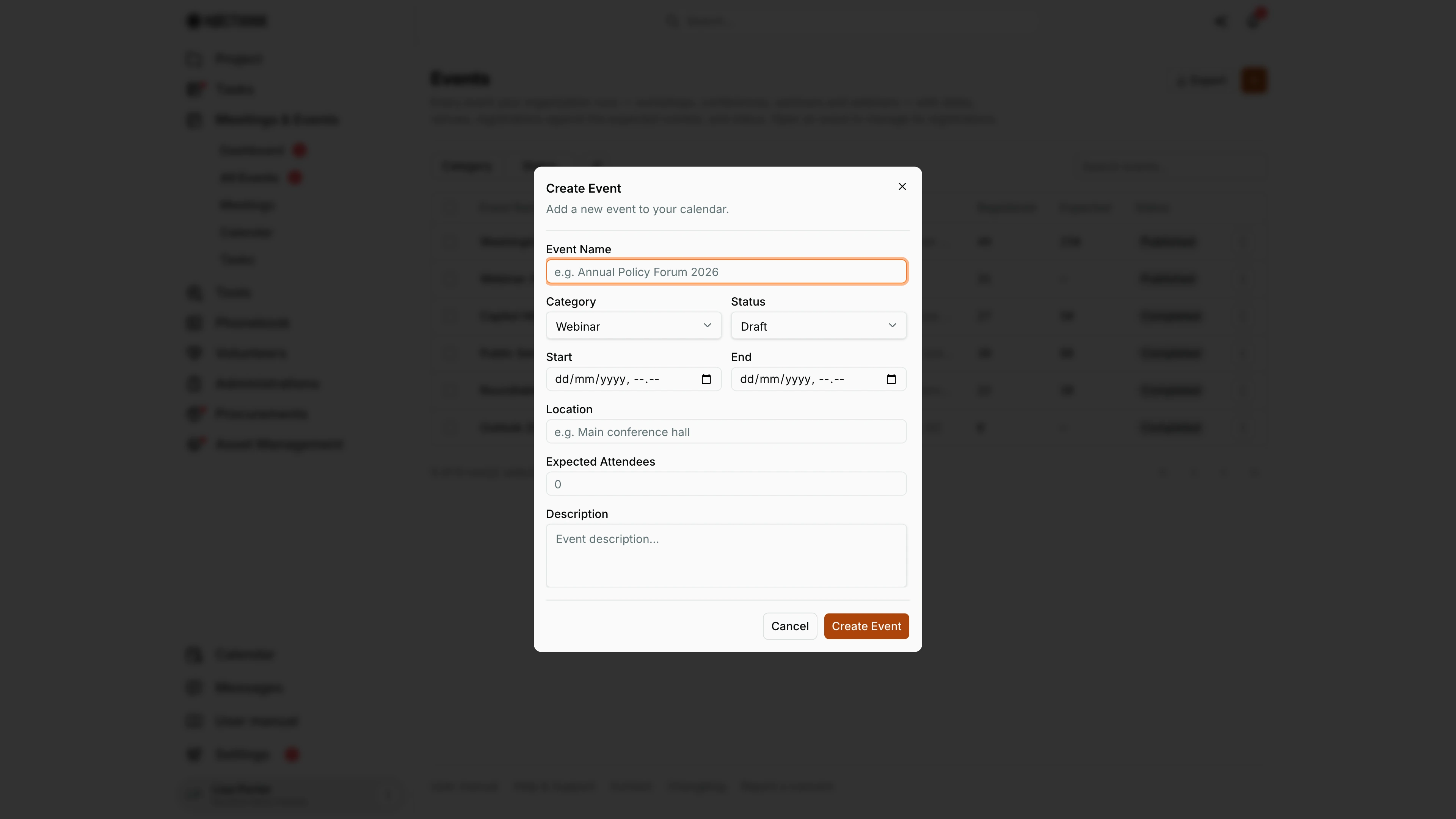
Screenshot: Lisa Porter (Operations Officer), Nocthink Demo Institute demo data.
The orange + opens Create Event: "Add a new event to your calendar." Event Name, Category (from Settings → Events) and Start are required; Status starts at Draft (or Published, Completed, Cancelled). End, Location, Expected Attendees and Description are optional; a blank End is saved the same as Start. Create Event adds the event to the list. See How I create an event above.
Event detail: Tasks
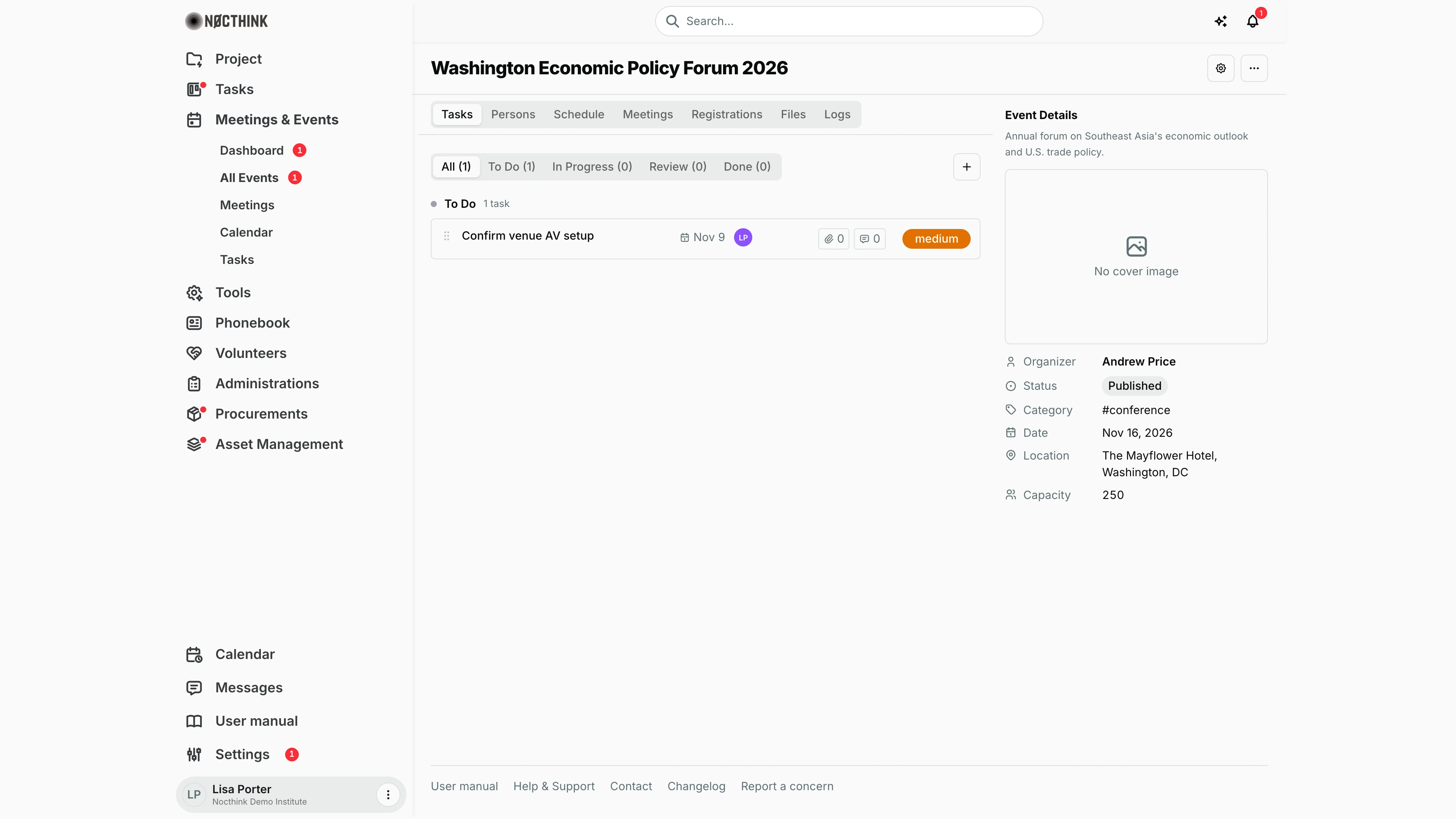
Screenshot: Lisa Porter (Operations Officer), Nocthink Demo Institute demo data.
Opening an event shows its name, the gear button (Event settings) and ⋯ with Edit Event, Registration Desk, MC View and Teleprompter (the last three open in a new tab). The right rail, Event Details, shows the description, cover image ("No cover image" until one is uploaded), Organizer, Status, Category, Date, Location and Capacity. The tabs are Tasks, Persons, Schedule, Meetings, Registrations, Files and Logs. Tasks opens first: a status filter with counts (All, To Do, In Progress, Review, Done) and + to add a task to this event; each card shows due date, assignee, attachment and comment counts and priority.
Event persons
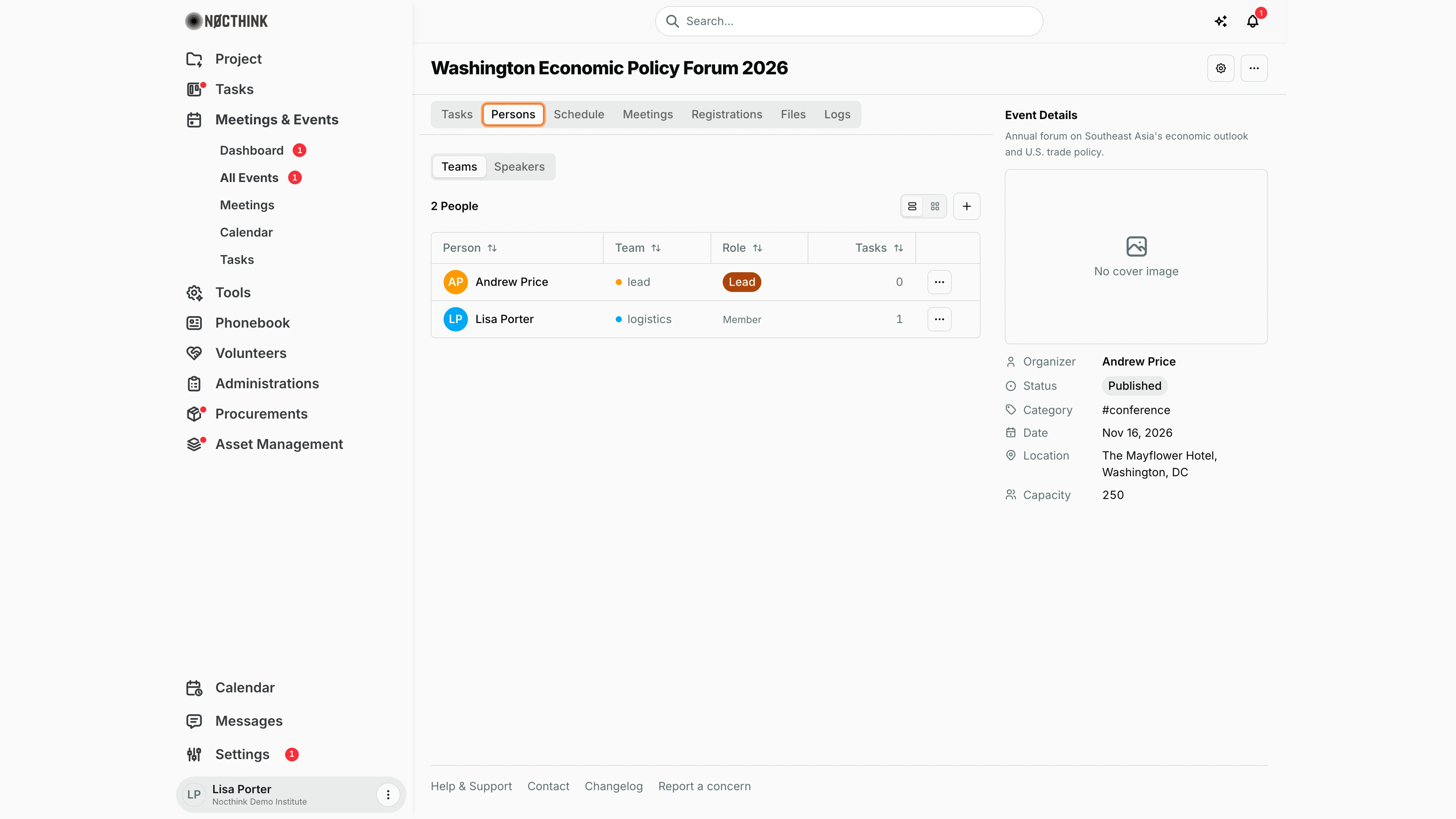
Screenshot: Lisa Porter (Operations Officer), Nocthink Demo Institute demo data.
Persons holds Teams and Speakers. Teams lists the event crew ("2 People") with Person, Team (such as lead or logistics), Role (Lead or Member) and the number of Tasks each has on the event; a list/grid switch, + (Add Team Member) and each row's ⋯ (change role, remove). Speakers lists the speakers drawn from the Phonebook, added with Add Speaker from Phonebook and edited from their row menu.
Event schedule
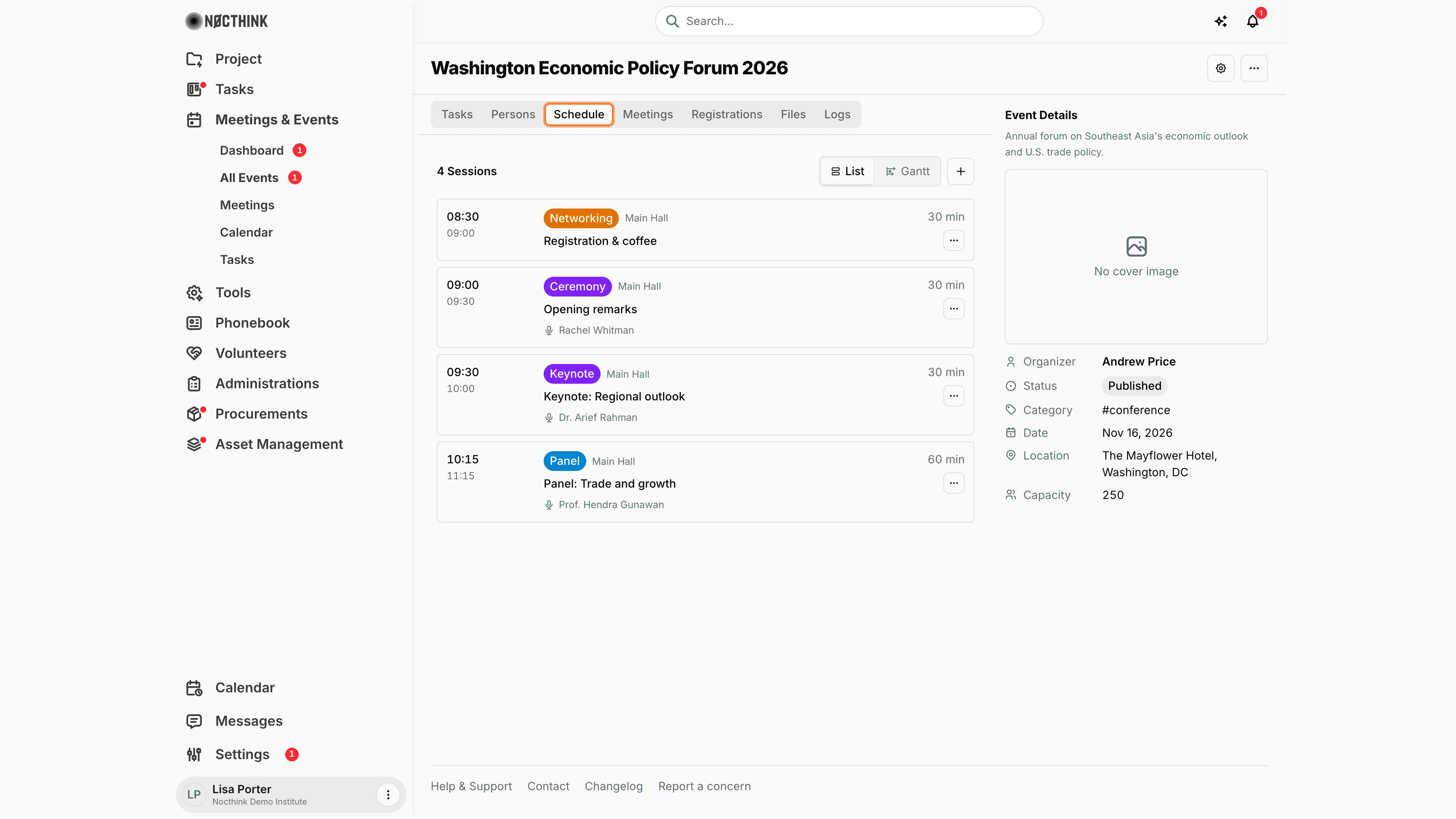
Screenshot: Lisa Porter (Operations Officer), Nocthink Demo Institute demo data.
Schedule is the run-of-show: "4 Sessions", a List / Gantt switch and + (Add Session). Each session shows its start and end time, a type pill (Networking, Ceremony, Keynote, Panel and so on), the room, the title, the speaker and the duration. The row ⋯ has Edit Session and delete. The MC View and Teleprompter read from this schedule.
Event registrations
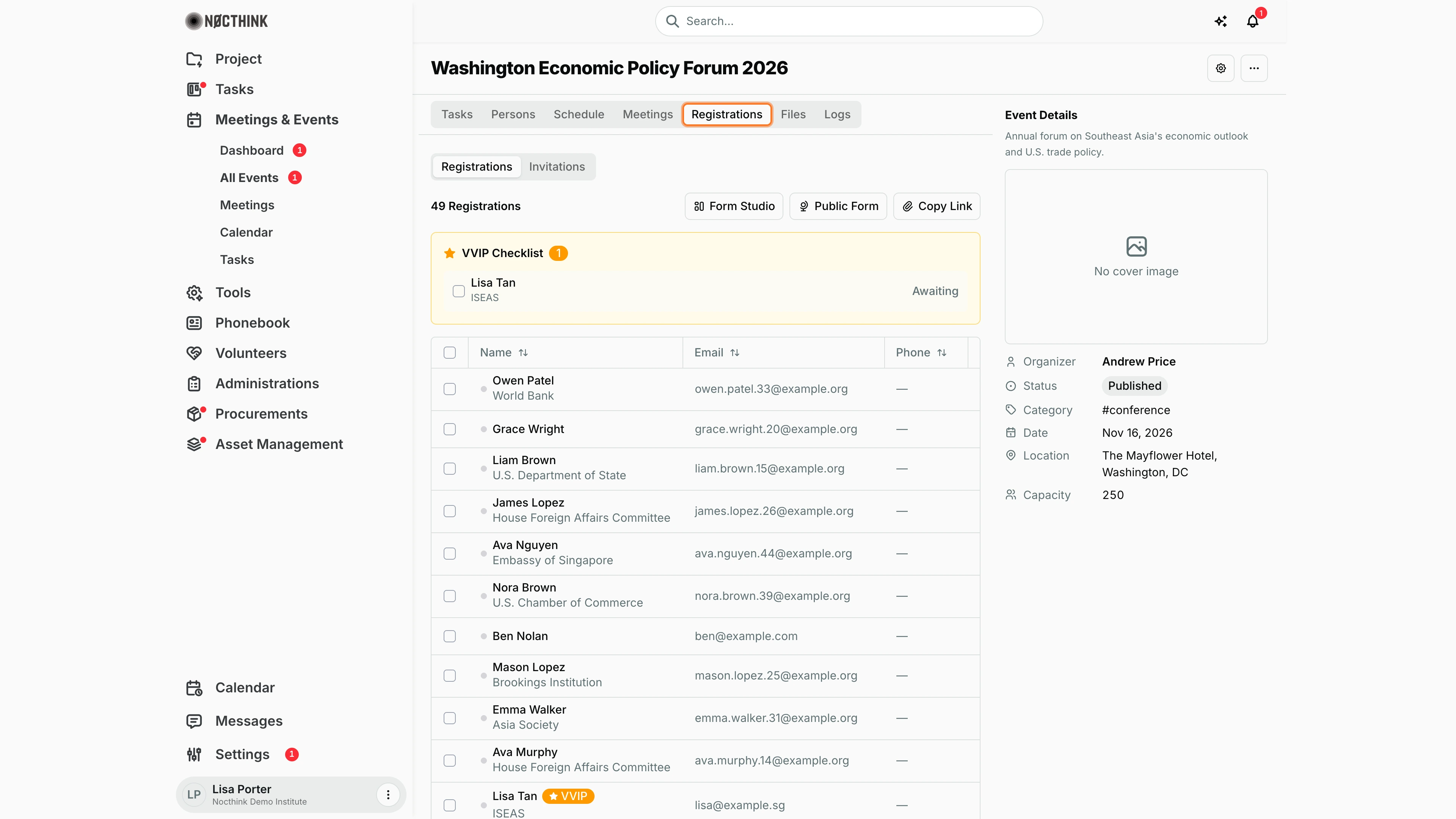
Screenshot: Lisa Porter (Operations Officer), Nocthink Demo Institute demo data.
Registrations has two sub-tabs, Registrations and Invitations. The first shows the count ("49 Registrations") with Form Studio, Public Form and Copy Link for the event's registration form, a VVIP Checklist of VVIP guests with their arrival state ("Awaiting"), and the registrant table (Name with organization, Email, Phone, status) with a VVIP badge where it applies. Ticking rows enables bulk check-in or rejection, and each row's menu sets the status. Invitations lists people invited from the Phonebook (Invite from Phonebook). See How I check people in on the day above.
Event files
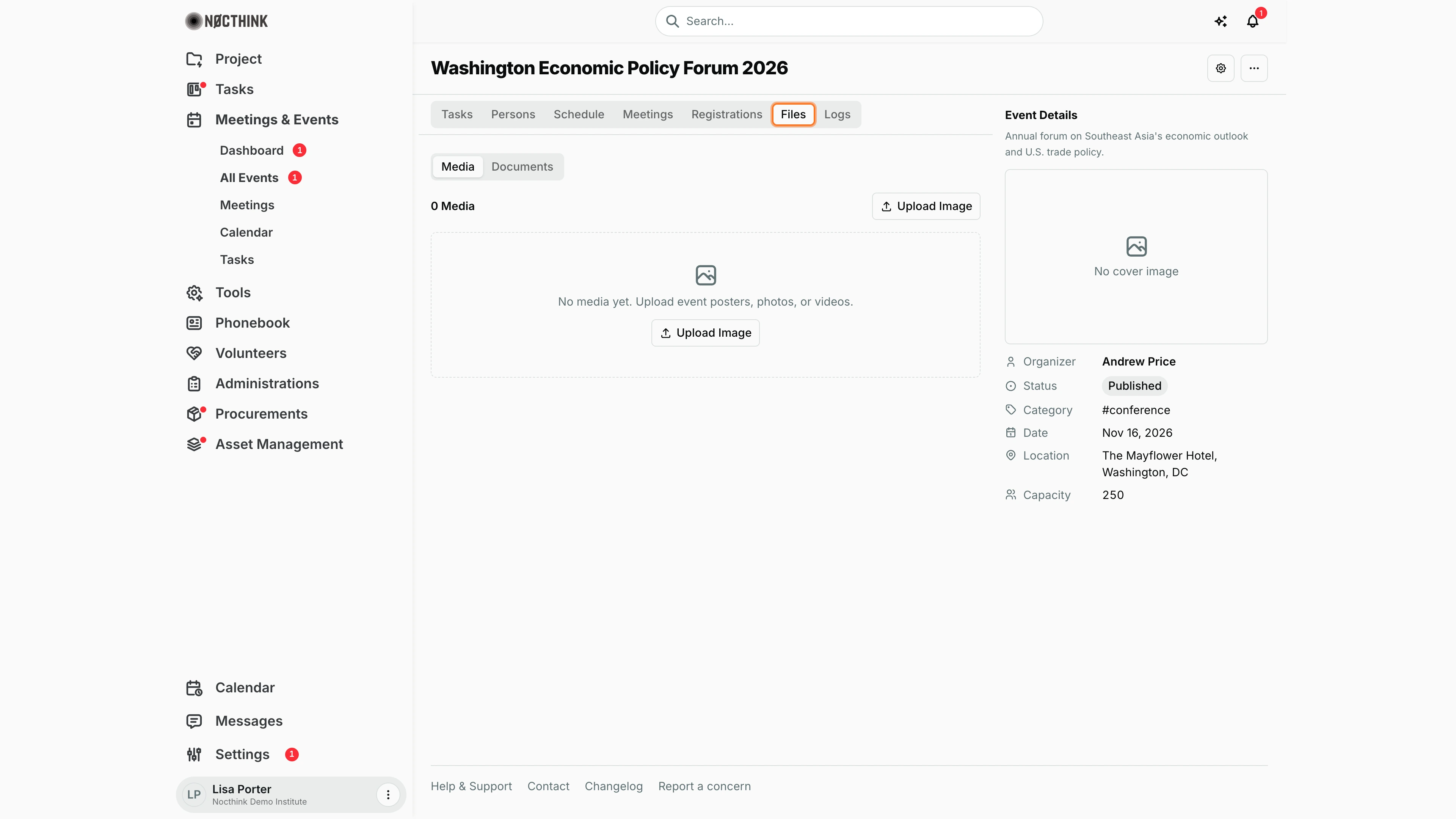
Screenshot: Lisa Porter (Operations Officer), Nocthink Demo Institute demo data.
Files has Media and Documents. Media collects posters, photos and videos ("No media yet. Upload event posters, photos, or videos.") with Upload Image; each item opens in a preview and has Edit Details and delete in its menu. Documents holds the event's files with the same Edit Details and download actions.
Event logs
Screenshot: Lisa Porter (Operations Officer), Nocthink Demo Institute demo data.
Logs is the event's activity history: what changed and who changed it, with the date and time. The demo event shows "No activity yet".
Edit Event
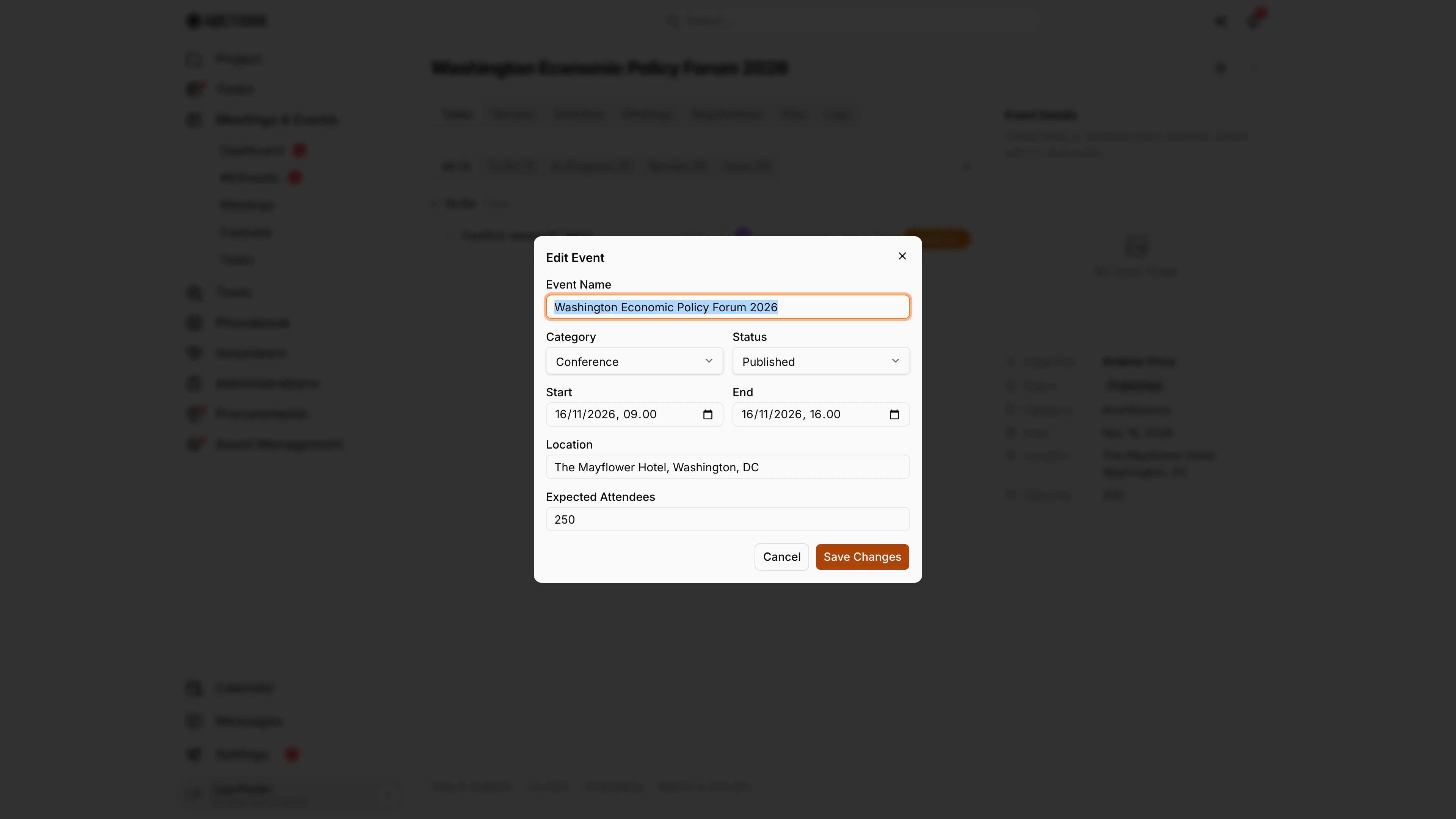
Screenshot: Lisa Porter (Operations Officer), Nocthink Demo Institute demo data.
⋯ → Edit Event on the event page (or ⋮ → Edit in the list) opens Edit Event with Event Name, Category, Status, Start, End, Location and Expected Attendees. Save Changes writes them; this is where I move an event from Draft to Published, and later to Completed or Cancelled.
Event settings
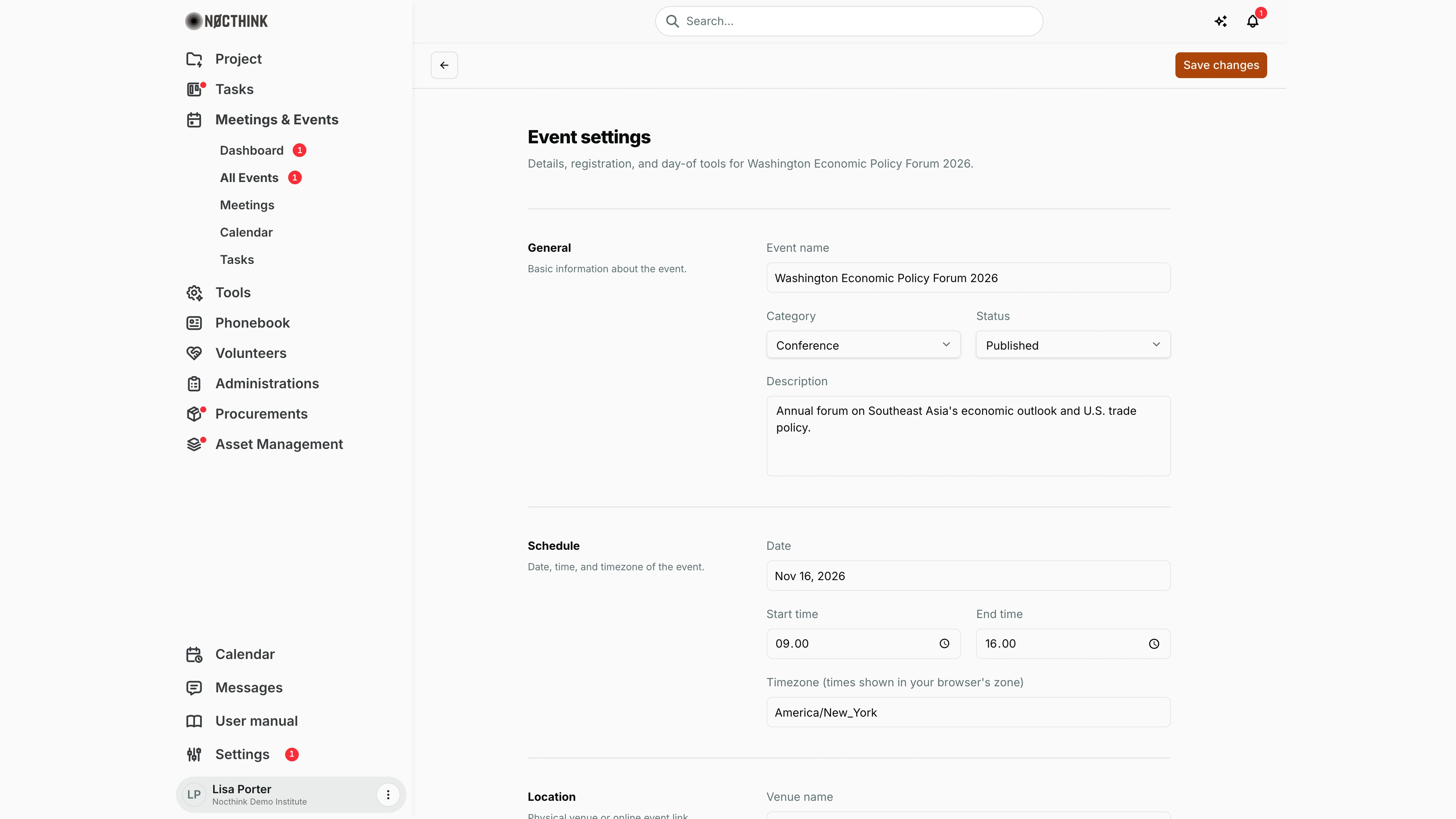
Screenshot: Lisa Porter (Operations Officer), Nocthink Demo Institute demo data.
The gear button opens Event settings: "Details, registration, and day-of tools for <event>." It is one long page of sections: General (name, Category and Status as pickers with their labels, description), Schedule (date, start and end time, timezone), Location (venue, address, city, country, online link), Registration (capacity, when registration closes), Access control (bypass the blocklist), Privacy, Notifications (reminder days before the event), MC run-of-show, Teleprompter script (upload) and the Danger zone (Cancel event, Delete event). Nothing is saved until I click Save changes at the top, which stores General and the blocklist and VVIP switches.
Access & permissions
- Seeing the page needs
events.view(every staff member via the Staff baseline role). Creating, editing and deleting needevents.create,events.updateandevents.delete— Event Officer and Owner/Director in the role matrix (docs/role.md §4.1). Read-only staff still see the buttons, but the API refuses the change. - All events in the organization are listed; event data is not limited to events I organize.
Caveats
- Registered counts registrations (registered or checked in), not form responses; Expected is the capacity typed on the event. Use Report for attendance figures.
- The Date column and the Start/End inputs both use my browser's time zone.
- The Category filter lists the categories set up in Settings → Events plus any other category already used on an event.
- Delete removes the event outright after a browser confirm — there is no archive.
- On Event settings, Save changes stores only General and the blocklist and VVIP switches; change dates, location and capacity through Edit Event.
- Registrations collected through a registration form are form responses; approving a response does not add the person to the event's Registrations tab.
Limitations
- Export downloads the events currently loaded (all of them, not just the filtered rows); use Report → Export report for attendance figures.
- No bulk actions on selected rows (the checkboxes only count the selection).
- No duplicate/clone event action.
Related menus
- Dashboard — summary of these events.
- Tasks — all tasks linked to events, across events.
- Registration Forms — public sign-up forms tied to an event.
- Blocklist — emails whose form submissions are auto-rejected.
- Report — registrations, attendance and capacity, with CSV export.
- Contacts — select contacts and Invite to Events.