
Volunteers
Open in NocthinkModule: Volunteers · URL: /volunteers/people · Responsible role: Volunteer coordinator (the demo "Volunteer coordinator" role, held by the Operations Officer and the HR Officer) · Also used by: Executive Director and Deputy Director (full access, including screening records); anyone else only if an admin grants them volunteers.view or more
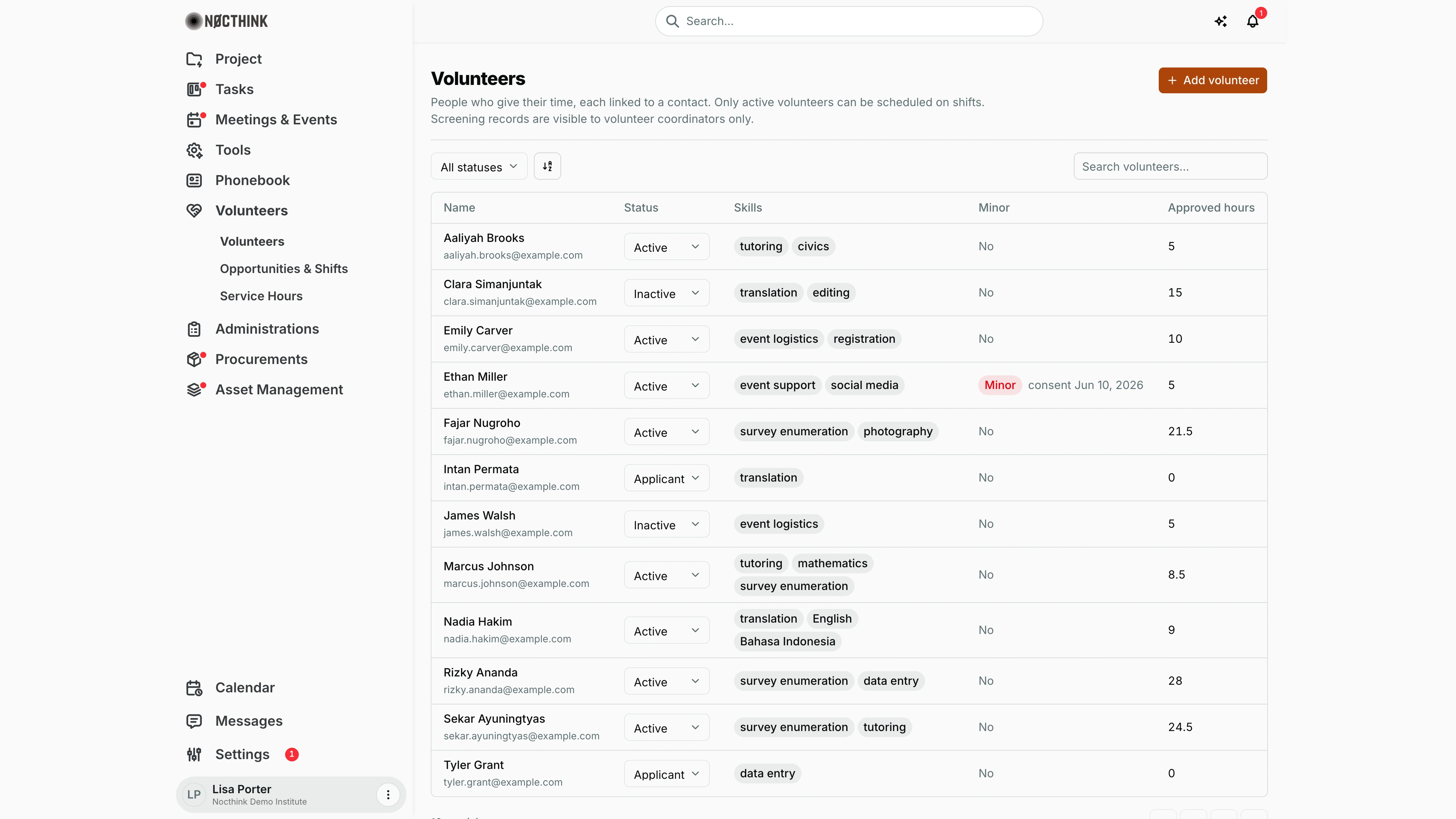
Screenshot: Lisa Porter (Operations Officer, Volunteer coordinator role), Nocthink Demo Institute demo data.
Why I use this page
This is our volunteer roster. I use it to take on new volunteers from our contacts, move them from Applicant to Active once they have been onboarded, and retire people who have stopped giving time. Before I schedule someone on a shift I check here that they are active and, if they are under 18, that guardian consent is on file. I open it whenever a new person signs up and at least monthly to tidy up statuses.
What's on the screen
- Header: the title Volunteers, a one-line reminder that only active volunteers can be scheduled and that screening records are visible to volunteer coordinators only, and the Add volunteer button on the right.
- Toolbar: a status filter (All statuses, Applicant, Active, Inactive), the sort control, and Search volunteers…, which matches on name.
- Table columns:
- Name: the contact's name with their email underneath. Click the name to open the volunteer's detail panel.
- Status: an inline dropdown (Applicant / Active / Inactive). Changing it saves right away.
- Skills: tags taken from the comma-separated skills entered when the volunteer was added.
- Minor: No, or a red Minor tag with the guardian consent date (Ethan Miller in the demo, consent Jun 10, 2026).
- Approved hours: the total of the volunteer's Approved service hours, in decimal hours (e.g. 21.5).
- The table shows up to 50 rows per page.
How I …
Add a new volunteer
- Make sure the person already exists in Phonebook → Contacts. If not, add them there first. Volunteers are always linked to a contact.
- Click Add volunteer (see Add volunteer below).
- In Find contact, type part of the name or email. The Contact dropdown narrows to matching contacts who are not already volunteers.
- Pick the person in Contact.
- Enter Skills separated by commas (for example
tutoring, first aid, driving). - If the person is under 18, tick Under 18 and enter the Parent or guardian consent date (today or earlier). You cannot submit without it.
- Click Add volunteer. The person appears with status Applicant.
Activate, pause or retire a volunteer
- Find the volunteer (use the status filter or the search box).
- Change the Status dropdown in the row, or open the name and change Status in the detail panel.
- Active: the volunteer can now be scheduled on shifts. The first time someone becomes active, their Joined date is set to today.
- Inactive: they no longer appear in the scheduling list on Opportunities & Shifts.
- The change saves straight away. There is no confirmation step.
Review a volunteer's details
- Click the volunteer's name (see Volunteer detail below).
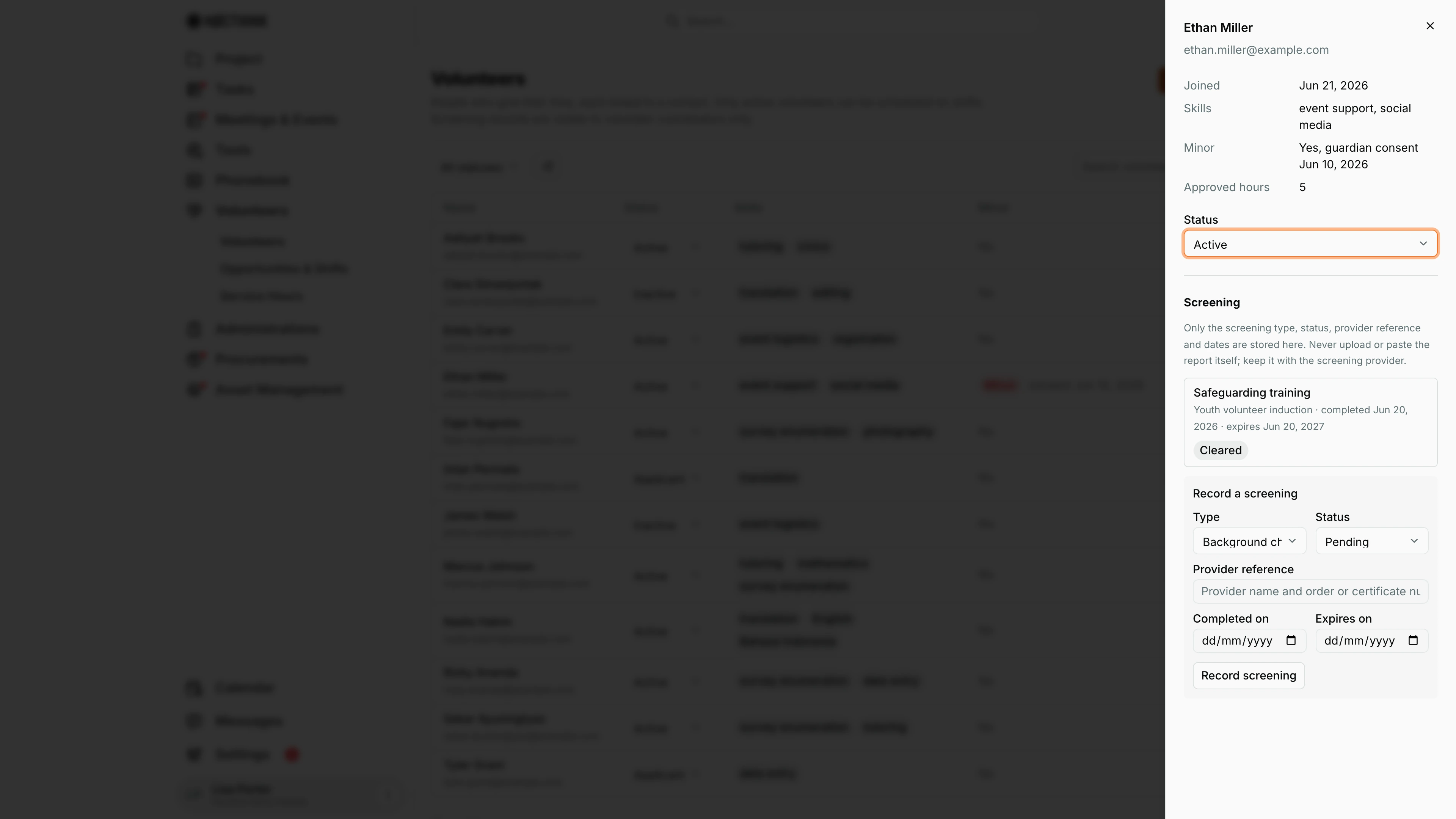
- The side panel shows Joined, Skills, Minor (with guardian consent date) and Approved hours, plus the Status dropdown.
- If I hold the screening permission (see below), a Screening section follows with every recorded check.
Record a screening result (screening permission only)
- Open the volunteer's detail panel and scroll to Screening → Record a screening.
- Choose Type: Background check, Reference, Safeguarding training or Other.
- Choose Status: Pending, Cleared or Not cleared.
- In Provider reference, enter the provider name and order or certificate number only. Do not paste or upload the report itself.
- Fill in Completed on and, if the check lapses, Expires on.
- Click Record screening. "Screening recorded." confirms it. The entry is added to the audit log.
Detail page, forms & dialogs
Volunteer detail
Screenshot: Lisa Porter (Operations Officer, Volunteer coordinator role), Nocthink Demo Institute demo data.
Clicking a volunteer's name opens this panel. The title is the name, with the email underneath ("No email on file" if the contact has none). The facts list Joined, Skills, Minor (for a minor, "Yes, guardian consent" and the consent date) and Approved hours. Status is the same Applicant / Active / Inactive dropdown as in the row and saves straight away. Because I hold the screening permission, a Screening section follows. Its note is the rule: only the screening type, status, provider reference and dates are stored, never the report itself. Each recorded check shows its type, provider, completion and expiry dates and a status pill such as Cleared. Record a screening below takes Type, Status, Provider reference, Completed on and Expires on (see Record a screening result above).
Add volunteer
Screenshot: Lisa Porter (Operations Officer, Volunteer coordinator role), Nocthink Demo Institute demo data.
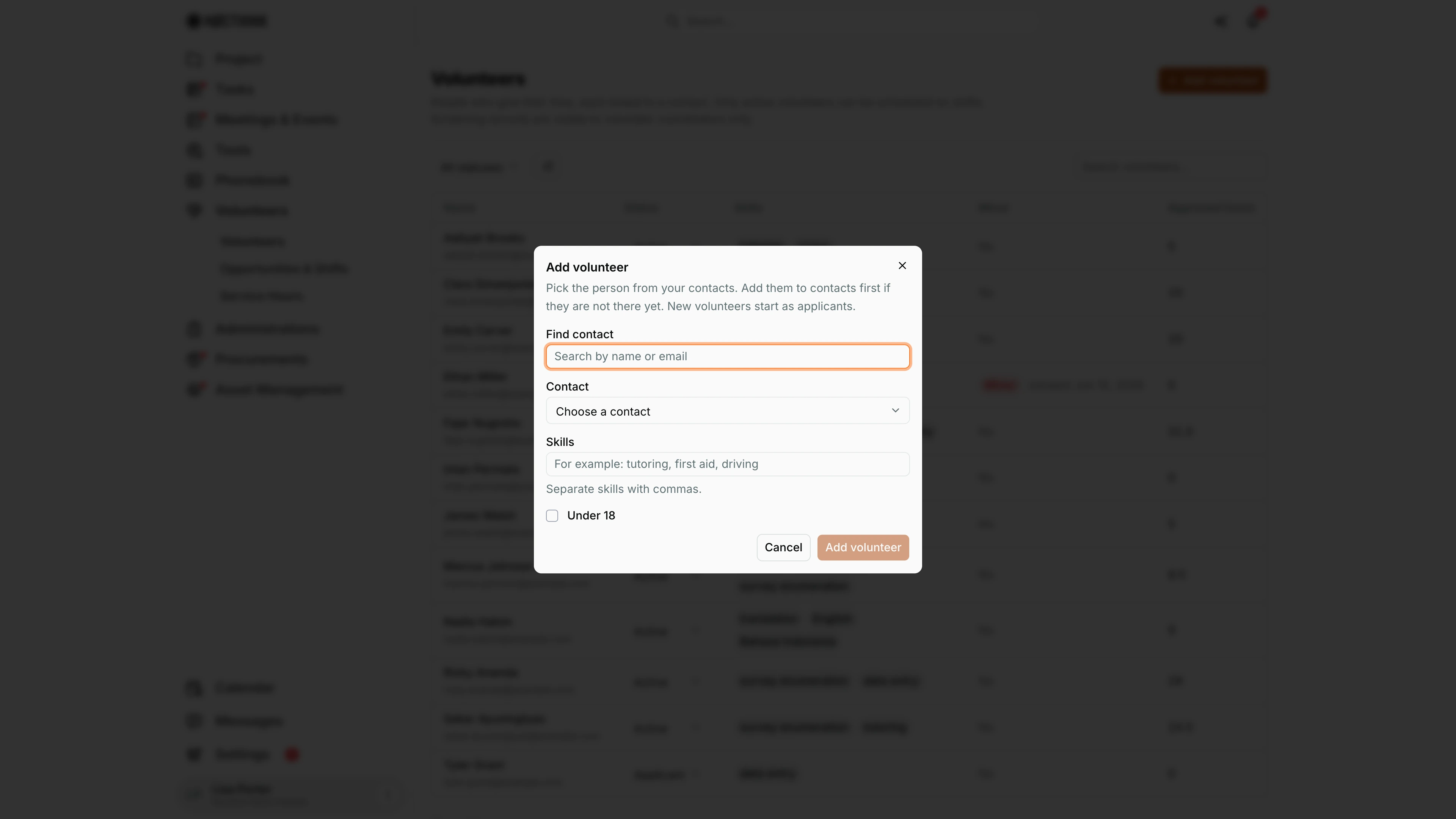
Add volunteer opens this dialog. It reminds me to pick the person from our contacts and to add them to Phonebook → Contacts first if they are not there yet. Find contact filters the Contact dropdown by name or email; people who are already volunteers are left out. Skills takes a comma-separated list, for example "tutoring, first aid, driving", which becomes the tags in the Skills column. Ticking Under 18 asks for the parent or guardian consent date, and the volunteer cannot be added without it. Add volunteer saves the person as an Applicant; I move them to Active once onboarding is done.
Access & permissions
- The Volunteers module is a restricted-view domain: unlike most menus, staff do not see it by default. You need
volunteers.view(granted through a role in Settings → Roles). The Executive Director and Deputy Director see everything. - Adding a volunteer needs
volunteers.create; changing status needsvolunteers.update. - The Screening section, both reading it and recording new results, needs
volunteers.approve. Without it, the section is simply hidden. In the demo, the "Volunteer coordinator" role (Lisa Porter, Diana Lewis) has view, create, update and approve, so coordinators see and record screenings in the detail panel, as do the Executive Director and Deputy Director. Screenings are not shown in the list itself, only in the detail panel. - Screening details never appear in the general contact record in Phonebook.
Caveats
- One contact can be a volunteer only once ("This contact is already a volunteer.").
- A minor must have a guardian consent date. A minor can never be scheduled on an opportunity marked Adults only.
- Status changes take effect immediately with no undo prompt. Setting someone Inactive does not cancel shifts they are already scheduled on. Cancel those on the shift itself.
- Only the latest screening of each type counts. A newer Pending or Not cleared result overrides an older Cleared one, and an expired clearance no longer qualifies on shift dates after Expires on.
- Approved hours counts approved hours only. Submitted hours waiting for a decision are not included.
- Screening entries record status and references only. Keep the actual background-check report with the provider.
Limitations
- No way to edit a volunteer's skills, minor flag or consent date after creation, and no delete. Only status can change.
- Screenings cannot be edited or deleted. Record a new entry to supersede an old one.
- No export, bulk status change or import.
- No volunteer self-service portal: volunteers do not sign in to apply, sign up for shifts or log their own hours.
Related menus
- Opportunities & Shifts: schedule active volunteers on shifts and mark attendance.
- Service Hours: the time each volunteer has given, which feeds Approved hours here.
- Contacts: every volunteer must exist as a contact first.
- Incidents: where to report a safeguarding event involving a volunteer.