
Opportunities & Shifts
Open in NocthinkModule: Volunteers · URL: /volunteers/opportunities · Responsible role: Volunteer coordinator (the demo "Volunteer coordinator" role, held by the Operations Officer and the HR Officer) · Also used by: Executive Director and Deputy Director (full access); other staff only if granted volunteers.view or more
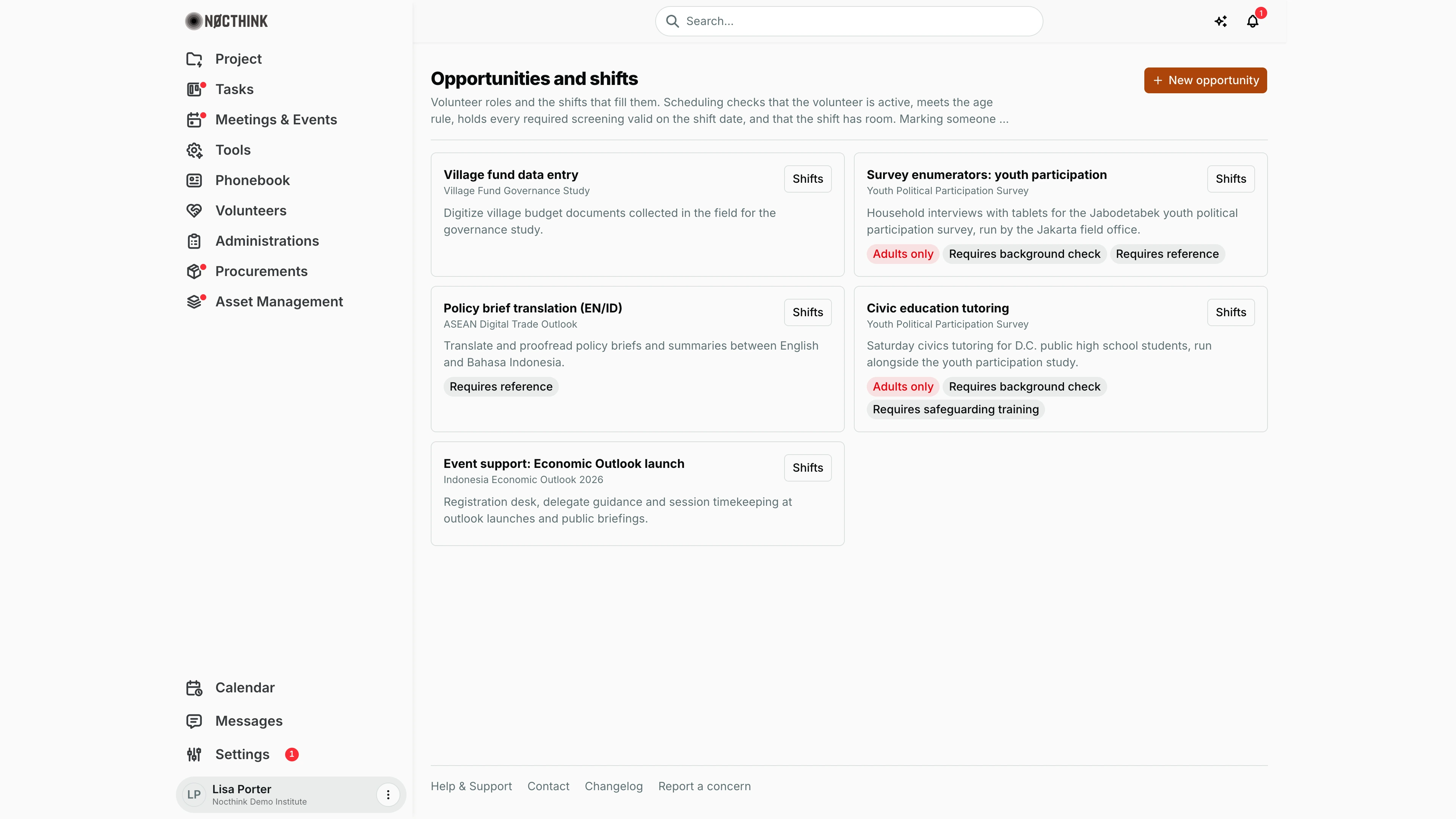
Screenshot: Lisa Porter (Operations Officer, Volunteer coordinator role), Nocthink Demo Institute demo data.
Why I use this page
Here I set up the volunteer roles we need (survey enumeration, tutoring, translation, event support) and the dated shifts that fill them. I schedule volunteers onto shifts, and after each shift I mark who attended. Marking attendance creates their approved service hours automatically. I use it whenever a project asks for volunteer help and again after each event or field day.
What's on the screen
- Header: Opportunities and shifts, a short explanation of the scheduling checks, and the New opportunity button.
- Opportunity cards (two per row), each showing:
- the title (e.g. Survey enumerators: youth participation) and, under it, the linked project (e.g. Youth Political Participation Survey);
- the description;
- requirement tags: a red Adults only tag and one tag per required screening, such as Requires background check, Requires reference or Requires safeguarding training;
- a Shifts button in the card's top-right corner that opens the shift panel for that opportunity.
- Shift panel (opens on the right after clicking Shifts): an Add a shift form at the top, then each shift with its date and time, location, an X of Y filled badge, the people scheduled with their attendance status, and a Schedule a volunteer picker.
How I …
Create an opportunity
- Click New opportunity (see New opportunity below).
- Enter a Title (required) and a Description.
- Optionally pick a Project so the role shows which project it supports.
- Under Required screenings, tick every check a volunteer must hold: Background check, Reference, Safeguarding training, Other.
- Tick Adults only (volunteers under 18 cannot be scheduled) if it applies, for example for work with students or household interviews.
- Click Create opportunity.
Add shifts to an opportunity
- Click Shifts on the opportunity card (see Opportunity and its shifts below).
- In Add a shift, set Starts and Ends (date and time in my local time). The end must be after the start.
- Set Capacity (whole number, at least 1) and Location.
- Click Add shift. The shift appears in the list in start-time order.
Schedule a volunteer on a shift
- Open Shifts for the opportunity and find the shift.
- In Schedule a volunteer, choose a name. The list contains only Active volunteers who are not already on that shift. Minors are marked "(minor)".
- Click Schedule. "Volunteer scheduled." confirms it and the person appears with status Scheduled.
- If the system refuses, read the message under the picker:
- "Only active volunteers can be scheduled.": activate them on Volunteers first.
- "This opportunity is for adults only.": the volunteer is a minor.
- "This volunteer is not cleared for this opportunity on that date. Ask the volunteer coordinator.": a required screening is missing, not cleared, or expires before the shift date. The message deliberately does not say which one.
- "This shift is full.": add capacity by creating another shift.
Record attendance after the shift
- Open Shifts and find the shift.
- For each person, click Attended, No show or Cancelled.
- Attended creates an Approved service-hours entry for the full shift length, dated on the shift's start date, with the opportunity title as its description. No separate approval is needed.
- If I change an Attended person to No show or Cancelled, those auto-created hours are removed again.
Detail page, forms & dialogs
Opportunity and its shifts
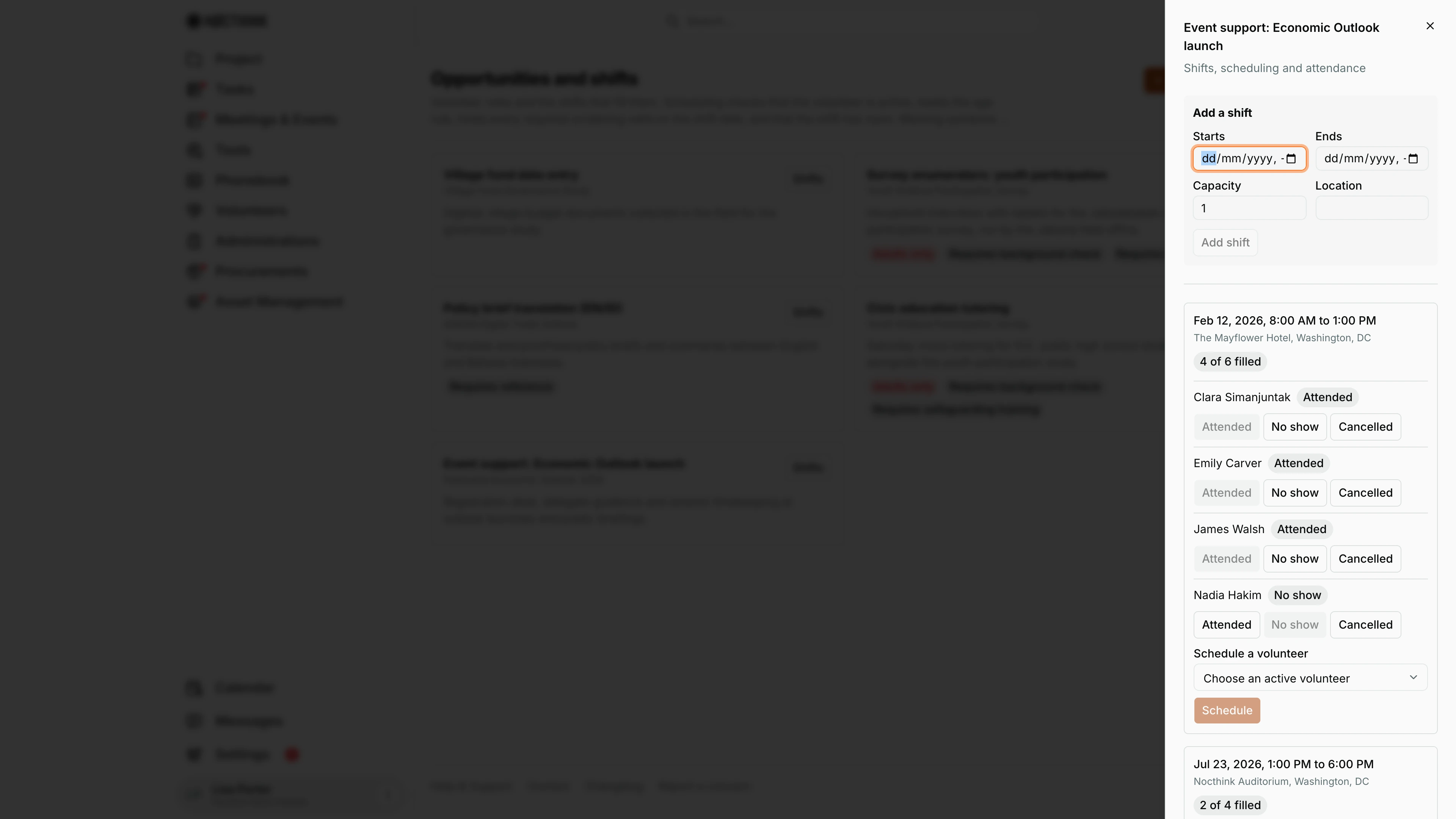
Screenshot: Lisa Porter (Operations Officer, Volunteer coordinator role), Nocthink Demo Institute demo data.
Shifts on an opportunity card opens this panel, titled with the opportunity and subtitled "Shifts, scheduling and attendance". At the top, Add a shift takes Starts, Ends, Capacity and Location, then Add shift. Below it each shift is listed in start-time order with its time range, location and an X of Y filled badge. Under each shift are the people scheduled on it with their current status (Scheduled, Attended, No show or Cancelled) and the Attended, No show and Cancelled buttons I use after the shift. Marking Attended creates approved service hours for the full shift. Schedule a volunteer lists only active volunteers not already on that shift, and Schedule adds the chosen person, subject to the screening, adults-only and capacity checks described above.
New opportunity
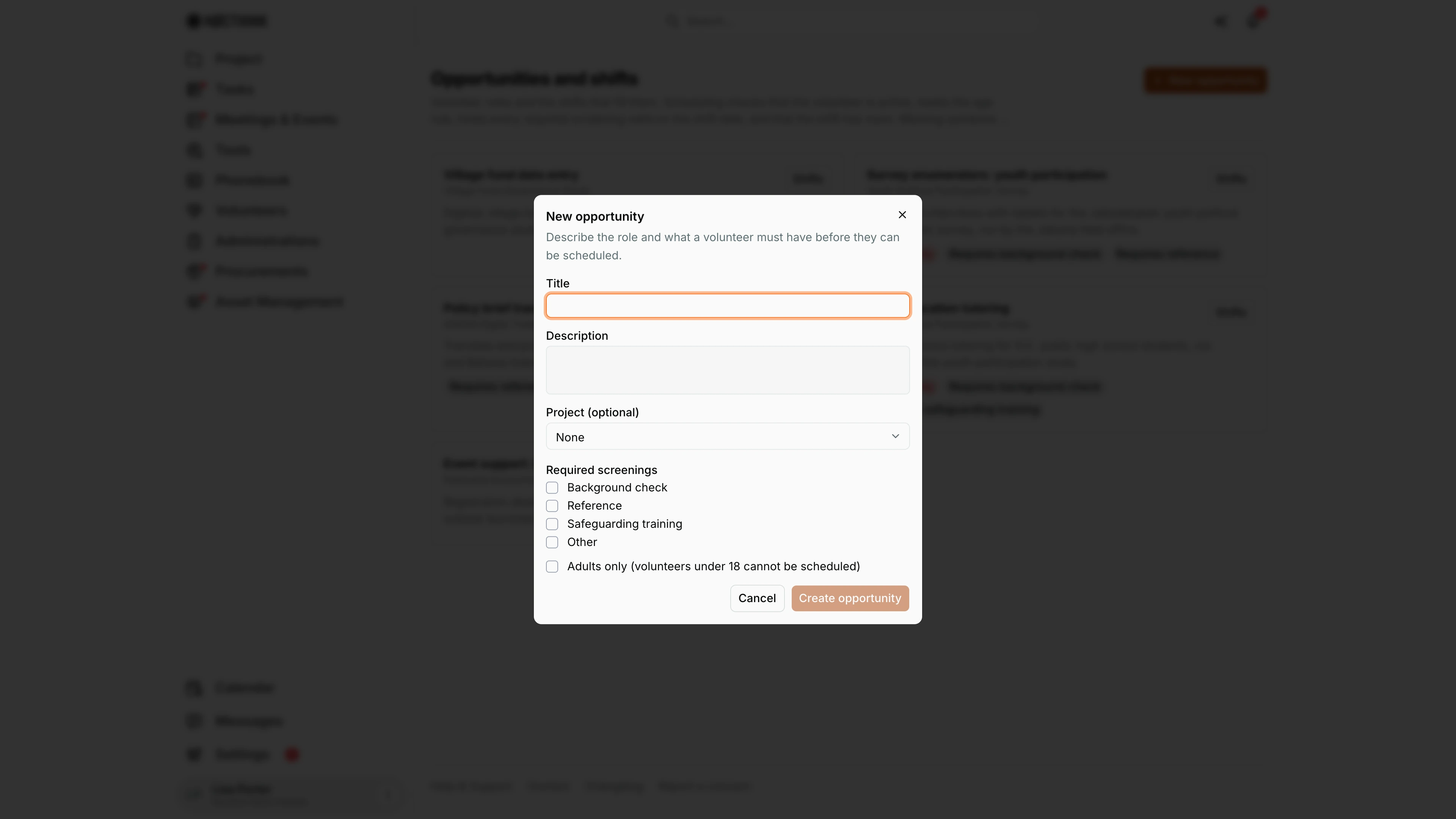
Screenshot: Lisa Porter (Operations Officer, Volunteer coordinator role), Nocthink Demo Institute demo data.
New opportunity opens this form: "Describe the role and what a volunteer must have before they can be scheduled." Title is required; Description explains the work. Project (optional) links the role to the project it supports, shown under the title on the card. Required screenings lists Background check, Reference, Safeguarding training and Other; every ticked check must be cleared and unexpired on the shift date before a volunteer can be scheduled. Adults only (volunteers under 18 cannot be scheduled) blocks minors. Create opportunity adds the card; I then open Shifts to add dates.
Access & permissions
- Restricted-view module: staff need
volunteers.viewto see the menu at all. The Executive Director and Deputy Director see everything. - Creating opportunities and shifts needs
volunteers.create. Scheduling volunteers and recording attendance needsvolunteers.update. The demo "Volunteer coordinator" role has both, plusvolunteers.approve. - The scheduling picker never shows screening details, only the generic "not cleared" message. Screening records live on the volunteer's detail panel on Volunteers and need
volunteers.approve, which the demo coordinator role holds.
Caveats
- Screening validity is checked against the shift's start date: the latest result of each required type must be Cleared and not expired on that day.
- Shift times are entered in my browser's local time and stored as exact instants. The date used for screening checks and for the hours entry is taken from the start time in UTC, so an early-morning shift entered from a timezone ahead of UTC (or a late-evening shift from one behind) can land on the neighbouring date.
- Cancelled assignments free up a place. Attended and No show still count toward filled.
- Attendance hours always equal the full scheduled shift length. If someone left early, mark them No show and log the actual time by hand on Service Hours instead.
- Setting a volunteer Inactive does not remove them from shifts they are already on.
Limitations
- Opportunities and shifts cannot be edited, closed or deleted from this page. There is no edit button and no archive.
- No calendar view, recurring shifts, reminders or notifications to volunteers.
- Volunteers cannot sign themselves up. A coordinator schedules every assignment.
- No export of rosters or attendance.
Related menus
- Volunteers: activate volunteers and record the screenings that scheduling checks.
- Service Hours: where attended shifts appear as approved hours.
- All Projects: the projects an opportunity can be linked to.
- Programs & Impact: the programme work that volunteer roles support.