
Service Hours
Open in NocthinkModule: Volunteers · URL: /volunteers/hours · Responsible role: Volunteer coordinator (the demo "Volunteer coordinator" role, held by the Operations Officer and the HR Officer) · Also used by: Executive Director and Deputy Director (full access, including approving hours); other staff only if granted volunteers.view or more
Screenshot: Lisa Porter (Operations Officer, Volunteer coordinator role), Nocthink Demo Institute demo data.
Why I use this page
This is the log of time our volunteers give us. Most entries come in automatically when I mark someone Attended on a shift. I log the rest by hand: work done outside a shift, or a shift where the person left early. I come here weekly to log hours, and an approver clears the Submitted queue. The totals feed each volunteer's Approved hours and our reporting on volunteer contribution.
What's on the screen
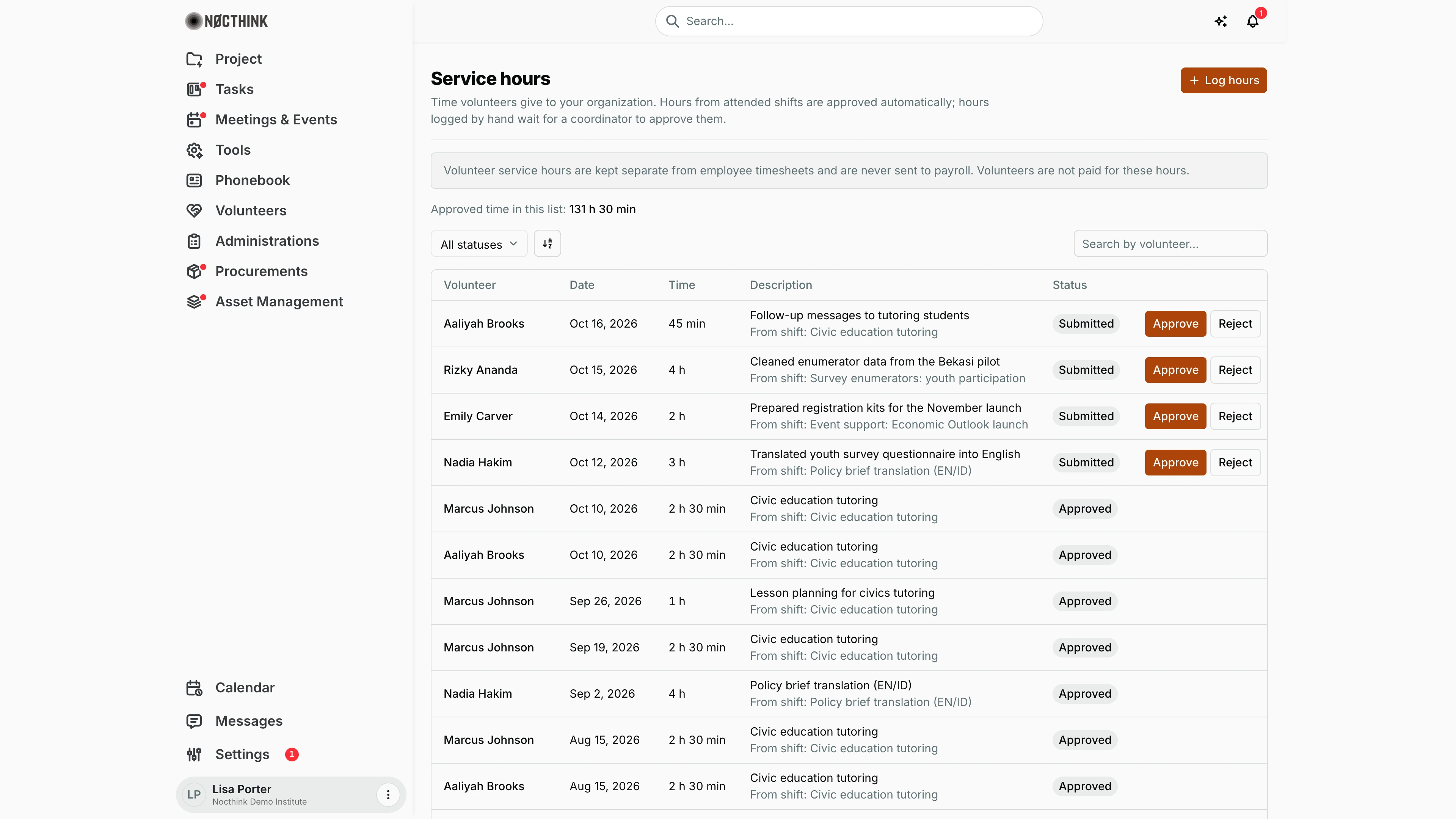
- Header: Service hours, a note that attended-shift hours are approved automatically while hand-logged hours wait for approval, and the Log hours button.
- Notice: "Volunteer service hours are kept separate from employee timesheets and are never sent to payroll. Volunteers are not paid for these hours."
- Approved time in this list: the sum of Approved entries currently loaded (131 h 30 min in the demo).
- Toolbar: status filter (All statuses, Submitted, Approved, Rejected), the sort control and Search by volunteer….
- Table columns: Volunteer, Date, Time (shown as "2 h 30 min"), Description (with "From shift: <opportunity>" underneath when the entry is linked to an opportunity), Status, and an actions column. Approve / Reject buttons appear only on Submitted rows and only for users who hold the approval permission. In the screenshot Lisa Porter holds it, so the four Submitted rows show Approve and Reject.
How I …
Log hours by hand
- Click Log hours (see Log service hours below).
- Choose the Volunteer.
- Set the Date (defaults to today; future dates are blocked).
- Enter Hours and Minutes. The line under the fields shows the total. One entry can be at most 24 hours, and at least 1 minute.
- Add a Description of what the volunteer did (up to 1,000 characters).
- Click Submit hours. The entry appears with status Submitted.
Approve or reject submitted hours (approval permission only)
- Set the status filter to Submitted.
- Check each entry's date, time and description against what the volunteer actually did.
- Click Approve or Reject on the row. The decision is final: an entry that is already approved or rejected cannot be decided again ("These hours are already approved.").
- Approved minutes are added to the volunteer's Approved hours on Volunteers.
Total a volunteer's or a period's hours
- Type the volunteer's name in Search by volunteer…, or filter by status.
- Read the Date and Time columns. Use the sort control to order by date.
- For a volunteer's lifetime approved total, use the Approved hours column on Volunteers instead, because the Approved time in this list figure ignores the search box (see Caveats).
Correct hours that came from a shift
- Hours created by marking Attended cannot be edited here.
- Go to Opportunities & Shifts, open the shift and change the person to No show or Cancelled. This deletes the auto-created entry.
- Come back and use Log hours for the correct time. It will need approval.
Detail page, forms & dialogs
Log service hours
Screenshot: Lisa Porter (Operations Officer, Volunteer coordinator role), Nocthink Demo Institute demo data.
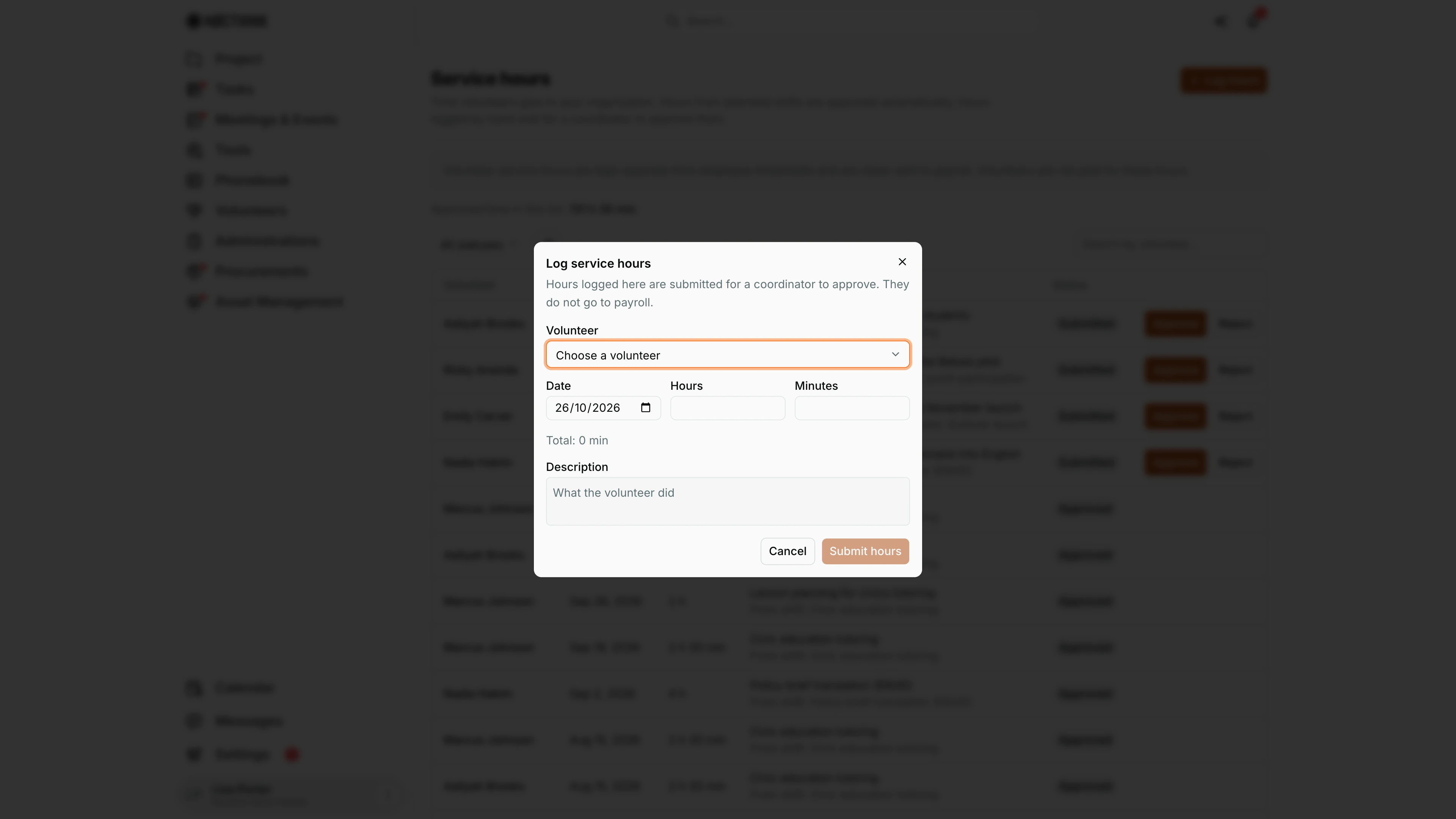
Log hours opens this dialog for time given outside a shift, or to correct a shift the person left early. The description sets expectations: "Hours logged here are submitted for a coordinator to approve. They do not go to payroll." I choose the Volunteer, set the Date (today by default; future dates are not accepted), and enter Hours and Minutes; the line under them shows the total, which must be between 1 minute and 24 hours. Description says what the volunteer did. Submit hours adds the entry as Submitted, where someone with the approval permission clears it with Approve or Reject.
Access & permissions
- Restricted-view module: staff need
volunteers.viewto see the page. The Executive Director and Deputy Director see everything. - Log hours needs
volunteers.create. Approve / Reject needsvolunteers.approve. - In the demo, the "Volunteer coordinator" role (Lisa Porter, Diana Lewis) holds
volunteers.approve, so coordinators both log hours and approve or reject them, as do the Executive Director and Deputy Director. - Volunteers have no login and cannot log their own hours. Staff enter hours for them.
Caveats
- Hours cannot be logged for a future date, and each entry must be whole minutes between 1 and 1,440.
- Log hours lists every volunteer, including applicants and inactive volunteers. Pick carefully.
- Approve/Reject is a one-time decision with no undo. A rejected entry stays in the list as Rejected. To correct it, log a new entry.
- Approved time in this list sums the approved rows for the current status filter, but it does not change when you type in the search box.
- Entries logged with Log hours are not linked to an opportunity, even when their description mentions one. (The demo's submitted entries show "From shift: …" because the seed links them; the dialog cannot.)
- These hours never reach Timesheet or Payroll. If a volunteer is later hired, their volunteer time does not carry over.
Limitations
- No edit or delete of an entry. Corrections go through rejection plus a new entry, or through attendance on the shift.
- No bulk approve, no export and no hours report by project or period.
- Hours logged by hand cannot be attached to a specific opportunity or shift from the dialog.
- No dollar valuation of volunteer time on this page.
Related menus
- Volunteers: shows each volunteer's total Approved hours.
- Opportunities & Shifts: marking Attended creates approved hours here automatically.
- Timesheet: staff time, kept completely separate from volunteer hours.
- Payroll: never receives volunteer hours.