
Incidents
Open in NocthinkModule: Governance & Risk · URL: /risk/incidents · Responsible role: Deputy Director (risk owner; triages and closes incidents) · Also used by: staff with a risk role who report incidents (risk.create) or update their status (risk.update); "Program and impact" role (researcher1, read only); not visible to ordinary staff
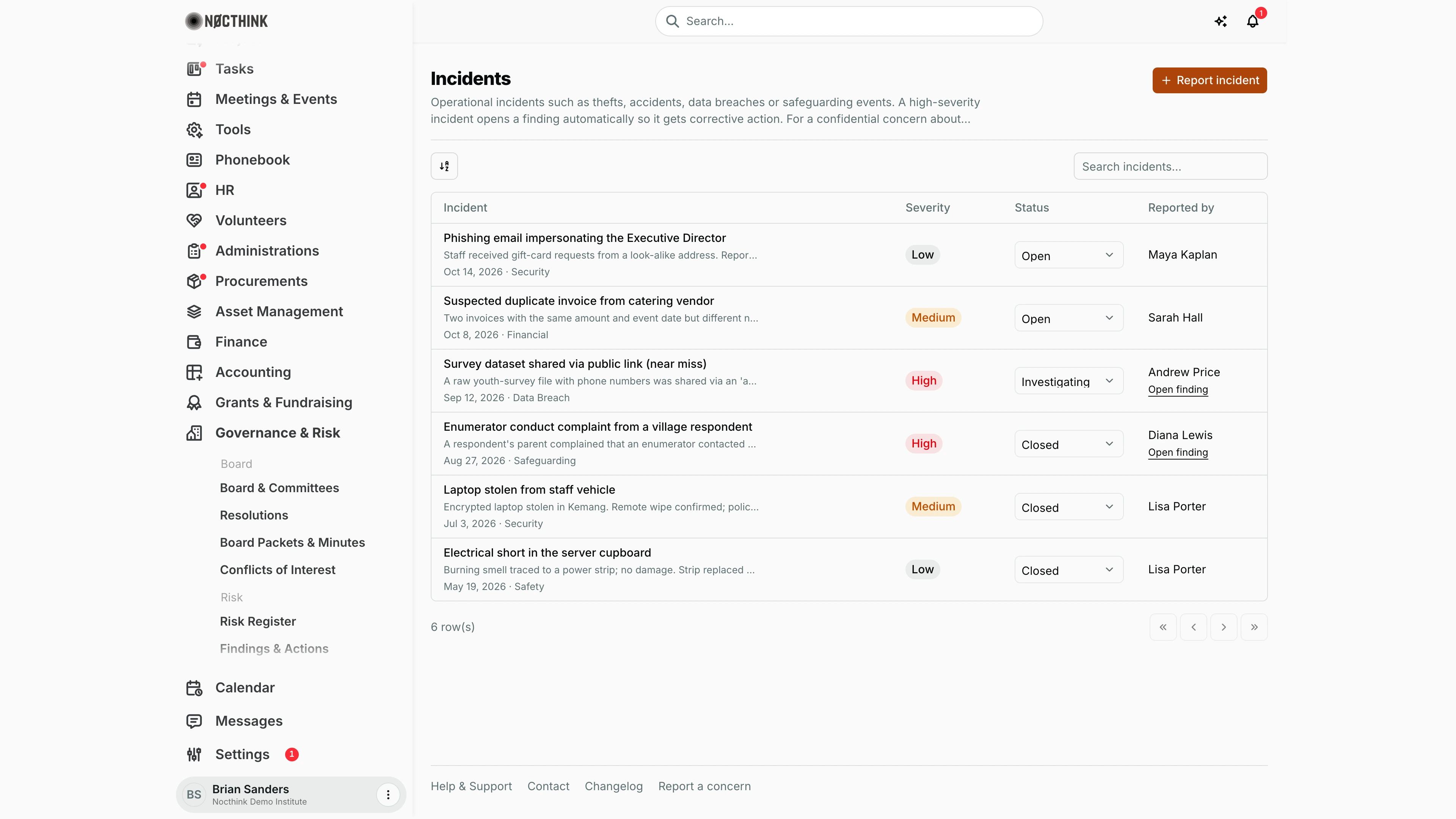
Screenshot: Brian Sanders (Deputy Director), Nocthink Demo Institute demo data.
Why I use this page
I keep the log of operational incidents here — thefts, accidents, IT security events, data breaches, financial irregularities and safeguarding events. Each one is recorded once with what happened and how serious it was, and I move it through Open → Investigating → Closed. High-severity incidents automatically open a finding so the corrective action is tracked. I check this page whenever something is reported and in my weekly risk review; the log also feeds insurance claims, donor safeguarding reports and the audit committee.
What's on the screen
- Header: Incidents with the Report incident button and a reminder to use Report a concern for confidential concerns about someone's conduct.
- Toolbar: a sort control and Search incidents… (by title).
- Table (most recent occurrence first, 50 per page):
- Incident — title, the start of the description, and the date it occurred with its category (Operational, Safety, Security, Data breach, Financial, Safeguarding, Reputational, Other)
- Severity — Low, Medium (amber), High (red)
- Status — an inline picker showing the current status: Open, Investigating, Closed
- Reported by — the staff member who recorded it, with an Open finding link underneath for incidents that opened one.
How I …
Report an incident
- Click Report incident (see Report incident below).
- Enter the Title (required).
- Set Occurred on (defaults to today; future dates are not allowed), Severity (default Low) and Category (default Operational).
- Describe what happened, who was affected and the immediate response in Description.
- Click Report incident. "Incident reported." appears; for High severity a notice says a finding was opened, with Open the finding. Click Done.
Move an incident through investigation
- Find the incident (search by title if needed).
- In Status, choose Investigating when someone is looking into it.
- When the response is complete, choose Closed. The change saves immediately.
Follow up a high-severity incident
- Click Open finding on the row.
- On Findings & Actions, add corrective actions with owners and due dates, complete them, and have an approver who is not the reporter close the finding with evidence.
- Close the incident here once the finding is closed.
Escalate a conduct concern
- Do not log a complaint about a person's conduct here; the incident log is visible to everyone with risk access.
- Use Report a concern in the page footer, which goes to the restricted confidential case process.
Detail page, forms & dialogs
Report incident
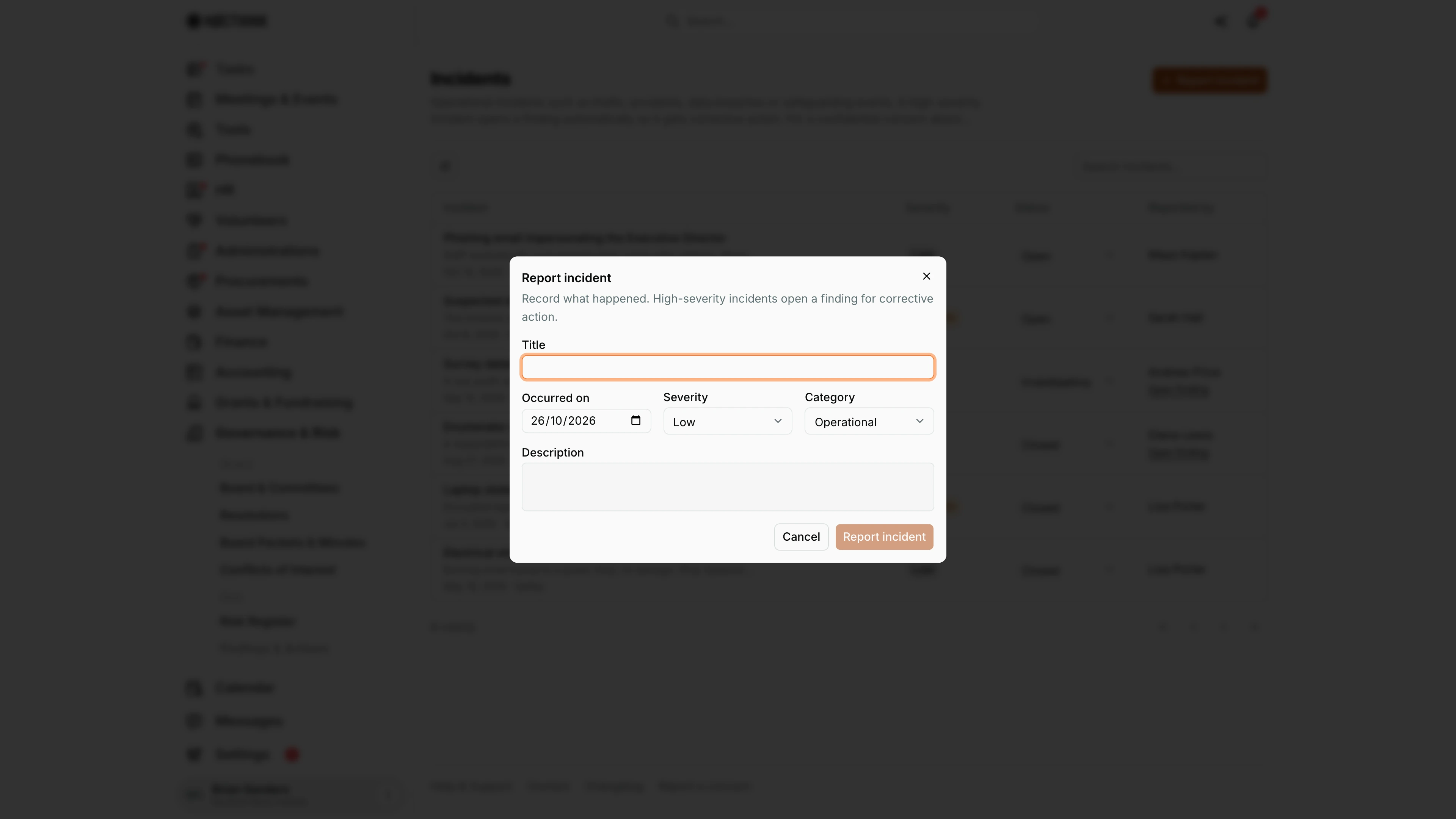
Screenshot: Brian Sanders (Deputy Director), Nocthink Demo Institute demo data.
Report incident opens a dialog: "Record what happened. High-severity incidents open a finding for corrective action."
- Title is required.
- Occurred on defaults to today and cannot be in the future.
- Severity: Low (default), Medium or High.
- Category: Operational (default), Safety, Security, Data breach, Financial, Safeguarding, Reputational or Other.
- Description: what happened, who was affected and the immediate response.
Report incident saves it and the dialog confirms "Incident reported." For a High incident it adds that a finding was opened, with Open the finding, which goes to Findings & Actions. Done closes the dialog.
Access & permissions
- Risk is a restricted-view domain: the owner, directors and users with
risk.viewsee the page. Ordinary staff cannot open it and should report via their manager or Report a concern. - Report incident needs
risk.create; changing Status needsrisk.update.
Caveats
- Incidents cannot be edited or deleted after they are reported; title, date, category, severity and description are fixed. Pick the severity carefully.
- Only High severity opens a finding automatically. Raising the severity later is not possible, so for a medium incident that turns serious, raise a finding by hand on Findings & Actions.
- A status change saves as soon as I pick it, without confirmation, and can be changed back.
- Closing the incident does not close its finding, and vice versa.
- The automatic finding has no owner; assign one through its corrective actions.
- Descriptions are visible to everyone with risk access; avoid names of victims or respondents (the demo near-miss shows why).
Limitations
- No detail view, attachments (police reports, photos) or comments; the description is the only narrative.
- No filter by category, severity or status, and no export.
- No notifications to the Deputy Director or risk owners when an incident is reported.
- No link from an incident to a risk in the register.
Related menus
- Findings & Actions — corrective action for high-severity incidents.
- Risk Register — re-score the related risk after an incident.
- Obligations — some breaches create reporting duties to agencies or funders.
- Reporting Calendar — funder notifications such as safeguarding updates.