
Programs & Impact
Open in NocthinkModule: Project · URL: /project/programs · Responsible role: Project Manager (as program lead; this menu is not yet listed in the docs/role.md matrix) · Also used by: Owner/Director (full), all staff with Project access (read; record and verify values on indicators of projects they work on)
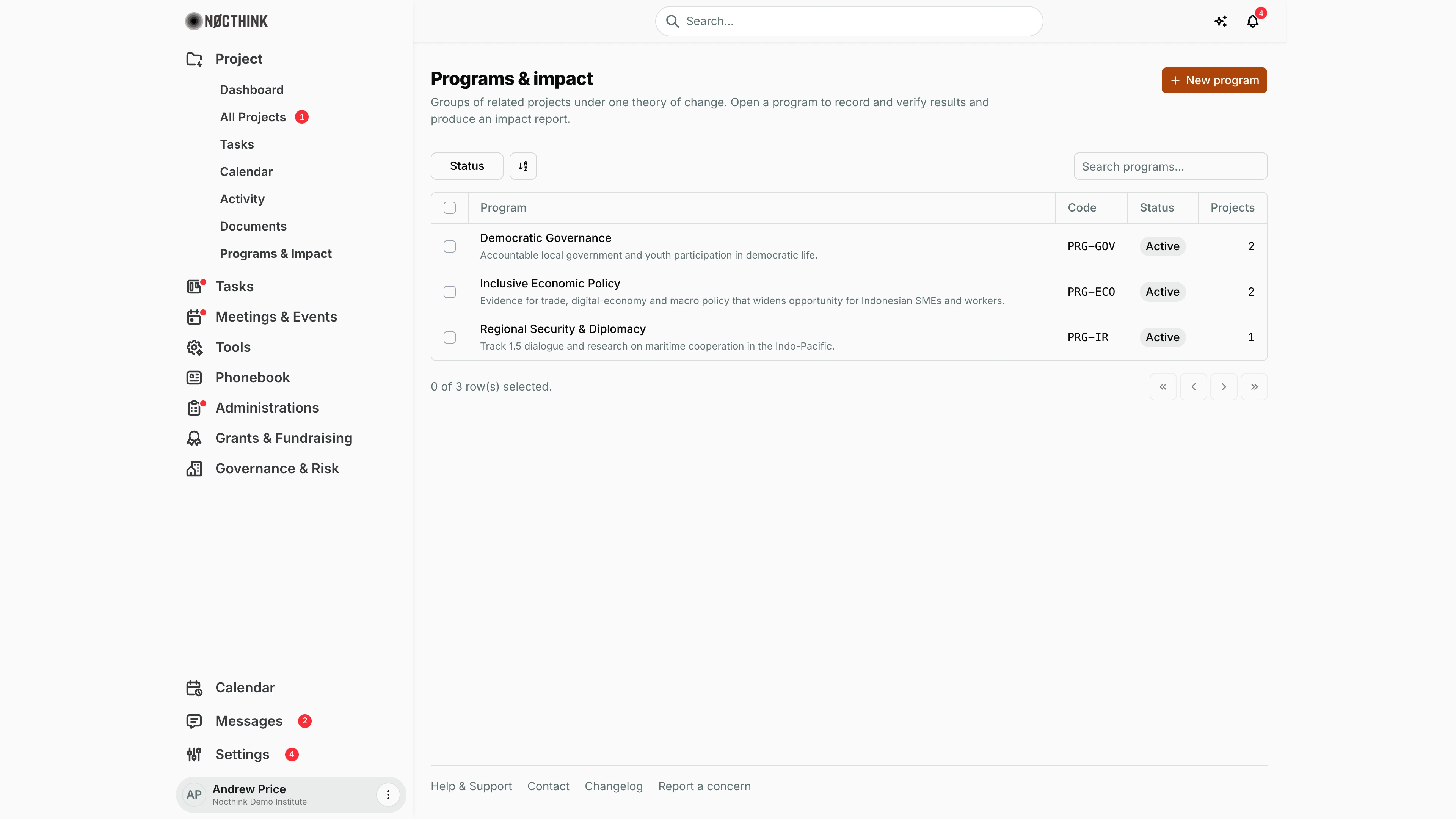
Screenshot: Andrew Price (Senior Researcher), Nocthink Demo Institute demo data.
Why I use this page
A program groups related projects under one theory of change. As Project Manager I use this page to keep that grouping current and, more importantly, to report results: what each indicator has achieved against its baseline and target, counting only values someone else has verified. I open it when a quarter closes to record and verify values, and before a donor or board report to produce the impact report.
What's on the screen
- Header — Programs & impact, with "Groups of related projects under one theory of change. Open a program to record and verify results and produce an impact report." The + New program button is on the right.
- Toolbar — a Status filter (Active, Closed), a view/sort toggle and Search programs....
- Table — Program (the name with its description underneath), Code (for example PRG-GOV), Status and Projects (the number of attached projects). Click a row to open the program.
- Program page — a Program Details side panel and three tabs:
- Overview — edit the program and attach or detach projects;
- Results — indicators of the attached projects;
- Impact report — the date-ranged report and its CSV export.
How I …
Create a program and attach projects
- Click + New program (see New program below). The dialog says "You can attach projects and edit these details after creating it."
- Fill in Name and Code, plus Description and Theory of change ("If we do X, then Y will change, because…").
- Click Create program.
- Open the program (see Program detail below). On Overview, pick a project and click Attach project. Repeat for each project.
- To remove a project, click its Detach button. To close the program, set Status to Closed and click Save program.
Set up an indicator's targets
- Open the program → Results (see Program results below). The table lists Indicator, Project, Current, Verified, Target and Unverified. Indicators are created on each project's results page; if none show, the text says so.
- Click an indicator. The Indicator: <name> sheet opens.
- Edit the definition if needed: Name, Result level (Impact, Outcome, Output, Activity), Aggregation (Sum of period totals / Latest period total), Unit, Breakdowns, Definition, Numerator, Denominator, Collection method, Baseline and Overall target. Then save. Earlier definitions are kept under Version history.
- Under targets, add period rows (start, end, value), remove any with Remove target, and save.
Record a value
- In the indicator sheet, go to Record a value.
- Enter Period start (optional), Period end and Value, plus a value for each breakdown if the indicator has any.
- Add an Evidence link (or attachment), a Collection context and a Note, then submit. The value starts as Unverified.
Verify a colleague's value
- Open the indicator and find the unverified value.
- Click Verify or reject, choose Verified or Rejected, and add a note.
- I cannot verify a value I recorded myself. Verifying needs evidence on the value or a note saying how it was checked.
Produce the impact report
- Open the program → Impact report (see Program impact report below).
- Set From and To, then click Apply dates.
- Review each indicator: Verified value, Baseline, Target, Excluded unverified, Flags ("No data", "Nothing verified") and Method and denominator.
- Click Export CSV to download it.
Detail page, forms & dialogs
New program
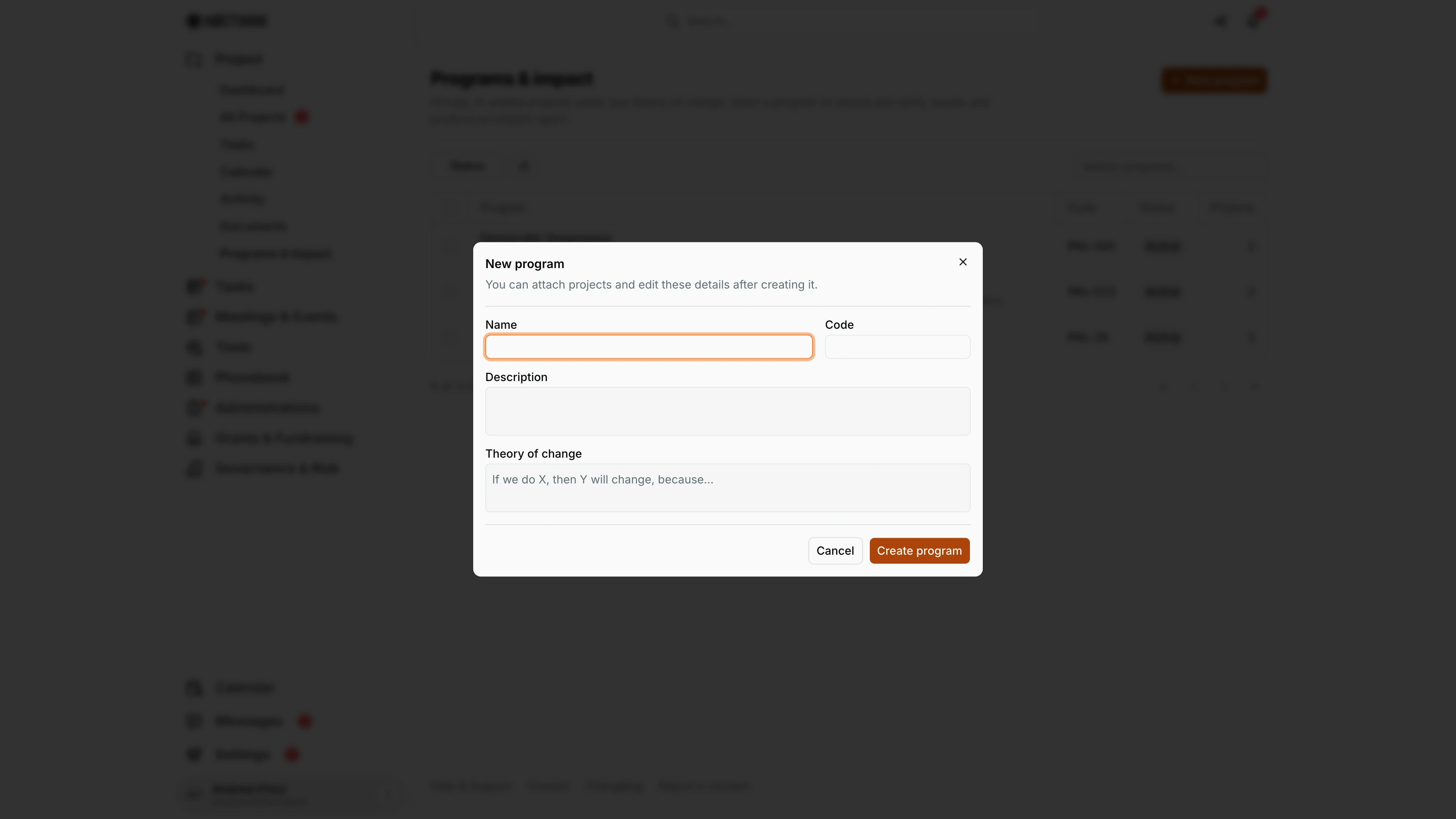
Screenshot: Andrew Price (Senior Researcher), Nocthink Demo Institute demo data.
+ New program opens New program: "You can attach projects and edit these details after creating it." The fields are Name, Code, Description and Theory of change (placeholder "If we do X, then Y will change, because…"). Create program saves it as Active; projects are attached afterwards on the program's Overview. See Create a program and attach projects above.
Program detail
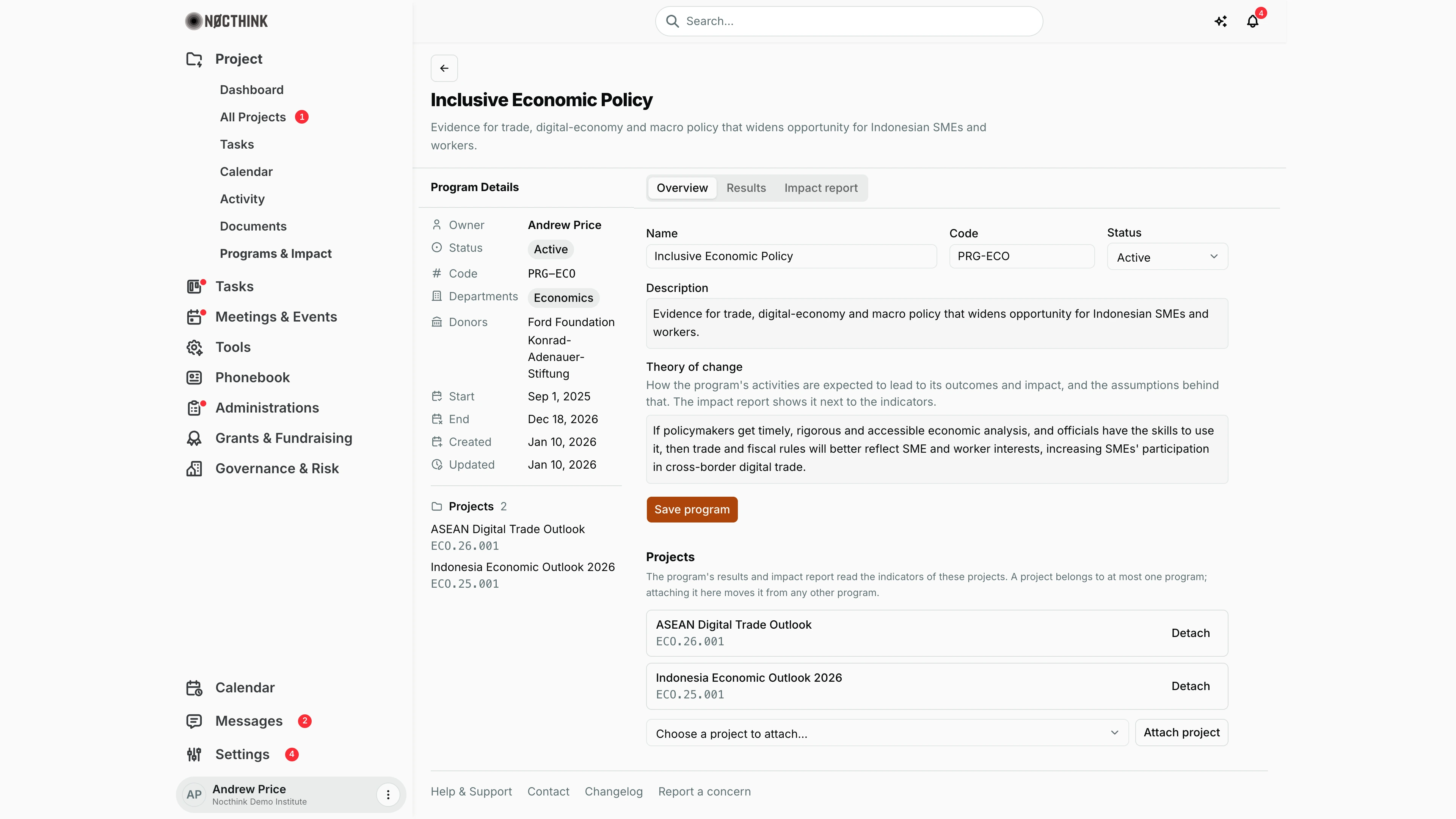
Screenshot: Andrew Price (Senior Researcher, program owner), Nocthink Demo Institute demo data.
Opening a program shows its name and description, the Program Details rail and three tabs. The rail lists Owner, Status (Active or Closed), Code, then what the attached projects add up to: Departments, Donors, the earliest Start and latest End, plus Created and Updated, and the Projects with their numbers ("n projects you cannot open" if some are hidden from me). Overview edits Name, Code, Status, Description and Theory of change ("How the program's activities are expected to lead to its outcomes and impact…"), saved with Save program. Under Projects each attached project has Detach; Choose a project to attach… plus Attach project adds one. A project belongs to at most one program, so attaching moves it.
Program results
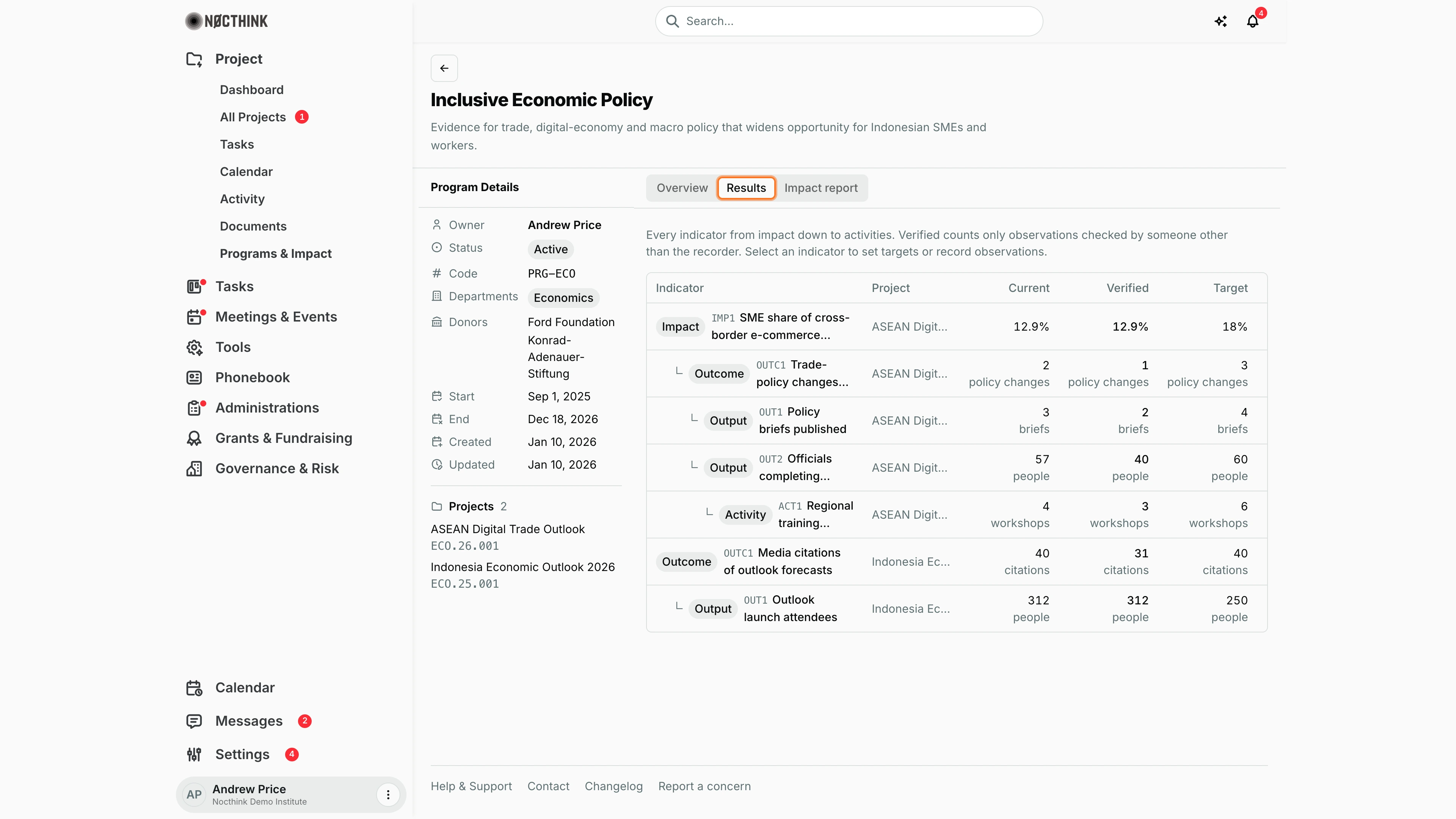
Screenshot: Andrew Price (Senior Researcher), Nocthink Demo Institute demo data.
Results lists "every indicator from impact down to activities" across the attached projects, indented by level (Impact, Outcome, Output, Activity) with the indicator code, such as IMP1 or OUT2. The columns are Project, Current, Verified and Target, each with its unit (people, briefs, workshops, %). "Verified counts only observations checked by someone other than the recorder." Clicking an indicator opens its sheet to set targets, record a value or verify one. See Set up an indicator's targets, Record a value and Verify a colleague's value above.
Program impact report
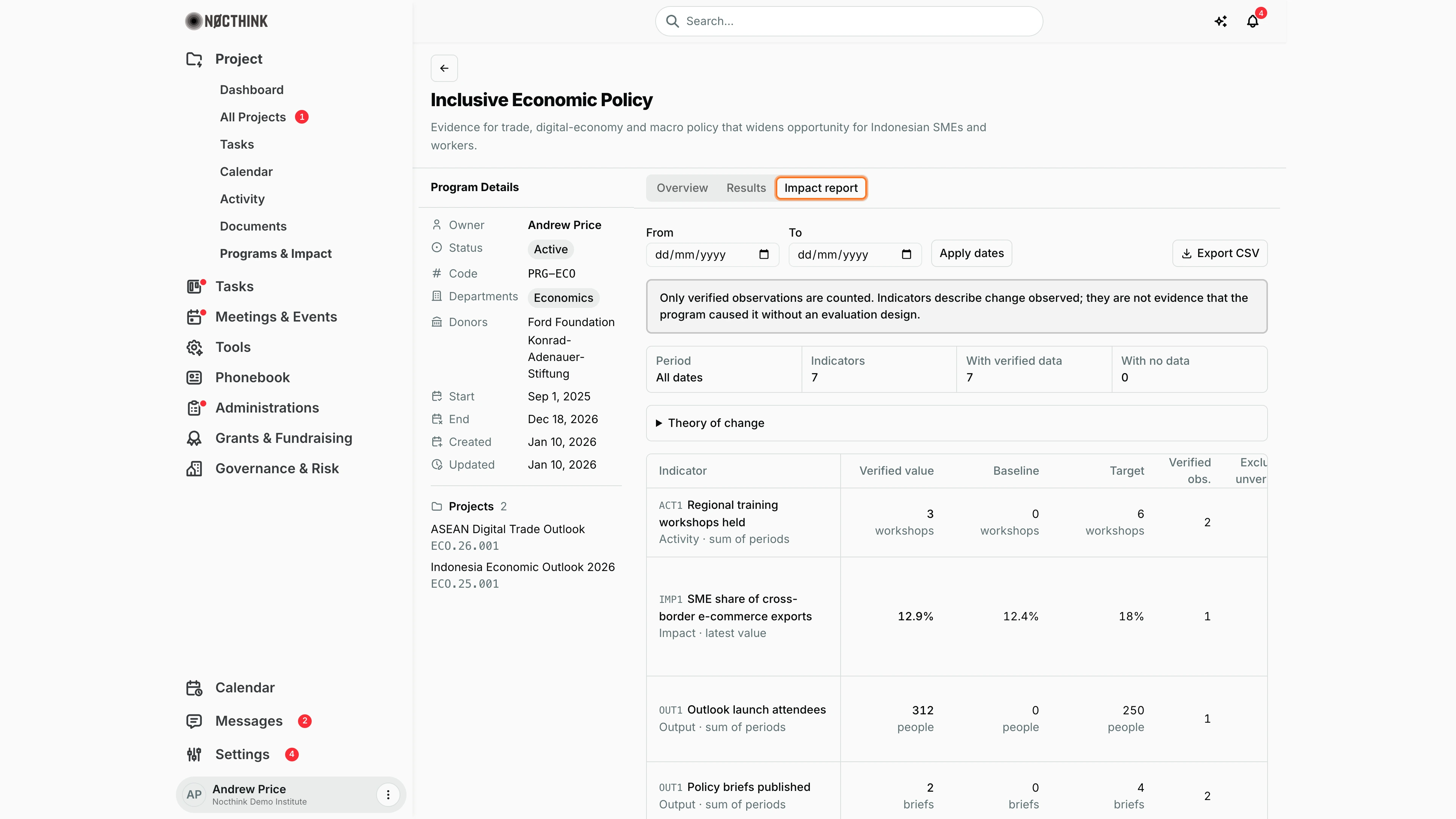
Screenshot: Andrew Price (Senior Researcher), Nocthink Demo Institute demo data.
Impact report has From and To dates with Apply dates, and Export CSV. A box warns: "Only verified observations are counted. Indicators describe change observed; they are not evidence that the program caused it without an evaluation design." Summary cards show the Period (All dates until I pick one), Indicators, With verified data and With no data. Theory of change expands to show the program's statement. The table gives each indicator's Verified value, Baseline, Target, Verified obs. and excluded unverified count, with its level and aggregation (such as "Activity · sum of periods" or "Impact · latest value"). See Produce the impact report above.
Access & permissions
The list and program pages need project.view. Creating a program needs project.create, and editing or attaching needs project.update (Owner/Director, Project Manager). Indicators and values follow project-level visibility, so I see only the indicators of attached projects I am allowed to see. Recording and verifying values follows the project role's indicators & risks module rights. Verification is always by someone other than the recorder.
Caveats
- Changing a recorded value resets it to Unverified; it must be verified again.
- Verified and impact figures count only verified values. A program can look empty in the report when values exist but nobody has verified them.
- Each period total is counted in exactly one bucket, by its end date, so quarters and years never double-count.
- Indicator results chains cannot loop ("That would make a loop in the results chain.").
- Indicators of locked projects (On Hold, Completed, Archived) are read-only.
Limitations
- Indicators cannot be created from the program page, only on each project's results page.
- The impact report exports to CSV only (no PDF or Word).
- No bulk import of indicator values.
- The program list has no export and no bulk actions.
Related menus
- All Projects — open a project to add indicators and results.
- Funds & Grants — funding behind the programs' projects.
- Dashboard — portfolio status.
- Reporting Calendar — donor report deadlines the impact report feeds.