
All Projects
Open in NocthinkModule: Project · URL: /project · Responsible role: Project Manager · Also used by: Owner/Director (full), Staff and operational roles (self: work inside the projects they belong to), Finance Staff, Finance Manager, F.A.T. Manager and Accounting Staff (read)
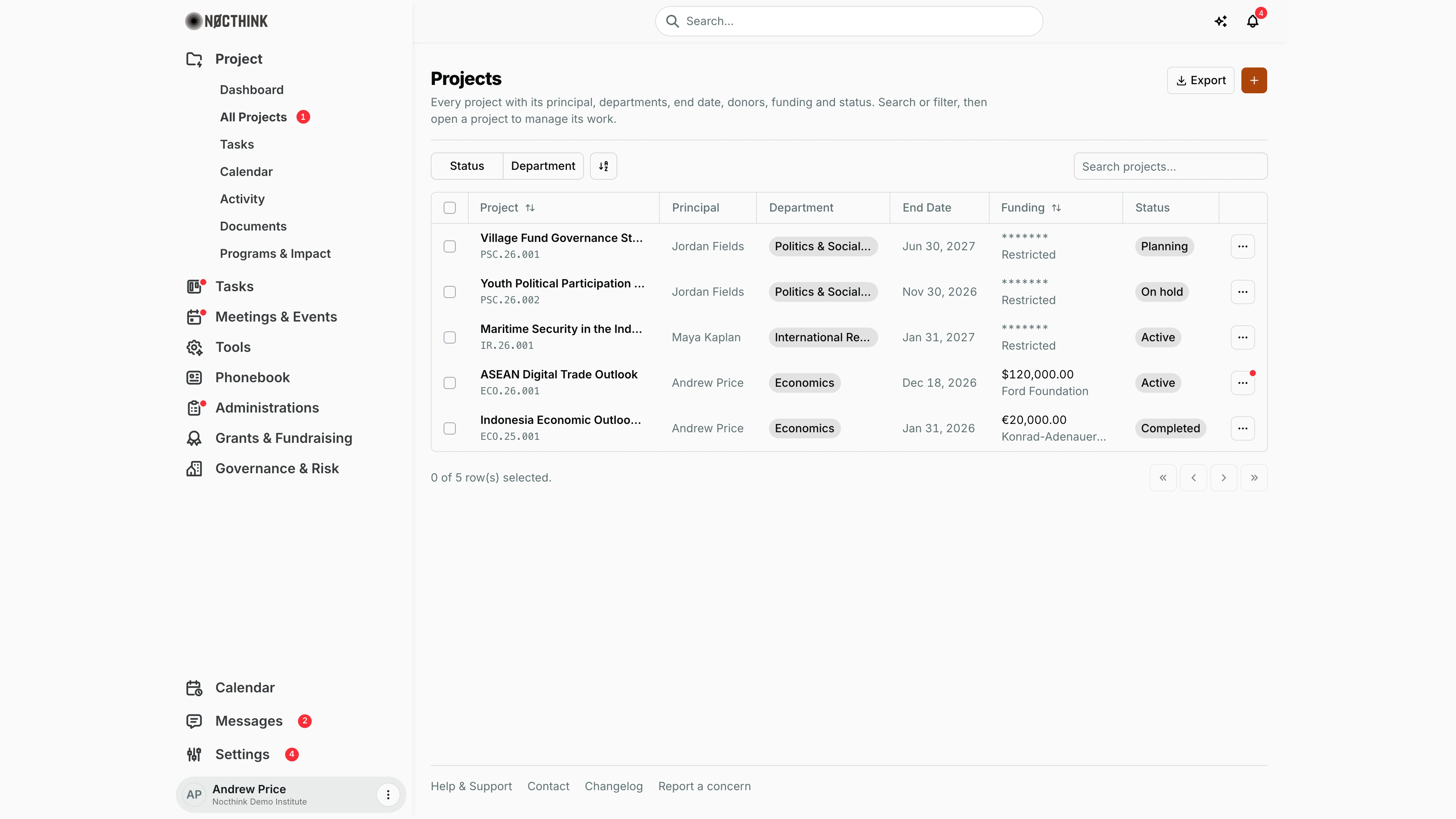
Screenshot: Andrew Price (Senior Researcher), Nocthink Demo Institute demo data. Funding shows as ******* with "Restricted" on projects he is not a member of; the donor names are hidden there too.
Why I use this page
This is my project register. As Project Manager I use it to find any project by name, check who leads it, which department owns it, when it ends, how it is funded and what state it is in. I also start new projects from here. I come here whenever I need to open a project to manage its tasks, team, documents or funds. The red badge on All Projects in the sidebar counts the Planning or Active projects I lead or am a team member of.
What's on the screen
- Header — Projects, with "Every project with its principal, departments, end date, donors, funding and status. Search or filter, then open a project to manage its work." Buttons: Export (PDF, Excel, CSV or JSON) and + (New project).
- Toolbar — Status and Department checkbox filters (Department appears only when research departments exist), a view/sort toggle, and Search projects... (matches the project name).
- Table:
- a checkbox column;
- Project — the name plus the project number, such as
ECO.26.001("No number" if empty); sortable; - Principal — the project lead;
- Department — pills;
- End Date — such as Dec 31, 2026 (the due date when no end date is set);
- Funding — totals per currency, such as "$120,000.00", plus donor names.
*******means I may not see the funding; on those rows the donor names are hidden as well and the line reads "Restricted". A project with no funds yet reads "No donors", which links to Funds & Grants. Sortable; - Status — Planning, Active, On hold, Completed or Archived;
- a ⋯ actions button. A red dot on it means items are waiting on me in that project.
- Footer — "0 of 5 row(s) selected." and paging arrows.
How I …
Create a new project
-
Click + in the header. New project opens (see New project below): "Set up a project in five steps. Only the name is required…".
-
Basics — enter Project name (required). Optionally fill in:
- Project number (leave it blank to auto-assign
<DEPT CODE>.<YY>.<NNN>); - Description and Lead;
- Department (research departments only);
- Start date, End date and Tags (comma-separated).
New projects start in Planning. Click Next.
- Project number (leave it blank to auto-assign
-
Funds (optional) — pick a Donor / grantor. Set Fund type (Grant, Sponsorship, Donation, Other), Status (Proposed, Pledged, Received, Allocated, Closed, Rejected), Requested amount, Currency (defaults to the org base currency) and Agreement date, then Add to list. Use Skip to move on without funds.
-
Team (optional) — choose an Employee and a Role (Owner, Manager, Member, Viewer), then Add to list.
-
Schedule (optional) — add milestones with Title, Description, Start and End, then Add to list.
-
Review — check the summary and click Create project. I am added as the project's Owner automatically, and the project page opens.
-
If some funds, team or schedule items fail to save, the button changes to Retry saving funds, team, and schedule. Click it; the project is not created twice.
Find and open a project
- Type in Search projects..., or tick values under Status / Department.
- Click the project name, or ⋯ → View Details (see Project detail below).
- If the ⋯ button shows a red dot, use ⋯ → n waiting on you to go straight to the project.
Edit a project's basics or status
- Click ⋯ → Edit. The Edit Project dialog opens (see Edit Project below).
- Change Project Name, Project Number (both required), Department, Description, Lead, Status (Planning / Active / On Hold / Completed / Archived) or End Date.
- Click save. Errors such as a duplicate number appear in the dialog.
Delete a project
- Click ⋯ → Delete and confirm "Are you sure you want to delete this project?".
- The delete is refused if the project is On Hold, Completed or Archived (move it back to Planning/Active first), or if it still has cash advances or other protected records.
Detail page, forms & dialogs
New project
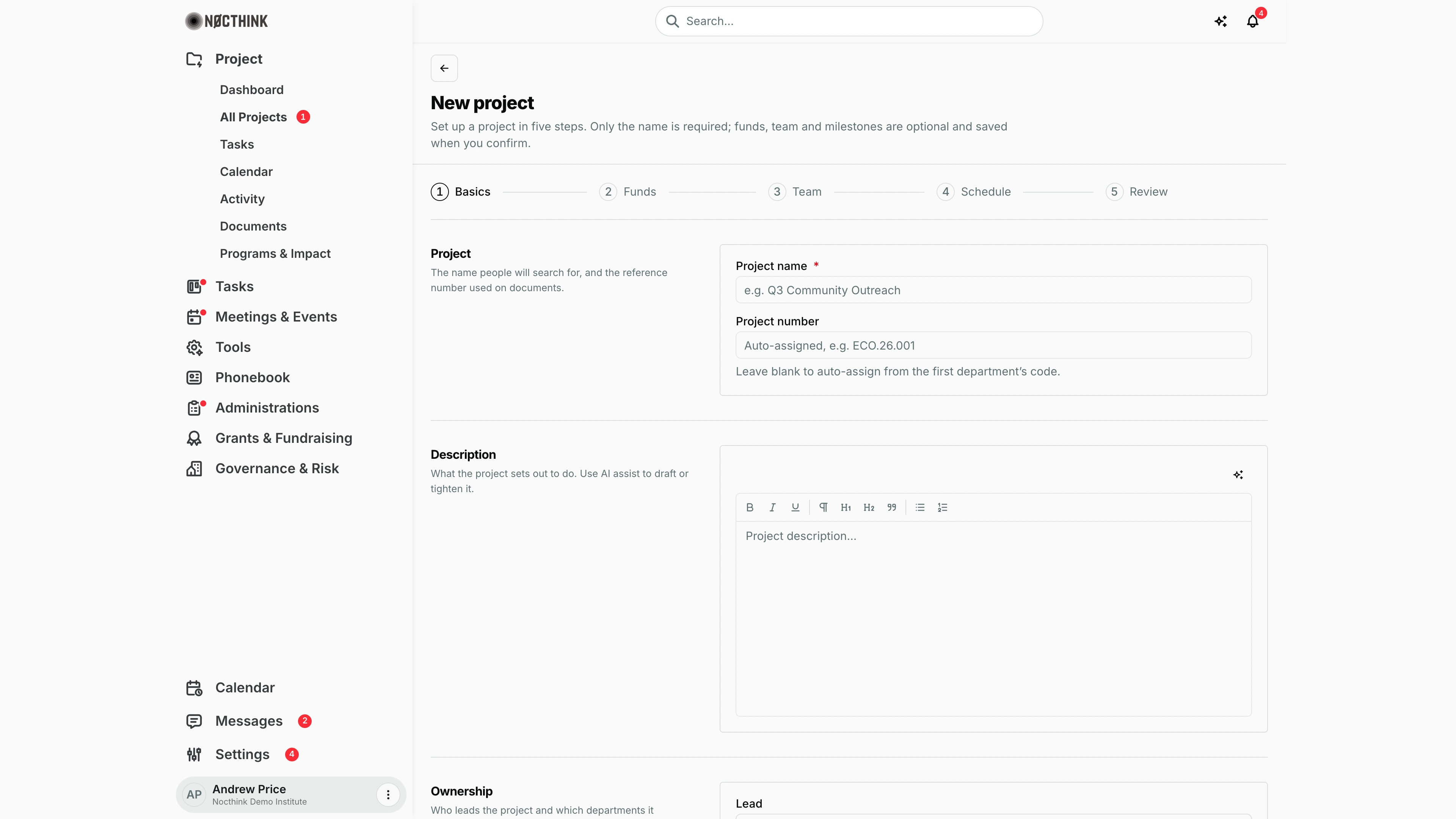
Screenshot: Andrew Price (Senior Researcher), Nocthink Demo Institute demo data.
The + button in the header opens New project at /project/new: "Set up a project in five steps. Only the name is required; funds, team and milestones are optional and saved when you confirm." The stepper reads Basics, Funds, Team, Schedule and Review. On Basics I fill in Project name (required) and optionally Project number ("Leave blank to auto-assign from the first department's code"), Description (rich text, with the sparkle button for AI assist), and further down Lead, Department, dates and tags. Nothing is saved until I click Create project on Review; I then become the project's Owner and the project page opens. The steps are listed under Create a new project above.
Edit Project
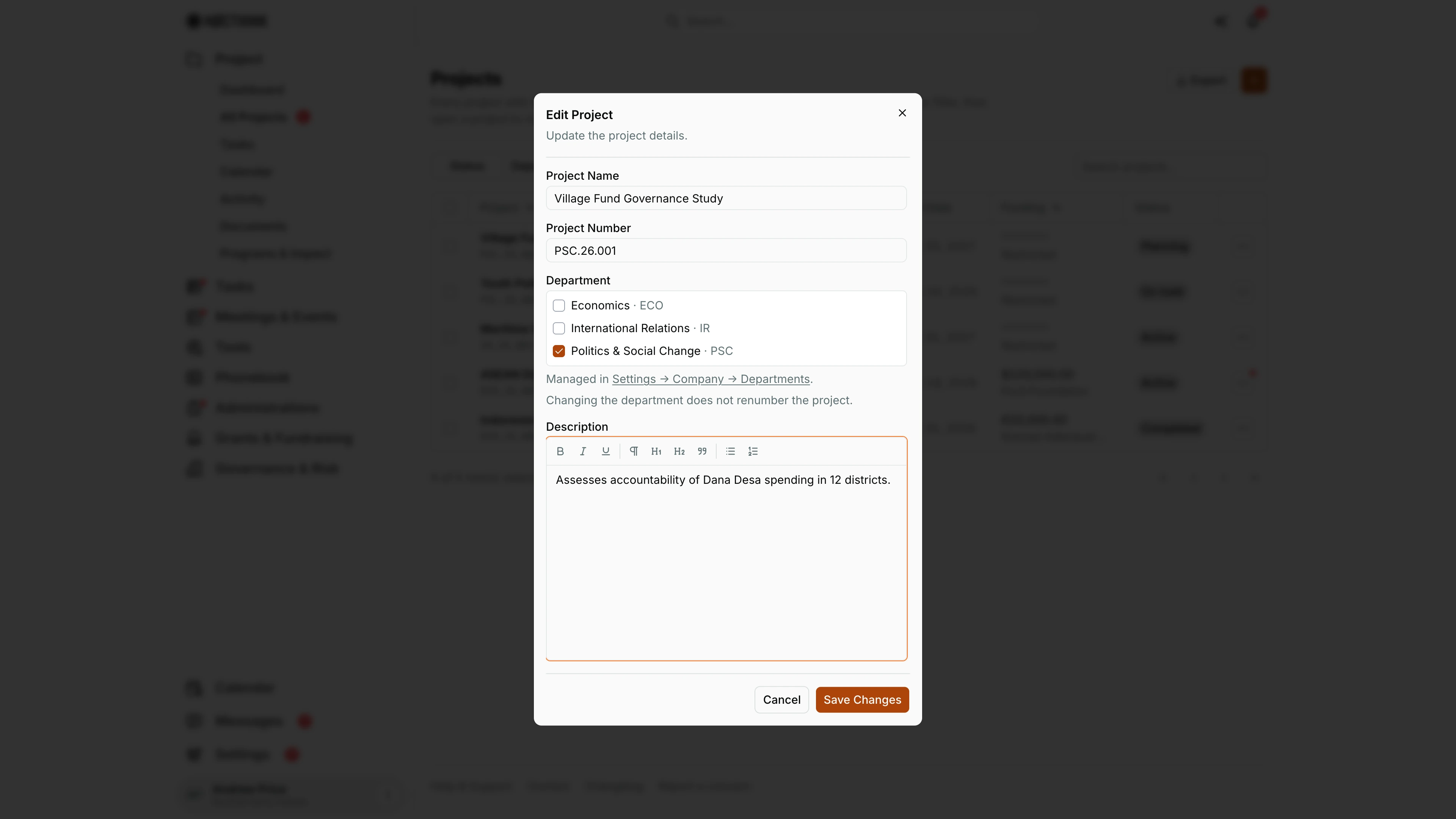
Screenshot: Andrew Price (Senior Researcher), Nocthink Demo Institute demo data.
⋯ → Edit on a row (or ⋯ → Edit on the project page) opens Edit Project: "Update the project details." It holds Project Name and Project Number (both required), Department checkboxes (each with its code, such as Economics · ECO; "Managed in Settings → Company → Departments"; "Changing the department does not renumber the project."), the Description editor with AI assist, Lead, Status (Planning, Active, On Hold, Completed, Archived) and Due Date. Save Changes writes them; errors such as a duplicate number show inside the dialog. On the project page the Edit item is hidden while the project is locked (On Hold, Completed or Archived).
Project detail
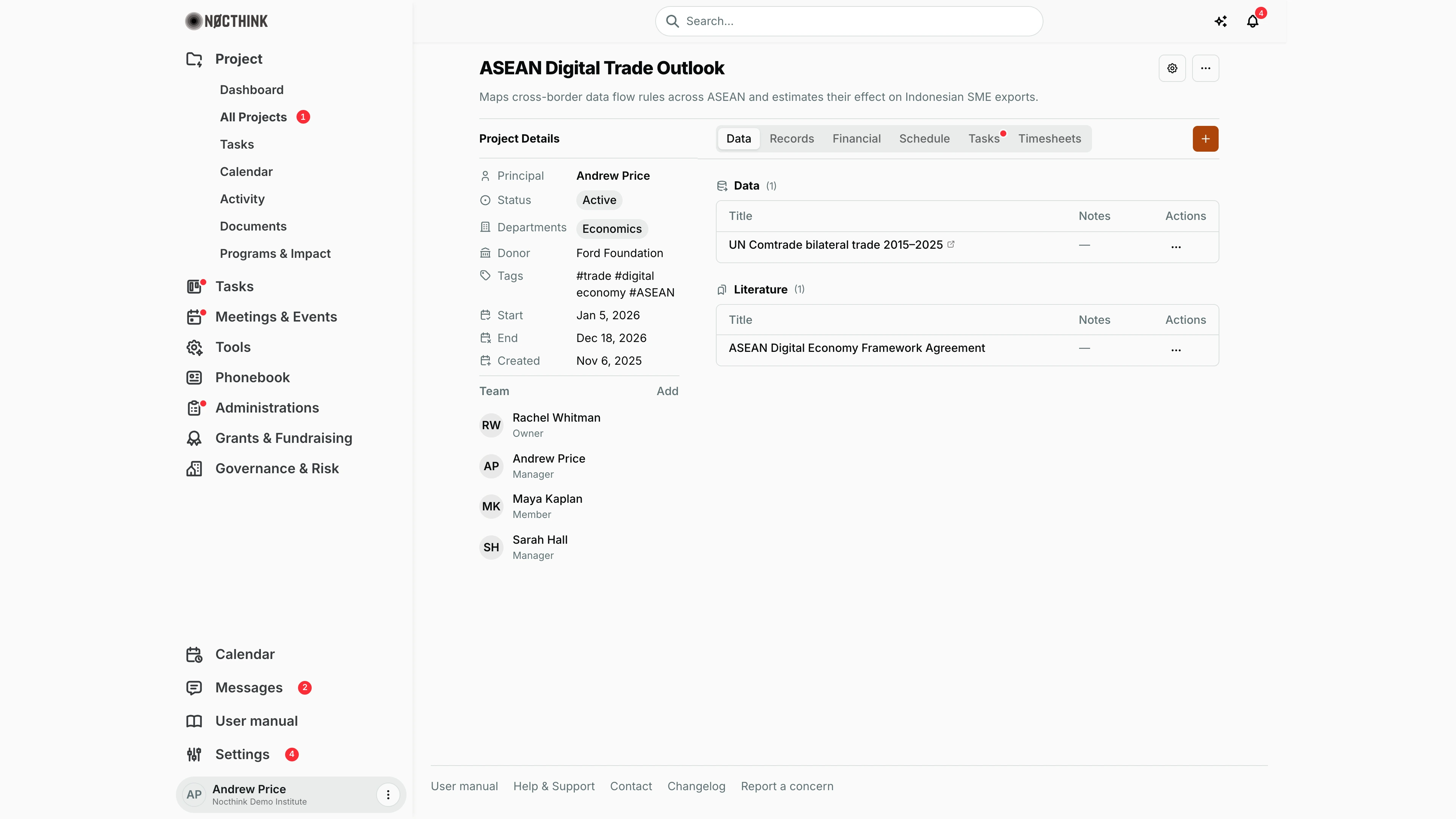
Screenshot: Andrew Price (Senior Researcher, Manager on this project), Nocthink Demo Institute demo data.
Opening a project shows its name and description, a gear button (Settings) and a ⋯ menu with Edit, Generate Report, Payment Request Form, Activity Logs, then Start, Pause, End and Suspend to change the status. The left rail, Project Details, lists Principal, Status, Departments, Donor, Tags, Start, End and Created, then the Team with each member's project role. The switcher holds Data (datasets and literature), Records, Financial, Schedule, Tasks and Timesheets; tabs my project role cannot view are hidden, and a red dot marks a tab with items waiting on me. The + on the right adds an item to the open tab. A red banner appears when the project is paused, ended or suspended ("Everything is read-only until it is started again") or when it has no secured fund yet.
Project records: Documents
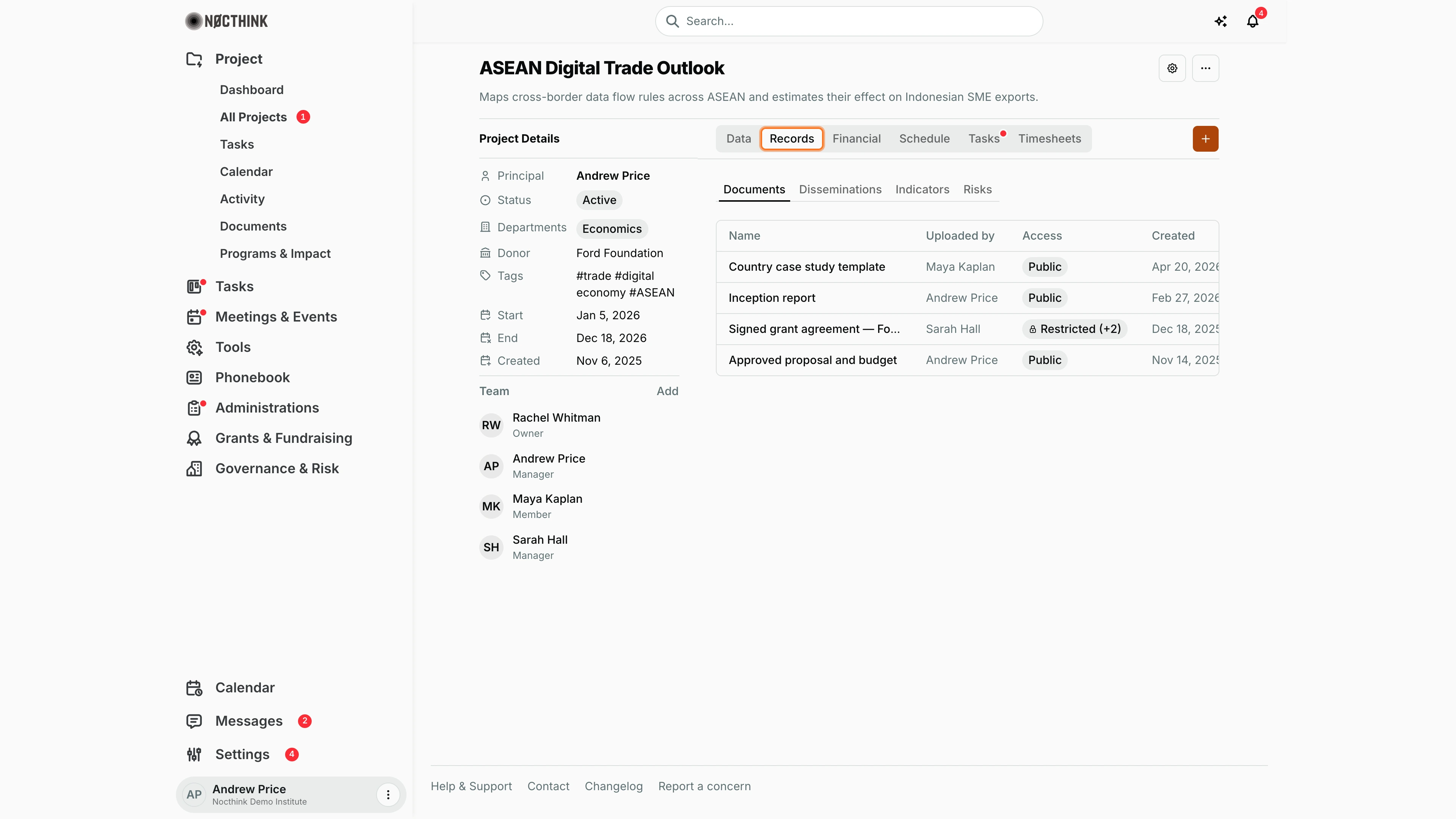
Screenshot: Andrew Price (Senior Researcher), Nocthink Demo Institute demo data.
Records groups Documents, Disseminations, Indicators and Risks. The documents table shows Name, Uploaded by, Access (Public, or Restricted (+n) for files shared with named people only) and Created. + uploads a document while Documents is open, or logs a dissemination while Disseminations is open. Indicators and risks are where the project's results framework and risk register live; Programs & Impact reads its indicators from here.
Project financial overview
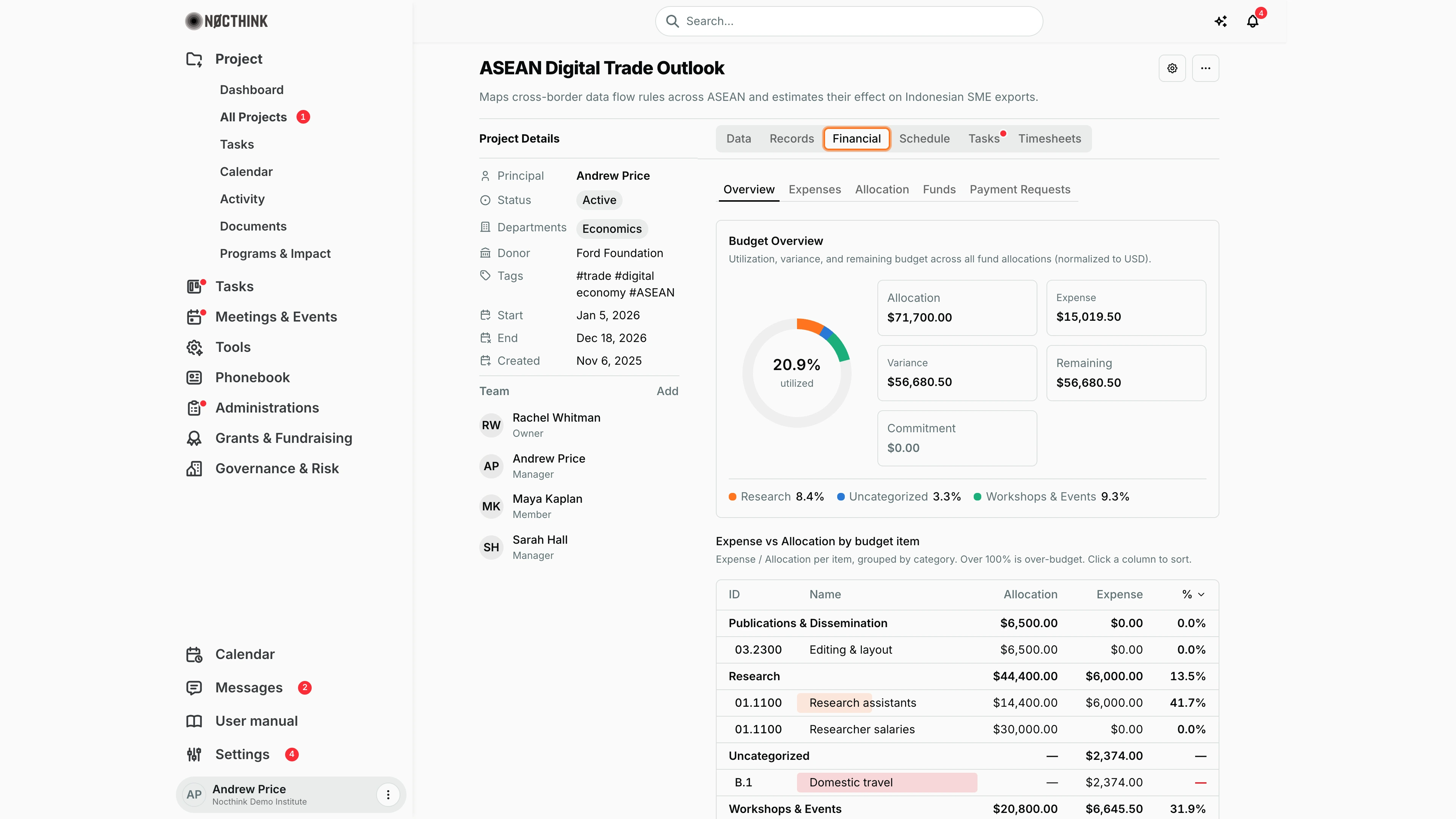
Screenshot: Andrew Price (Senior Researcher), Nocthink Demo Institute demo data.
Financial opens on Overview, next to Expenses, Allocation, Funds and Payment Requests. Budget Overview shows a utilization gauge with one arc per budget category and the cards Allocation, Expense, Variance (allocation minus expense), Remaining and Commitment, normalized to the base currency (or the fund currency when Settings asks for original currency and every fund shares one). Expense vs Allocation by budget item lists each budget line by category; over 100% shows in red, and expenses without a budget line fall into Unallocated expenses. Only project Owners and Managers (and the finance team) see this tab.
Project funds
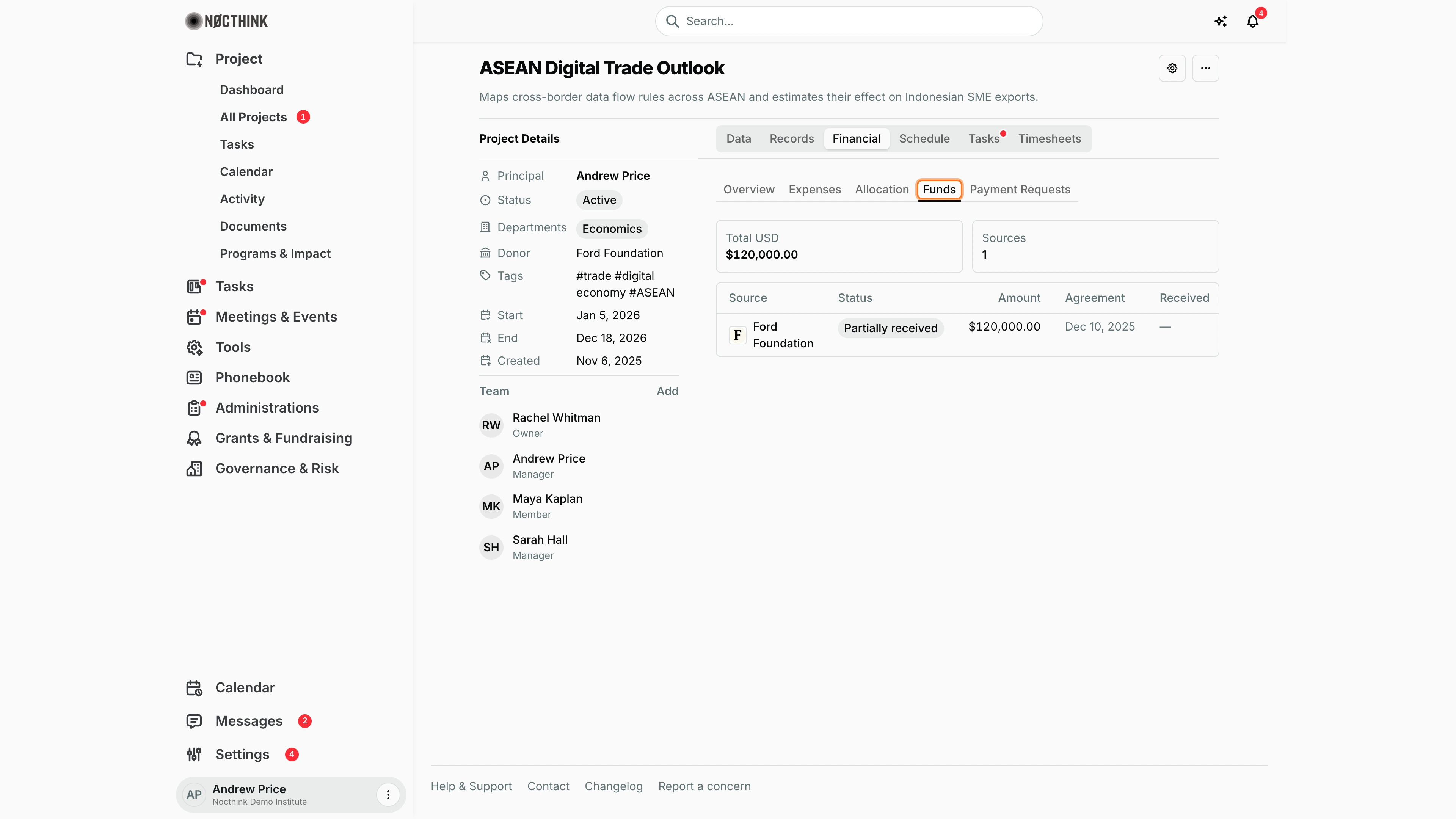
Screenshot: Andrew Price (Senior Researcher), Nocthink Demo Institute demo data.
Financial → Funds totals the project's funding per currency and counts its Sources, then lists each fund with Source, Status, Amount, Agreement and Received dates. Clicking a fund opens its page in Funds & Grants (see Fund detail there). With no funds yet, the tab says "No funding sources yet" and links to Funds & Grants.
Project schedule
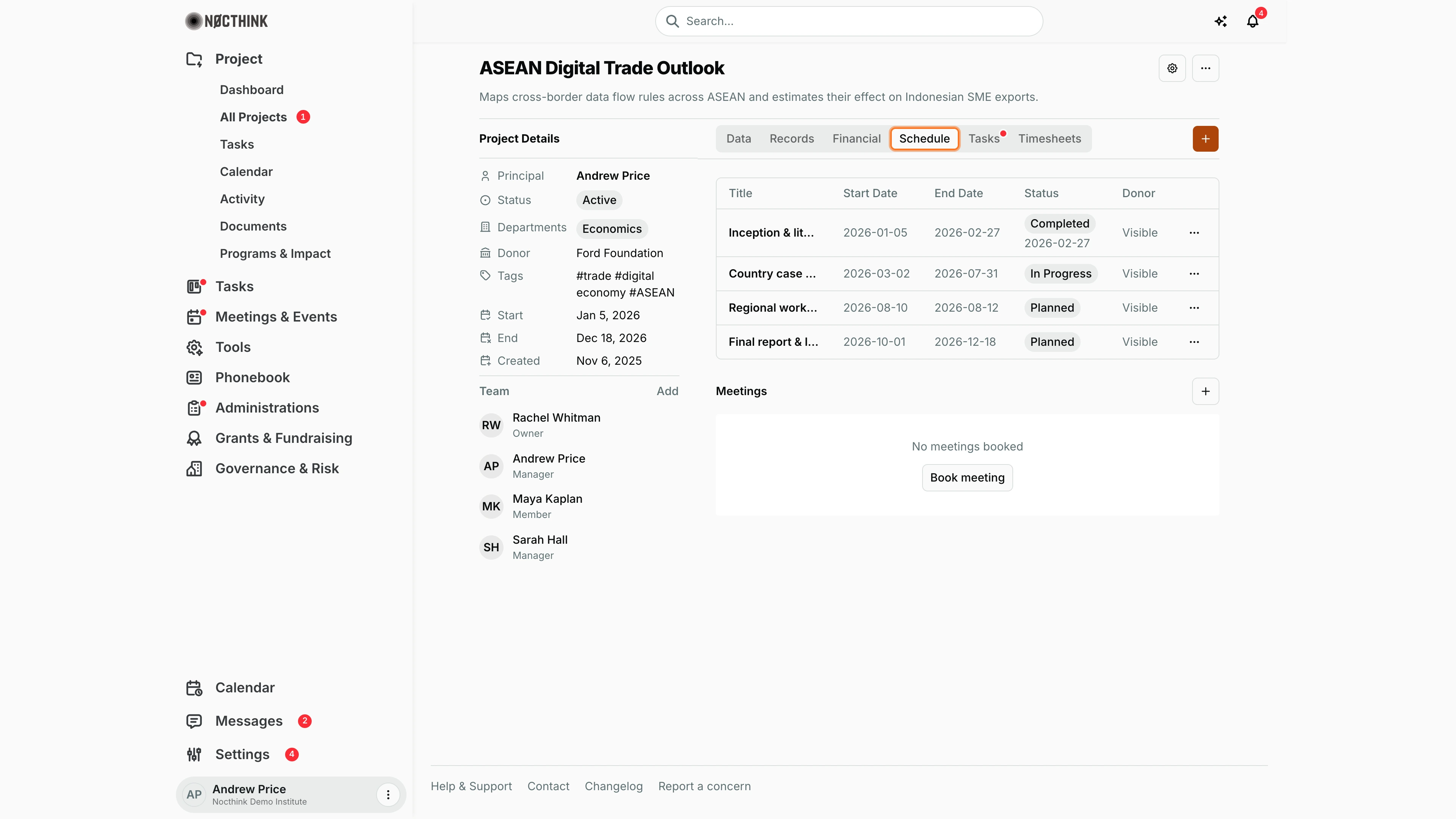
Screenshot: Andrew Price (Senior Researcher), Nocthink Demo Institute demo data.
Schedule lists the milestones with Title, Start Date, End Date, Status (Planned, In Progress, Completed, with the completion date) and Donor (whether the donor sees the milestone). + adds a milestone; each row's ⋯ edits or deletes it. Below, Meetings lists the meetings booked for this project, with Book meeting and + to schedule one.
Project tasks
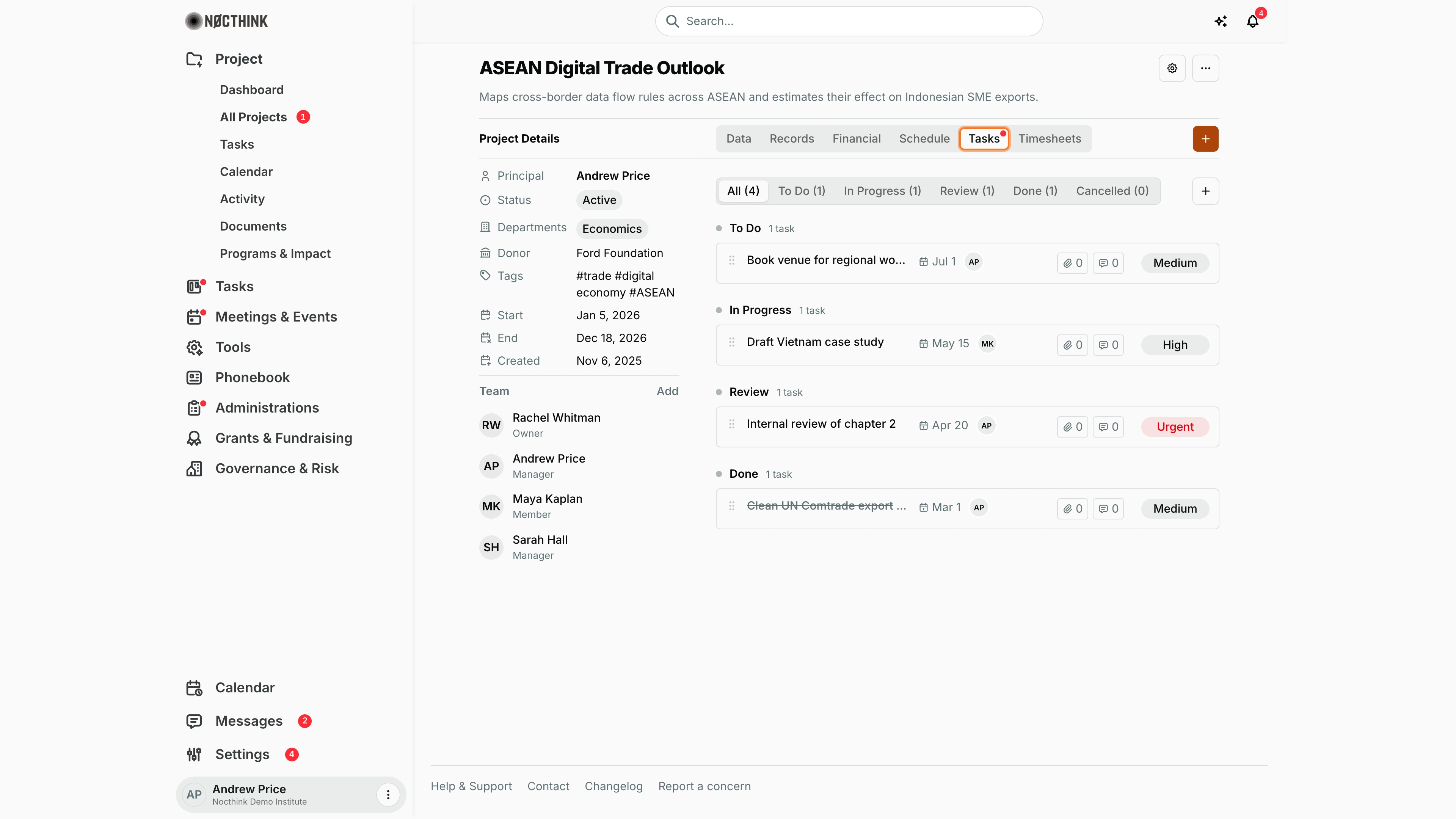
Screenshot: Andrew Price (Senior Researcher), Nocthink Demo Institute demo data.
Tasks groups the project's tasks by status, with counts on the filter (All, To Do, In Progress, Review, Done, Cancelled). Each card shows the title, due date, assignee initials, attachment and comment counts, and priority (Medium, High, Urgent). + adds a task to this project. Clicking a card opens the task page described in Task List.
Add Team Member
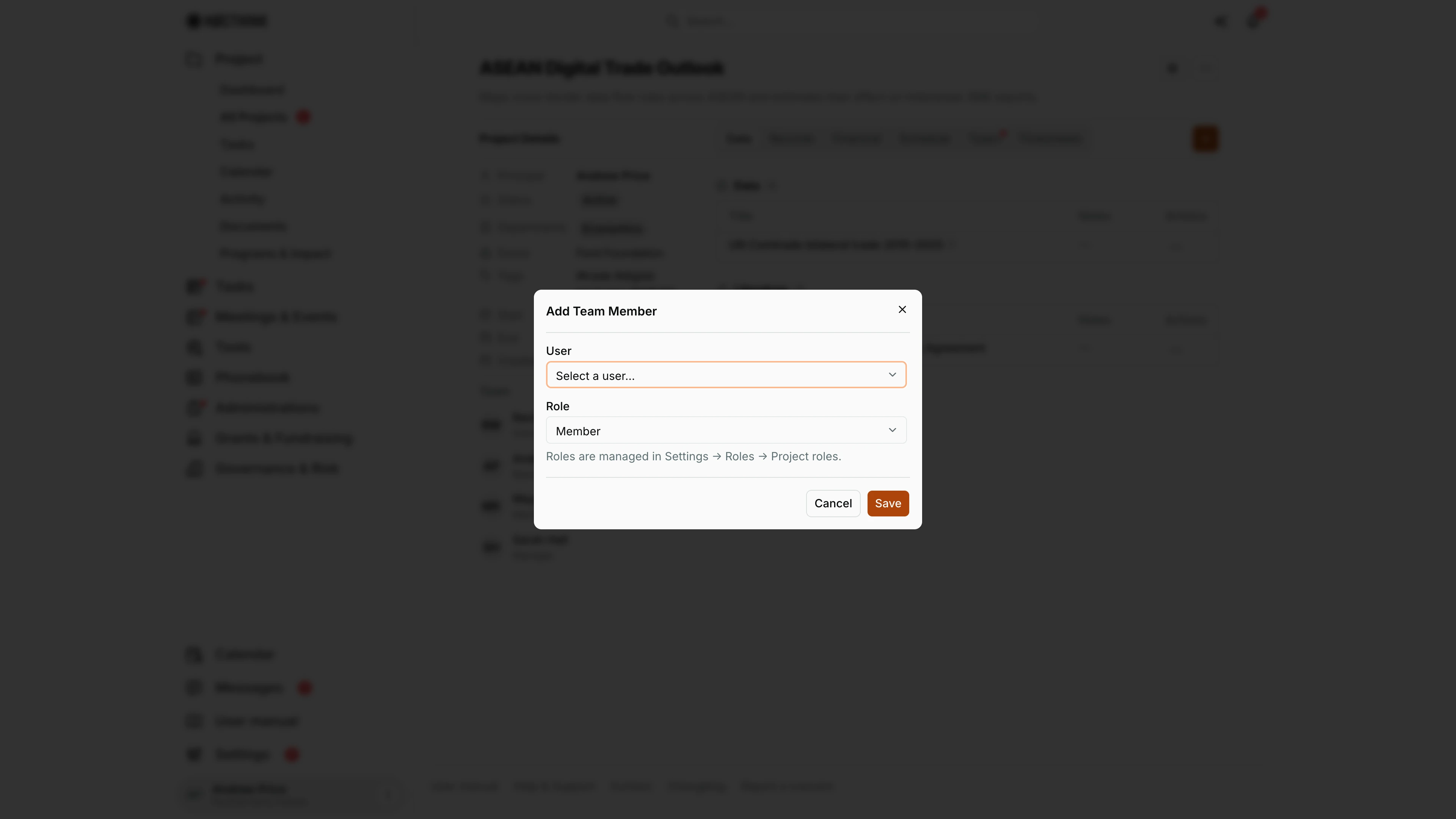
Screenshot: Andrew Price (Senior Researcher), Nocthink Demo Institute demo data.
Add next to Team in the rail opens Add Team Member with User and Role ("Roles are managed in Settings → Roles → Project roles."); Role starts at Member. The role decides what the person sees and changes inside the project: Owner and Manager have everything, Member has all non-finance modules, Viewer reads only. Add appears only for people who can manage the team and while the project is not locked.
Project settings
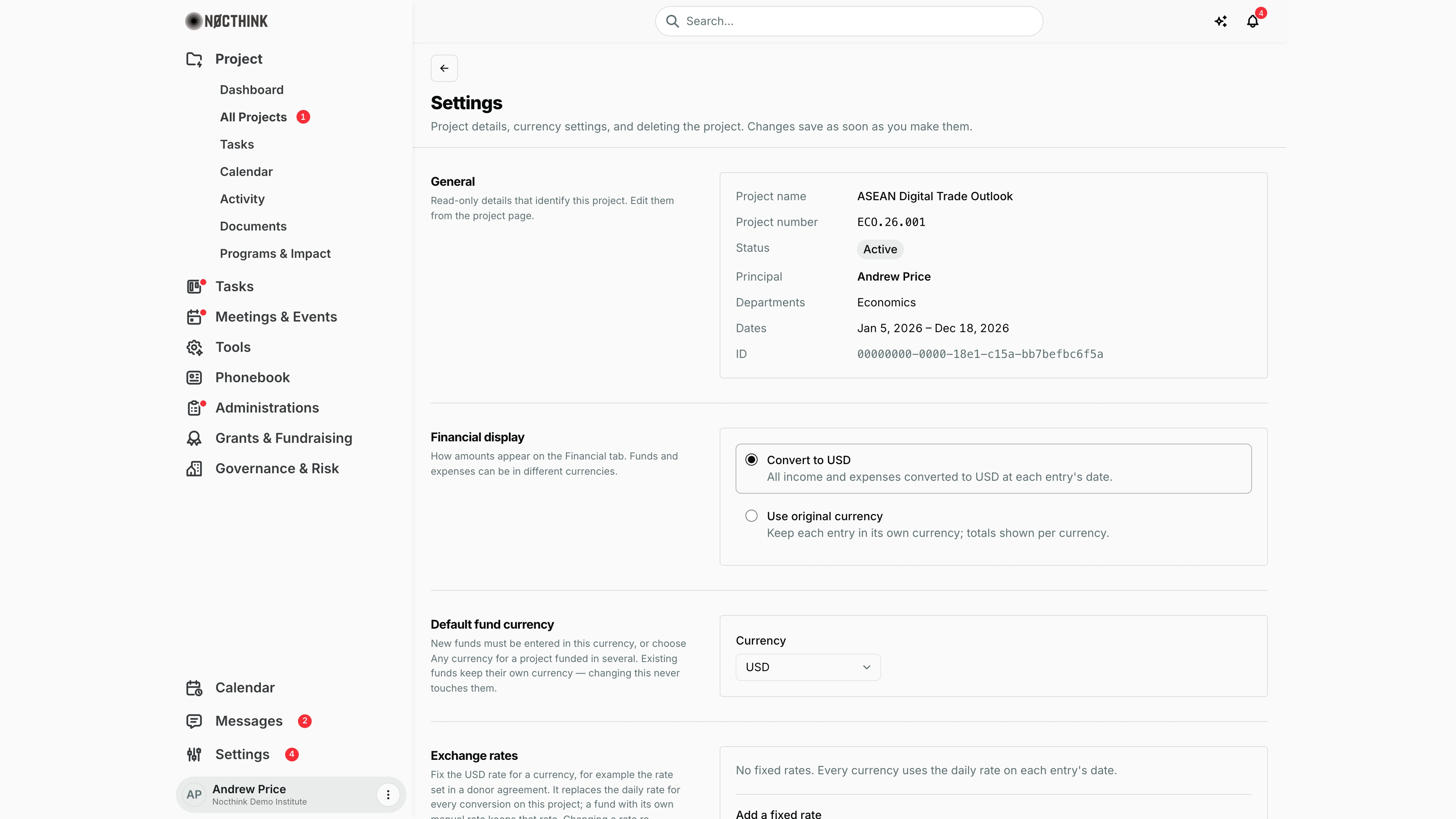
Screenshot: Andrew Price (Senior Researcher), Nocthink Demo Institute demo data.
The gear button opens Settings: "Project details, currency settings, and deleting the project. Changes save as soon as you make them." General shows the name, number, status, principal, departments, dates and ID read-only (edit them from the project page). Financial display chooses between converting everything to the base currency at each entry's date and Use original currency. Default fund currency sets the currency new funds must use, or Any currency. Exchange rates fixes a rate for a currency, for example the rate in a donor agreement. Delete project at the bottom removes the project and everything in it.
Access & permissions
The menu needs project.view. The list shows every project in the organization. Creating needs project.create, and deleting needs project.delete (Owner/Director, Project Manager). Edit rights inside a project come from my project role on its team: Owner and Manager have everything, Member has all non-finance modules, and Viewer has read-only non-finance modules. Funding totals show only to project members and the organization's finance team ("Only this project's members and your organization's finance team can see its funding"). Owner/Director see everything.
Caveats
- Projects in On Hold, Completed or Archived are locked: tasks, documents, funds and so on cannot change until the status is moved back.
- Deleting is permanent. It is recorded in the audit log, but project logs are deleted with the project.
- Fund currency defaults to the organization's base currency; funds must match the project's fund currency.
- Project numbers must be unique in the organization. Auto-numbering uses the first department's code (by name), or
PRJif there is none. - Archiving is just a status. Archived projects stay in this list and also appear in Archive.
Limitations
- Export downloads the projects that match the search box. The Status and Department filters are not applied to the file. Funding is listed per currency, and shows "Restricted" for projects whose funding I may not see.
- Row checkboxes select rows, but there are no bulk actions (no bulk status change or delete).
- Search matches the project name only, not the number, donor or principal.
- Team, schedule and documents are edited on the project page, not here.
Related menus
- Dashboard — portfolio KPIs built from this list.
- Tasks — tasks across all projects.
- Documents — files across projects.
- Funds & Grants — where "No donors" leads and funds are managed.
- Archive — completed and archived projects.
- Project Finance — budgets and spending per project (finance roles).