
Payroll
Open in NocthinkModule: HR · URL: /hr/payroll · Responsible role: HR Staff (write, runs payroll) · Also used by: HR Manager (full, approves), Owner/Director (full), F.A.T. Manager (full: runs, advances and posts payroll with accounting.approve). Finance authority and accounting authority read every payslip.
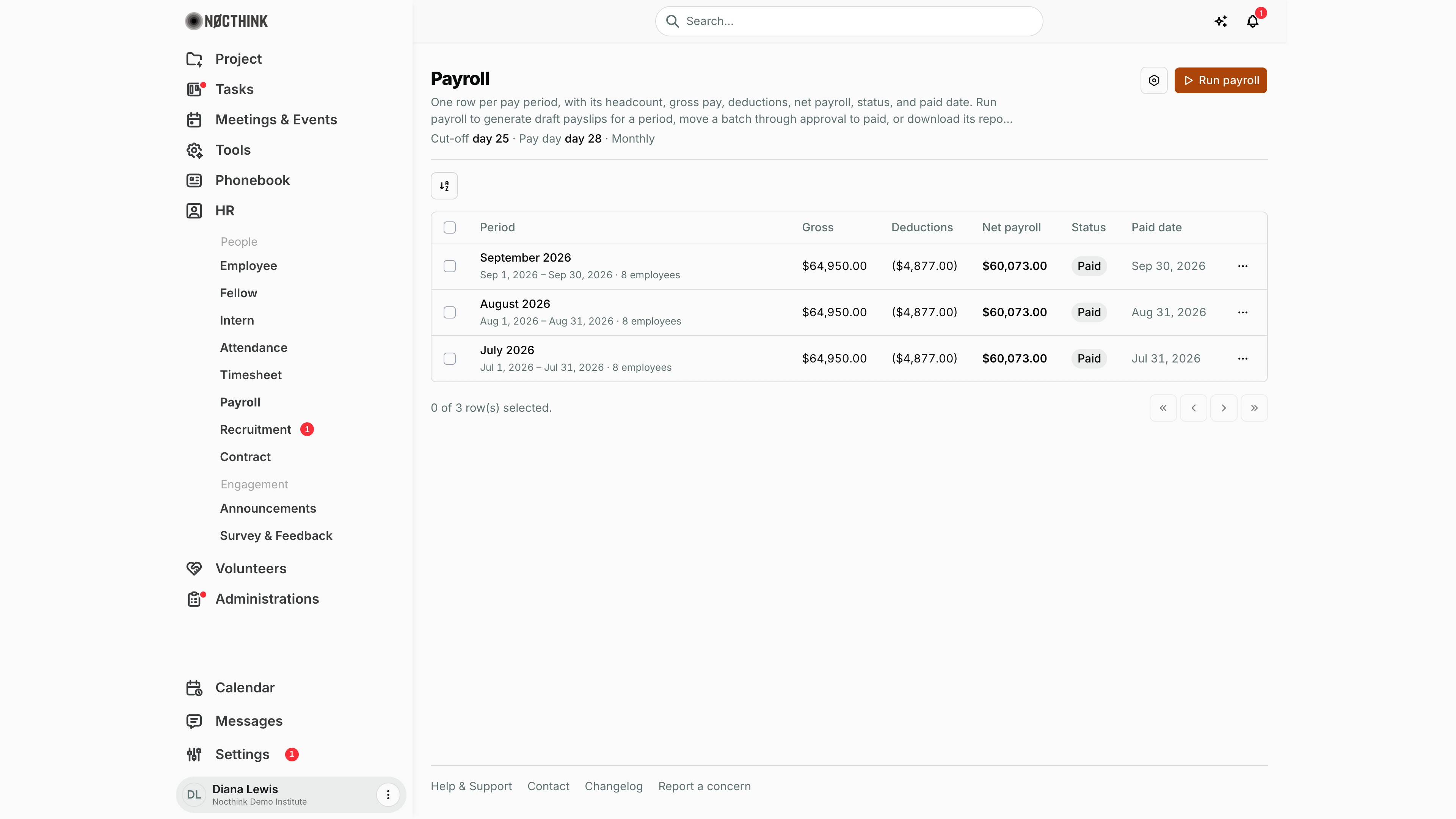
Screenshot: Diana Lewis (HR Officer), Nocthink Demo Institute demo data. As HR Staff in the HR department she sees the settings gear and Run payroll.
Why I use this page
I use Payroll to produce the monthly pay. After the cut-off day I run payroll for the period, check every draft payslip, and submit the batch for approval. A second HR person approves it, and I mark it paid once the bank transfer has gone out. The final step is posting the paid batch to the ledger so Finance sees the salary expense and liabilities.
What's on the screen
- Header: the title Payroll, a description, and the schedule line from settings, e.g. "Cut-off day 25 · Pay day day 28 · Monthly".
- Header actions: a gear icon (Payroll settings, linking to Settings → HR → Payroll) and Run payroll. Both appear only for people who can change payroll (
hr.updateoraccounting.approve). - Batch table, one row per pay period:
- Period: the month name, with the date range and headcount under it. Click it to open the batch.
- Gross, Deductions (in brackets) and Net payroll.
- Status: the lowest status of any payslip in the batch, plus "N paid" when some are already paid.
- Paid date.
- Batch actions (⋯):
- The next step: Submit for approval, Approve batch or Mark as paid (only for people who can change payroll).
- Download report (PDF) and Download report (Excel).
- Batch page (
/hr/payroll/<period start>):- A Payroll batches back link, the period title with its status pill and a Ledger JV-… tag once posted.
- Stat cards: Employees, Total gross, Total deductions and Total net payroll.
- An employee table: Employee, Basic, Allowances, Deductions, Net, Status, Paid and a row menu.
- The ⋯ menu moves the whole batch on, or shows Post to ledger.
How I …
Run payroll for a period
- Check Attendance for the period first, because absences and late arrivals are deducted.
- Click Run payroll. The dialog defaults to the 1st of this month through the cut-off day (see Run payroll below).
- Adjust Period start and Period end if needed.
- Click Run. The result shows "N created, M skipped (already exist for this period)".
- To redo a period whose payslips are still drafts, tick Regenerate (replace existing draft records) and run again.
Review payslips and submit
- Click the period name to open the batch (see Payroll period detail below).
- Click an employee's name to open the payslip drawer. It shows Period, Employee ID, Working days, Daily rate, Absences, Late arrivals, Earnings, Deductions and Net pay, and has Download payslip (see Payslip drawer below).
- Use a row's menu to Submit a single payslip, or use the batch ⋯ menu and Submit for approval to move every draft to Pending.
Approve and pay (second person)
- A different HR user, usually the HR Manager, opens the batch and chooses Approve batch, or Approve per row.
- After the transfer, choose Mark as paid. The paid date is set to now.
- If some payslips fail, a banner reads "N of M payslips could not be advanced". Usually this is the separation-of-duties rule (see Caveats); another person must act on those.
Post a paid batch to the ledger
- On the batch page, once every payslip is Paid, the ⋯ menu shows Post to ledger.
- Click it. On success, the menu reads "Posted to ledger (JV-…)" and a Ledger tag appears next to the title.
- If you get "No payroll posting accounts configured", ask the HR Manager to set the accounts in Settings → HR → Payroll. The PPh 21 payable account is needed when payslips carry PPh 21.
Download reports
- In the batch ⋯ menu, choose Download report (PDF) or Download report (Excel) for the whole period. Use Download payslip in the row menu or the drawer for one person.
Detail page, forms & dialogs
Run payroll
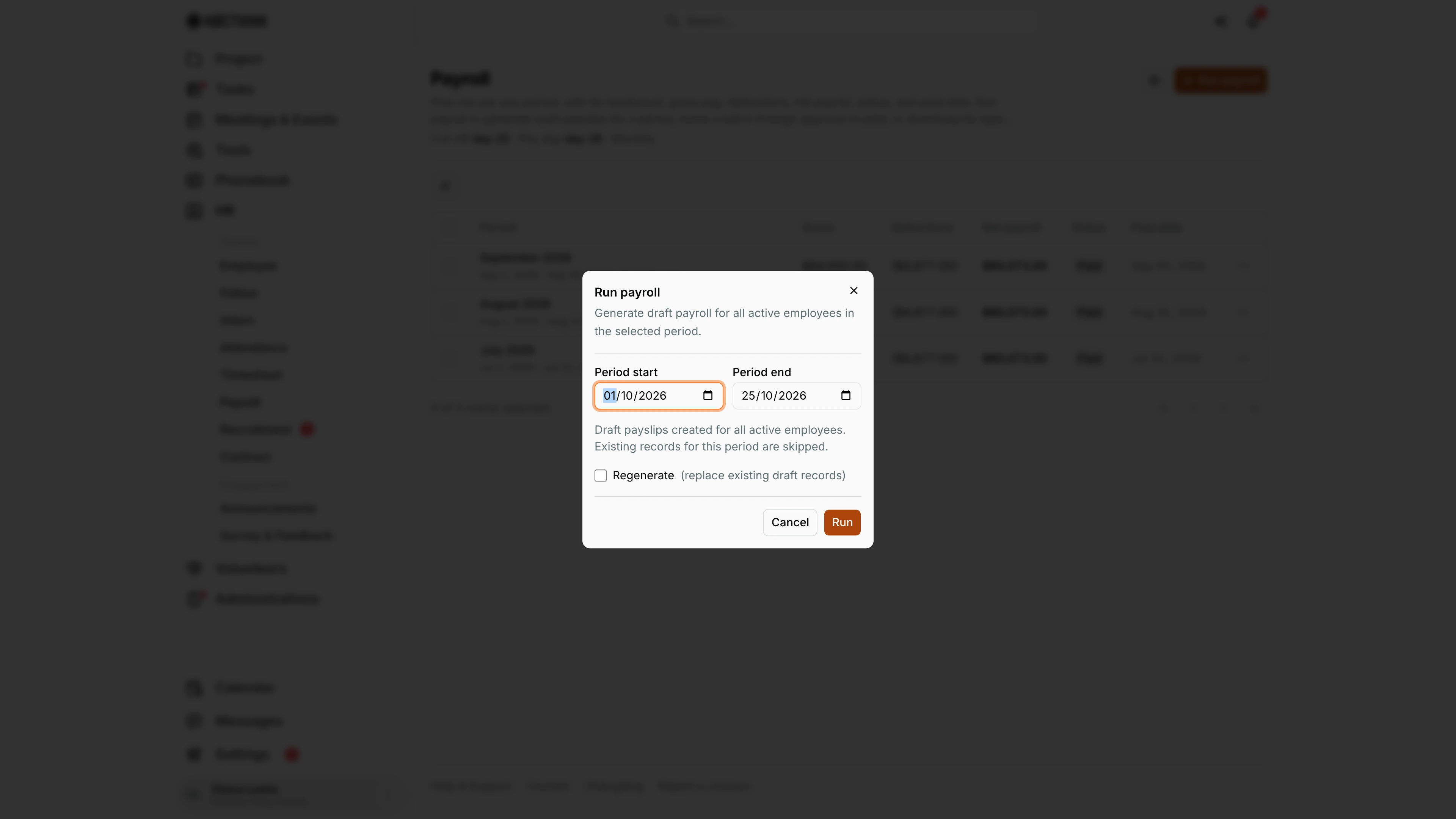
Screenshot: Diana Lewis (HR Officer), Nocthink Demo Institute demo data.
Run payroll opens a small dialog: "Generate draft payroll for all active employees in the selected period." Period start defaults to the 1st of the current month and Period end to the cut-off day from payroll settings (the 25th here). The note underneath explains that draft payslips are created for every active employee and that existing records for the period are skipped.
Tick Regenerate (replace existing draft records) only to redo a period whose payslips are still drafts; pending, approved and paid payslips are never replaced. Run generates the drafts and the dialog then reports "N created, M skipped (already exist for this period)", with Done to close. If nothing was created because the period was already run, it says so and suggests ticking Regenerate. Cancel closes without running. After a run, the new batch appears in the list as Draft and the next step is reviewing it on the batch page.
Payroll period detail
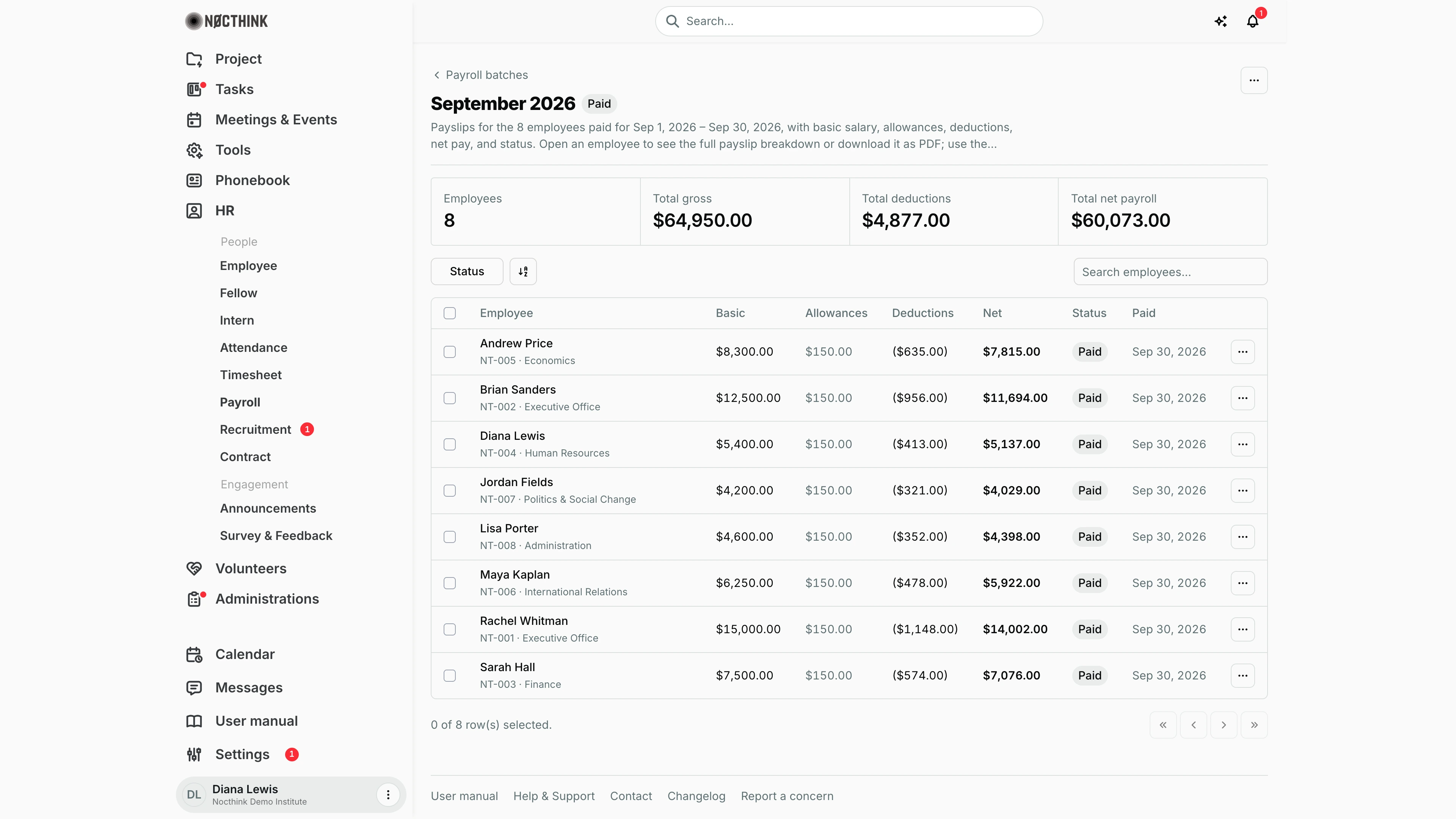
Screenshot: Diana Lewis (HR Officer), Nocthink Demo Institute demo data.
Clicking a period opens its batch page (/hr/payroll/<period start>). The header has the Payroll batches back link, the month as title, the batch status pill (Paid here) and, once posted, a Ledger JV-… tag. Four stat cards show Employees, Total gross, Total deductions and Total net payroll.
The table lists every payslip with Employee, Basic, Allowances, Deductions (in brackets), Net, Status and Paid date; filter it with Status or search by name. Each row's ⋯ menu moves that one payslip to its next status and downloads the payslip. The ⋯ at the top right is the batch menu: it offers the next step for every payslip (Submit for approval, Approve batch, Mark as paid), then Post to ledger once all are paid. It shows only to people who can change payroll. Click an employee's name to open the payslip drawer.
Payslip drawer
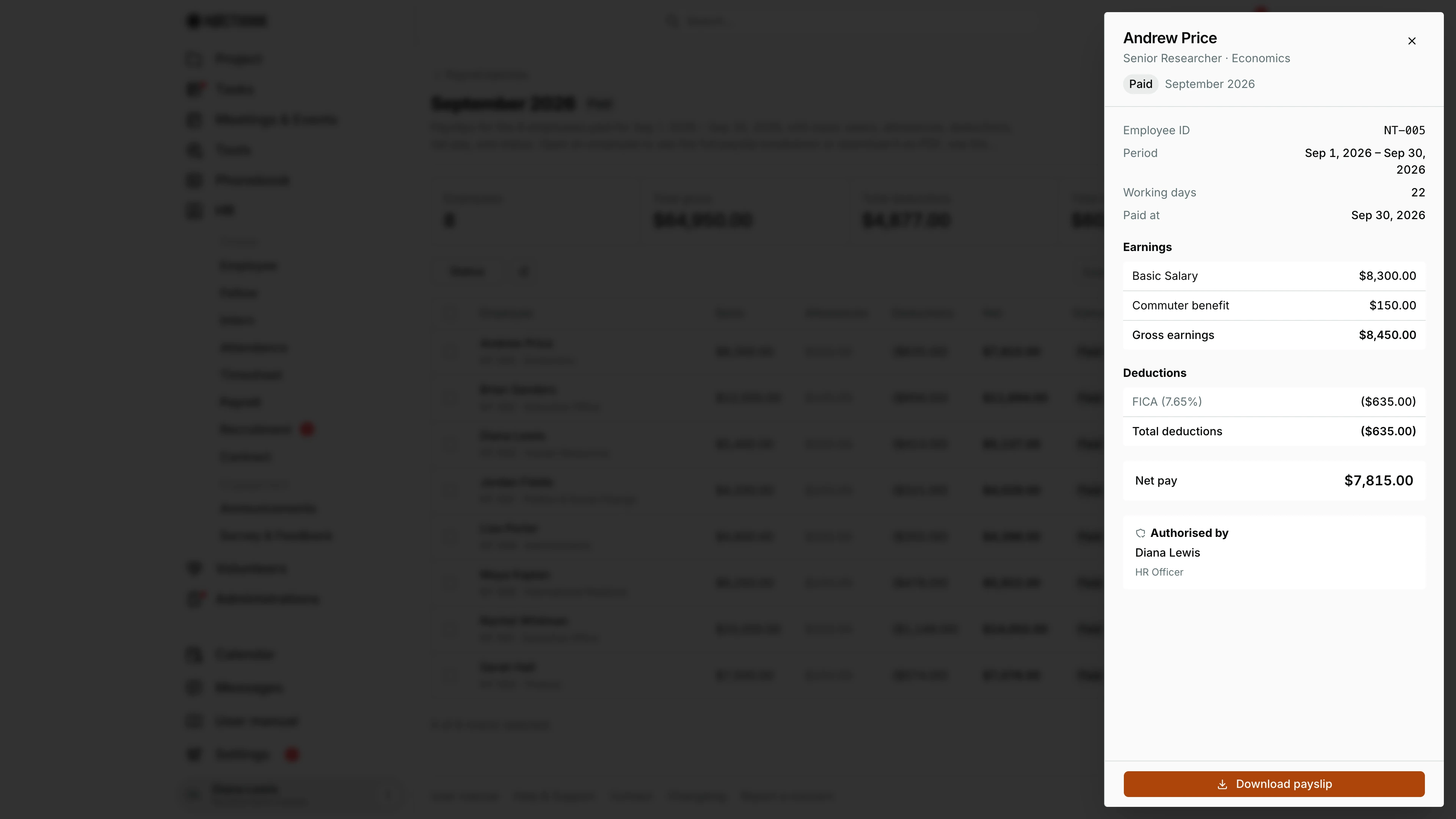
Screenshot: Diana Lewis (HR Officer), Nocthink Demo Institute demo data.
The drawer is the full payslip for one person. Under the name are the status and the month, then Employee ID, Period, Working days and Paid at. Earnings lists Basic Salary and each allowance (here a Commuter benefit) and sums them into Gross earnings. Deductions lists each deduction (here FICA (7.65%)) and Total deductions, then the Net pay in large type. When they apply, Daily rate, Absences and Late arrivals rows also appear in the top block. The Authorised by box names the HR person who signed the payslip and their position.
Download payslip at the bottom saves the same content as a PDF to send to the employee. The drawer is read-only: status changes are made from the row or batch menu.
Access & permissions
- Payroll changes need HR authority (a Director, a member of the HR department, or
hr.delete) oraccounting.approve(the F.A.T. Manager); otherwise the server answers "Only HR can change payroll." Running needshr.create, posting to the ledgerhr.approve;accounting.approvepasses both. - The payroll API returns every payslip to HR authority, finance authority (finance department,
finance.approveor a finance role) and accounting authority (accounting.approveor an accounting role). Everyone else gets their own payslips only. - Without
hr.updateoraccounting.approvethe page is read-only: no Run payroll, no settings gear, and no status steps in the batch or row menus. Downloads stay available.
Caveats
- Maker/checker: the person who ran a payslip, or changed its amounts, cannot approve it. Nobody can approve or pay their own payslip, and only an Approved payslip can be marked paid.
- Changing the amounts on an approved payslip sends it back to Pending.
- Paid or posted payslips are frozen. Corrections need a new payslip or a journal, not an edit.
- Regenerate deletes only draft payslips. Pending and later payslips are kept and skipped.
- Only Active employees are included. Base pay comes from Monthly salary in each person's Employee settings.
- Amounts (on screen, in payslip PDFs and in batch reports) are shown in the payroll settings Currency. When it is left on Organization base currency they follow the org base currency, e.g. USD for a U.S. org.
- Posting is refused when the accounting period is closed.
Limitations
- Payslips are not emailed. Download each payslip (or the batch report) and share it.
- Payslip amounts cannot be edited on this page; it only moves statuses.
- There is no batch delete and no way to un-pay or reverse a posting from here.
- PPh 21 is a simplified calculation (see Settings → HR).
Related menus
- Attendance: absences and late check-ins that become deductions.
- Employee: salary, PTKP/NPWP, transport and overtime settings per person.
- Grant Labor Allocation: splits approved or paid gross pay across grants.
- HR settings: period, pay day, components and posting accounts.