
Timesheet
Open in NocthinkModule: HR · URL: /hr/timesheets · Responsible role: HR Staff (write, reviews timesheets) · Also used by: HR Manager and Owner/Director (full). Every staff member uses it for their own week (self). A line manager can review the timesheets of direct reports. Non-HR staff reach it from Tools → My work.
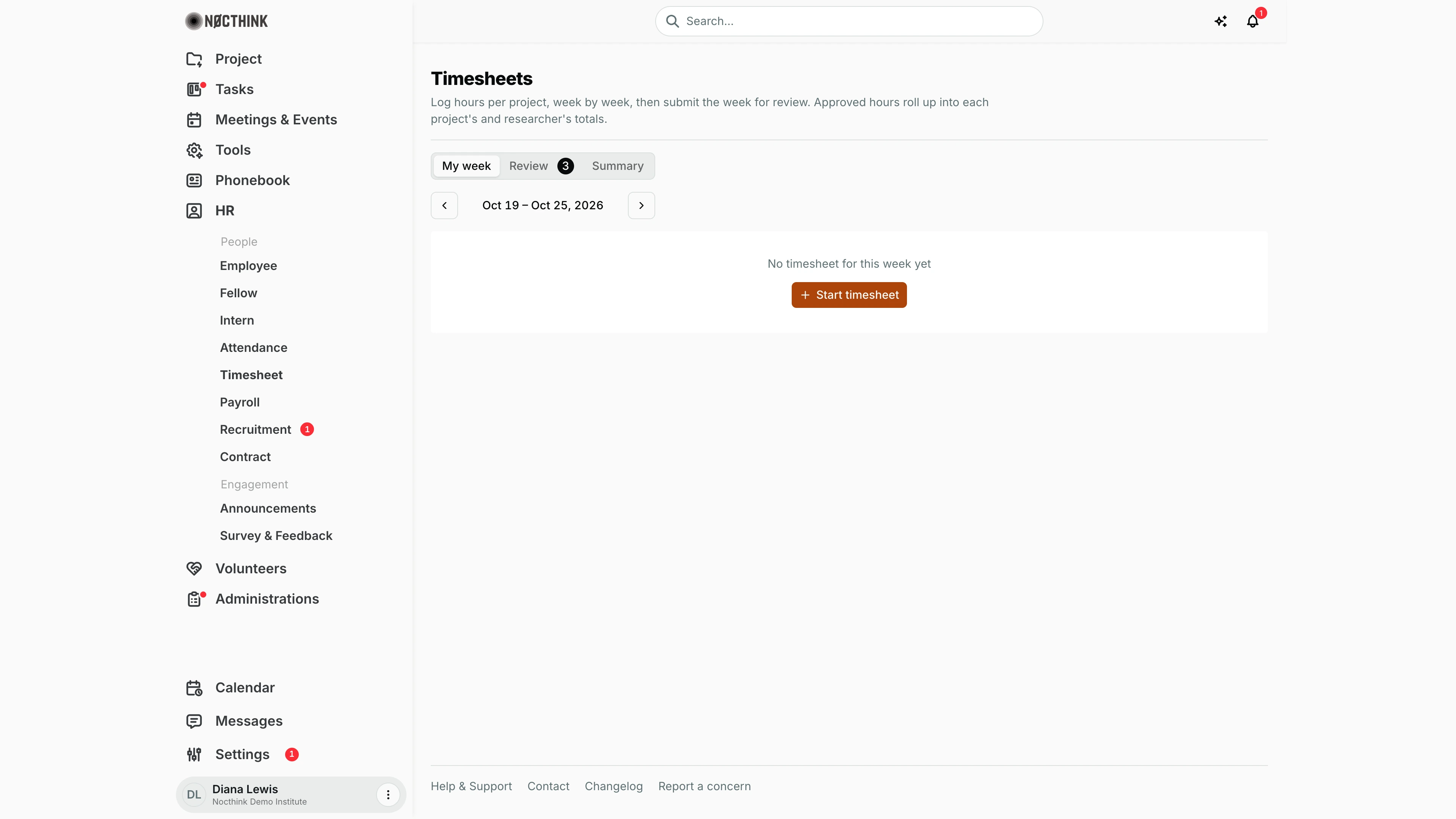
Screenshot: Diana Lewis (HR Officer), Nocthink Demo Institute demo data. The Review tab shows a badge of 3 timesheets waiting for her.
Why I use this page
I use Timesheet in two ways. Every Friday I log my own hours per project for the week and submit them. As HR, I also work through the Review queue, approving or returning everyone's submitted weeks so that approved hours flow into project totals and into Grant Labor Allocation at month-end. Hours charged to a grant are what personnel cost is split by, so I make sure the queue is empty before the allocation is computed.
What's on the screen
- Header: the title Timesheets: "Log hours per project, week by week, then submit the week for review…"
- Tabs:
- My week (default).
- Review, with a count badge of timesheets I can review.
- Summary.
- My week:
- Week navigation (‹ / ›), the week label (e.g. "Oct 19 – Oct 25, 2026"), a This week shortcut when you are on another week, and the week's status pill: Draft, Awaiting review, Approved or Rejected.
- With no sheet yet, it reads "No timesheet for this week yet" with Start timesheet (the state in the screenshot).
- With a sheet, a grid has the columns Project, Task, Grant, Description, one column per day (Mon–Sun) and Total, with day totals in the footer. Under it are + Add line, Notes for your reviewer, Delete week, Save draft, Submit for review and (once submitted) Recall to edit.
- My recent weeks lists Week, Status, Hours and Reviewed by.
- Review: a table of Researcher, Week, Hours and Submitted, with a Review button on each row.
- Summary: logged hours over a From / To range, shown as hours by project, hours by researcher and hours by week. Include switches between "Approved only" and "Submitted and approved".
How I …
Log and submit my week
- On My week, go to the week with ‹ / › and click Start timesheet.
- On each line pick a Project (★ marks projects I am a member of). Optionally pick a Task and the Grant charged, then write a Description.
- Type hours in the day cells. Up to 2 decimals are allowed (e.g. 7.5). Use + Add line for another project or task.
- Click Save draft to keep working later, or Submit for review when the week is complete.
- If I need to change it after submitting, click Recall to edit. That works only while it is still awaiting review.
Review a submitted timesheet
- Open the Review tab and click Review on a row (see Review a timesheet below).
- The dialog shows the total hours, the hours per project and each day's entries with descriptions, plus the employee's notes.
- To accept, click Approve.
- To send it back, write a reason in Review note and click Return. The note is required. The employee sees "Returned by …" with my note, and the week becomes editable again with status Rejected.
Fix a returned week
- Go to the week. The red banner shows the reviewer's note.
- Edit the lines, then Submit for review again.
Check hours before the grant allocation
- Open Summary, set From / To to the month, and set Include to "Approved only".
- Compare hours by researcher with the Review queue. Anything still awaiting review will not be charged to grants.
Detail page, forms & dialogs
Review tab
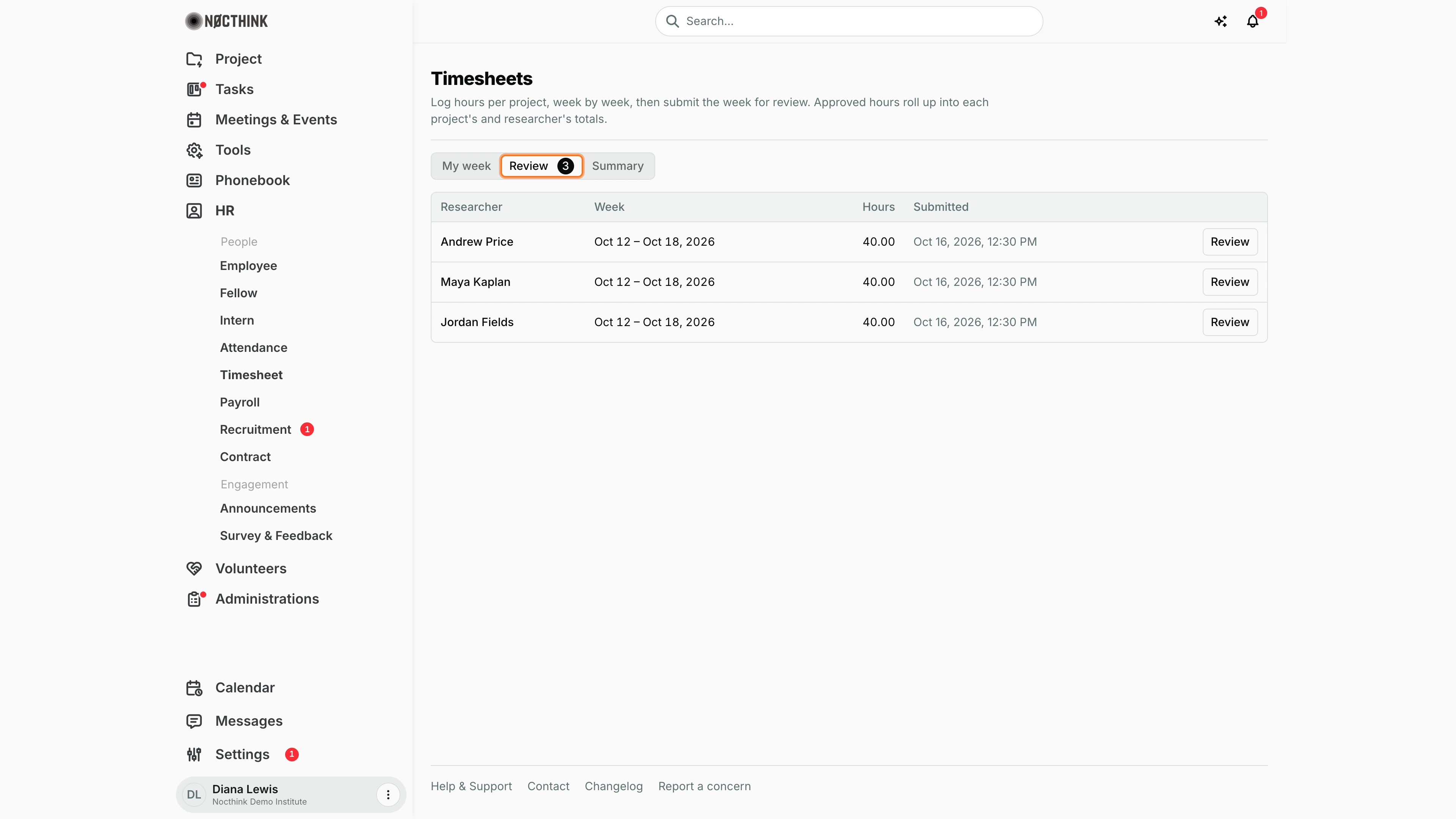
Screenshot: Diana Lewis (HR Officer), Nocthink Demo Institute demo data.
Review is the queue of weeks submitted to me. The tab label carries a count badge (3 in the demo). Each row shows the Researcher, the Week range, total Hours and when it was Submitted, with a Review button that opens the week. Rows leave the queue as soon as they are approved or returned. Click Review on a row to open the week in the review dialog shown next. The badge on the tab and the queue update as soon as I approve or return a week. The queue only lists weeks I am allowed to review, so it can differ from a colleague's.
Review a timesheet
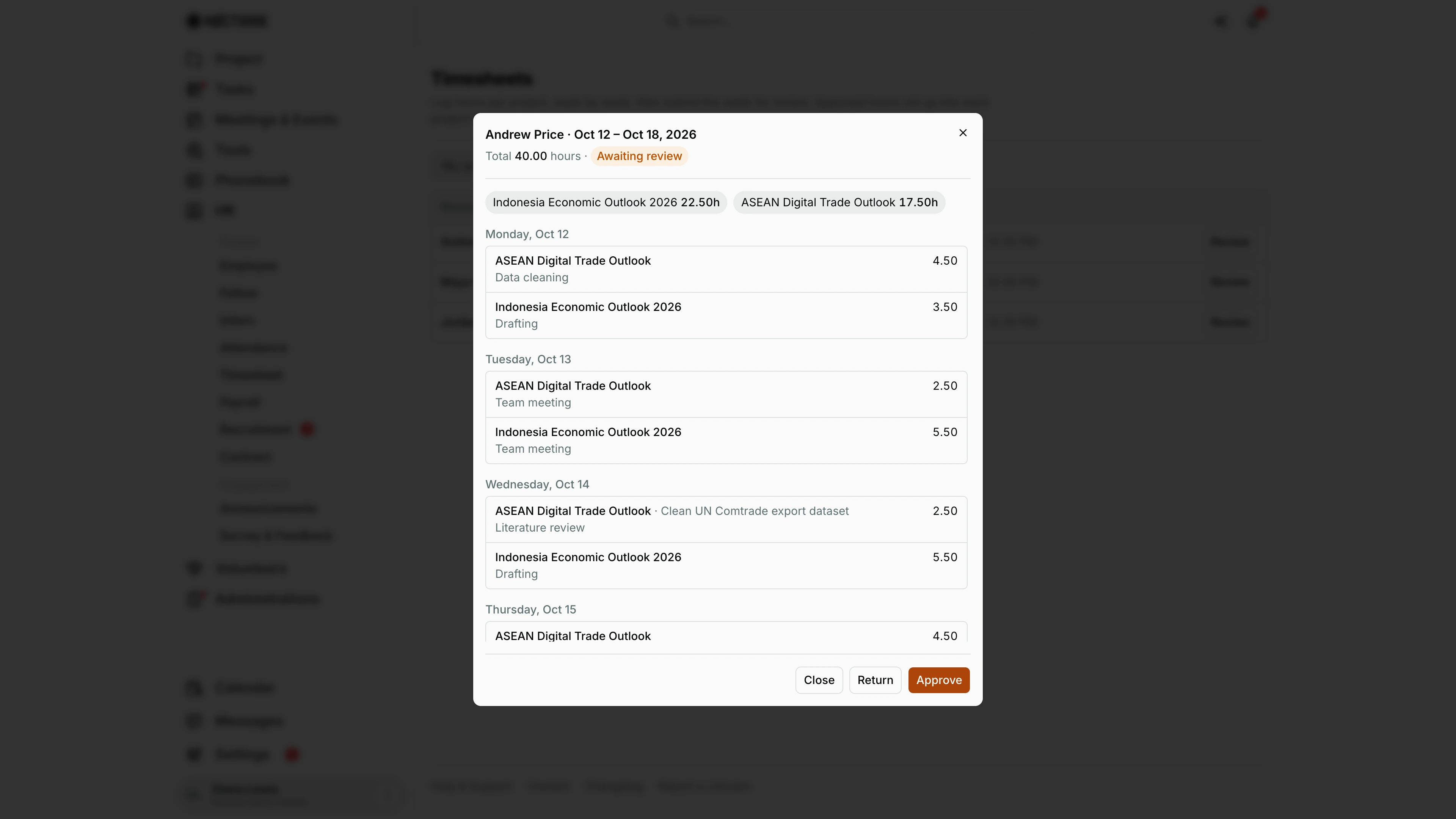
Screenshot: Diana Lewis (HR Officer), Nocthink Demo Institute demo data.
The dialog title is the person and the week. Under it are the Total hours and the status (Awaiting review), then one chip per project with its hours (here "Indonesia Economic Outlook 2026 22.50h" and "ASEAN Digital Trade Outlook 17.50h"). Below, each day lists its lines: the project, the task when one was picked (e.g. "Clean UN Comtrade export dataset"), the description and the hours.
The footer has Close, Return and Approve. Approve locks the week and its hours count towards project totals and the Grant Labor Allocation. Return needs a Review note; the employee sees it and can edit and resubmit. Nothing changes if I click Close.
Summary tab
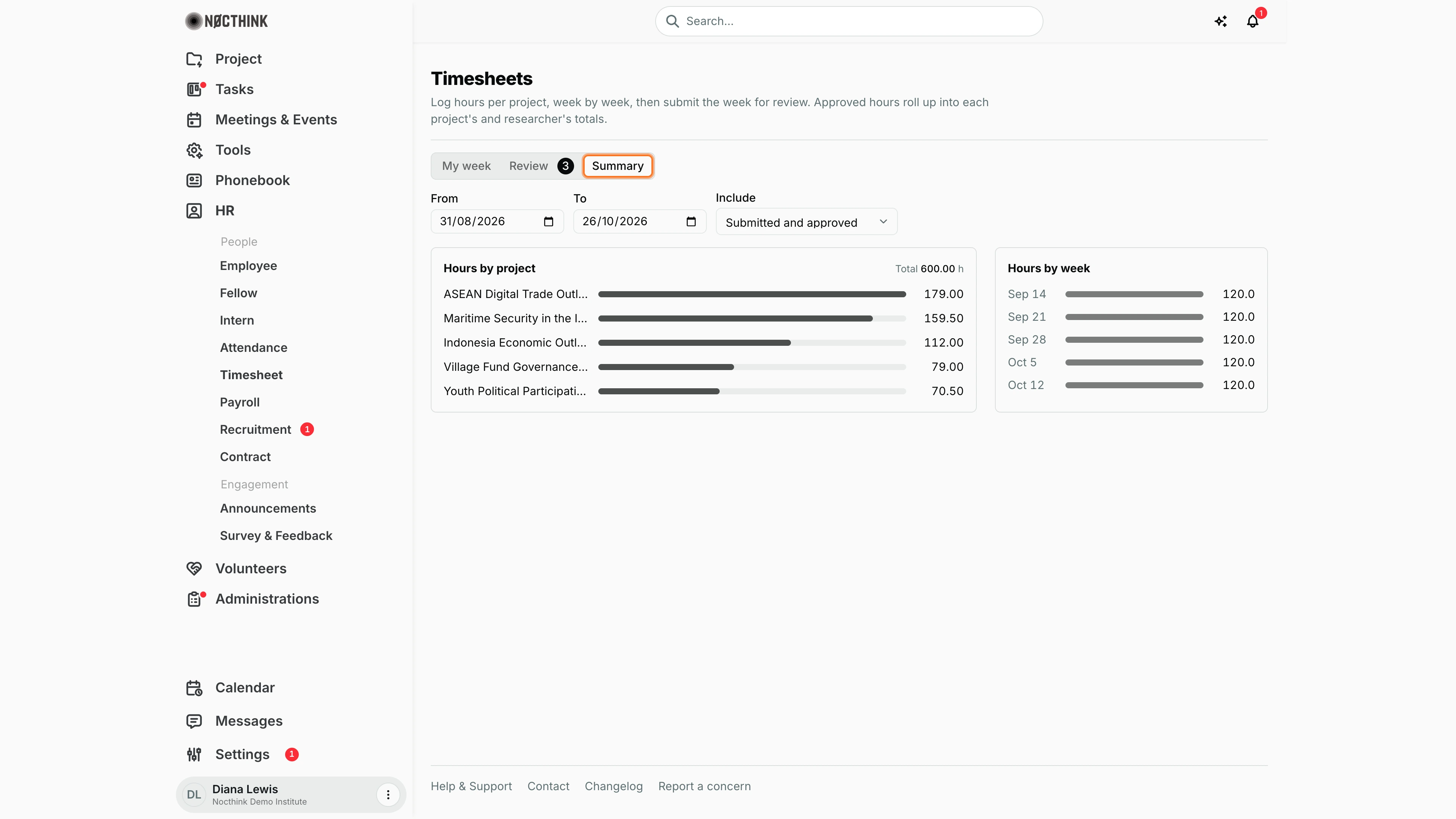
Screenshot: Diana Lewis (HR Officer), Nocthink Demo Institute demo data.
Summary totals hours over a date range. Set From and To, and choose what to Include: "Submitted and approved" (the default) or "Approved only". Hours by project ranks projects with a bar and the hour total, with the grand Total at the top right (600.00 h in the demo). Hours by week shows the same hours per week starting Monday. Use it before the grant allocation run to confirm the month's approved hours are complete. The dates default to the last eight weeks up to today.
Access & permissions
- Self-service for everyone (
PERSONAL_ACCESS_ROUTES). Each person can create only their own timesheet. - HR authority (a Director, or a member of the HR department) or anyone with
hr.approvesees and reviews every timesheet in the org. Other staff review only their direct reports. - Nobody can review their own timesheet ("You cannot review your own timesheet.").
- docs/role.md: HR Staff W, HR Manager and Owner F, others S. Project-lead approval per project is listed there as a future feature.
Caveats
- Every line with hours must have a project ("Pick a project for every line with hours."), and no day can exceed 24 hours.
- Only Draft and Rejected weeks are editable. Approved weeks are locked, and there is no "un-approve".
- Submit for review saves first and is disabled while the total is 0.
- Delete week removes the draft immediately, with no confirmation.
- The Grant list only offers grants attached to the chosen project. Completed projects stay on existing lines but cannot be picked for new ones.
- Weeks run Monday–Sunday, and dates are handled in UTC.
Limitations
- There is no bulk approve. Each timesheet is reviewed one at a time.
- Timesheets cannot be entered on someone else's behalf.
- There is no export from this page; Summary is on screen only.
- Check-in and check-out times in Attendance are not linked to logged hours.
Related menus
- Grant Labor Allocation: splits paid gross pay across grants by approved timesheet minutes.
- Employee: each profile has a Timesheets tab.
- Attendance: presence, separate from project hours.
- Payroll: the pay the allocation splits.
- All Projects: approved hours roll up into project totals.