
Approvals
Open in NocthinkModule: Tasks · URL: /tasks/approvals · Responsible role: Approver: Owner/Director, or a manager role with tasks.approve (Project Manager, HR Manager, Finance Manager, F.A.T. Manager) · Also used by: every member as a requester (the Submitted by me tab)
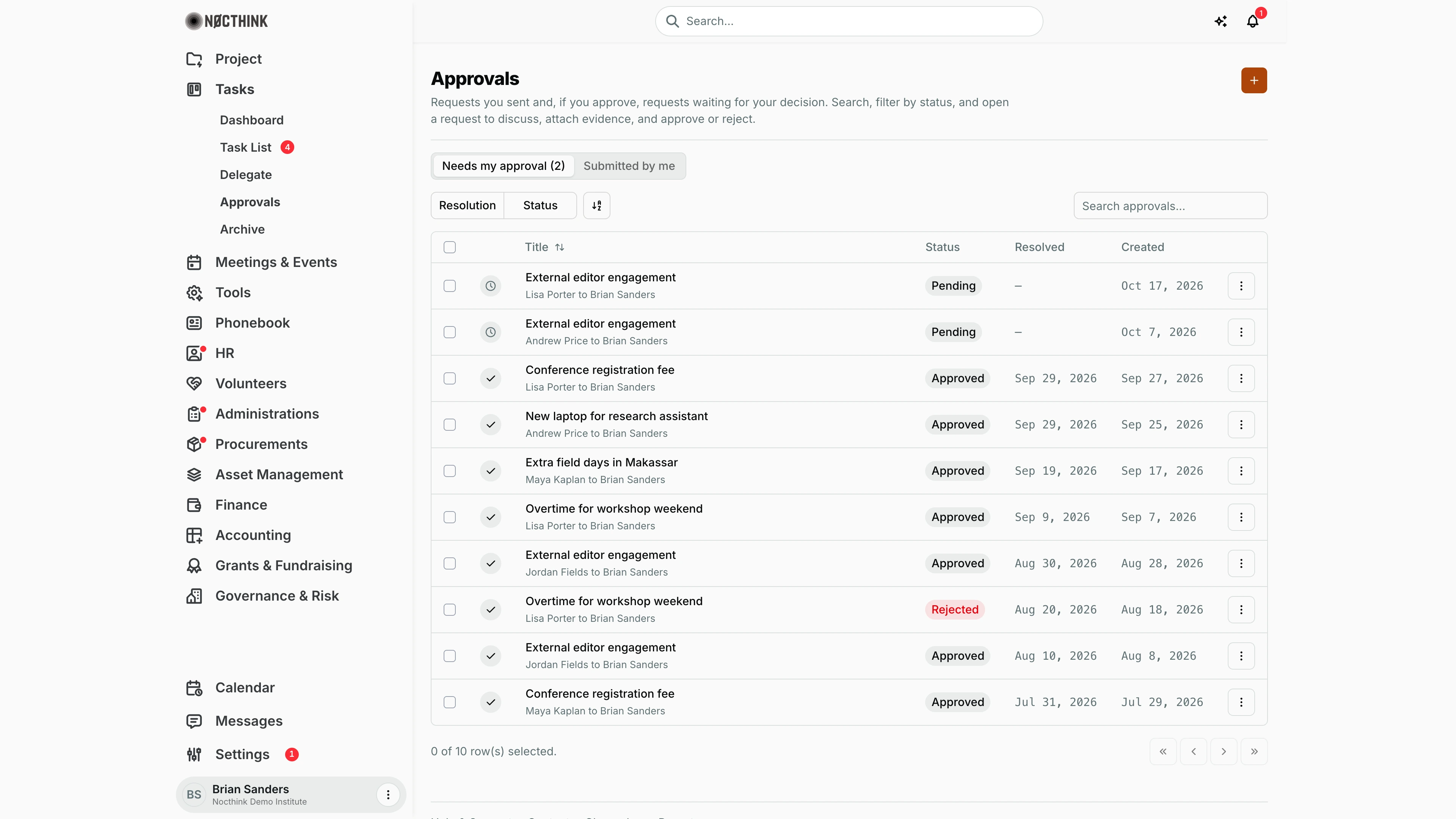
Screenshot: Brian Sanders (Deputy Director), Nocthink Demo Institute demo data.
Why I use this page
As an approver I use this page to decide requests that colleagues send me outside the formal procurement and finance flows: an extra field day, a conference fee, a new laptop, overtime. Each request has a title, a description, a discussion thread and evidence. I check it daily, or whenever the sidebar badge shows pending items, and I use it to look back at what I approved or rejected and when.
What's on the screen
- Header — Approvals, with "Requests you sent and, if you approve, requests waiting for your decision. Search, filter by status, and open a request to discuss, attach evidence, and approve or reject." The + button (New approval request) is on the right.
- Tabs:
- Needs my approval (n): requests where I am the approver, with the pending count, "(2)" in the screenshot (the count is left off when nothing is pending). It shows only if I hold
tasks.approveor someone has named me approver, and it opens first when it shows. For the organization owner it also lists requests between other people. - Submitted by me: requests I sent. Everyone has this tab.
- Needs my approval (n): requests where I am the approver, with the pending count, "(2)" in the screenshot (the count is left off when nothing is pending). It shows only if I hold
- Toolbar:
- Resolution — Decided or Awaiting;
- Status — Pending, Approved, Rejected or Revised;
- a view/sort toggle;
- Search approvals... — matches the title, requester or approver.
- Table (10 rows per page, with a row-selection checkbox, "n of n row(s) selected" and page arrows underneath):
- a resolution icon (check = decided, clock = awaiting);
- Title, with "<requester> to <approver>" underneath; sortable;
- Status — Rejected is tinted red;
- Resolved — the decision date ("—" while pending);
- Created;
- a ⋮ menu with View details and, for my own requests (or for the org owner), Delete.
- Request page (opened from a row):
- the title and "Requested <date/time>";
- Request details and Approver comment;
- Decision evidence;
- the discussion thread, with a message box and Attach files and Send;
- the Request info side panel;
- for the assigned approver (or the org owner, when not the requester), the header buttons Reject / Approve, or Reopen once the request is decided. The requester sees no decision buttons.
How I …
Decide a pending request
- Open the Needs my approval tab and filter Resolution → Awaiting, or open the badge count from the sidebar.
- Click the row (or ⋮ → View details); see Approval detail below.
- Read Request details and the thread. If something is missing, write in the message box ("Ask for clarification or attach supporting documents…") and click Send.
- Click Approve or Reject in the header. Optionally add a comment and evidence in the thread first.
- The Status pill changes, the resolved date is stamped, and the requester is notified. I can also tick Approve on send or Reject on send under the message box to send a comment and decide in one step; the message text becomes the approver comment.
Send a request for approval (as requester)
- Click +. The Request approval dialog opens ("Send a request to an approver."; see Request approval below).
- Enter the Title (required) and a Description.
- Pick the Approver from Select approver… (required; I cannot pick myself).
- Submit. The request appears with status Pending.
- Follow it under Submitted by me. Open it to read the thread. The approver's decision is announced by a notification ("Approval approved/rejected/revised"). As requester I can discuss and attach files, but I never see Approve/Reject.
Reopen a decided request
- Open the request and click Reopen (approver or org owner only). The status goes back to Pending, the resolved date is cleared, the approver comment is kept, and the requester gets "Approval reopened".
- Discuss in the thread, then decide again.
Delete a request
- Open ⋮ → Delete on my own request (the org owner can delete any).
- Confirm. The request and its discussion are deleted for good.
Review past decisions
- Filter Resolution → Decided, or Status → Rejected.
- Sort by Title, or use search to find a person's requests.
Detail page, forms & dialogs
Request approval
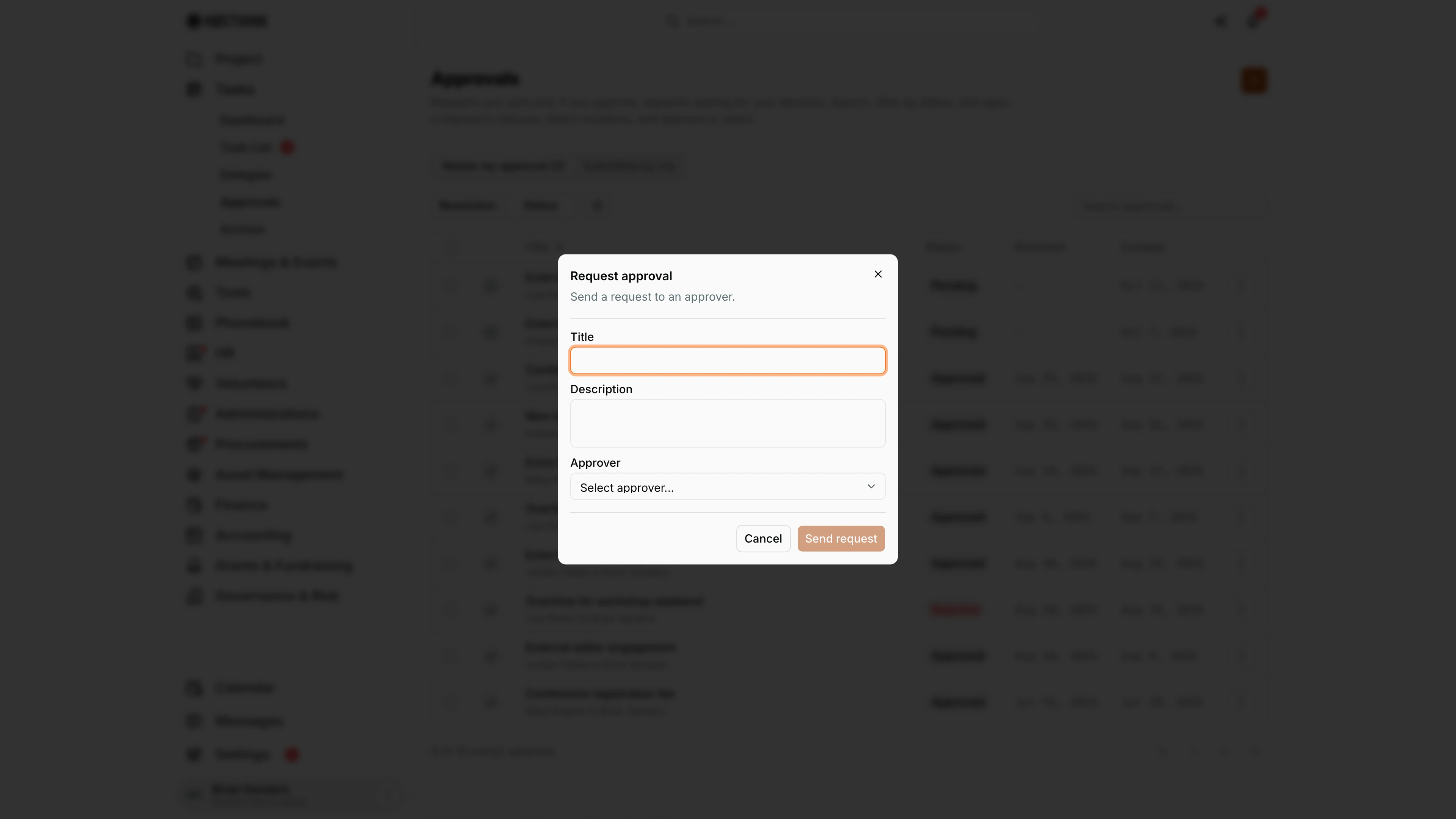
Screenshot: Brian Sanders (Deputy Director), Nocthink Demo Institute demo data.
The orange + opens Request approval: "Send a request to an approver." I enter a Title (required) and Description, and choose the Approver from Select approver… (required; I cannot pick myself). Send request stays disabled until the form is complete. The request then shows as Pending under Submitted by me, and the approver is notified. See Send a request for approval (as requester) above.
Approval detail
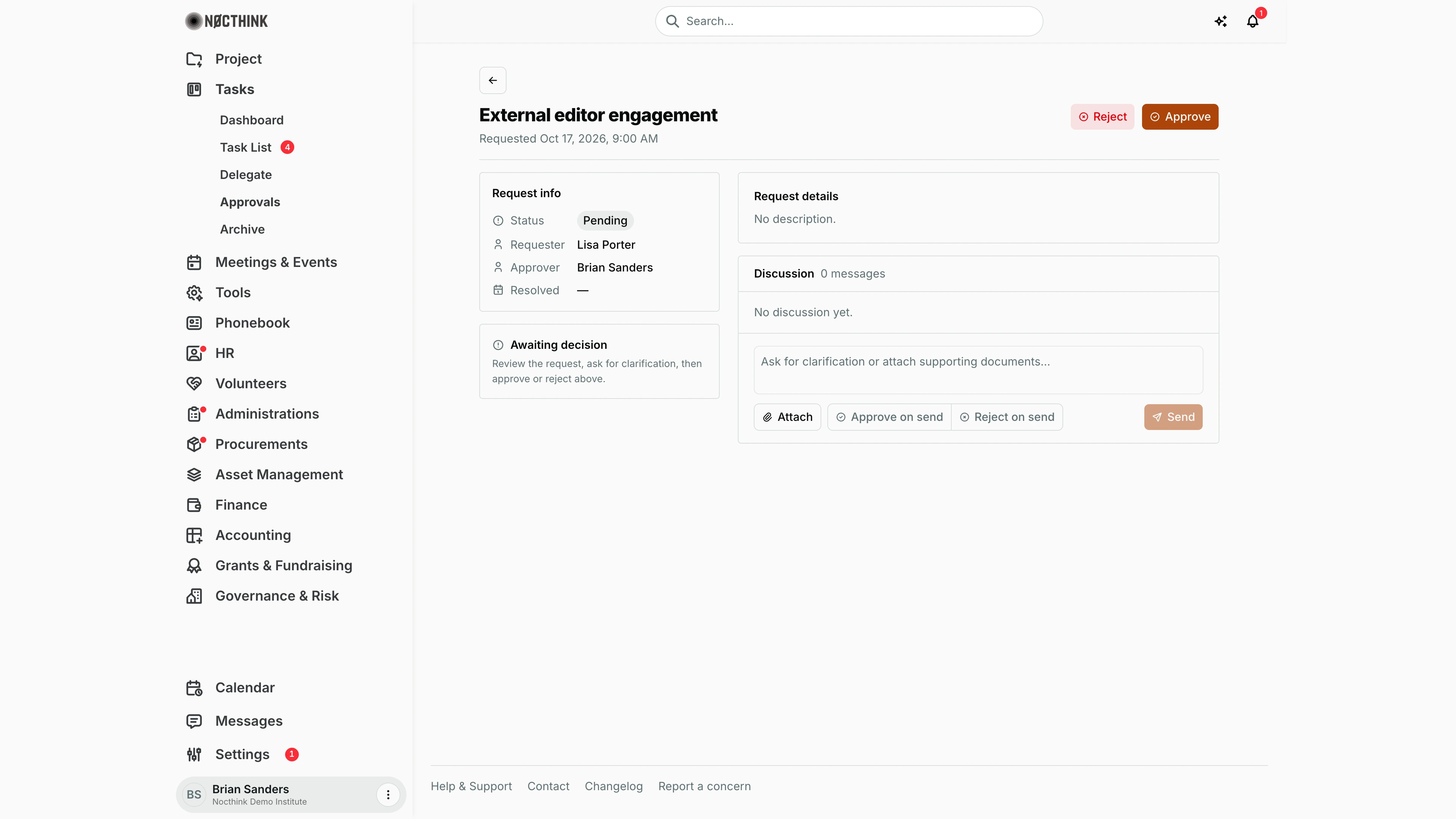
Screenshot: Brian Sanders (Deputy Director, the approver), Nocthink Demo Institute demo data.
Opening a request shows its title and "Requested <date and time>". The approver (or an org admin, never the requester) sees Reject and Approve in the header while it is pending, and Reopen once it is decided. Request info lists Status (Pending, Approved, Rejected), Requester, Approver and Resolved; under it, Awaiting decision reads "Review the request, ask for clarification, then approve or reject above." Request details shows the description and, once decided, the Approver comment; decided requests also show Decision evidence with the files attached to the decision. Discussion is the thread: I write in "Ask for clarification or attach supporting documents…", add files with Attach, and click Send. Ticking Approve on send or Reject on send decides the request with the message as the comment. See Decide a pending request above.
Access & permissions
Every member can open the page (it needs only the baseline tasks.view). I see only requests where I am the requester or the approver; the organization owner sees all. Needs my approval shows for holders of tasks.approve and for anyone named approver on a request. Only the assigned approver (or the org owner) may decide, and never the requester, even if they are the owner ("You cannot decide your own request…"). Creating needs tasks.create, editing needs tasks.update, and deleting needs tasks.delete.
Caveats
- Every decision (and every reopen) notifies the requester.
- Approvals are separate from task approval (Approve on a task) and from procurement/finance approvals, which have their own menus.
- Pending approvals where I am the approver also appear in My work on the Home Dashboard.
Limitations
- No bulk approve or reject, no approval chains or multiple approvers, and no export.
Related menus
- Task List — task-level Approve for work I assigned.
- Dashboard — my task counts.
- Home Dashboard — pending approvals in My work, my requests in My requests.
- Procurement Approvals — approvals for requisitions and purchases.