
Delegate
Open in NocthinkModule: Tasks · URL: /tasks/delegate · Responsible role: Staff (every member, tasks assigned to me) · Also used by: all roles with the same personal scope
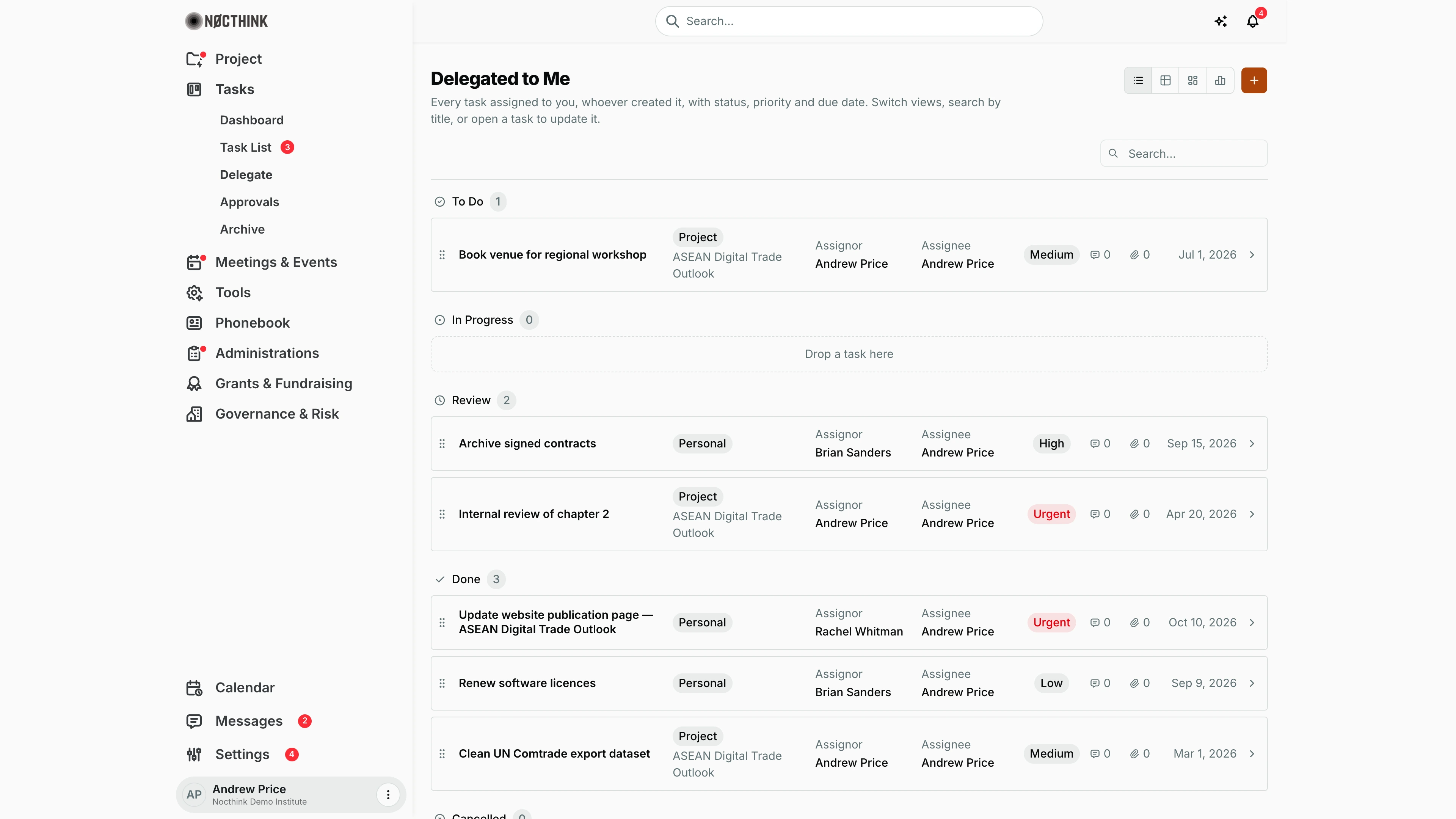
Screenshot: Andrew Price (Senior Researcher), Nocthink Demo Institute demo data.
Why I use this page
This page answers "what have people asked me to do?". It lists every task where I am the assignee, whoever created it (my director, a project lead, a colleague, or me), grouped by status. I use it when planning my day and before a 1:1 with my manager, so I can report on what was delegated to me and what is waiting in Review.
What's on the screen
- Header — Delegated to Me, with "Every task assigned to you, whoever created it, with status, priority and due date. Switch views, search by title, or open a task to update it." On the right are the view switcher (List view is the default here, plus Table view, Kanban view and Gantt view) and + (Create task).
- Search… — filters by title.
- List view — groups To Do, In Progress, Review, Done and Cancelled, each with a count; an empty group shows a "Drop a task here" area. Each row has:
- a drag handle and the task title;
- the source pill: Project with the project name, Event with the event name, or Personal;
- Assignor and Assignee;
- a priority pill (Urgent in red);
- message and attachment counts;
- the due date and a › that opens the task.
How I …
Plan my day from what was delegated
- Open Tasks → Delegate.
- Scan To Do and In Progress. Urgent items show a red pill.
- Type in Search… to find a task by title.
- Click the row (or ›) to open the task and read its Description, Messages and Attachments.
Update status as I go
- Drag the row by its handle into another status group (for example from To Do to In Progress). The status saves when I drop it.
- When finished, drag it to Review so the assignor knows it is ready. They then Approve it from the task page, which sets it to Done.
- Or switch to Kanban view and drag cards between columns.
Ask a question or hand a task on
- Open the task and post in Messages (Write a message…). The assignor and other participants see it on the task.
- If someone else should do it, use ⋯ → Reassign, choose the New assignee, add a Note (optional), and confirm. The task then leaves my Delegate list.
Create a task for myself or someone else
- Click +, fill in Title (required) and the other fields, choose the Assignee, and click Create task.
- If I assign it to someone else, it shows in their Delegate page, not mine.
Access & permissions
The section needs tasks.view, part of every member's baseline. The list is filtered to tasks where I am the assignee. As assignee I can edit the task, change its status, archive it and reassign it. Approving is reserved for the task's creator (assignor).
Caveats
- Despite the name, tasks I assigned to myself are included too (the filter is "assignee = me"). In the screenshot, several rows have Andrew Price as both assignor and assignee.
- Dragging in List view saves the status straight away. If the save fails, the row returns to its original group without a message, so check the status after dropping.
- Tasks in locked projects (On Hold / Completed / Archived) cannot be moved.
- Archived tasks are not shown. Approved tasks auto-archive after 10 days and disappear from this page.
- The page filters the newest 100 tasks I can see. In a large organization older delegated tasks may be missing; check Archive or the project board.
Limitations
- There is no "tasks I delegated to others" view. To follow up on work I assigned, use the Task List (it includes tasks I created) or the Dashboard.
- No filter by assignor, project or priority, only title search.
- No bulk status change or export.
Related menus
- Task List — everything I created or am assigned.
- Dashboard — counts for my tasks.
- Approvals — formal approval requests, separate from tasks.
- Archive — where approved and archived tasks go.
- Project Tasks — tasks in project context.