
Tasks
Open in NocthinkModule: Project · URL: /project/tasks · Responsible role: Project Manager · Also used by: Owner/Director (full), every staff member and operational role (self: tasks in projects they belong to, or that they created or are assigned)
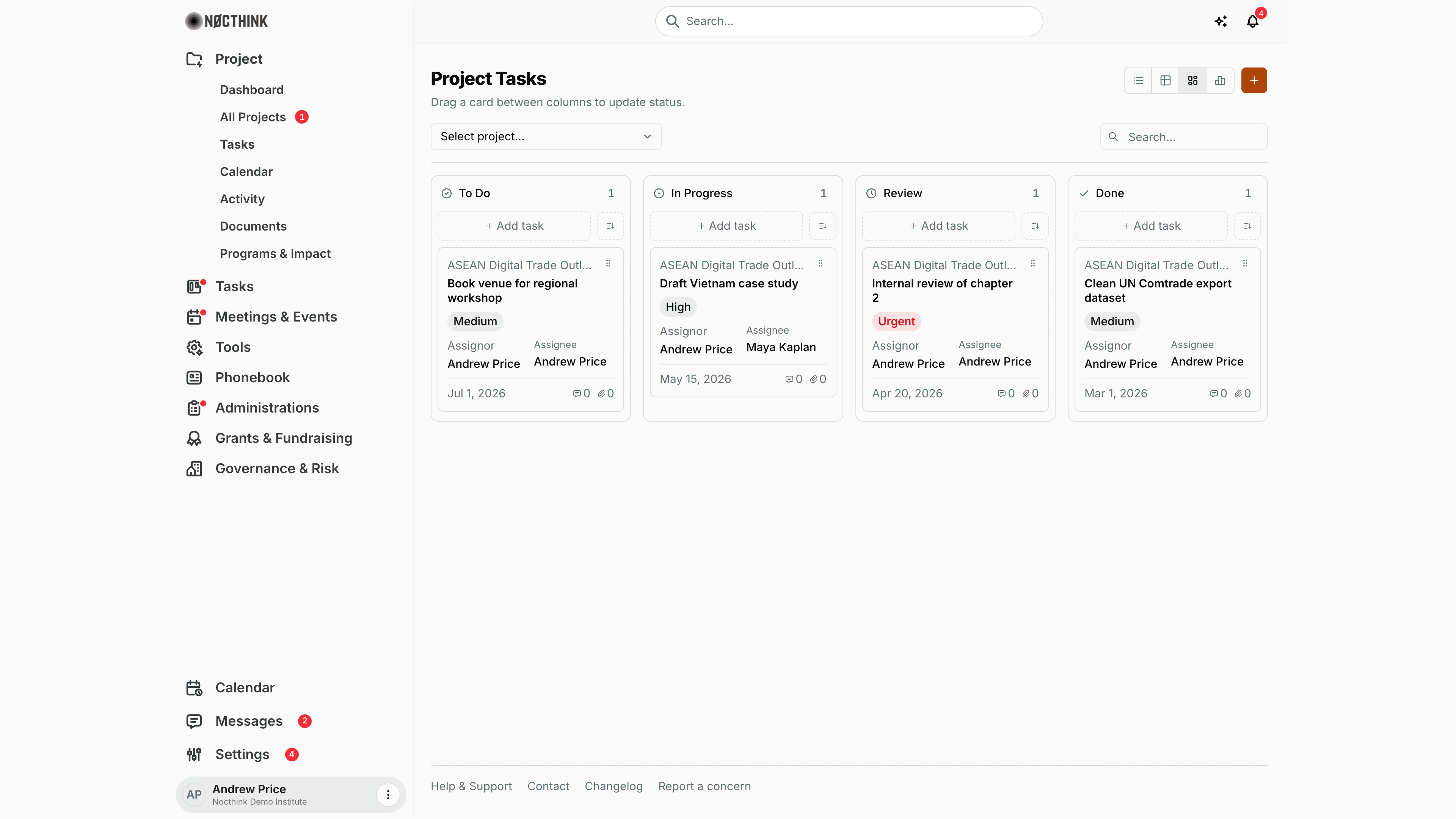
Screenshot: Andrew Price (Senior Researcher), Nocthink Demo Institute demo data.
Why I use this page
As Project Manager I use this board to run the day-to-day work of my projects: create tasks, assign them, and move them through To Do → In Progress → Review → Done. I open it during team stand-ups and whenever I need to see who is working on what across projects. Unlike the personal Task List, it shows only tasks attached to a project, and I can narrow it to one project.
What's on the screen
- Header — Project Tasks, with a hint that changes per view:
- "Drag a card between columns to update status." (Kanban)
- "Grouped by status." (List)
- "Sort, filter, and search across all tasks." (Table)
- "Timeline of tasks by due date." (Gantt)
- View switcher (top right) — List view, Table view, Kanban view (the default) and Gantt view. The chosen view is kept in the URL (
?view=). - + (Create task) — opens the Create task dialog, pre-filled with the selected project.
- Select project... — limits the board to one project. Leave it empty for all the project tasks I can see.
- Search… — filters by task title. Table and Gantt have their own search box.
- Kanban columns — To Do, In Progress, Review and Done, each with a count, a + Add task button and a sort button (Due date / Title). Each card shows:
- the project name;
- the task title and a priority pill (Low, Medium, High, Urgent in red);
- Assignor (who created it) and Assignee ("Unassigned" if empty);
- the due date ("No due date" if empty);
- message and attachment counts.
How I …
Add a task to a project
- Choose the project in Select project... (optional, but it pre-fills the form).
- Click + Add task at the top of the column I want (the status is pre-set to that column), or + in the header.
- In Create task, enter Title (required) and optionally a Description.
- Set Status (To do, In progress, Review, Done, Cancelled), Priority (Low, Medium, High, Urgent) and Due date.
- Pick the Assignee ("Unassigned" is allowed), and check Project (or Event).
- Click Create task. The assignee gets a "New task assigned" notification, unless I assigned it to myself.
Move work forward
- In Kanban view, drag a card by its handle to another column.
- The status saves immediately. If the save fails, an error appears above the board and the card returns to where it was.
- Moving a card to Done stamps its completion time; moving it out of Done clears it.
Review progress by date
- Click Gantt view to see tasks laid out by due date, with the assignee on each row.
- Or click Table view to sort by title, and to see Source (Project / Event / Personal) and Assignee in columns.
Edit or close a task
- Click a card (or row) to open the task page (
/tasks/<id>). - Edit the fields, add messages or attachments, or set the status to Cancelled. Cancelled tasks drop off the Kanban board.
Access & permissions
The page needs project.view. Creating, editing and deleting use the Tasks domain permissions (tasks.create / tasks.update / tasks.delete). Which tasks I see: Owner/Director and roles with full Tasks scope see every task in the organization. Everyone else sees tasks they created, tasks assigned to them, and all tasks of projects where they are a team member or the lead. I can change a task if I created it, I am its assignee, or I am on the project's team.
Caveats
- Tasks in a project that is On Hold, Completed or Archived cannot be created, moved, edited or deleted. The project must be set back to Planning or Active first.
- The board shows only tasks linked to a project. Event-only and personal tasks are excluded here, but appear in the Tasks module.
- Cancelled tasks are hidden from Kanban. Archived tasks never load here (see Tasks → Archive).
- Approved tasks are auto-archived 10 days after approval, the next time anyone loads a task list.
- Due dates are shown in US style, for example Jul 1, 2026.
- The column sort only reorders cards on screen. Dragging within a column does not save a manual order.
Limitations
- No bulk move, bulk assign or bulk delete.
- No swimlanes by assignee or project, and no WIP limits.
- Only one assignee per task.
- No export from this page.
Related menus
- All Projects — open a project to see its own task tab.
- Calendar — task deadlines on the project calendar.
- Activity — task changes logged per project.
- Task List — my personal task list across projects, events and standalone tasks.
- Approvals — formal sign-off requests.