
Shorten URL
Open in NocthinkModule: Tools · URL: /tools/shorten-url · Responsible role: Staff (every staff member, for their own links) · Also used by: Owner/Director and all other roles (self — each person manages only the links they created)
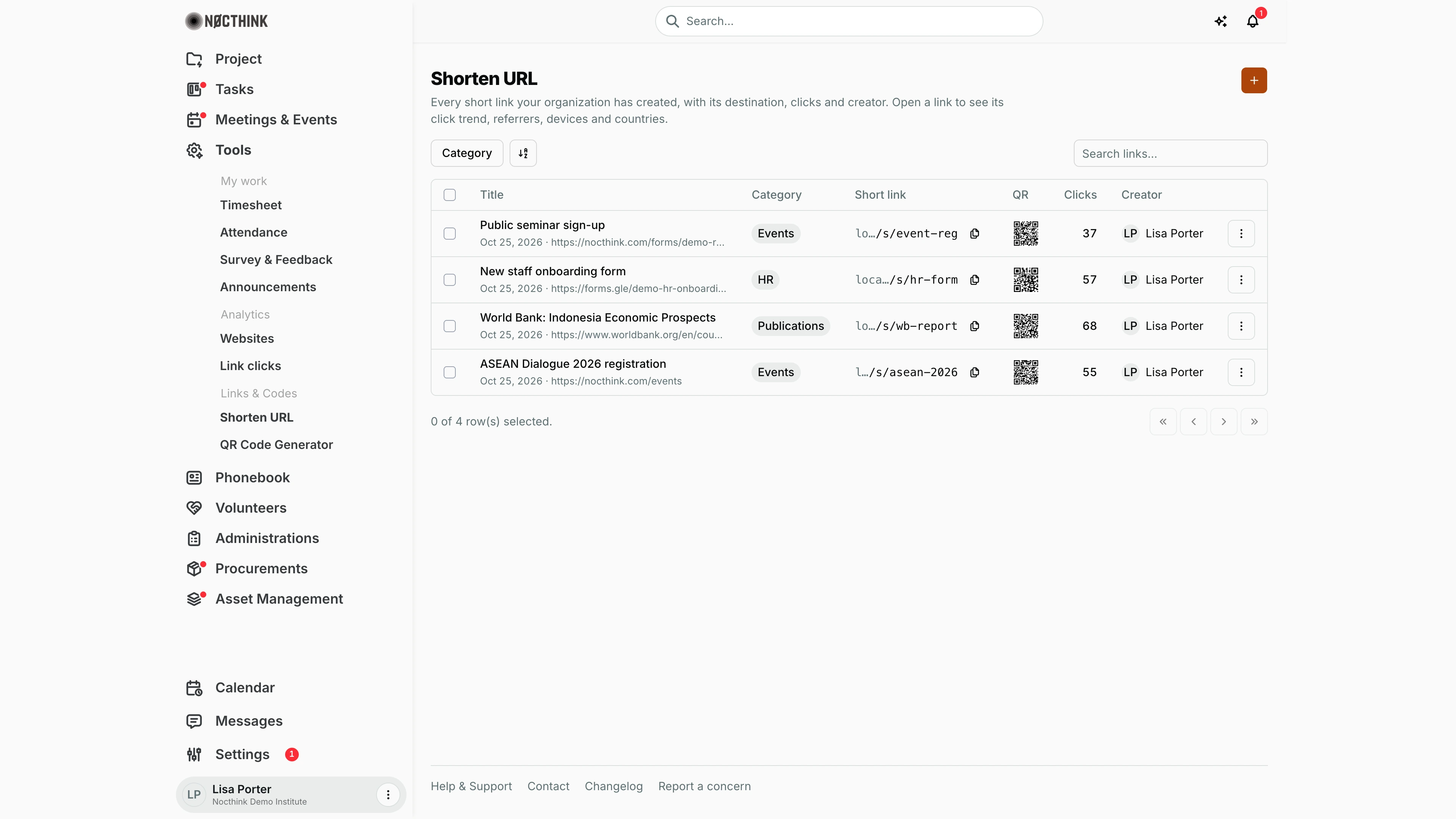
Screenshot: Lisa Porter (Operations Officer), Nocthink Demo Institute demo data. She created the four demo links, so all four are listed with her as the creator.
Why I use this page
When I share a long link — a registration form, a report PDF, a survey — I turn it into a short /s/<code> link that is easy to read out, print or put in a QR code, and that counts its clicks. I come here before a mailing or event to create the link, and afterwards to check how many people used it and where they came from.
What's on the screen
- Header — Shorten URL with its description and the orange + button (Create short link) at the top right.
- Toolbar — Category filter (checkbox list: Events, Publications, Documents, HR, Projects, Other), a sort control, and Search links… (searches the title).
- Table columns — selection checkbox, Title (with the destination URL underneath; falls back to the code if there is no title), Category, Short link (with a copy button), QR (thumbnail), Clicks, Creator (the person's name, email on hover), and a ⋮ row menu.
- Row menu — Analytics, Copy link, Open, Delete.
- Rows in the screenshot — Public seminar sign-up (Events,
/s/event-reg, 37 clicks), New staff onboarding form (HR,/s/hr-form, 57), World Bank: Indonesia Economic Prospects (Publications,/s/wb-report, 68) and ASEAN Dialogue 2026 registration (Events,/s/asean-2026, 55). Under each title are the creation date (e.g. Oct 25, 2026) and the destination URL. The Short link column is narrow, so the host is shortened ("lo…/s/event-reg"); the screenshot was taken on a local build, so the host islocalhost:3000rather than the live domain. - Footer — "0 of 4 row(s) selected." and paging buttons. If I haven't created any links, the table reads No results.
Opening a link (Analytics or clicking its title) shows:
- Header — back link Shorten URL, title and short URL, and buttons Copy link, Edit, Delete.
- Link details — Short link, Destination, Category, Creator, Created, Total clicks, and a QR code with Download PNG.
- Analytics — range switch 7d / 30d / 90d; stats Total clicks, Unique visitors, Avg per day; panels Click trend, Devices, Top countries, Top referrers.
How I …
Create a short link
- Click + to open Create short link (see Create short link below).
- Optionally enter a Title (e.g. "ASEAN Summit Registration") so I can find it later.
- Paste the Destination URL (required; must start with
http://orhttps://). - Pick a Category (pre-filled with the organization default from Tools settings).
- Optionally type a Custom slug — 3–20 letters, digits, hyphens or underscores. Leave it empty for a random code.
- Click Create link. The link appears in the table; use the copy button in Short link to share it.
Check how a link performed
- Click the row's ⋮ → Analytics (or the title) to open the Short link detail page described below.
- Choose 7d, 30d or 90d.
- Read Total clicks (all-time), Unique visitors and Avg per day for the window, then Click trend, Devices, Top countries and Top referrers.
Change where a link points
- Open the link and click Edit (see Edit link below).
- Change Title, Destination URL or Category.
- Click Save changes. The same short URL (and any printed QR code) now goes to the new destination.
Get a QR code for the link
- Open the link.
- Under QR code, click Download PNG (512 × 512 px). Or use QR Code Generator with the short URL for colours, a logo or a frame.
Delete a link
- Use ⋮ → Delete in the table, or Delete on the link page.
- Confirm "Delete "…"? This cannot be undone." The short URL stops working immediately.
Detail page, forms & dialogs
Short link detail
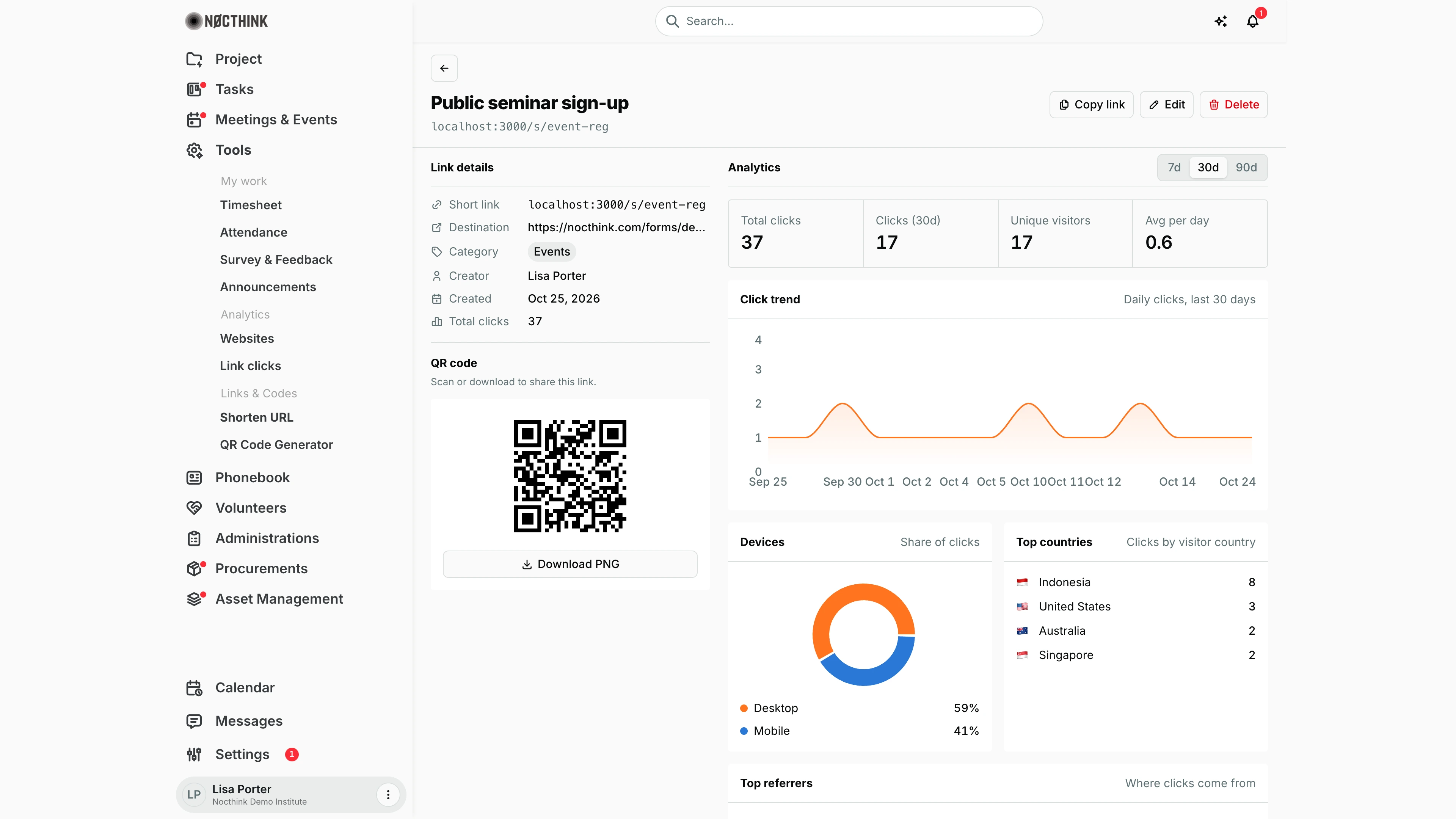
Screenshot: Lisa Porter (Operations Officer), Nocthink Demo Institute demo data.
I reach this page from ⋮ → Analytics or by clicking a link's title. The header shows the title and short URL, with Copy link, Edit and Delete. Link details lists Short link, Destination, Category, Creator, Created and Total clicks. Under it is the link's QR code with Download PNG. On the right, Analytics has the range switch 7d / 30d / 90d and the stats Total clicks, Clicks for the window, Unique visitors and Avg per day, followed by Click trend (daily clicks), Devices, Top countries and Top referrers ("Where clicks come from"). In the screenshot, Public seminar sign-up has 37 clicks from 17 unique visitors, mostly from Indonesia and mostly on desktop. Total clicks is all-time; the other numbers follow the selected range. Only the person who created the link can open it.
Edit link
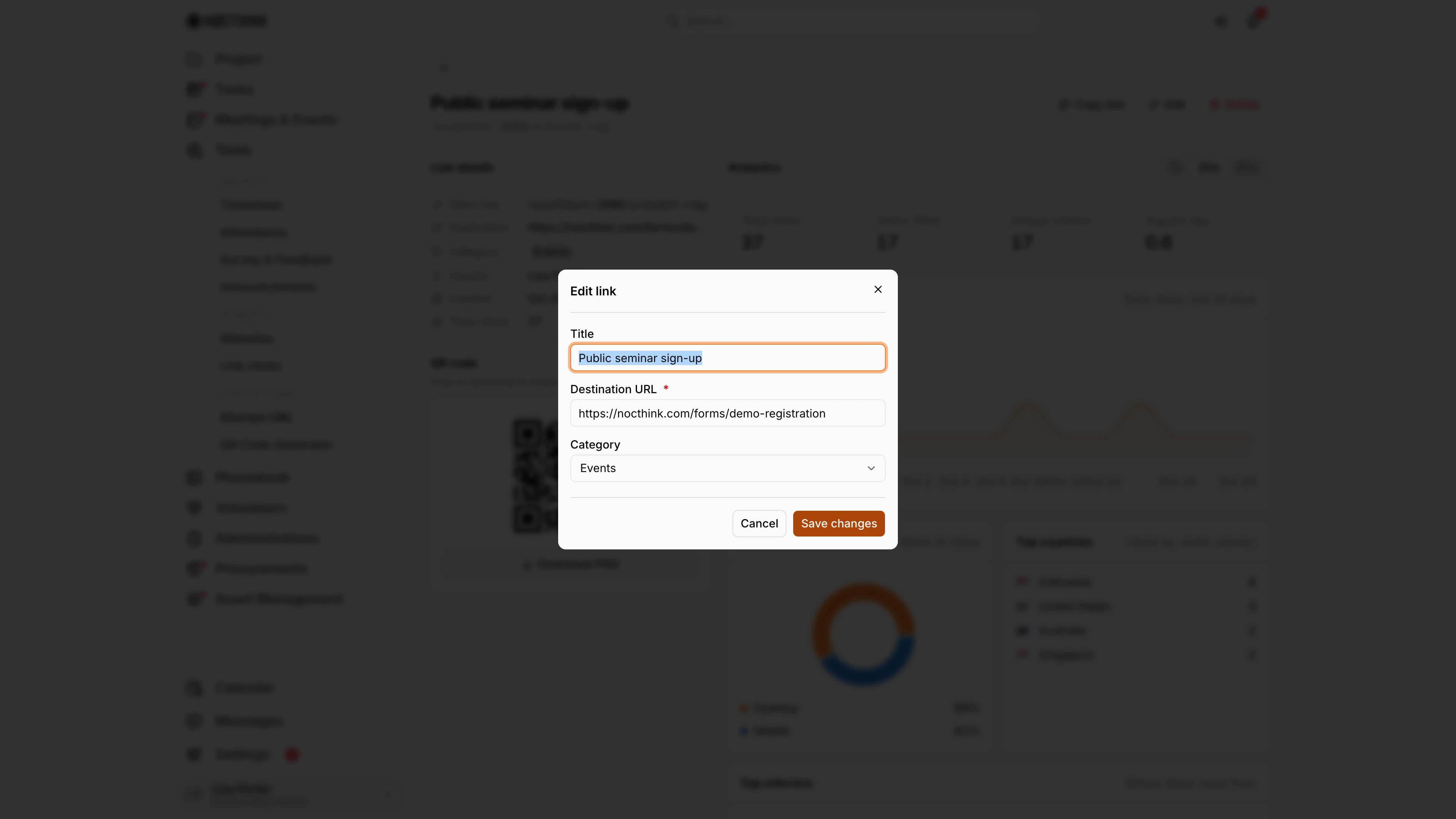
Screenshot: Lisa Porter (Operations Officer), Nocthink Demo Institute demo data.
Edit on the detail page opens this dialog, pre-filled with the link's current values. I can change Title, Destination URL (required) and Category (Events, Publications, Documents, HR, Projects, Other). There is no slug field: the short code never changes, so posters and QR codes already printed keep working and simply land on the new destination. Save changes applies the edit right away; Cancel discards it. If the server rejects the URL, the error shows under the fields and the dialog stays open.
Create short link
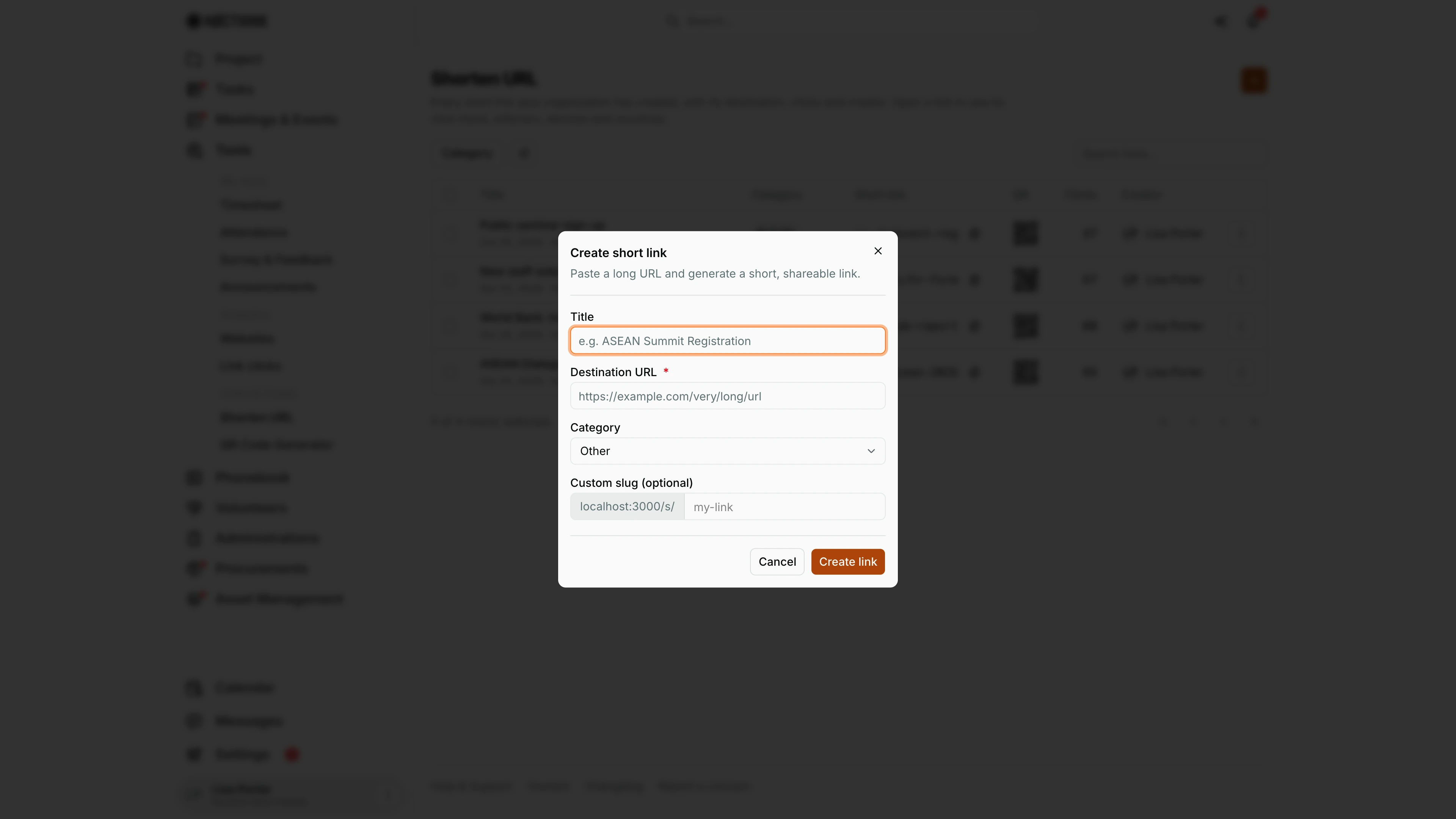
Screenshot: Lisa Porter (Operations Officer), Nocthink Demo Institute demo data.
The orange + at the top of the list opens Create short link: "Paste a long URL and generate a short, shareable link." Title is optional but makes the link easy to find later. Destination URL is required and must start with http:// or https://. Category starts on the organization default from Tools settings. Custom slug (optional) sits after the …/s/ prefix; leave it empty for a random code, or type 3–20 letters, digits, hyphens or underscores. Create link saves it and it appears at the top of my list. A slug that is already used anywhere on the platform is refused with "This slug is already taken."
Access & permissions
- Tools is not gated; every staff member can open the page and create links.
- The server only returns, edits and deletes links created by me in the current organization. Colleagues' links — even the Owner's — are not listed for me, and I cannot see or change them.
- The public redirect (
/s/<code>) works for anyone on the internet, signed in or not.
Caveats
- The slug cannot be changed after creation (Edit has no slug field), so printed codes never break. Choose it carefully. A slug is unique across the whole platform: "This slug is already taken." means someone, anywhere, already uses it.
- Destination URLs are limited to 2,048 characters and must be http/https.
- Links to outside websites open an interstitial page that shows the destination host before continuing; links to our own hosts redirect directly.
- Delete is permanent: the code returns "not found" and its click history is gone. Printed posters with that code break.
- The header text says "Every short link your organization has created", but the list is actually limited to my own links (see Access).
- Clicks in the table is the all-time total; the analytics stats are for the selected window only.
Limitations
- No bulk delete despite the row checkboxes, and no export.
- No expiry date in the form, although the server honours one if set (expired links return "This URL has expired").
- No sharing or transfer of a link to a colleague; if the creator leaves, others cannot manage it from this page.
- The custom slug field strips any character other than letters, digits,
-and_as I type.
Related menus
- Link Clicks — organization-wide click analytics across all short links (Analytics group).
- QR Code Generator — styled QR codes for a short link.
- Dashboard — Tools landing page.
- Tools settings — default category for new links.