
Dashboard
Open in NocthinkModule: Tools · URL: /tools/dashboard · Responsible role: Staff (every staff member) · Also used by: Owner/Director (full), Event Officer and General Affairs (also see the Analytics group), every other role (self)
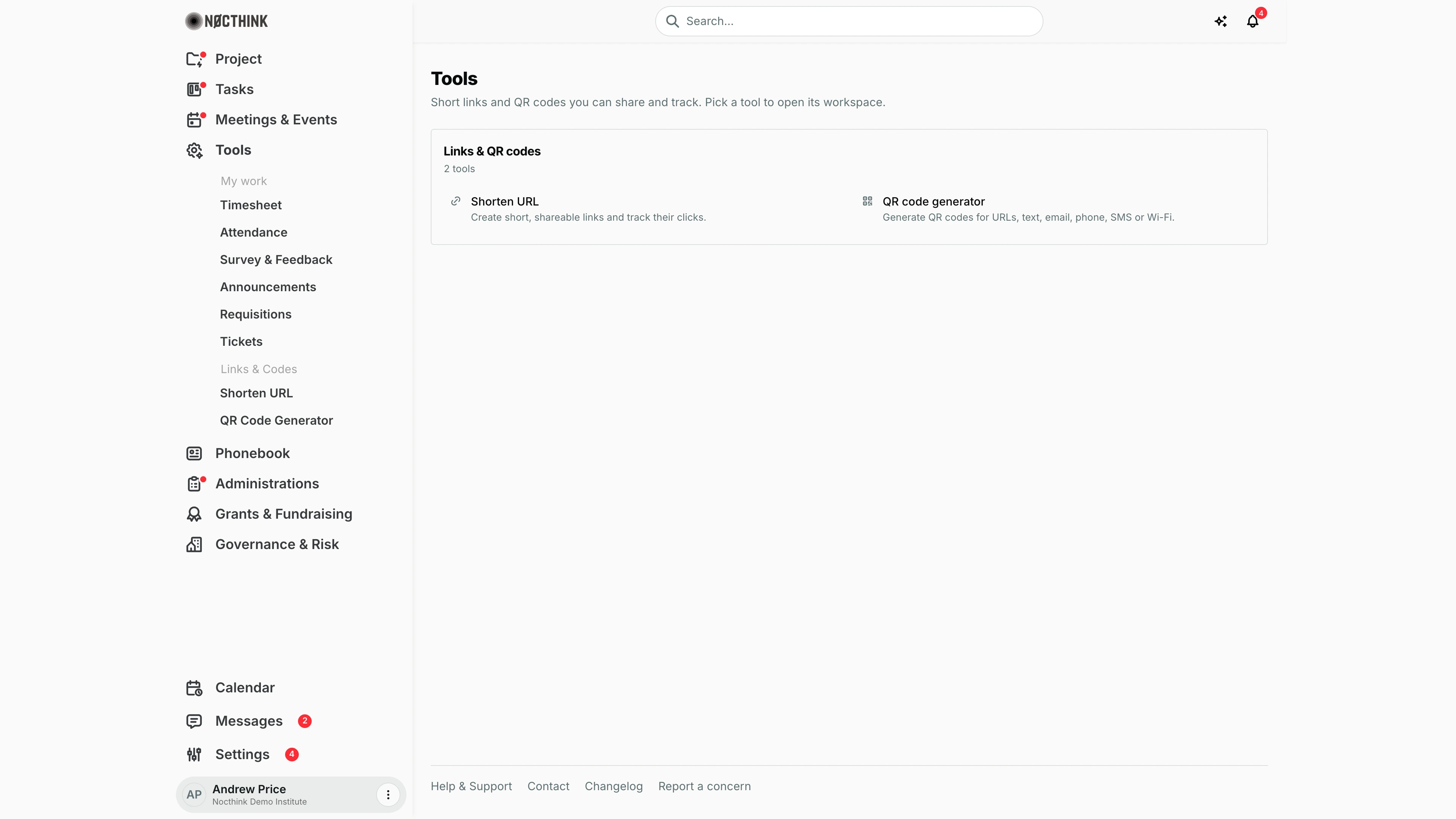
Screenshot: Andrew Price (Senior Researcher), Nocthink Demo Institute demo data.
Why I use this page
Tools is the one module in the sidebar that is not gated by a role, so it is where I land when I need a quick utility: a short link for a newsletter, or a QR code for a poster or a slide. The landing page itself is a launcher. I open it when I don't remember where a tool lives, and I use the My work group in the Tools sidebar as my shortcut to self-service pages (timesheet, attendance, surveys, announcements, my requisitions, my tickets) that belong to modules I otherwise can't open.
What's on the screen
- Header — Tools with the line "Short links and QR codes you can share and track. Pick a tool to open its workspace." There are no buttons or filters.
- Links & QR codes card — summary 2 tools, then two links:
- Shorten URL — "Create short, shareable links and track their clicks."
- QR code generator — "Generate QR codes for URLs, text, email, phone, SMS or Wi-Fi."
- Tools sidebar (expanded on the left), grouped:
- My work — Timesheet, Attendance, Survey & Feedback, Announcements, Requisitions, Tickets. Each item only appears if I do not hold the owning module's view permission (for example, HR staff see Timesheet under HR instead).
- Analytics — Websites and Link clicks, only for people with
analytics.view(not visible in this screenshot, because a Senior Researcher does not hold it). - Links & Codes — Shorten URL and QR Code Generator.
How I …
Open a tool
- Click Tools in the sidebar (it opens
/tools/dashboard). - Click Shorten URL or QR code generator in the Links & QR codes card, or pick the same item under Links & Codes in the sidebar.
Reach my own timesheet, attendance or survey without the HR module
- Expand Tools in the sidebar.
- Under My work, click Timesheet, Attendance or Survey & Feedback. These open the HR pages scoped to my own records.
Raise a requisition or an IT ticket without the Procurement or Asset module
- Expand Tools in the sidebar.
- Under My work, click Requisitions to raise or follow a purchase request, or Tickets to report an IT or facilities problem.
Access & permissions
- The Tools module has no domain gate: every member of the organization sees it and can open
/tools/*. - The Analytics group (Websites, Link clicks) needs
analytics.view. Per docs/role.md §4.5 that is Owner/Director (full), Event Officer (read) and General Affairs (read). - My work links lead to personal-access routes (
/hr/timesheets,/hr/attendance,/hr/surveys,/hr/communicationfor Announcements,/procurements/requisitions,/asset-management/tickets), which every staff member may open; the data inside is limited to my own records, and announcements are read-only. Each link shows only to people who cannot already reach the page from its own module (for example the HR links are hidden fromhr.viewholders, who use the HR menu instead).
Caveats
- The landing page only lists the two link tools. The Analytics pages and the My work shortcuts are reachable from the sidebar only, not from cards on this page.
- My work items disappear when I gain the owning module's role (e.g. after being given
hr.view); I then find the same page inside that module's menu.
Limitations
- The page is a static launcher: no counts of my links, no recent activity, no search.
- No settings link here; organization defaults for short links and QR codes are in Settings → Apps → Tools (Owner only).
Related menus
- Shorten URL — create and track short links.
- QR Code Generator — build and download a QR code image.
- Websites Analytics and Link Clicks — the Analytics group, for communications staff.
- Tools settings — default short-link category and QR style.
- Profile — my own settings, also open to every staff member.