
QR Code Generator
Open in NocthinkModule: Tools · URL: /tools/qr-code · Responsible role: Staff (every staff member) · Also used by: Owner/Director and all other roles (same tool, nothing is shared or stored)
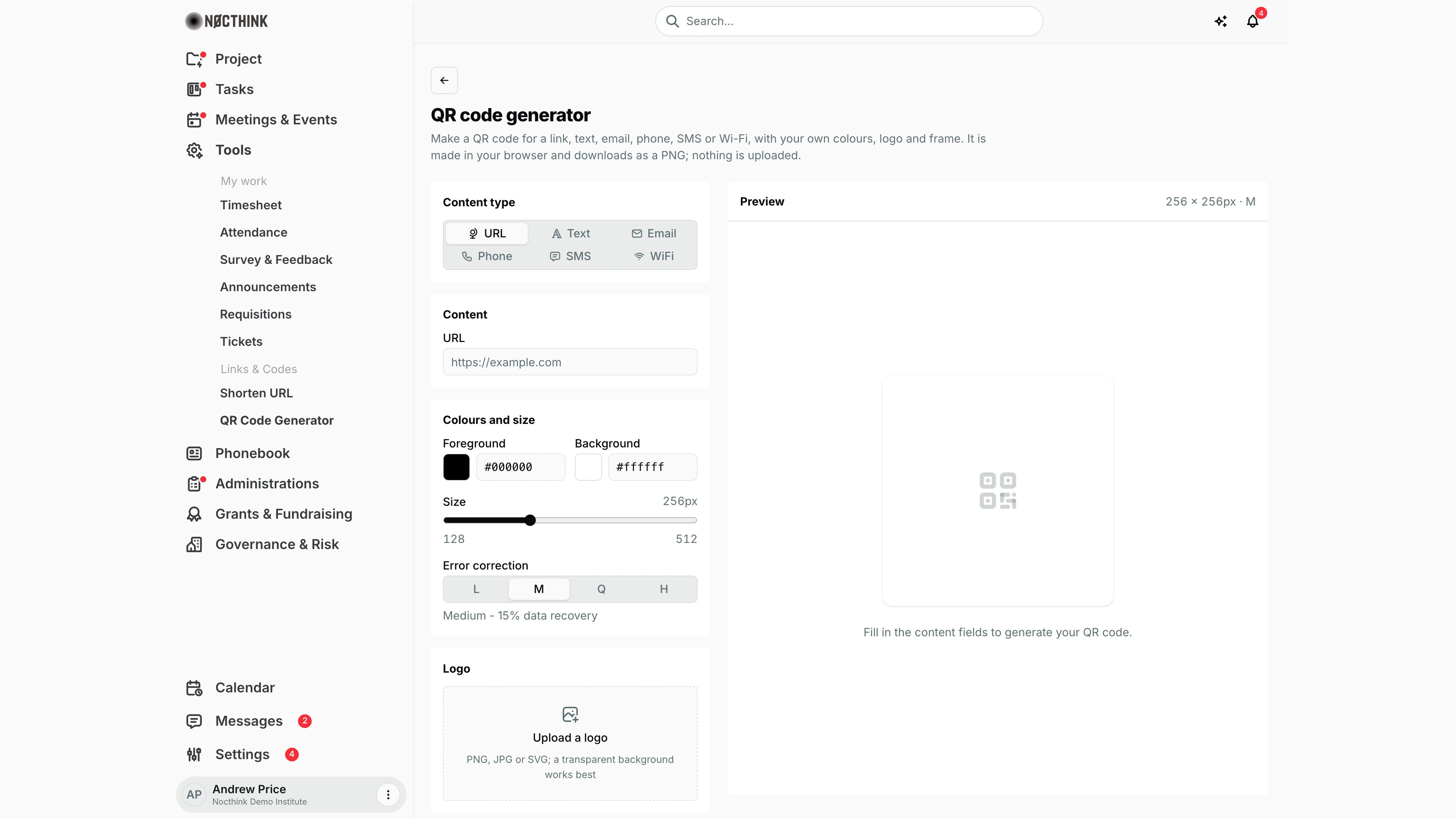
Screenshot: Andrew Price (Senior Researcher), Nocthink Demo Institute demo data.
Why I use this page
I make QR codes here for posters, slides, name cards and event signage: a link to a registration form, a Wi-Fi login for a workshop room, a pre-filled email or SMS. Everything is generated in my browser and downloaded as a PNG — nothing is uploaded or saved — so I use it whenever I need a code quickly and in our brand colours.
What's on the screen
- Header — back button to Tools, title QR code generator and "Make a QR code for a link, text, email, phone, SMS or Wi-Fi, with your own colours, logo and frame. It is made in your browser and downloads as a PNG; nothing is uploaded."
- Left column (settings)
- Content type — URL, Text, Email, Phone, SMS, WiFi.
- Content — fields for the chosen type (see below).
- Colours and size — Foreground and Background (colour swatch plus hex field), Size slider (128–512 px), Error correction L / M / Q / H with its recovery percentage (Low 7%, Medium 15%, Quartile 25%, High 30%).
- Logo — Upload a logo (PNG, JPG or SVG); once uploaded, Logo size (10–40%), Excavate background toggle and a remove (×) button.
- Frame — None, Square, Rounded, Label ↓, Label ↑; for a frame, Frame colour and Thickness; for label frames, Label text (default "SCAN ME", max 24 characters) and Label text colour.
- Download PNG and Copy value buttons (disabled until content is filled).
- Right column — Preview — shows size and error level (e.g. "256 × 256px · M"), the live QR code, and the encoded value underneath. Empty state: "Fill in the content fields to generate your QR code."
Content fields per type: URL; Text; Email address, Subject (optional), Message (optional); Phone number; Phone number and Message (optional) for SMS; Network name (SSID), Password, Security (WPA/WPA2, WEP, None) for WiFi.
How I …
Make a QR code for a link
- Keep Content type on URL.
- Paste the link into URL. For trackable scans, paste a short link from Shorten URL instead of the long URL.
- Check the Preview, then click Download PNG. The file is saved as
qrcode-url.png.
Make a Wi-Fi code for a meeting room
- Click WiFi.
- Enter Network name (SSID) and Password, and choose Security (usually WPA/WPA2).
- Download the PNG and print it on the room sign.
Brand the code with colours and a logo
- Set Foreground and Background with the swatch or by typing a hex code (e.g.
#005354). Keep strong contrast — dark on light. - Click Upload a logo and pick an image. The error correction switches to Q automatically if it was L or M.
- Adjust Logo size; leave Excavate background on so the logo sits on a clean area.
- Scan the preview with a phone before downloading. If it fails, reduce the logo size or set H.
Add a "SCAN ME" frame
- Under Frame, choose Label ↓ or Label ↑ (or Square / Rounded for a plain border).
- Set Frame colour (pre-filled from our organization's brand colour), Thickness, Label text and Label text colour.
Copy the encoded value
- Click Copy value to copy the exact string in the code (for example
WIFI:T:WPA;S:…;P:…;;ormailto:…), useful for testing or documentation.
Access & permissions
- Tools is open to every member of the organization; no role is needed.
- Nothing is stored on the server, so there is nothing for others to see or for an administrator to manage.
Caveats
- Switching Content type clears the fields I already filled.
- The URL field is not validated; a typo produces a valid-looking code that goes nowhere. Always test-scan.
- The downloaded PNG is rendered at twice the selected Size (e.g. 512 px for a 256 px setting) for sharper printing.
- The Wi-Fi password is embedded in clear text in the code; anyone who scans it can read it.
- Starting colours, size and error level come from the organization's defaults in Settings → Apps → Tools; the frame colour comes from the company brand colour.
Limitations
- The downloaded PNG includes the frame shown in the preview: padding, border colour and thickness, rounded corners and, for banner styles, the label (default "SCAN ME"). With frame style None it is the bare QR code (with logo).
- No SVG or PDF export, PNG only.
- Codes are not saved, listed or tracked; a QR code for a plain URL counts no scans. Use a short link to get scan statistics.
- No vCard (contact card) or calendar-event type.
Related menus
- Shorten URL — create a trackable short link to encode; each link page also offers a plain QR Download PNG.
- Link Clicks — see scans of short links used in QR codes.
- Dashboard — Tools landing page.
- Tools settings — default QR colours, size and error correction.
- Company — brand colours used for the default frame colour.