
Approvals
Open in NocthinkModule: Procurements · URL: /procurements/approvals · Responsible role: Approvers in the requisition chain — Procurement (procurement), Finance Manager (finance-manager), Director · Also used by: Finance Staff / F.A.T Manager (full, per role.md), Owner/Director (can decide any step); requesters follow their own steps from the requisition page
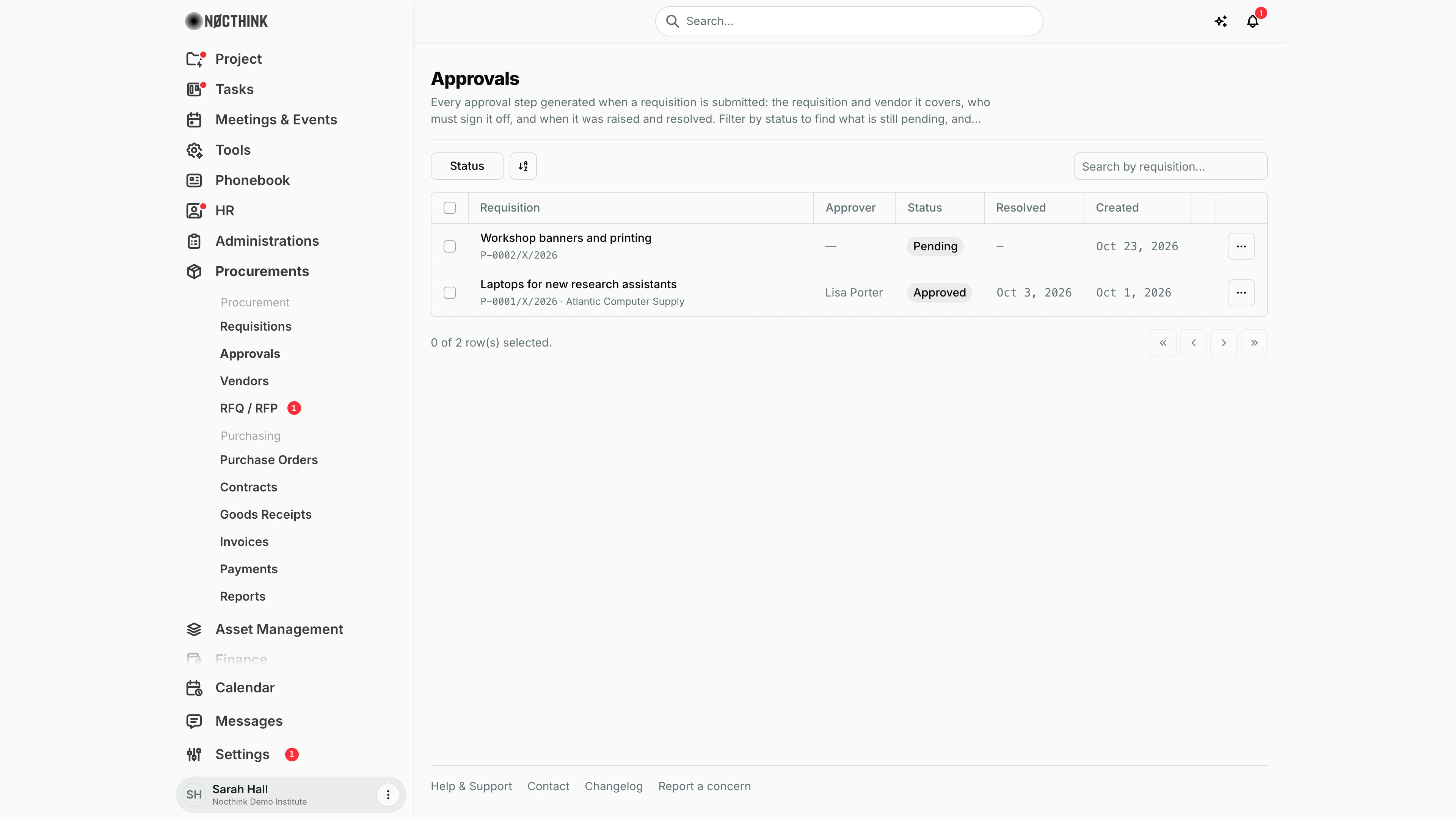
Screenshot: Sarah Hall (Finance Manager), Nocthink Demo Institute demo data.
Why I use this page
When a colleague submits a requisition, the system creates one approval step per level the amount requires. This page is my inbox for those steps: I filter to Pending, read the requisition, and approve or reject it from the row. I check it whenever I get an "Approval needed" notification or the red badge on Approvals appears — usually daily, because the next approver and the purchase order both wait on me.
What's on the screen
- Header — Approvals with a short description. There is no + button: steps are only created by submitting a requisition.
- Filters — Status (Pending, Approved, Rejected), a sort control and Search by requisition... (searches the requisition title).
- Table columns:
- Requisition — title, with the requisition number and vendor underneath (the requisition's vendor, or the awarded quote's vendor once one is chosen). Click it to open the requisition.
- Approver — who actually decided the step; — while it is still pending.
- Status — Pending, Approved, Rejected (red).
- Resolved — date of the decision.
- Created — date the step was generated.
- Decision cell (no heading) — an orange Approve and a red Reject button, shown only on pending steps I am allowed to decide.
- ⋯ row menu — Open requisition.
- Footer — row selection count and paging. There is no bulk action.
In the screenshot the "Laptops for new research assistants" requisition ($2,900.00, so a single Procurement-level step) was approved by Lisa Porter, and "Workshop banners and printing" has a pending level-1 step waiting for Procurement. Sarah Hall is the Finance Manager, not a Procurement approver for that level, so her row shows no Approve / Reject buttons.
How the chain works
On submission, the requisition total sets the levels:
| Total, rupiah organization | Total, other base currency (e.g. USD) | Level 1 | Level 2 | Level 3 |
|---|---|---|---|---|
| below 10,000,000 | below 10,000 | Procurement | — | — |
| 10,000,000 – below 50,000,000 | 10,000 – below 50,000 | Procurement | Finance Manager | — |
| 50,000,000 and above | 50,000 and above | Procurement | Finance Manager | Director (super-admin) |
The total is the requisition's amount in the organization's base currency. The "Approval needed" notification shows it in that currency (e.g. "$20,000.00").
Only level 1 starts as Pending; later levels are blocked until the previous one is approved. Each time a level opens, everyone holding that role is notified ("Approval needed").
How I …
Approve a pending step
- Click Status and tick Pending.
- Click the requisition title to review it: line items, Total, Project, Budget line (Overview tab), quotes and the Approval log. Go back to the list.
- Click Approve on the row.
- If another level follows, it becomes pending and its role holders are notified. If mine was the last level, the requisition becomes Approved and the requester is notified.
Reject a step
- On the pending row, click Reject.
- Type a reason in the "Reason for rejection (optional):" prompt and confirm. Write one — the requester sees it in the approval timeline.
- The requisition becomes Rejected, all remaining pending or blocked steps are cancelled, and the requester gets a high-priority notification.
Decide from the requisition page instead
- Open the requisition and the Approval log tab.
- The chain lists each level with its role label (Procurement Manager, Finance, Director) and status; the pending one has the same approve/reject actions when I may decide it.
- The timeline underneath shows who decided, when, and any comment.
Look up an approval's history
- Clear the status filter (or tick Approved / Rejected) and search by requisition title.
- Click a row's requisition to open it, or open the step itself (see Approval detail below) to see Approval details (Requisition, Vendor, Approver, Status, Resolved, Created) and the Comment and Requisition tabs.
Detail page, forms & dialogs
Approval detail
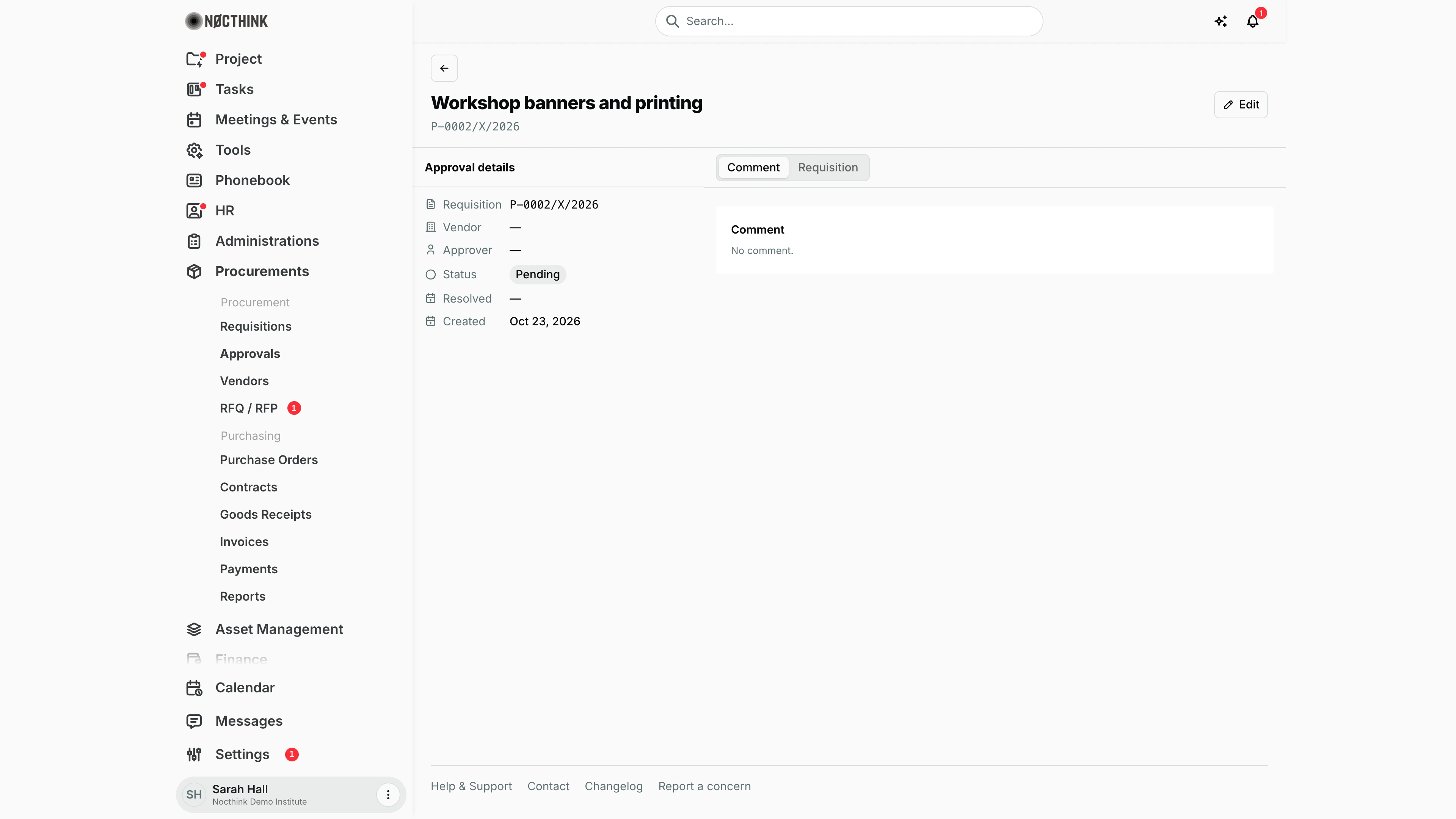
Screenshot: Sarah Hall (Finance Manager), Nocthink Demo Institute demo data.
Each approval step has its own page (/procurements/approvals/<id>). The header shows the requisition title and number and an Edit button.
Approval details on the left lists Requisition, Vendor, Approver, Status, Resolved and Created. The Comment tab shows the approver's comment ("Within budget; Atlantic Computer Supply had the best of three quotes."); the Requisition tab shows the requisition number with a link to open it.
This page is for looking up a decision after the fact. Deciding happens on the list (Approve / Reject) or on the requisition's Approval log tab.
Approval detail — Requisition tab
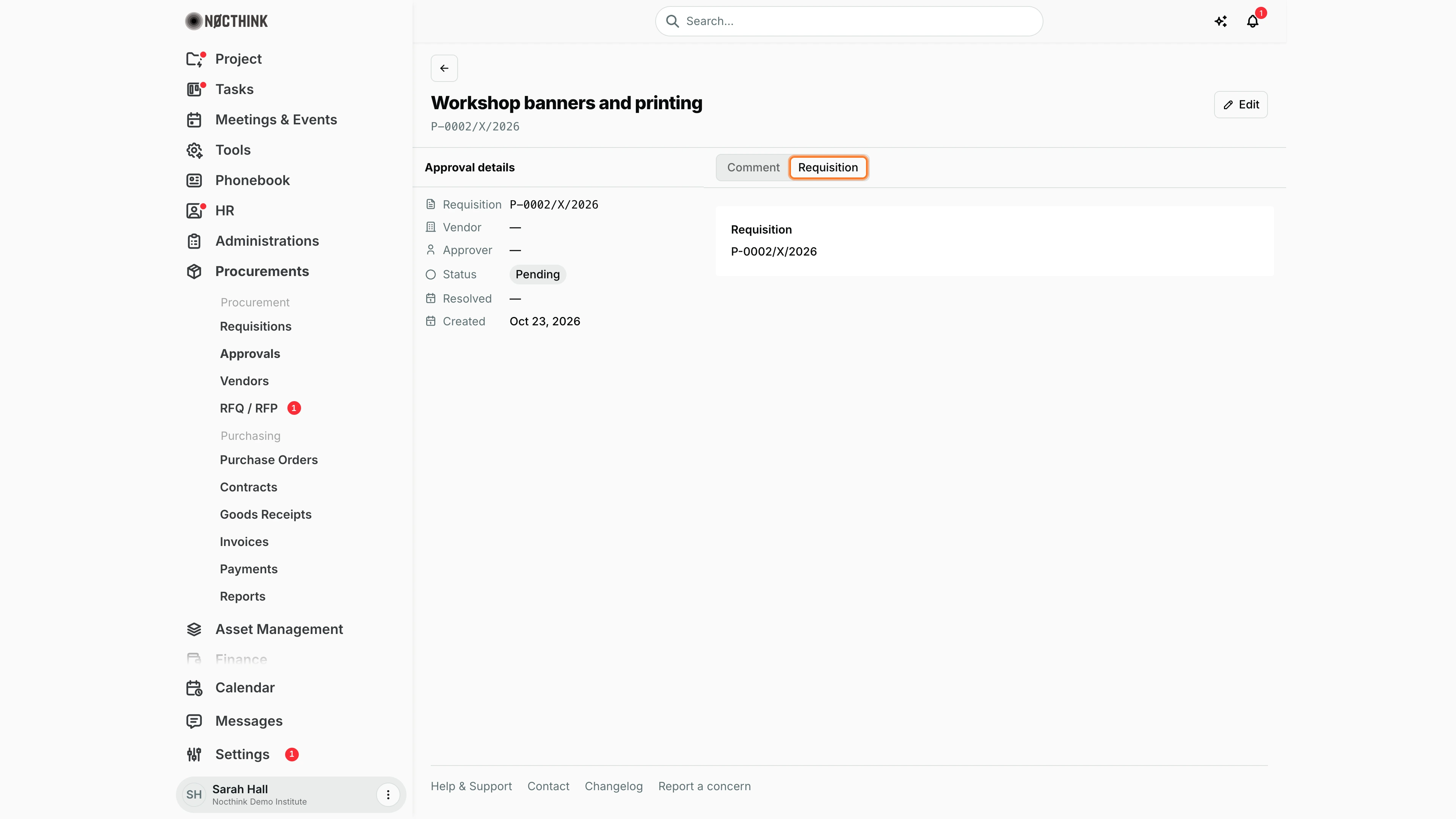
Screenshot: Sarah Hall (Finance Manager), Nocthink Demo Institute demo data.
The Requisition tab names the requisition this step belongs to and links to it, so I can go from a decision straight to the request, its quotes and its full approval log.
The tab is read-only and has no decision buttons; to approve or reject a pending step I use the list or the requisition's Approval log.
Edit approval
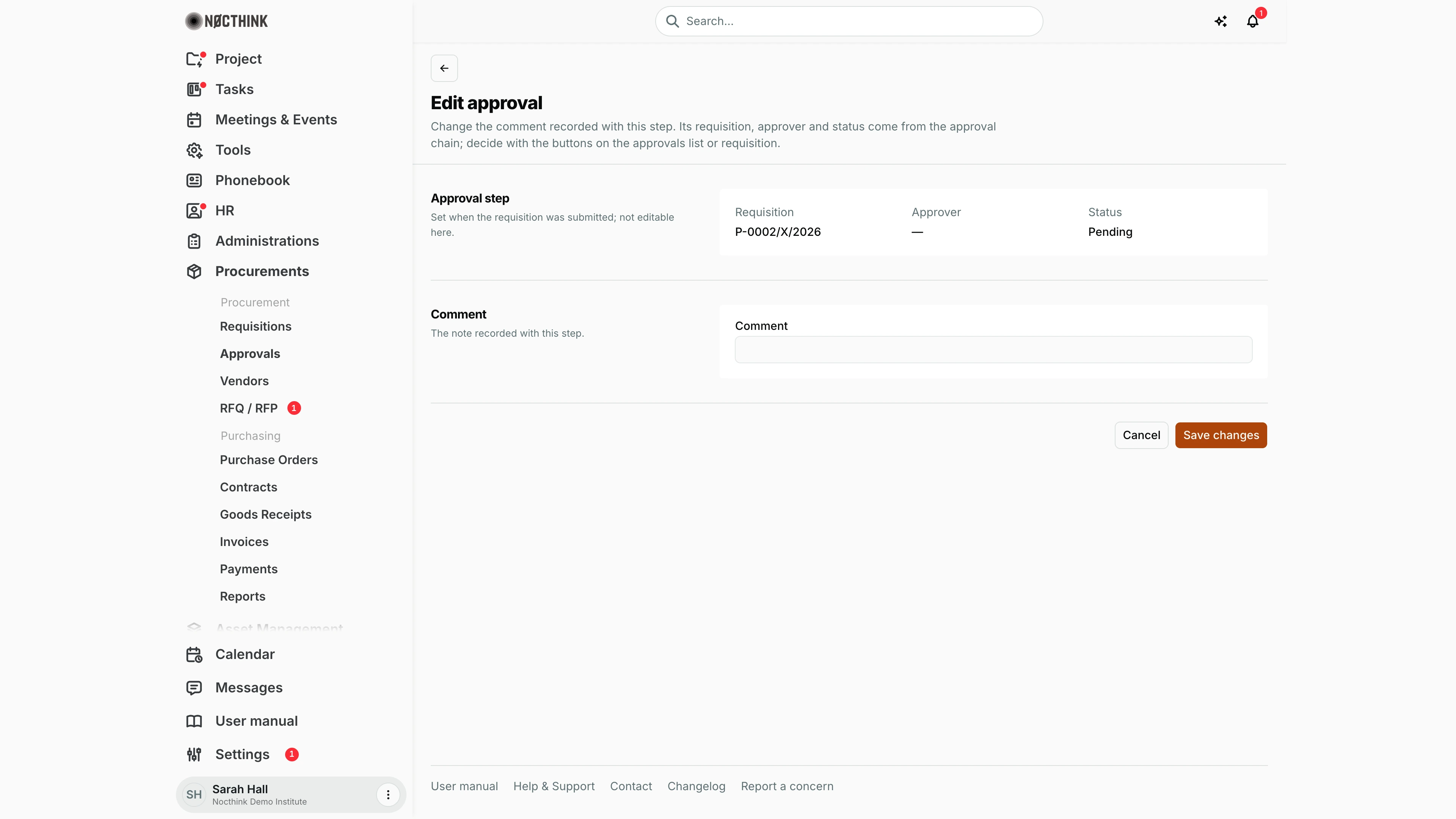
Screenshot: Sarah Hall (Finance Manager), Nocthink Demo Institute demo data.
Edit on the approval page opens Edit approval: "Change the comment recorded with this step. Its requisition, approver and status come from the approval chain; decide with the buttons on the approvals list or requisition."
Approval step shows Requisition, Approver and Status read-only. Comment is editable while the step is pending; Save changes stores it. Once a step is approved or rejected it is history: the page says so and the comment is locked, except for an organization admin (owner or director), who sees a note that they can still correct it.
Access & permissions
- The page needs
procurements.viewplusprocurements.approve. Procurement, Finance Manager, F.A.T Manager and Owner/Director have it. A department manager without those permissions decides from the requisition page instead (see below). - Only deciders see the buttons. Approve/Reject appears only when I can decide that step: I hold the step's role (Procurement, Finance Manager, or Director/super-admin), or I manage the requesting department (procurement-level steps only), and I am not the requester. Owners and Directors can decide any level. Everyone else sees the step without buttons.
- The requester can never approve their own requisition, even with the right role.
- Department managers (role.md footnote ³): the manager of the requisition's requesting department can decide its Procurement-level step without
procurements.approveor the Procurement role. Higher levels (Finance Manager, Director) still need that role. - Procurement and Finance authorities see every step; others see only steps of requisitions they can see.
Caveats
- A decision is final. There is no undo; a mistaken rejection means the requester must raise a new requisition.
- Two approvers clicking at once: the second gets "This approval step is not pending."
- Approver stays empty until someone decides, so the list does not show who is expected to act — read the level's role on the requisition's Approval log.
- The bands are fixed per currency (table above) and cannot be changed in Settings.
- Dates are shown as "Oct 25, 2026" in my browser's time zone.
Limitations
- Approval steps cannot be deleted; they are history. The row menu offers only Open requisition.
- No "waiting for me" filter; filter by Pending and check the role yourself.
- No delegation or reassignment of a step, and no bulk approve.
- The list does not show the level number, required role or amount; open the requisition for those.
- The New approval request and Edit approval forms exist at
/procurements/approvals/newand…/edit, but steps cannot be created manually (the server answers "Approval steps are generated by requisition submission.") and the edit page changes only the comment. The requisition, approver and status are shown read-only; once a step is decided only an organization admin (owner or director) can still correct its comment, and the server refuses status or approver changes.
Related menus
- Requisitions — where steps come from and where the full context and approval log live.
- Vendors — each vendor's page has an Approvals tab for its requisitions.
- Purchase Orders — can only be issued once the requisition is approved and a quote awarded.
- Dashboard — shows the approval count.
- Supplier Bills and Payment Release — the later Finance approvals (invoice approval, fund approval and release) are separate from this chain.