
Profile
Open in NocthinkModule: Settings · URL: /settings/profile · Responsible role: Staff (every staff member, for themselves) · Also used by: every role including Owner/Director — always self-only
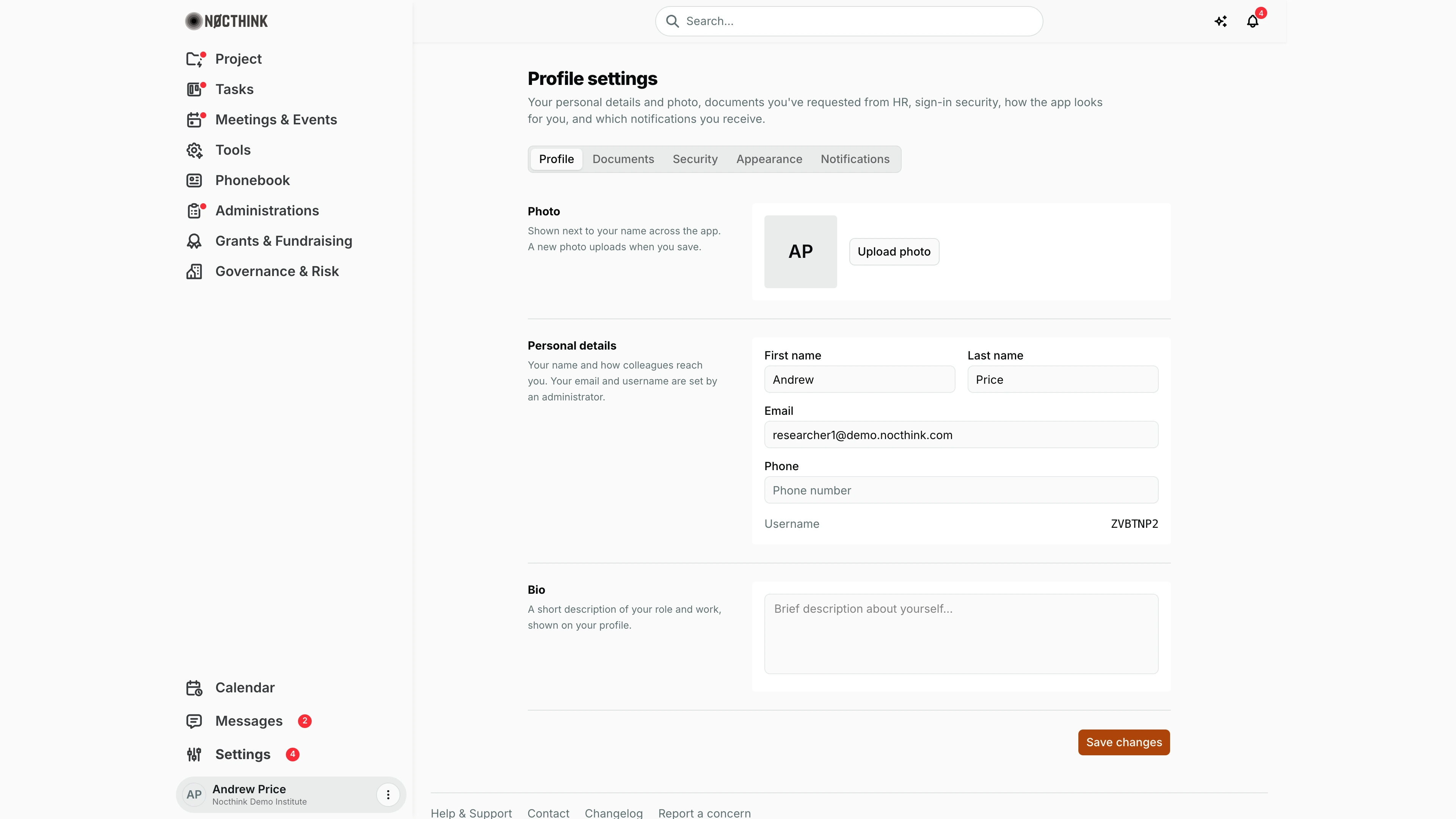
Screenshot: Andrew Price (Senior Researcher), Nocthink Demo Institute demo data.
Why I use this page
This is my own corner of the app. I set my photo, name, phone and short bio so colleagues recognise me in tasks, messages and approvals; I request documents from HR (travel letters, certificates); I change my password, turn on two-factor sign-in and sign out devices I don't recognise; and I choose which notifications reach me by email or push. I open it on my first day, after a phone change, and whenever notifications get too noisy.
What's on the screen
- Header — Profile settings with a short description.
- Tabs — Profile, Documents, Security, Appearance, Notifications. (Old links
/settings/security,/settings/appearance,/settings/notificationsopen the matching tab.) - Profile tab (shown):
- Photo — initials or picture and Upload photo; "A new photo uploads when you save."
- Personal details — First name, Last name, Email (read-only), Phone (placeholder "Phone number"), and Username (read-only).
- Bio — free text "Brief description about yourself…".
- Save changes at the bottom right.
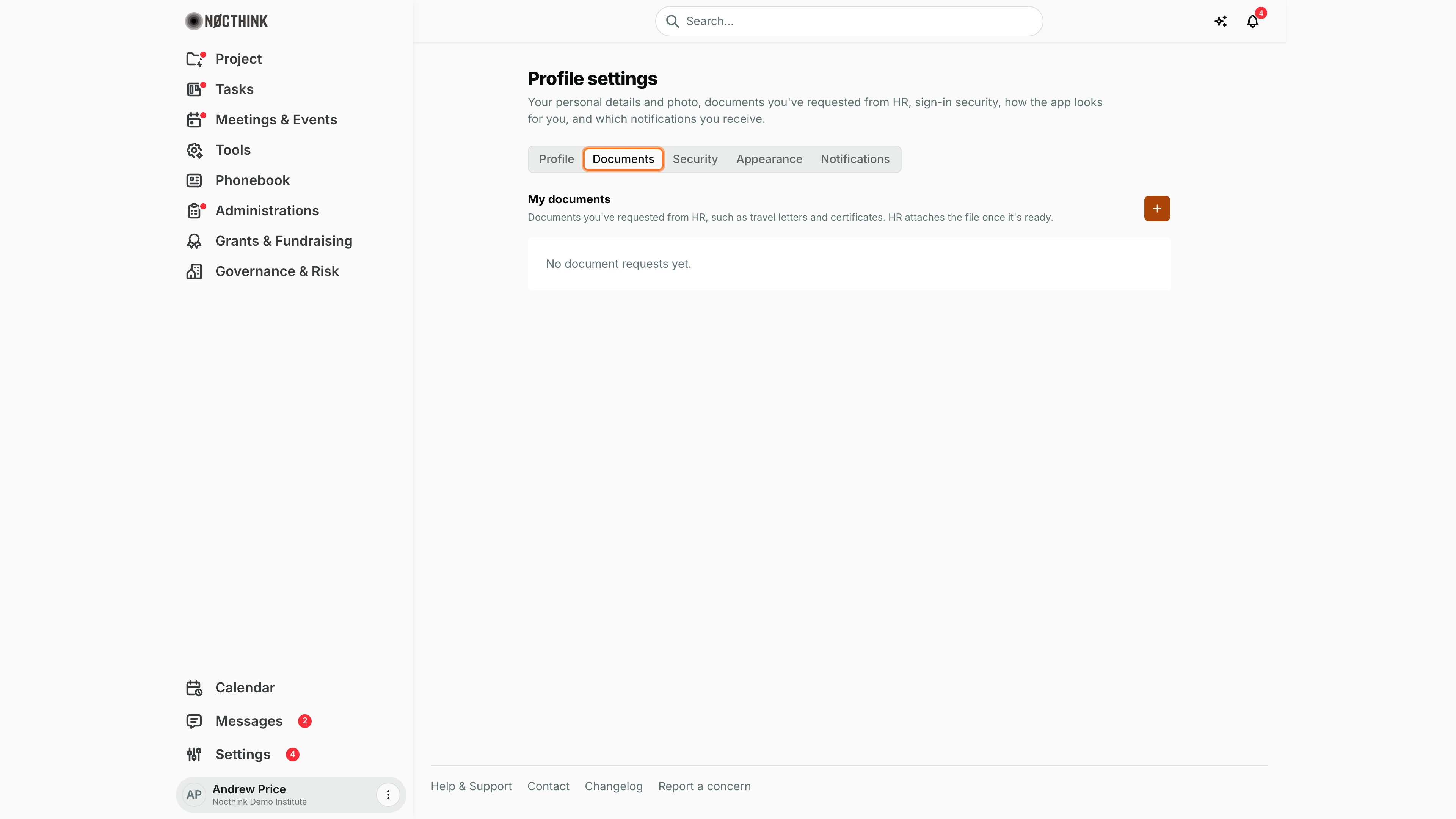
- Documents — My documents list of my requests with status badges (Pending, Approved, Rejected) and a download icon once HR attaches the file, plus a request button that opens Request document.
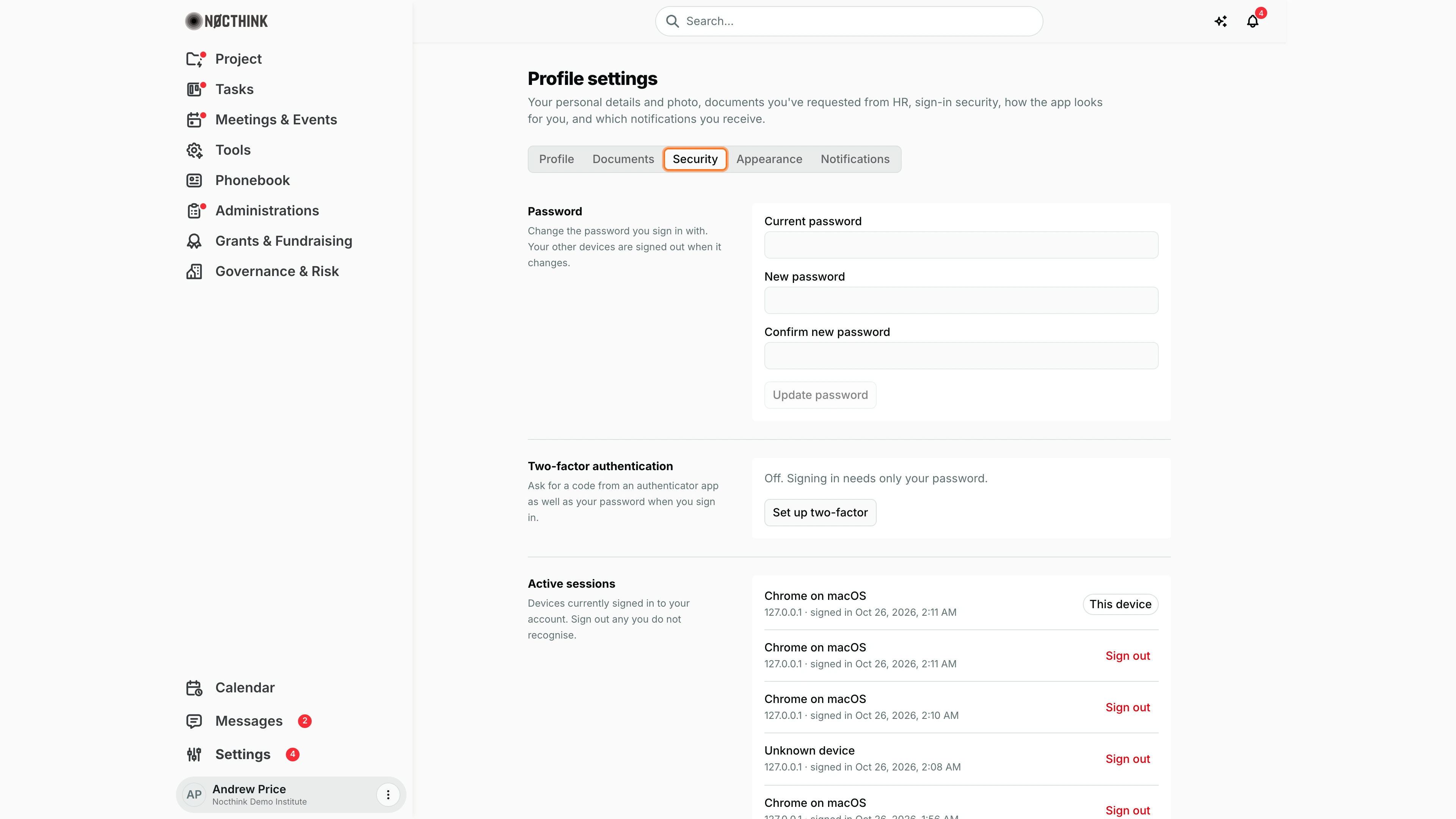
- Security — Password, Two-factor authentication, Active sessions, Delete account.
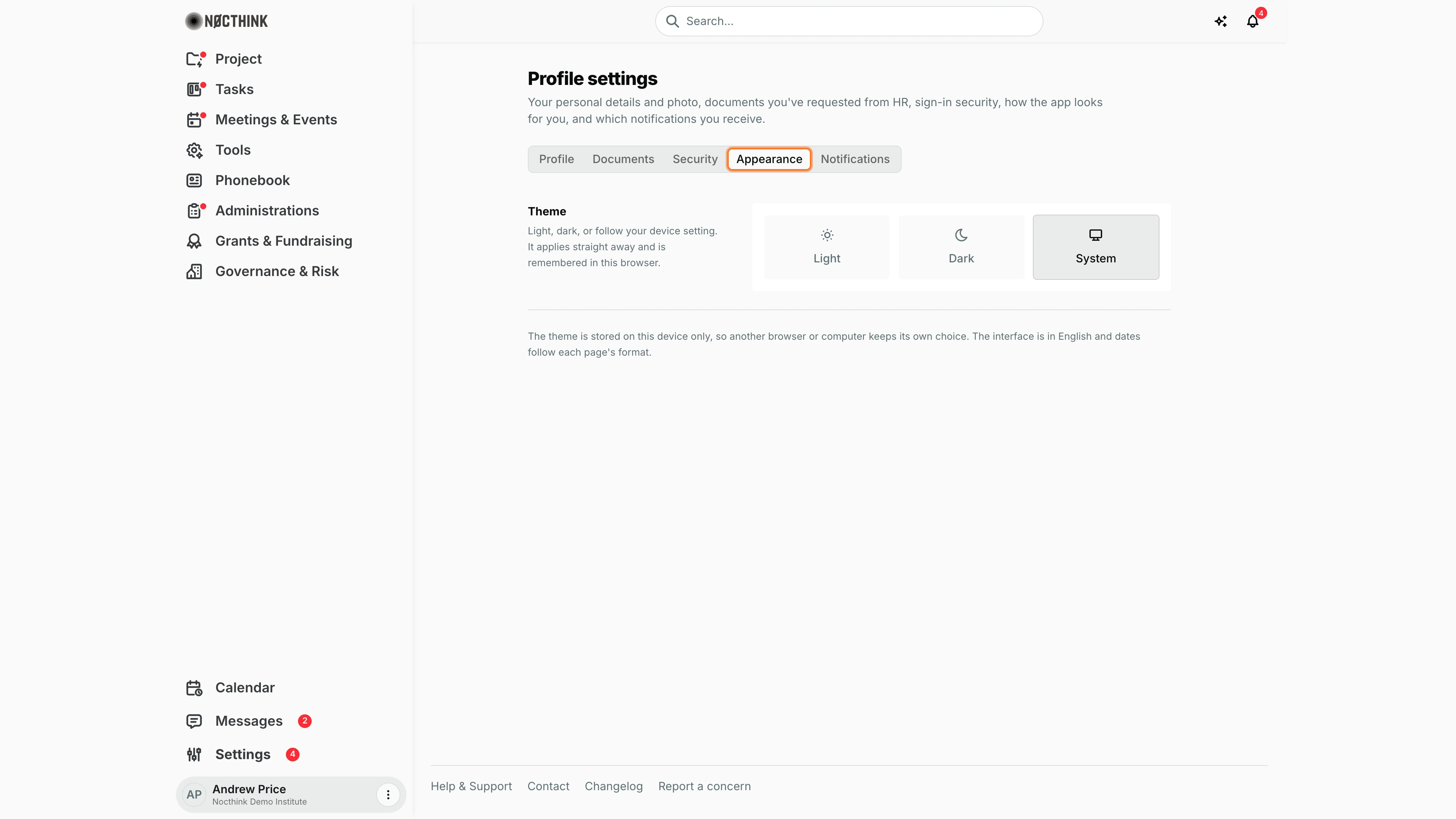
- Appearance — Theme (Light / Dark / System). The choice applies straight away and is remembered in this browser; there is no save button.
- Notifications — Channels (Email notifications, Push notifications), Quiet hours (Start, End), Notification types (one switch per type).
How I …
Update my photo and details
- On Profile, click Upload photo (or the avatar) and pick an image.
- Edit First name, Last name, Phone and Bio.
- Click Save changes. The photo is uploaded only at this point.
Request a document from HR
- Open Documents (see below) and click the request button.
- In Request document, choose Document type (e.g. travel letter / surat perjalanan dinas, assignment letter, statement letter, ID card, certificate, CV, other).
- Enter Title (e.g. "Travel authorization letter"), Date, and optional Notes explaining why.
- Click Submit. The request appears as Pending; HR approves or rejects it and attaches the file, which I download with the download icon.
Change my password
- Open Security (see below) → Password.
- Enter Current password, New password (at least 8 characters) and Confirm new password.
- Click Update password. My other devices are signed out.
Turn on two-factor authentication
- Security → Two-factor authentication → Set up two-factor.
- Enter Your password to start.
- Scan the QR with an authenticator app (or type the key shown under "Can't scan?"), enter Code from the app.
- Save the backup codes shown, then click I saved my codes. Later I can use New backup codes or Turn off (both ask for my password; turning off also needs a code).
Change the theme
- Open Appearance (see below).
- Click Light, Dark or System. The app switches at once.
- The choice is kept in this browser only. On another browser or computer, choose it again there.
Cut down notifications
- Open Notifications.
- Under Channels, switch Email notifications or Push notifications on or off (push asks the browser for permission).
- Set Quiet hours Start and End to silence email and push overnight — they still appear in-app.
- Under Notification types, turn off the kinds I don't want.
Detail page, forms & dialogs
Documents
Screenshot: Andrew Price (Senior Researcher), Nocthink Demo Institute demo data.
Documents is where I ask HR for official papers and collect them. My documents lists my requests, each with its title, a status badge (Pending, Approved or Rejected) and, once HR has attached the file, a download icon ("Download …"). With nothing requested it reads "No document requests yet." The + (Request document) button opens a dialog: "Ask HR to issue a document (e.g. surat perjalanan dinas, ID card, certificate). HR will attach the file once ready." There I choose Document type, give a title and date, add notes and submit (see Request a document from HR above). HR acts next; I come back here to download the file.
Security
Screenshot: Andrew Price (Senior Researcher), Nocthink Demo Institute demo data.
Security has three blocks. Password ("Your other devices are signed out when it changes") takes Current password, New password and Confirm new password, then Update password. Two-factor authentication shows its state ("Off. Signing in needs only your password.") and Set up two-factor; once it is on, the block shows New backup codes and Turn off instead. Active sessions lists every device signed in to my account with browser, IP address and sign-in time; my current one is tagged This device, and every other has Sign out. If I don't recognise a session, I sign it out here and change my password.
Appearance
Screenshot: Andrew Price (Senior Researcher), Nocthink Demo Institute demo data.
Appearance has a single setting, Theme: "Light, dark, or follow your device setting. It applies straight away and is remembered in this browser." I click Light, Dark or System; the selected tile is highlighted, and there is no save button. The note below says the theme is stored on this device only, so another browser or computer keeps its own choice, and that the interface is in English with dates following each page's format. System follows the light or dark setting of my computer or phone, which is the easiest choice if I switch between them during the day.
Access & permissions
- Every signed-in member can open this page; everything on it is about my own account. No one else can edit my profile here.
- Email and username are set by an administrator in Users; I cannot change them.
- HR processes document requests in Documents Request and the HR module.
Caveats
- Delete account (Security) permanently deletes my account and sign-in after I confirm with Your password; it cannot be undone. Records my organization keeps about me stay with the organization.
- Changing my password signs out all my other devices.
- In Active sessions, Sign out ends one other device; Sign out N other sessions ends all of them. The current device is marked This device and cannot be signed out here.
- Backup codes are shown only once — store them before clicking I saved my codes.
- The document request needs a type and title; HR decides the outcome, and I cannot edit or withdraw a request from this tab.
Limitations
- The theme is stored per browser, not on my account, so it does not follow me to another device.
- There is no language or date/time format choice: the interface is in English and each page uses its own date format.
- Email address and username cannot be changed by me.
- No list of my HR records (contract, payslips) here — only document requests.
Related menus
- Users — where the Owner manages my email, roles and access.
- Documents Request — the administrative side of document requests.
- Messages — where my photo and name show to colleagues.
- Company — my department and the organization profile.