
Company
Open in NocthinkModule: Settings · URL: /settings/company · Responsible role: Owner (organization admin) · Also used by: HR Manager (maintains the Departments tab, per docs/role.md §4.5), Director (full), all other staff (read)
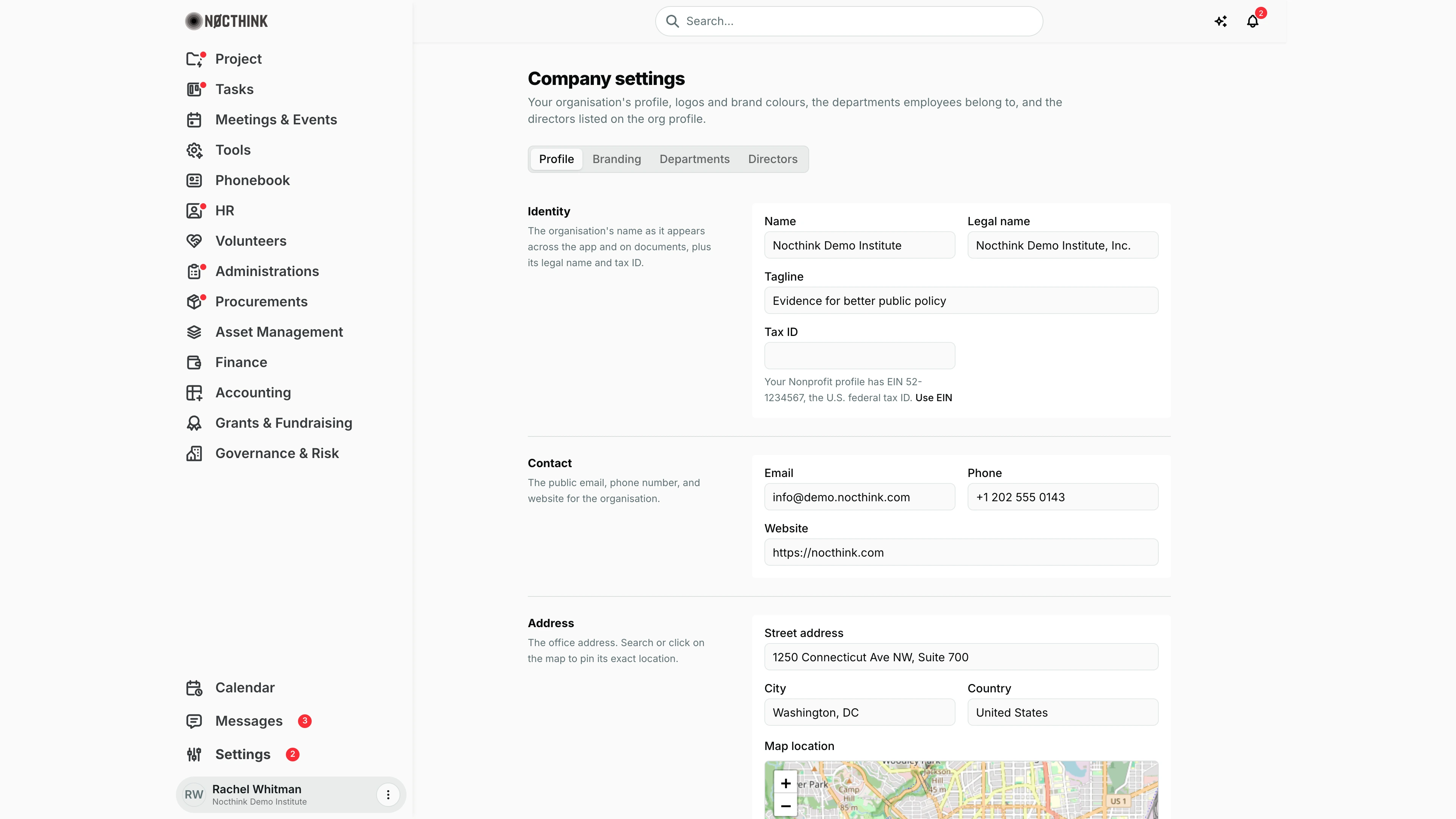
Screenshot: Rachel Whitman (Executive Director, organization owner), Nocthink Demo Institute demo data.
Why I use this page
This is our organization's identity card. The name, legal name, tax ID, address and logos I set here are printed on invoices, letters, reports and the org profile; the brand colours drive the app and charts; the departments are what every employee, budget and approval route hangs off; and the authority departments decide which team holds HR, Finance and Procurement authority. I set it up at onboarding, then revisit it after a rebrand, an office move, or a reorganization (the HR Manager handles day-to-day department changes).
What's on the screen
- Header — Company settings with a short description.
- Tabs — Profile, Branding, Departments, Directors.
- Profile (shown):
- Identity — Name, Legal name, Tagline, Tax ID.
- Contact — Email, Phone, Website (
https://…). - Address — Street address, City, Country, and Map location (search or click on the map to pin the office).
- Description — a short paragraph shown on the org profile.
- Save changes at the bottom.
- In the screenshot: Name "Nocthink Demo Institute", Legal name "Nocthink Demo Institute, Inc.", tagline "Evidence for better public policy", Tax ID left blank (the EIN is recorded on Nonprofit; while Tax ID is blank the field offers it with a Use EIN link), contact
info@demo.nocthink.com/ +1 202 555 0143, and the office at 1250 Connecticut Ave NW, Suite 700, Washington, DC, United States.
- Branding — Logos and favicon (Main logo, Logo (white), Logo full, Logo full (white), Favicon; white versions are for dark backgrounds), colour groups such as General colors (Primary, Secondary, Accent, Font, Link, Icon, Active tab background, Active tab text), and Chart colors (up to 4 base colours). Save changes.
- Departments — Departments list with a New department button and edit/delete per row (shown only to people who may change departments: Owner, Director and HR Manager); below it (Owner only) Authority departments with three selectors: HR, Finance, Procurement.
- Directors — Directors list (employee, title, order) with add/edit/remove.
How I …
Update the organization's details
- Open Profile.
- Edit Name, Legal name, Tagline, Tax ID, the Contact fields and the Address.
- Search the address or click the map to move the pin.
- Click Save changes.
Rebrand: logos and colours
- Open Branding (see below).
- Under Logos and favicon, choose a file for each slot (use the white versions for dark backgrounds).
- Set colours with the swatch or hex code in the colour groups and Chart colors.
- Click Save changes. Files upload only on save; reload the page if the sidebar still shows old colours.
Add or change a department
- Open Departments → New department (see New department below).
- Enter Name (e.g. "Department of Politics and Social Changes") and Code (e.g.
POL), choose Department head (or – None –), add a Description, and tick Research department if it runs projects. - Save. To change one, use its edit action; to remove it, its delete action and confirm "Delete department "…"?".
Assign authority departments
- On Departments, scroll to Authority departments (Owner only).
- For HR ("Members can read confidential employee detail."), Finance ("Members hold organisation-wide finance authority.") and Procurement ("Members hold organisation-wide procurement authority."), pick the department, or Not set.
- Each choice saves immediately.
List directors on the org profile
- Open Directors (see below) and add a director.
- Pick the Employee, enter Director title (e.g. "CEO"), Order, and an optional Director bio.
- Save. Remove with the row action and confirm "Remove director role from …?".
Detail page, forms & dialogs
Branding
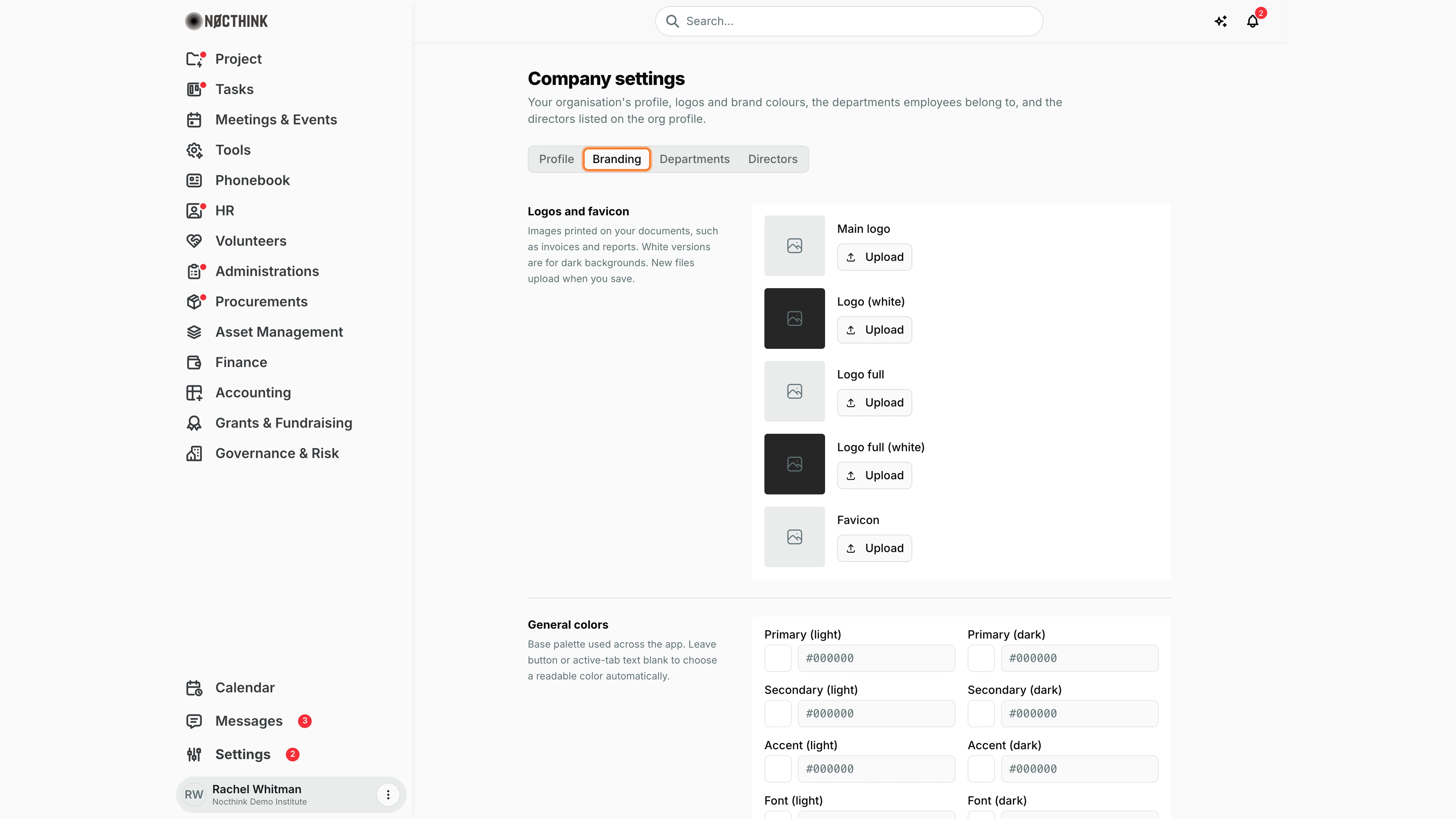
Screenshot: Rachel Whitman (Executive Director, organization owner), Nocthink Demo Institute demo data.
Branding controls how our documents and the app look. Logos and favicon ("Images printed on your documents, such as invoices and reports. White versions are for dark backgrounds. New files upload when you save.") has an Upload slot for Main logo, Logo (white), Logo full, Logo full (white) and Favicon. Below it are colour groups, each with a light and a dark value per colour. General colors is the base palette (Primary, Secondary, Accent, Font, Link, Icon, Active tab background, Active tab text, Button background, Button text; leaving the button or active-tab text blank lets the app pick a readable colour). First sidebar (icon strip) and Second sidebar (menu) follow. Chart colors takes up to 4 base colours, which charts shade instead of adding a fifth. Nothing changes until I click Save changes; that is also when new files upload.
Departments
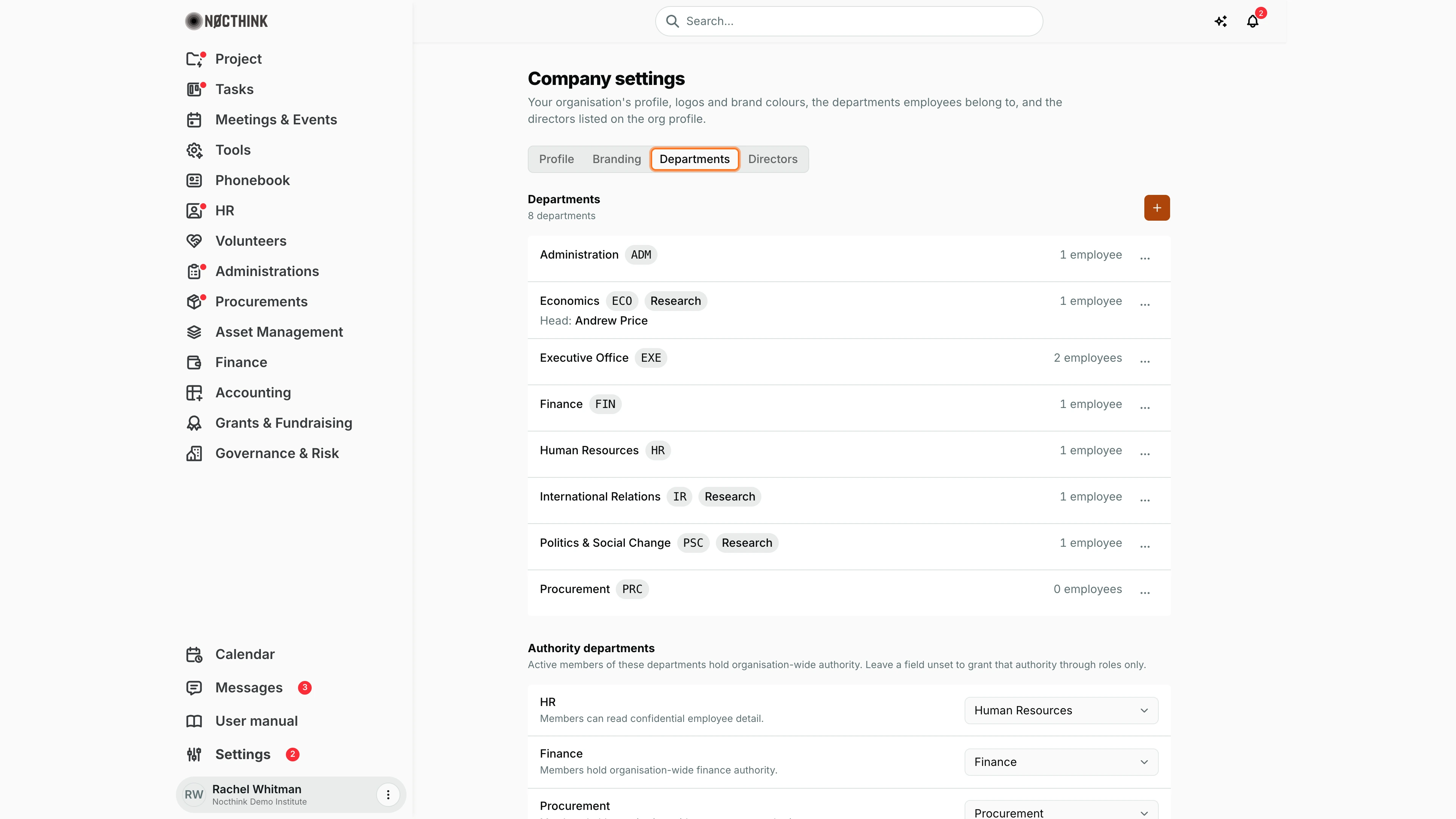
Screenshot: Rachel Whitman (Executive Director, organization owner), Nocthink Demo Institute demo data.
Departments lists the departments employees belong to: "8 departments", each with its name, Code (e.g. ADM, ECO, FIN), a Research badge for those that can own projects (Economics, International Relations, Politics & Social Change) and its employee count. The ⋯ menu on a row has Edit and Delete; the + (New department) button opens the dialog below. Only the Owner, a Director or the HR Manager sees these controls. Under the list, Authority departments ("Active members of these departments hold organisation-wide authority. Leave a field unset to grant that authority through roles only.") has the HR, Finance and Procurement selectors, which only the Owner can change; each saves as soon as I pick a department or Not set.
New department
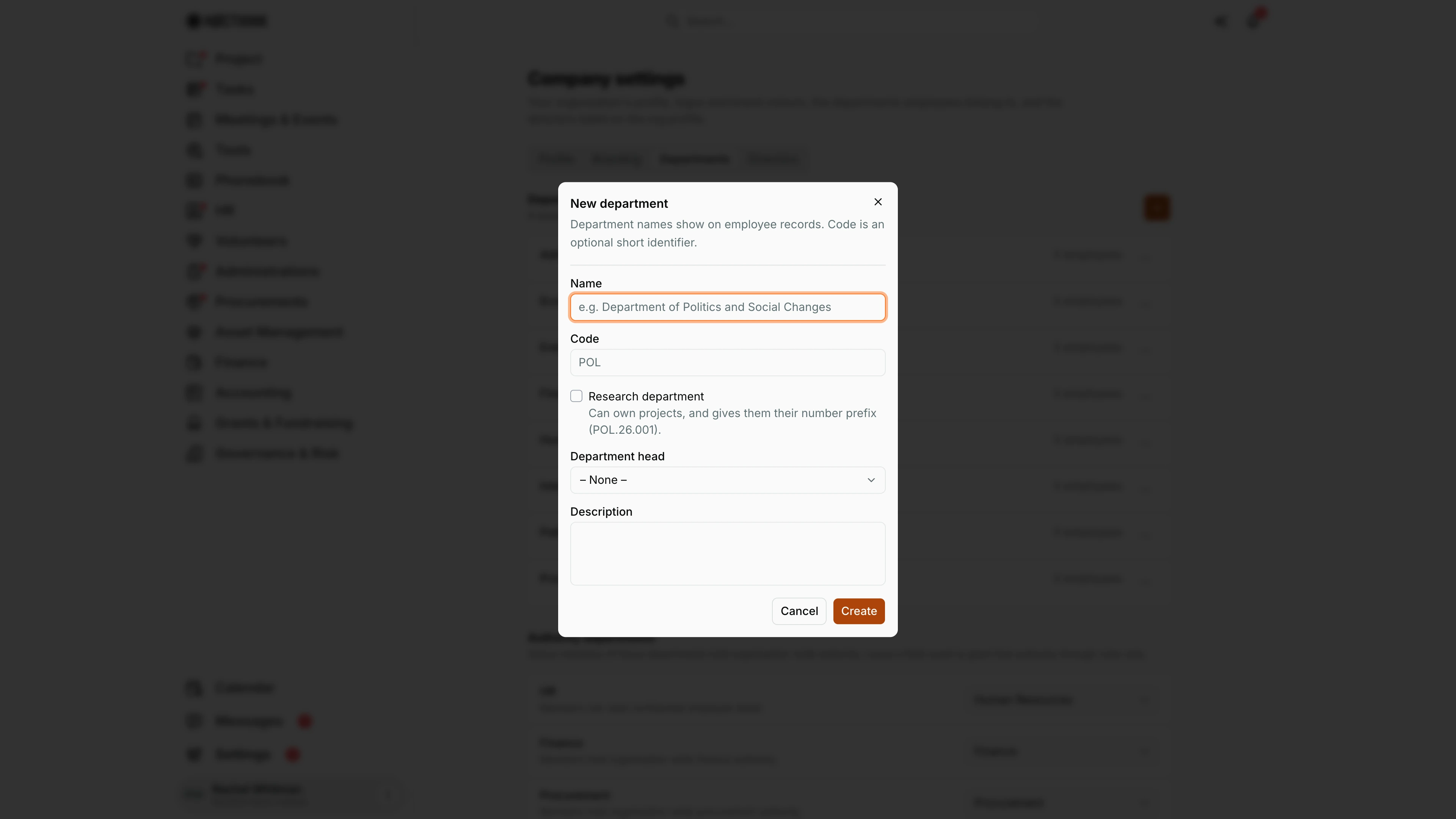
Screenshot: Rachel Whitman (Executive Director, organization owner), Nocthink Demo Institute demo data.
The + on Departments opens New department: "Department names show on employee records. Code is an optional short identifier." I enter Name and, optionally, Code. I switch on Research department when the department "Can own projects, and gives them their number prefix (POL.26.001)"; administrative departments stay off. Department head lists employees, with – None – as the default, and Description says what the department covers. Create saves it, and it becomes available on employee records and, for research departments, as a project owner. Edit in a row's ⋯ menu opens the same form as Edit department with Save changes.
Directors
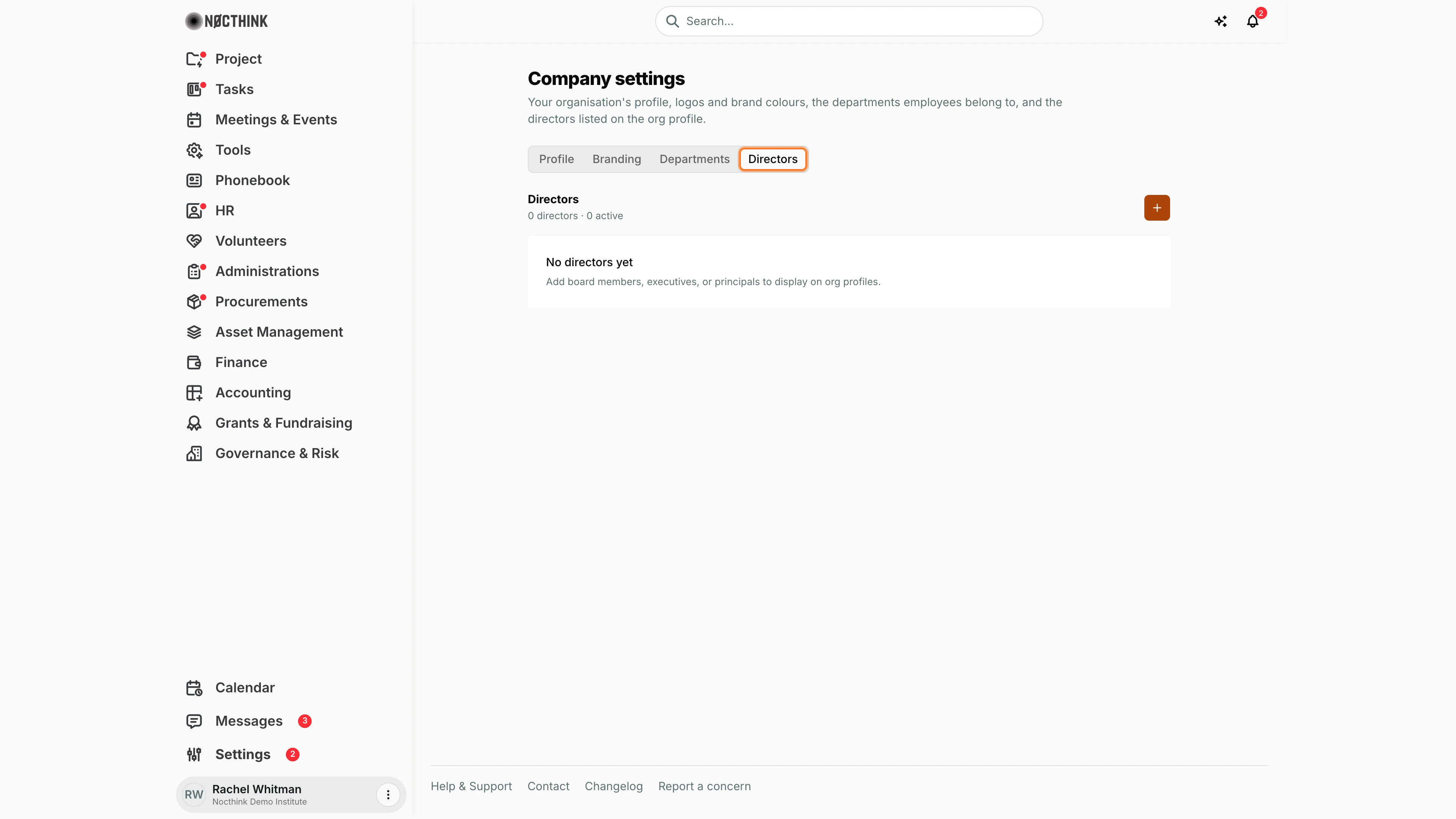
Screenshot: Rachel Whitman (Executive Director, organization owner), Nocthink Demo Institute demo data.
Directors lists the employees shown with a board or executive role on the organization profile. The header counts them ("N directors · N active"), and each entry shows the photo, name (with an Inactive badge when switched off), Director title, job position, email and phone, and bio, with Edit and Delete buttons. With nobody listed it reads "No directors yet". The + (New director) opens a dialog ("Directors are employees with a board / executive role on the org profile.") with Employee ("– Select employee –"), Director title (e.g. "CEO"), Order and Director bio, saved with Create. Delete asks "Remove director role from "…"?"; the employee record itself stays. Board governance (terms, committees, votes) is kept separately in Governance & Risk › Board & Committees.
Access & permissions
- The page has no route restriction: every staff member can open it and read the organization profile.
- Saving the profile, branding and directors is checked on the server against
phonebook.update/phonebook.create/phonebook.delete(Owner and Director always pass). A user without those gets "You do not have permission to edit the organization profile." - Adding, editing and deleting departments needs
hr.approve(the HR Manager), or Owner/Director, as in docs/role.md §4.5. Everyone else sees the list read-only. - Authority departments is visible and editable only for the organization admin (Owner).
Caveats
- Authority departments grant real access: everyone in the chosen HR department can read confidential employee data, and Finance/Procurement members gain organization-wide authority. Change them deliberately; the change applies immediately with no confirmation.
- Deleting a department may fail if it is still referenced; the reason appears as "Could not delete …".
- Tax ID is the organization's tax number printed on documents (e.g. payslips). For a U.S. organization it is the same number as the EIN on Nonprofit, but the two are stored separately: when Tax ID is blank and an EIN is on file, the field shows the EIN with Use EIN to copy it in (then Save).
- Name, legal name, tax ID and logos appear on generated documents; changes affect documents generated afterwards, not ones already issued.
- Chart colours: charts with more than four series shade the four base colours rather than adding new ones.
Limitations
- No history of profile or branding changes, and these edits are not currently written to Logs.
- Base currency, fiscal year and the legal/tax profile for U.S. nonprofits live in Nonprofit, not here.
Related menus
- Nonprofit — legal and tax profile, base currency, fiscal year.
- Users — assign people to departments and roles.
- Roles — what each role can do.
- General — letter codes per department.
- Organizations — the same organization record as seen from the Phonebook.