
Dashboard
Open in NocthinkModule: Meetings & Events · URL: /events/dashboard · Responsible role: Event Officer · Also used by: Owner/Director (full), all other staff (read)
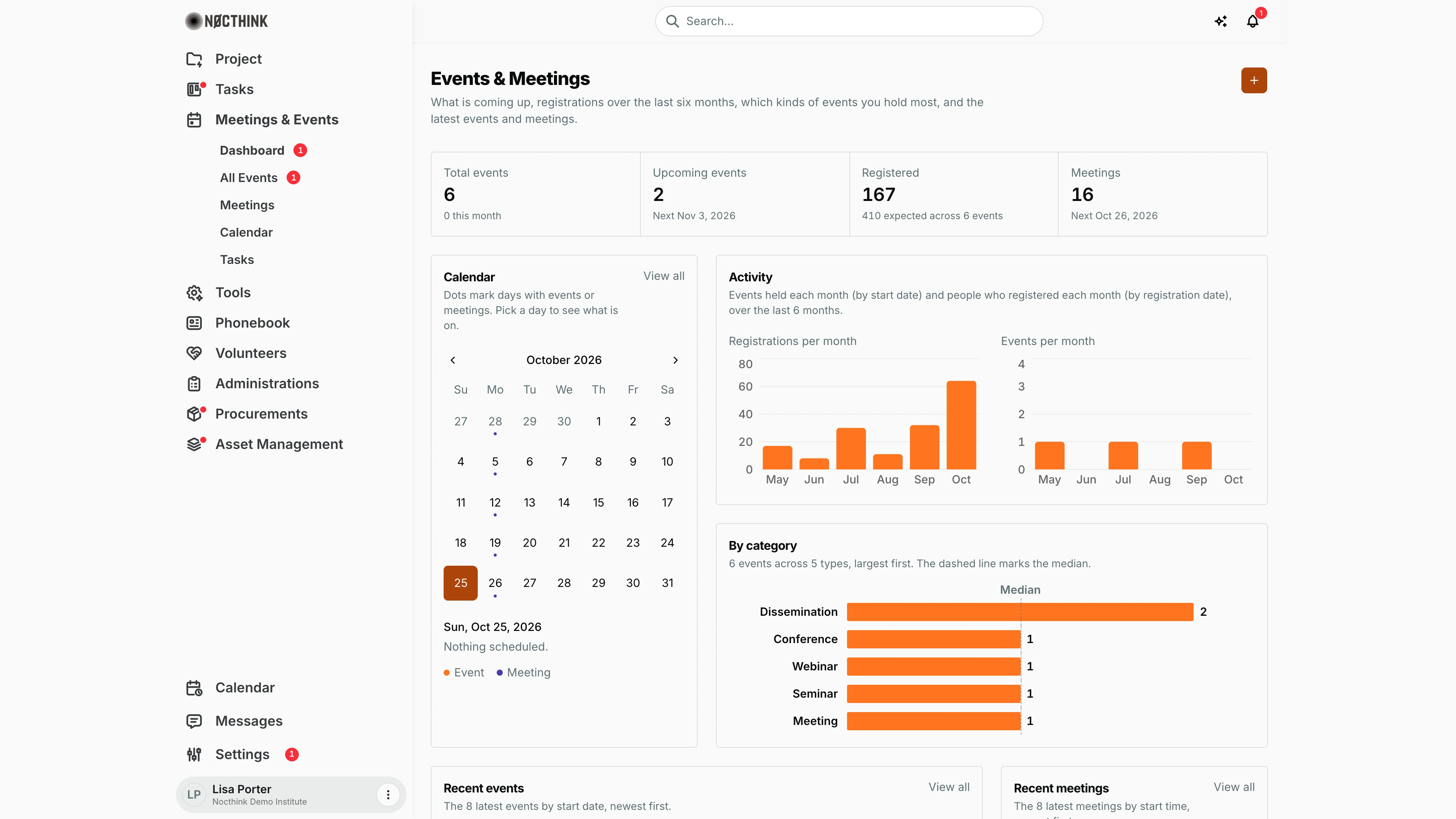
Screenshot: Lisa Porter (Operations Officer, read-only on events), Nocthink Demo Institute demo data.
Why I use this page
I open this dashboard at the start of each week to see what is coming up: how many events we have scheduled, when the next one is, and how many meetings are on the books this month. It is also my quick check before a planning meeting with the directors — the category chart and the six-month activity charts tell me whether our event mix and turnout are where they should be. Everything on it is read-only; I click through to the list pages to change anything.
What's on the screen
- Header — title Events & Meetings with a short description and an orange + button (labelled "Go to events"). The button does not create anything here; it takes me to All Events, where the create dialog lives.
- Stat cards (top row):
- Total events — every event in the organization, with "N this month" underneath.
- Upcoming events — events whose start date is still ahead, with "Next <date>" for the nearest one.
- Registered — registrations across all events (registered plus checked in), with "N expected across M events" (the sum of Expected Attendees) underneath.
- Meetings — the number of meetings I can see, with "Next <date>" for the nearest upcoming meeting (or "N this month" when none is ahead).
- Calendar card — a month picker. Dots under a day mark days with an event (orange dot) or meeting (purple dot); a legend under the day list shows the two colours. Picking a day lists what is on that day below the grid ("Nothing scheduled." if empty). View all opens the full Calendar.
- Activity card — two bar charts over the last six months: Registrations per month and Events per month. Registrations per month counts people in the month they registered; Events per month counts events in the month they start.
- By category — a horizontal bar per event category (e.g. Dissemination, Conference, Webinar), largest first, with a dashed Median line.
- Recent events — the 8 latest events by start date (Event, Category, Date). View all goes to All Events.
- Recent meetings — the 8 latest meetings by start time (title and time). View all goes to Meetings.
How I …
How I check what is coming up this week
- Open Meetings & Events → Dashboard.
- Read Upcoming events — the "Next" date tells me the nearest event.
- In the Calendar card, click each day of the week that has a dot; the list under the calendar shows the events and meetings on that day with their category or room.
- Use the < / > arrows to move to next month if the event I am looking for is later.
How I review turnout before a planning meeting
- Look at the Activity card: compare Registrations per month with Events per month for the last six months.
- Look at By category to see which event types we run most often.
- For per-event registration and check-in figures, open Report instead — the dashboard does not show check-ins.
How I jump to an event or meeting
- In Recent events or Recent meetings, click View all to go to the full list.
- Find the row and open it from there (event detail at
/events/<id>, meeting detail at/meetings/<id>).
Access & permissions
- The menu needs
events.view. Every staff member gets it through the Staff baseline role, so everyone sees the dashboard read-only (docs/role.md §4.1: R for Staff, F for Owner/Director and Event Officer). - The Meetings card and Recent meetings only count meetings I organize or attend, unless I have full scope on meetings (Owner/Director/Event Officer) — the meetings API filters by organizer/attendee.
Caveats
- Registered adds up each event's registrations (registered plus checked in, from its Registrations tab); the note under it gives the total Expected Attendees for comparison. Form responses are not counted.
- Months and "this month" are computed in my browser's time zone; an event that starts late at night may land in a different day or month than colleagues in another time zone see.
- Registrations per month counts active registrations (registered or checked in) for events that are not cancelled, in the month each person registered.
- Multi-day events put a dot on every day from start to end date.
- Cancelled events still count in Total events and By category here (the Report page excludes them).
Limitations
- Read-only: no create, edit or delete from this page; the + button only navigates to All Events.
- No date-range or category filter; the activity charts are fixed to the last six months.
- No export; use Report → Export report for a CSV.
Related menus
- All Events — create and edit the events counted here.
- Meetings — the meetings behind the Meetings card and Recent meetings.
- Calendar — week/month schedule with tasks and room conflicts.
- Report — registrations, attendance and capacity per event.