
Blocklist
Open in NocthinkModule: Meetings & Events · URL: /events/blocklist · Responsible role: Event Officer · Also used by: Owner/Director (full); no other role in the matrix
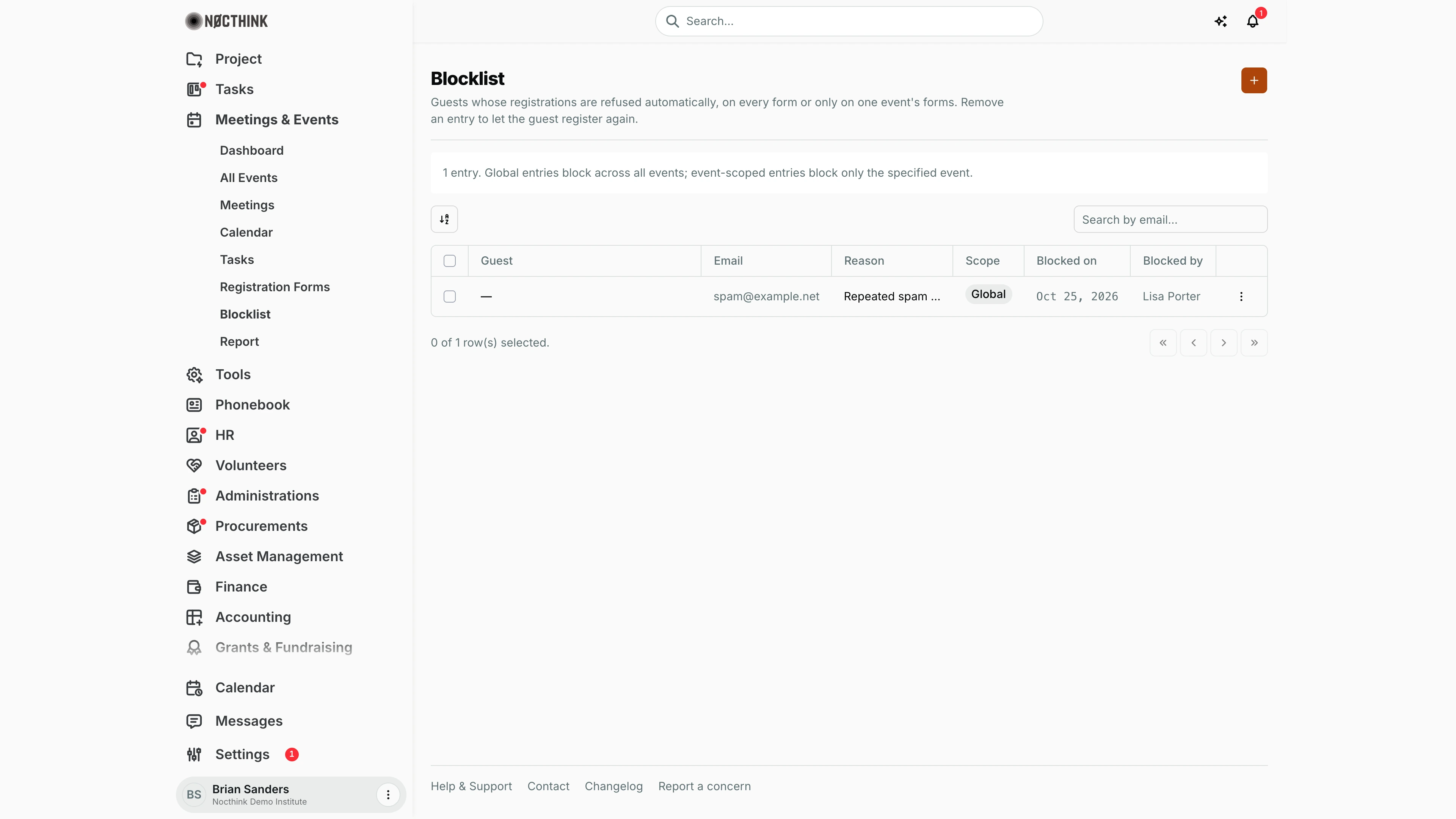
Screenshot: Brian Sanders (Deputy Director), Nocthink Demo Institute demo data.
Why I use this page
Public registration forms attract spam sign-ups and, occasionally, people we must not admit to a particular event. Instead of rejecting them by hand every time, I add their email here once. From then on any submission from that address is automatically marked Rejected — on every form (global) or only on one event's forms. I check the list before big public events and remove entries when a block is no longer needed.
What's on the screen
- Header — title Blocklist, description and the orange + (Block a guest) button.
- Summary line — "N entry/entries. Global entries block across all events; event-scoped entries block only the specified event."
- Toolbar — a column/sort control and Search by email….
- Table columns — select checkbox, Guest (name, "—" if not given), Email, Reason, Scope (Global or the event name), Blocked on (date), Blocked by (who added it), and a ⋮ menu with Remove from blocklist.
How I …
How I block a guest
- Click the orange +. The Block guest dialog opens (see Block a guest below): "Add an email to the blocklist. Submissions from this email will be auto-rejected."
- Optionally enter Guest name (optional).
- Enter Email (required, must be a valid address).
- Enter a Reason, e.g. "Repeated spam registrations" — colleagues will see it on rejected submissions.
- Under Scope, keep Global: blocks across all events, or choose Only for: <event name>.
- Click Add to blocklist. The entry appears with my name under Blocked by.
How I unblock a guest
- Find the row (use Search by email…).
- Click ⋮ → Remove from blocklist.
- The dialog Remove from blocklist? says "Allow <email> to register again (for <event>)." Click Confirm.
How I check why a registration was rejected
- Open the form in Registration Forms and filter responses by Rejected.
- Auto-blocked submissions carry the blocklist Reason (or "Email is on blocklist" if none was given).
- If it was a mistake, remove the entry here; the guest must then submit the form again.
Detail page, forms & dialogs
Block a guest
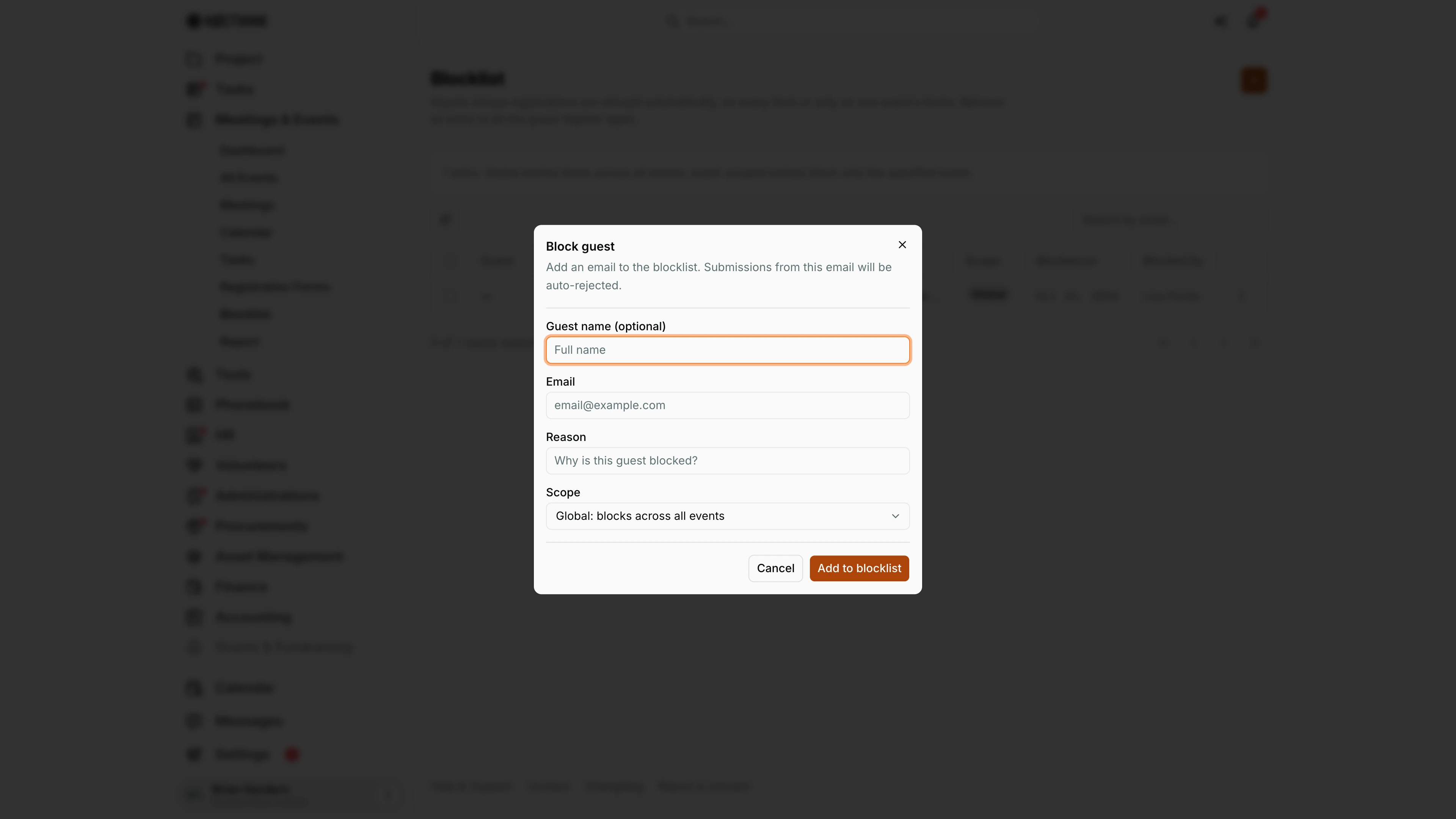
Screenshot: Brian Sanders (Deputy Director), Nocthink Demo Institute demo data.
The orange + opens Block guest: "Add an email to the blocklist. Submissions from this email will be auto-rejected." The fields are Guest name (optional), Email (required, a valid address), Reason ("Why is this guest blocked?") and Scope, which defaults to Global: blocks across all events and also lists Only for: <event> for each event. Add to blocklist saves the entry with my name under Blocked by. From then on a registration from that email is rejected automatically, and the reason shows on the rejected response in Registration Forms. The steps are under How I block a guest above.
Access & permissions
- Requires
events.update(lib/domain-routes.ts). Per docs/role.md §4.1 that is Owner/Director and Event Officer; other staff do not see the menu. - Entries belong to the organization; everyone with access sees and can remove all of them, not just their own.
Caveats
- Matching is on the submitter's email only, ignoring upper/lower case. A different address from the same person gets through; names are not checked.
- A blocked person's submission is still saved (status Rejected, flagged as auto-blocked) — it is not silently dropped.
- An event-scoped entry applies only to forms linked to that event. Forms with no event (e.g. project forms) are only checked against global entries.
- An event can switch on blocklist bypass in its settings; then no entries are applied to that event's forms.
- Removing an entry does not re-open or approve submissions that were already rejected.
- The blocklist only affects public registration forms; it does not stop someone being invited or added manually to an event, meeting or the phonebook.
Limitations
- No edit action: to change the reason or scope, remove the entry and add it again.
- No domain or wildcard blocking (e.g.
@example.net). - No import/export and no bulk add or bulk remove.
- No expiry date on a block.
Related menus
- Registration Forms — where blocked submissions show up as Rejected.
- All Events — event settings hold the blocklist bypass option.
- Report — registration totals (rejected submissions are not event registrations).