
Meetings
Open in NocthinkModule: Meetings & Events · URL: /meetings · Responsible role: Event Officer · Also used by: Owner/Director (full), every staff member (self — meetings they organize or attend)
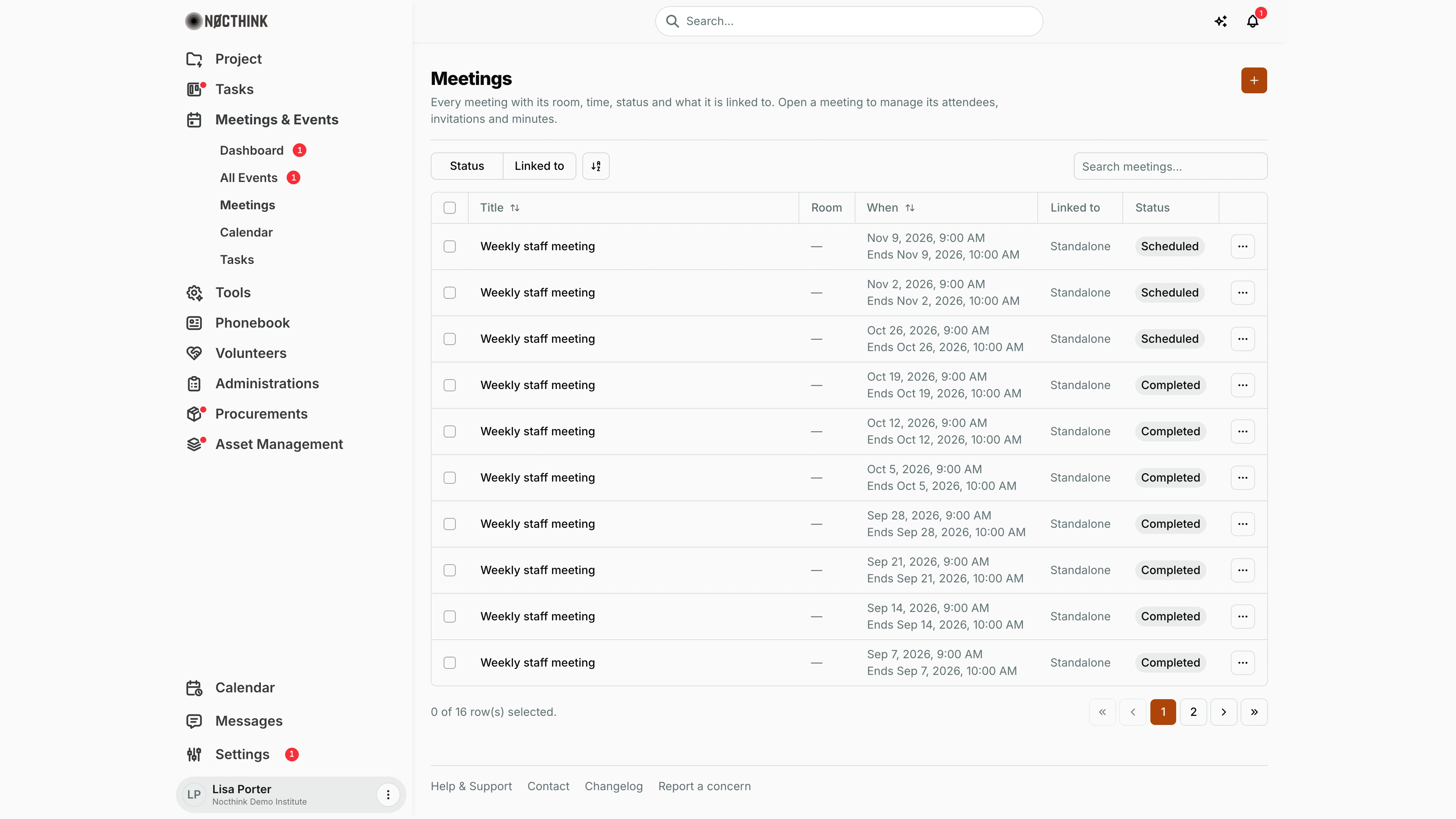
Screenshot: Lisa Porter (Operations Officer), Nocthink Demo Institute demo data.
Why I use this page
I schedule and run internal meetings from here: coordination meetings for an event, project check-ins, and the weekly staff meeting. For each meeting I book a room, pick the attendees, send invitations (to colleagues and outside guests), take minutes live and export them afterwards. Colleagues use the same page for their own meetings; as Event Officer I see all of them.
What's on the screen
- Header — title Meetings, description and the orange + (New meeting) button.
- Toolbar — Status filter (Scheduled, Completed, Cancelled), Linked to filter (Project, Event, Standalone), a column/sort control and Search meetings... (matches the title).
- Table columns — select checkbox, Title (sortable), Room ("—" when none), When (start, plus "Ends …" underneath; sortable), Linked to (the project or event, or Standalone), Status pill, and a … actions menu.
- Footer — row selection count and page numbers (10 rows per page).
How I …
How I schedule a meeting
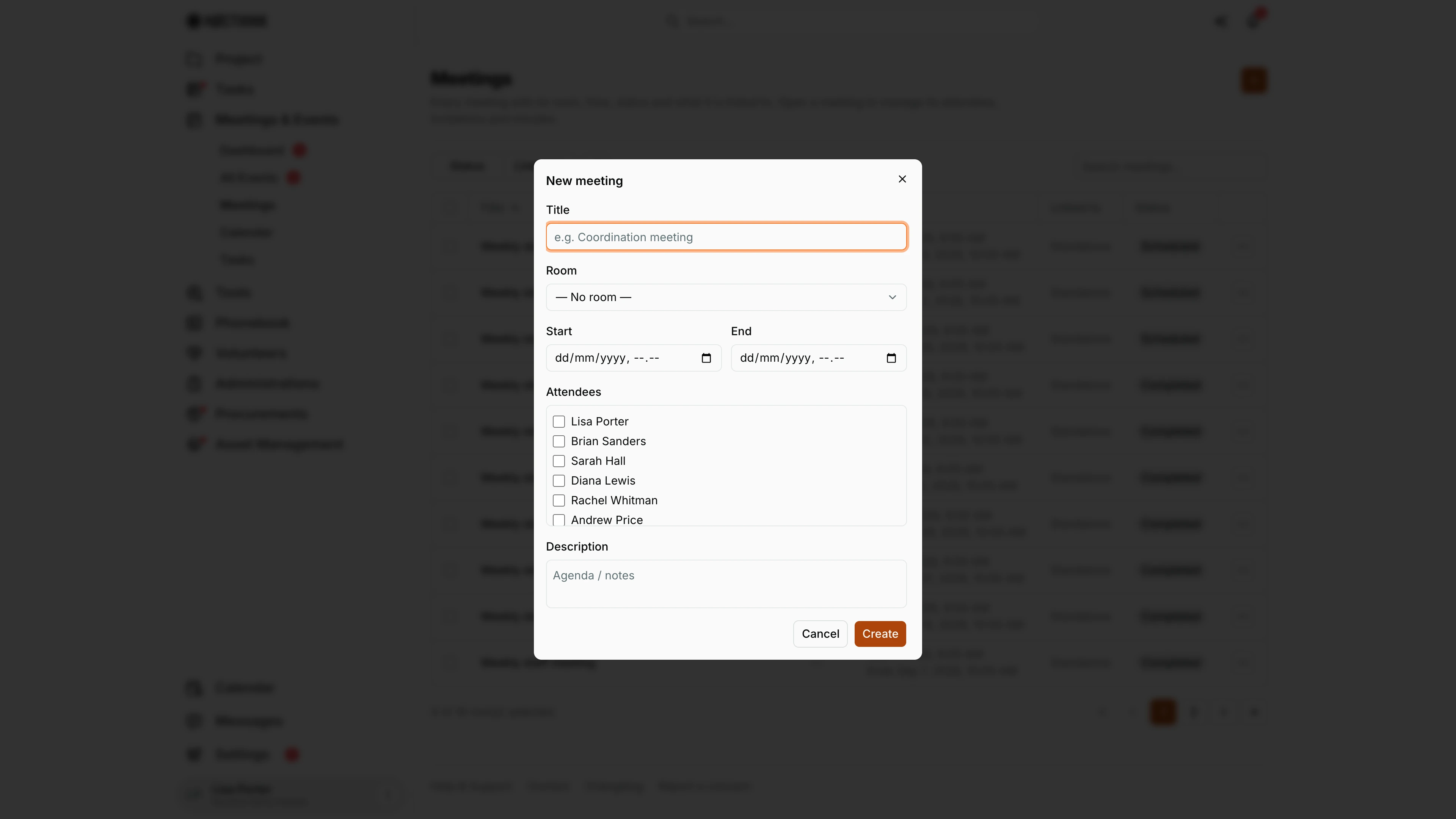
- Click the orange +. The New meeting dialog opens (see New meeting below).
- Enter Title (required), e.g. "Coordination meeting".
- Choose a Room or leave — No room —. Rooms come from Settings → Events.
- Set Start and End (both required).
- Keep Status as Scheduled.
- Tick colleagues under Attendees.
- Add the agenda in Description ("Agenda / notes").
- Click Create. Every ticked attendee gets an in-app notification.
Meetings linked to an event or project are created from that event's Meetings tab or the project, not from this page — those set Linked to automatically.
How I send invitations
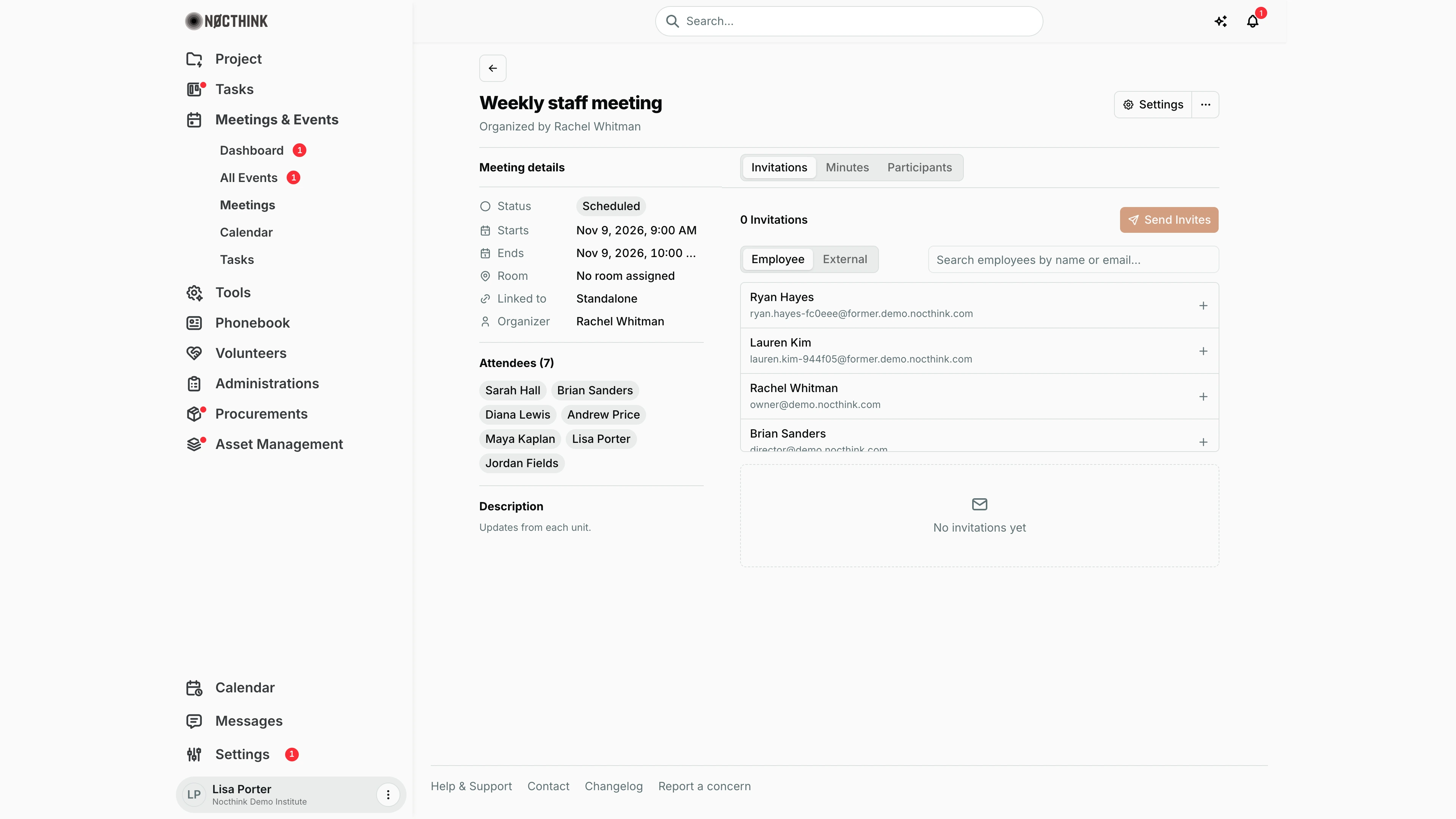
- Open the meeting (… → Open, or click the title); see Meeting detail below. The detail page shows Meeting details, Attendees and Description on the left, and tabs Invitations, Minutes, Participants.
- On Invitations, choose Employee to search current colleagues by name or email (people who have left the organization are not listed), or External to type a Name (optional) and Email, then click Add.
- Employees are notified in-app as soon as they are added. External invitations show Not sent until I click Send N Invites, which emails them the title, time, room and description.
- RSVP status (pending, accepted, declined, tentative) shows on each invitation; I am notified when someone responds. Use the row menu → Remove to drop an invitation.
How I take minutes
- From the list, … → Take minutes (opens
/meetings/<id>/minutes; see Minutes editor below). - Write in the document: speaker blocks for speaking points, free Notes (type
/for blocks), and Action Items (Task + Owner). - Changes autosave a moment after I stop typing; the top bar shows "Unsaved changes", "Saved <time>" or the error. Cmd/Ctrl+S saves immediately. Break / Resume marks a pause.
- Back on the meeting, the Minutes tab shows the result and Download offers Word (.doc), JSON or CSV. The … menu also has Export minutes.
How I upload presentations
- Open the meeting → Participants tab → Upload (see Meeting participants below).
- Fill Presenter, Title and choose the File, then confirm.
How I edit, close or delete a meeting
- … → Edit (or Settings on the detail page) (see Edit meeting below) to change any field, including Status → Completed or Cancelled; click Save.
- … → Delete → confirm Delete meeting? ("This cannot be undone.").
Detail page, forms & dialogs
New meeting
Screenshot: Lisa Porter (Operations Officer), Nocthink Demo Institute demo data.
The orange + opens New meeting. Title (placeholder "e.g. Coordination meeting"), Start and End are required; Room lists the rooms set up in Settings → Events (with their capacity) or — No room —. Attendees is a checklist of the organization's users, and Description holds the agenda ("Agenda / notes"). Create saves the meeting as Scheduled and notifies every ticked attendee in-app. The steps are under How I schedule a meeting above.
Meeting detail
Screenshot: Lisa Porter (Operations Officer), Nocthink Demo Institute demo data.
Clicking a meeting opens its page: the title, "Organized by …", a Settings button and a ⋯ menu with Edit, Export minutes and Delete. The left rail, Meeting details, shows Status (Scheduled, Completed, Cancelled), Starts, Ends, Room ("No room assigned"), Linked to (the project or event, or Standalone) and Organizer, followed by Attendees (n) and the Description. The Invitations tab opens first: a count of invitations, Send Invites for external guests, an Employee / External switch with a search box, and the list of people to add with +.
Meeting minutes tab
Screenshot: Lisa Porter (Operations Officer), Nocthink Demo Institute demo data.
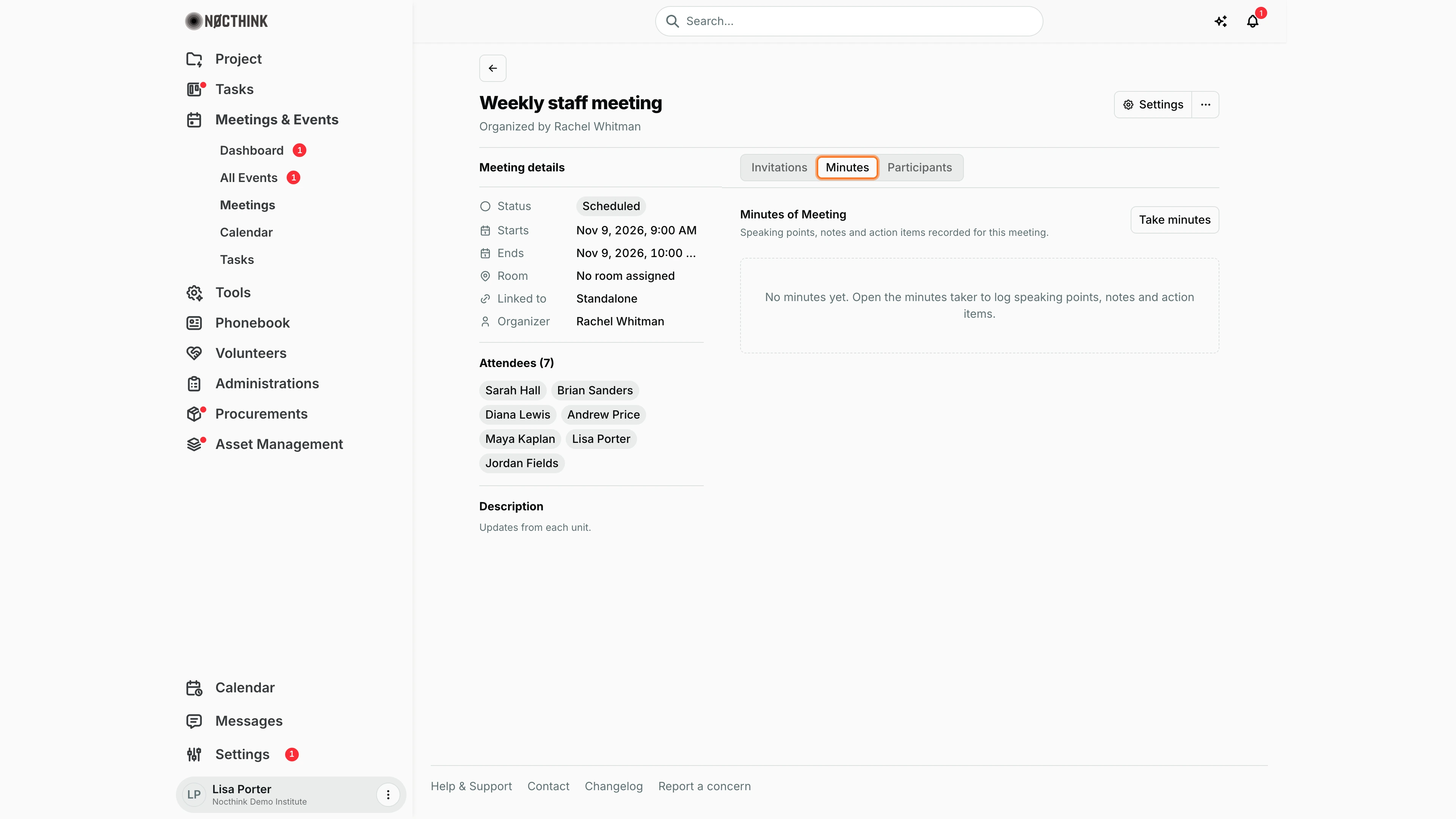
Minutes shows "Minutes of Meeting: Speaking points, notes and action items recorded for this meeting." Before anyone has written minutes it reads "No minutes yet. Open the minutes taker to log speaking points, notes and action items." Take minutes opens the minutes editor below. Once minutes exist, this tab shows Speaking Points, Notes and Action Items, with a download as Word (.doc), JSON or CSV.
Meeting participants
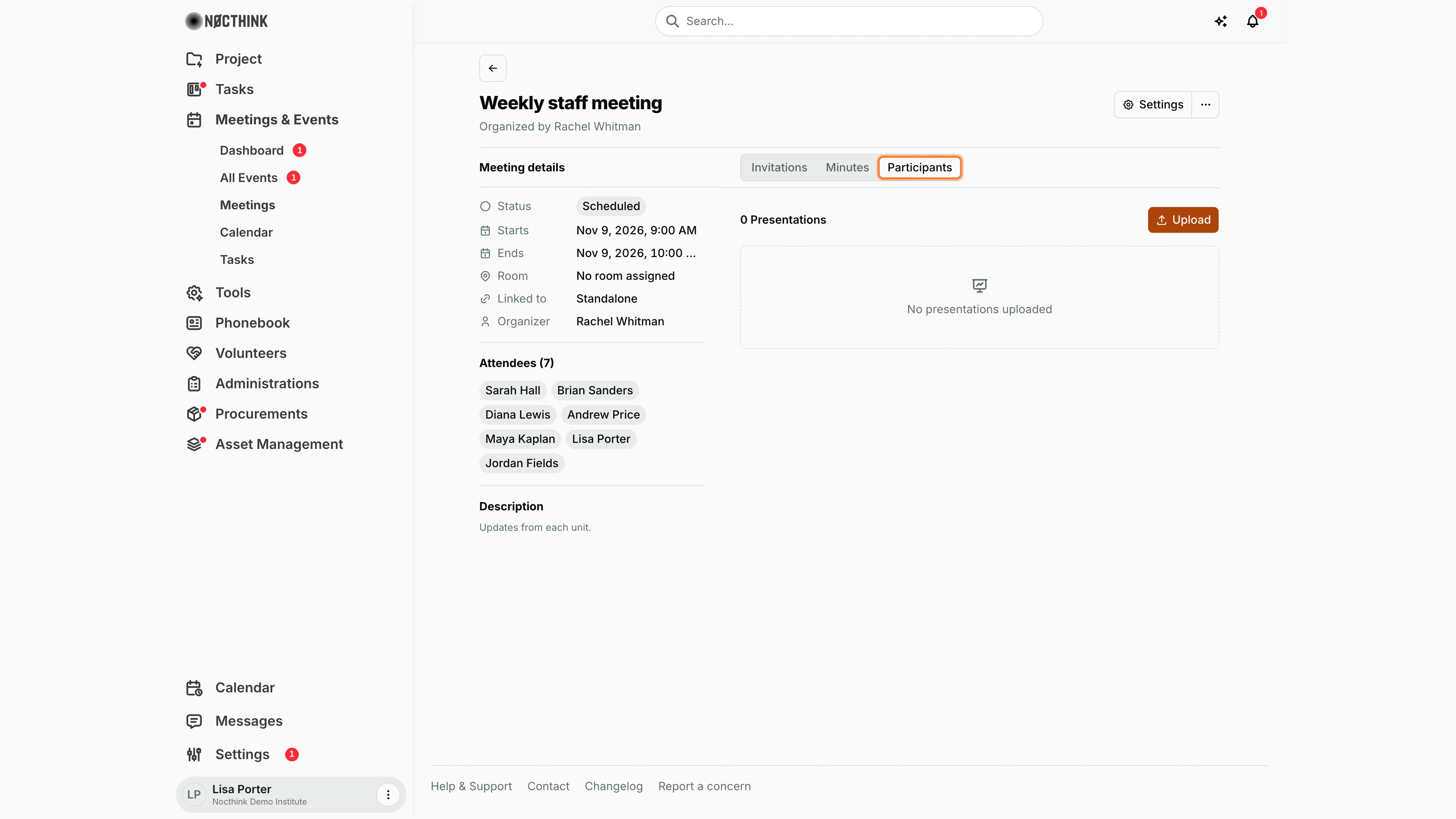
Screenshot: Lisa Porter (Operations Officer), Nocthink Demo Institute demo data.
Participants collects the presentations given at the meeting: the count ("0 Presentations"), Upload (opens Upload Presentation with Presenter, Title and File), and one row per uploaded deck with its download and Remove actions. "No presentations uploaded" shows until the first upload.
Edit meeting
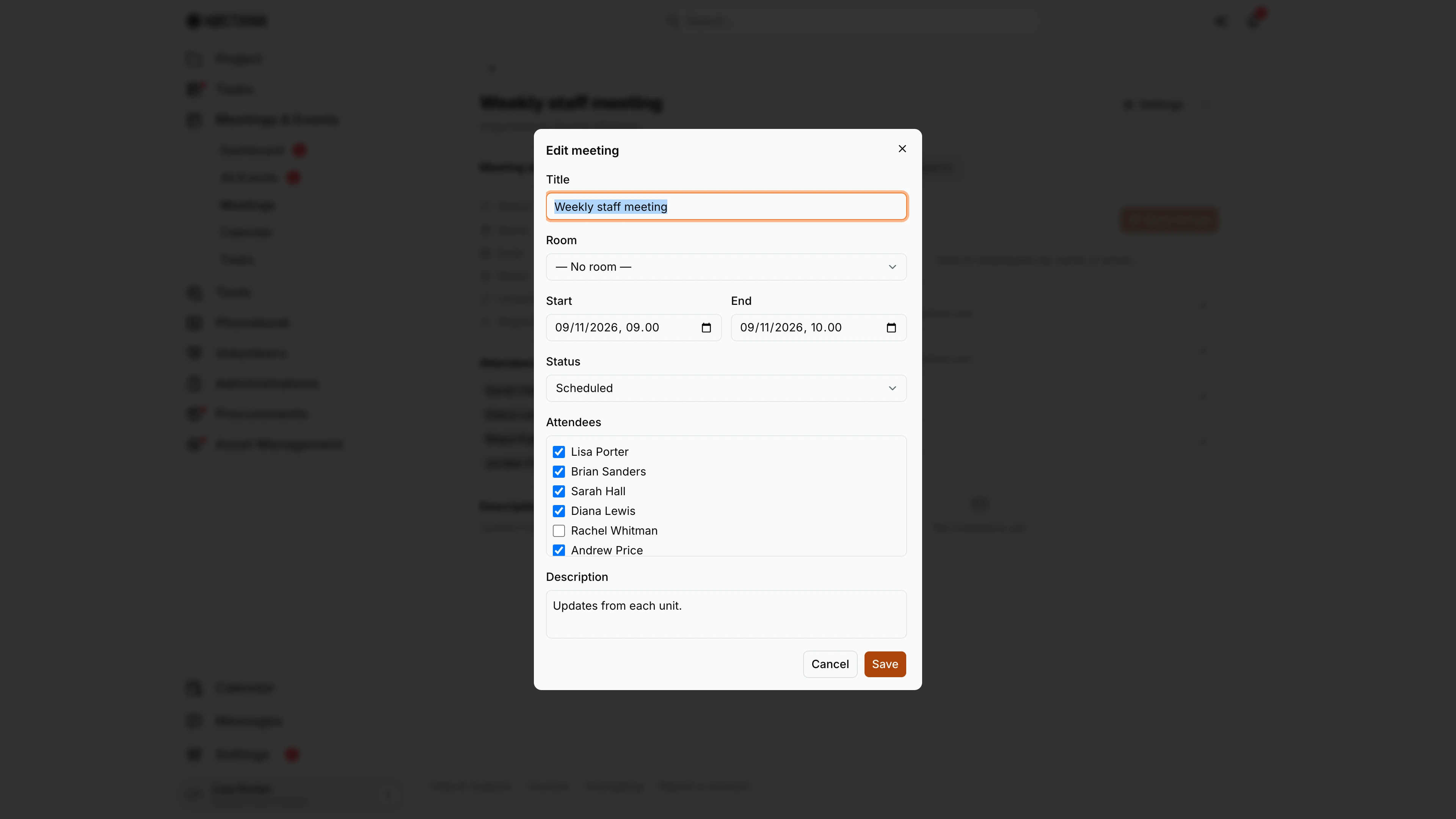
Screenshot: Lisa Porter (Operations Officer), Nocthink Demo Institute demo data.
Settings on the meeting page (or ⋯ → Edit) opens Edit meeting, the same form as New meeting with the current values and an extra Status field: Scheduled, Completed or Cancelled. I close a meeting here by setting Completed, or call it off with Cancelled, then click Save.
Minutes editor
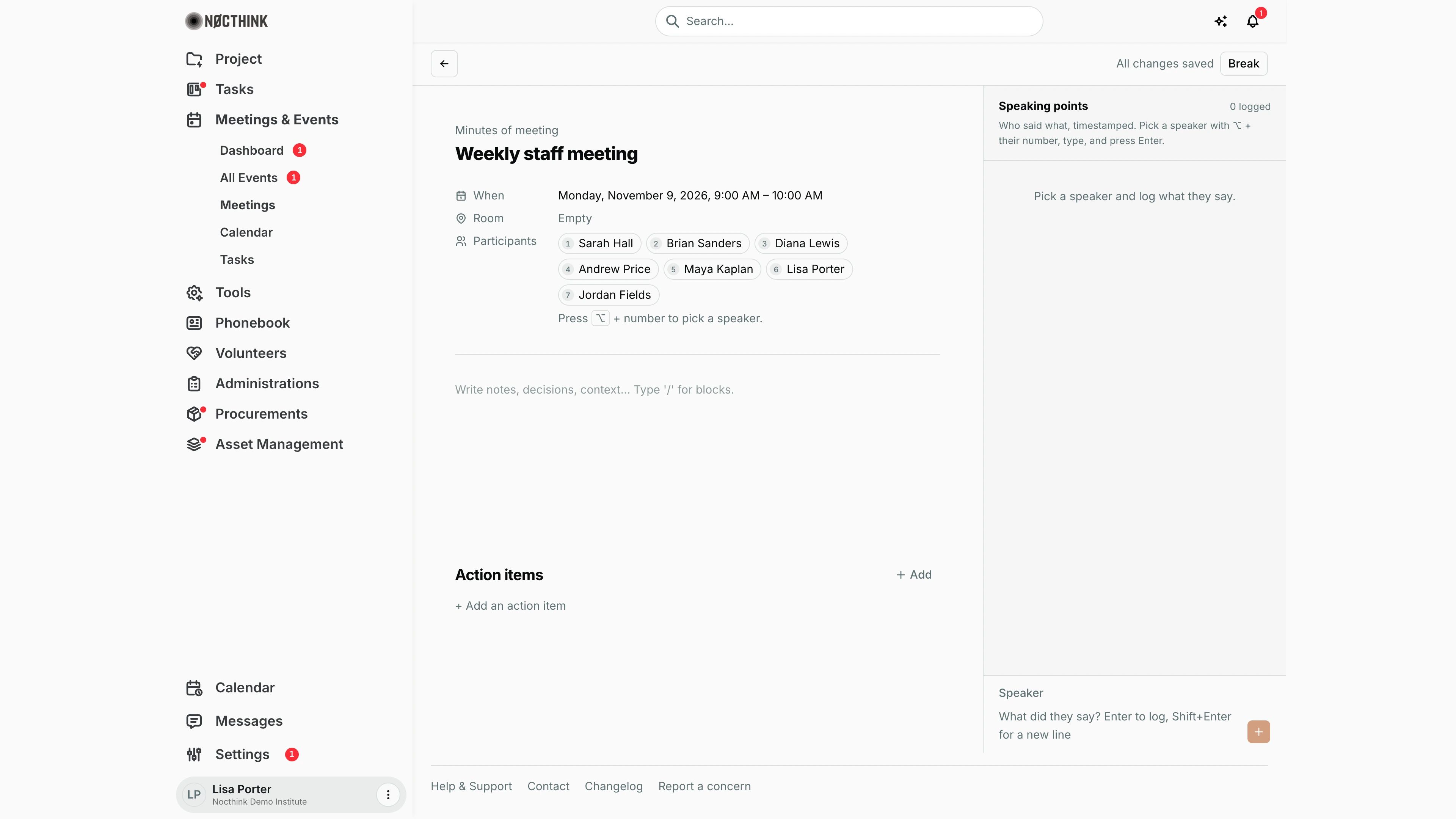
Screenshot: Lisa Porter (Operations Officer), Nocthink Demo Institute demo data.
The minutes editor (/meetings/<id>/minutes) is a full page. The header shows "Minutes of meeting", the title, When, Room and the Participants, each numbered: "Press ⌥ + number to pick a speaker." Below is the notes area ("Write notes, decisions, context… Type '/' for blocks.") and Action items with + Add (task, owner, due date, Mark done). The right panel, Speaking points, logs who said what with a timestamp: pick a Speaker, type in "What did they say? Enter to log, Shift+Enter for a new line". The top bar shows the save state ("All changes saved", "Unsaved changes" or "Saved <time>") and Break to mark a pause. See How I take minutes above.
Access & permissions
- The menu needs
meetings.view(Staff baseline). Docs/role.md §4.1 gives Staff "S" (self): the API only returns meetings I organize or am an attendee of, unless I have full scope (Owner/Director, Event Officer). - Invitations, minutes and presentations can be changed only by the meeting's organizer or someone with full scope; attendees can view them.
Caveats
- Times are shown in my browser's local time zone.
- Saving an edit replaces the whole attendee list with whatever is ticked in the dialog.
- The page does not warn about double-booked rooms; check Calendar → Conflicted after booking.
- Delete is permanent; export the minutes first if you need to keep them.
- External invitees only get an email when I click Send Invites; adding them alone sends nothing.
- Leaving the minutes page with unsaved changes asks for confirmation first.
Limitations
- No recurring meetings — the weekly staff meeting is a separate record each week.
- No bulk actions for selected rows and no list export.
- Cannot link a meeting to an event or project from the New meeting dialog on this page.
- No video-call link field; put links in Description.
Related menus
- Calendar — meetings on a week/month grid, with room conflicts flagged.
- Dashboard — meeting count and the 8 most recent meetings.
- All Events — the event workspace has its own Meetings tab for event-linked meetings.