
Dashboard
Open in NocthinkModule: Finance · URL: /finance/dashboard · Responsible role: Finance Manager · Also used by: Owner/Director (full), F.A.T Manager (full), Finance Staff (read), Accounting Staff (read)
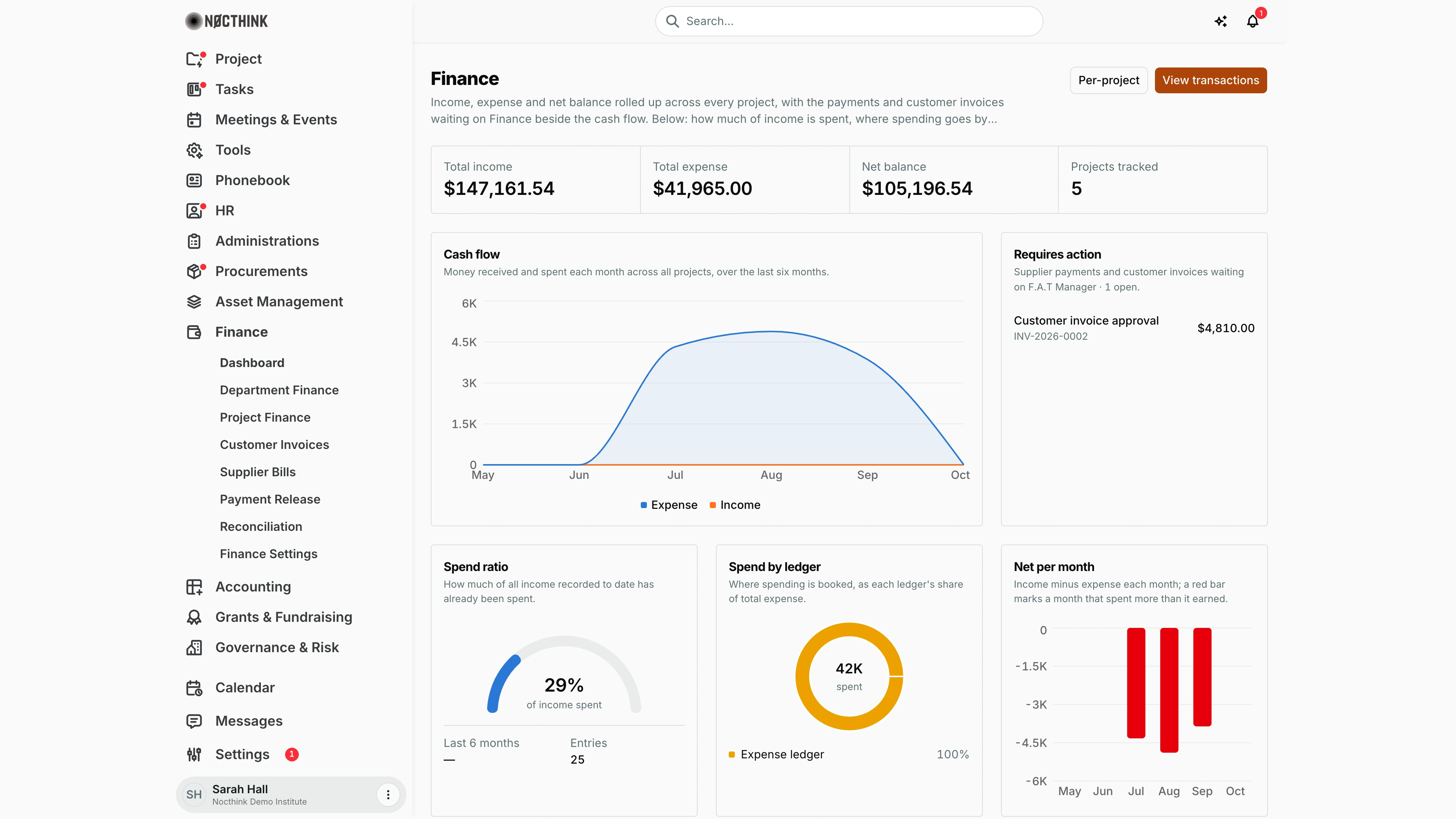
Screenshot: Sarah Hall (Finance Manager), Nocthink Demo Institute demo data.
Why I use this page
I open the Finance dashboard first thing on Monday and before every month-end. It rolls up income, expense and net balance across every project, and the Requires action panel tells me which supplier payments and customer invoices are waiting on me. From here I jump into the item that needs a decision, or drill into the per-project numbers when a balance looks wrong.
What's on the screen
- Header — title Finance with two buttons: Per-project (opens Project Finance) and View transactions (opens the finance transactions list at
/finance/transactions). - Summary cards — Total income, Total expense, Net balance (highlighted when negative) and Projects tracked. Income, expense and project cards are links. Amounts are in the organisation's base currency (e.g.
$147,161.54in a USD organisation,Rp 147.162in a rupiah one). - Cash flow — area chart of Income and Expense per month for the last six months. Hover a point for the full amount.
- Requires action — "Supplier payments and customer invoices waiting on <my role> · n open". Each row links to the item:
- Project fund approval — a supplier payment in
pendingstatus that nobody has fund-approved yet. - Final payment release — a
pendingpayment that already has a fund approval and needs the final release. - Customer invoice approval — a customer invoice in
draft. - Invoice ready to issue — a customer invoice in
approved. Only the first six items are listed; the count in the summary line is the full total. When nothing is waiting it reads "No Finance actions are waiting."
- Project fund approval — a supplier payment in
- Spend ratio — gauge of total expense ÷ total income ("of income spent"; turns red and reads "spending exceeds income" above 100%). Below it: Last 6 months ratio (shows "—" when no income was received in the last six months, as in the screenshot) and Entries (number of project finance entries).
- Spend by ledger — donut of expense per ledger (General, Project, Expense, Grant, Cash/Bank …) with each ledger's share.
- Net per month — bar chart of income minus expense per month; red bars are loss months.
- Top projects by balance (below the fold) — the eight projects with the highest net balance; click a bar to open the project.
- Projects by status (below the fold) — stacked bar and list of projects per status (Planning, Active, On hold, Completed, Archived) with the balance each group holds.
How I …
How I clear my approval queue
- Open Finance › Dashboard and read the Requires action panel.
- Click a Project fund approval or Final payment release row. It opens the payment at
/procurements/payments/<id>(see Payment Release). - Review and decide there, then come back to the dashboard — the item disappears once the payment leaves
pending. - Click a Customer invoice approval row to open the invoice in Customer Invoices, check the lines and click Approve. Rows marked Invoice ready to issue need Issue invoice on the same page.
How I check whether we are overspending
- Look at Net balance — a highlighted (red) value means total expense exceeds income.
- Check the Spend ratio gauge; above 100% the label turns red.
- Scan Net per month for red bars to see which months spent more than they earned.
- Scroll to Top projects by balance and click the project bar that looks off to open its project page, or click Per-project to compare all projects in a table.
How I find where money is going
- In Spend by ledger, hover each slice to see the amount for that ledger.
- Click View transactions to see the individual entries behind the totals.
Access & permissions
- The Finance module appears in the sidebar only for users with
finance.view— Owner, Director, Finance Staff, Finance Manager, F.A.T Manager and Accounting Staff (the accounting-staff role now holdsfinance.view). The backend refuses Financeviewto anyone without finance authority (Finance department member,finance.approve, or a finance role), so an Accounting Staff member without a finance role may see the menu but get empty or refused figures here. - The dashboard itself is read-only. Acting on a queue item needs the permission of the target page (e.g. approving a customer invoice needs
finance.approve). - The Requires action label uses the first role on my account, so it may read "F.A.T Manager" or "Finance Manager" depending on my role order.
Caveats
- Total income is the sum of received fund tranches (disbursements) per project, converted to the organisation's base currency — not the sum of "income" entries typed into project ledgers. An income entry with no matching received tranche does not raise this figure.
- In the cash-flow chart and Net per month, income is placed in the month each tranche was received (or, if no received date is recorded, its expected date), and expense in the month of each entry's date. Expense entries without a date are left out of the charts but still count in the totals.
- Currency. Cards and charts are in the base currency; each Requires action row shows its payment or invoice in that document's own currency.
- The queue shows every
draftcustomer invoice, including ones I created myself — I cannot approve those (the creator, or anyone who edited the amounts, is blocked from approving). - The queue includes every pending supplier payment in the organisation, regardless of project.
Limitations
- No date-range or year filter; the charts always cover the last six months and the cards cover all time.
- No export or print from this page.
- The Requires action list shows at most six items and has no "see all" link.
Related menus
- Department Finance — the same money broken down per department, with a year filter.
- Project Finance — per-project income, expense and balance (the Per-project button).
- Customer Invoices — where draft/approved invoices in the queue are approved and issued.
- Supplier Bills — supplier invoices that turn into payments.
- Payment Release — where queued supplier payments are fund-approved and released (same page as Procurements › Payments).
- Reconciliation — matching bank statements once payments go out.
- Finance Settings — currencies, tax rates and bank accounts used across these pages.