
Reconciliation
Open in NocthinkModule: Finance · URL: /finance/reconciliation · Responsible role: Finance Staff (write: import and match) / Finance Manager (full: confirm and close) · Also used by: F.A.T Manager (full), Owner/Director (full), Accounting Staff (W in role.md, but see Access)
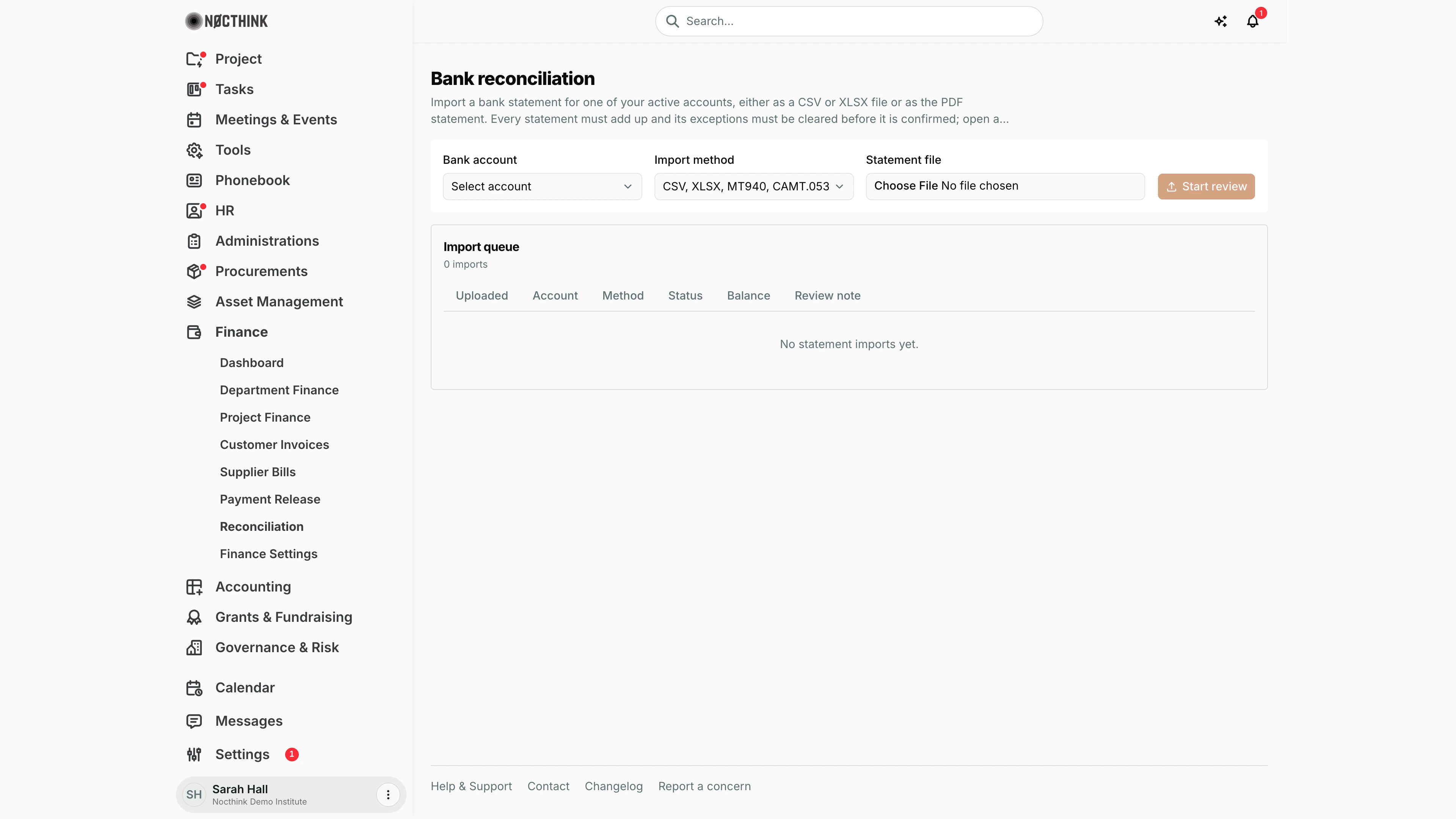
Screenshot: Sarah Hall (Finance Manager), Nocthink Demo Institute demo data.
Why I use this page
I use this page to reconcile each bank account every month. First I import the bank's statement. Then I check that it adds up (opening + money in − money out = closing) and clear anything odd. Finally I match every line to an entry in our books, or to a released vendor payment, until the adjusted bank and book balances agree. I do it at month-end before the period is closed, and mid-month for our busiest account. Finance Staff do the import and matching; as Finance Manager I confirm the statement and close it.
What's on the screen
- Header: Bank reconciliation and a description.
- Import form, a card with four controls:
- Bank account: only active accounts, shown as "label · currency" (in the demo: Grants AUD · AUD, Jakarta field office · IDR, Operating · USD).
- Import method:
- CSV, XLSX, MT940, CAMT.053 or OFX for files accepted as .csv, .xlsx, .xls, .sta, .mt940, .940, .txt, .xml, .ofx, .qfx.
- PDF statement.
- Statement file: a file picker.
- Start review: disabled until an account and a file are chosen.
- Import queue: a count (the screenshot shows "0 imports" and "No statement imports yet.") and a table with these columns:
- Uploaded: date and time in my browser's time zone; the link opens the review page.
- Account.
- Method: Spreadsheet or PDF.
- Status: needs review, confirmed, closed, rejected.
- Balance: balanced, mismatch, incomplete, or "—" when unchecked.
- Review note: the first warning, or "Ready for review".
Statement review page (/finance/reconciliation/<id>):
- Header: the file name, then account · account number · period · status, and a balance pill: Balanced, Does not add up, Balances missing or Not checked.
- Five tiles: Opening, Money in, Money out, Closing, and Difference, which is shown in red if non-zero. Opening and Closing say where the figure came from: printed, from row balances, entered by a reviewer, or not printed.
- How this file was read: the parser and its notes.
- Needs attention / Checks cleared: the exceptions. hold items can't be waived; warnings have Clear with a note.
- Statement balances: appears only when the file lacks printed balances.
- Match to the books: appears after the statement is confirmed.
- Transactions: Source (page and line), Date, Description, Out, In, Balance, plus Book entry once matching starts, or Edit while the statement is in review.
- Decision: Confirm statement and Reject….
How I …
How I import a statement
- Pick the Bank account. If it's missing, it is inactive or doesn't exist; add it in Finance Settings.
- Pick the Import method. Prefer the bank's CSV, XLSX, MT940, CAMT.053 or OFX export over the PDF, because structured files are read exactly.
- Choose the Statement file and click Start review. The review page opens with status needs review. Oversized files are refused outright; the message says to export one month at a time.
How I fix the statement until it adds up
- Look at the pill and the Difference tile.
- If Statement balances is shown, enter the Opening balance and/or Closing balance from the bank's own statement. Add a Source note of at least 5 characters, then click Save and check. Printed balances can't be replaced.
- For a misread row, click Edit to open Correct row. Change the Date, Money out or Money in, or tick Not a transaction for headings, subtotals or duplicates. Then give a Reason (at least 5 characters) and click Save and check. The original text is kept, and the row shows "Edited: …".
- Under Needs attention, use Clear with a note (at least 10 characters) for warnings that are fine. hold items clear only when the rows or balances are fixed.
How I confirm or reject (Finance Manager)
- When the pill reads Balanced and the notice says nothing is open, click Confirm statement. Confirming makes the rows available for matching.
- If the file is wrong (wrong account, wrong period), click Reject…, type why (at least 5 characters), then Reject. A rejected import can't be reopened, so upload the file again.
How I match lines to the books and close
- On a confirmed statement, click Find matches. Proposals are lines with the same amount and direction within a week, ranked by shared references. They can be posted entries on the bank's ledger account or released payments.
- Click Confirm exact matches to accept every unambiguous proposal in one go. For the rest, read the Book entry cell (score, "close alternatives", "d apart", "not in ledger") and click Confirm or Not this.
- For a line with No book entry (a bank fee, interest), click Draft journal. The draft goes to the AI Workbench for posting. Alternatively, explain the line with a note in Needs attention.
- Check the summary: Statement closing, Ledger balance, deposits in transit and outstanding payments, unrecorded in/out, Adjusted bank and Adjusted book, and "x of y lines matched".
- When the pill reads Reconciled, click Close statement. Until then the button shows "Close (n lines still open)" and stays disabled.
Access & permissions
- Who can open it: the page route needs
finance.view, meaning finance authority (Finance department,finance.approve, or the finance-staff, finance-manager or fat-manager role), or Owner/Director. The statement API also accepts accounting authority (the accounting-staff or fat-manager role, oraccounting.approve). - Finance Staff (
finance.create): upload, edit rows, enter balances, clear warnings, reject, find, confirm or reject matches, and draft journals. - Finance Manager, F.A.T Manager, Owner/Director (
finance.approve): additionally Confirm statement and Close statement. - Accounting Staff (accounting authority or
accounting.create): the statement API lets them do everything Finance Staff can, but not Confirm statement or Close statement, which on the accounting side needaccounting.approve. The accounting-staff role now holdsfinance.view, so they pass the page's route guard, and the bank-account list the page needs is readable with accounting authority (bank-account changes stay with Finance).
Caveats
- Confirm checks the latest version. Confirm is refused unless the statement is balanced and no exceptions are open. If someone edited it meanwhile, you get "This statement changed or was decided meanwhile; reload it and check again."
- Edits end at confirmation. After confirmation, rows and balances can no longer be edited ("This statement is confirmed; it can no longer be changed."). After closing, matches can't change either.
- Closing needs a ledger link. Closing requires every included line to be matched or explained, and the adjusted balances to agree to the cent. The bank account must also be linked to a COA account; otherwise you see "This bank account isn't linked to a ledger account…".
- Drafting needs a chart of accounts. Draft journal fails with "Set up the chart of accounts first." if there is none.
- Notes are permanent. Every correction note and clearance note is kept in the audit trail.
- Currency and time zone. Amounts use the bank account's currency (the base currency if unknown). Upload times are shown in my browser's time zone.
Limitations
- Imports can't be deleted or edited as a whole; the server returns 405. Reject and re-upload instead.
- Only the top proposal per line can be confirmed from the table; the other candidates are shown only as "+n more".
- No reconciliation report export or printout.
- Inactive bank accounts can't be imported against.
Related menus
- Finance Settings: bank accounts and their COA account link.
- Payment Release: released payments are match candidates.
- AI Workbench: where drafted journals for unrecorded lines go.
- General Ledger: the bank's ledger account balance.
- Period Close: reconcile before closing the month.
- Finance Dashboard: cash overview.