
Finance Settings
Open in NocthinkModule: Finance · URL: /settings/finance · Responsible role: Finance Manager (full) · Also used by: F.A.T Manager (full), Owner/Director (full); Finance Staff and Accounting Staff have no access
Screenshot: Sarah Hall (Finance Manager), Nocthink Demo Institute demo data.
Why I use this page
This page holds the reference data every finance form draws on:
- the bank accounts printed on our customer invoices and used for reconciliation,
- the currencies we work in,
- the tax rates offered on invoices,
- the master budget and activity codes.
I set it up when we onboard and come back when we open a new bank account, a new currency appears in a grant, a tax rate changes, or the budget code list is revised for a new fiscal year. Changes here affect everyone's forms, so I keep edits to the Finance Manager.
What's on the screen
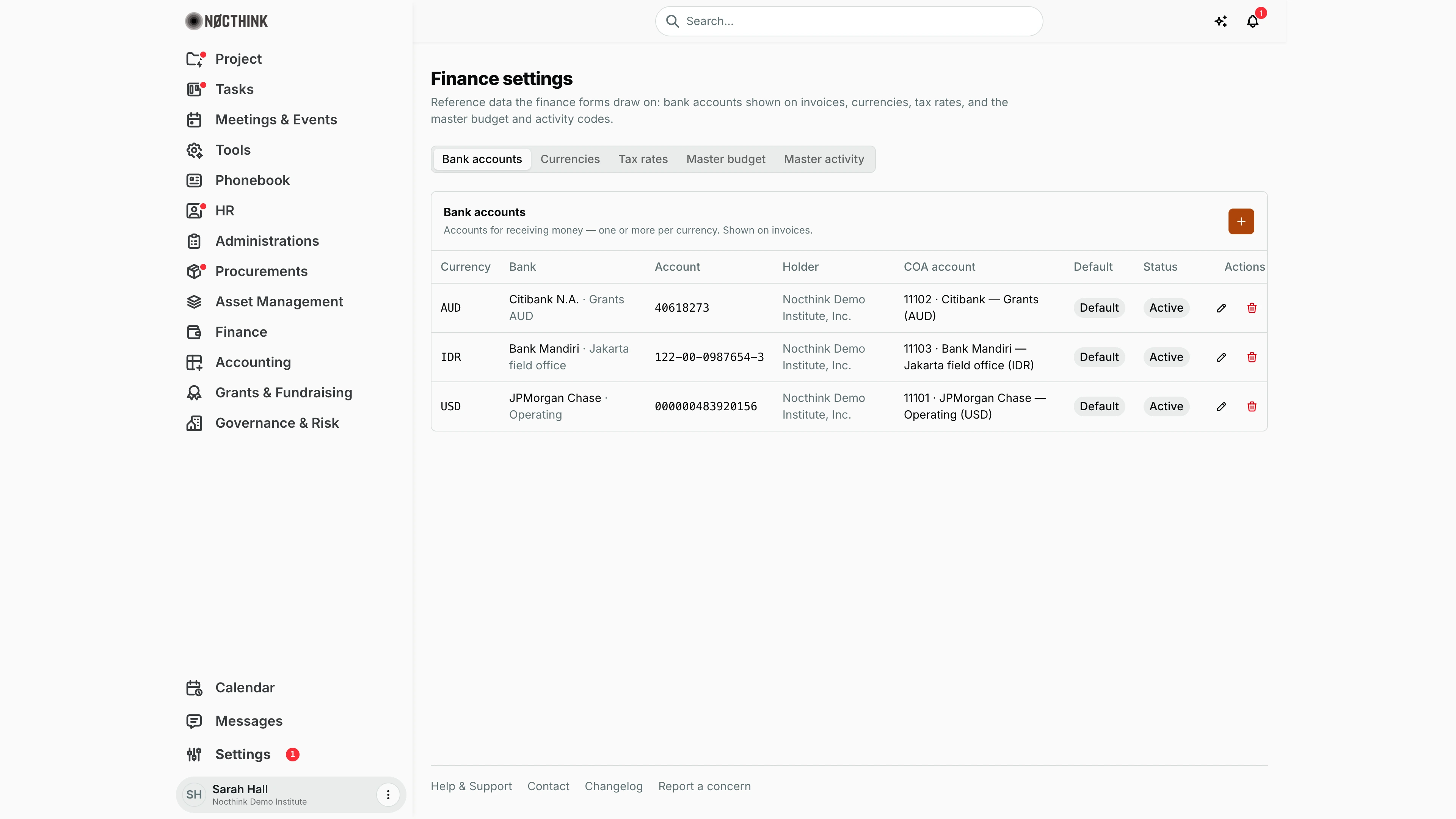
- Header: Finance settings and a short description.
- Tabs: Bank accounts (open by default), Currencies, Tax rates, Master budget, Master activity.
- Bank accounts tab:
- A card headed Bank accounts: "Accounts for receiving money — one or more per currency. Shown on invoices."
- An orange + button.
- Table columns: Currency, Bank (bank · label), Account, Holder, COA account, Default, Status, and Actions (pencil to edit, red bin to delete).
- The demo has three accounts:
- AUD Citibank N.A. · Grants AUD, linked to 11102.
- IDR Bank Mandiri · Jakarta field office, linked to 11103.
- USD JPMorgan Chase · Operating, linked to 11101. All three are Default and Active.
- Currencies tab: "Used across funding sources, budgets, and invoices." Columns: Code, Abbreviation, Name, Status, Actions.
- Tax rates tab: "Percentage rates selectable on invoices, e.g. PPN 11%." Columns: Name, Rate, Default, Status, Actions.
- Master budget and Master activity tabs:
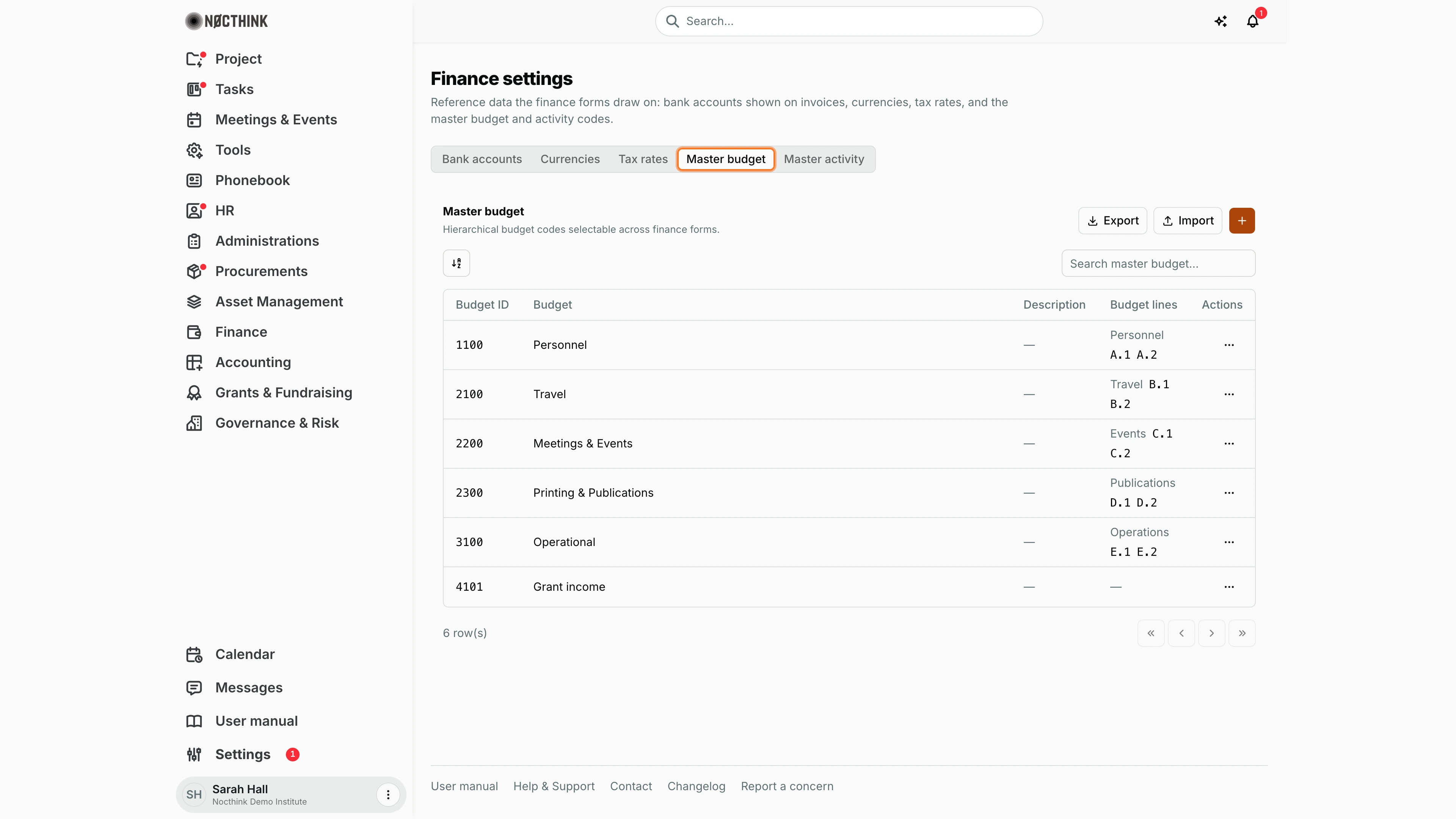
- Toolbar: Export, Import, a + (Add Budget / Add Activity), and a search box ("Search master budget…" / "Search master activity…"; it matches the code).
- Columns: Budget ID or Activity ID, Budget or Activity, Description, Budget lines (links to the category and line pages), Actions.
- Master budget is a tree: child codes are indented under their parent.
How I …
How I add a bank account
- On Bank accounts, click + to open Add bank account (see Add bank account below).
- Fill in:
- Bank name: required.
- Currency: required; chosen from the active currencies.
- Account number: required.
- Account holder, Branch, SWIFT / BIC, Label (optional).
- Under Chart of accounts, pick the cash account the money sits in. Only active Asset accounts flagged as cash are listed, and Not linked is allowed. Each COA account can be linked to only one bank account.
- Tick Default for this currency if invoices in that currency should show this account, and keep Active ticked.
- Save. Setting a new default clears the default on any other account in the same currency.
How I add or retire a currency
- Open Currencies and click + to open Add currency (see Add currency below).
- Enter the Code (e.g. USD) and Abbreviation (e.g. $USD), both required, plus an optional Name (US Dollar) and the Active box.
- Save. Codes must be unique ("Currency" duplicate error otherwise).
- To retire a currency, edit it and untick Active rather than deleting it. Delete removes the row permanently.
How I maintain tax rates
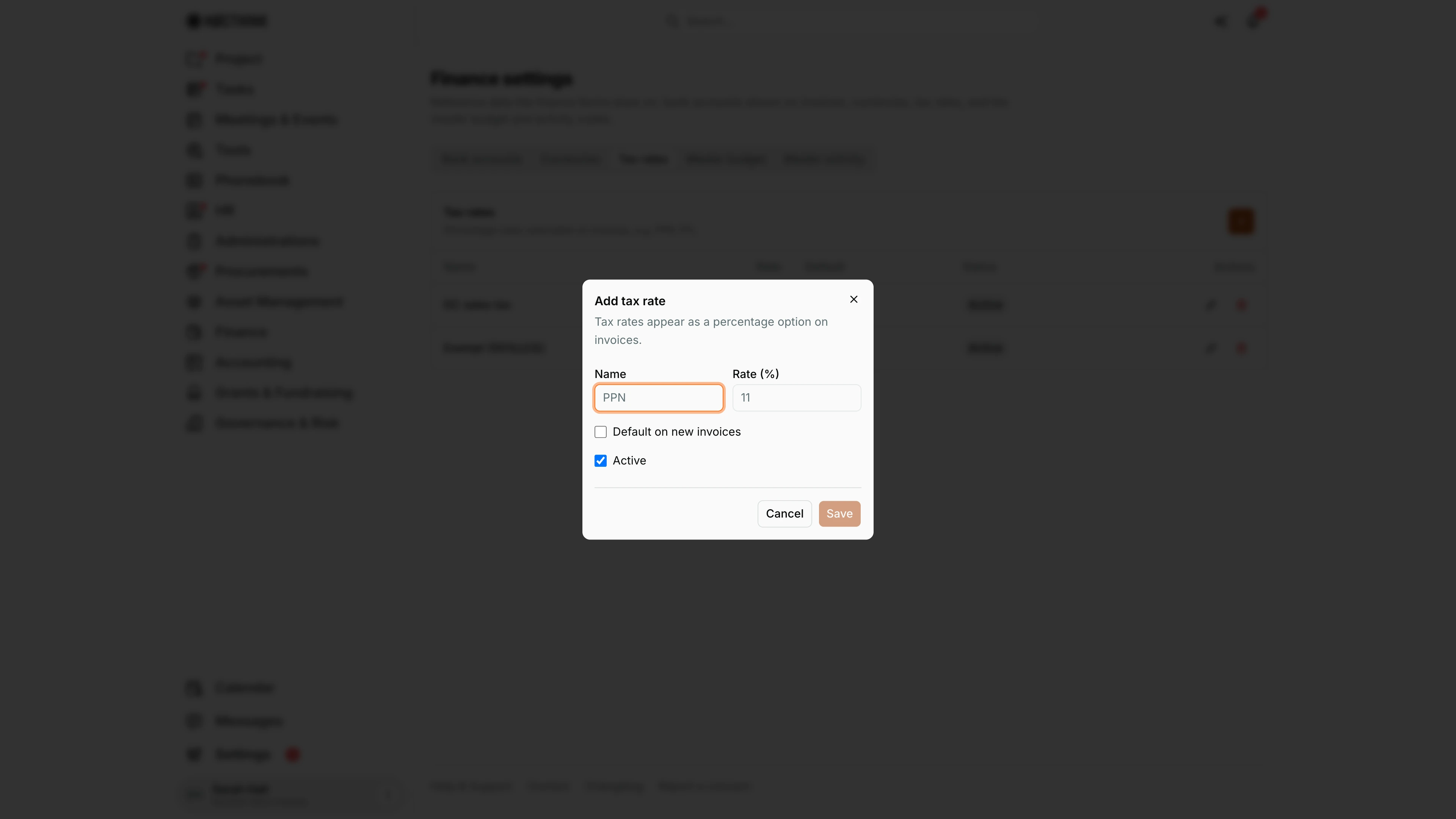
- Open Tax rates and click + to open Add tax rate (see Add tax rate below).
- Enter the Name (required, e.g. PPN) and Rate (%) (up to 3 decimals, e.g. 11).
- Tick Default on new invoices and Active as needed, then save. Only one rate can be the default: setting it clears the others.
- When the rate changes, add a new rate and make it default, then untick Active on the old one. That way past invoices keep their original rate name.
How I load master budget or activity codes in bulk
- Open the tab and click Export to get the current list as CSV. The columns are
code,name,description, plusparent_codefor budgets. - Edit the file. The first line must be a header with a
codecolumn. Optional columns arename,descriptionandparent_code(budgets only). - Click Import and choose the file. The result line reads "Imported <file>: n created, m updated". Rows whose code already exists are updated.
- For a single code, click +. Fill in Budget ID / Activity ID (required), Budget / Activity name (required), Description, and, for budgets, Parent ("— None (top level) —" or an existing code; a code can't be placed under its own descendants).
Detail page, forms & dialogs
Add bank account
Screenshot: Sarah Hall (Finance Manager), Nocthink Demo Institute demo data.
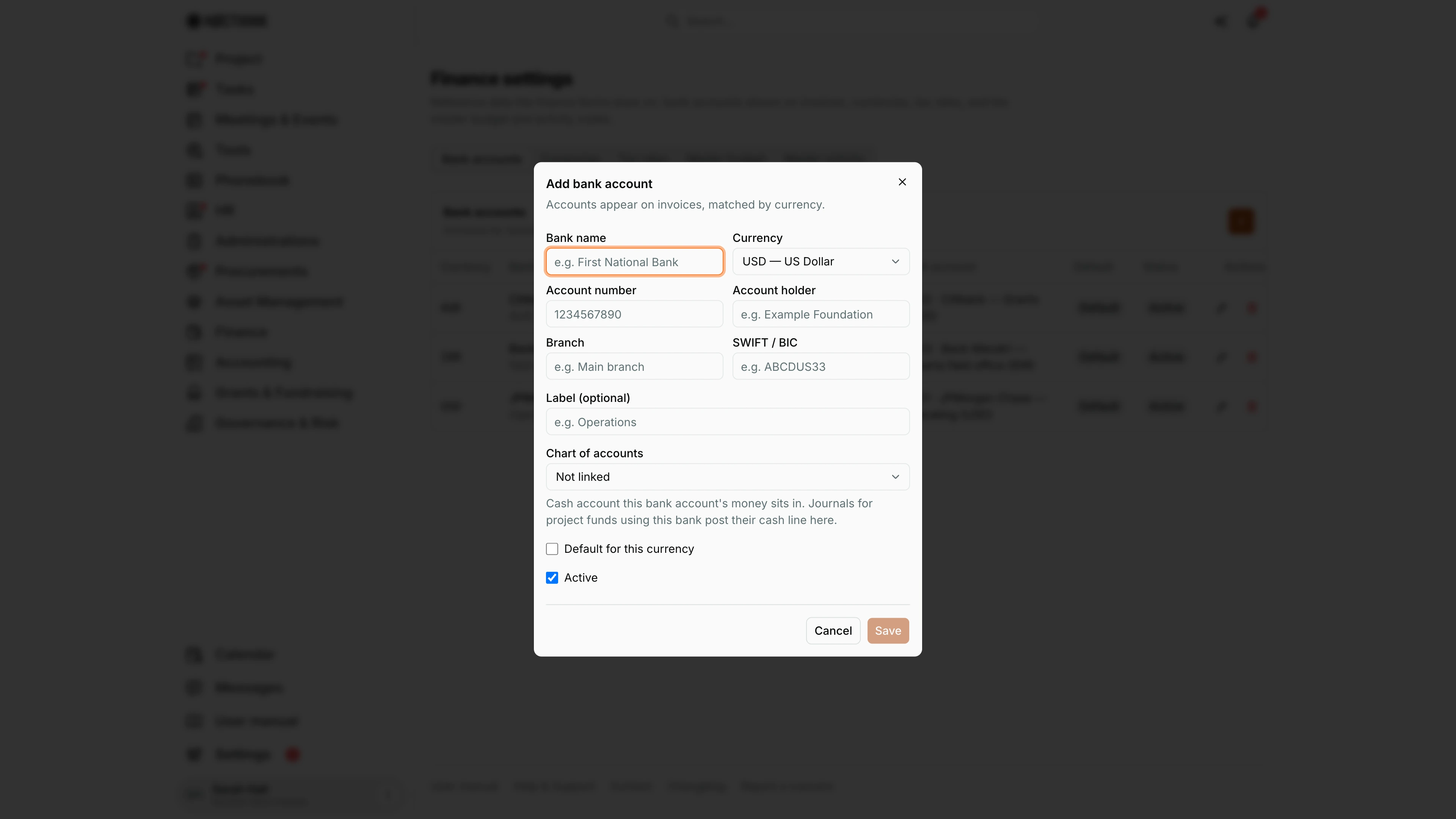
+ on Bank accounts opens Add bank account — "Accounts appear on invoices, matched by currency." Fields: Bank name, Currency, Account number, Account holder, Branch, SWIFT / BIC, Label (optional), Chart of accounts ("Cash account this bank account's money sits in. Journals for project funds using this bank post their cash line here."), Default for this currency and Active.
Save stays disabled until the bank name and account number are filled in. The placeholders are Indonesian examples and the currency starts on IDR; I change both for a U.S. account.
Bank account detail
Screenshot: Sarah Hall (Finance Manager), Nocthink Demo Institute demo data.
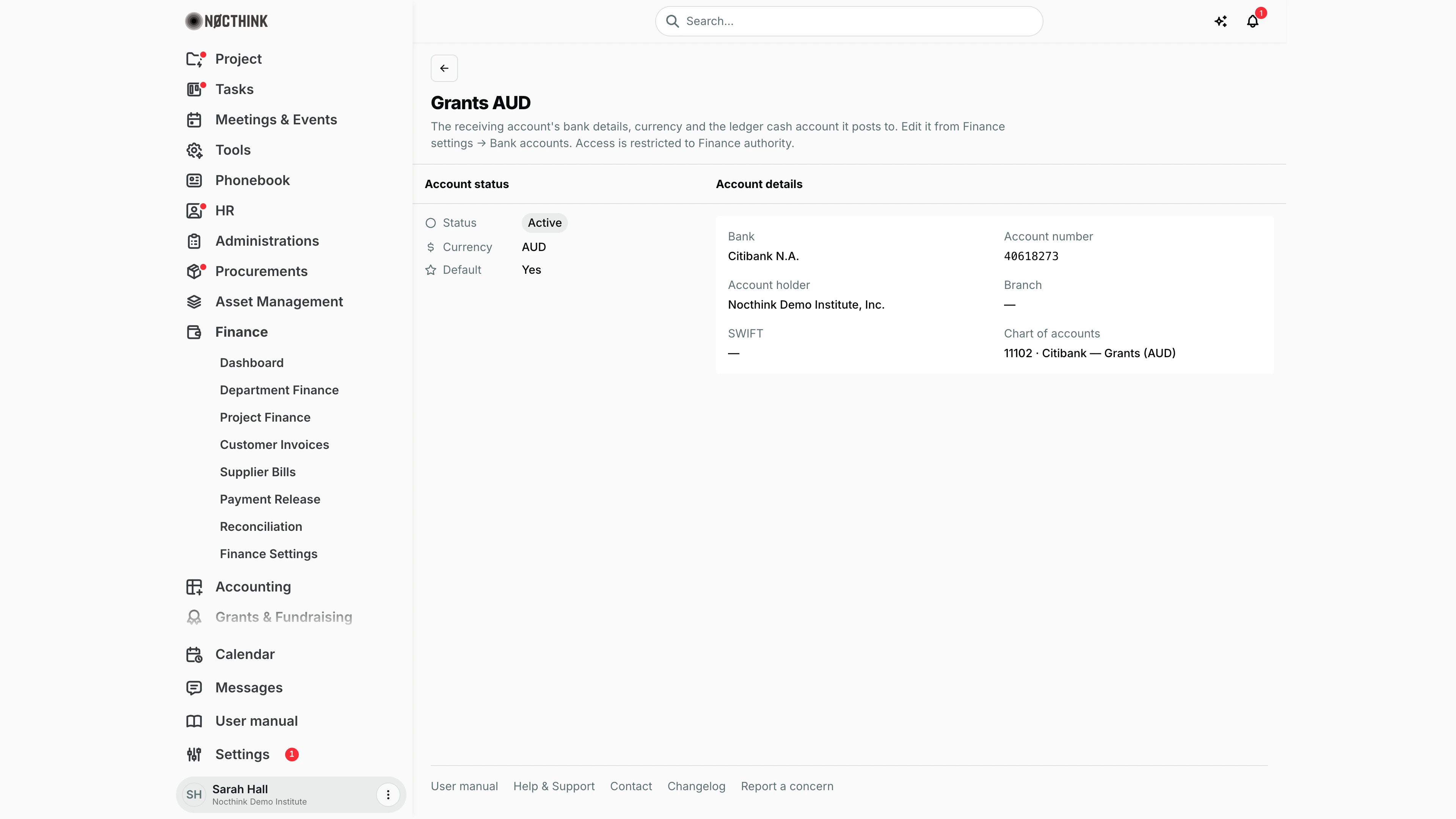
Each bank account has a read-only page at /finance/bank-accounts/<id> ("The receiving account's bank details, currency and the ledger cash account it posts to. Edit it from Finance settings → Bank accounts. Access is restricted to Finance authority."). Account status shows Status, Currency and Default; Account details shows Bank, Account number, Account holder, Branch, SWIFT and Chart of accounts (the linked cash account). The bank name on the Bank accounts tab opens it; changes are made with the pencil on that tab.
Add currency
Screenshot: Sarah Hall (Finance Manager), Nocthink Demo Institute demo data.
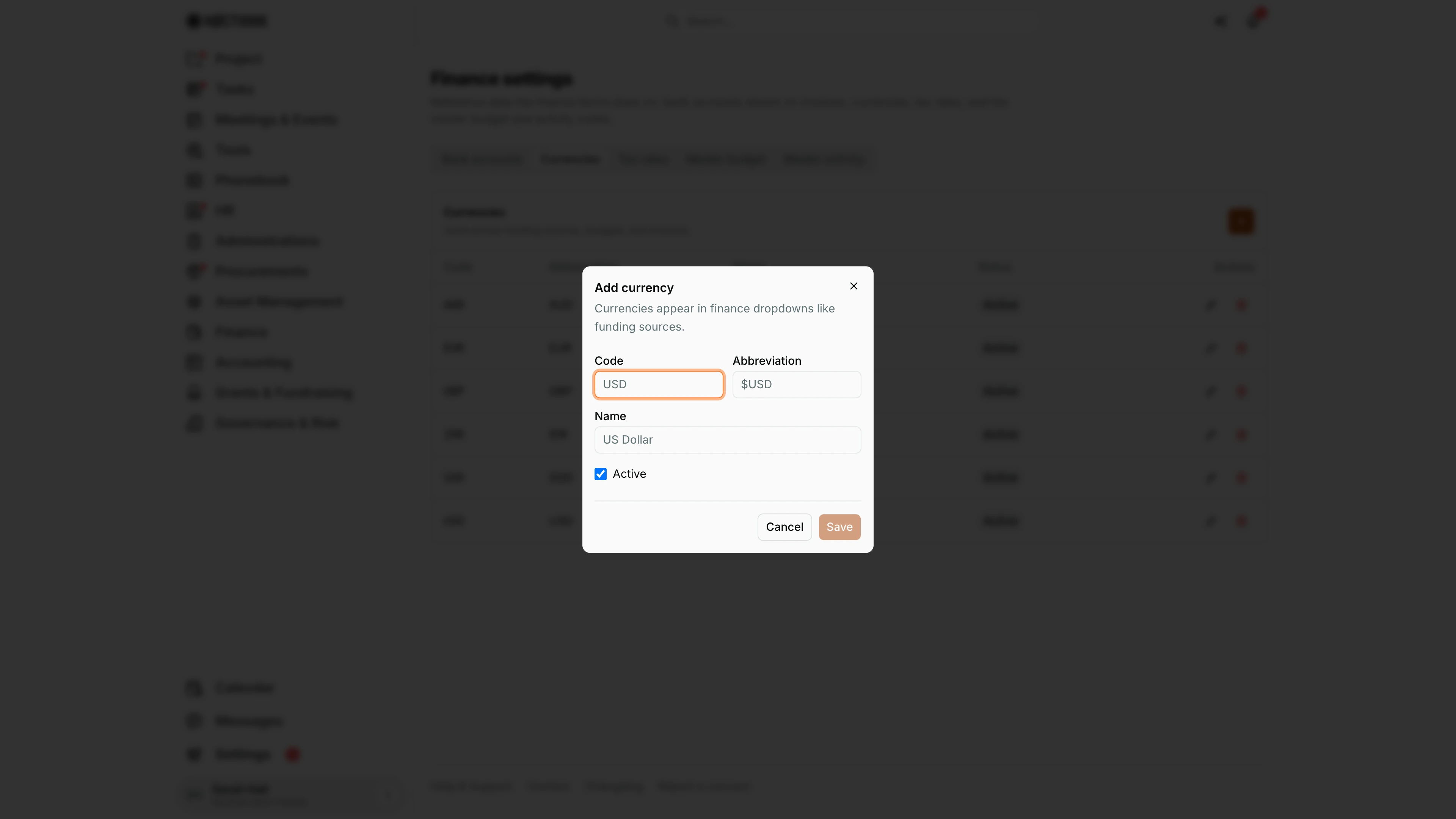
Currencies → + opens Add currency — "Currencies appear in finance dropdowns like funding sources." Code and Abbreviation are required, Name is optional and Active is ticked by default. Save stays disabled until both required fields are filled.
Codes must be unique. To retire a currency I edit it and untick Active rather than deleting it, so past documents keep their currency. Saving needs finance.create; only the Finance Manager, F.A.T Manager and Owner reach this page.
Add tax rate
Screenshot: Sarah Hall (Finance Manager), Nocthink Demo Institute demo data.
Tax rates → + opens Add tax rate — "Tax rates appear as a percentage option on invoices." Name and Rate (%) are required; Default on new invoices makes it the rate pre-selected on new customer invoices (and clears the default elsewhere); Active keeps it selectable.
Rate (%) takes up to three decimals. When a rate changes, I add a new rate, make it the default and untick Active on the old one, so past invoices keep their original rate name.
Master budget codes
Screenshot: Sarah Hall (Finance Manager), Nocthink Demo Institute demo data.
The Master budget tab holds the organization's hierarchical budget codes ("Hierarchical budget codes selectable across finance forms."). The table shows Budget ID, Budget, Description, Budget lines (the budget category and line codes filed under the code, each a link to its page; this is how the category and line pages are reached, since the old Budgets page now redirects here) and a ⋯ menu with Edit and Delete. Export downloads the list as CSV, Import loads a CSV (rows with an existing code are updated), and + adds one code. Master activity works the same way for activity codes, without parents.
Budget category detail
Screenshot: Sarah Hall (Finance Manager), Nocthink Demo Institute demo data.
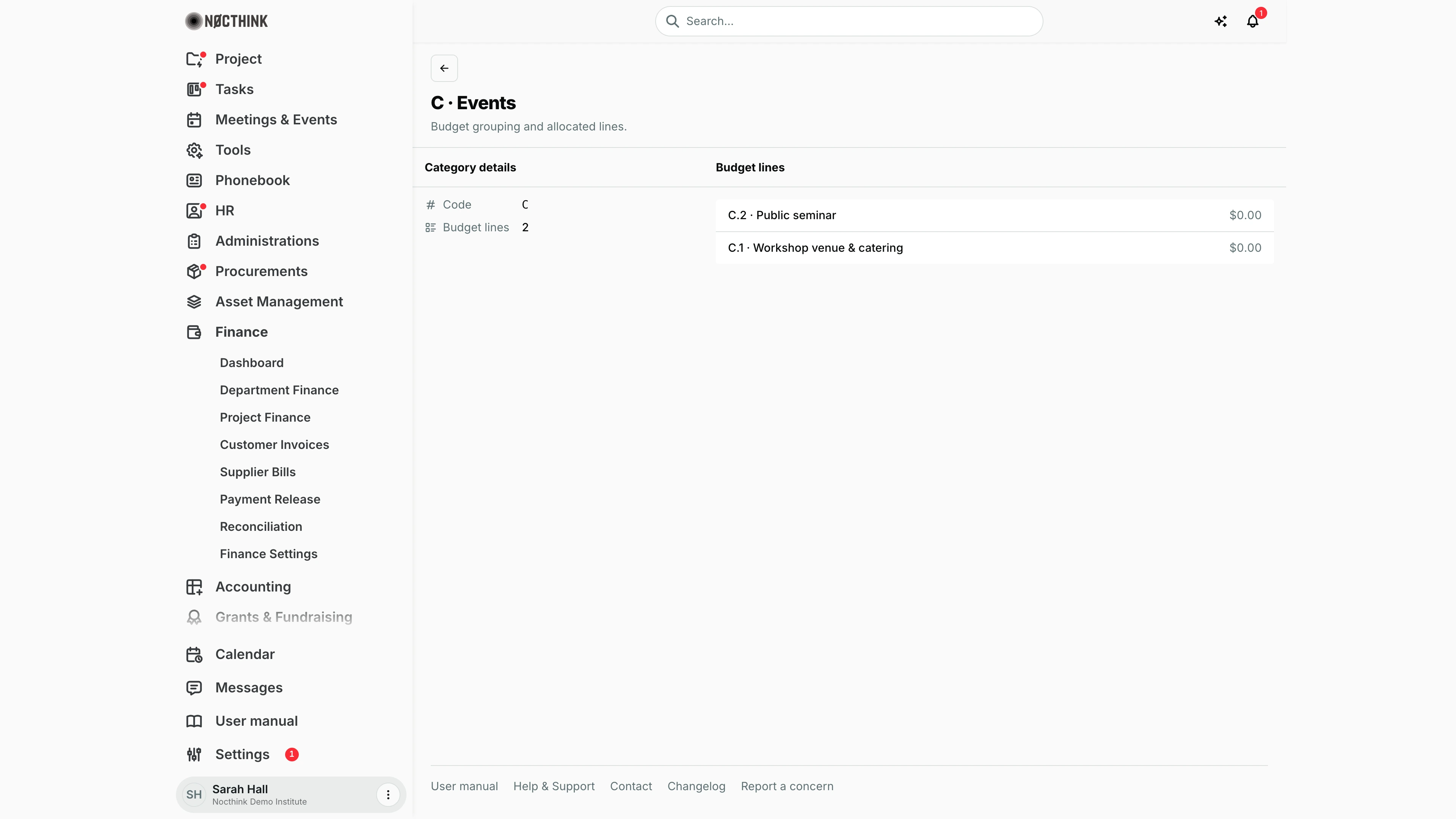
A budget category has its own page at /finance/budgets/categories/<id>. Category details shows the Code; Budget lines lists the lines in the category with their codes and names ("No budget lines in this category." when empty), each linking to the line's page. The back button reads Budgets; it returns to this Finance settings page.
The page is read-only and has no menu entry of its own: I reach it by its address.
Budget line detail
Screenshot: Sarah Hall (Finance Manager), Nocthink Demo Institute demo data.
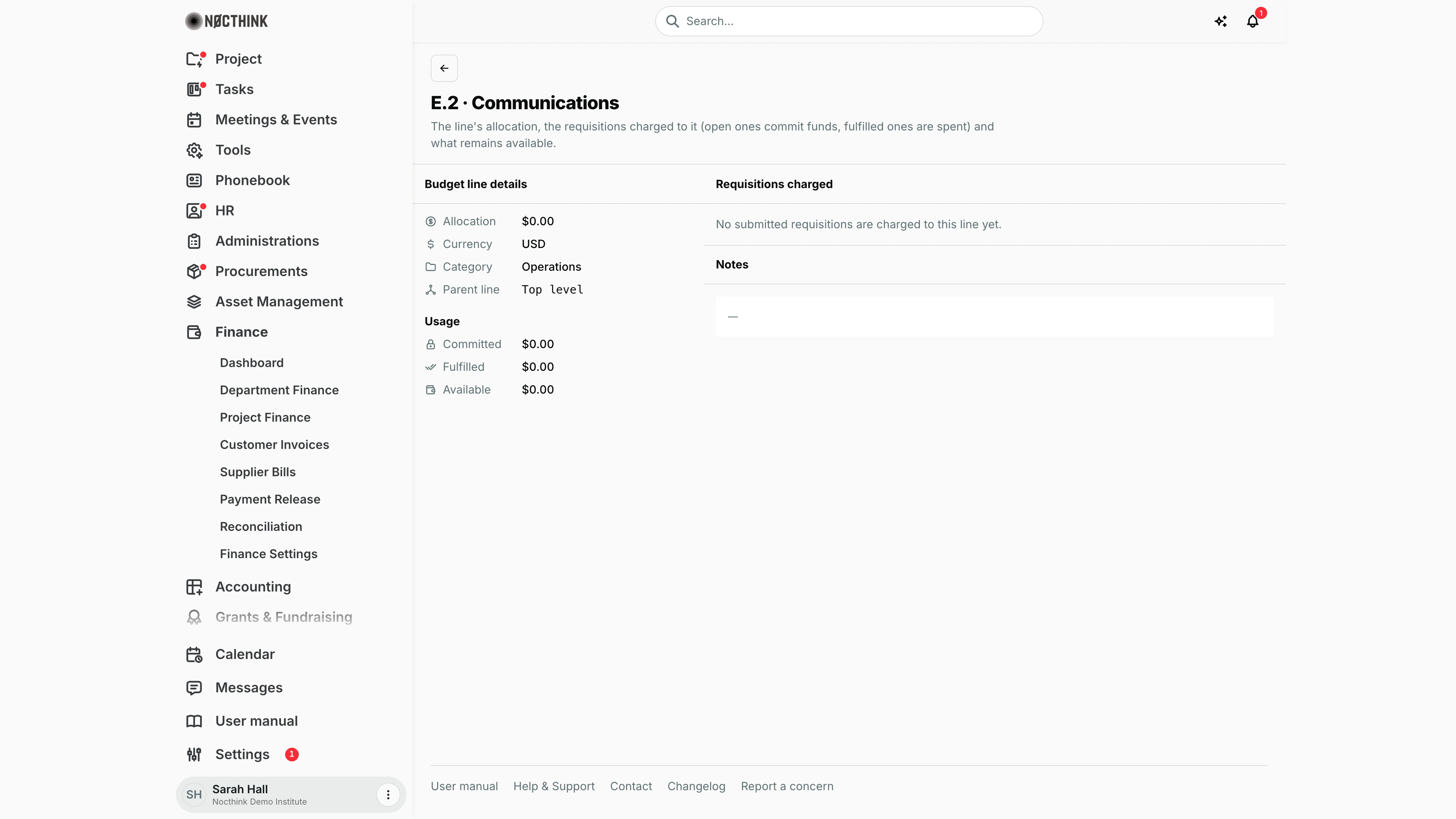
A budget line's page (/finance/budgets/items/<id>) shows Budget line details — Allocation, Currency, Category (linked to the category page) and Parent line ("Top level" when it has none) — and Usage: Committed (pending and approved requisitions charged to the line), Fulfilled and Available (allocation minus both; shown only when the line is in the base currency). Requisitions charged lists those requisitions with their number (linked), title, status, date and total, and Notes follows. The back link returns to Finance settings.
The Parent line shows the code of the line this one rolls up into.
Access & permissions
- Page: the guard requires
finance.approve. That means the Finance Manager, F.A.T Manager or the Owner (Directors pass every gate). For Finance Staff (finance.create/updateonly), the sidebar hides the item and typing the URL is blocked. - Writing: saves check
finance.createandfinance.update. Deleting in any tab checksfinance.delete, which the Finance Manager and F.A.T Manager roles hold (as do Owner/Director). Finance Staff get an alert "Could not delete the …: permission denied". - Not in role.md for Accounting Staff: chart-of-accounts work lives in Chart of Accounts.
Caveats
- Deleting a bank account only deactivates it. It disappears from the reconciliation account list and from invoices, but past records keep it.
- Deleting a currency, tax rate or master code is permanent, and asks only a browser confirm.
- The COA link drives the books. It decides where project-fund journals post their cash line and which ledger account Reconciliation compares against. If it's left Not linked, statements for that account can't be closed.
- Inactive currencies are hidden from the bank-account currency list. A new account starts in the organization's base currency.
- Import is lenient about columns. It matches columns by header name, case-insensitive. A file without a
codeheader fails with "Missing header row — the first line must name a "code" column."
Limitations
- No audit/history view of who changed a setting on this page.
- No exchange-rate table here; the Currencies tab stores codes only.
- Tax rates and currencies have no import/export; only the master codes do.
- Bank-account search and filtering are not available. The page uses the full content width; on narrow screens the bank-account table scrolls sideways inside its card.
Related menus
- Customer Invoices: shows the default bank account and offers the tax rates.
- Reconciliation: imports statements per active bank account and relies on its COA link.
- Project Finance and Department Finance: use the currencies and budget codes.
- Chart of Accounts: the cash accounts that bank accounts link to.
- Funds & Grants: funding sources in these currencies.