
Customer Invoices
Open in NocthinkModule: Finance · URL: /finance/invoices · Responsible role: Finance Staff (write: draft and issue) / Finance Manager (full: approve and void) · Also used by: Owner/Director (full), F.A.T Manager (full), Accounting Staff (read)
Screenshot: Sarah Hall (Finance Manager), Nocthink Demo Institute demo data.
Why I use this page
I use this page to bill donors and other funders: drafting a receivable invoice with line items and tax, getting it approved by a second person, issuing it, and sending the PDF. I come back here when a donor asks for a copy, when a billing milestone in a grant agreement falls due, and at month-end to see which invoices are still open or overdue.
What's on the screen
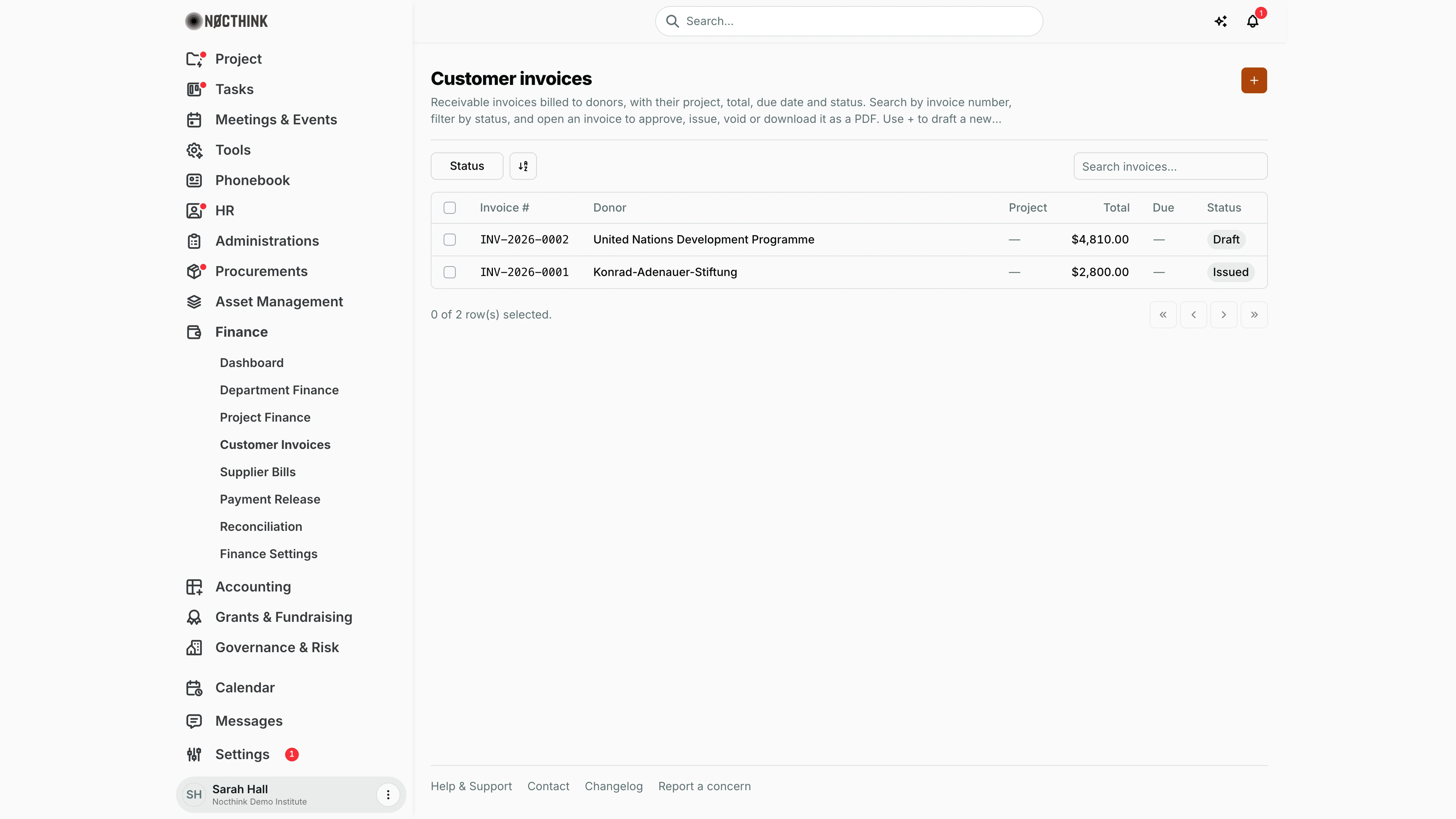
- Header — title Customer invoices with a description, and an orange + button (New invoice) at the top right.
- Toolbar — Status filter (Draft, Issued, Sent, Paid, Overdue, Void), a sort/column button, and Search invoices… (matches the invoice number).
- Table — checkbox, Invoice # (links to the invoice), Donor, Project, Total (in the invoice's own currency, e.g.
$4,810.00; sortable), Due (sortable), Status pill. Overdue and void invoices are shown in red; all other statuses use a neutral pill. Newest invoices are listed first. - Footer — "n of m row(s) selected" and pagination.
In the screenshot, INV-2026-0002 (United Nations Development Programme) is a Draft and INV-2026-0001 (Konrad-Adenauer-Stiftung) is Issued; neither has a project or due date. Each total is shown in that invoice's currency.
Invoice detail (/finance/invoices/<id>)
- Back link (Customer invoices), the customer name as title and the invoice number underneath.
- Action buttons (depending on status): Download PDF, Void (red; any status except Paid and Void), Approve (Draft only), Issue invoice (Approved only).
- Left rail Invoice details — Number, Customer, Project, Status, Issue date, Due date, Total.
- Tabs: Line items (Description, Qty, Unit price, Amount, then Subtotal, Tax, Total); Payment destination (Bank, Account, Holder, Branch, SWIFT of the organisation's bank account in the invoice currency — only when one exists); Notes (only when the invoice has notes).
How I …
How I draft a new invoice
- Click + at the top right. The New receivable invoice dialog opens (see New receivable invoice below).
- Choose the Donor (required; the list comes from Phonebook organisations of type donor).
- Optionally choose the Project (or leave — None —).
- Check the Currency (defaults to the first active currency in Finance Settings) and set the Due date if the agreement has one.
- Under Line items, type a description, Qty and Unit price for each line; the line amount is calculated on the right. Use the outlined + (Add line) for more lines and the bin icon to remove one.
- Pick the Tax rate (defaults to the organisation's default rate; No tax is allowed). Subtotal, Tax and Total update live.
- Add Notes if needed (they appear on the invoice's Notes tab).
- Click Create invoice. The invoice gets the next number
INV-<year>-NNNNand status Draft.
How I approve a draft (Finance Manager)
- Open the invoice from the list, or from Customer invoice approval in the Dashboard queue.
- Check the customer, project and every line on Line items (see Customer invoice detail below).
- Click Approve. The status becomes Approved.
- I cannot approve an invoice I created or whose amounts I edited — the system returns "The invoice creator cannot approve the same invoice." Ask another Finance Manager / F.A.T Manager.
How I issue and send an invoice
- Open an Approved invoice (the dashboard lists it as Invoice ready to issue).
- Click Issue invoice. The status becomes Issued and today's date is stamped as Issue date if none was set.
- Click Download PDF and send the file to the donor by email. Check the Payment destination tab first (see Customer invoice — Payment destination below) — if it is missing, there is no active bank account in that currency in Finance Settings.
How I void an invoice
- Open the invoice and click Void.
- Enter the Reason for voiding this invoice in the browser prompt (a reason is required; Cancel aborts).
- The status becomes Void. This cannot be undone; draft a new invoice if billing is still needed.
Detail page, forms & dialogs
Customer invoice detail
Screenshot: Sarah Hall (Finance Manager), Nocthink Demo Institute demo data.
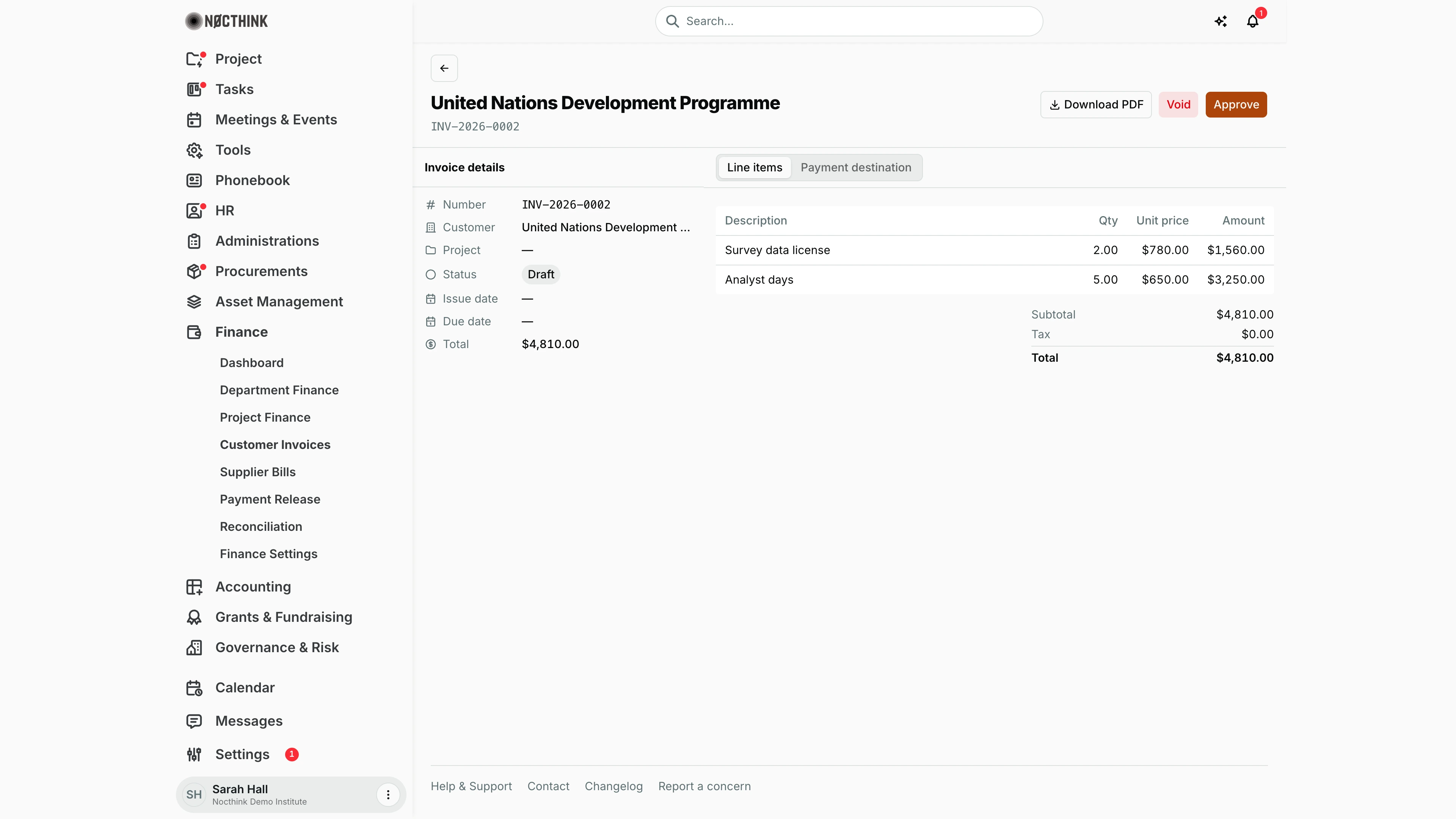
Clicking an invoice opens it. The header shows the customer and invoice number and the buttons for its status: Download PDF always; Void until it is paid or void (it asks for a reason); Approve while it is a Draft; Issue invoice once it is Approved.
Invoice details lists Number, Customer, Project, Status, Issue date, Due date and Total. The Line items tab shows Description, Qty, Unit price and Amount, then Subtotal, Tax and Total. Notes holds anything entered on the invoice.
Approving is a second person's job: the creator of an invoice cannot approve it.
Customer invoice — Payment destination
Screenshot: Sarah Hall (Finance Manager), Nocthink Demo Institute demo data.
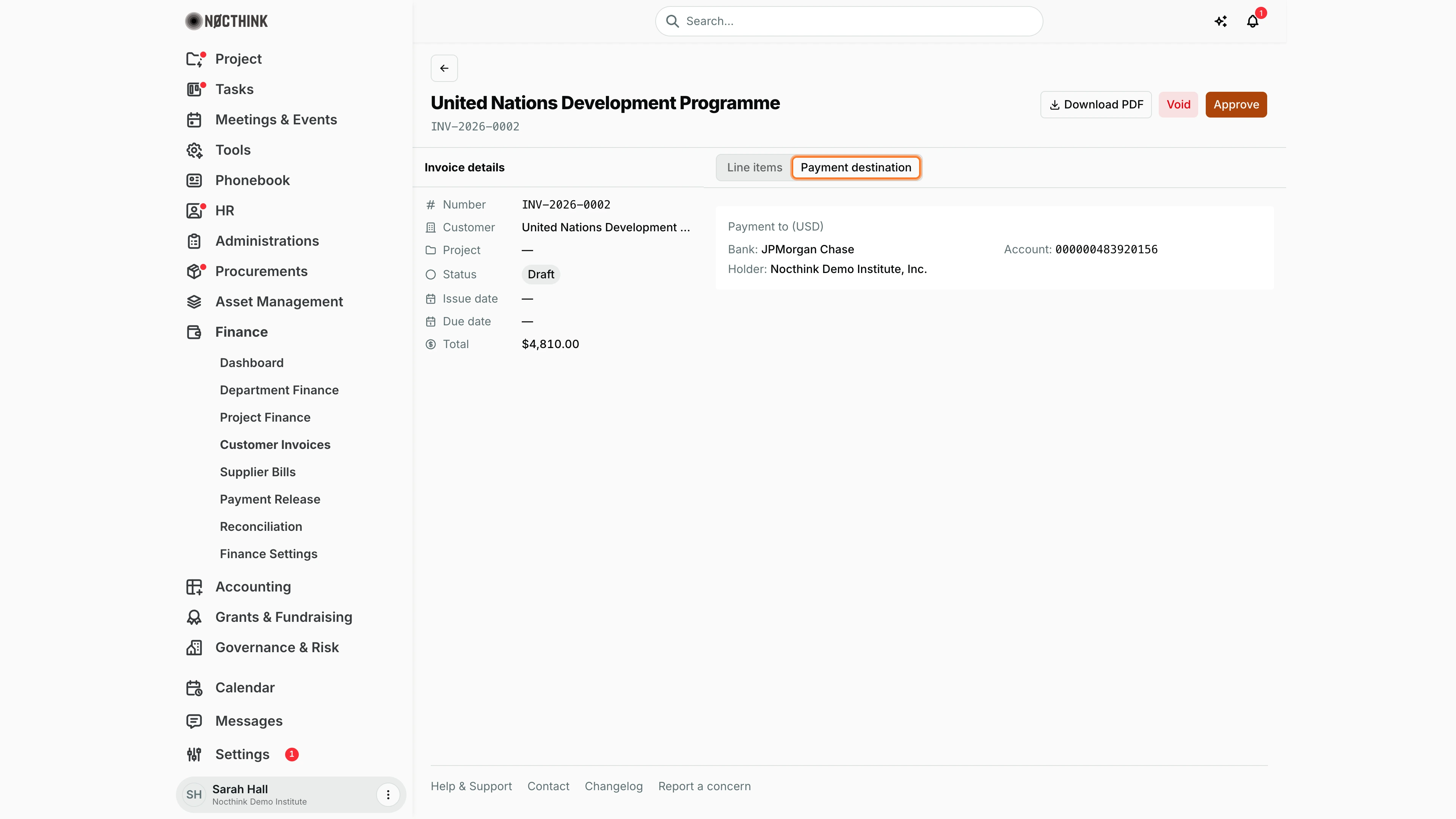
Payment destination shows the bank account printed on the invoice: the default active account in the invoice's currency from Finance Settings — Bank, Account, Holder. If no active account exists in that currency, the tab is not shown and the PDF has no payment details, so I check it before issuing.
Changing the default account for a currency in Finance Settings changes what this tab and the PDF show for every invoice in that currency.
New receivable invoice
Screenshot: Sarah Hall (Finance Manager), Nocthink Demo Institute demo data.
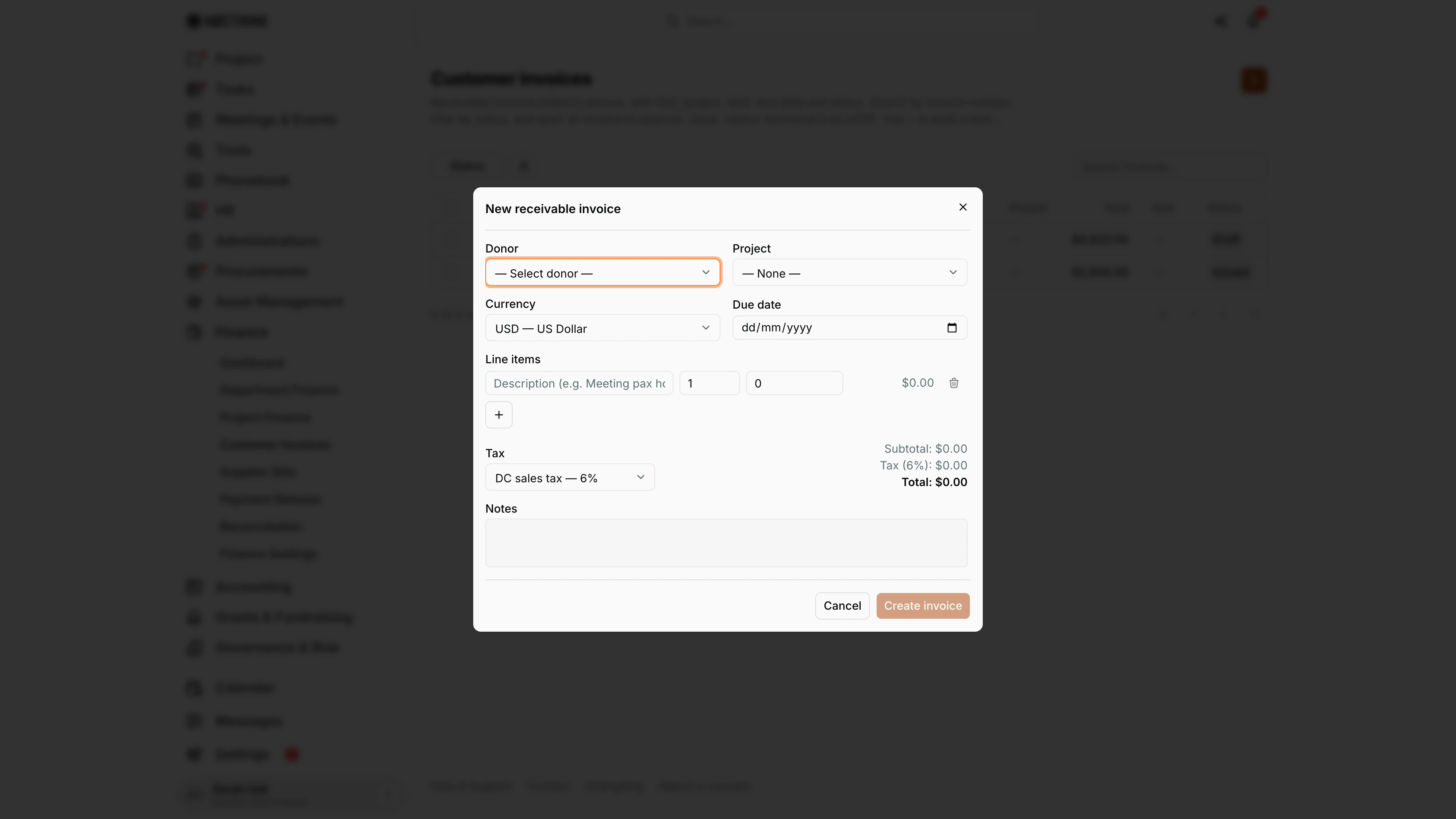
+ opens New receivable invoice: Donor ("— Select donor —"), Project ("— None —"), Currency and Due date. Line items starts with one row (description, quantity, unit price, amount) and + adds more. Tax defaults to the organization's default rate (here "DC sales tax — 6%"), and Subtotal, Tax and Total update as I type. Create invoice stays disabled until a donor is chosen; the invoice is saved as Draft with the next INV-<year>-NNNN number.
Access & permissions
- Visible to anyone with
finance.view(Owner, Director, Finance Staff, Finance Manager, F.A.T Manager, Accounting Staff — the accounting-staff role holdsfinance.view); the API also requires finance authority. - Creating a draft needs
finance.create; Issue invoice needsfinance.update; Approve and Void needfinance.approve(Finance Manager, F.A.T Manager, Owner). - Separation of duties: the creator of an invoice, or anyone who changed its amount-bearing fields, cannot approve it.
Caveats
- Only lines with a description are saved; blank rows are ignored. At least one described line is required, and quantity and unit price cannot be negative. Approval additionally requires a total greater than zero.
- An invoice can only be changed while it is Draft. Once approved or issued it is immutable — void it and draft a new one.
- Invoices are never deleted; the API rejects deletion ("Customer invoices are voided or credited, never deleted after creation").
- Paid and void invoices cannot be voided.
- Tax is calculated on the whole subtotal at the chosen rate when the draft is created and stored as an amount.
- Totals are shown in the invoice's own currency, not converted to the organisation's base currency. A new invoice defaults to the base currency.
- The issue date is stamped in UTC; dates are shown as "Oct 25, 2026", and a due date never shifts with my time zone.
Limitations
- No edit form for a draft in the UI; to change a draft I have to void it and create a new one (the API allows editing drafts, but no screen uses it).
- No way to record a payment or mark an invoice Paid / Partially paid / Sent / Overdue from this page; the list only displays those statuses.
- The Status filter has no Approved or Partially paid option, so approved-but-not-issued invoices cannot be filtered (use the dashboard queue).
- No credit-note screen, no email sending from the app, no bulk actions on the selected rows, no export.
Related menus
- Dashboard — lists drafts awaiting approval and approved invoices ready to issue.
- Project Finance — the project an invoice is billed for.
- Supplier Bills — the payable side (invoices from vendors); same page as Procurements › Invoices.
- Payment Release — outgoing payments; same page as Procurements › Payments.
- Reconciliation — matching donor receipts on the bank statement.
- Finance Settings — currencies, tax rates and bank accounts used in the dialog, PDF and Payment destination tab.