
Project Finance
Open in NocthinkModule: Finance · URL: /finance/projects · Responsible role: Finance Staff (write) / Finance Manager (full) · Also used by: Owner/Director (full), F.A.T Manager (full), Accounting Staff (read); Project Managers see their own project's finance from the project page, not this menu
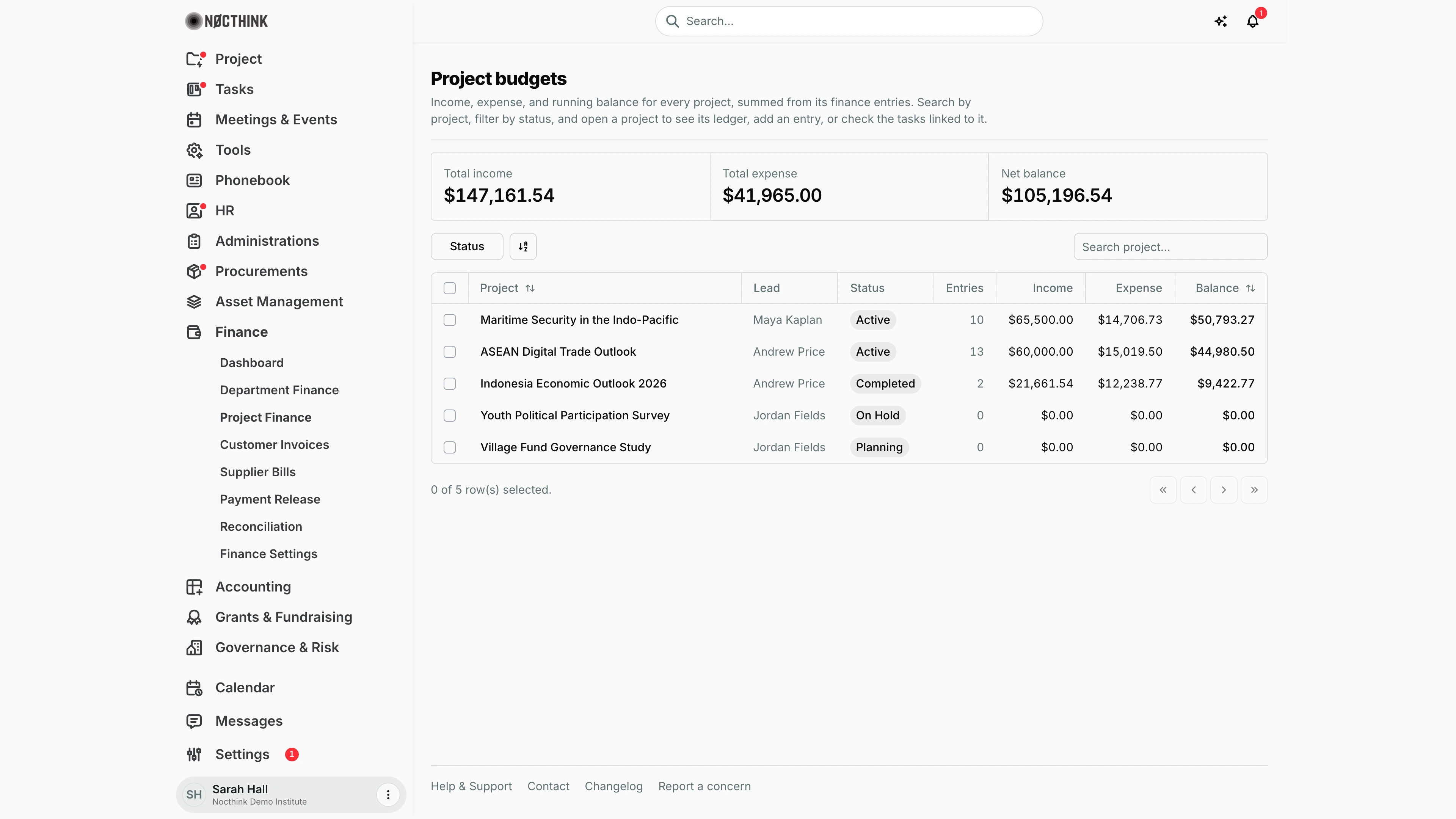
Screenshot: Sarah Hall (Finance Manager), Nocthink Demo Institute demo data.
Why I use this page
This is where I check each project's money: what has been received, what has been spent, and what is left. I open it weekly to spot projects running low or into deficit, before releasing a payment against a project, and whenever a programme lead asks for their balance. From a project row I go into its ledger to read every entry or to log an income or expense entry.
What's on the screen
- Header — title Project budgets with a short description. There is no create button on the list itself.
- Summary cards — Total income, Total expense, Net balance (highlighted when negative), summed over every project. Amounts are in the organisation's base currency (e.g.
$147,161.54). - Toolbar — Status filter (Active, Planning, On Hold, Completed, Archived), a sort/column button, and the search box Search project….
- Table — a checkbox column, Project (name links to the project's finance page; sortable), Lead (the project lead's name, "—" when there is none), Status pill, Entries, Income, Expense, Balance (sortable). Projects are ordered by balance, highest first.
- Footer — "n of m row(s) selected" and pagination.
Project finance detail (/finance/projects/<id>)
- Back link (Project budgets), the project name, its number and "n transactions".
- Buttons Open project (goes to the project page) and + (Add entry).
- Left rail Finance summary — Principal (project lead), Status, Income, Expense, Net balance, Linked tasks (project vs event-tagged count).
- Tabs All transactions (n), Income (n), Expense (n), Linked tasks (n).
- Transaction tabs: search Search description, category…, a type dropdown (All types / Income / Expense, only on All transactions), All categories dropdown and an entry count; table columns Description (with date and ledger underneath), Debit (expense), Credit (income) and running Balance, oldest first.
- Linked tasks tab: Task, Due, Status, with Search tasks….
How I …
How I find projects that are running out of money
- Open Finance › Project Finance.
- Click the Balance header to sort ascending; negative balances come first.
- Use Status › Active to hide finished and planned projects.
- Click the project name to open its ledger and check the most recent Expense entries.
How I log an income or expense entry for a project
- Open the project from the list (see Project finance detail below).
- Click + (Add entry) at the top right. The Add finance entry dialog opens (see Add finance entry below).
- Fill in Description (required) and Amount (required, greater than zero).
- Choose Type — Expense (default) or Income.
- Choose the Ledger: General Ledger (default), Project Ledger, Event Budget Ledger, Expense Ledger, AP/AR Ledger, Procurement Ledger, Grant Ledger, Asset Ledger, Cash/Bank Ledger or Audit Ledger.
- Optionally enter Category (e.g. Travel, Supplies) and Date.
- For an expense, optionally enter the Donor budget code (the line code from the donor's budget, e.g. A.1.2, max 50 characters).
- Click Save. The entry appears in the ledger and the project activity log records it. If the project has exactly one fund, the entry is attached to that fund automatically.
- A new entry starts with approval status pending; the status and Approved by are visible in the expense detail on the project page (Open project).
How I reconcile a project's balance with a donor report
- Open the project and stay on All transactions.
- Pick the category in All categories, or search by description.
- Read the running Balance column down to the report date.
- Switch to the Expense tab to total only spend, and compare with the donor budget lines.
- Click Open project if I need fund tranches, documents or the approval status of an entry.
How I check what work a project's money is tied to
- Open the project and click Linked tasks (see Project finance — Linked tasks tab below).
- Search with Search tasks… and check Due and Status before approving spend against an activity.
Detail page, forms & dialogs
Project finance detail
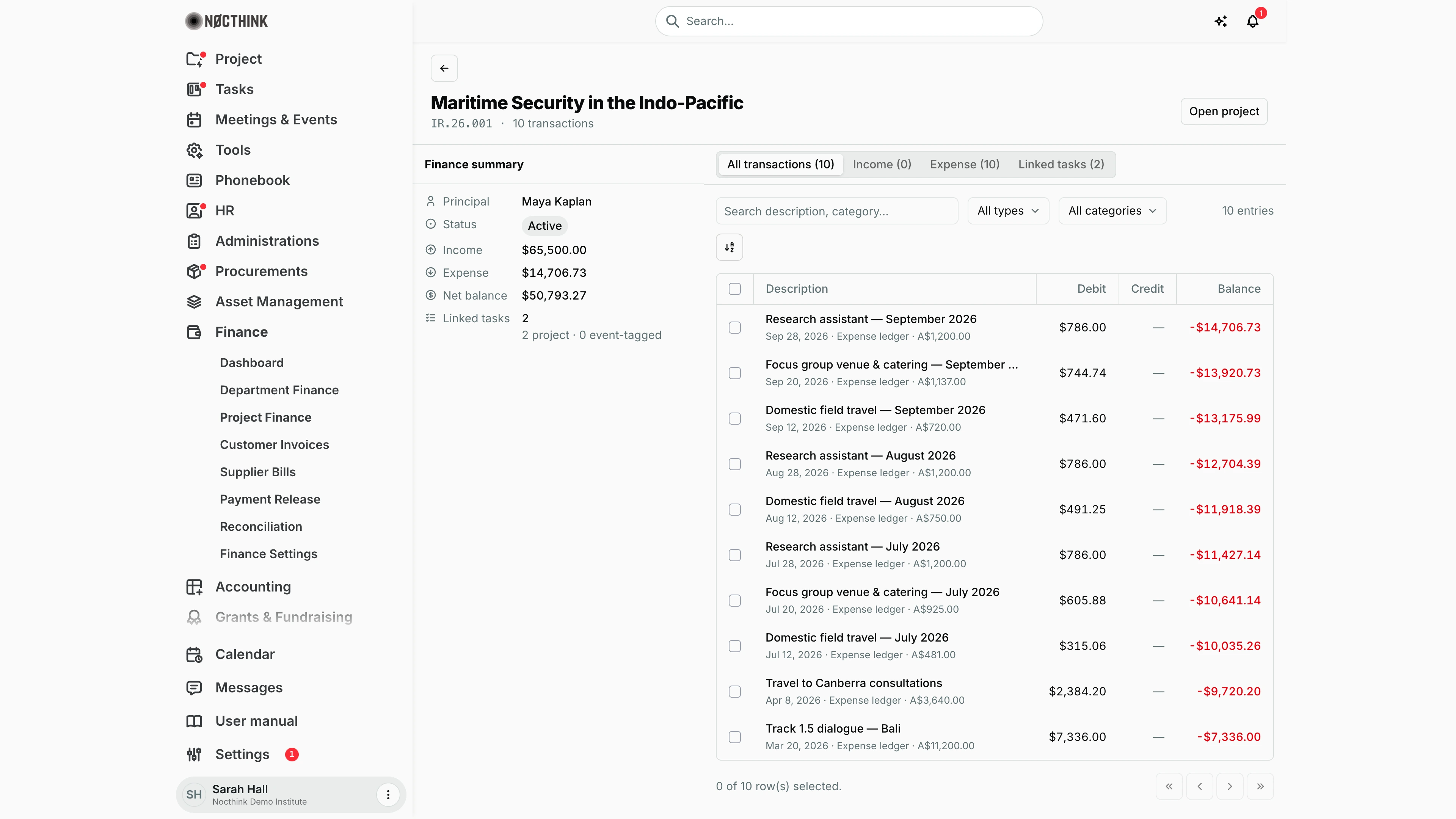
Screenshot: Sarah Hall (Finance Manager), Nocthink Demo Institute demo data.
Clicking a project opens its ledger. The header shows the project name, number and transaction count, Open project (the full project page) and, for people who can add entries, an orange + (Add entry).
Finance summary on the left lists Principal, Status, Income, Expense, Net balance and Linked tasks (split into project and event-tagged tasks). The tabs are All transactions, Income, Expense and Linked tasks, each with a count. The ledger table has Description, Debit, Credit and a running Balance, with a search box and All types / All categories filters.
Finance staff who hold no role on the project can still read its ledger (the same projects they see in the list), but + (Add entry) is hidden for them: entries are added by the project team. If the ledger can't be read, the page says "You can't view this project's finances" with the reason instead of showing zeros.
Project finance — Linked tasks tab
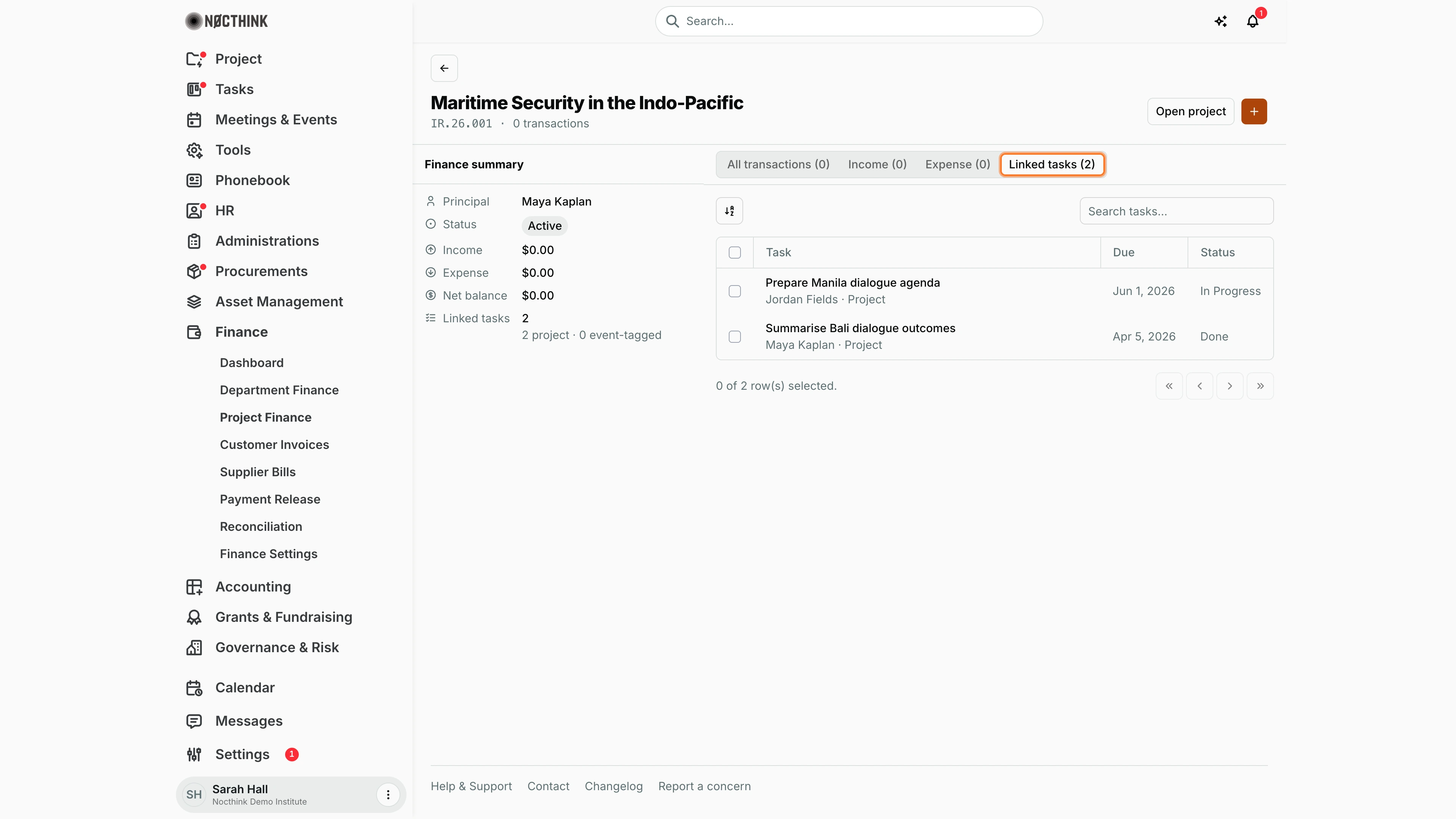
Screenshot: Sarah Hall (Finance Manager), Nocthink Demo Institute demo data.
Linked tasks lists the tasks tied to the project, with the assignee and whether it is a project or event task, the Due date and the Status. Search tasks… filters by title. I check this tab before approving spend against an activity: a task still In Progress past its due date is a reason to ask questions.
The tab is read-only; tasks are created and updated on the project itself (Open project).
Add finance entry
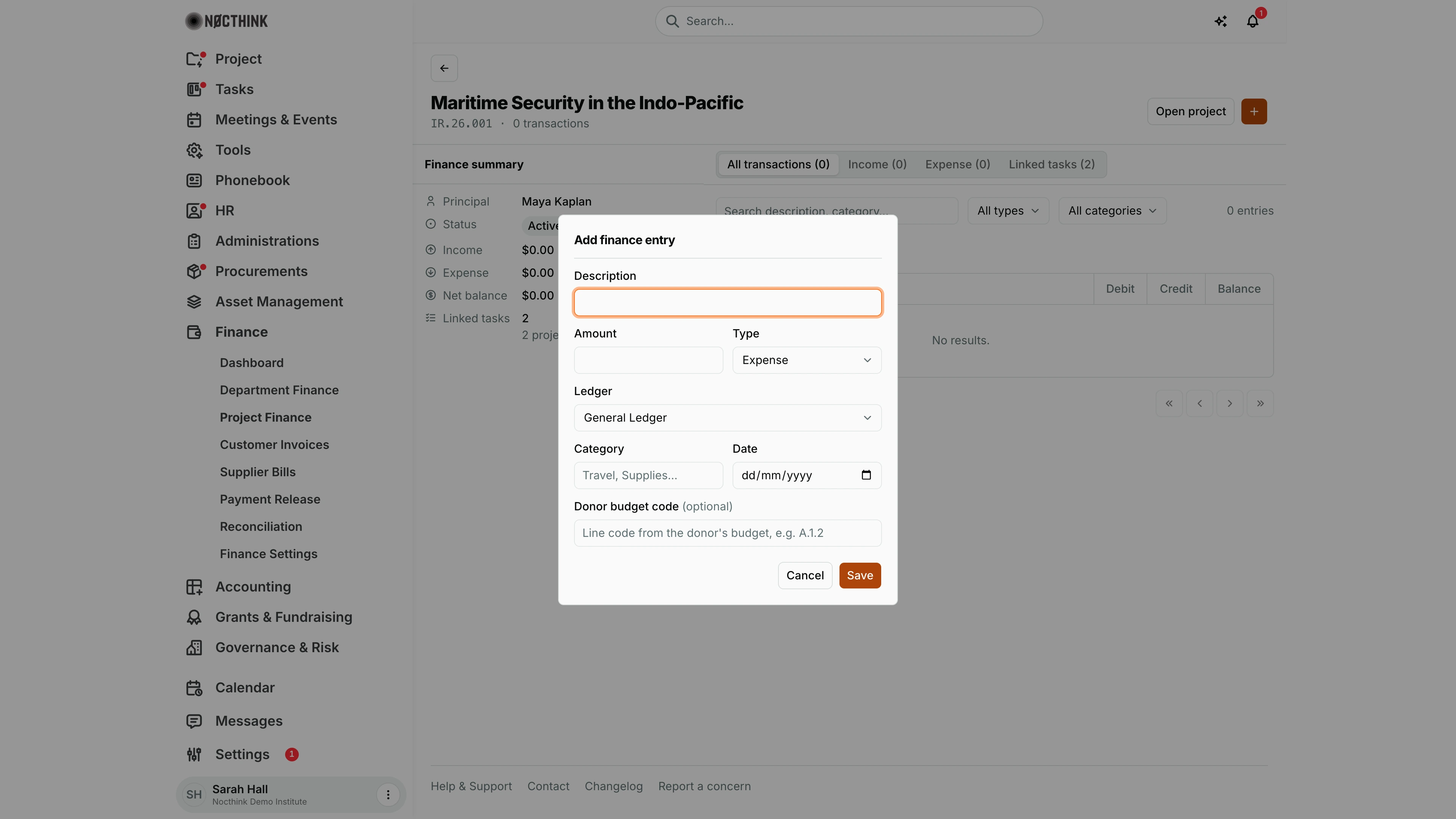
Screenshot: Sarah Hall (Finance Manager), Nocthink Demo Institute demo data.
+ (Add entry) opens Add finance entry: Description, Amount, Type (Expense by default, or Income), Ledger (General Ledger by default), Category ("Travel, Supplies..."), Date and the optional Donor budget code ("Line code from the donor's budget, e.g. A.1.2"). Save adds the entry to the ledger as pending; Cancel closes.
Description and Amount (above zero) are required. Ledger offers General Ledger, Project Ledger, Event Budget Ledger, Expense Ledger, AP/AR Ledger, Procurement Ledger, Grant Ledger, Asset Ledger, Cash/Bank Ledger and Audit Ledger. Saving is checked against my role on the project's financial module, not only my Finance role, so I need to be on the project team.
Access & permissions
- The menu is visible to anyone with
finance.view(Owner, Director, Finance Staff, Finance Manager, F.A.T Manager, Accounting Staff — the accounting-staff role holdsfinance.view); the summary API also requires finance authority. - Adding an entry is checked against my project role on that project's financial module, not only my Finance role. Finance authority automatically gives me full rights on the project's funds module, but if I am not on the project team with a role that allows creating financial entries, Save returns "Your project role does not allow 'create' on the financial module of this project". The project lead or an org admin can grant it.
- Project Managers do not get this menu (
/finance/*needs finance authority); they use the project's Finance tab instead (role.md §4.4 note 4).
Caveats
- Income on both the list and the detail rail is the sum of received fund tranches (disbursements), converted to the organisation's base currency — not the sum of income entries I log here. An income entry shows in the ledger's Credit column but does not raise the Income card or Balance column unless a matching tranche is received.
- Expense, and the ledger's Debit/Credit/Balance, use each entry's amount converted to the base currency; an entry in another currency also shows its original amount under the description.
- The dialog has no currency field: entries are recorded in the project's currency.
- Projects that are On Hold, Completed or Archived are locked: adding an entry fails with "This project is paused/ended/suspended. Start it again before making changes."
- The API refuses an expense approval by its creator or by anyone who edited its amount (separation of duties).
- Dates are shown as "Oct 25, 2026"; entries without a date sort by creation time.
Limitations
- The search box matches the project name only, not the lead.
- No edit, delete, approve/reject or receipt upload for entries on this page (the API supports them, but this page only adds entries); open the project for anything beyond adding.
- The row checkboxes have no bulk action attached.
- No export or print.
Related menus
- Dashboard — organisation totals and top projects by balance (same data source).
- Department Finance — the same project entries rolled up per department.
- Customer Invoices — invoices to donors can be tied to a project.
- Supplier Bills and Payment Release — supplier spend that is fund-approved per project before release (see also Procurements › Payments).
- Finance Settings — currencies and master budget used by project entries.