
Department Finance
Open in NocthinkModule: Finance · URL: /finance/departments · Responsible role: Finance Staff (write) / Finance Manager (full) · Also used by: Owner/Director (full), F.A.T Manager (full), Accounting Staff (read)
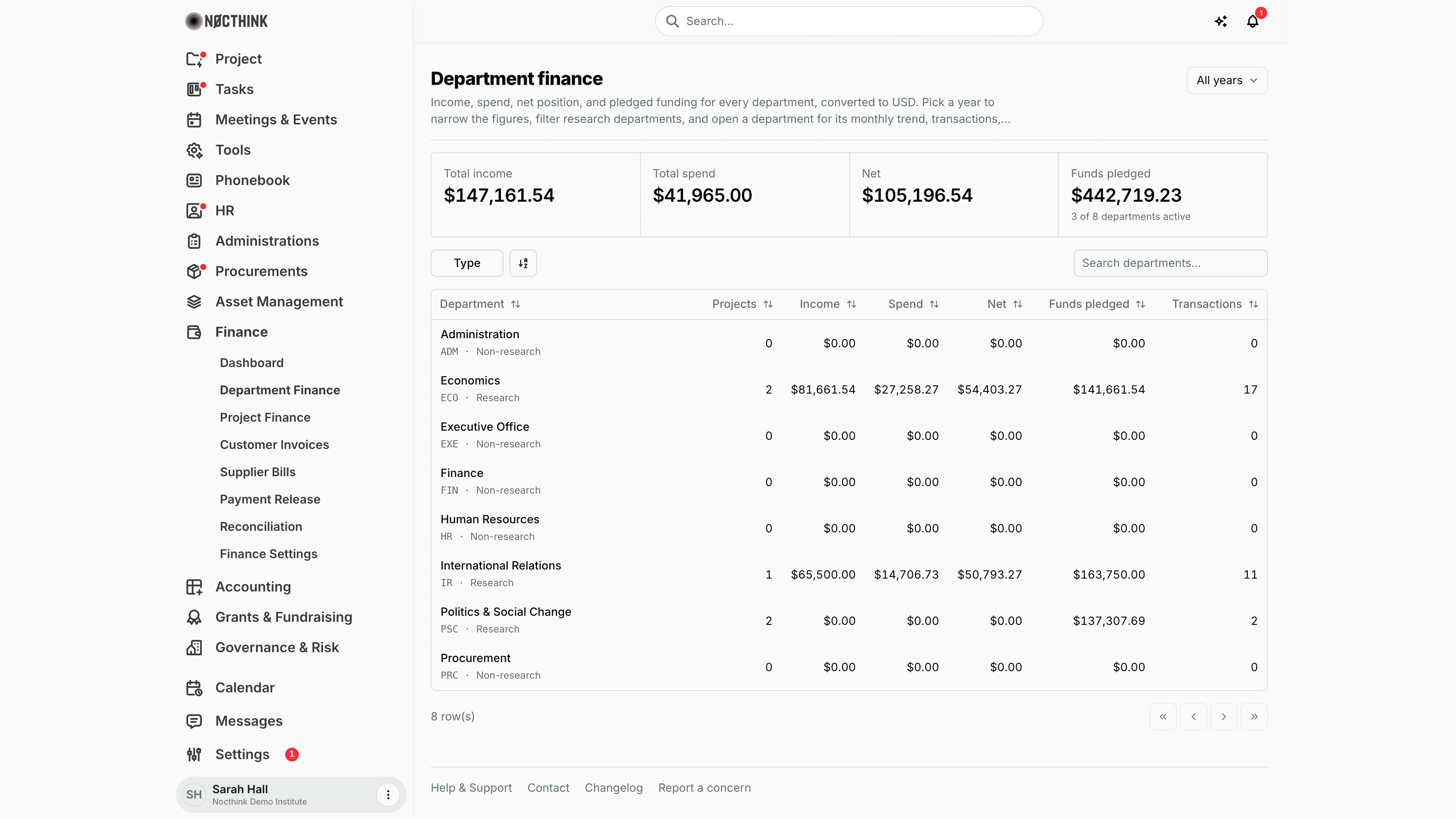
Screenshot: Sarah Hall (Finance Manager), Nocthink Demo Institute demo data.
Why I use this page
I use this page when someone asks "how is department X doing?" — typically for the monthly management pack, the annual budget round, or when a research director wants to know how much of their pledged funding has been spent. It rolls project money up to the departments that own the projects, converted to one currency, so I can compare departments side by side and drill into one for its trend, transactions and projects.
What's on the screen
- Header — title Department finance, a subtitle naming the conversion currency ("converted to USD"), and a year dropdown in the top right (All years plus the current year and the four before it).
- Summary cards — Total income, Total spend, Net (red when negative) and Funds pledged, with a note "x of y departments active" (a department is active when it has any entries or funds).
- Shared-project note — when a project is linked to more than one department, a line under the cards says so (see Caveats). It is not shown in the screenshot because no project is shared.
- Toolbar — Type filter (Research / Non-research), a sort/column button, and Search departments... (matches the department name).
- Table — columns Department (name, with code and Research/Non-research underneath; the name links to the department), Projects, Income, Spend, Net (red when negative), Funds pledged, Transactions. Every column header sorts. Hover a Transactions number to see the split: project entries · funds · journals · requisitions.
- Footer — row count and pagination arrows.
Department detail (/finance/departments/<id>)
Clicking a department opens a page with:
- Back link to Department finance, the department name and the same year dropdown.
- Left rail Department details — Code, Type, Head, Parent, Employees, About, Created; then Financial activity — Funds (pledged amount and fund count), Projects, Transactions (entries · journals · requisitions).
- Tabs:
- Overview — Income, Spend, Net cards and a Monthly / Yearly income vs spend bar chart with a Monthly/Yearly toggle. Months with no entries are filled in as zero so gaps are visible.
- Transactions (n) — table with Date, Description (project and source shown underneath), Amount (sign shows direction) and Status; filters Source (Project entry, Fund / grant, Journal, Requisition), Type (Income/Expense), Project, Status, and Search transactions....
- Projects (n) — Project (with number and status; links to the project), Income, Spend, Net, Entries.
How I …
How I compare departments for a given year
- Open Finance › Department Finance.
- Pick the year in the dropdown at the top right. The cards and table reload for that year.
- Click the Net header to sort; departments in deficit show in red.
- To see research units only, open Type and tick Research.
How I review one department's spending
- Click the department name in the table (see Department finance detail below).
- On Overview, check the Income / Spend / Net cards and switch the chart between Monthly and Yearly.
- Open the Transactions tab (see Department finance — Transactions tab below). Use Type › Expense and, if needed, Project to narrow the list; type in Search transactions... to find a description.
- Open the Projects tab to see which project drives the spend, and click the project name to go to its project page.
- Use Back (Department finance) to return; the year selection is per page, so set it again on the list if you changed it on the detail.
How I check pledged funding against spend
- On the list, sort by Funds pledged.
- Compare Funds pledged with Spend for each department; hover Transactions to see how many fund records are behind the pledge.
- For the per-fund detail, open the department and filter Transactions by Source › Fund / grant.
Detail page, forms & dialogs
Department finance detail
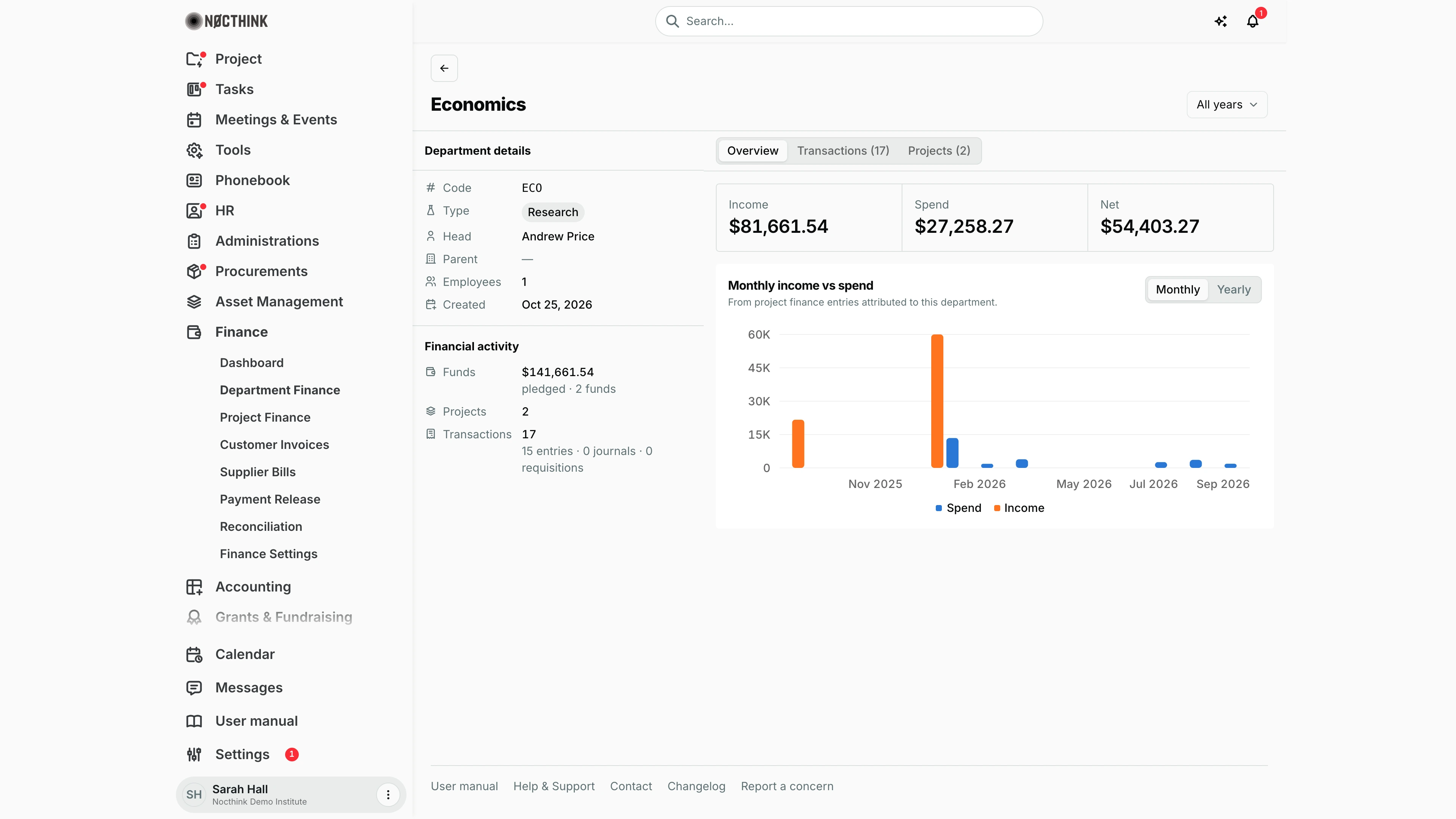
Screenshot: Sarah Hall (Finance Manager), Nocthink Demo Institute demo data.
Clicking a department opens its finance page. The header has the department name and a year picker (All years or a single year) that recalculates everything on the page.
The left column shows Department details (Code, Type, Head, Parent, Employees, Created) and Financial activity: Funds (the amount pledged and how many funds), Projects, and Transactions with the split into entries, journals and requisitions.
The Overview tab has three cards, Income, Spend and Net, in the organization's base currency, and the Monthly income vs spend chart ("From project finance entries attributed to this department."), which switches between Monthly and Yearly. A department with no dated entries shows "No dated finance entries for this department.".
Department finance — Transactions tab
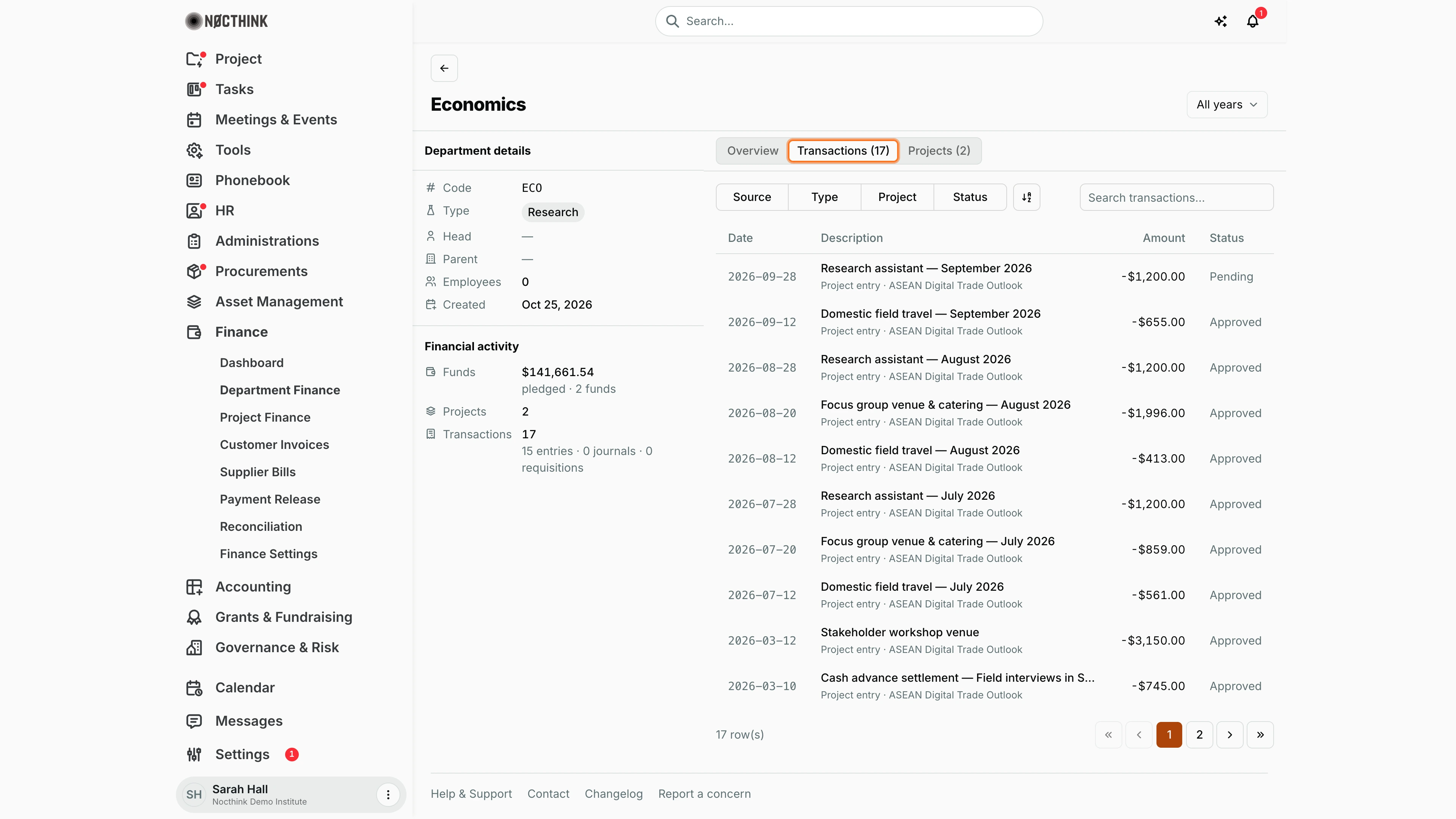
Screenshot: Sarah Hall (Finance Manager), Nocthink Demo Institute demo data.
Transactions lists everything charged to the department's projects: Date, Description (with the source, e.g. "Project entry", and the project underneath), Amount (spend in negative) and Status (Pending, Approved). The toolbar has filters for Source, Type (Income / Expense), Project and Status, a sort control and Search transactions....
I use the Pending status filter to see spend that has not been approved yet, and the Project filter to find which project drives the total.
Department finance — Projects tab
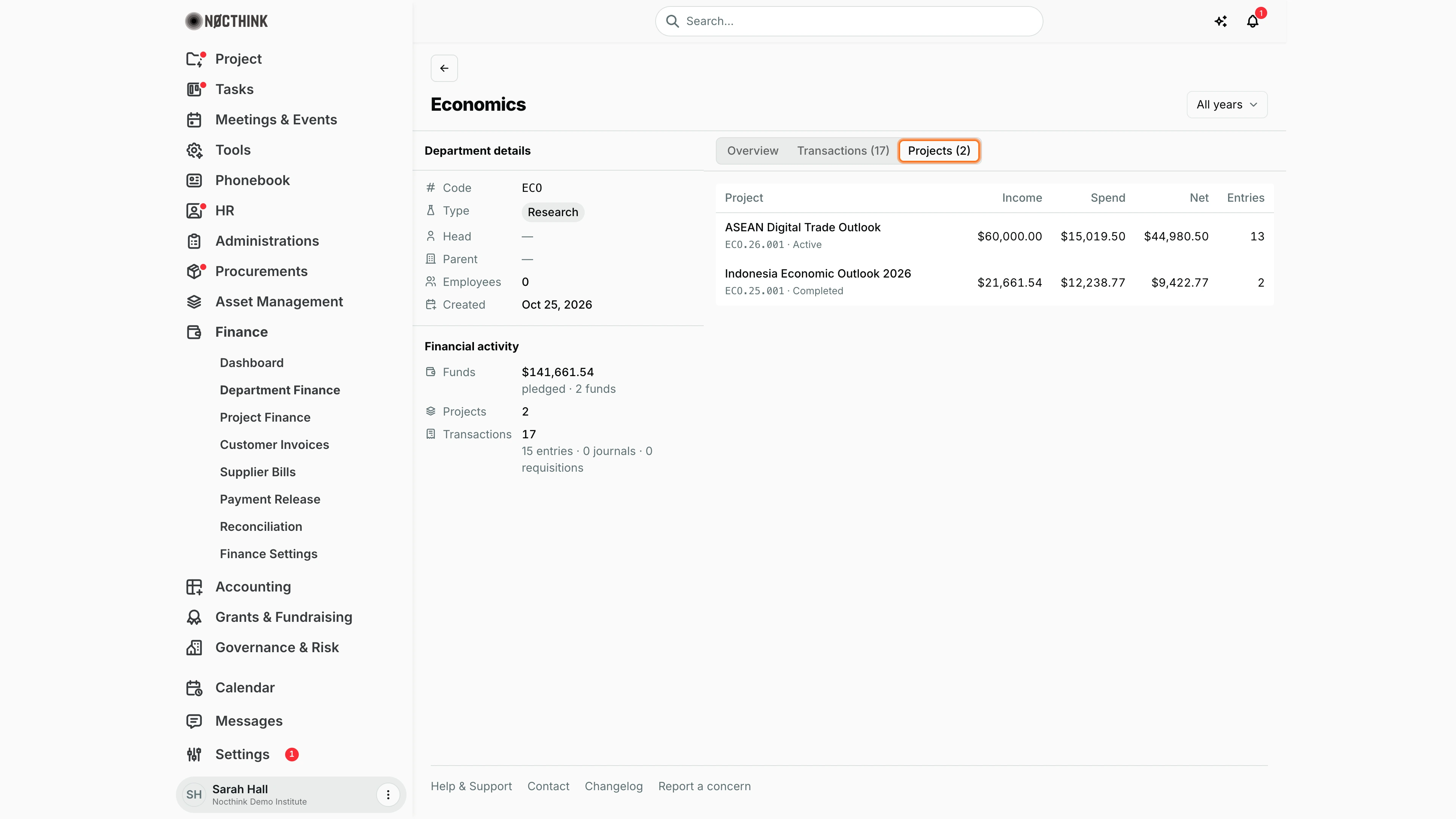
Screenshot: Sarah Hall (Finance Manager), Nocthink Demo Institute demo data.
Projects lists the department's projects with their number and status, and for each one Income, Spend, Net and Entries. The project name links to the project page. Here the active ASEAN Digital Trade Outlook carries most of the department's income and spend.
The figures follow the year picked in the header.
Access & permissions
- Visible to anyone with
finance.view: Owner, Director, Finance Staff, Finance Manager, F.A.T Manager, Accounting Staff (the accounting-staff role holdsfinance.view). The API also requires finance authority (financemenuview), so accounting users without a finance role are refused the data. - The page is read-only for everyone — there are no create/edit actions here, whatever my role. Entries are added on Project Finance or on the project itself.
Caveats
- Income is received grant money. A department's income is the received tranches of its projects' funds, converted to the base currency — the same figure Project Finance shows per project, so the department incomes add up to Project Finance's total (unless a project is shared, below). Expected tranches and pledges are not income; they appear under Funds pledged. Project finance entries typed income are not counted, as on Project Finance. Departments have no income of their own outside their projects.
- Money reaches a department only through projects linked to it. A department with no linked projects (e.g. Finance, HR in the screenshot) always shows zero.
- If a project is linked to several departments, each department is credited the full amount, so the card totals exceed the organisation total. The shared-project note warns about this.
- All amounts are converted server-side to the organisation's base currency (each entry's stored converted amount; the original amount is used only if no conversion was stamped). The subtitle names the base currency, and figures are printed in it (e.g.
$1,250.00); a foreign-currency transaction also shows its original amount underneath. - The year filter uses the tranche received date for income, the entry date for spend and the fund agreement date for pledges. Entries without a date are excluded once a year is picked.
- Projects counts only projects with entries, funds or received tranches in the selected period, not every linked project.
- On the detail page the Transactions tab lists fund records (Source Fund / grant) at their pledged amount and agreement date; it is the record of what was pledged, not of each tranche received.
Limitations
- Journal entries and requisitions are not yet rolled up: their totals and counts are always 0 (the API notes they will be added when those modules feed in).
- No export, print or download.
- Only the last five years are offered in the year dropdown; there is no custom date range.
- No budget-vs-actual per department here; use Accounting › Budget vs Actual.
Related menus
- Dashboard — organisation-wide totals and the approval queue.
- Project Finance — the project ledgers these figures are summed from.
- Customer Invoices — receivables billed to donors per project.
- Supplier Bills and Payment Release — the supplier-side spend (also under Procurements › Invoices and Procurements › Payments).
- Finance Settings — currencies used for the conversion.