
Supplier Bills
Open in NocthinkModule: Finance · URL: /procurements/invoices · Responsible role: Finance Staff (write) / Finance Manager (full) · Also used by: F.A.T Manager (full), Owner/Director (full), Procurement Officer (read), Accounting Staff (read)
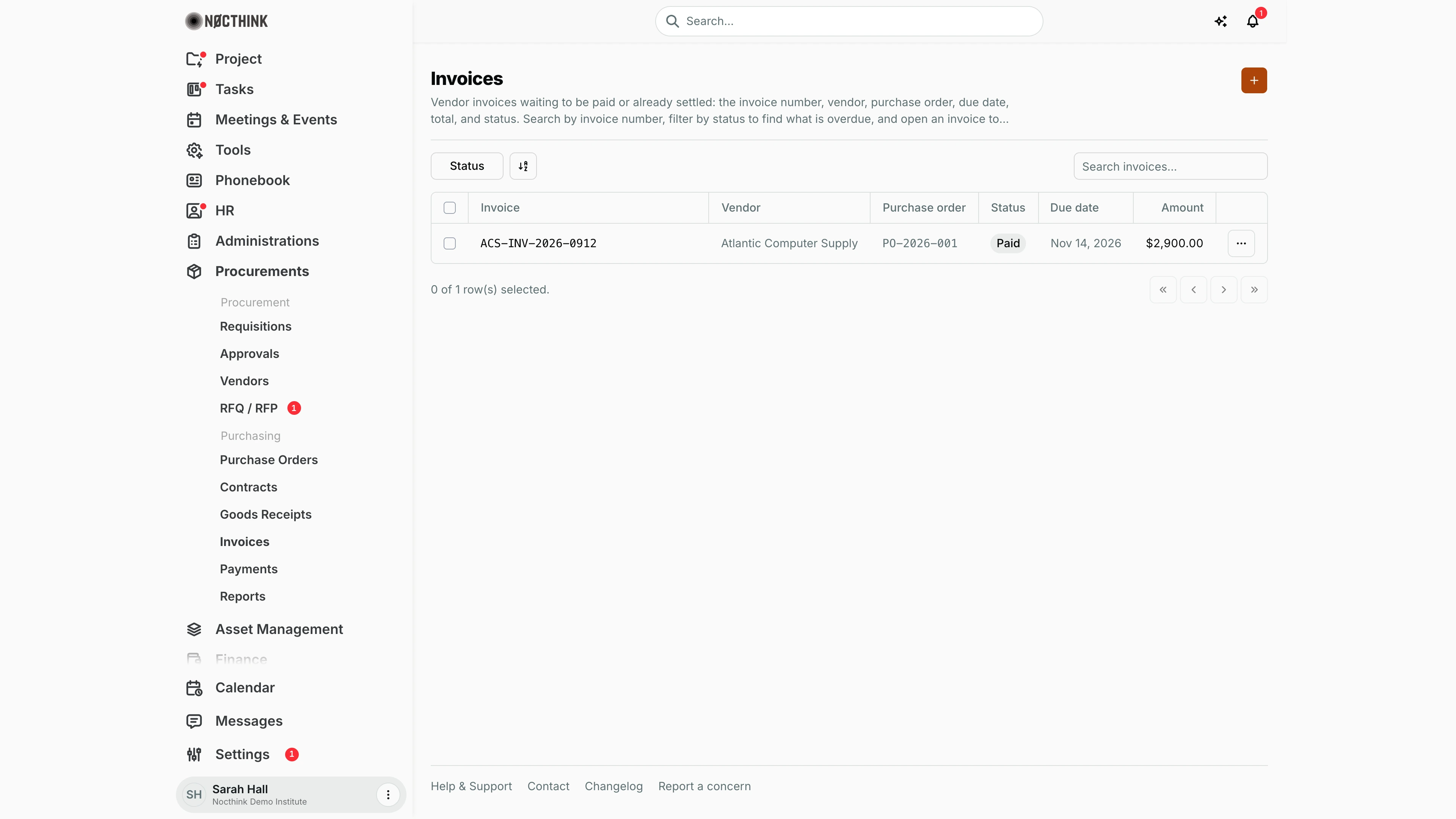
Screenshot: Sarah Hall (Finance Manager), Nocthink Demo Institute demo data. The menu opens the Procurements › Invoices page, which is why the sidebar shows Procurements expanded.
Why I use this page
Supplier Bills is my accounts-payable list: every bill a vendor has sent us, whether it is still open, and whether it is safe to pay. I open it from the Finance sidebar at the start of each payment run and at month-end. I check three things there: what is Overdue, what is matched, and what is still waiting on Procurement. Finance Staff enter and check the bills; as Finance Manager I make sure nothing is paid that hasn't matched its PO and goods receipt. It is the same page as Procurements › Invoices, which documents the procurement-side detail.
What's on the screen
- Header: Invoices (the page title is not "Supplier Bills"), a description, and the orange + button (aria label "New invoice").
- Toolbar: the Status filter (Pending, Approved, Paid, Overdue, Cancelled), a column/sort control, and Search invoices... (invoice number only).
- Table:
- Invoice: links to the detail page.
- Vendor: the column is wide enough for most vendor names; very long ones are cut short with "…".
- Purchase order.
- Status: Overdue is shown in red.
- Due date: sortable; red when overdue. Shown as "Nov 14, 2026", like other dates in the app.
- Amount: the total, in the bill's (purchase order's) currency.
- ⋯: Approve, Edit and Delete while the bill is Pending; on any other status it only offers Open invoice.
- Footer: row-selection count and paging.
The demo shows one bill: ACS-INV-2026-0912, Atlantic Computer Supply, PO-2026-001, Paid, due Nov 14, 2026, $2,900.00 (the amount is in the purchase order's currency, USD here).
Opening a bill shows:
- The Approve button (Pending bills) and the Record payment button (Approved, matched bills).
- The Invoice details rail: Invoice #, Vendor, Purchase order, Goods receipt, Due, Paid, Status, Match, Created, and Amounts.
- The 3-way match tab, with the Purchase order / Goods receipt (received value) / Invoice totals, the PO = Invoice, GRN = Invoice and PO = GRN pills, and Re-check.
- The Notes and Summary tabs.
How I …
How I review the open bills before a payment run
- Click Finance › Supplier Bills.
- Click Status, tick Pending and Overdue.
- Sort Due date ascending.
- Open each bill (see Detail page, forms & dialogs below) and read Match in the left rail:
- 3-way matched: ready to pay.
- Match failed: the totals differ. Send it back to Procurement, giving the totals shown in the match table.
- Not matched: the PO or goods receipt is not linked yet; ⋯ › Edit and pick them.
- After Procurement corrects the PO or receipt, click Re-check on the 3-way match tab.
- For a matched Pending bill, click Approve and confirm. It becomes Approved, and the accrual is posted for accounting.
How I enter a vendor bill (Finance Staff)
- Click +.
- Fill in:
- Invoice number: required, unique, at most 50 characters.
- Vendor: required.
- Due date: required.
- Purchase order: needed for any match; it sets the vendor.
- Goods receipt: an accepted receipt of that PO. Its lines become the bill's lines, and Amount and Total are filled in from them.
- Tax and Total: check them against the paper bill (Total = Amount + Tax).
- Notes: optional.
- Click Create. The bill is stored as Pending and matched straight away.
How I check overdue exposure at month-end
- Filter Status to Overdue.
- Sort by Amount to see the largest first.
- For the full unpaid count and amount, use Procurement Reports or the Finance Dashboard.
How I hand a matched bill to payment
- Open the bill. Record payment is enabled only when the bill is Approved and 3-way matched.
- Click it and continue on Payment Release. The bill is already selected on the new-payment form.
Detail page, forms & dialogs
Supplier Bills opens the same page as Procurements › Invoices, so its screens are documented once, there:
- Invoice detail — the bill page with Approve, Record payment, the left rail and the 3-way match tab: see Invoices › Invoice detail.
- New invoice — the dialog behind +: see Invoices › New invoice.
The demo data has one bill, already Paid, so the Approve button and the row menu's Edit are not shown in those screenshots; both appear on any Pending bill.
Access & permissions
- Menu and route: the Finance menu appears with
finance.view(now including Accounting Staff). The route itself acceptsfinance.view,accounting.vieworprocurements.approve. - What I see: with finance authority (Finance department membership,
finance.approve, or the finance-staff, finance-manager or fat-manager role) or accounting authority (accounting.approve, or the accounting-staff or fat-manager role) I see every bill in the organization. Without it, only bills on requisitions I can see. - Writing:
- Entering, editing and deleting a Pending bill need
procurements.create/update/delete, or finance authority, so Finance Staff enter bills without the Procurement role. Accounting authority is read-only. - Approving a bill needs
procurements.approve(held by the seeded finance roles), and the person who received the goods can't approve the related bill.
- Entering, editing and deleting a Pending bill need
- Matrix: docs/role.md gives Finance Staff W, the Finance Manager and F.A.T Manager F, Procurement and Accounting R.
Caveats
- Only Pending bills can be edited or deleted. An approved bill is immutable ("Approved invoices are immutable; use a lifecycle action."), and a bill with payments can't be deleted. Errors are shown in an alert.
- Status moves through actions. New bills start Pending; Approve makes them Approved, and Paid is set only by the payment release that clears the balance.
- Approval feeds accounting. It posts an accrual (expense, tax, payable) in the PO's currency, which becomes a draft journal for F.A.T.
- Amounts are in the bill's currency (its purchase order's currency).
- Matching needs the links. A bill without a purchase order and an accepted goods receipt shows Not matched and can't be approved.
Limitations
- No ageing buckets, vendor statement, or export on this page.
- Search covers the invoice number only.
- No Cancel or Reverse action.
- No dedicated Finance-styled page: the menu reuses the procurement screen and title.
Related menus
- Procurements › Invoices: the same page, documented from the procurement chain.
- Payment Release: pay and release matched bills.
- Procurements › Purchase Orders and Goods Receipts: the other two legs of the match.
- Finance Dashboard: payables at a glance.
- Reconciliation: released payments show up on the bank statement.
- AI Workbench: where the accrual journal drafted on approval appears.