
Payments
Open in NocthinkModule: Procurements · URL: /procurements/payments · Responsible role: Finance Staff (full: prepares payments) · Also used by: Finance Manager and F.A.T Manager (full; final release), Owner/Director (full), project owners/managers and department managers (fund approval), Procurement Officer (read), Accounting Staff (read)
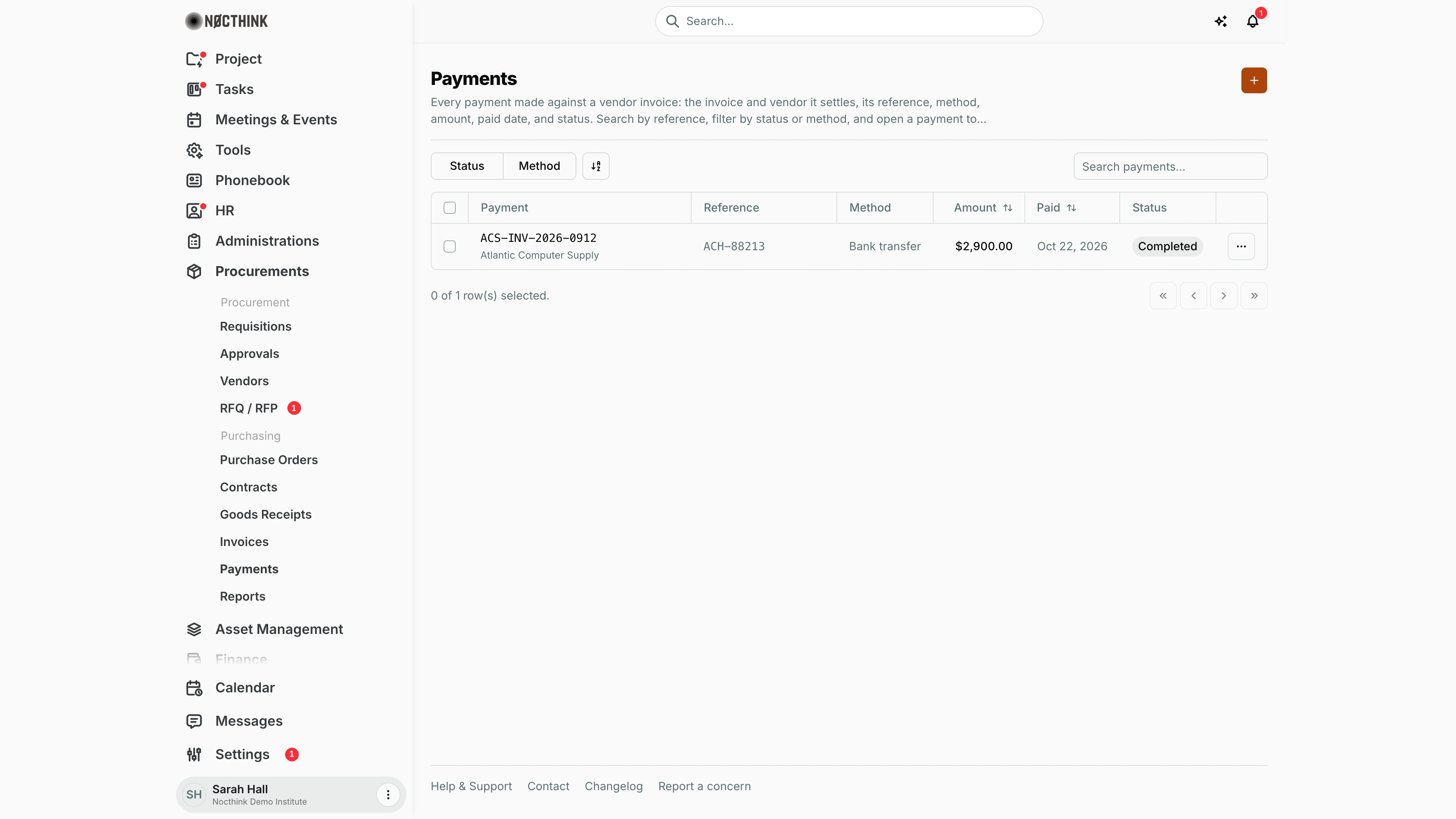
Screenshot: Sarah Hall (Finance Manager), Nocthink Demo Institute demo data.
Why I use this page
I use this page to prepare payments to vendors for invoices that have passed the 3-way match, and to follow each payment through its two sign-offs. First the owner of the budget approves the funds. Then the Finance Manager (or F.A.T Manager) gives the final release. I usually open it right after an invoice clears on Invoices, and before each payment run to see what is still Pending. From the Finance sidebar the same page is called Payment Release.
What's on the screen
- Header: the title Payments, a description, and the orange + button (aria label "New payment"), which opens the New payment dialog.
- Toolbar:
- Status filter: Pending, Completed, Failed, Refunded.
- Method filter: Bank transfer, Cash, Card, Check.
- A column/sort control.
- Search payments..., which matches the Reference only.
- Table columns:
- Payment: the invoice number with the vendor beneath it; click it to open the detail page.
- Reference: the bank or transaction reference.
- Method.
- Amount: sortable, in the payment's currency (its purchase order's currency).
- Paid: sortable; the release date.
- Status: a pill. Failed is shown in red.
- ⋯: Edit and Delete while the payment is Pending; on any other status it only offers Open payment.
- Footer: the selection count and paging. A bulk Delete (n) button appears when rows are ticked.
In the screenshot there is one completed payment: ACS-INV-2026-0912 to Atlantic Computer Supply, reference ACH-88213, Bank transfer, $2,900.00, paid Oct 22, 2026 (the currency comes from PO-2026-001).
Payment detail (/procurements/payments/<id>):
- The title is the reference (or the invoice number when there is no reference).
- Action buttons, which depend on the stage:
- Approve project funds: shown while the payment is Pending and funds are not yet approved.
- Final release: shown while it is Pending and funds are approved.
- Payment details rail on the left: Reference, Invoice (a link), Vendor, Amount, Method, Status, Paid, Created.
- Tabs: Notes, and Summary (Amount paid, Invoice total).
How I …
How I prepare a payment
- Click + (see New payment below), or use Record payment on an approved, matched invoice (see Record payment below) (that opens
/procurements/payments/newwith the invoice already selected). - Pick the Invoice (required). Only invoices that are Approved and 3-way matched are listed; Invoice total shows next to it.
- Enter the Amount (the full page fills it with the invoice total when you pick an invoice). It must be positive, and in total it cannot exceed the invoice balance; partial payments are allowed.
- Choose the Method: Bank transfer (the default), Cash, Check or Card.
- Enter the Reference, such as the transfer or cheque number (up to 100 characters), and any Notes.
- Click Create (or Create payment on the full page). The payment is saved as Pending with me as the preparer.
How funds get approved (project or department owner)
- The budget owner opens the payment (see Payment detail below) and clicks Approve project funds.
- A browser prompt asks for a "Fund release approval comment". The comment is optional.
- The server checks who is approving:
- If the requisition behind the PO belongs to a project, only that project's Owner or Manager can approve.
- If it belongs to a department, only that department's manager can.
- The Owner/Director can always approve.
- The preparer can never approve their own payment, and neither can anyone who changed its amount, method or reference.
- The preparer gets a notification: "Payment funds approved".
How I give the final release (Finance Manager / F.A.T Manager)
- Open a Pending payment that has funds approved, and click Final release.
- Type the "Required final release note". If you leave it empty, nothing is sent.
- If a grant rule is soft-breached (for example, outside the award period, or prior approval needed), a second prompt asks for a reason of at least 10 characters. That reason is recorded in the audit log. Hard grant breaches cannot be overridden.
- On success the payment becomes Completed with today's Paid date. A payment posting (payable and cash) is created for accounting, and the preparer is notified "Payment released". When completed payments reach the invoice total, the invoice turns Paid and the PO's budget commitment is consumed.
How I find pending payments for a payment run
- Click Status and tick Pending.
- Open each payment. If Approve project funds still shows, chase the budget owner. If Final release shows, it is ready for the manager.
Detail page, forms & dialogs
Payment detail
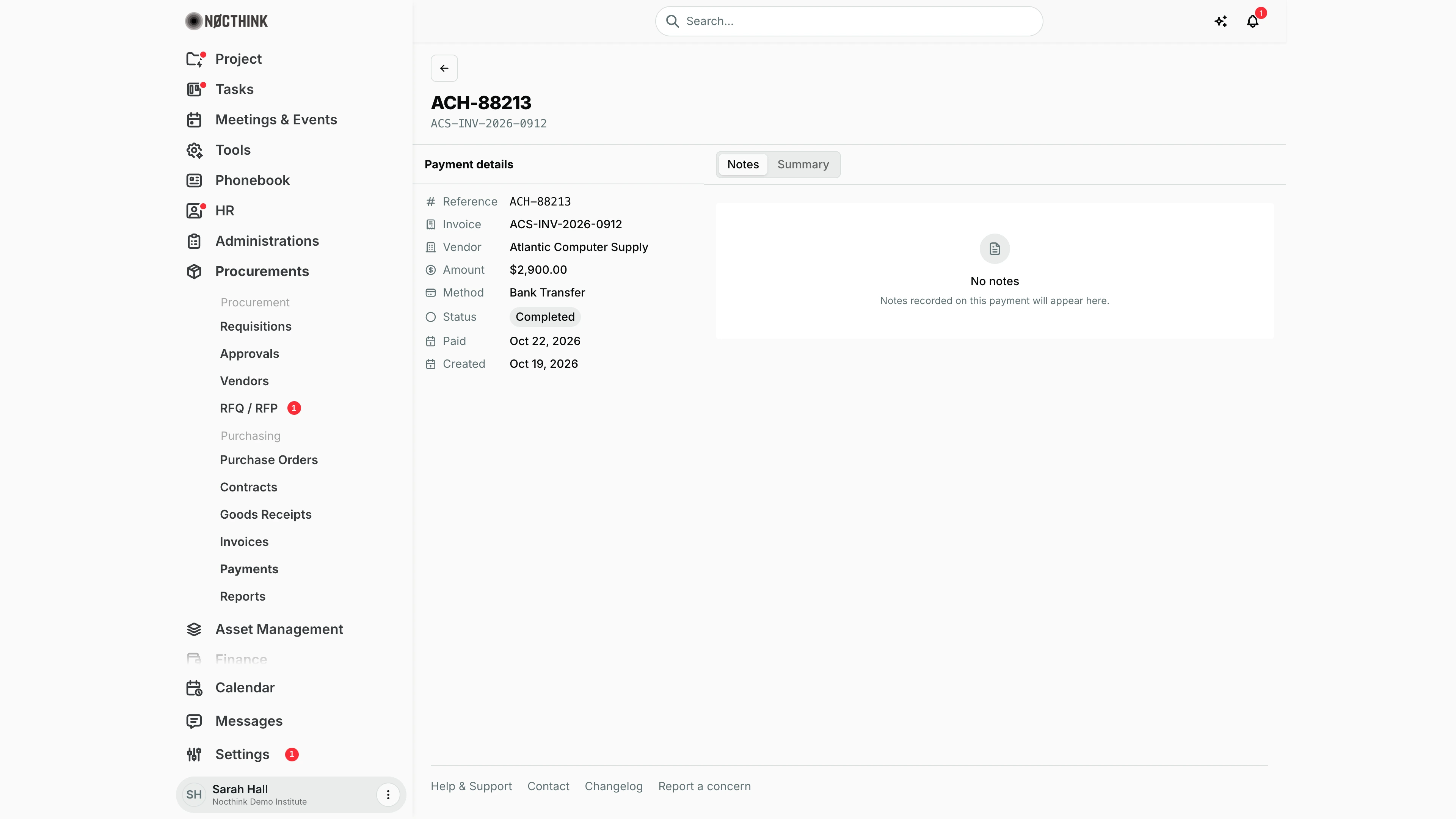
Screenshot: Sarah Hall (Finance Manager), Nocthink Demo Institute demo data.
Clicking a payment opens its page. The header shows the reference and invoice number and the next step for a Pending payment: Approve project funds while the funds are not yet approved, then Final release. Both ask for a comment in a browser prompt (the final release note is required). A completed payment shows no buttons.
Payment details lists Reference, Invoice (linked), Vendor, Amount, Method, Status, Paid and Created. The Notes tab shows notes from the preparer; Summary compares Amount paid with the Invoice total.
New payment
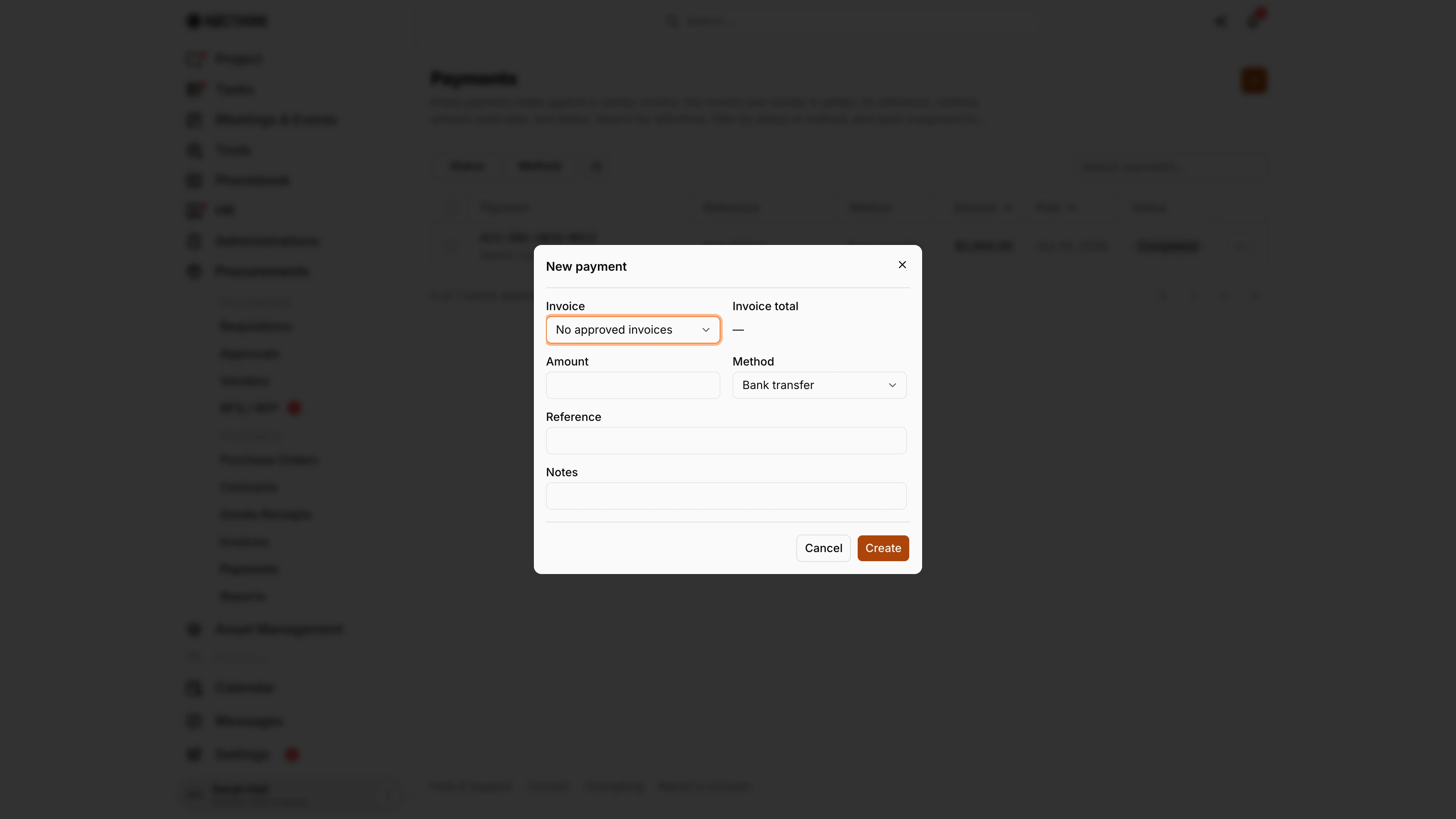
Screenshot: Sarah Hall (Finance Manager), Nocthink Demo Institute demo data.
+ opens New payment: Invoice (only approved, 3-way-matched invoices are offered; here "No approved invoices"), Invoice total, Amount, Method (Bank transfer by default), Reference and Notes. Create saves the payment as Pending with me as the preparer.
Amount must be positive and, across all payments, cannot exceed the invoice balance, so a partial payment is allowed. Method offers Bank transfer, Cash, Check or Card. Once saved, the budget owner approves the funds and the Finance Manager gives the final release on the payment page; I cannot approve or release my own payment.
Record payment
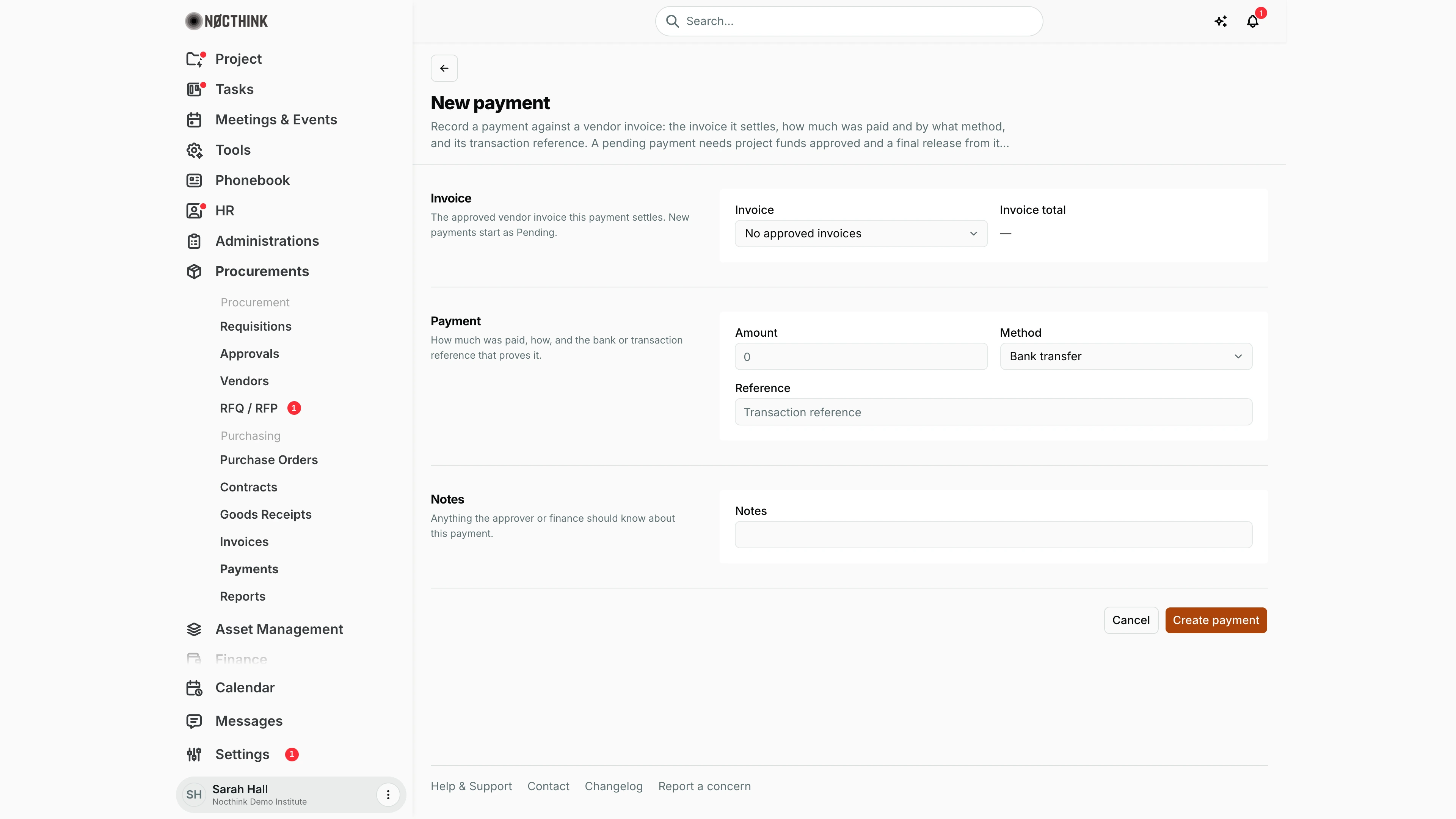
Screenshot: Sarah Hall (Finance Manager), Nocthink Demo Institute demo data.
Record payment on an approved, matched invoice opens the full New payment page with that invoice selected: "Record a payment against a vendor invoice: the invoice it settles, how much was paid and by what method, and its transaction reference. A pending payment needs project funds approved and a final release from it…"
Invoice ("The approved vendor invoice this payment settles. New payments start as Pending.") shows the Invoice and its Invoice total; picking an invoice fills Amount with the total. Payment has Amount, Method and Reference ("Transaction reference"). Notes is for the approver or finance. Create payment saves it as Pending.
Access & permissions
- Who can open it: the route needs
finance.view,accounting.vieworprocurements.approve, which covers the finance roles, F.A.T Manager, Accounting Staff, Procurement and the Owner/Director. - What I see: finance and accounting authority see every payment. Others see only payments tied to requisitions they can see.
- Writing:
- Preparing, editing and deleting a pending payment need
procurements.create/update/delete, or finance authority, so Finance Staff can prepare payments without the Procurement role. Accounting authority is read-only. - Approve project funds and Final release both need
procurements.approve. - Final release additionally needs the
finance-managerorfat-managerrole, or Owner/Director ("Only the F.A.T Manager can perform final payment release.").
- Preparing, editing and deleting a pending payment need
- Segregation of duties: whoever prepares a payment cannot approve its funds or release it.
Caveats
- Changing a payment resets its approval. If the amount, method or reference changes after funds were approved, the approval is cleared and has to be given again.
- Release re-checks everything. It refuses to go ahead if the payment differs from what was approved, if the invoice is no longer approved and matched, or if the payment would exceed the invoice balance ("The payment amount exceeds the invoice balance.").
- Completed is final. Only a Pending payment can be edited (amount, method, reference, notes; the invoice is fixed) or deleted. A completed one is refused ("Released payments are immutable; use a lifecycle action."). Errors are shown in an alert.
- Amounts and dates. Amounts are shown in the payment's currency, the one it is posted in (its purchase order's). Paid dates are shown as "Oct 25, 2026" in my browser's time zone.
- Fund approval needs an owner. A payment whose requisition has neither a project nor a requesting department cannot get fund approval ("The payment must be linked to a project or requesting department…").
Limitations
- There is no Fail, Refund or Reverse action, even though the filter lists Failed and Refunded.
- The detail page has no Edit link, so edits go through the list's ⋯ › Edit.
- Comments are entered in plain browser prompts, with no preview.
- No export, and no bulk release.
Related menus
- Payment Release: the same page, from the Finance sidebar.
- Invoices: the approved, matched invoice that each payment settles.
- Supplier Bills: the invoices, from the Finance side.
- Reconciliation: released payments are offered as matches for bank statement lines.
- AI Workbench: where the payment journal drafted on release appears.
- Reports: total spend.