
Activity
Open in NocthinkModule: Project · URL: /project/activity · Responsible role: Project Manager · Also used by: Owner (all projects), every staff member and operational role (self: projects they lead or belong to)
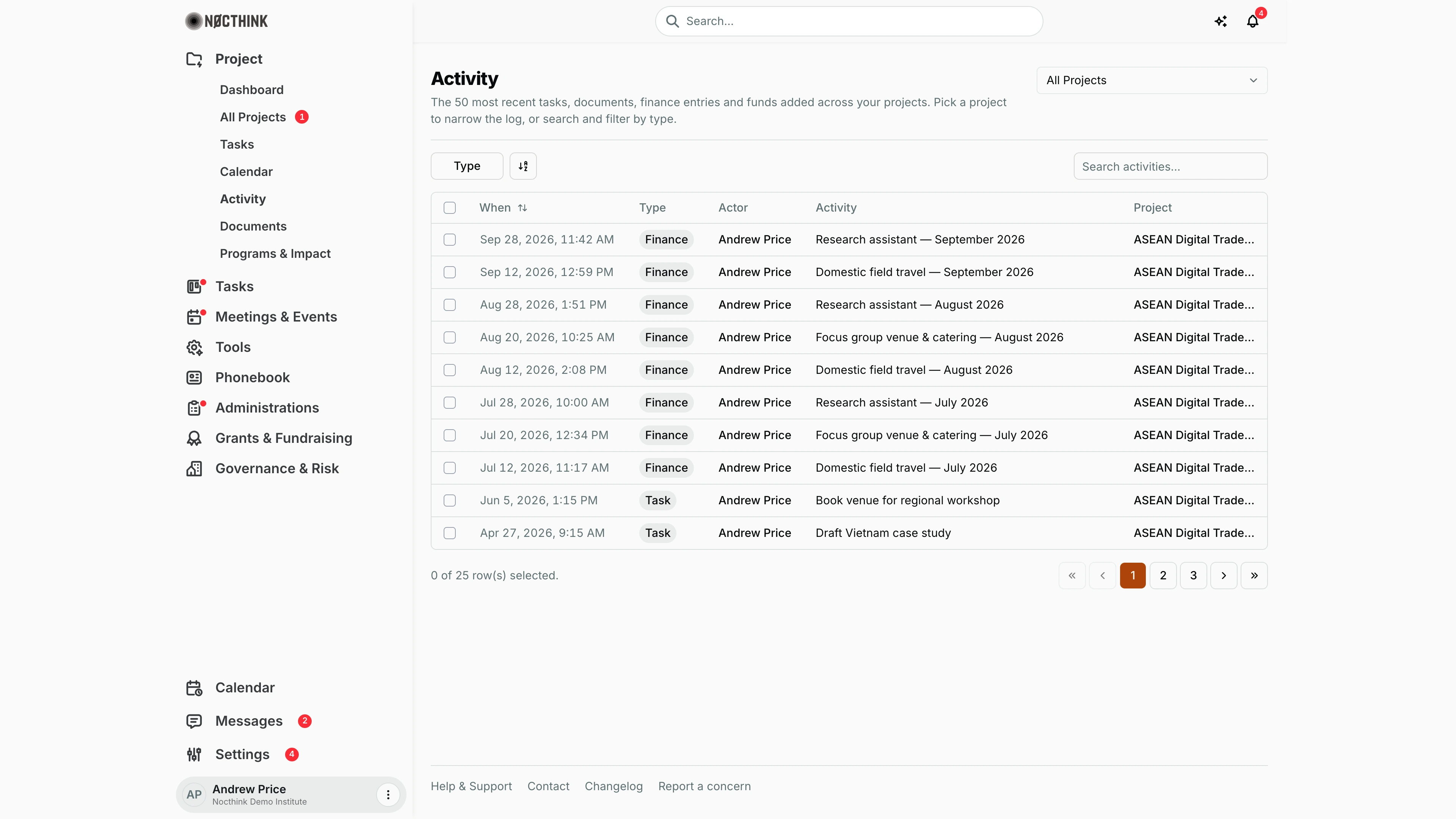
Screenshot: Andrew Price (Senior Researcher), Nocthink Demo Institute demo data.
Why I use this page
As Project Manager I use the Activity log to catch up on what has been added to my projects since I last looked: new tasks, uploaded documents, finance entries and funds, and who added them. I check it on Monday mornings and after time away, and before a steering meeting so I can say what moved. To dig into an item I go through the project.
What's on the screen
- Header — Activity, with "The 50 most recent tasks, documents, finance entries and funds added across your projects. Pick a project to narrow the log, or search and filter by type." A project picker on the right (All Projects or one project) narrows the log; the choice is kept in the URL.
- Toolbar — a Type checkbox filter (Task, Document, Finance, Fund), a view/sort toggle, and Search activities... (matches the Activity text).
- Table:
- When — the creation time, such as "Sep 28, 2026, 11:42 AM"; sortable;
- Type — a pill;
- Actor — who created the record. Funds show System;
- Activity — the record's title;
- Project — a link to the project page.
- Footer — "0 of 25 row(s) selected." and page buttons (10 rows per page).
How I …
Review what happened in one project
- Open Project → Activity.
- In the picker at the top right, choose the project.
- Sort When so the newest is at the top (click the header to toggle).
- Click the project name in the Project column to open the project and the record itself.
See only new tasks (or documents, finance, funds)
- Click Type and tick one value:
- Task — tasks created in the project;
- Document — documents uploaded to the project;
- Finance — project finance entries (expenses and similar), using their description;
- Fund — project funds, titled with the fund source (Actor shows "System").
- Untick the value to clear the filter.
Find a specific entry
- Type part of the title in Search activities....
- Use the page arrows if it falls beyond the first 10 rows.
Access & permissions
The page needs project.view. The organization Owner sees activity from every project. Everyone else, including Directors and Project Managers, sees only projects they lead or are a team member of. Within those, each source is shown only where my project role can view that module: tasks need the tasks module, documents the documents module (plus document visibility rules), finance entries the financial module, and funds the funds module. A Member or Viewer role (no finance modules) will therefore not see Finance or Fund rows.
Caveats
- The log lists records as they were created. Edits, status changes, deletions and approvals do not show up here; the per-project logs on the project page cover those.
- At most the 50 most recent records are loaded (across all sources). Older items drop off the list even though they still exist.
- Times show in my browser's time zone.
- If I am not on any project team, the table is empty, even though other projects exist.
Limitations
- No date-range filter and no filter by actor.
- Rows do not link to the individual task, document or fund, only to the project.
- Row checkboxes have no bulk actions, and there is no export.
- Meetings and events from the Meetings & Events module are not included.
Related menus
- All Projects — open a project for its full logs.
- Tasks — source of Task rows.
- Documents — source of Document rows.
- Funds & Grants — source of Fund rows.
- Project Finance — source of Finance rows.