
Documents
Open in NocthinkModule: Project · URL: /project/documents · Responsible role: Project Manager · Also used by: Owner/Director (full), Staff and operational roles (self: upload to and read their projects), Finance Staff, Finance Manager, F.A.T. Manager and Accounting Staff (read)
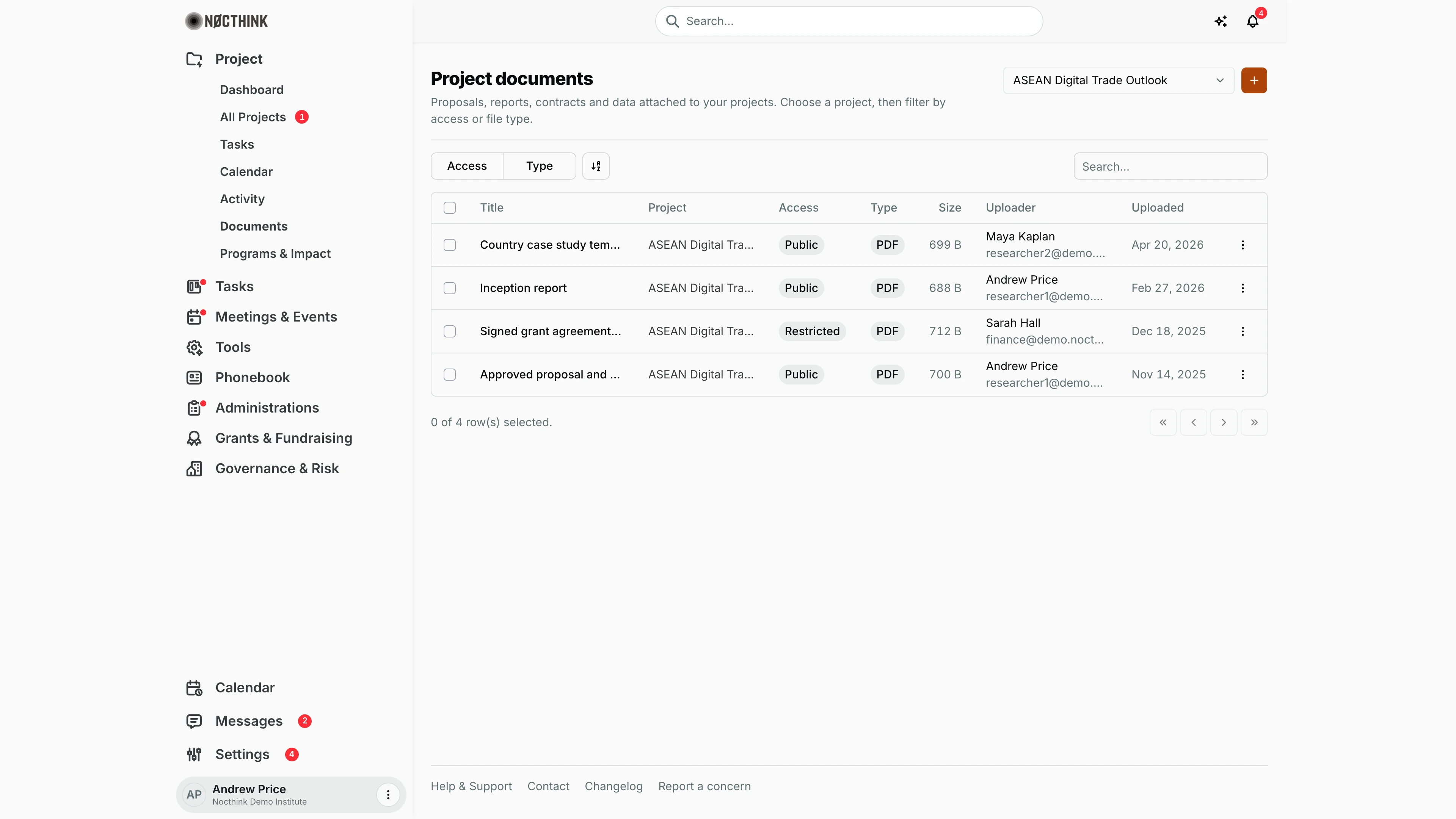
Screenshot: Andrew Price (Senior Researcher), Nocthink Demo Institute demo data.
Why I use this page
As Project Manager I keep each project's proposals, reports, contracts and datasets here so the team works from one copy. I upload a file as soon as it is final enough to share, and I come back whenever someone asks "where is the latest report?". It is also where I check who uploaded what and when, before a donor report or an audit.
What's on the screen
- Header — Project documents, with "Proposals, reports, contracts and data attached to your projects. Choose a project, then filter by access or file type." On the right: the project picker and + (Add Document). + is disabled until a project is selected.
- Toolbar — an Access filter (Public, Restricted), a Type filter (file extensions found in this project, such as PDF or XLSX), a view/sort toggle, and Search... by title.
- Table:
- Title;
- Project;
- Access — Public or Restricted;
- Type — the file extension;
- Size — the stored file size, such as 699 B or 13 KB ("—" only when the file is missing from storage);
- Uploader — name and email;
- Uploaded — the date, such as Apr 20, 2026;
- a ⋮ menu with Download and, when I am allowed, Delete.
- Without a project selected the page shows "Select a project to view documents."; with no files it shows No results.
How I …
Upload a document
- Pick the project in the selector at the top right.
- Click +. The Add Document dialog opens.
- Enter Document Title (required, for example "Q1 Progress Report").
- Choose the File (required: "Choose a file to upload").
- Set Access: Public (the default; everyone who can open this project's documents sees it) or Restricted (only me and the organization's owners see it).
- Click Upload. The document is saved to the project and appears in the table and in the project's Activity log. A restricted upload is logged without its title.
Find and download a file
- Select the project.
- Narrow the list with Type (for example PDF) or Access, or type in Search....
- Open ⋮ → Download. The file opens in a new browser tab.
Delete a document I uploaded
- Open ⋮ → Delete on the row.
- Confirm "Delete "<title>"?". The file is removed from the project.
Tell public and restricted files apart
- Click Access and tick Restricted to list only restricted documents (for example, supporting files attached to a project payment request, which are saved as Restricted automatically).
- Restricted documents are visible only to the uploader, the people explicitly allowed, and the organization Owner. Everyone else on the project does not see them at all.
Access & permissions
The page needs project.view. Uploading needs the documents → create right in my project role on that project (Owner, Manager and Member have it; Viewer does not). Which files I see: Public documents of the project, documents I uploaded, and Restricted documents I have been explicitly allowed to see. The organization Owner sees all. Delete appears only on documents I uploaded, or for the org owner/admin.
Caveats
- Uploads are refused while the project is On Hold, Completed or Archived, and so are edits and deletes.
- The access level is chosen at upload time. There is no screen to change it afterwards, so pick Restricted before uploading a confidential file.
- Files are checked on upload (
validateUpload), so disallowed or oversized files are rejected with an error in the dialog. - Deletion is immediate and there is no recycle bin.
- The Type filter lists only the extensions present in the current project.
Limitations
- One project at a time. There is no "all projects" document view on this page.
- One file per upload; no drag-and-drop of multiple files.
- No version history, renaming or replacing a file from this page.
- No way in the UI to share a restricted document with named colleagues (the API supports an allowed-users list; only payment-request attachments use it).
- No bulk download or bulk delete for the selected rows.
Related menus
- All Projects — open a project to see its own documents tab.
- Activity — uploads appear as Document rows.
- Archive — closed projects whose documents become read-only.
- Documents Request — request official letters from Administration (a different flow).