
Funds & Grants
Open in NocthinkModule: Project · URL: /project/funds · Responsible role: Project Manager (with F.A.T. Manager for the financial side) · Also used by: Owner/Director (full), F.A.T. Manager (full), Finance Manager (write), Finance Staff and Accounting Staff (read). Hidden from Staff without these roles.
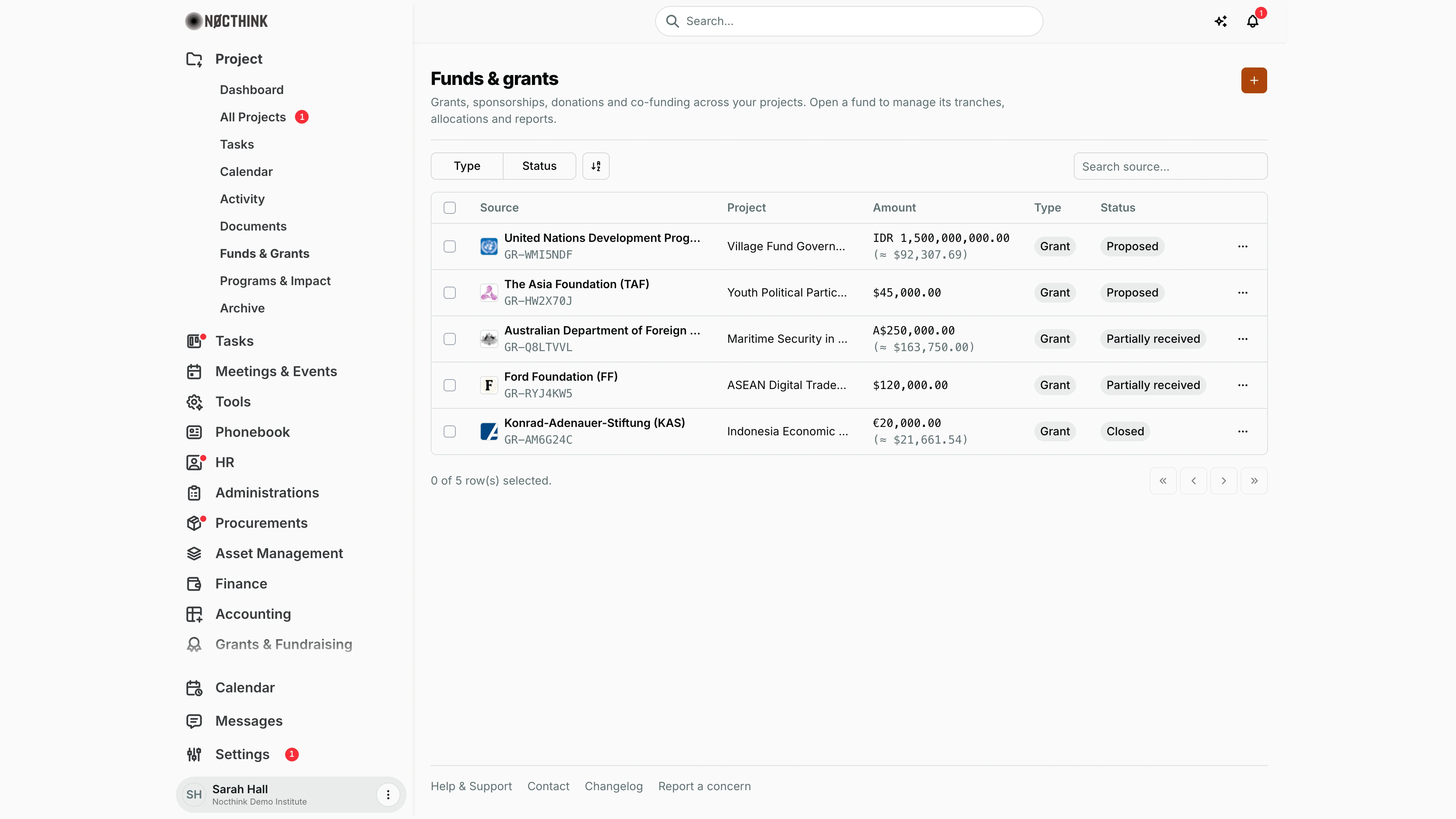
Screenshot: Sarah Hall (Finance Manager), Nocthink Demo Institute demo data. Finance authority sees every fund; a Project Manager sees only the funds of projects whose team they are on (see Access & permissions).
Why I use this page
As Project Manager I record every source of money behind my projects here: grants, sponsorships, donations and co-funding. I track each one from Proposed through Pledged and Received to Allocated and Closed. I add a fund as soon as a proposal goes out, update its status when the donor confirms or pays, and open it to manage tranches, allocations, expenditure and donor reports. Finance uses the same records for budgeting and reporting.
What's on the screen
- Header — Funds & grants, with "Grants, sponsorships, donations and co-funding across your projects. Open a fund to manage its tranches, allocations and reports." The + button (Add fund) is on the right.
- Toolbar — a Type filter (Grant, Sponsorship, Donation, Co-funding, Other), a Status filter, a view/sort toggle and Search source....
- Table:
- Source — the donor logo, the donor/grantor name with its abbreviation, and the fund code (for example
GR-RYJ4KW5); - Project ("—" if not linked yet);
- Amount — in the fund currency (for example "€20,000.00" or "IDR 1,500,000,000.00"); a foreign-currency fund also shows its value in the organization's base currency underneath ("≈ $21,661.54"). Every currency uses the same number format. A Manual rate hint shows when a manual FX rate is used;
- Type;
- Status — a neutral pill (for example Proposed, Partially received, Closed); only Rejected is tinted;
- a ⋯ menu.
- Source — the donor logo, the donor/grantor name with its abbreviation, and the fund code (for example
- An empty list shows No results.
How I …
Record a new funding source
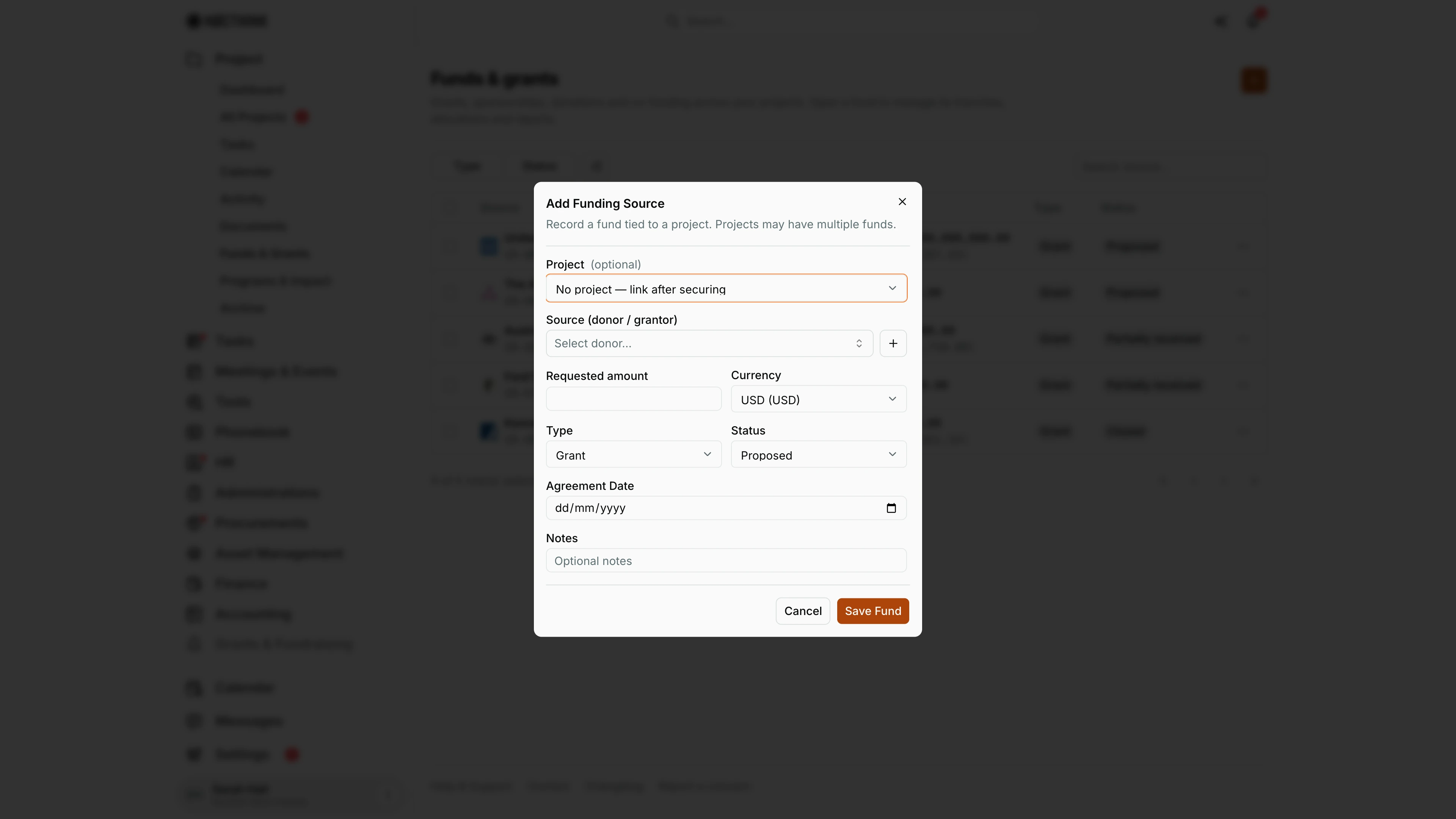
- Click +. The Add Funding Source dialog opens (see Add Funding Source below).
- Project (optional) — pick the project, or leave "No project — link after securing" while it is still a proposal.
- Source (donor / grantor) — required. Pick or type the donor.
- Requested amount (required, must be positive) and Currency (required; must match the project's fund currency if one is set).
- Set Type (Grant, Sponsorship, Donation, Co-funding, Other) and Status (Proposed, Pledged, Partially Received, Received, Allocated, Closed, Rejected).
- Optionally add an Agreement Date and Notes, then save. The fund is logged on the project's activity.
Move a fund through its life cycle
- Open ⋯ → Edit fund (or open the fund itself).
- Change Status, for example Proposed → Pledged when the award letter arrives, then Received when the money lands, then Allocated once it is budgeted.
- Adjust Amount, Currency, Project or Agreement Date if the award differs from the request, then save.
Manage tranches, allocations and reports
- Click the fund to open its page (see Fund detail below).
- Use the tabs Overview, Documents, Expenditure Management and Notes (see Fund documents, Fund expenditure management and Fund notes below). Tranches, allocation changes, expenditure and reports/deliverables are handled there.
Export for the donor or Finance
- Open ⋯ → Download allocation for the allocation sheet.
- Open ⋯ → Download expense report for spending against the fund. This is disabled when the fund has no project.
Freeze a fund
- Open ⋯ → Freeze fund to stop any further changes, for example during a donor audit.
- While frozen, Edit fund is disabled, and allocation change proposals are refused ("Fund is frozen. Unfreeze it before…").
- Use ⋯ → Unfreeze fund to reopen it. Both actions are logged on the project.
Detail page, forms & dialogs
Add Funding Source
Screenshot: Sarah Hall (Finance Manager), Nocthink Demo Institute demo data.
The orange + opens Add Funding Source: "Record a fund tied to a project. Projects may have multiple funds." Project (optional) defaults to "No project — link after securing". Source (donor / grantor) is picked from the donor list, and the + beside it adds a new donor. Then Requested amount, Currency (the base currency by default), Type (Grant by default), Status (Proposed by default), Agreement Date and Notes. Save Fund records it. See Record a new funding source above.
Fund detail
Screenshot: Sarah Hall (Finance Manager), Nocthink Demo Institute demo data.
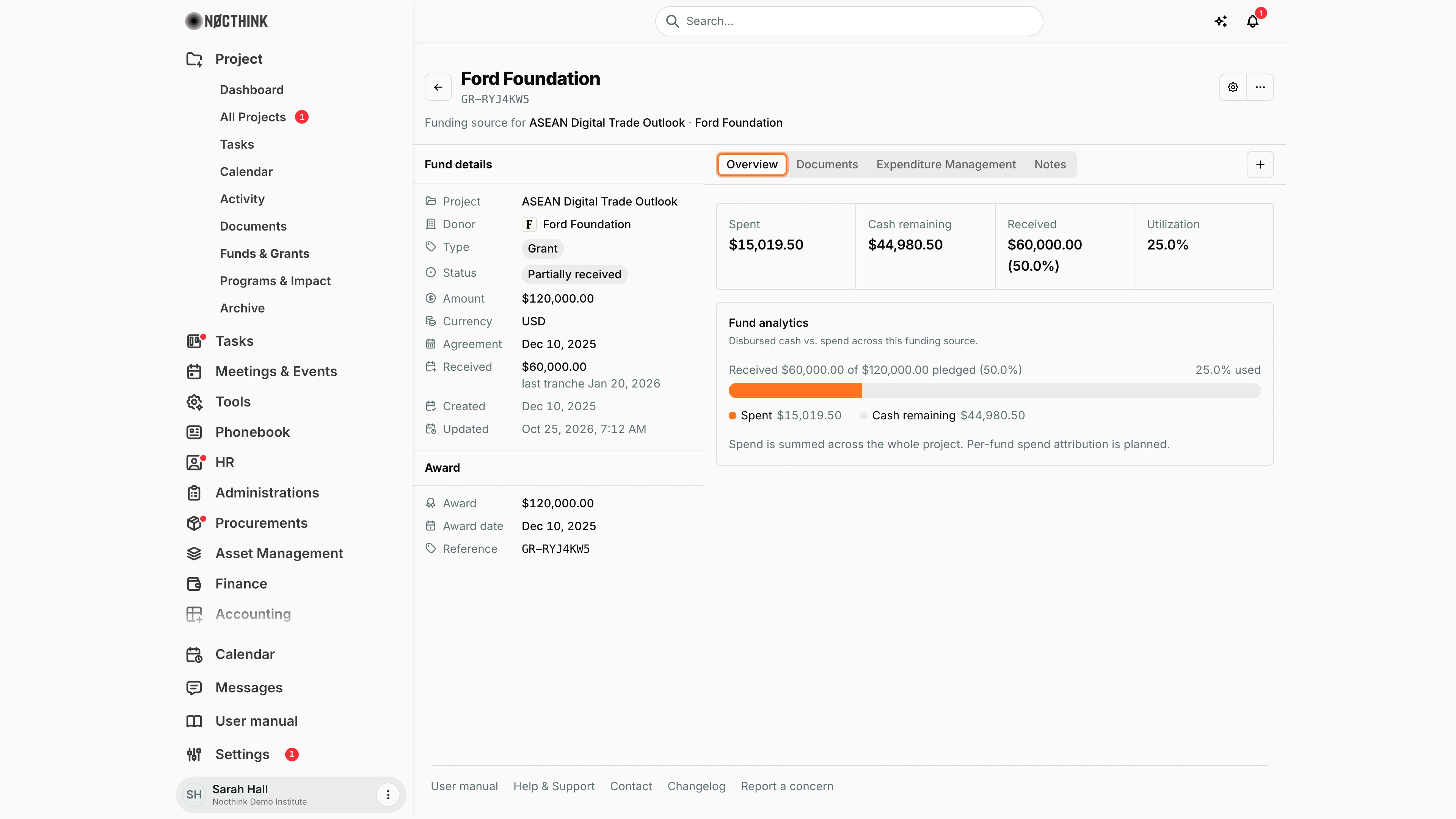
Clicking a fund opens its page: the donor name, the grant number (such as GR-RYJ4KW5), "Funding source for <project> · <donor>", a gear button for the fund's settings and ⋯ for the fund actions (edit, download allocation or expense report, freeze, delete). The rail, Fund details, lists Project, Donor, Type, Status, Amount, Currency, Agreement, Received (the amount received so far, with the received date or the date of the last tranche), Created and Updated; Award shows the awarded amount, date and reference (the grant number, or the fund code) once the fund is secured ("Not awarded yet" before). Overview shows Spent, Cash remaining (received minus spent), Received (with its share of the pledge) and Utilization, and Fund analytics compares received cash with spend. "Spend is summed across the whole project. Per-fund spend attribution is planned." The + on the tab row adds a document, expense or cash advance.
Fund documents
Screenshot: Sarah Hall (Finance Manager), Nocthink Demo Institute demo data.
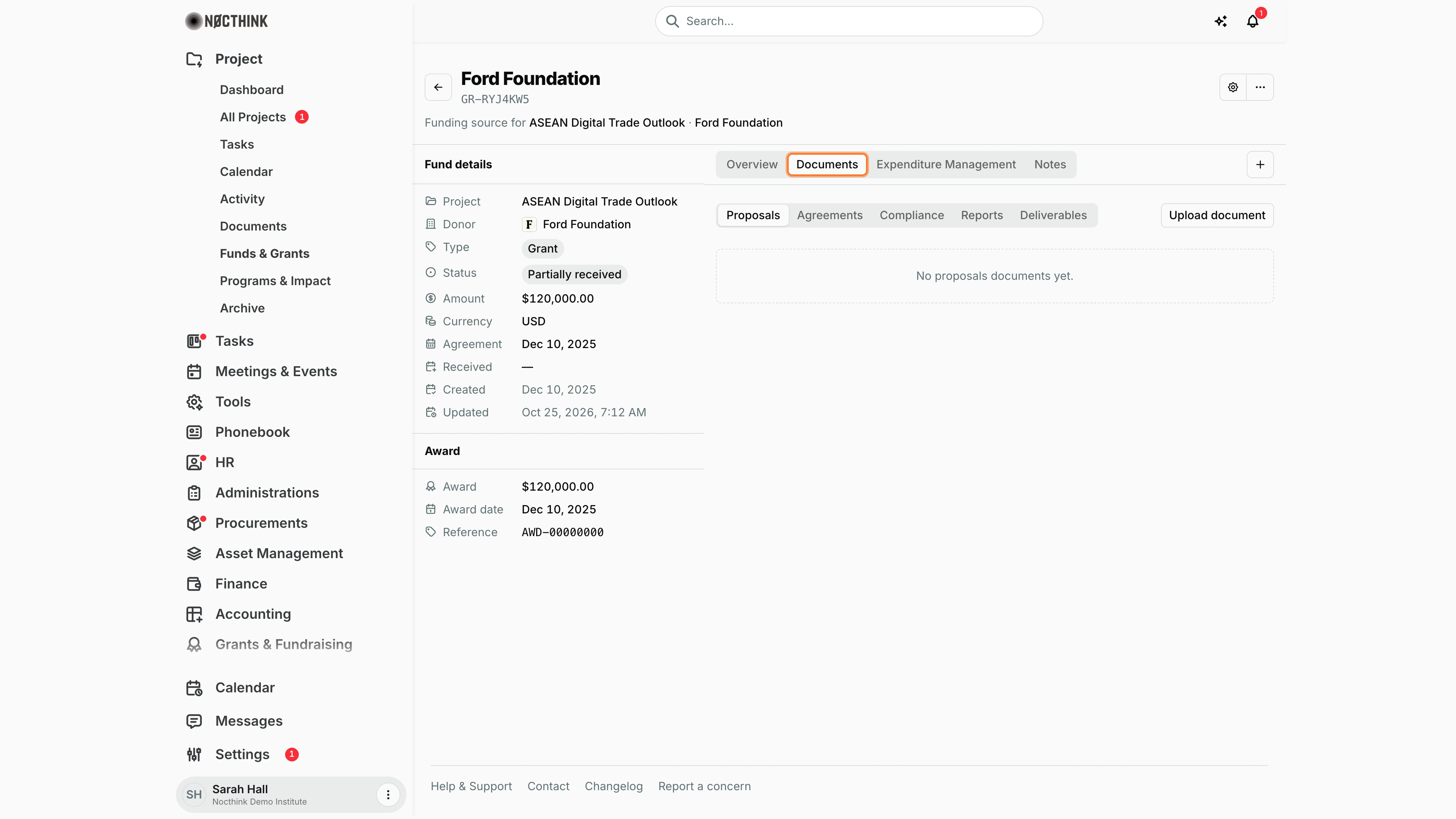
Documents files the grant paperwork in five sub-tabs: Proposals, Agreements, Compliance, Reports and Deliverables. Upload document adds a file to the open sub-tab; each list says "No <type> documents yet." until something is uploaded. The signed agreement and donor reports belong here so auditors find them with the fund.
Fund expenditure management
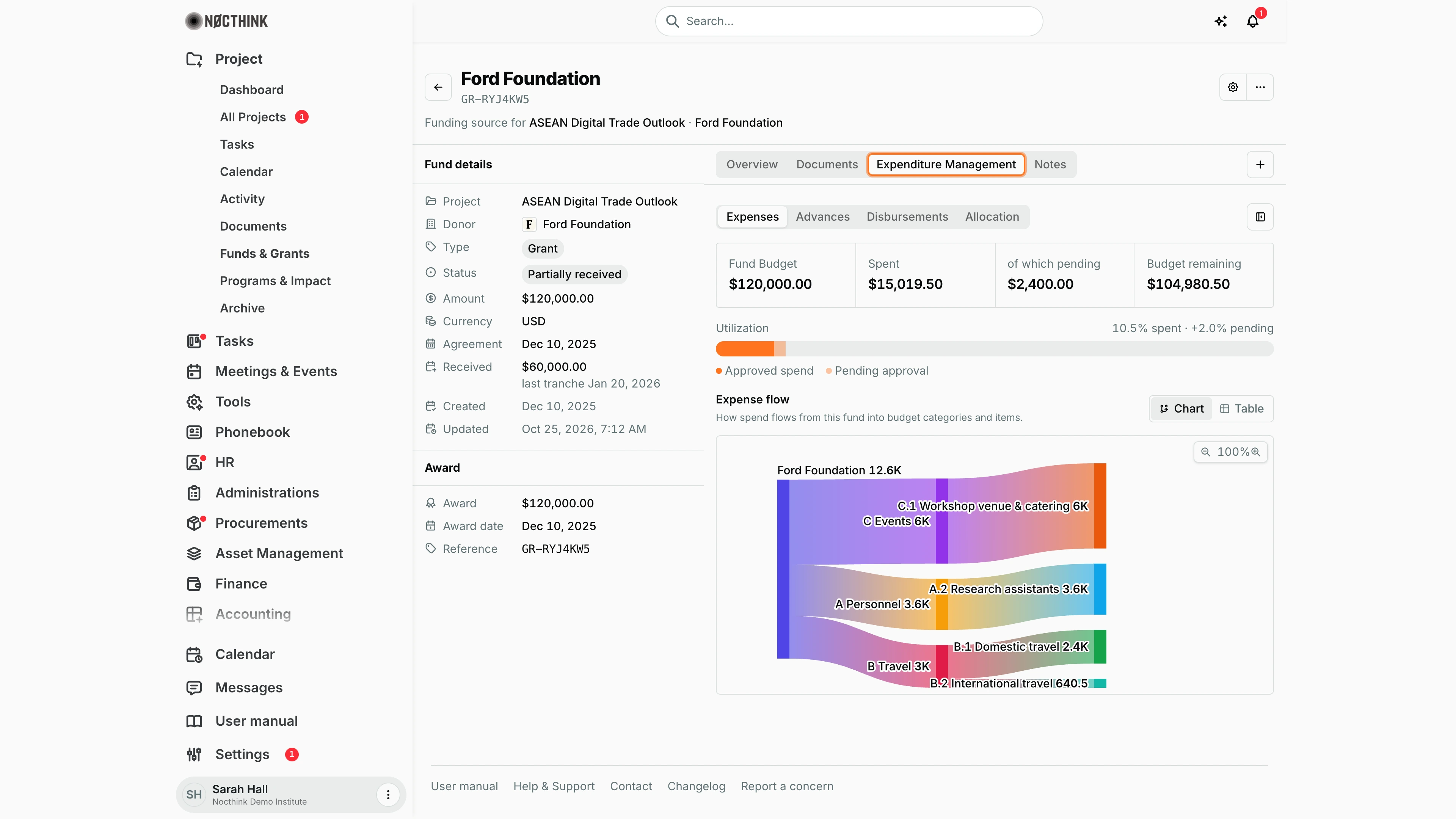
Screenshot: Sarah Hall (Finance Manager), Nocthink Demo Institute demo data.
Expenditure Management has Expenses, Advances, Disbursements and Allocation. Expenses opens with Fund Budget, Spent, of which pending and Budget remaining (budget minus spent, so it differs from the Overview's cash remaining while tranches are still due), a Utilization bar ("10.5% spent · +2.0% pending", split into Approved spend and Pending approval) and Expense flow ("How spend flows from this fund into budget categories and items."), a chart from the donor through budget categories to budget lines, with Chart / Table views and zoom. Advances lists cash advances issued against the fund, Disbursements the donor's tranche schedule, and Allocation the budget allocated to each line.
Fund notes
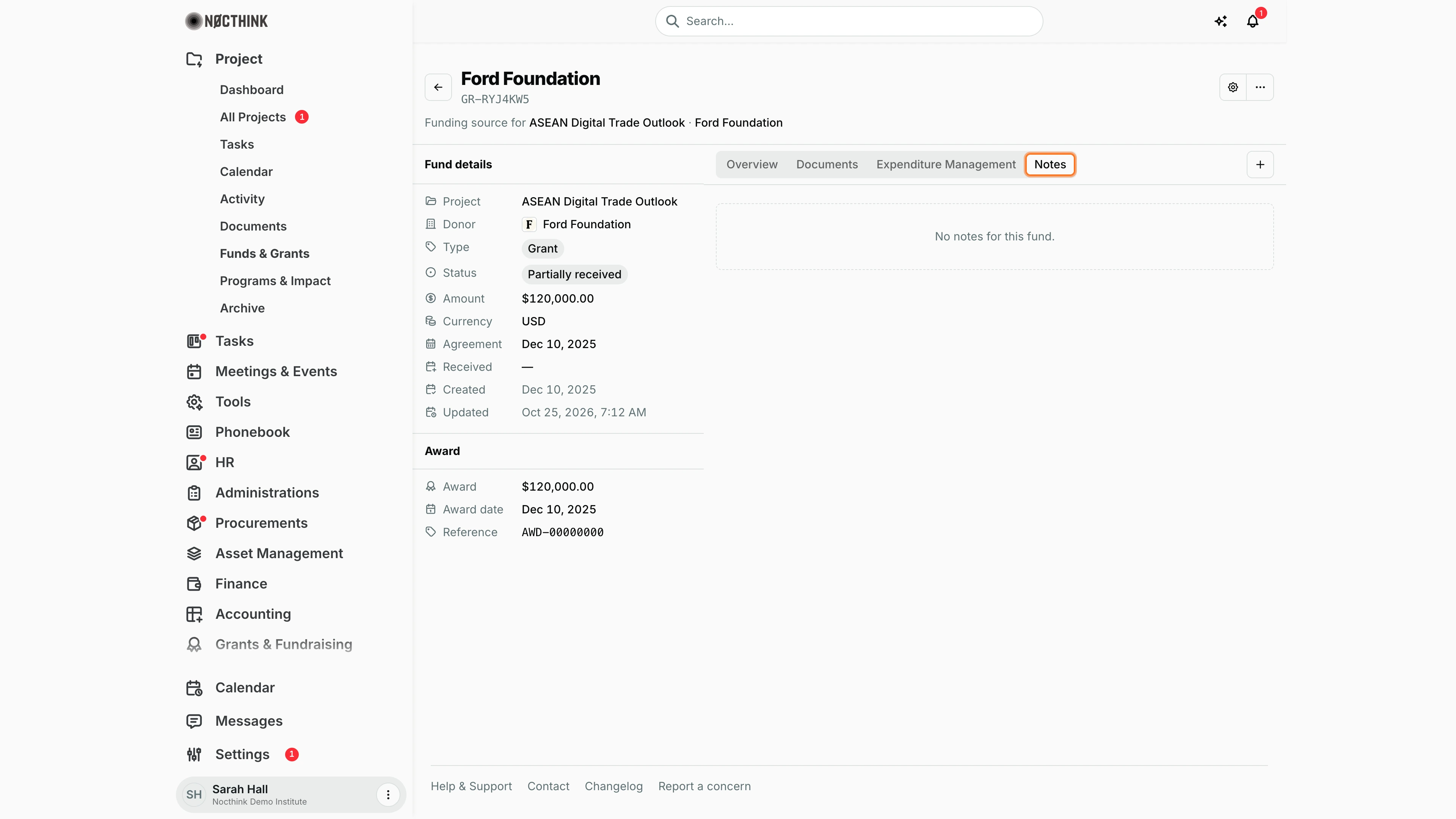
Screenshot: Sarah Hall (Finance Manager), Nocthink Demo Institute demo data.
Notes keeps free-text notes on the fund, such as donor conversations or conditions agreed by email. "No notes for this fund." shows until the first note is added.
Access & permissions
The page requires project.approve, finance.view or accounting.view (see lib/domain-routes.ts). Fund rows are member-only:
- People with finance authority (Finance department,
finance.approve, or the roles finance-staff, finance-manager, fat-manager) see all funds, including ones not linked to a project. - The project lead sees the funds of the projects they lead.
- Team members see funds where their project role includes funds → view. The default Owner and Manager roles have it; Member and Viewer do not.
- Org Owners and Directors are not exempt: without finance authority they only see funds of projects they lead or are on.
Editing, freezing and deleting need the matching funds right on the project (finance authority grants all of them).
Caveats
- Funds on a project that is On Hold, Completed or Archived become view-only.
- A frozen fund cannot be edited until it is unfrozen. Freezing is not an approval step, just a lock.
- A fund that has cash advances cannot be deleted ("Settle or delete them before deleting the fund.").
- Unlinked funds ("No project") are visible only to finance roles and the org admin, not to project managers.
- Amounts are converted to the organization's base currency for totals. If a manual rate was entered, the hover note explains it.
Limitations
- No delete action in the list menu; deletion is only possible through the fund page/API, subject to the cash-advance rule.
- No bulk status change, and no export of the whole list (the exports are per fund).
- The donor list comes from Phonebook → Donors. A donor that does not exist yet must be added there first.
Related menus
- All Projects — the Funding column links here.
- Programs & Impact — results the funds pay for.
- Donors — donor records used as the fund source.
- Project Finance — budgets and spending per project.
- Accounting → Funds & Grants — the accounting view of restricted funds.
- Awards — U.S. nonprofit grant awards.