
Documents Request
Open in NocthinkModule: Administrations · URL: /administrations/documents-request · Responsible role: Staff (every member requests their own documents) · Also used by: General Affairs (full: processes requests and issues letters), Owner/Director (full), HR Staff/HR Manager (process HR letters per docs/role.md; see Access)
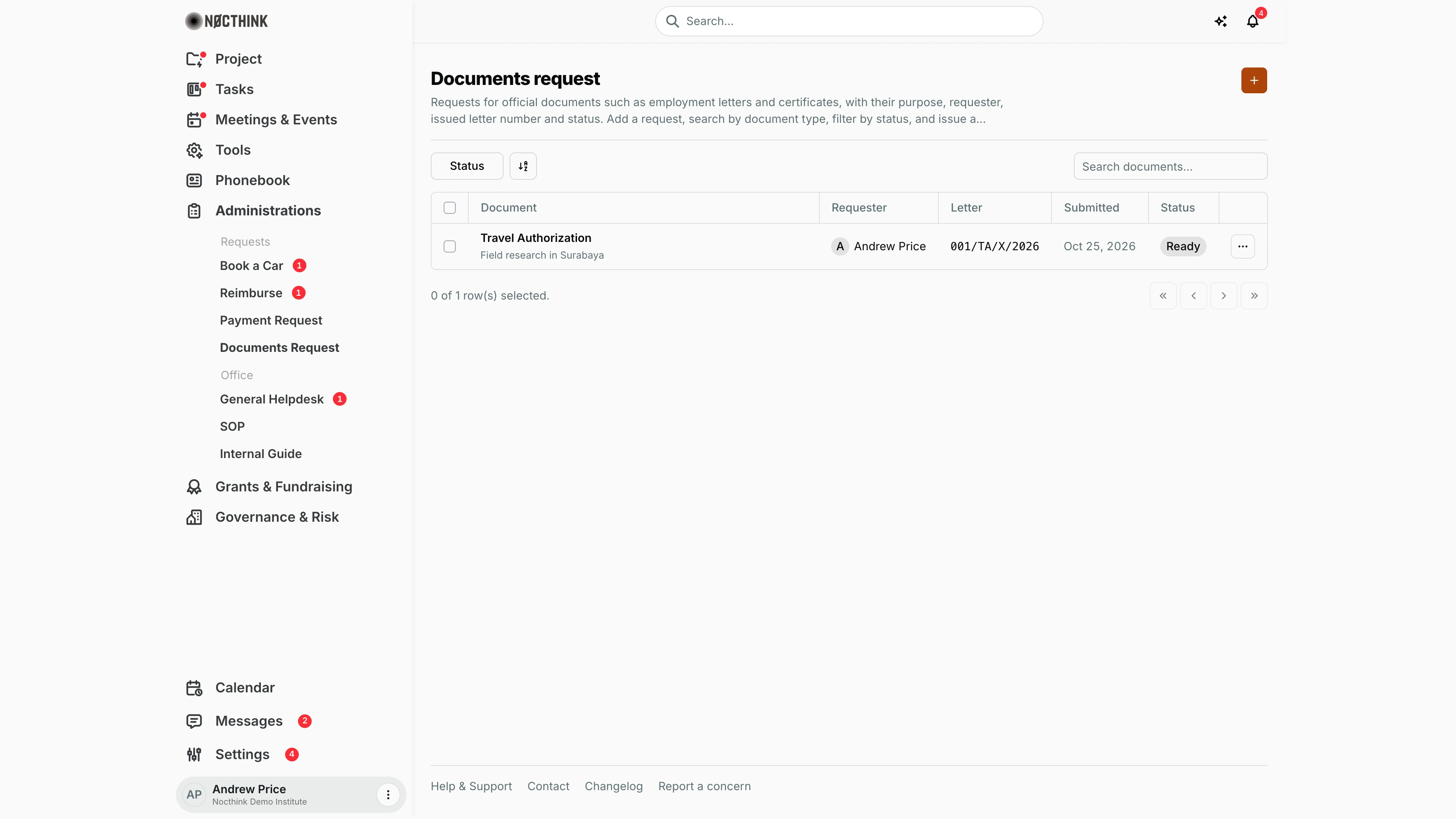
Screenshot: Andrew Price (Senior Researcher), Nocthink Demo Institute demo data. He sees his own request, a Travel Authorization for field research in Surabaya, already issued as letter 001/TA/X/2026 and Ready.
Why I use this page
When I need an official document from the office (an employment verification letter for a visa, a travel authorization, a certificate), I ask for it here instead of by email. The office sees my request, works on it, issues it with an official letter number, and I can see when it is Ready to collect and which number it carries. General Affairs uses the same page to work through everyone's requests and issue the letters.
What's on the screen
- Header: Documents request, a short description, and the orange + (New document request) at the top right.
- Toolbar:
- Status filter: Pending, In progress, Ready, Rejected.
- A column/sort control.
- Search documents…, which matches the document type.
- Table columns:
- Document: type in bold, purpose underneath.
- Requester.
- Letter: the issued letter number in
NNN/CODE/MONTH/YEARform, or —. - Submitted: date, e.g. "Oct 25, 2026".
- Status.
- ⋯ with Issue Letter (only while no letter has been issued and the request isn't rejected), Edit and Delete.
How I …
Request a document
- Click + to open New Document Request ("Request an official document, letter, or certificate."); see New document request below.
- Document Type: free text, e.g. "Employment Verification Letter" or "Surat Keterangan Kerja".
- Purpose: what it is for, e.g. "Visa application" (required).
- The request starts as Pending. The Status field appears only for people who process document requests.
- Notes: optional (language, addressee, number of copies, deadline).
- Click Add Request. It shows as Pending, and the Documents Request sidebar badge counts it.
- Check back for Ready and a number in Letter, then collect the document.
Change or withdraw my request
- While Pending, click ⋯ → Edit, change fields and click Save Changes.
- To withdraw it, click ⋯ → Delete and confirm "Delete document request "…"?".
Process a request and issue the letter (General Affairs)
- Filter Status → Pending.
- Click ⋯ → Edit, set In progress and save, so the requester knows it is being prepared.
- When the document is ready to number, click ⋯ → Issue Letter. The Issue Letter dialog opens ("The full number is generated by the server").
- Prefix: the letter type, e.g. "TA — Travel Authorization". If it says "No letter types yet", add one under Settings → General → Letter Number first.
- Check the other fields:
- Subject: pre-filled with the document type.
- Recipient: pre-filled with the requester.
- Sender (required).
- Date: defaults to today.
- Notes: optional.
- Click Issue Letter. The server assigns the next sequence number for that prefix and year (e.g.
001/TA/X/2026, where the month is in Roman numerals). The request switches to Ready automatically, and the number appears in Letter and on Letter Number.
Reject a request (General Affairs)
- Click ⋯ → Edit, set Status to Rejected, put the reason in Notes, and click Save Changes.
Detail page, forms & dialogs
New document request
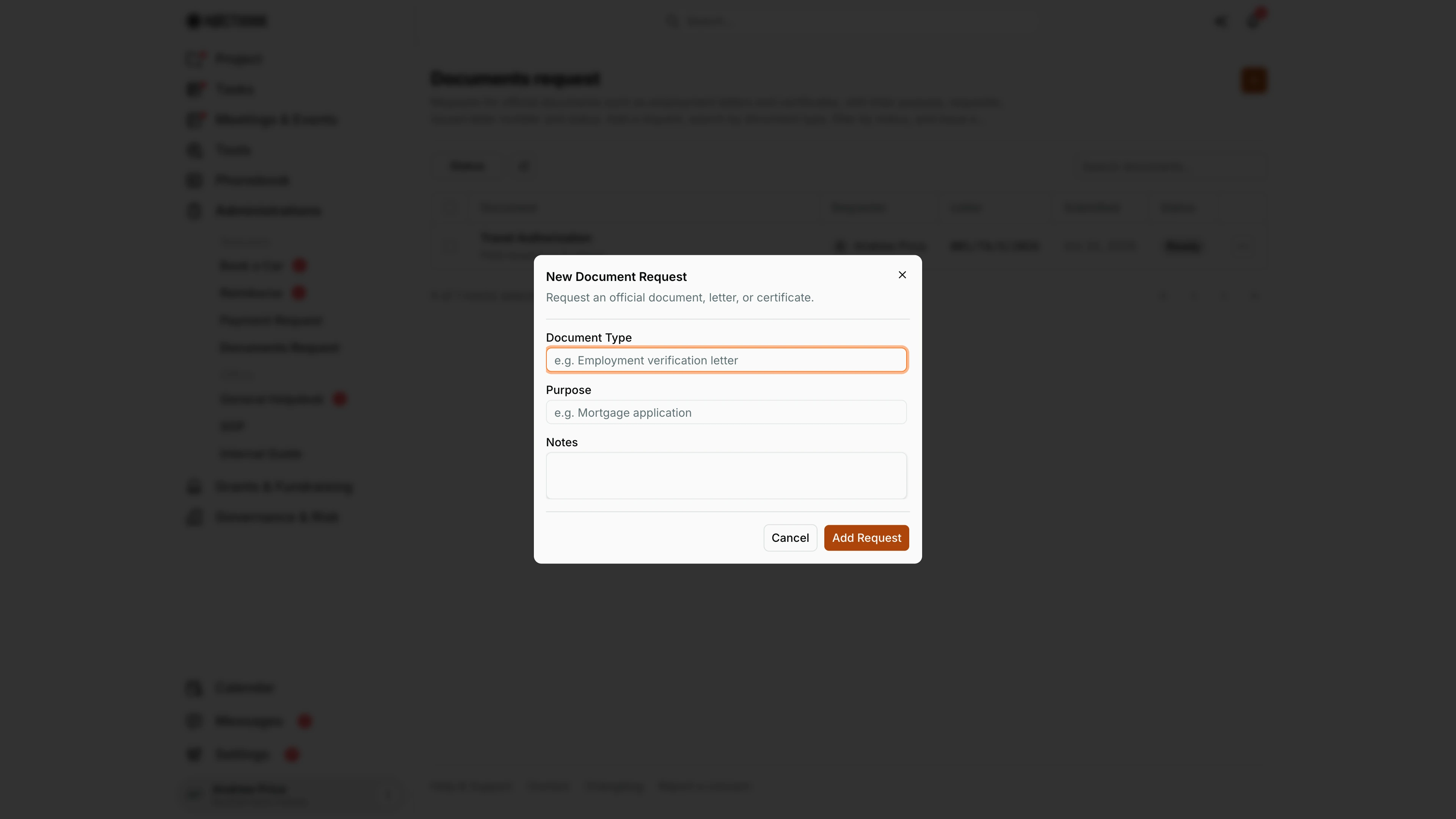
Screenshot: Andrew Price (Senior Researcher), Nocthink Demo Institute demo data.
+ opens New Document Request ("Request an official document, letter, or certificate."). Document Type is free text, e.g. "Employment Verification Letter". Purpose says what it is for (required). Notes carries language, addressee, number of copies or a deadline. As a requester I do not see Status; the request starts Pending. Add Request sends it to General Affairs. The Documents Request sidebar badge counts it until it is processed. General Affairs moves it to In progress while preparing the document and to Ready when the letter is issued; check back for a number in the Letter column, then collect the document. Cancel discards the request.
Edit document request
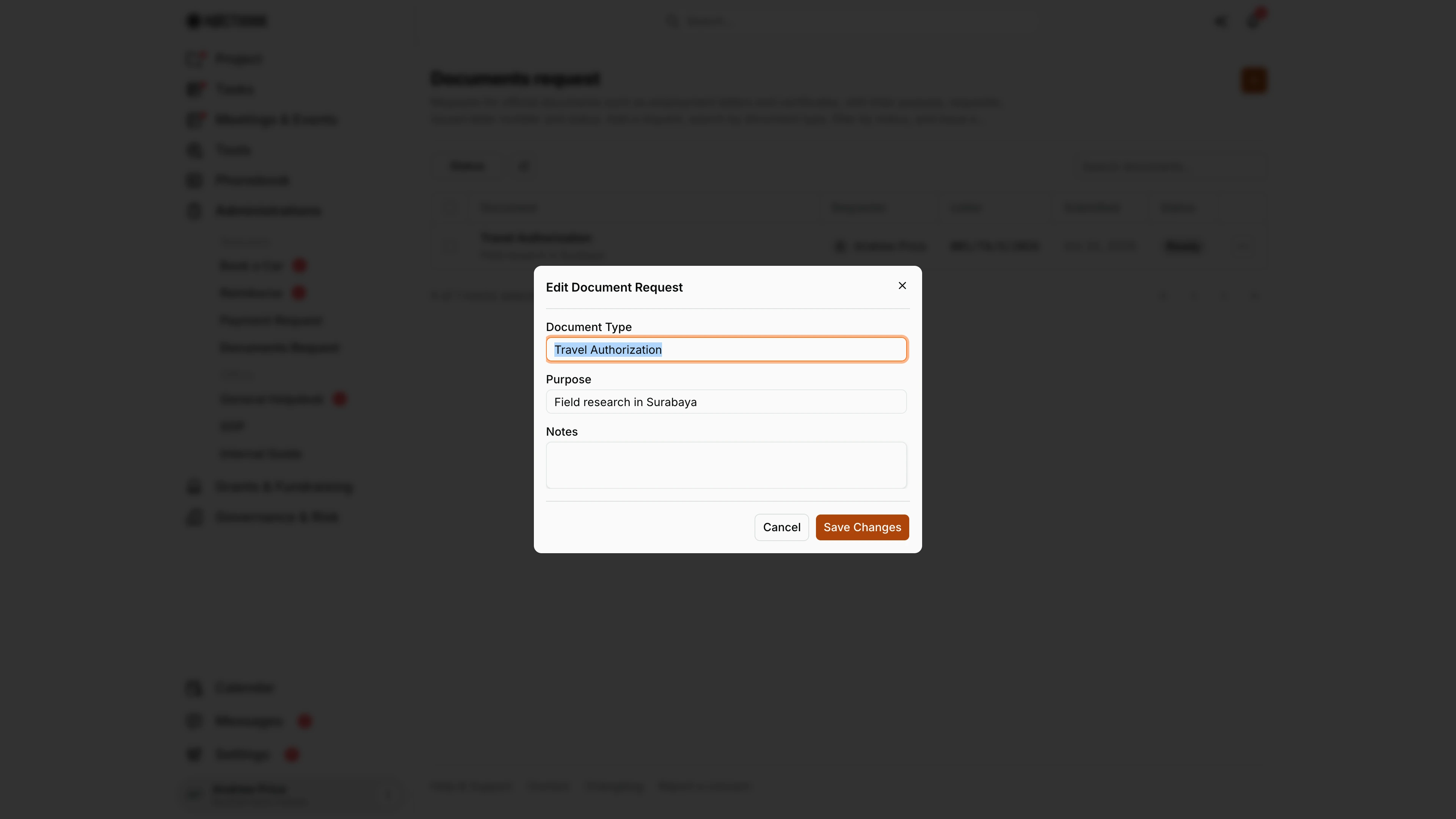
Screenshot: Andrew Price (Senior Researcher), Nocthink Demo Institute demo data.
⋯ → Edit opens Edit Document Request with the same fields. I can change my request while it is Pending. General Affairs sees a Status field here and an extra row action, Issue Letter, which registers a letter number for the request and marks it Ready (see Process a request and issue the letter). That dialog is only available to processors, so it is not shown in this requester's screenshot. ⋯ → Delete withdraws my request after a confirmation. Cancel closes the dialog without saving.
Access & permissions
- Every member can open the page; it is personal access.
- Staff see only their own requests.
- HR authority (HR department) or
hr.update(HR Staff, HR Manager), holders ofadministrations.delete(General Affairs), Owner and Director see all requests.
- Creating a request needs no administrations permission: every member files and edits their own.
- Changing Status (In progress, Ready, Rejected) needs HR authority,
hr.update,administrations.delete, or Owner/Director.- Nobody may process their own request.
- Someone who edited the request's details may not then move it on.
- Issue Letter creates a letter number and needs
administrations.update(General Affairs).- The menu item shows for everyone, but anyone without that permission (including HR Staff who otherwise process requests) gets a permission error; General Affairs issues the number.
Caveats
- One letter per request. After a letter is issued, Issue Letter disappears; correct a wrong number on Letter Number.
- Numbering:
- The sequence restarts each year per prefix. The month in the number comes from the letter Date, not today.
- If two people issue at the same moment, one gets "That letter number was just taken; please submit again." — just submit again.
- Editing after a decision:
- The requester can't edit after the request moves past Pending.
- An approver who edits the details of an in-progress or ready request sends it back to Pending.
- No notifications. Unlike the other request types, the requester gets no notification when the status changes; they have to check the page.
- Delete is permanent, has no status check, and a failed delete shows no message. Deleting a request does not delete its letter number.
Limitations
- No document file. The issued document can't be attached or downloaded here; the page only tracks status and number.
- Document Type is free text. There is no catalogue of standard documents or templates.
- No pickup or delivery tracking, and no export. Only the newest 100 requests load.
Related menus
- Letter Number: the register where issued numbers live; also used to number letters that have no request.
- Dashboard: Open document requests and "ready to collect".
- General: manage letter types (prefixes) under Letter Number.
- Book a Car: a Travel Authorization usually goes with a car booking for the same trip.