
Reporting Calendar
Open in NocthinkModule: Grants & Fundraising · URL: /grants/obligations · Responsible role: Finance Manager (demo role "Grants and fundraising") · Also used by: Executive Director and Deputy Director (full); Program and impact staff such as the Senior Researcher (view only); project leads add obligations on the project funding page
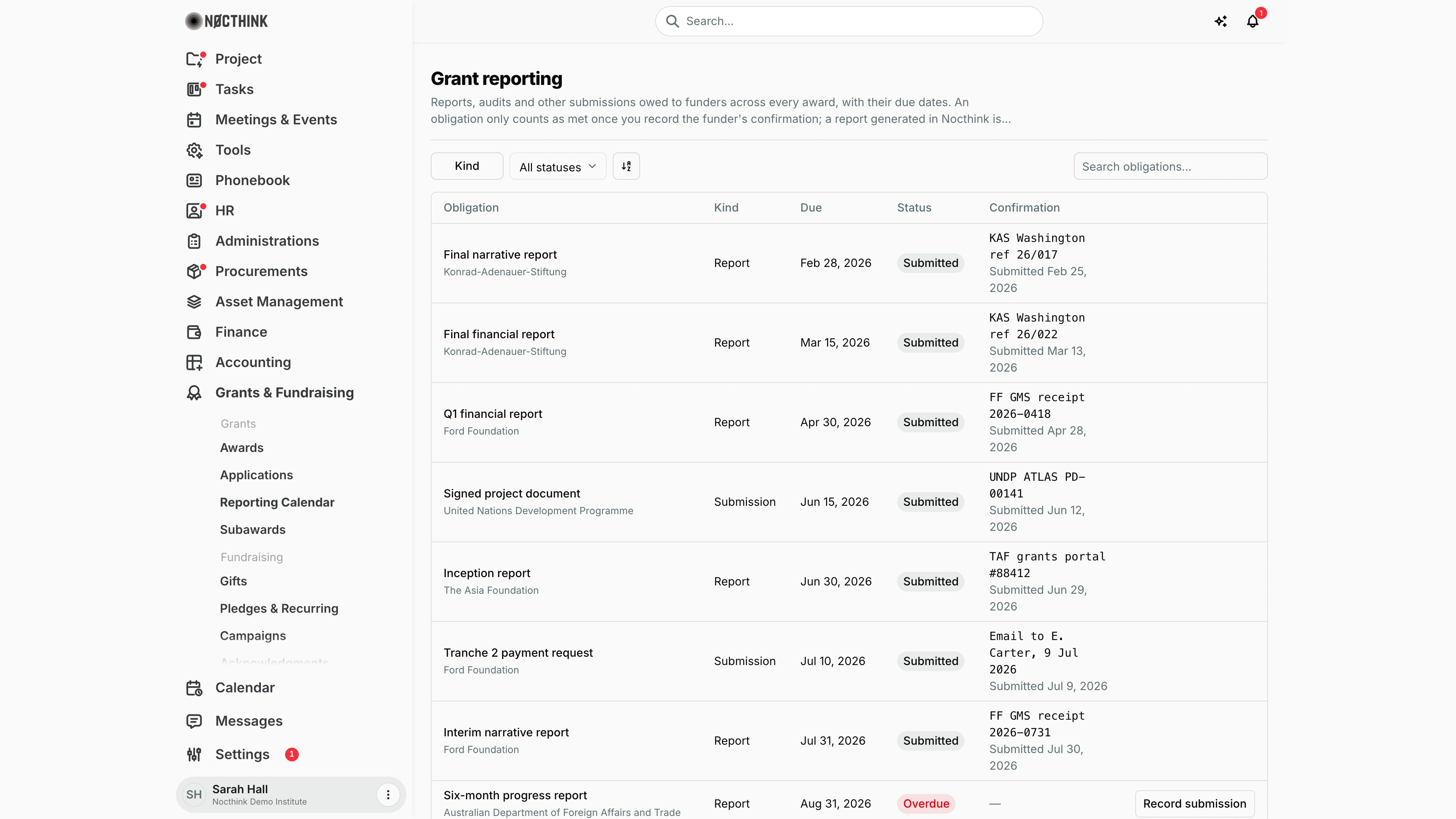
Screenshot: Sarah Hall (Finance Manager), Nocthink Demo Institute demo data.
Why I use this page
I use this page as my single calendar of what we owe funders under every award: narrative and financial reports, audits, and other submissions such as payment requests or signed documents. Every Monday I sort it by due date to see what is coming up and what is overdue. After the funder confirms receipt, I come back to record the confirmation. An obligation is only met once that confirmation is recorded.
Grants sit in the U.S. nonprofit modules, which are not covered in docs/role.md. The responsible role comes from the demo role "Grants and fundraising", which the seed gives to the Finance Manager.
What's on the screen
- Header: Grant reporting, with a reminder that a report generated in Nocthink is not a submission until it has been sent and acknowledged.
- Toolbar:
- A Kind checkbox filter: Report, Audit and Submission.
- A status filter, All statuses: Upcoming, Submitted and Overdue.
- A sort button and a Search obligations… box (searches the title).
- Table columns:
- Obligation: the title, with the award (funder) underneath. Click the award to open it.
- Kind
- Due
- Status: a pill. A red Overdue pill is added under Upcoming when the due date has passed.
- Confirmation: the funder's reference in monospace, with "Submitted <date>" underneath. Longer references wrap onto a second line between words; hover to see the full reference.
- An actions column with Record submission on every row that is not yet submitted.
- Footer: a row count and pagination (the demo has 20 rows over 2 pages).
How I …
See what is due or late
- Click the Due header (or use the sort button) to order the rows by due date.
- Look for red Overdue pills. These appear on rows saved as Overdue and on Upcoming rows whose due date has passed.
- To narrow down, tick a Kind (for example Audit), or type part of the title in Search obligations….
- Click the funder name under the obligation title to open the award. Its Closeout tab shows whether every obligation is done.
Record a submission after the funder confirms it
- Send the report to the funder outside Nocthink: through their portal, by email or by post.
- When I have their acknowledgment, click Record submission on the row.
- In the Record submission dialog (see below), enter the Confirmation reference: a portal receipt number, an email reference or similar. This field is required.
- Set Submitted on to the date it was delivered. It defaults to today.
- Click Record submission. The row becomes Submitted, and Confirmation shows the reference and date. The action is audit-logged with my name.
Prepare for closeout
- Open the award by clicking the funder name under the obligation title, then go to Closeout.
- The checklist item "Reporting obligations submitted" stays Blocked until every obligation for that award has a recorded confirmation here.
Detail page, forms & dialogs
Record submission
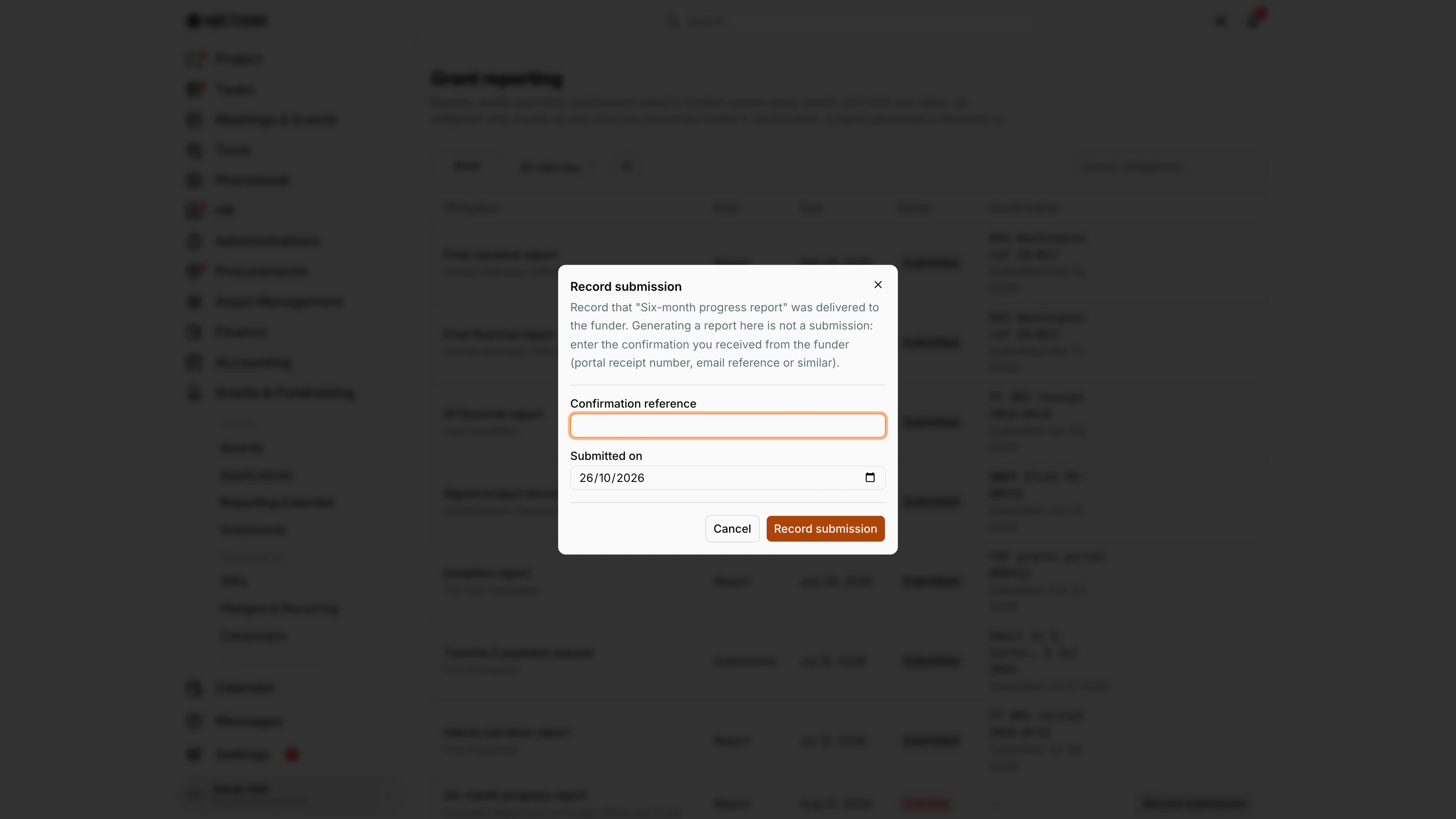
Screenshot: Sarah Hall (Finance Manager, also holds the F.A.T Manager role), Nocthink Demo Institute demo data.
Record submission sits on every row that is not yet submitted. The dialog names the obligation and repeats the rule that matters: generating a report here is not a submission, so I enter the confirmation I received from the funder (a portal receipt number, an email reference or similar). Confirmation reference is required. Submitted on defaults to today and should be the delivery date. Record submission marks the row Submitted, shows the reference and date in the Confirmation column and writes the action to the audit log. Once every obligation of an award is recorded here, the "Reporting obligations submitted" item on the award's Closeout tab turns Done.
Access & permissions
- The page needs
grants.view. Grants is a restricted domain, so the menu is hidden from staff without it, and typing the URL is blocked. - The U.S. nonprofit modules must be switched on in Settings → Nonprofit.
- Record submission needs
grants.update. - In the demo:
- The Finance Manager ("Grants and fundraising") can record submissions.
- The Senior Researcher ("Program and impact") can only view.
- The Executive Director and Deputy Director see everything.
Caveats
- Both Confirmation reference and Submitted on are required. The server rejects a submission without a reference or with a malformed date.
- Once a row is Submitted, its Record submission button disappears. There is no way here to correct a wrong reference or date.
- The status filter matches the saved status. An Upcoming obligation that is past due shows an extra red Overdue pill, but filtering by Overdue will not list it. To catch everything that is late, sort by Due instead.
- "Overdue" is worked out from today's date in UTC, so near midnight a row can turn overdue a few hours earlier or later than my local date suggests.
- Recording a submission does not send anything to the funder and does not attach the report file.
Limitations
- I cannot add, edit or delete obligations here. They are added on the Compliance tab of each grant under Projects → Funds & Grants.
- There is no undo for a recorded submission.
- The page has no calendar view, no export and no reminders. It is a sortable list only.
- I cannot attach evidence files on this page.
Related menus
- Funds & Grants (Project): where reporting obligations are created on each grant's Compliance tab.
- Awards: the award each obligation belongs to, and its closeout checklist.
- Subawards: partner reports that I collect before writing our own reports.
- Obligations (Compliance): statutory filings such as the Form 990 and state registrations, which are kept separate from funder reporting.