
Invoices
Open in NocthinkModule: Procurements · URL: /procurements/invoices · Responsible role: Finance Staff (full) · Also used by: Finance Manager and F.A.T Manager (full), Owner/Director (full), Procurement Officer (read), Accounting Staff (read)
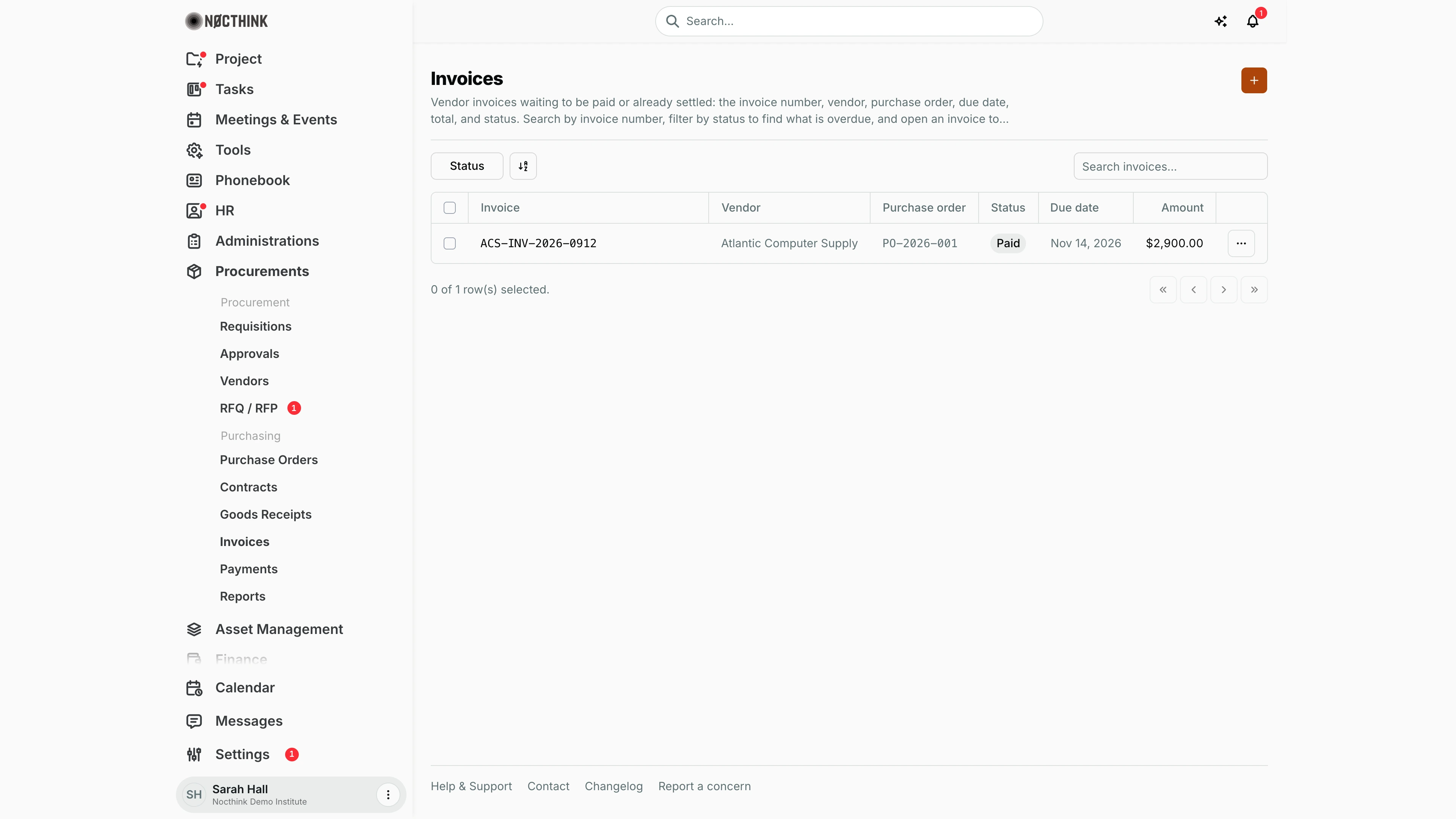
Screenshot: Sarah Hall (Finance Manager), Nocthink Demo Institute demo data.
Why I use this page
I use this page to record the bills vendors send us against our purchase orders, and to check each one against its PO and goods receipt (the "3-way match") before anyone pays it. It is the last step of the procurement chain before money goes out. Procurement hands me the PO and the receipt, and I make sure the invoice agrees with both. I open it whenever a vendor invoice arrives, and once a week I filter for Overdue so nothing slips past its due date. The same page also opens from Finance › Supplier Bills, which is the way my manager usually gets here (see Supplier Bills).
What's on the screen
- Header: the title Invoices, a short description, and the orange + button (aria label "New invoice") at the top right, which opens the New invoice dialog.
- Toolbar: a Status filter (checkboxes for Pending, Approved, Paid, Overdue, Cancelled), a column/sort control, and Search invoices... on the right. Search matches the invoice number only.
- Table columns:
- Invoice: the vendor's invoice number, in monospace; click it to open the detail page.
- Vendor: the column is wide enough for most vendor names; very long ones are cut short with "…" (hover to see the full name).
- Purchase order: the PO number.
- Status: a pill. Only Overdue is shown in red.
- Due date: shown as "Nov 14, 2026", sortable, in red when the invoice is overdue.
- Amount: the invoice total, sortable, in the invoice's (purchase order's) currency.
- ⋯: a row menu with Approve, Edit and Delete while the invoice is Pending; on any other status it only offers Open invoice.
- Footer: "0 of 1 row(s) selected." and the paging buttons. When rows are ticked, a Delete (n) bulk button appears.
In the screenshot there is one invoice, ACS-INV-2026-0912 from Atlantic Computer Supply on PO-2026-001. It is Paid, due Nov 14, 2026, for $2,900.00 (the currency comes from PO-2026-001).
Invoice detail (/procurements/invoices/<id>):
- The title is the vendor name, with the invoice number and PO number under it.
- Approve (Pending invoices only): enabled when the invoice is 3-way matched.
- Record payment: enabled only when the invoice is Approved and 3-way matched.
- ⋯: Edit and Delete, shown only while the invoice is Pending.
- Invoice details rail on the left: Invoice #, Vendor (links to the vendor), Purchase order (links to the PO), Goods receipt (links to the receipt), Due, Paid, Status, Match, Created, and an Amounts box (Amount, Tax, Total).
- Three tabs:
- 3-way match: the banner, a Re-check button, a Source/Total table (Purchase order, Goods receipt (received value), Invoice), and pills for PO = Invoice, GRN = Invoice and PO = GRN (totals mode only; line-by-line matching shows no pills).
- Notes.
- Summary.
How I …
How I record a vendor invoice
- Click + at the top right (see New invoice below). Alternatively, open
/procurements/invoices/newfor the full-page form; it has the same fields and a Create invoice button. - Enter the Invoice number exactly as the vendor printed it. It is required, at most 50 characters, and must be unique in the organization ("An invoice with this number already exists.").
- Set the Due date (required) and pick the Vendor (required).
- Pick the Purchase order. The vendor switches to the PO's vendor.
- Pick the Goods receipt. Only accepted (Received or Partial) receipts of that PO are listed. Its lines become the invoice lines, and Amount and Total are filled in from them (Total = Amount + Tax).
- Check Amount (before tax, must be positive), Tax and Total against the vendor's paper. If you change the tax, correct Total too.
- Add Notes for payment terms or a dispute, then click Create.
The invoice is saved as Pending, and the server runs the 3-way match immediately. Without a PO and an accepted receipt it stays Not matched.
How I approve an invoice
- Open the invoice (or use ⋯ → Approve on the list).
- Check that Match reads 3-way matched. Approve is disabled otherwise.
- Click Approve and confirm. The server re-runs the match, sets the invoice to Approved, posts the accrual (expense, tax, payable) for accounting, and notifies the invoice's creator.
- The person who received the goods cannot approve ("The receiver cannot approve the related invoice."); errors are shown in an alert.
How I check the 3-way match
- Click the invoice number to open the detail page (see Invoice detail below). It opens on the 3-way match tab.
- Read the banner:
- "PO, goods receipt, and invoice totals all match…": the invoice is 3-way matched and cleared for payment.
- "Totals do not match…": Match failed. Payment is blocked.
- "Link both a purchase order and a goods receipt…": Not matched. A link is missing.
- Compare the three totals in the table, and look at which pill is red (✗).
- After Procurement fixes the PO or the goods receipt, click Re-check to recalculate.
How I find what's overdue or unpaid
- Click Status and tick Overdue (and Pending if you want everything unpaid).
- Sort Due date ascending so the oldest come first.
- Open each invoice and check its Match. Unmatched ones go back to Procurement.
How I start a payment
- Open an approved, matched invoice. Record payment is active only then; otherwise hovering it explains what is missing.
- Click Record payment. It opens
/procurements/payments/newwith the invoice already selected. - Continue as described in Payments.
Detail page, forms & dialogs
Invoice detail
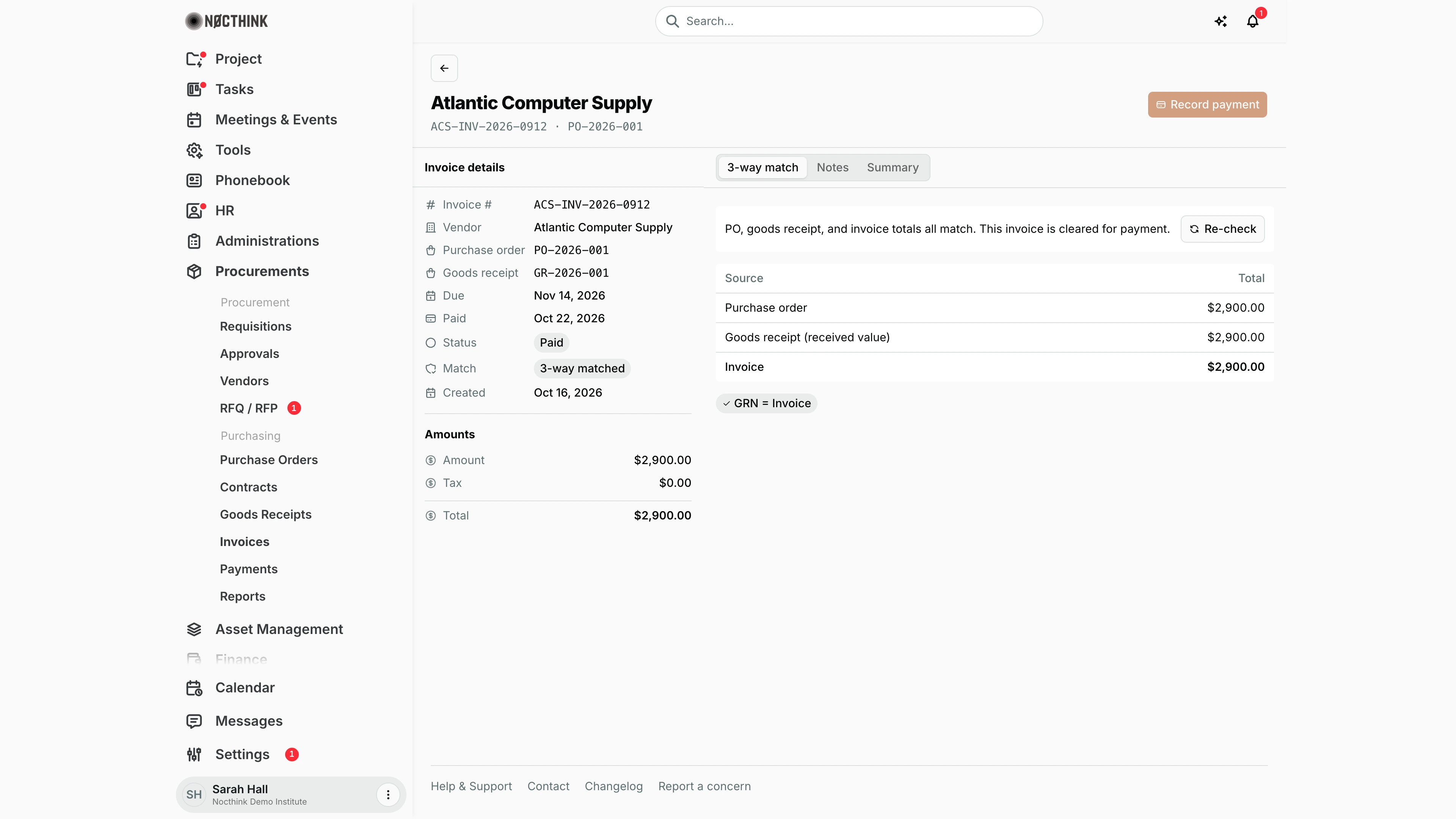
Screenshot: Sarah Hall (Finance Manager), Nocthink Demo Institute demo data.
Clicking an invoice opens its page. The header shows the vendor, the invoice and PO numbers, and the actions: Approve (pending invoices only; disabled until the 3-way match passes), Record payment (active only for an approved, matched invoice; here disabled because it is already paid) and, for pending invoices, a ⋯ menu with Edit and Delete. Approve asks "Approve this invoice for payment? This posts the accrual (expense, tax, payable) to accounting."
Invoice details lists Invoice #, Vendor, Purchase order, Goods receipt (all linked), Due, Paid, Status, Match and Created; Amounts shows Amount, Tax and Total.
The 3-way match tab opens first: a banner ("PO, goods receipt, and invoice totals all match. This invoice is cleared for payment."), the three totals, check pills such as GRN = Invoice, and Re-check. Notes and Summary are the other tabs.
New invoice
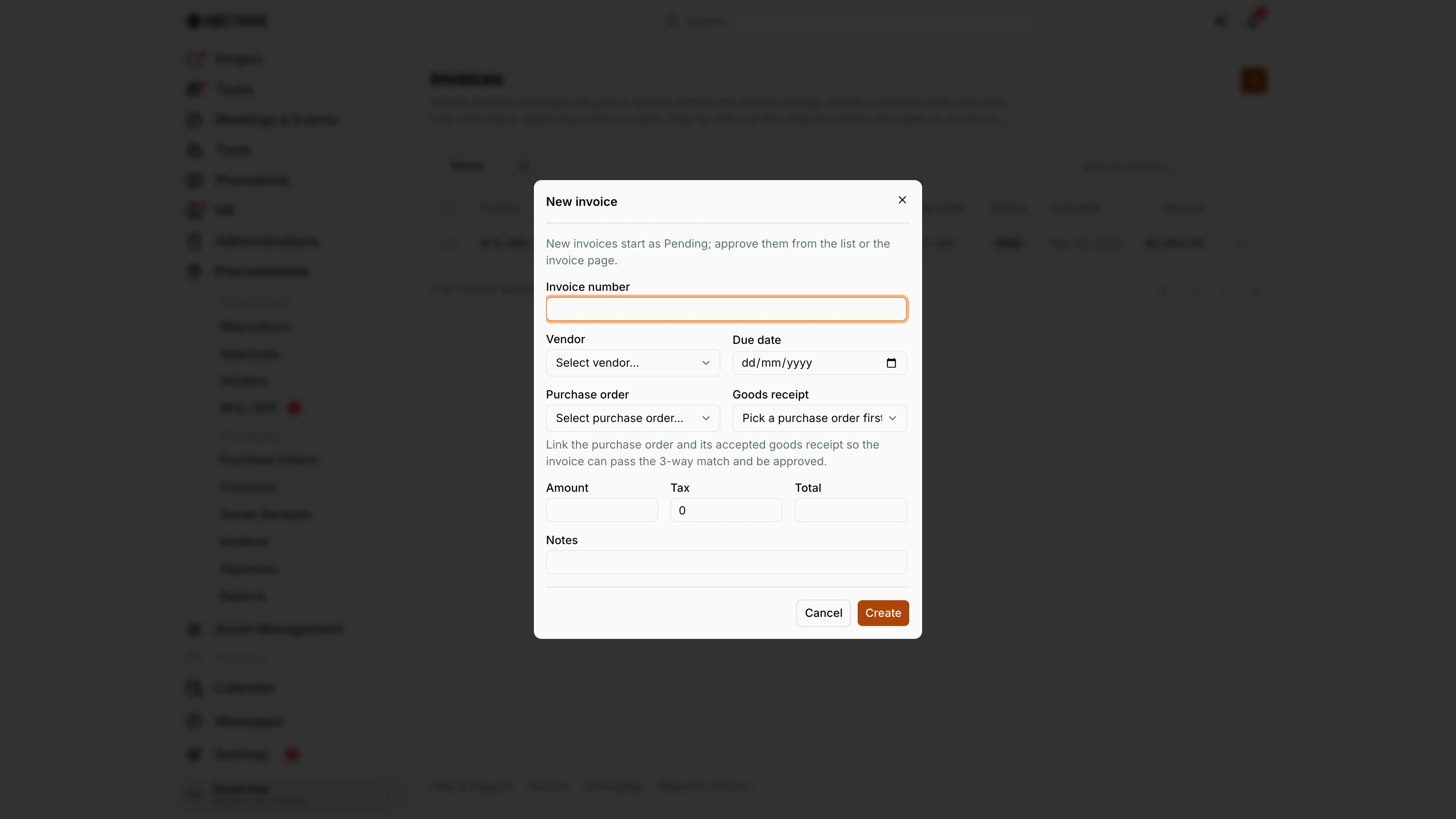
Screenshot: Sarah Hall (Finance Manager), Nocthink Demo Institute demo data.
+ opens New invoice: "New invoices start as Pending; approve them from the list or the invoice page." Fields: Invoice number, Vendor, Due date, Purchase order, Goods receipt ("Pick a purchase order first"), Amount, Tax, Total and Notes. The hint under the PO fields says why they matter: "Link the purchase order and its accepted goods receipt so the invoice can pass the 3-way match and be approved." Create saves it.
Picking a goods receipt copies its lines and fills Amount and Total (Total = Amount + Tax); only accepted receipts of the chosen order are offered. The invoice number must be unique and is matched right after saving.
Access & permissions
- Who can open it: the route needs
finance.view,accounting.vieworprocurements.approve. The seeded Finance Staff, Finance Manager, F.A.T Manager, Accounting Staff and Procurement roles all qualify, as do the Owner and Directors. - What I see: with finance or accounting authority I see every invoice in the organization. Without it, I see only invoices whose PO comes from a requisition I can see (my own, my managed departments', my projects').
- Writing:
- Create, edit and delete need
procurements.create,procurements.updateandprocurements.delete, or finance authority (Finance department,finance.approve, or the finance-staff, finance-manager or fat-manager role). Finance Staff can therefore enter and correct bills without the Procurement role. - Accounting authority is read-only here.
- Create, edit and delete need
- Approving: invoice approval needs
procurements.approve(the seeded finance roles have it). The person who received the goods on the linked receipt cannot approve the invoice ("The receiver cannot approve the related invoice.").
Caveats
- Only Pending invoices can be edited or deleted. Once approved an invoice is immutable ("Approved invoices are immutable; use a lifecycle action.") and cannot be deleted; an invoice that already has payments can't be deleted either. Errors are shown in an alert.
- Status moves only through actions: Approve, and payment release, which sets Paid once completed payments reach the total.
- Two match modes. If the invoice has line items (copied from the goods receipt you pick), they are matched line by line against the PO and received quantities, within the organization's quantity, price and tax tolerances; Amount must equal the lines' value. Otherwise the totals are compared: PO total = invoice total = received value.
- Amounts are shown in the invoice's currency (its purchase order's currency, or the base currency without a PO). A due date is a calendar day and never shifts with my time zone.
- Approval posts to accounting. Approving an invoice creates an accrual posting (expense, tax, payable) in the PO's currency and drafts a journal for F.A.T.; the invoice's creator is notified "Invoice approved".
Limitations
- Invoice lines can't be typed by hand; they come from the linked goods receipt.
- No Cancel or Reverse action, even though the server says invoices are cancelled rather than deleted.
- No export. Search covers the invoice number only (not vendor or PO).
Related menus
- Supplier Bills: the same page, reached from the Finance sidebar.
- Purchase Orders: the PO each invoice is matched against.
- Goods Receipts: the received quantities and value used in the match.
- Payments: where a matched, approved invoice is paid.
- Vendors: the vendor named on the invoice.
- Reports: unpaid invoice count and amount.
- AI Workbench: where the accrual journal drafted on approval appears.