
Chart of Accounts
Open in NocthinkModule: Accounting · URL: /accounting/chart-of-accounts · Responsible role: Accounting Staff · Also used by: F.A.T Manager (full), Owner/Director (full, the only ones who can delete); Finance Staff/Manager (read-only)
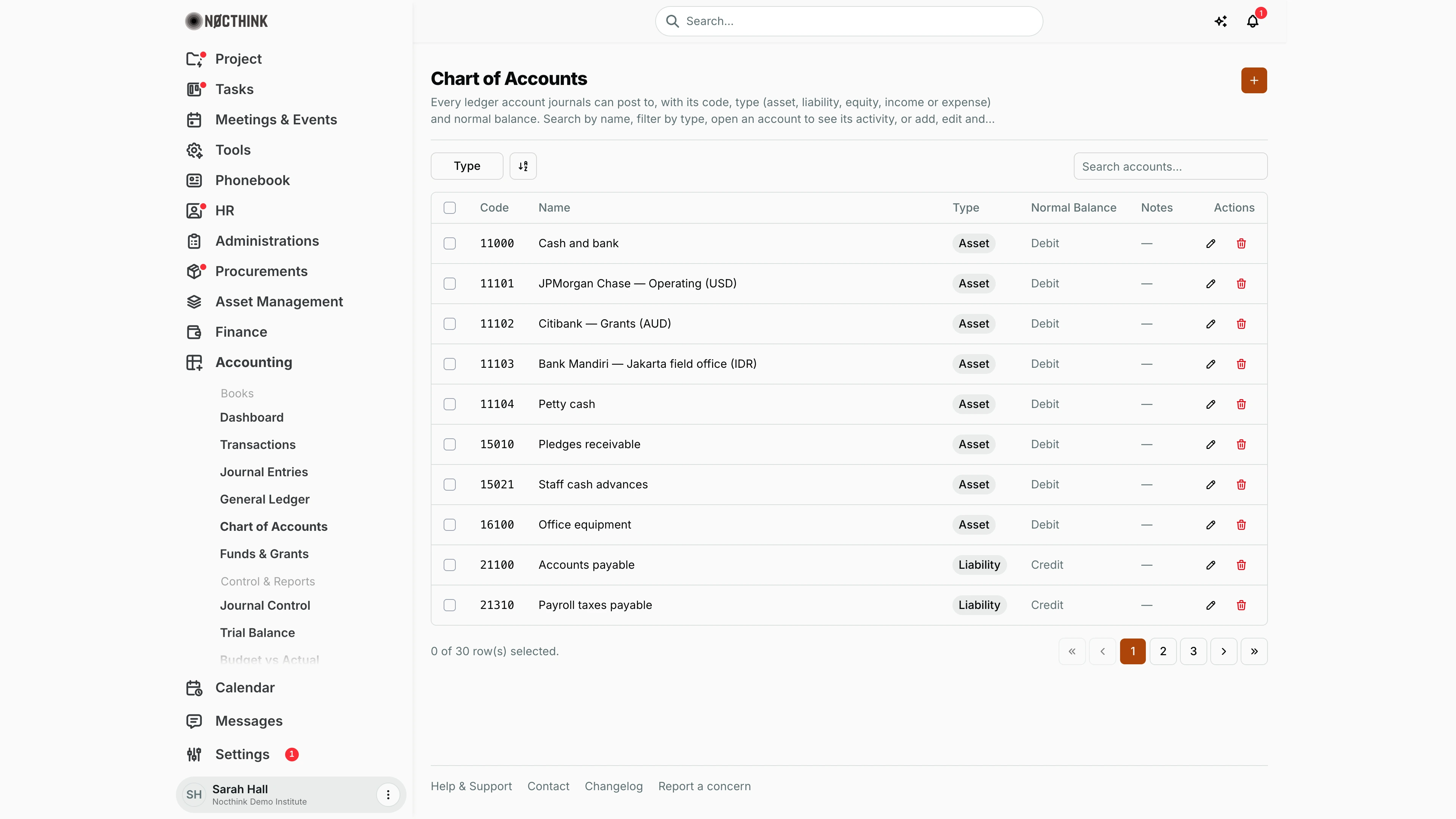
Screenshot: Sarah Hall (Finance Manager, also holds the F.A.T Manager role), Nocthink Demo Institute demo data.
Why I use this page
The chart of accounts is the list of ledger accounts that journals can post to. Every report reads from it: the trial balance, the statement of financial position, the statement of activities and the cash flow statement. I open it when a new bank account, grant income stream or expense category needs its own account, and when I set up a new organization. I also check it before month end to make sure new expense accounts are in the right income-statement section.
What's on the screen
- Header — the title Chart of Accounts and an orange + button (New account).
- Toolbar — a Type filter (Asset, Liability, Equity, Income, Expense), a sort/view control, and Search accounts…, which searches by name.
- Table — a row checkbox, Code (a link to the account detail page), Name, Type (a neutral pill), Normal Balance (Debit or Credit), Notes, and Actions with a pencil (edit) and a red trash icon (delete).
- Pager — the demo tenant has 30 accounts over 3 pages, from
11000 Cash and bankand the bank accounts (11101 JPMorgan Chase — Operating (USD),11102 Citibank — Grants (AUD),11103 Bank Mandiri — Jakarta field office (IDR)) through payables, net assets, income and expenses. - Empty state — when the organization has no accounts, the table is replaced by No accounts yet. An org admin also gets a Create starter chart button that loads the nonprofit chart of accounts with a general fund.
- Account detail page — Classification shows Type, Normal balance, Cash account (Yes/No), Cash-flow category, Income statement section (expense accounts only) and Notes, plus an Active/Inactive status.
How I …
Add an account
- Click +. The New Account dialog opens (see New account below).
- Enter Code (required, up to 20 characters, unique in the organization) and Name (required).
- Pick a Type and a Normal Balance. Assets and expenses are normally Debit; liabilities, equity and income are normally Credit.
- For an Asset, tick Cash or bank account if it holds cash. Only cash accounts can be linked to a bank account, and only they count as cash on the cash flow statement.
- Optionally pick a Parent account (top-level accounts only) and, for a non-cash account, a Cash flow category.
- For an Expense, choose the Functional class and the Income statement section: Program expenses (the default) or Other expenses.
- Add Notes if needed, then click Create Account.
Edit an account
- Click the pencil in the account's row (see Edit account below).
- Change the fields. The Edit Account dialog has the same fields as the new-account dialog.
- Click Save Changes. A duplicate code is rejected with "An account with this code already exists."
- Changing the type or section changes past reports as well, because the reports read the account's current classification.
Set up a new organization's chart
- On an empty chart, an org admin clicks Create starter chart.
- I then adjust codes and names and add bank accounts with +.
Retire an account
- Click the trash icon. A Delete account? dialog names the account and warns that the delete is permanent; click Delete to go ahead.
- The server needs
accounting.delete, which only Owners and Directors have. For anyone else the request fails. - An account that has journal lines or is used in posting settings can't be deleted. The server replies "This account has journal lines or is used in posting settings; deactivate it instead." This page has no deactivate switch (see Limitations).
Detail page, forms & dialogs
Account detail
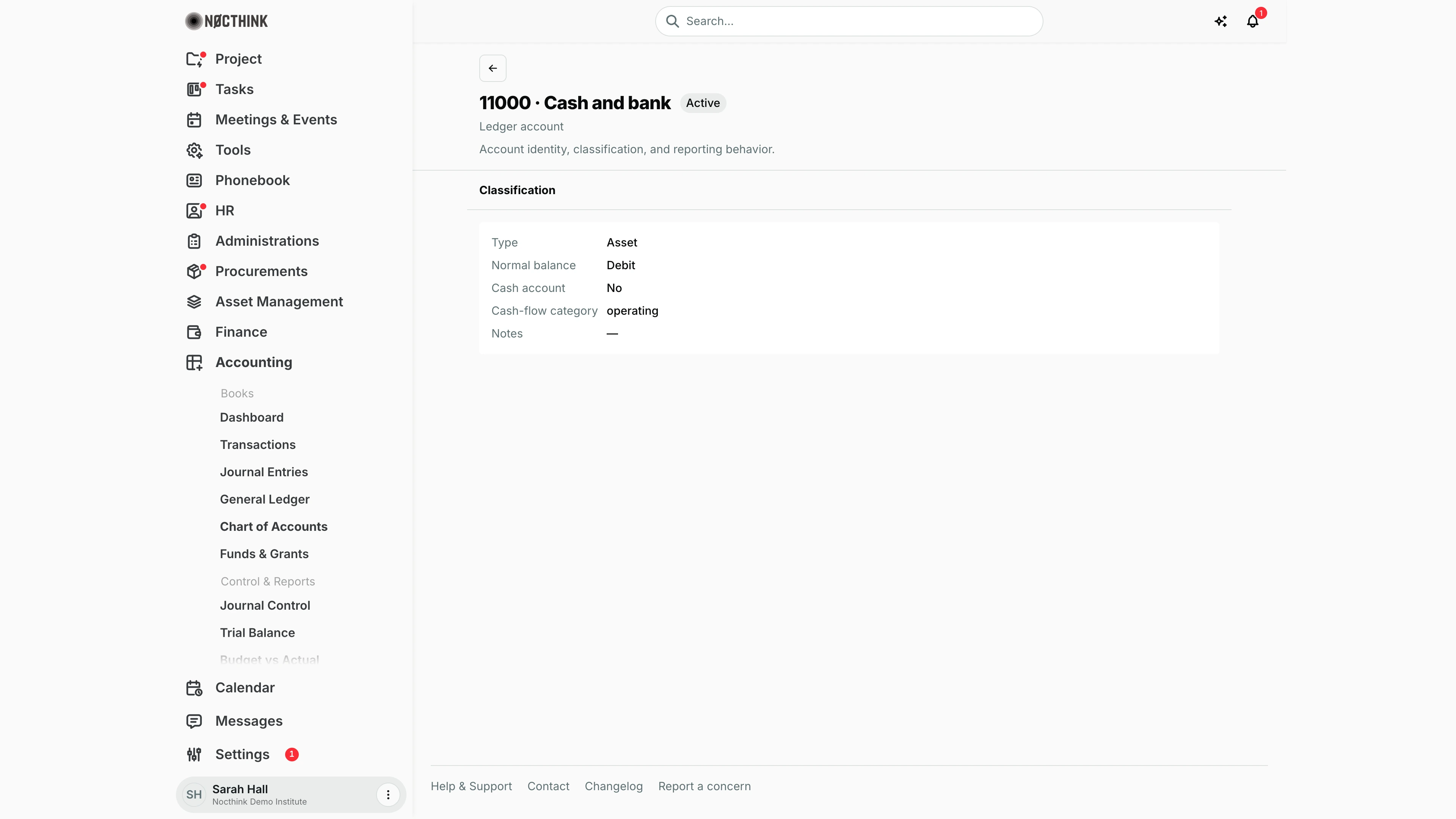
Screenshot: Sarah Hall (Finance Manager, also holds the F.A.T Manager role), Nocthink Demo Institute demo data.
Clicking an account code opens the account page. The header reads Ledger account, then "code · name" (here 11000 · Cash and bank) with an Active or Inactive pill and the line "Account identity, classification, and reporting behavior."
The Classification panel shows Type, Normal balance, Cash account (Yes/No), Cash-flow category, and for an Expense account also Income statement section (Program expenses or Other expenses), followed by Notes.
The page is read-only. To change the account I go back to the list and use the pencil (see Edit account below). To see the postings on it I open General Ledger and pick the account.
New account
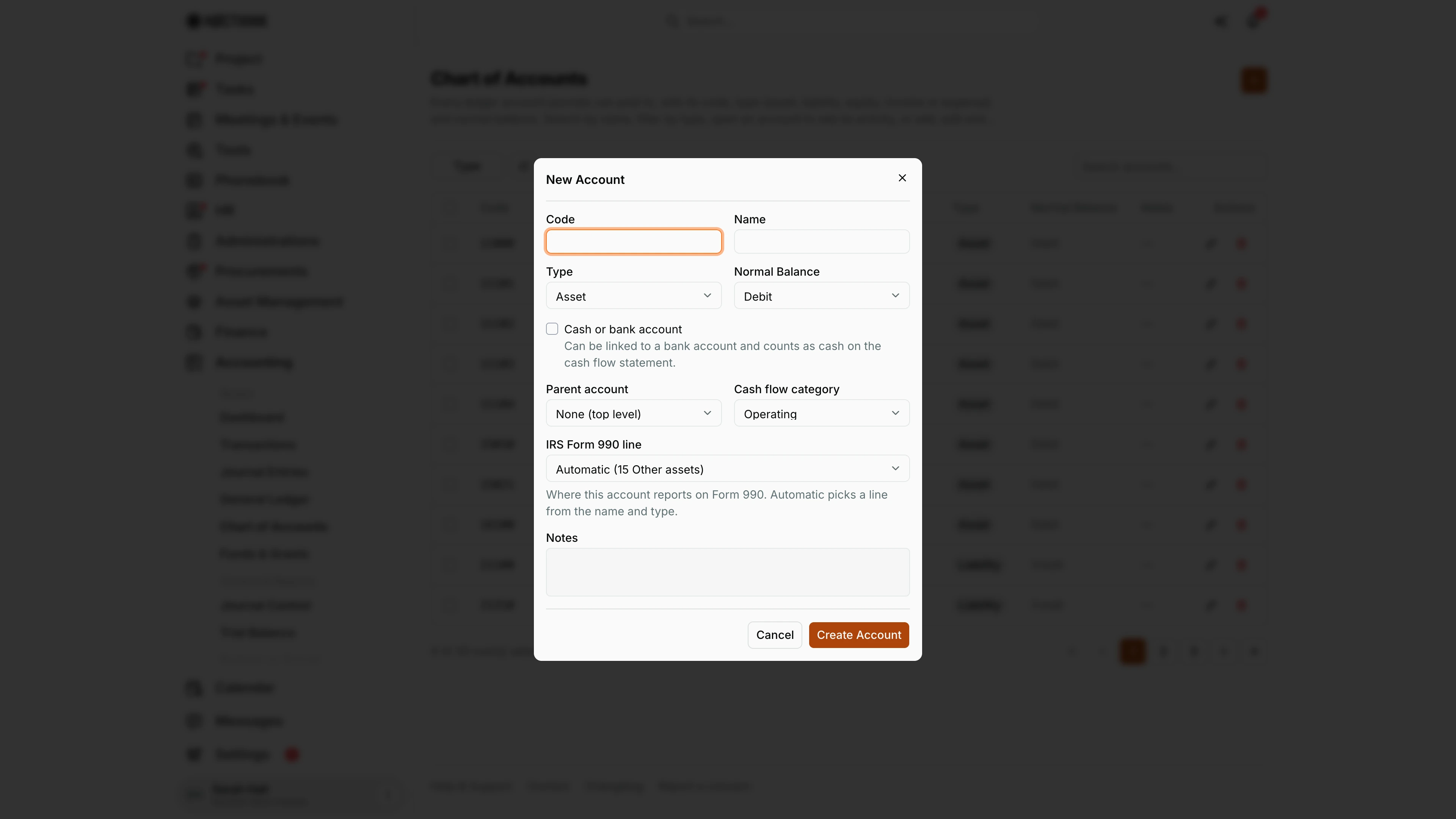
Screenshot: Sarah Hall (Finance Manager, also holds the F.A.T Manager role), Nocthink Demo Institute demo data.
The + button (New account) opens New Account. It asks for Code and Name, then Type (Asset, Liability, Equity, Income, Expense) and Normal Balance (Debit or Credit).
The rest of the form depends on the type. An Asset shows Cash or bank account, with the note that it "Can be linked to a bank account and counts as cash on the cash flow statement." Parent account offers top-level accounts or None (top level). Cash flow category appears for every account that is not a cash account. An Expense adds Functional class and Income statement section. For a U.S. nonprofit, IRS Form 990 line defaults to Automatic (the guessed line is named in brackets, e.g. "Automatic (15 Other assets)"), and I can pin a specific Part/line instead. Notes is free text.
Create Account saves; Cancel discards. A duplicate code is rejected under the field.
Edit account
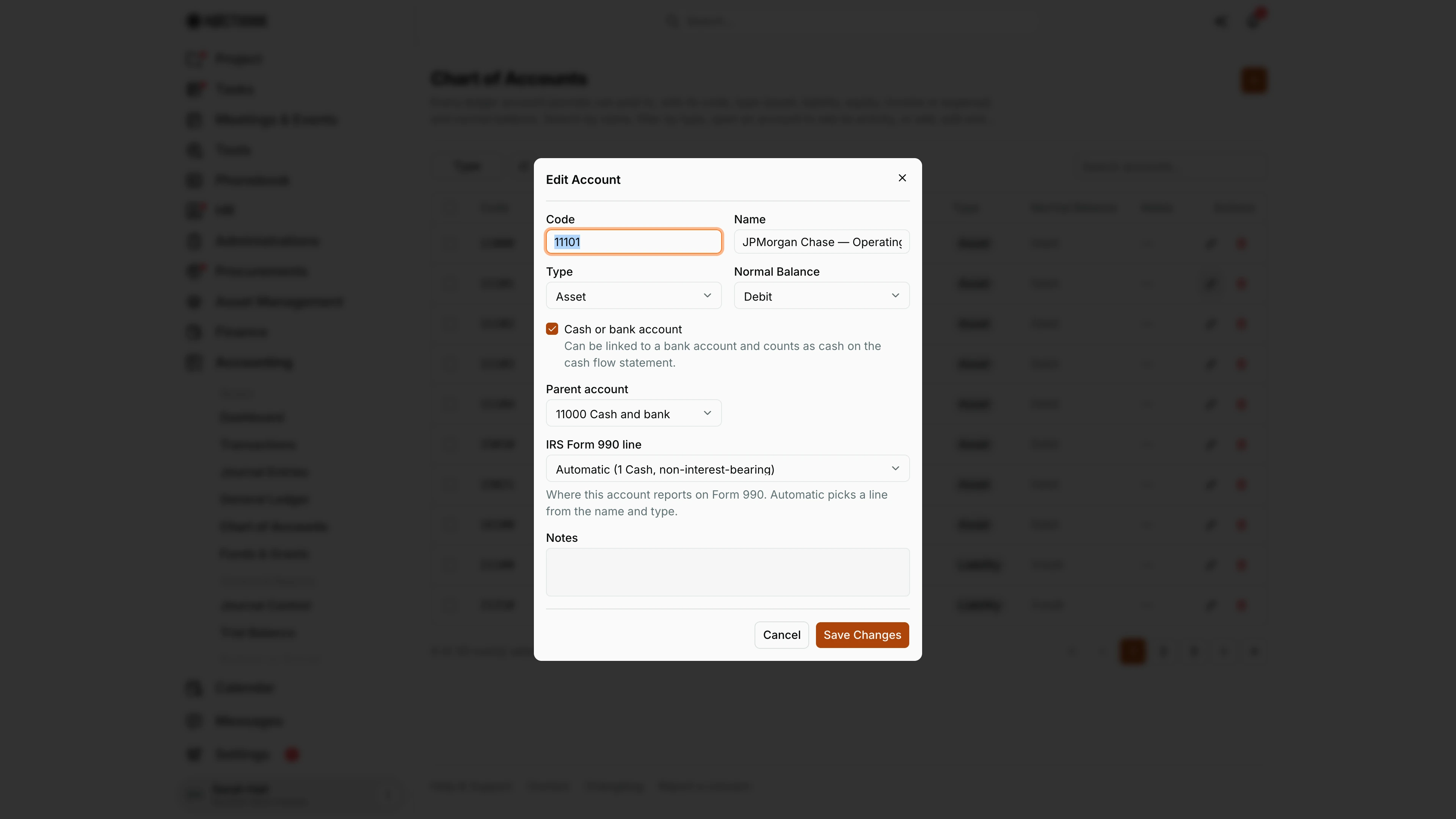
Screenshot: Sarah Hall (Finance Manager, also holds the F.A.T Manager role), Nocthink Demo Institute demo data.
The pencil in a row (Edit account <code>) opens the same form titled Edit Account, filled with the account's current values. In the screenshot, 11101 JPMorgan Chase — Operating is an Asset with Cash or bank account ticked, so the cash-flow category is hidden; its Parent account is 11000 Cash and bank and its IRS Form 990 line is "Automatic (1 Cash, non-interest-bearing)".
An account that already has sub-accounts keeps Parent account disabled ("This account has sub-accounts, so it stays top-level."). Save Changes writes the update. Because reports read the account's current classification, a change of type, section, functional class or Form 990 line also changes past periods' statements.
Access & permissions
- To see the page: accounting authority, meaning the
accounting-stafforfat-managerrole, oraccounting.approve. Owners and Directors always pass. - Create and edit:
accounting.createandaccounting.update, which Accounting Staff and the F.A.T Manager have. - Delete:
accounting.delete, which only Owners and Directors have. - The accounts API can also be read by anyone with finance authority, so finance users see these accounts in pickers elsewhere even without access to this page.
- Finance Staff and Finance Manager are read-only here: their seeded roles include
accounting.view, and the server lets finance authority withaccounting.viewread the books. They can't create, change or post anything on this page.
Caveats
- The dialog clears Cash or bank account for anything that isn't an Asset, and clears the income-statement section for anything that isn't an Expense.
- Inactive accounts don't appear in the account picker on new journals, unless the journal already uses them.
- Parent account offers only top-level accounts: grouping is one level deep. An account that already has sub-accounts stays top-level.
- Cash flow category is hidden for cash accounts, since it classifies the counterpart of a cash movement. Functional class shows only for Expense accounts; leave it Unclassified for shared costs you allocate on Functional Expenses.
- The server also supports an Encumbrance account type, a revenue type and an expense class, which this dialog doesn't set.
- Deleting asks for confirmation first and can't be undone. Accounts that journals have posted to can't be deleted.
Limitations
- No Active/Inactive switch, so I can't deactivate an account from the UI even though the server error message suggests it.
- No way to set the revenue type or expense class from the UI; they can only be changed through the API or the starter chart.
- The detail page shows only the classification. It does not show the account's activity, although the page description promises it. Use General Ledger filtered to the account instead.
- No import or export.
Related menus
- Journal Entries — lines post to these accounts.
- General Ledger — activity per account.
- Trial Balance — balances per account, grouped by type.
- Cash Flows and Functional Expenses — reports that depend on cash and functional classification.
- Finance Settings — the organization's bank accounts (shown on invoices); cash accounts here are what bank pickers link to.