
Funds & Grants
Open in NocthinkModule: Accounting · URL: /accounting/funds · Responsible role: Accounting Staff · Also used by: F.A.T Manager (full), Owner/Director (full, the only ones who can delete); Finance Staff/Manager (read-only)
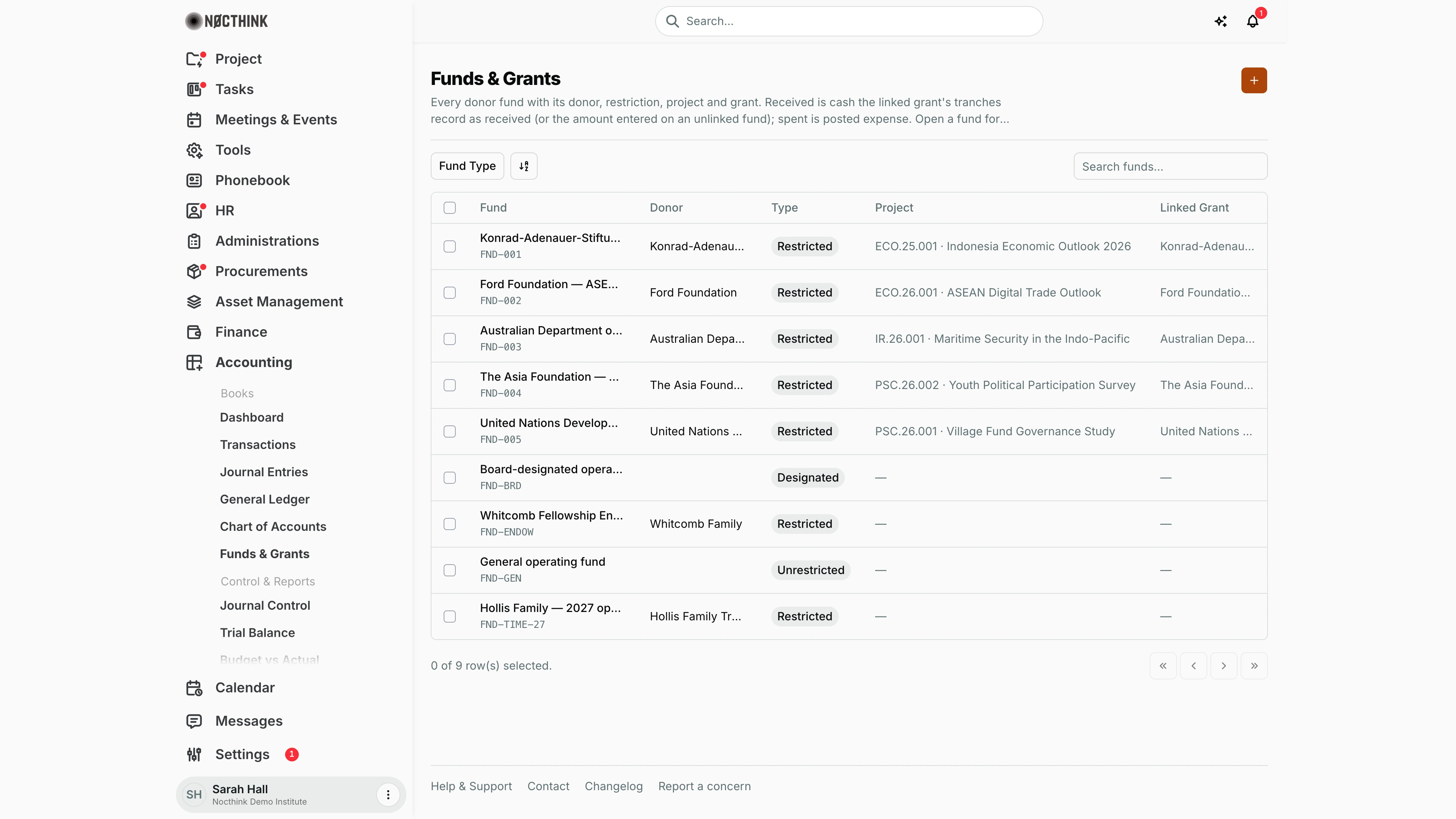
Screenshot: Sarah Hall (Finance Manager, also holds the F.A.T Manager role), Nocthink Demo Institute demo data. At this width the table ends at Linked Grant; scroll sideways for Award, Received, Spent, Available and Actions.
Why I use this page
A ledger fund is the bucket that fund accounting keeps money in: a restricted donor grant, a board-designated reserve, or the general operating fund. Each journal line is charged to a fund, and the restricted and unrestricted figures on the statements come from these funds. I open this page when a new award is signed so that I can create its fund and link it to the project grant. I also use it to check how much of each award has been received, spent and is still available.
What's on the screen
- Header — the title Funds & Grants and an orange + button (New fund).
- Toolbar — a Fund Type filter (Restricted, Unrestricted, Designated), a sort/view control, and Search funds…, which searches by name.
- Table (with a row checkbox; no bulk action is attached):
- Fund stays in place when I scroll sideways. It shows the name, with the fund ID underneath (for example
FND-001), and links to the detail page. - Donor is the linked donor company, or the donor name typed on the fund.
- Type is a pill. Project is the project number and name (for example
ECO.26.001 · ASEAN Digital Trade Outlook); a fund with no project shows its typed project code, or "—". Linked Grant is the project grant the fund is tied to. - Award is in the fund's own currency (for example
IDR 10,000,000.00). When that differs from the base currency, the base equivalent shows underneath (≈ $615.38), or "No exchange rate" when none is known. - Received, Spent and Available are in the base currency. Received is cash received: for a grant-linked fund, the tranches marked received on the project grant (hover the column heading for this note); for an unlinked fund, the amount typed on the fund.
- Actions has a pencil (edit) and a red trash icon (delete).
- Fund stays in place when I scroll sideways. It shows the name, with the fund ID underneath (for example
- In the demo tenant there are 9 funds: five restricted donor grants linked to project grants (
FND-001toFND-005), a board-designated fund (FND-BRD), the Whitcomb Fellowship endowment (FND-ENDOW, $500,000.00), the general operating fund (FND-GEN, whose received figure of $713,900.00 is the typed opening net assets) and the Hollis Family time-restricted fund (FND-TIME-27, $100,000.00). - Fund detail page — the side panel shows Award in the fund's currency (with its base equivalent), and Received ("Received (grant tranches)" or "Received (entered)"), Spent and Available in the base currency. Fund details shows Donor, Project (the project number and name, linking to project finance), Start date, End date and Currency.
How I …
Create a fund for a new award
- Click +. The New Fund dialog opens (see New fund below).
- Enter Fund ID (required, up to 30 characters, unique, for example
FND-006) and Name (required). - Enter Donor as text, and choose Fund Type. It defaults to Restricted.
- Enter Project Code, Start Date and End Date. The end date can't be before the start date.
- Enter Award Amount (0 or more) and Award Currency, a 3-letter code that defaults to the organization's base currency.
- In Project Grant, pick the grant from the list (each option reads "Project · Donor (grant number)"). Or leave Not linked (enter received manually).
- If the fund is not linked, enter Received Amount. If it is linked, the field is greyed out with the note "From the grant's received disbursements."
- Click Create Fund.
Update an award or its link
- Click the pencil in the fund's row.
- Change the fields, then click Save Changes.
- Linking a fund to a grant switches Received to the grant's received tranches straight away.
Investigate a fund that is overspent
- Sort or scan the Available column for negative amounts.
- Open the fund to see the totals (see Fund detail below).
- Go to General Ledger and look at the expense lines charged to that fund ID.
Delete a fund set up by mistake
- Click the trash icon. The Delete fund? dialog warns: "Funds with transactions or journal entries can't be deleted."
- Click Delete. The server needs
accounting.delete, so only an Owner or Director can complete this. - If the fund is in use, the dialog shows "Fund has transactions or journal entries. Reassign or delete them before deleting the fund."
Detail page, forms & dialogs
Fund detail
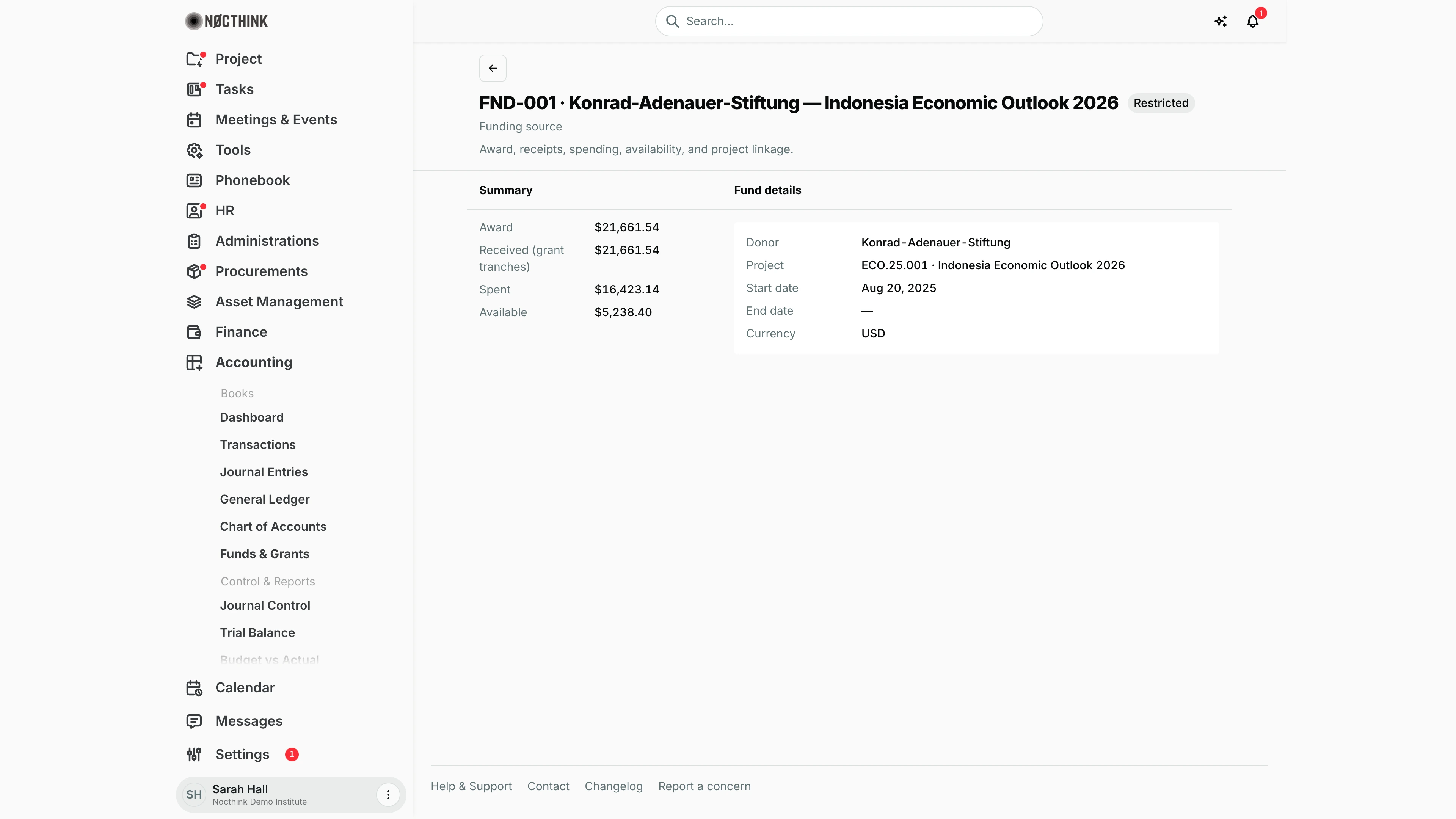
Screenshot: Sarah Hall (Finance Manager, also holds the F.A.T Manager role), Nocthink Demo Institute demo data.
Clicking a fund ID opens the fund. The header reads Funding source, "fund ID · name" and a pill with the fund type (Restricted, Unrestricted or Designated), with the line "Award, receipts, spending, availability, and project linkage."
The Summary side panel shows Award in the fund's currency, then Received (grant tranches) for a grant-linked fund or Received (entered) for one that is not linked, Spent (posted expense) and Available, all in the base currency. In the screenshot FND-001 has received $21,661.54, spent $16,423.14 and has $5,238.40 available.
Fund details lists Donor, Project (a link to the project's page in Project Finance), Start date, End date and Currency. The page is read-only; I edit the fund from the list's pencil (same form as New fund below).
New fund
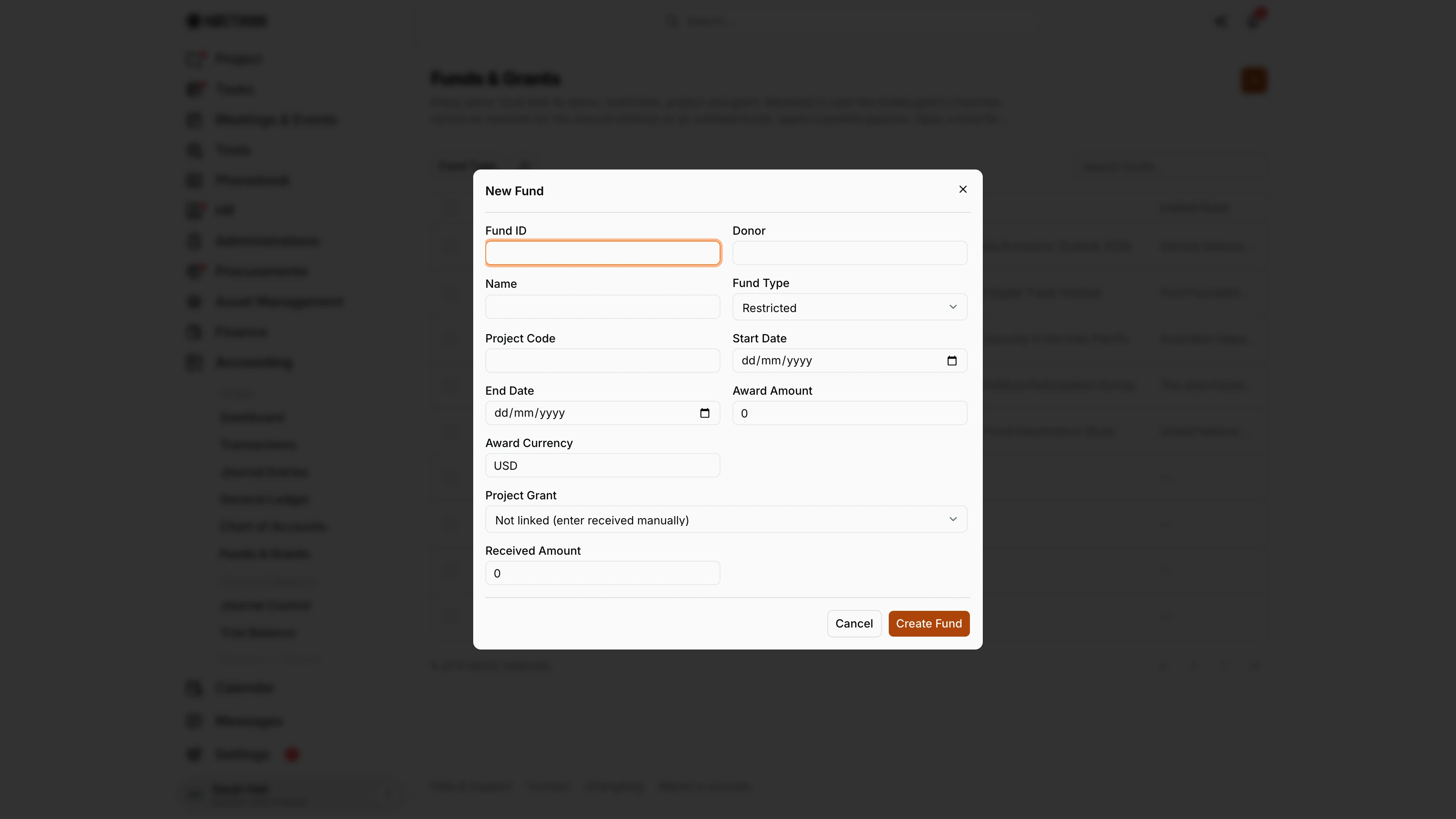
Screenshot: Sarah Hall (Finance Manager, also holds the F.A.T Manager role), Nocthink Demo Institute demo data.
The + button (New fund) opens New Fund. Fields: Fund ID, Donor, Name, Fund Type (Restricted by default), Project Code, Start Date, End Date, Award Amount, Award Currency (three letters, defaults to the base currency), Project Grant and Received Amount.
Project Grant starts on Not linked (enter received manually). Picking a grant greys out Received Amount with the note "From the grant's received disbursements", because the received figure then follows the grant's tranches.
Create Fund saves; Cancel closes. The pencil on a row opens the same form as Edit Fund with Save Changes.
Access & permissions
- To see the page: accounting authority, meaning the
accounting-stafforfat-managerrole, oraccounting.approve. Owners and Directors always pass. - Create and edit:
accounting.createandaccounting.update, which Accounting Staff and the F.A.T Manager have. - Delete:
accounting.delete, which only Owners and Directors have. - Project Managers handle the grant side in Project Funds & Grants; this page is the ledger side.
- Finance Staff and Finance Manager are read-only here: their seeded roles include
accounting.view, and the server lets finance authority withaccounting.viewread the books. They can't create, change or post anything on this page.
Caveats
- Spent counts only Posted journal lines on Expense accounts. A line uses its own fund if it has one, otherwise the fund on the journal header. Drafts don't count.
- Available is received minus spent, not award minus spent.
- Three "received" figures, three definitions. Funds & Grants shows cash received according to the grant's tranche register. Donor Restrictions Contributions (revenue) is restricted income booked in the ledger, which also counts pledges and gifts not yet collected. Penerimaan & Pengeluaran Penerimaan is cash received in the ledger. In the demo, FND-002 (Ford Foundation) shows $60,000.00 here (the received tranches), while the ledger carries 95,000.00 of restricted grant income plus 1,000.00 of individual contributions on the fund, so Donor Restrictions shows $96,000.00 in contributions for 2026 and Penerimaan shows 96,000.00 received. The tranche register and the ledger receipt disagree in the demo data, which is the kind of gap these three figures help to spot.
- The Dashboard leaves opening balances out of Received, so
FND-GEN's $713,900.00 shows there as an opening balance, not as money received. - Restricted grants are checked again when journals are posted. If the linked grant is frozen, or the cost is unallowable, posting is blocked. See Journal Entries.
- The base equivalent of Award uses the linked grant's manual rate, the project's fixed rate, or the daily rate on the fund's start date. The Dashboard Total award is the sum of these equivalents; a fund with no rate is left out there and named under the card.
- The Donor text box sets the donor name. A link to a donor company can only be set through the API.
Limitations
- The dialog can't set the restriction kind (purpose, time or perpetual), the restriction terms or the release date. Those are used by Donor Restrictions and can only be set through the API or seed data.
- The detail page has no ledger of its own, although the page description says "open a fund for its ledger".
- No export and no bulk actions.
Related menus
- Project Funds & Grants — the project grant records a fund links to; received tranches come from there.
- Awards — award management for US nonprofit tenants.
- Journal Entries — charging lines to a fund.
- Budget vs Actual — spending against budget lines by fund.
- Donor Restrictions and Changes in Net Assets — restricted and unrestricted reporting built from these funds.
- Dashboard — the fund totals at a glance.