
Dashboard
Open in NocthinkModule: Asset Management · URL: /asset-management/dashboard · Responsible role: IT / Asset Officer · Also used by: Owner/Director (full), Procurement (write), General Affairs and Finance/F.A.T./Accounting staff (read)
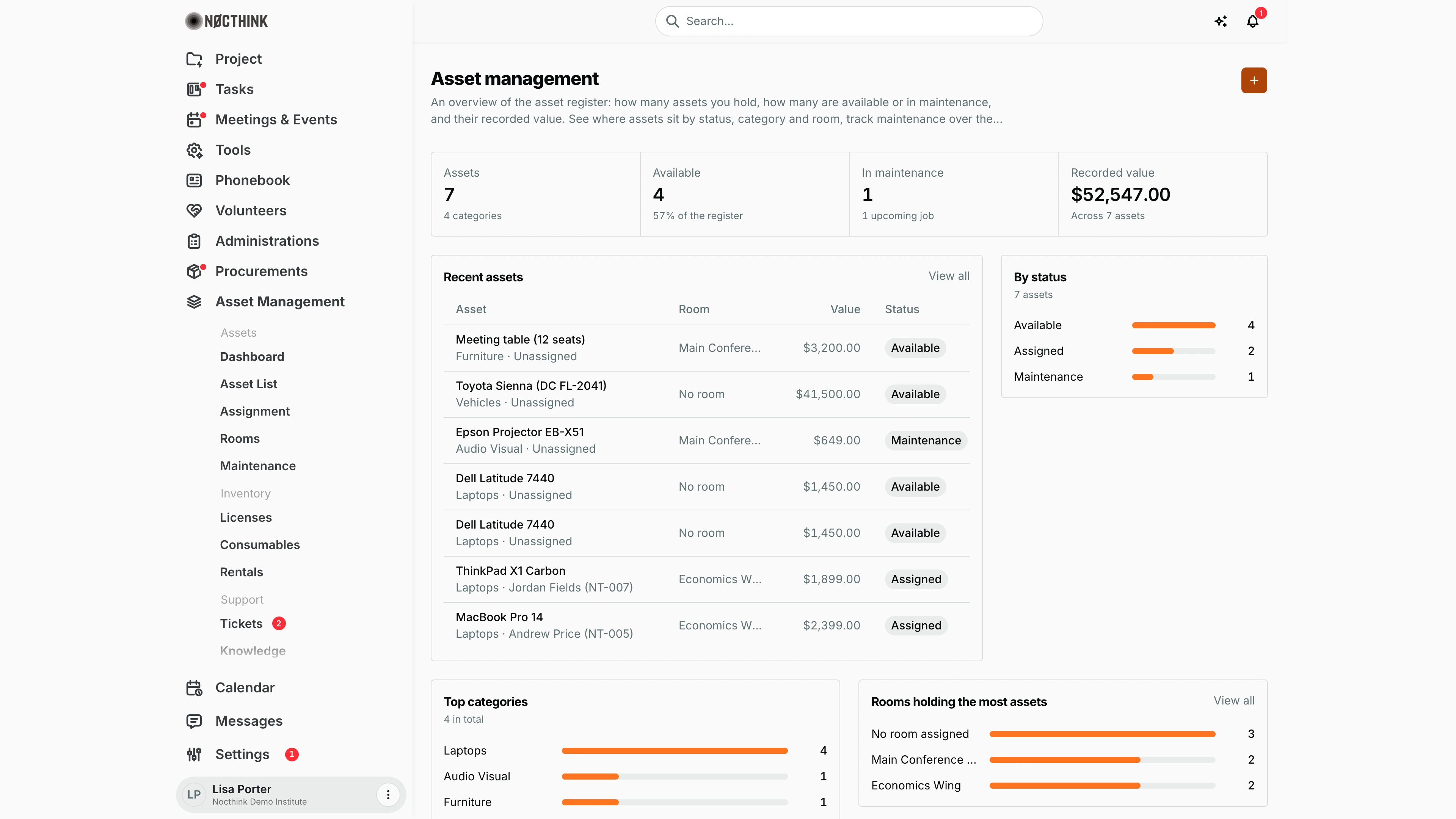
Screenshot: Lisa Porter (Operations Officer), Nocthink Demo Institute demo data. The capture shows the top of the page; the Maintenance activity charts and Upcoming maintenance list sit below it.
Why I use this page
I open the asset dashboard at the start of my week to see the state of the register at a glance: how many assets we hold, how many are free to hand out, what is in the workshop, and what the register is worth on paper. It is also where I check which maintenance jobs are coming up so I can confirm vendors before the date. Everything on it is read-only; I click through to the working pages to change anything.
What's on the screen
- Header: the title Asset management, a short description, and the + button (top right, "Add asset") that opens the New asset form.
- Stat cards (four across):
- Assets — total assets in the register, with the number of categories underneath. Clicking it opens the Asset List.
- Available — assets with status Available, and their share of the register ("57% of the register").
- In maintenance — assets with status Maintenance, with the count of upcoming scheduled jobs underneath. Clicking it opens Maintenance.
- Recorded value — the sum of every asset's purchase price (or initial value), "Across N assets".
- Recent assets — the eight most recently created assets with Asset (name, plus category · current holder or "Unassigned"), Room ("No room" if none), Value, and Status. The asset name links to the asset detail page; View all opens the Asset List.
- By status — a bar for each status that at least one asset has (Available, Assigned, Maintenance, Retired, Lost), with counts. Statuses with no assets are left out, so the demo shows only Available, Assigned, and Maintenance.
- Top categories — up to seven categories ranked by asset count, with the total number of categories.
- Rooms holding the most assets — the top five rooms by asset count; assets without a room are grouped as No room assigned. View all opens Rooms.
- Maintenance activity — Last 6 months — two bar charts: Completed per month (by completed date) and Scheduled per month (by scheduled date).
- Upcoming maintenance — the next five scheduled jobs, showing the asset or room, the title, and the scheduled date. View all opens Maintenance.
How I …
How I do my weekly asset check
- Open Asset Management → Dashboard in the sidebar.
- Read the Available card. If it is low, I check the Assignment page for assets that should have been returned.
- Look at By status for a Lost bar; it only appears when at least one asset is Lost, and it should never be there without a reason. Click View all on Recent assets and filter the Asset List by Status → Lost to follow up.
- Check In maintenance against the Upcoming maintenance list; open a job via View all if a date needs moving.
How I prepare for upcoming maintenance
- In Upcoming maintenance, note each item's target (asset or room) and date.
- Click View all to open the Maintenance page.
- Open the row menu on the job and choose Edit to confirm the vendor, date, and cost, then Save Changes.
How I add a new asset from the dashboard
- Click the + button at the top right.
- On New asset, fill Name, Asset tag, Serial number, Category, Status, and Location (all required), and optionally Purchase date, Purchase price, and Description.
- Click Create asset. The new asset appears at the top of Recent assets.
How I see where assets sit
- Use Rooms holding the most assets to spot rooms that are overloaded or the size of the No room assigned group.
- Click View all to open Rooms, then open a room to see its asset list.
- To give an unplaced asset a room, open it from the Asset List and choose Edit → Where it is → Room.
Access & permissions
- The Asset Management section appears for anyone with
asset_management.view. Per docs/role.md, the Asset Officer and Owner/Director have full access; Procurement has write; General Affairs and the finance roles (Finance Staff, Finance Manager, F.A.T. Manager, Accounting) read it. - The server also treats finance authority as having write access to the asset domain (role.md note on rule 10), even though the UI matrix lists finance as read.
- The + button is always shown, but creating an asset needs
asset_management.createon the server; a read-only user gets an error on save.
Caveats
- Amounts are shown in the organization's base currency (Settings → regulatory profile), e.g. "$41,500.00" in a USD organization.
- Recorded value is the sum of purchase prices, not a depreciated book value. Assets with no price count as zero.
- The "N upcoming jobs" note ("1 upcoming job" for one) on In maintenance counts the same list as Upcoming maintenance, which is capped at five, so it never shows more than 5.
- Upcoming maintenance only includes jobs with status Scheduled and a date from now on; jobs already In progress or past their date (overdue) do not appear here — check the Maintenance page for those.
- The maintenance charts use the browser's local month boundaries.
- If the register fails to load, a red banner appears with Try again.
Limitations
- No date-range or department filter; the dashboard always shows the whole register and a fixed six-month window.
- No export or print.
- No depreciation, warranty-expiry, license, consumable, or ticket figures; those live on their own pages.
Related menus
- Asset List — the full register behind the Assets card and Recent assets.
- Assignment — who holds what; drives the Assigned/Available counts.
- Rooms — rooms behind the "Rooms holding the most assets" panel.
- Maintenance — source of the maintenance charts and Upcoming maintenance.
- Audit — physical checks of the assets counted here.