
Maintenance
Open in NocthinkModule: Asset Management · URL: /asset-management/maintenance · Responsible role: IT / Asset Officer · Also used by: Owner/Director (full), General Affairs (write — building and room work)
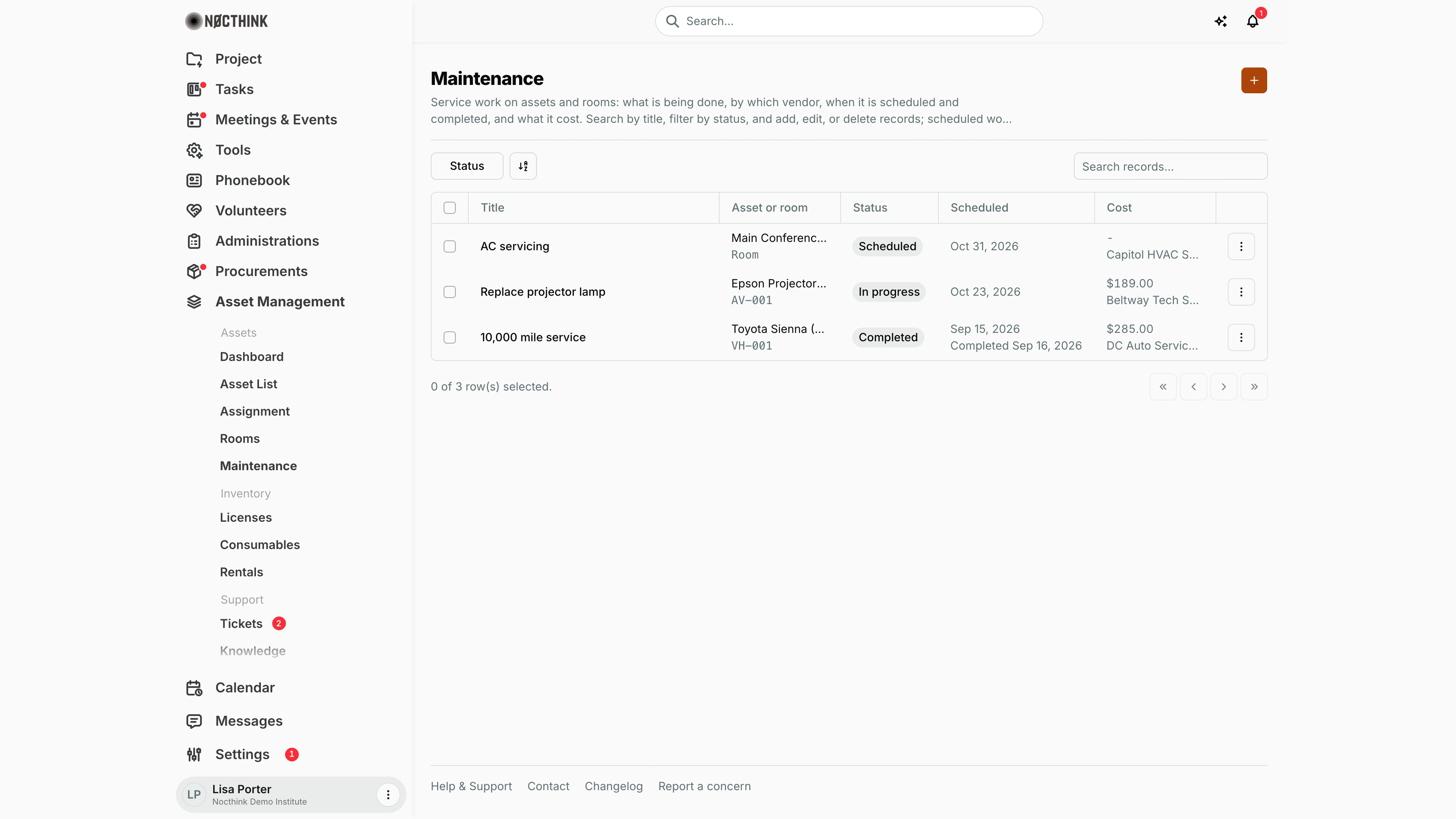
Screenshot: Lisa Porter (Operations Officer), Nocthink Demo Institute demo data.
Why I use this page
I log every piece of service work here, whether it is on an asset (a projector lamp, a vehicle service) or on a room (AC servicing): what is being done, by which vendor, when it is scheduled, when it was finished, and what it cost. I schedule preventive work ahead, update jobs as they start and finish, and check weekly for anything marked Overdue. This history also shows on each asset's and room's Maintenance tab.
What's on the screen
- Header: title Maintenance, a description, and the + button ("Add maintenance record").
- Toolbar: filter button Status (Scheduled, In progress, Completed, Cancelled), a column control, and Search records… (by title).
- Table columns:
- Title.
- Asset or room — the asset name with its tag underneath, or the room name with "Room" underneath.
- Status — Scheduled, In progress, Completed, Cancelled; a scheduled job whose date has passed shows a red Overdue pill instead.
- Scheduled — scheduled date, with "Completed <date>" underneath once done.
- Cost — amount (or "-" when none is entered yet) with the vendor name underneath.
- ⋮ row menu — Edit, Delete.
- Hidden by default (can be shown from the column control): Completed and Vendor as separate columns.
- Footer: row selection count and pagination.
How I …
How I schedule a maintenance job
- Click +. The Add Maintenance Record dialog opens (see Add maintenance record below).
- Under Work is on *, choose An asset or A room, then pick the Asset * or Room *.
- Enter Title * (e.g. "AC servicing").
- Leave Status as Scheduled, enter the Vendor name and Scheduled Date *.
- Enter an estimated Cost (in the organization's base currency) if known, plus Description and Notes. Put the kind of work (preventive, corrective…) in the title or description.
- Click Add Record.
How I update a job as it progresses
- Find the job (filter Status or search by title).
- Open ⋮ → Edit (see Edit maintenance record below).
- Change Status to In Progress when the vendor starts.
- When finished, set Status to Completed, enter the Completed Date (must be on or after the scheduled date), and the final Cost.
- Click Save Changes.
How I deal with overdue work
- Look for red Overdue pills (status Scheduled, date before today).
- Either Edit the job and move the Scheduled Date, set it to In Progress if it has started, or set it to Cancelled if it will not happen.
How I take an asset out of service while it is repaired
- Log the job here against the asset.
- Separately, open the asset on the Asset List, choose Edit, and set Status to Maintenance. Set it back to Available after the job is completed.
How I delete a record
- ⋮ → Delete, then confirm "Delete this maintenance record?". This cannot be undone.
Detail page, forms & dialogs
Add maintenance record
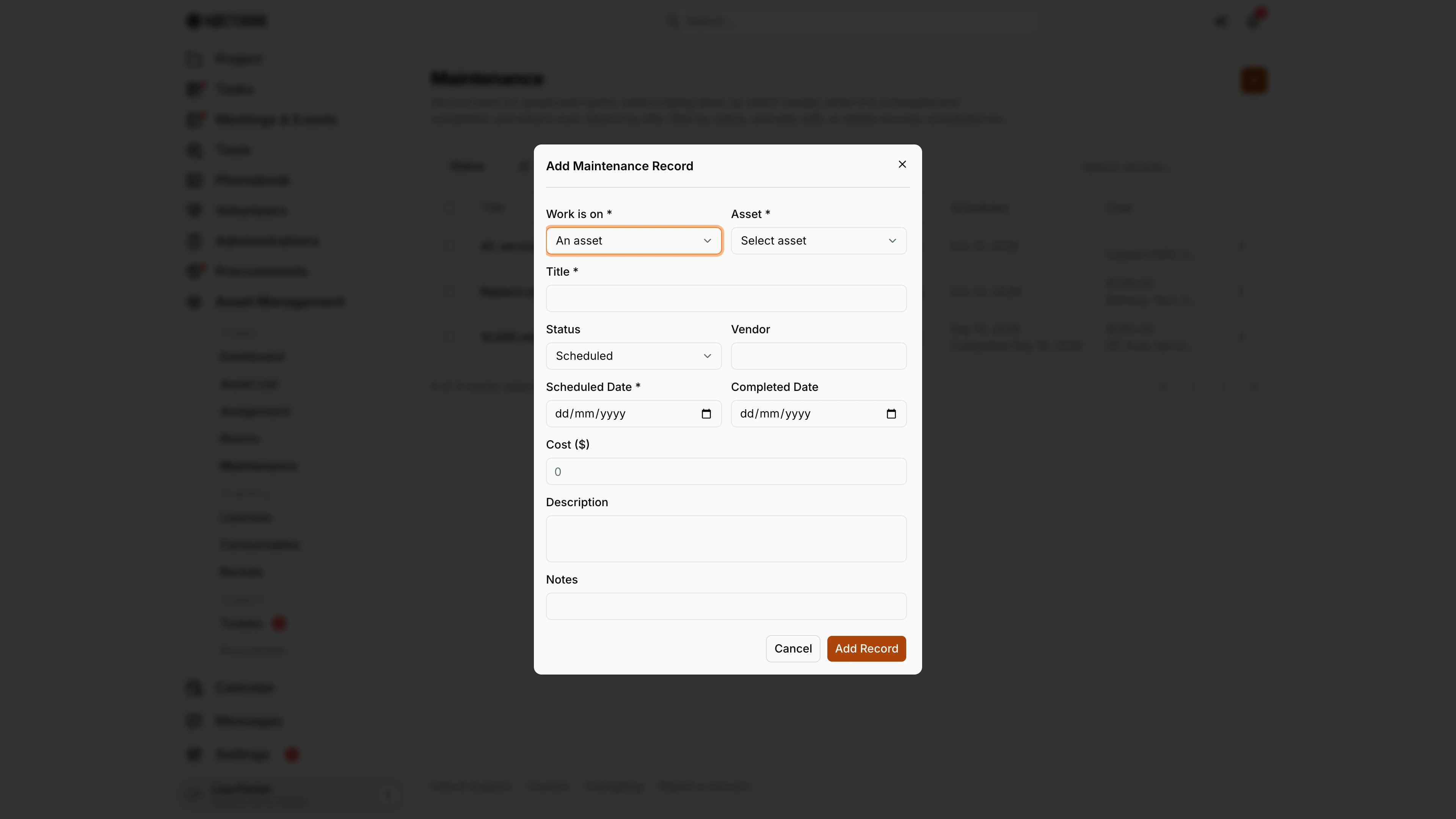
Screenshot: Lisa Porter (Operations Officer), Nocthink Demo Institute demo data.
+ opens Add Maintenance Record. Work is on * switches between An asset and A room, and the next field changes to Asset * or Room * to match. Title * names the job.
Status defaults to Scheduled; Vendor is free text. Scheduled Date * is required, Completed Date is filled in when the job is done and cannot be before the scheduled date. Cost ($) is in the organization's base currency. Description and Notes hold the details. Add Record saves; Cancel closes.
Edit maintenance record
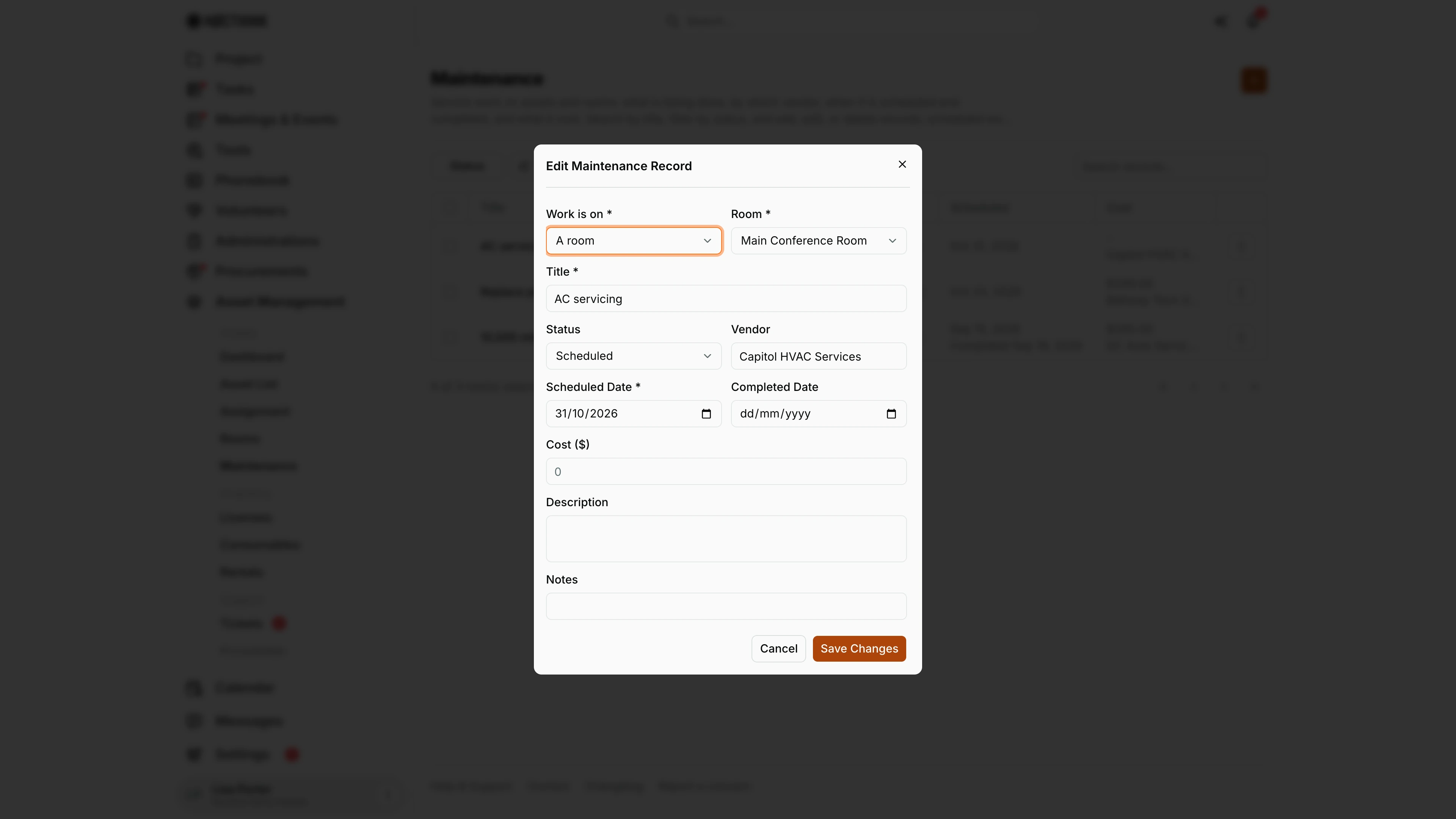
Screenshot: Lisa Porter (Operations Officer), Nocthink Demo Institute demo data.
⋮ → Edit opens Edit Maintenance Record with the same fields, filled in. This example is a room job: Work is on is A room, Room is Main Conference Room, the title is "AC servicing" and the vendor is Capitol HVAC Services.
This is where a job moves along: set Status to In Progress when work starts, then Completed with the Completed Date and final Cost, or Cancelled. Save Changes stores it.
Saving a completed job does not change the asset's own status; I set it back to Available with Edit on the Asset List.
Access & permissions
- The page needs
asset_management.update(route rule in lib/domain-routes.ts); users without it do not see Maintenance in the sidebar. - Per docs/role.md: Asset Officer and Owner/Director full; General Affairs write.
- Finance authority is treated as having asset write access by the server.
Caveats
- A record must target exactly one asset or one room, never both and never neither.
- Scheduled Date is required; Completed Date cannot be before it; Cost cannot be negative.
- Logging or completing maintenance does not change the asset's status — set Maintenance/Available on the asset yourself.
- Overdue only applies to Scheduled jobs; an In progress job past its date is not flagged.
- Vendor is free text, not linked to the procurement vendor list, and costs here are not posted to finance or accounting.
- Amounts are shown in the organization's base currency.
- The room picker lists active rooms only.
Limitations
- No service-type field (preventive, corrective…): the records have no place to store it, so note it in the title or description.
- No recurring/preventive schedules; each job is entered by hand.
- No notifications or reminders to anyone when a job is due or overdue.
- No attachments (quotes, job sheets) on a maintenance record; attach them to the asset's Documents tab instead.
- No export.
Related menus
- Dashboard — maintenance charts and Upcoming maintenance.
- Asset List — set the asset status; each asset's Maintenance tab.
- Rooms — each room's Maintenance tab.
- Tickets — problem reports that often lead to a maintenance job.
- Vendors — the formal vendor list (not linked from here).