
Knowledge
Open in NocthinkModule: Asset Management · URL: /asset-management/knowledge · Responsible role: IT / Asset Officer · Also used by: Owner/Director (full), every other role (read)
Screenshot: Lisa Porter (Operations Officer), Nocthink Demo Institute demo data.
Why I use this page
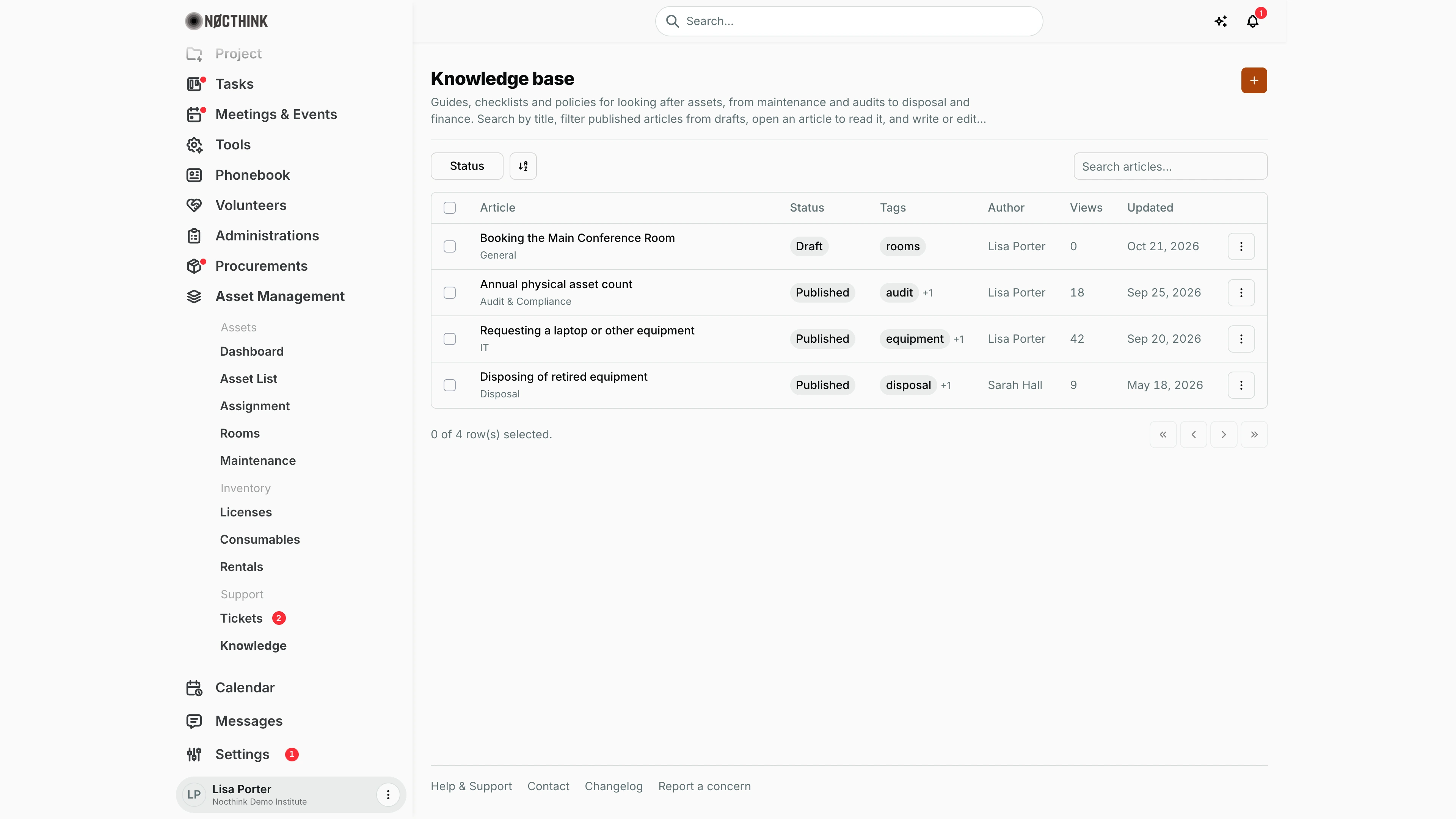
The knowledge base is where I write down how we look after assets so I do not have to explain it again: how to report a broken laptop, the maintenance checklist for the projectors, the audit procedure, the disposal policy, and finance rules for asset purchases. I add or update an article whenever a ticket shows the same question twice, or a policy changes, and I point colleagues here before they open a ticket.
What's on the screen
- Header: title Knowledge base, a description, and the + button ("New article").
- Toolbar: filter button Status (Published, Draft) and Search articles… (by title).
- Table columns:
- Article — title, with the category underneath; clicking it opens the article.
- Status — Published or Draft.
- Tags — the first tag as a pill, with "+N" for any further tags.
- Author — whoever created it.
- Views — the stored view count.
- Updated — last update date.
- ⋮ row menu — View, Edit, Delete.
- Rows are listed with the most recently updated first. When there are no articles, the table shows No results.
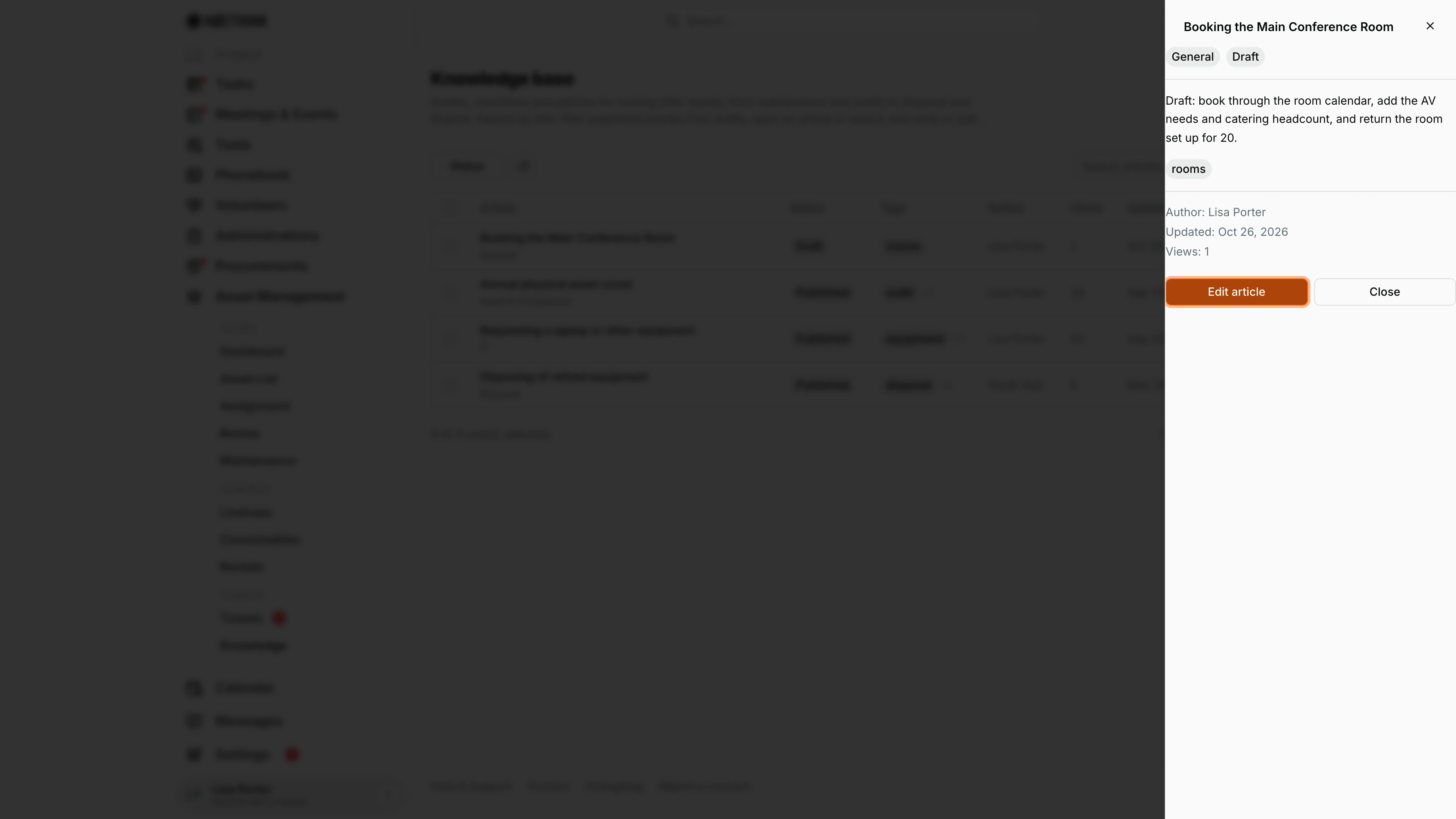
- Article panel: opening an article slides in a side panel with the title, category and status pills, the content, tags, Author, Updated, Views, and buttons Edit article and Close.
How I …
How I write a new article
- Click + (New article). The New article dialog opens (see New article below).
- Enter Title * and pick a Category (required): Audit & Compliance, Finance, Maintenance, Disposal, Support, Policy, IT, or General.
- Set Status to Published (visible to everyone) or Draft (work in progress, visible only to me and article editors).
- Enter Tags as a comma-separated list (e.g. "maintenance, checklist, laptop").
- Write the Content. It is shown as plain text with line breaks kept, so use blank lines and simple numbered lines for structure.
- Click Publish article (the button has this label even when Status is Draft — the Status field decides).
How I read an article
- Click the article title, or ⋮ → View.
- Read it in the side panel (see Article view below); click Close when done.
How I update or unpublish an article
- Open it and click Edit article (or ⋮ → Edit; see Edit article below).
- Change the content, tags, or category, or set Status to Draft to take it out of the published set.
- Click Save changes. Updated moves to today.
How I find an article
- Type part of the title in Search articles….
- Use Status → Published to hide drafts.
How I remove an article
- ⋮ → Delete and confirm "Delete this article?". This is permanent.
Detail page, forms & dialogs
Article view
Screenshot: Lisa Porter (Operations Officer), Nocthink Demo Institute demo data.
Clicking an article title (or ⋮ → View) opens it in a side panel: the title, the category and status pills, the content with line breaks kept, the tags, then Author, Updated and Views. Opening an article counts a view.
Edit article opens the edit dialog; Close returns to the list.
Drafts are visible only to me and the article editors, so the side panel shows the Draft pill as a reminder that staff cannot see it yet. Every role can read published articles.
New article
Screenshot: Lisa Porter (Operations Officer), Nocthink Demo Institute demo data.
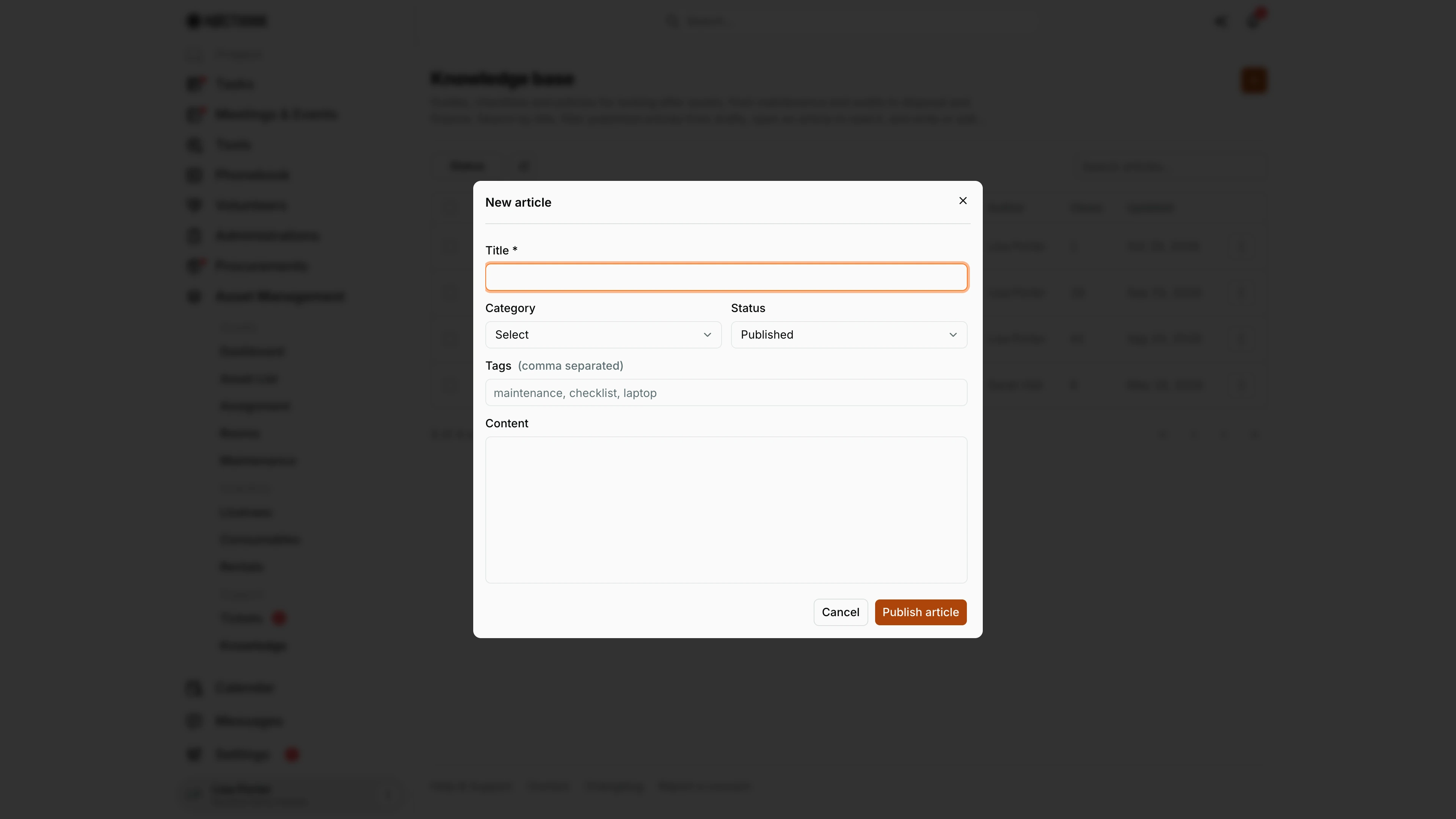
+ opens New article: Title *, Category, Status (Published by default, or Draft), Tags (comma separated; "maintenance, checklist, laptop") and Content. The button reads Publish article whatever the status; the Status field decides whether others see it.
Category is required: Audit & Compliance, Finance, Maintenance, Disposal, Support, Policy, IT or General. Content is shown as plain text with line breaks kept, so I use blank lines and numbered lines for structure. Creating needs asset_management.create; readers see the button but get a permission error on save.
Edit article
Screenshot: Lisa Porter (Operations Officer), Nocthink Demo Institute demo data.
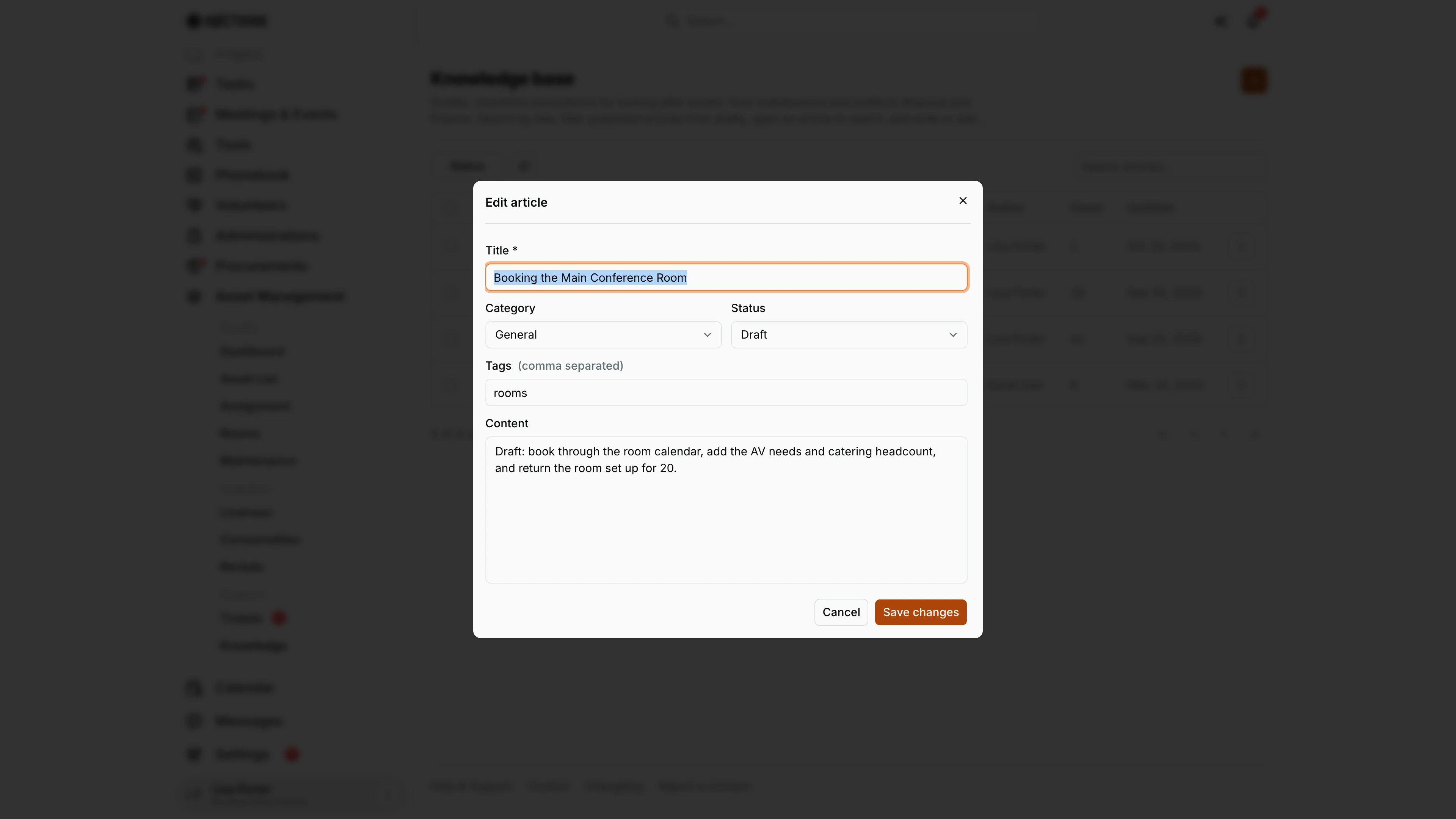
Edit article in the side panel or ⋮ → Edit opens Edit article with the same fields. Setting Status to Draft takes an article out of the published set without deleting it. Save changes stores it and moves Updated to today.
Editing needs asset_management.update. Deleting is on the row menu and is permanent, so I prefer Draft for anything that might come back.
Access & permissions
- Visible to anyone with
asset_management.view; per docs/role.md every role reads Knowledge, and the Asset Officer and Owner/Director have full control. - Creating, editing, and deleting need
asset_management.create/update/deleteon the server. Readers still see the +, Edit, and Delete controls, but saving fails with a permission error. - Finance authority is treated as having asset write access by the server.
Caveats
- Drafts are visible only to their author and to people who can edit articles (
asset_management.update); everyone else sees published articles only. - Author is whoever created the article; edits by someone else do not change it.
- Views goes up each time anyone opens the article panel, including the author and editors.
- Content is plain text: no formatting, links are not clickable, and there are no images or attachments.
- Tags are split on commas; extra spaces are trimmed.
Limitations
- No search inside the article content or tags — search matches titles only.
- No category filter (only Status), although every article has a category.
- No version history or undo for edits.
- No attachments, images, or rich text.
- No link from a ticket to a knowledge article.
Related menus
- Tickets — recurring ticket questions are the best source of new articles.
- Maintenance — procedures that maintenance checklists describe.
- Audit — the audit procedure belongs here.
- SOP and Internal Guide — organization-wide procedures outside asset management.