
Rooms
Open in NocthinkModule: Asset Management · URL: /asset-management/rooms · Responsible role: General Affairs / Admin (shared with IT / Asset Officer) · Also used by: Owner/Director (full), Asset Officer (full), all other staff (read)
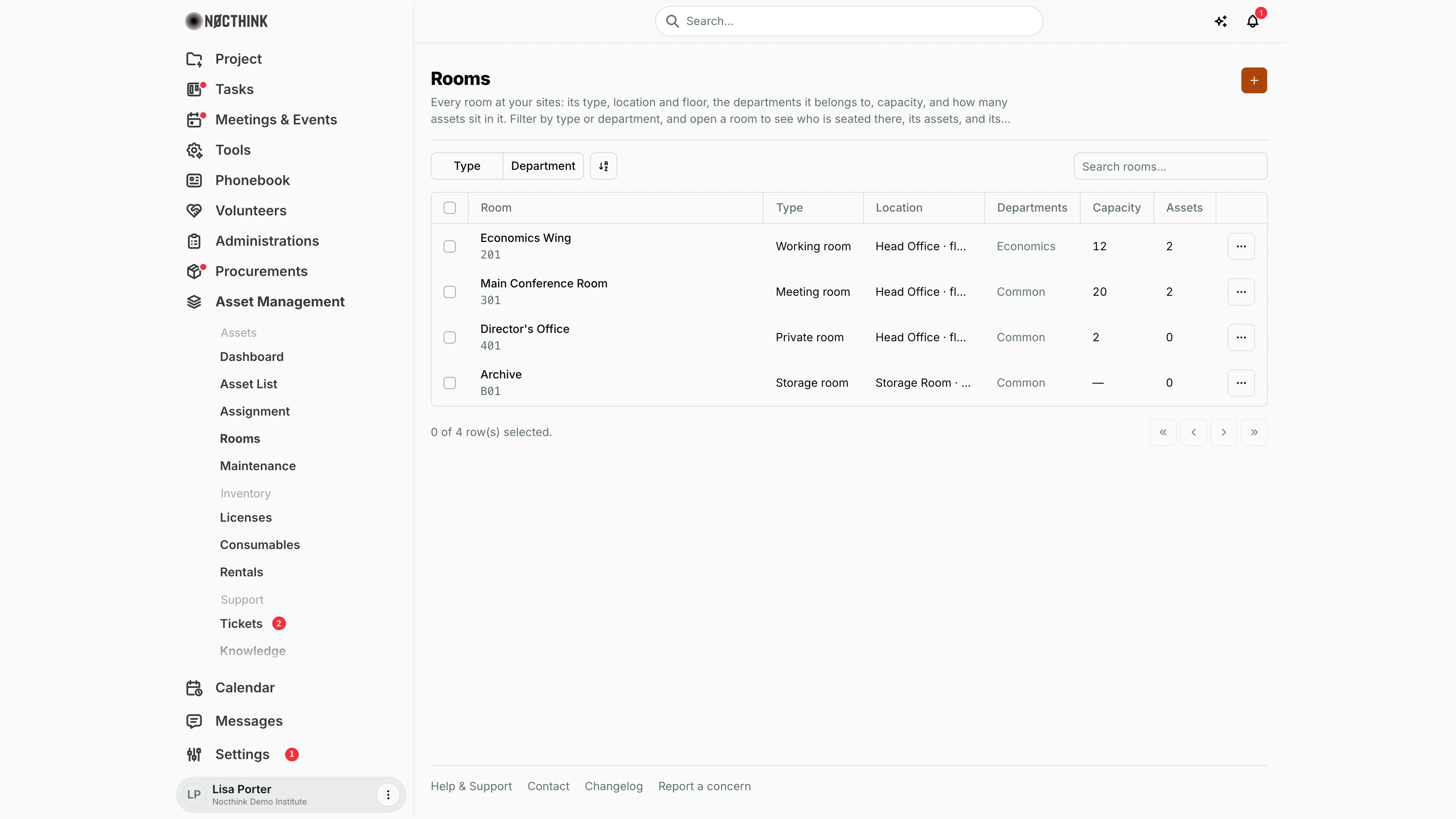
Screenshot: Lisa Porter (Operations Officer), Nocthink Demo Institute demo data.
Why I use this page
I keep the list of rooms at our sites up to date: what each room is for, which floor it is on, which departments use it, how many people it seats, and whether it can be booked for meetings. Rooms are the anchor for seating people, placing assets, and logging building maintenance, so I open this page whenever a room is set up, renamed, repurposed, or closed, and when someone moves desks.
What's on the screen
- Header: title Rooms, a description ending with a count ("4 rooms · 4 in service"; on a laptop-width screen the description is cut to two lines, so the count may be hidden), and the + button ("New room").
- Toolbar: filter buttons Type (Meeting room, Working room, Private room, Storage room, Other) and Department (shown only when departments exist), plus Search rooms....
- Table columns:
- Room — name with the room code underneath; links to the room detail page.
- Type.
- Location — site name and floor ("Head Office · floor 2"); cut off with "…" when the column is narrow.
- Departments — the departments assigned to the room, or Common when none.
- Capacity — seats, or "—".
- Assets — number of assets placed in the room.
- ⋯ row menu — View details, Edit, Archive / Restore, Delete.
- Footer: row selection count and pagination.
How I …
How I add a room
- Click + (New room).
- Under Identity, enter Name (required) and optionally a Code (e.g. MR-201; must be unique in the organization) and Type.
- Under Where it is, pick the Location (site; required) and enter the Floor (e.g. 2, GF, B1).
- Under Use, tick the Departments that use the room (leave all unticked for a common room), enter Capacity (a whole number above zero) and Extension (phone extension).
- Tick Bookable if the room should be offered when someone books a room for a meeting or an event.
- Add Notes if needed and click Create room (see New room below).
How I seat people in a room
- Click the room name (or ⋯ → View details; see Room detail below).
- On the People tab, click Seat people.
- In the Seat people in <room> dialog (see Seat people below), type in Search employees..., tick the people, and click Seat n. Seating someone here moves them out of any previous room.
- To remove someone, click the × next to their name on the People tab.
How I see what is in a room and its maintenance history
- Open the room detail page.
- The Assets tab (see Room detail — Assets tab below) lists the assets placed in the room with category and holder.
- The Maintenance tab lists work logged on the room itself or on any asset in it.
- Use Upload / Add photo in the photo panel to attach room photos; the trash icon removes the photo being shown.
How I change, archive, or delete a room
- To edit, choose ⋯ → Edit (or Edit on the detail page), change fields, and click Save changes.
- To take a room out of service without losing history, choose Archive (detail page: Archive room). Use Restore to bring it back.
- To delete, choose Delete and confirm. The delete is refused if the room still holds assets, occupants, maintenance records, or meetings — the message names what to move out first.
Detail page, forms & dialogs
Room detail
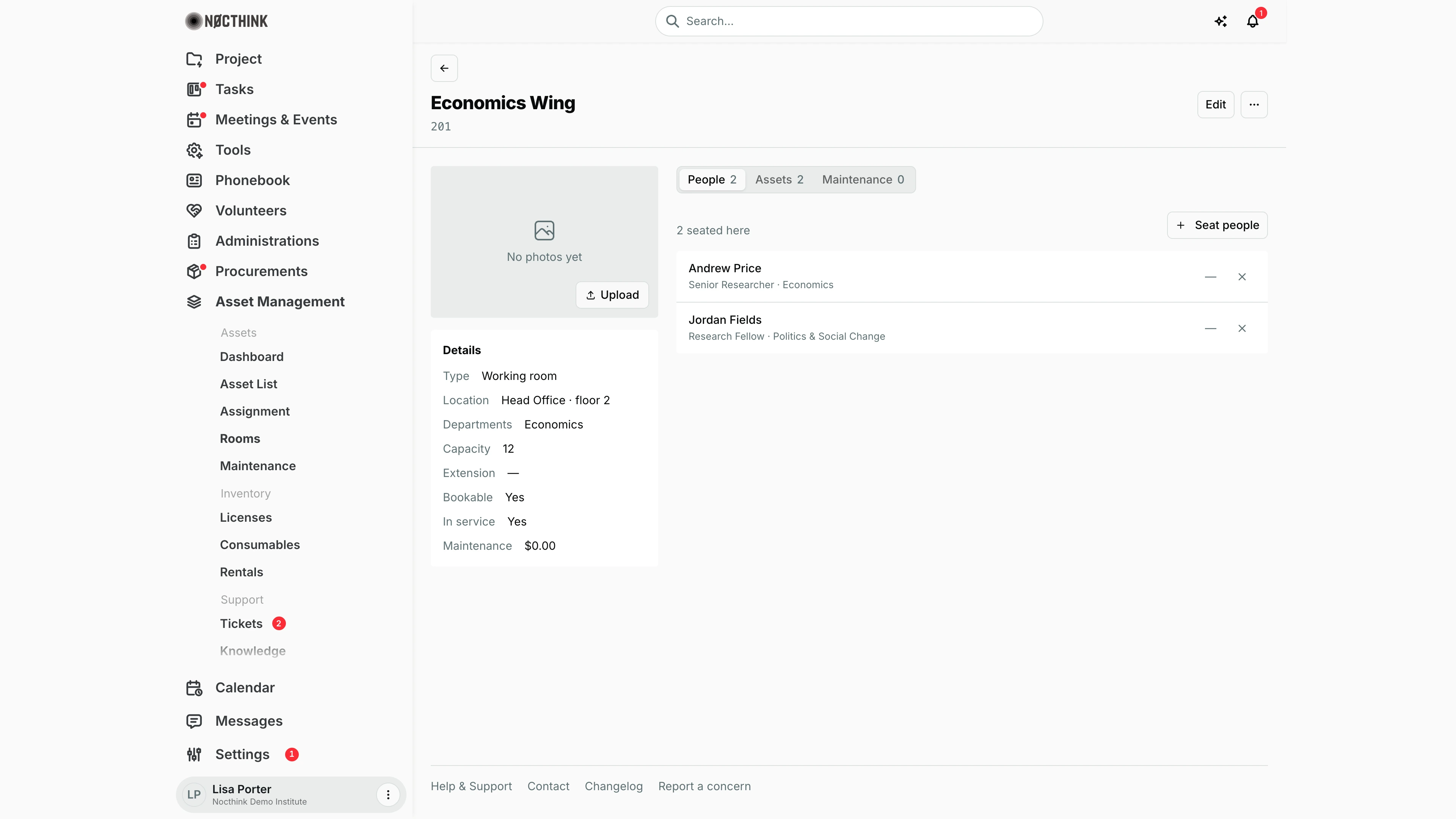
Screenshot: Lisa Porter (Operations Officer), Nocthink Demo Institute demo data.
Clicking a room opens its page. The header shows the room name and code, Edit, and a ⋯ menu with Archive room (or Restore room) and Delete room.
On the left are the room photos (Upload) and Details: Type, Location with floor, Departments, Capacity, Extension, Bookable, In service and Maintenance (the total cost of maintenance logged on the room and its assets).
The tabs are People, Assets and Maintenance, each with a count. People says how many are "seated here", lists each person with position and department, and has Seat people; the × next to a name removes that person from the room.
Room detail — Assets tab
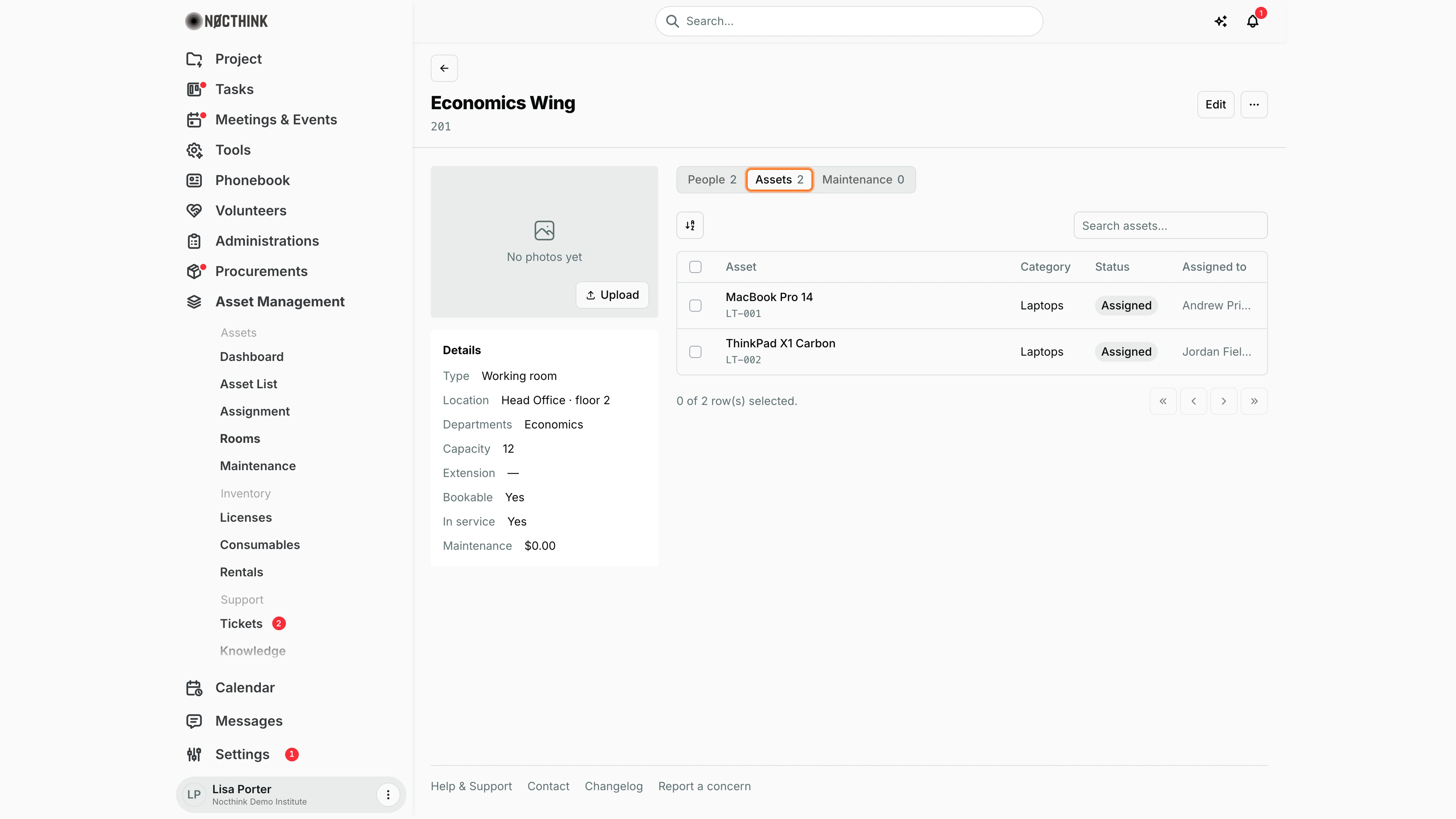
Screenshot: Lisa Porter (Operations Officer), Nocthink Demo Institute demo data.
The Assets tab lists every asset whose Room is set to this room: Asset (name and tag), Category, Status and Assigned to. It has its own search box and sorting.
Assets are placed in a room from the asset's Edit form on the Asset List, not from here. The Maintenance tab next to it lists jobs logged on the room itself or on any asset in it.
The tab is read-only. If an asset turns up in the wrong room during an audit, I fix its Room on the asset, and the asset moves to the right room's tab at once. Assets in a room also inherit that room's location.
Seat people
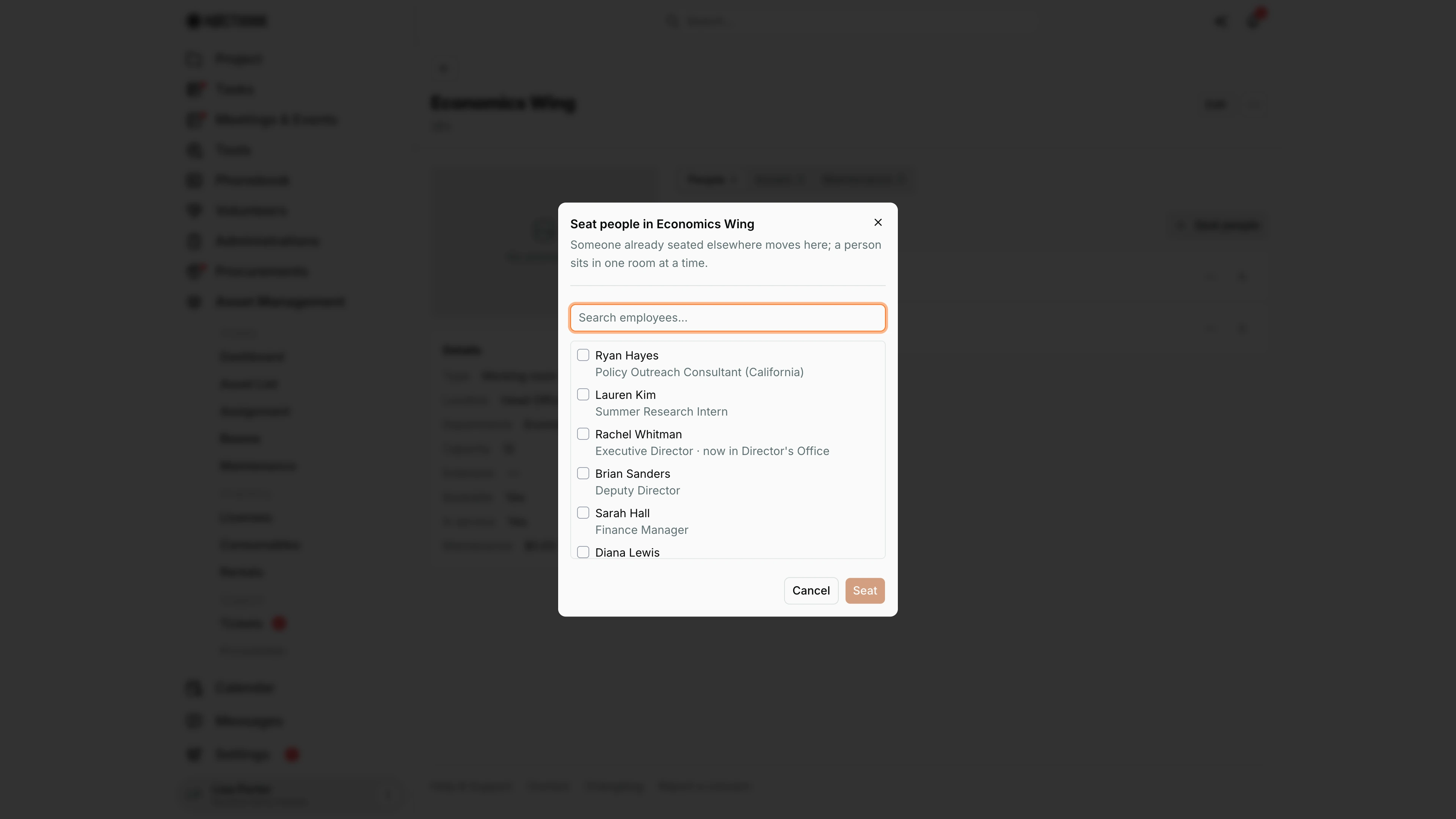
Screenshot: Lisa Porter (Operations Officer), Nocthink Demo Institute demo data.
Seat people on the People tab opens Seat people in <room> — "Someone already seated elsewhere moves here; a person sits in one room at a time."
I type in Search employees... and tick one or more people. Each entry shows the person's position and, if they already sit somewhere, "now in <room>". The button counts the selection (Seat 2) and stays disabled until someone is ticked. Cancel closes without changes.
Seating people needs asset_management.update; without it the save fails with "You do not have permission to change who sits in this room."
New room
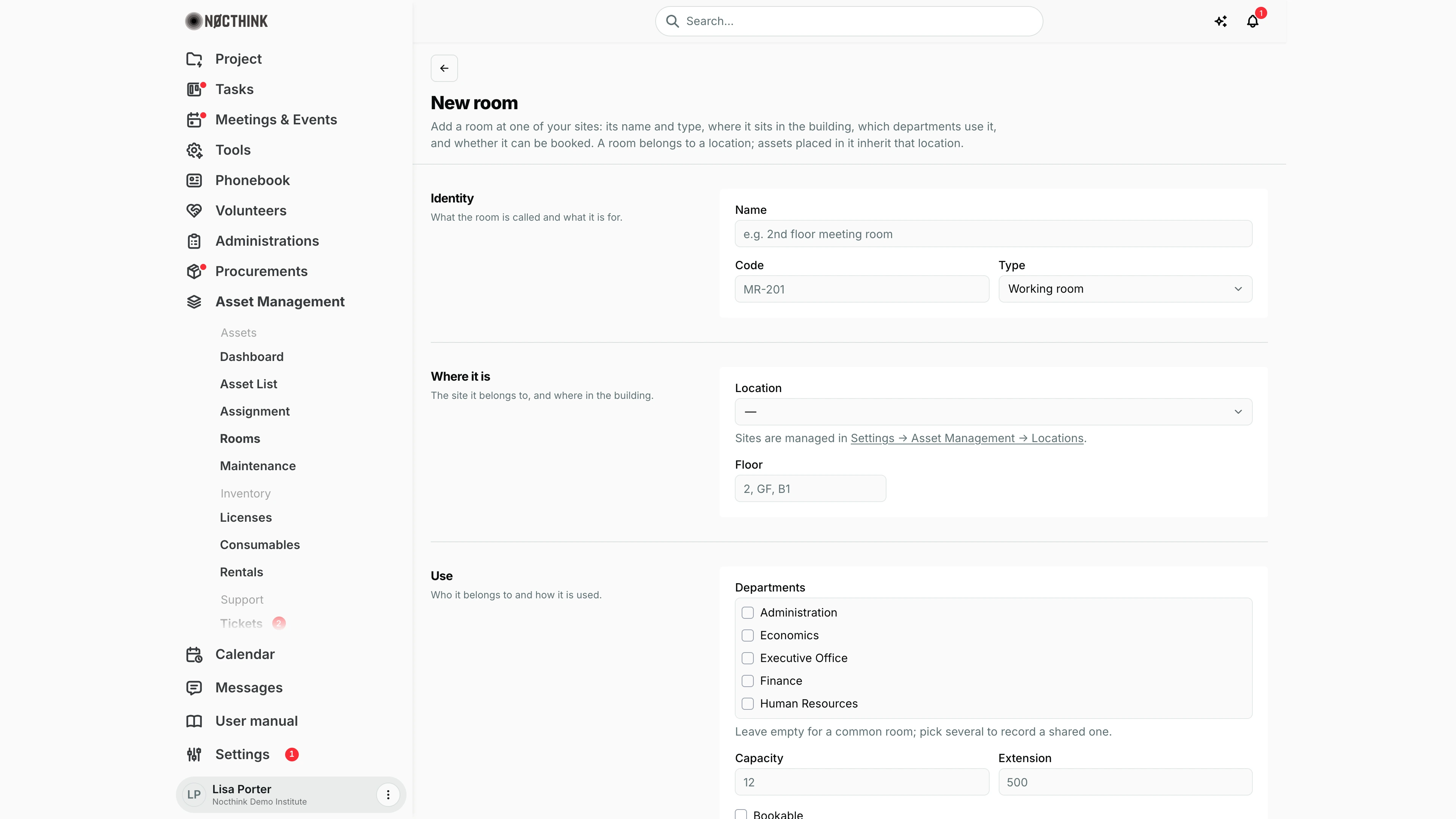
Screenshot: Lisa Porter (Operations Officer), Nocthink Demo Institute demo data.
+ on the list opens the New room page. Identity takes Name (required), Code (unique within the organization) and Type. Where it is takes the Location (site, required) and Floor. Use has a checklist of Departments (leave all unticked for a shared room), Capacity, Extension and the Bookable tick box, which offers the room when someone books a meeting or event. Notes is free text.
Create room saves it and returns to the list; Cancel discards.
Sites themselves are managed under Settings → Asset Management → Locations, as the hint under Location says.
Edit room
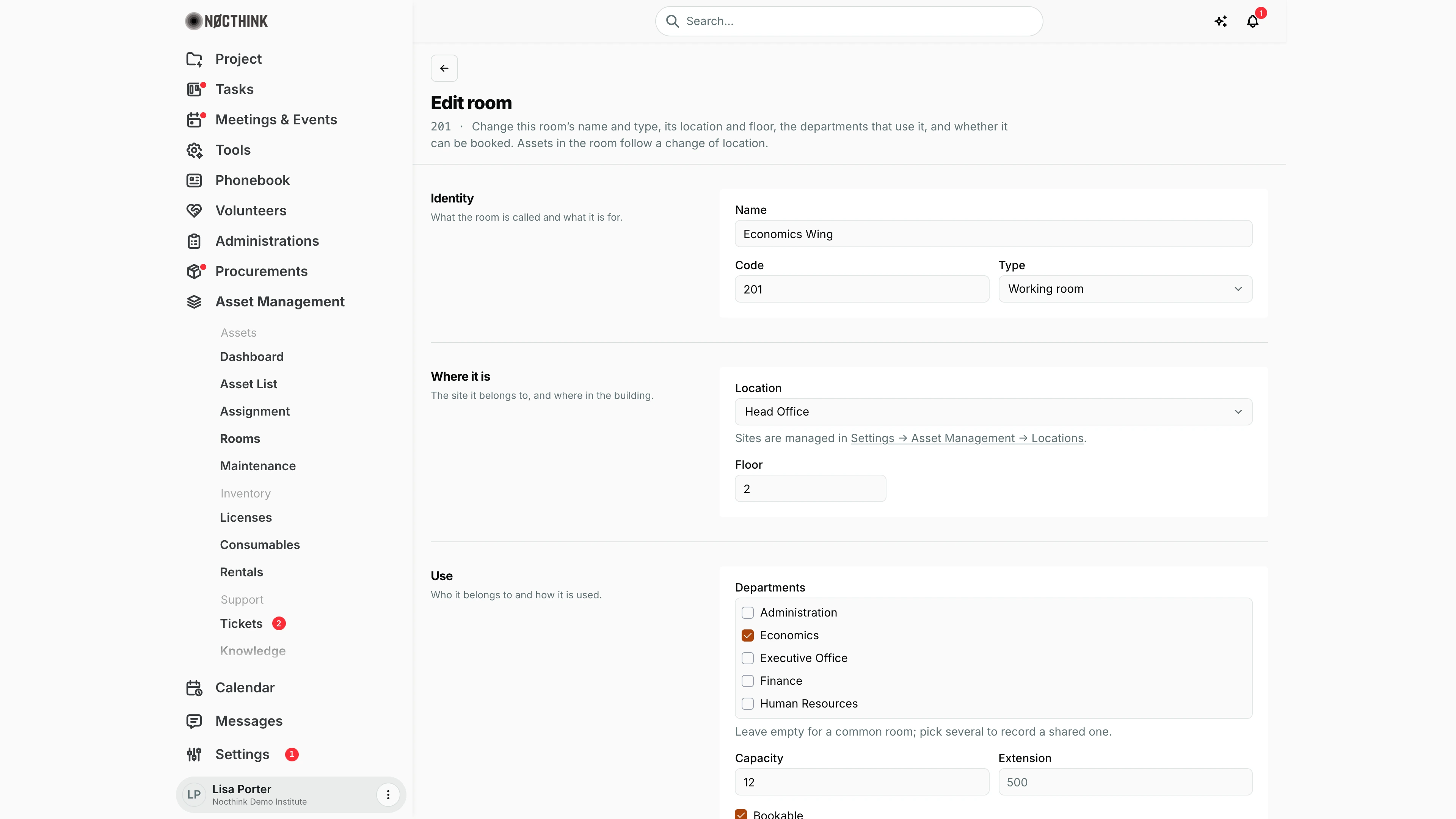
Screenshot: Lisa Porter (Operations Officer), Nocthink Demo Institute demo data.
Edit on the room page (or ⋯ → Edit on the list) opens Edit room with the same fields as the new-room form, filled in. Save changes stores them; Cancel goes back. Archiving is not on this form; it is on the room page's ⋯ menu, so history is kept.
Changing Location moves every asset in the room to the new site too, because assets inherit the room's location. Creating and editing rooms needs the matching asset_management permissions; General Affairs and the Asset Officer have them.
Access & permissions
- Per docs/role.md, General Affairs and the Asset Officer have full access, Owner/Director full, and every other role reads Rooms.
- Creating and editing need the matching
asset_managementpermissions on the server. Seating people needsasset_management.update("You do not have permission to change who sits in this room."). - Finance authority is treated as having asset write access by the server.
Caveats
- Changing a room's Location moves all of its assets to that location too.
- Room Code must be unique: "Room code “X” is already used by another room."
- You cannot seat anyone in an archived room ("…is archived. Restore it before seating anyone in it.").
- Archived rooms disappear from the room pickers on the Asset List filter, the asset edit form, and Maintenance, but their existing assets keep the room.
- Delete is permanent once allowed; prefer Archive for rooms that have history.
- Only Bookable active rooms are offered in meeting/event room booking.
- Locations (sites) themselves are managed in Settings → Asset Management, not here.
Limitations
- No floor plan or desk-level seating; occupancy is a simple list of people.
- No booking calendar on this page; room booking happens from Meetings & Events.
- No bulk archive or bulk edit; row selection has no bulk actions.
- No export.
Related menus
- Asset List — assign an asset to a room via Edit → Where it is.
- Maintenance — log work on a room ("Work is on: A room").
- Dashboard — "Rooms holding the most assets".
- Meetings — uses bookable rooms.
- Phonebook — staff extensions and seating.