
Consumables
Open in NocthinkModule: Asset Management · URL: /asset-management/consumables · Responsible role: General Affairs / Admin (write; IT / Asset Officer has full control) · Also used by: Owner/Director (full), Asset Officer (full), Procurement (write), Finance Staff / Finance Manager / F.A.T. Manager (read)
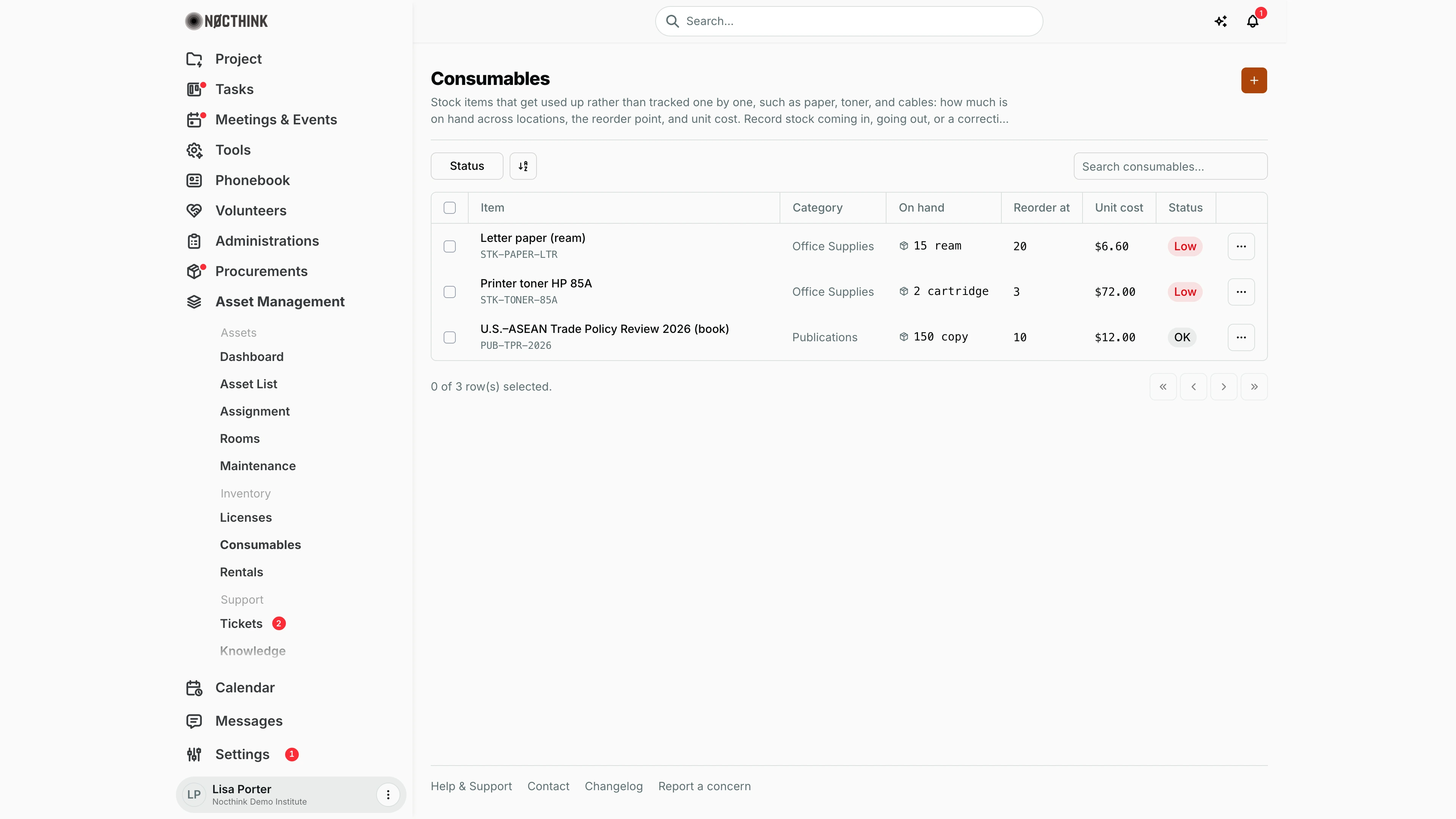
Screenshot: Lisa Porter (Operations Officer), Nocthink Demo Institute demo data.
Why I use this page
I manage the things we use up rather than track one by one — paper, toner, cables, and stock of our own publications. This page tells me how much is on hand across all locations, which items have dropped to their reorder point, and what each unit costs. I record stock coming in after a delivery, stock going out when I issue it to staff, and corrections after a count. I check the Low filter weekly and raise a requisition for anything running out.
What's on the screen
- Header: title Consumables, a description ending with a summary ("3 items · 167 units on hand · 2 low."; on a laptop-width screen the description is cut to two lines, so the summary may be hidden), and the + button ("New stock item").
- Toolbar: filter button Status (Low, OK) and Search consumables... (by name).
- Table columns:
- Item — name with the SKU underneath.
- Category — or "—".
- On hand — total quantity across all locations, with the unit (e.g. "15 ream").
- Reorder at — the reorder point.
- Unit cost.
- Status — Low in red (on hand at or below the reorder point), Out of stock (zero or less), or OK.
- ⋯ row menu — Adjust stock, Edit, Delete.
How I …
How I add a new stock item
- Click + (New stock item; see New stock item below).
- Enter Name (required), SKU (optional; must be unique if given — left blank, the next code such as STK-0001 is assigned), and Unit (required, e.g. ream, box, cartridge).
- Optionally pick a Category and Vendor.
- Enter the Reorder point (required, not negative) and Unit cost (optional, not negative).
- Click Create. The item starts at 0 on hand — record the opening stock with Adjust stock.
How I record a delivery (stock in)
- On the item's row, open ⋯ → Adjust stock (see Adjust stock below). The dialog Adjust stock — <item> shows Current levels per location.
- Pick the Location the stock is stored in.
- Set Type to Stock in and enter the Quantity received (a positive number).
- Enter a Reason (e.g. "delivery from PO-…").
- Click Record movement. On hand and Status update.
How I issue stock to staff (stock out)
- ⋯ → Adjust stock.
- Pick the Location it is taken from, set Type to Stock out, and enter the Quantity as a positive number (it is subtracted automatically).
- Enter a Reason (e.g. "issued to office") and click Record movement.
How I correct stock after a count
- ⋯ → Adjust stock.
- Pick the Location, set Type to Adjustment, and enter Quantity (±) as the difference: a negative number to remove, positive to add (zero is not allowed).
- Give the count as the Reason and click Record movement.
How I find items to reorder
- Click Status and tick Low.
- For each item, raise a requisition in Requisitions.
Detail page, forms & dialogs
New stock item
Screenshot: Lisa Porter (Operations Officer), Nocthink Demo Institute demo data.
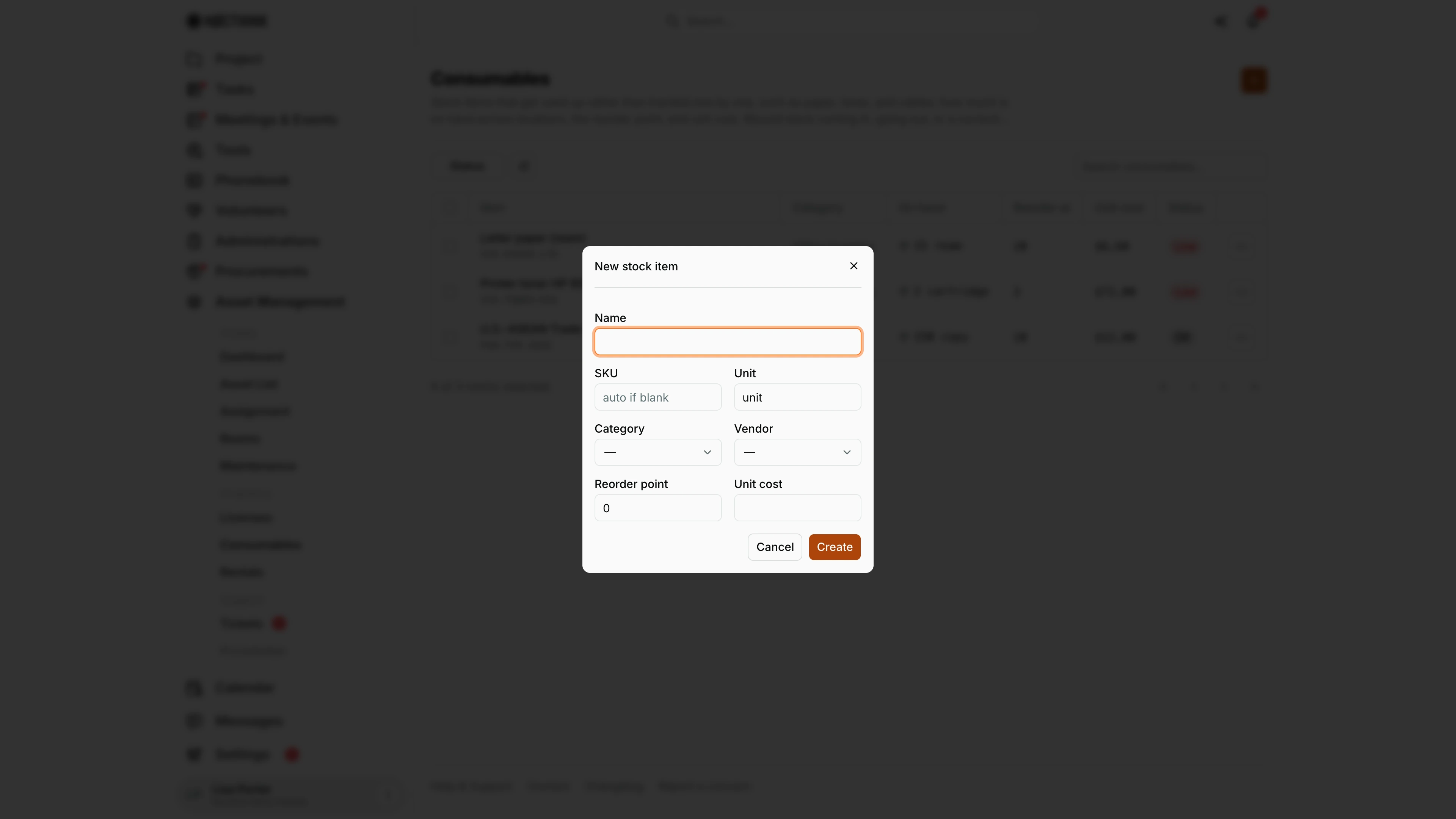
+ opens New stock item: Name, SKU (placeholder "auto if blank"), Unit ("unit" by default; e.g. ream, box), Category, Vendor, Reorder point (0 by default) and Unit cost. Create adds the item at zero on hand; the opening stock is then recorded with Adjust stock.
Reorder point is the level at which the item shows Low on the list, so I set it to what we need on hand while a new order is on its way. SKU must be unique; left blank, the next code (e.g. STK-0001) is assigned. Creating items needs asset_management.create.
Adjust stock
Screenshot: Lisa Porter (Operations Officer), Nocthink Demo Institute demo data.
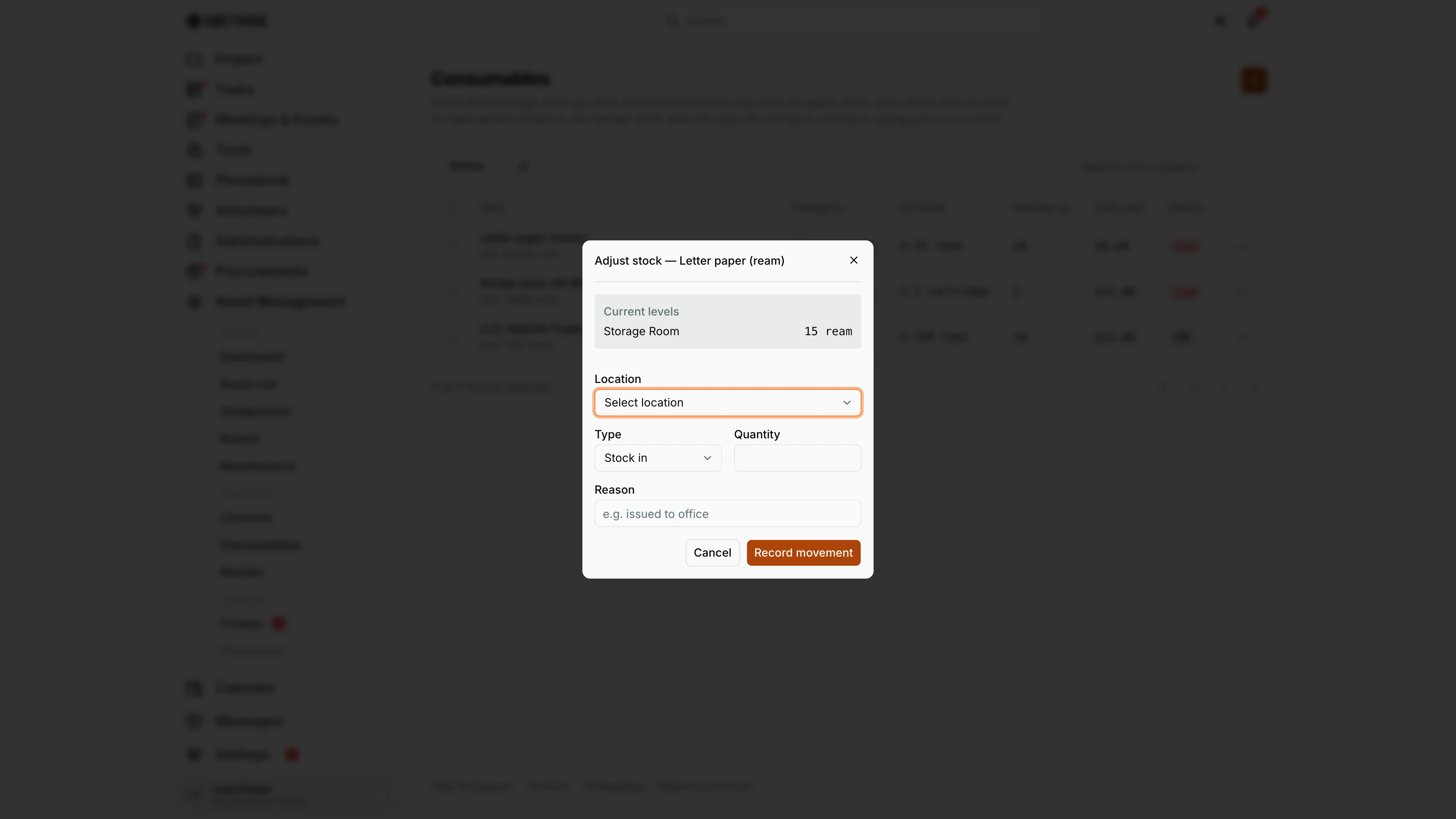
⋯ → Adjust stock opens Adjust stock — <item>. The grey Current levels box shows the quantity at each location (here Storage Room, 15 ream).
I pick the Location, the Type (Stock in, Stock out or Adjustment), the Quantity and a Reason ("e.g. issued to office"). Record movement posts the movement and updates On hand and the Low/OK status on the list. Stock out quantities are entered as positive numbers; an adjustment takes a signed difference.
Recording movements needs asset_management.create.
Edit stock item
Screenshot: Lisa Porter (Operations Officer), Nocthink Demo Institute demo data.
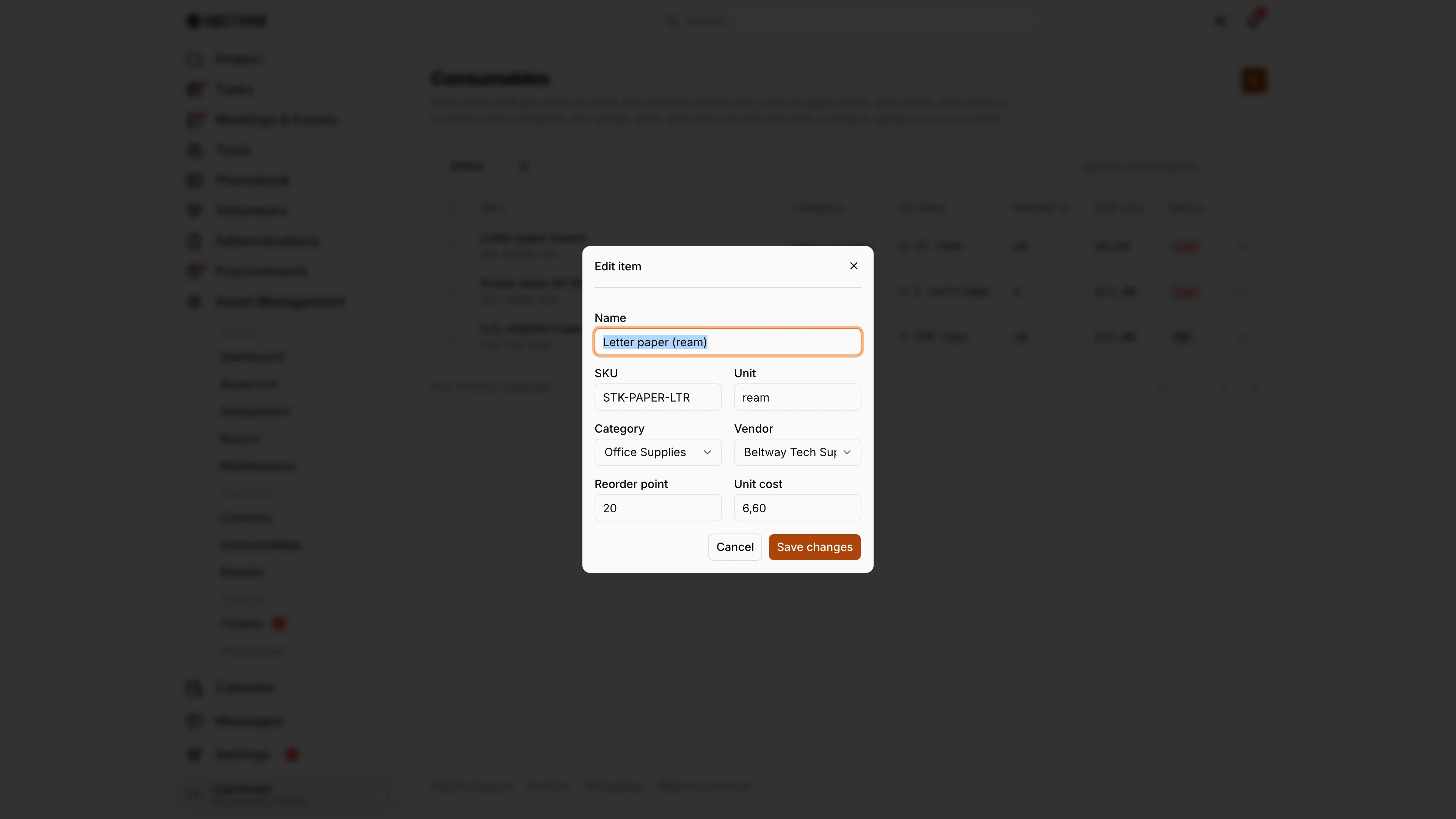
⋯ → Edit opens Edit item with Name, SKU, Unit, Category, Vendor, Reorder point and Unit cost. Quantities are not on this form: they only change through Adjust stock, so every change of stock leaves a movement with a reason. Save changes stores the item details.
Editing needs asset_management.update; deleting an item is on the same row menu and needs delete. To correct a quantity I use Adjust stock with the type Adjustment and the count as the reason.
Access & permissions
- Visible to anyone with
asset_management.view. Per docs/role.md: Asset Officer and Owner/Director full; General Affairs and Procurement write; Finance Staff, Finance Manager, and F.A.T. Manager read. - Creating items and recording movements need
asset_management.create; editing needsupdate; deleting needsdelete. - Finance authority is treated as having asset write access by the server.
Caveats
- Movements cannot be edited or deleted. A wrong movement can only be offset with another movement (e.g. an Adjustment).
- Stock out is not blocked when stock is insufficient — on hand can go negative (shown as Out of stock).
- Status is Low when on hand is equal to or below Reorder at, so an item with reorder point 0 and nothing on hand shows as Out of stock.
- The movement dialog has no cost field, so stock in recorded here does not change Unit cost; only stock generated from a goods receipt recalculates it (weighted average).
- Amounts are shown in the organization's base currency.
- Deleting an item is permanent.
Limitations
- No movement history on this page; the dialog shows current levels per location only.
- No transfer between locations in the UI (the API supports a "transfer" type, the dialog does not offer it).
- No low-stock notifications.
- Stock in from a delivery can be generated on the goods receipt itself (Generate → Generate stock, which asks for a location and creates missing items by name), not from this page.
- No export or stock valuation report.
Related menus
- Licenses and Rentals — the other Inventory pages.
- Requisitions — request replenishment for Low items.
- Goods Receipts — Generate → Generate stock records a received delivery as Stock in (with the PO unit cost, which updates the weighted-average Unit cost).
- Vendors — the vendor list in the Vendor picker.