
Assignment
Open in NocthinkModule: Asset Management · URL: /asset-management/assignment · Responsible role: IT / Asset Officer · Also used by: Owner/Director (full), General Affairs (read); staff see their own assets only in the target design (no personal page yet)
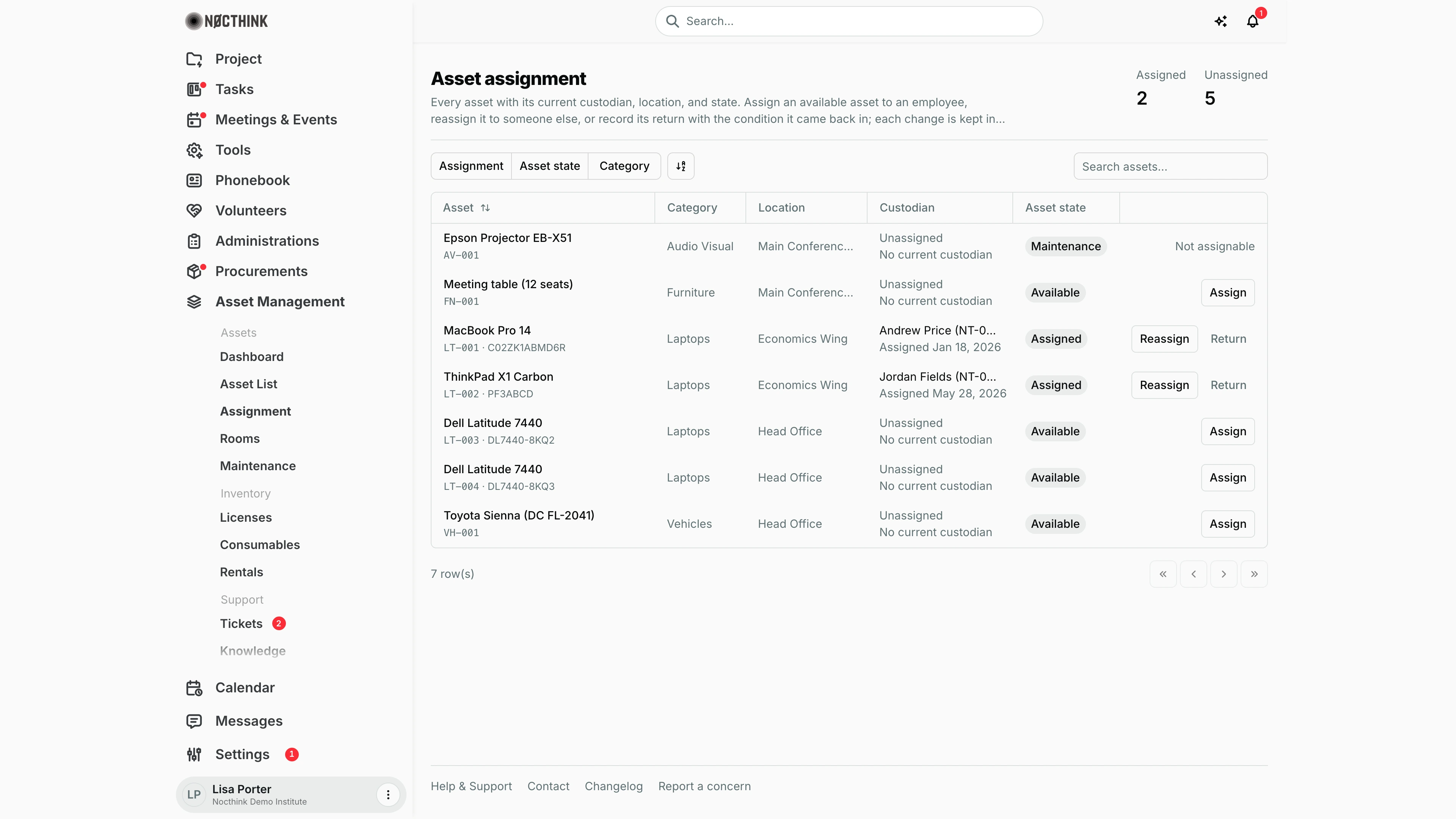
Screenshot: Lisa Porter (Operations Officer), Nocthink Demo Institute demo data.
Why I use this page
I use this page to keep custody of equipment straight: who has which laptop, vehicle, or projector, since when, and in what condition it went out and came back. I open it whenever someone joins, leaves, swaps a device, or returns borrowed equipment, and before audits to confirm every assigned asset has a named custodian. Each change is kept in the asset's custody history, which I can see on the asset's Assignments tab.
What's on the screen
- Header: title Asset assignment, a description, and two counters on the right: Assigned (assets with a current custodian) and Unassigned.
- Toolbar: filter buttons Assignment (Assigned / Unassigned), Asset state (Available, Assigned, Maintenance, Retired, Lost), and Category, plus Search assets... (by name).
- Table columns:
- Asset — name with tag and serial number; links to the asset detail page.
- Category.
- Location — the room, or the site if the asset has no room ("Not set" if neither).
- Custodian — the employee name and number with "Assigned <date>" (e.g. "Assigned Jan 18, 2026"), or "Unassigned / No current custodian". Long names are cut off with "…".
- Asset state — the asset's status pill (Lost in red).
- Actions (unlabelled last column) — Assign for an unassigned Available asset; Reassign and Return for an asset someone holds; "Not assignable" for an unassigned asset in Maintenance, Retired, or Lost.
- Footer: the row count.
How I …
How I hand an asset to an employee
- Find the asset (filter Assignment → Unassigned, or search by name).
- Click Assign. The Assign asset dialog opens (see Assign asset below).
- Pick the Employee (type to search employees).
- Check Assignment date (defaults to today; required).
- Optionally enter Condition at assignment (e.g. "Good", max 100 characters) and Notes (accessories, custody details).
- Click Confirm assignment. The asset's state changes to Assigned, and the employee gets an "Asset assigned" notification.
How I move an asset to someone else
- On a row with a custodian, click Reassign (see Reassign asset below). The dialog shows the Current employee and their assignment date.
- Pick the new Employee, set the Assignment date, condition, and notes.
- Read the note "Saving will close <name>'s assignment on <date>." — the old assignment is closed with that date as its return date.
- Click Confirm reassignment. The new holder gets "Asset assigned", the previous holder gets "Asset reassigned".
How I record a return
- On the custodian's row, click Return (see Return asset below).
- Set Return date (defaults to today; cannot be earlier than the assignment date).
- Enter Condition at return (e.g. "Fair") and Return notes (damage, missing accessories, handover details).
- Click Confirm return. The asset goes back to Available (unless it is in Maintenance, Retired, or Lost), and the employee gets an "Asset returned" notification.
- If the asset came back damaged, I log a job on Maintenance and set the asset's status to Maintenance via Edit on the Asset List.
How I check one asset's custody history
- Click the asset name to open its detail page.
- Open the Assignments tab to see every past and current assignment with dates and conditions.
Detail page, forms & dialogs
Assign asset
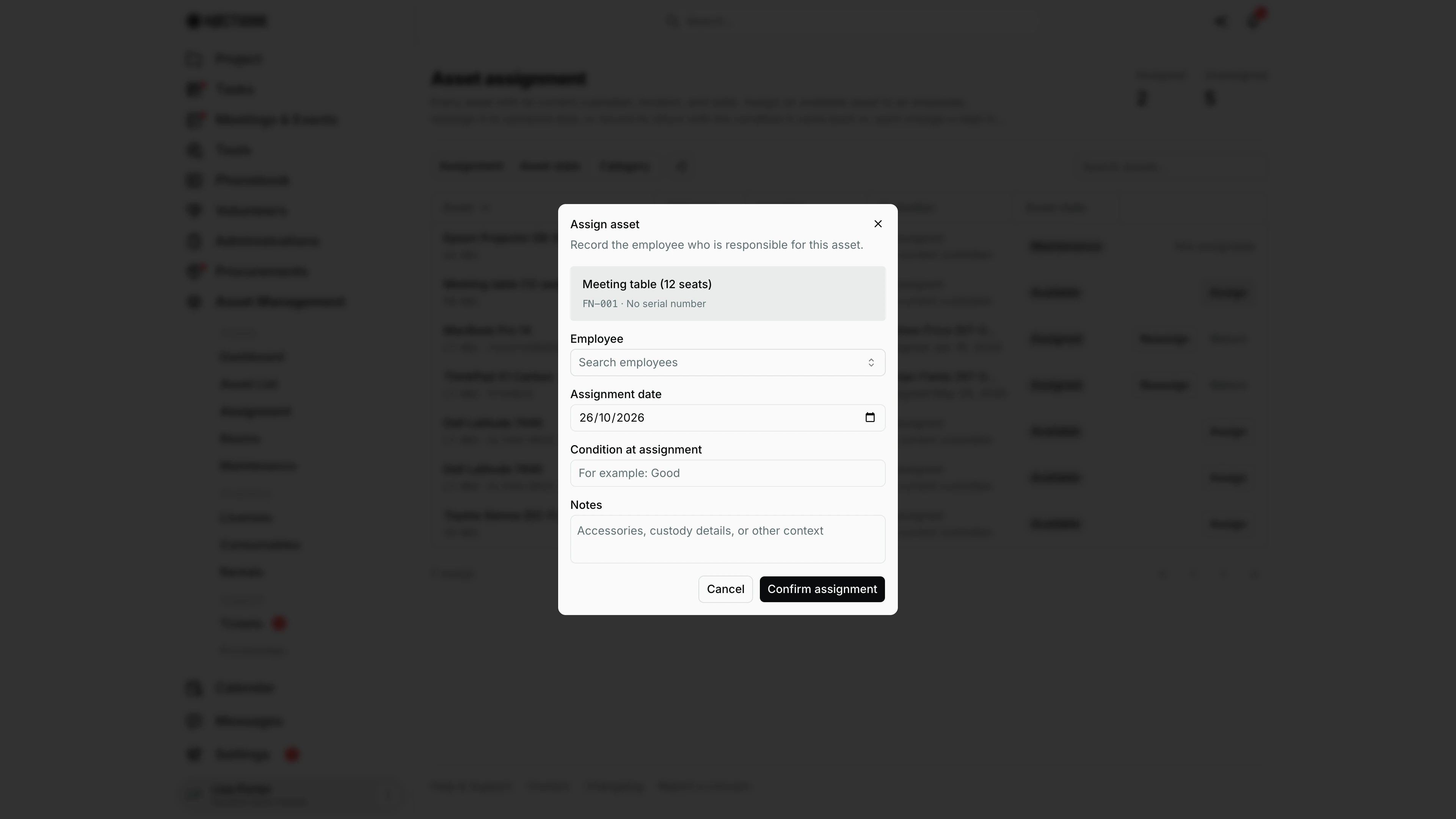
Screenshot: Lisa Porter (Operations Officer), Nocthink Demo Institute demo data.
Assign on an unassigned row opens Assign asset — "Record the employee who is responsible for this asset." The asset's name, tag and serial are shown at the top so I know which item I am handing over.
Fields: Employee (type to search), Assignment date (today by default), Condition at assignment ("For example: Good") and Notes ("Accessories, custody details, or other context"). Confirm assignment sets the asset to Assigned and notifies the employee; Cancel closes without saving.
Only assets without a current holder show Assign; the dialog does not change the asset's room or location.
Reassign asset
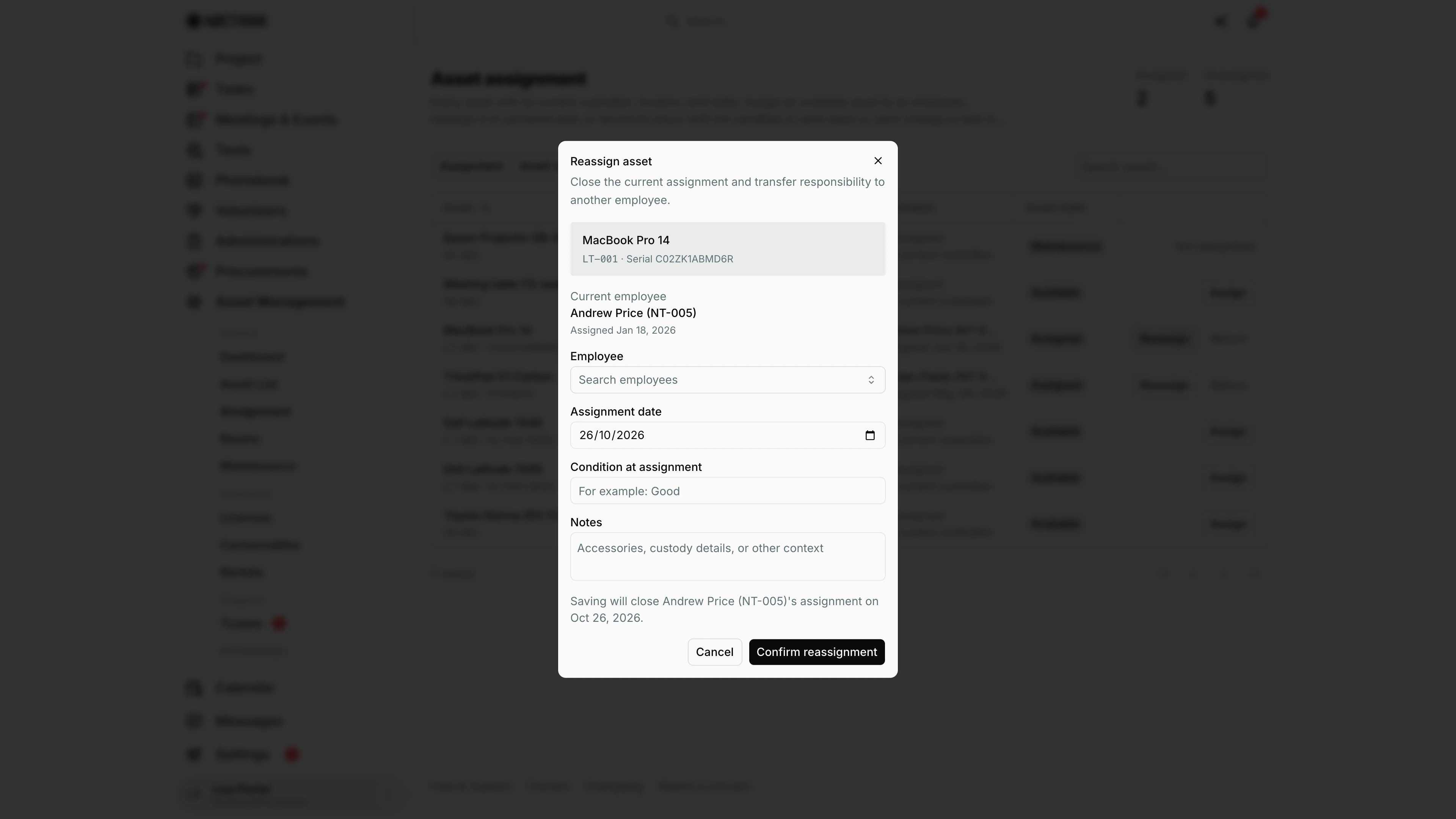
Screenshot: Lisa Porter (Operations Officer), Nocthink Demo Institute demo data.
On a row that already has a custodian the button reads Reassign, and the dialog is Reassign asset — "Close the current assignment and transfer responsibility to another employee." It shows the Current employee and the date they received it, then the same fields as an assignment: Employee, Assignment date, Condition at assignment, Notes.
A note under the fields warns that saving closes the current holder's assignment on the new date. Confirm reassignment does both steps at once; both people are notified.
Return asset
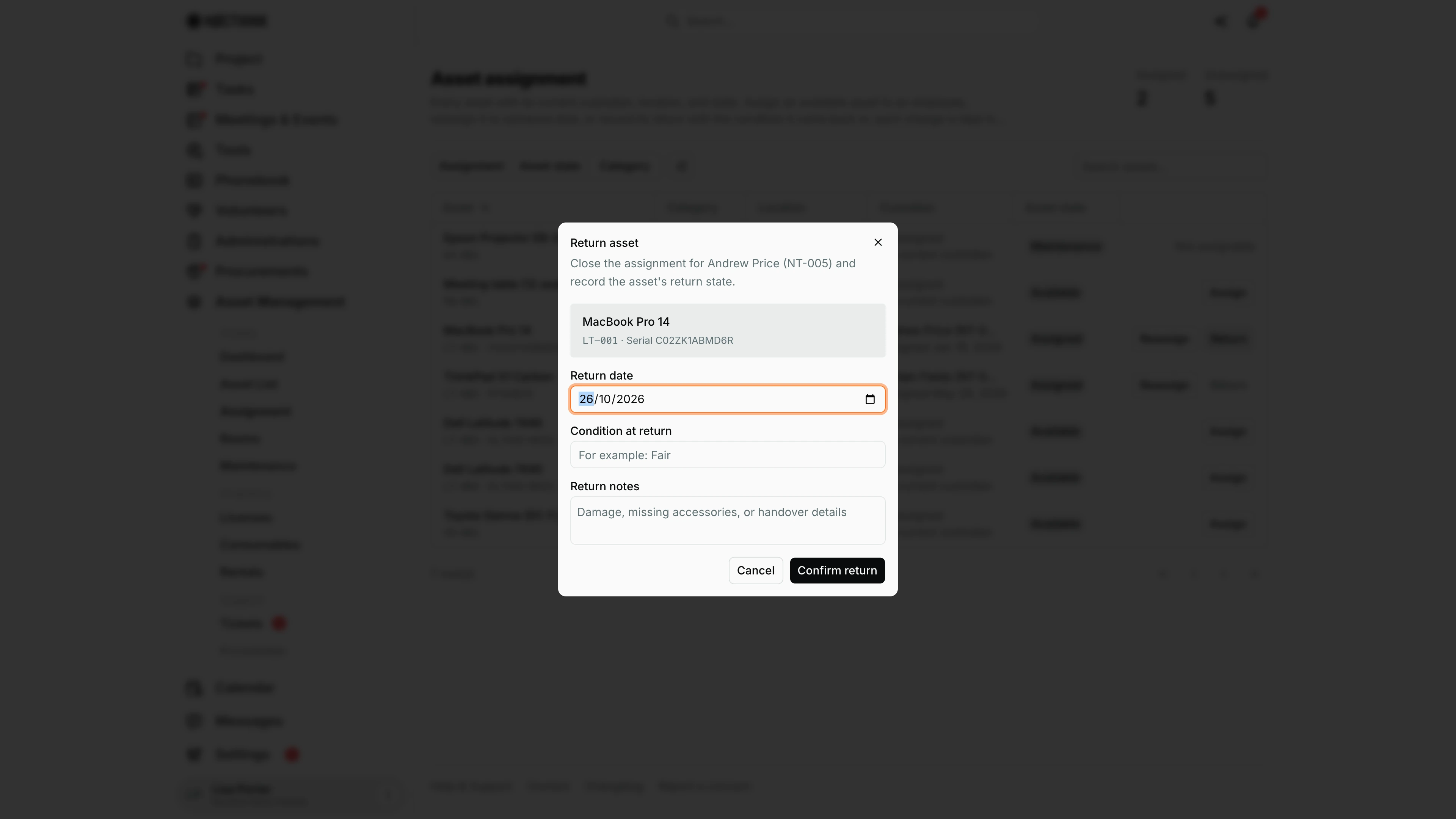
Screenshot: Lisa Porter (Operations Officer), Nocthink Demo Institute demo data.
Return on a custodian's row opens Return asset — "Close the assignment for Andrew Price (NT-005) and record the asset's return state." The grey box names the asset, its tag and serial.
Fields: Return date (today by default; it cannot be before the assignment date), Condition at return ("For example: Fair") and Return notes ("Damage, missing accessories, or handover details"). Confirm return closes the assignment, puts the asset back to Available unless it is in Maintenance, Retired or Lost, and notifies the employee.
Access & permissions
- Per docs/role.md: Asset Officer and Owner/Director full; General Affairs read. Staff should see assets assigned to themselves ("My assets"), but that personal page does not exist yet.
- Assign, Reassign, and Return all need
asset_management.updateon the server; a read-only user sees the buttons but gets an error when confirming. - Finance authority is treated as having asset write access by the server.
Caveats
- An asset can have only one current custodian. Assigning it to the person who already holds it fails with "<name> already holds this asset."
- Only Available or Assigned assets can be assigned. To hand out an asset that is in Maintenance, first change its status on the Asset List.
- For a reassignment, the new Assignment date cannot be before the current assignment's date.
- If two people assign the same asset at once, the second gets "This asset was assigned by another request. Refresh and try again."
- There is no edit or delete for an assignment record: a wrong entry can only be corrected by returning and reassigning, and both entries stay in history.
- Notifications are not sent to yourself (if you assign an asset to your own employee record).
- If either assets or assignment history fail to load, the page shows "Assignment data could not be loaded" with Retry and blocks changes until both are current.
Limitations
- No bulk assignment or bulk return.
- No signed handover form or acknowledgement from the employee.
- No "My assets" self-service page for staff (docs/role.md footnote 2).
- No export of custody history.
- License seat assignment is supported by the API but has no screen here or on the Licenses page.
Related menus
- Asset List — change an asset's status or room; open the Assignments tab.
- Dashboard — Assigned/Available counts.
- Maintenance — log repairs for assets returned damaged.
- Audit — physical checks to confirm custodians actually hold their assets.
- Employee — the employee records that appear in the Employee picker.